Download and Install the App
RunSensible Mobile App is available for both iOS and Android devices. To install the app, open the App Store on your iPhone or the Google Play Store on your Android device, search for RunSensible, and tap Install. If the app is already installed on your device, simply tap Open to launch it.
Sign In
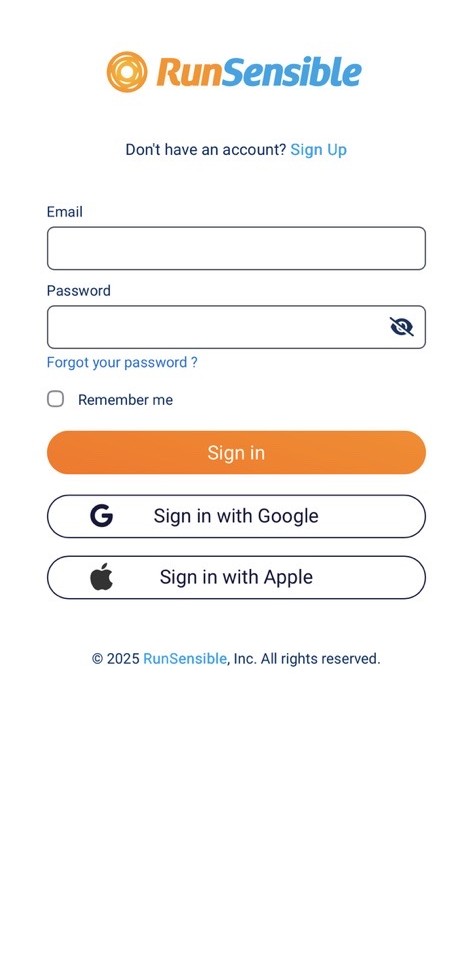
After opening the app, sign in using your RunSensible email address and password, or choose to sign in with your Google account or, on iOS devices, your Apple account.
Navigation Menu
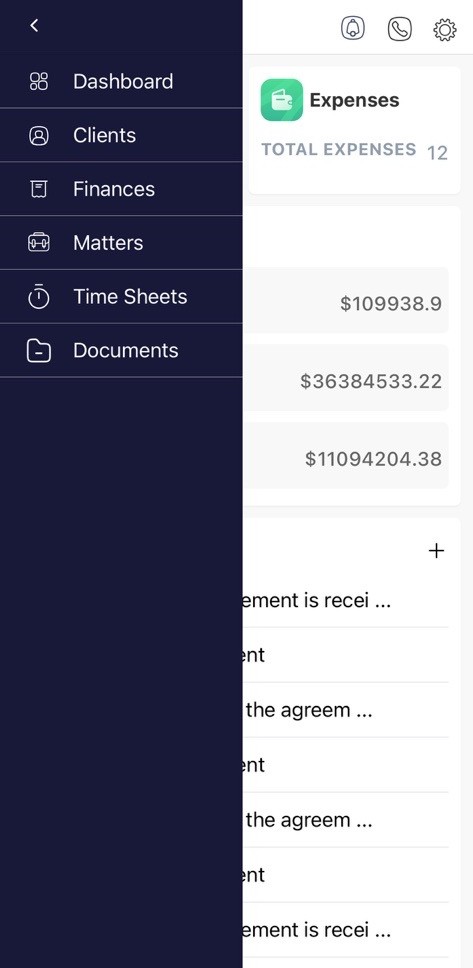
Tap the ☰ Menu icon in the upper-left corner of the app to access the main navigation menu. From here, you can quickly move between major sections of the application, including the Dashboard, Clients, Finances, Matters, Timesheets, and Documents.
Dashboard
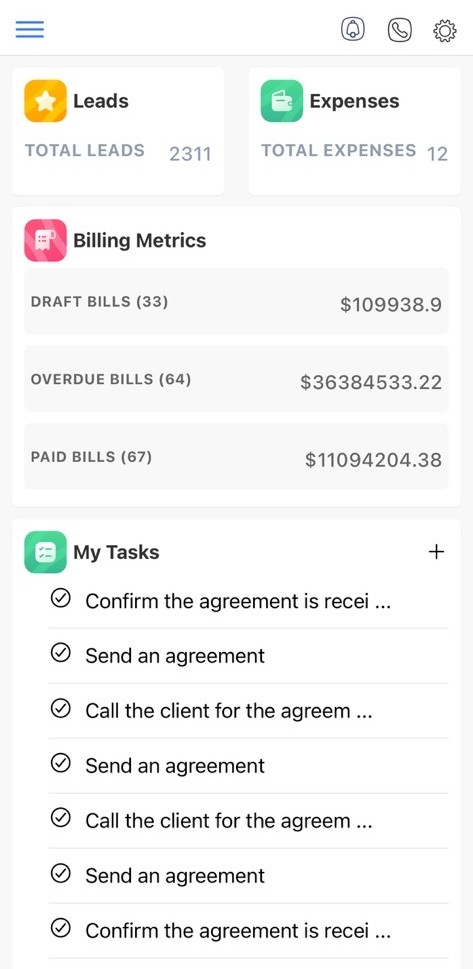
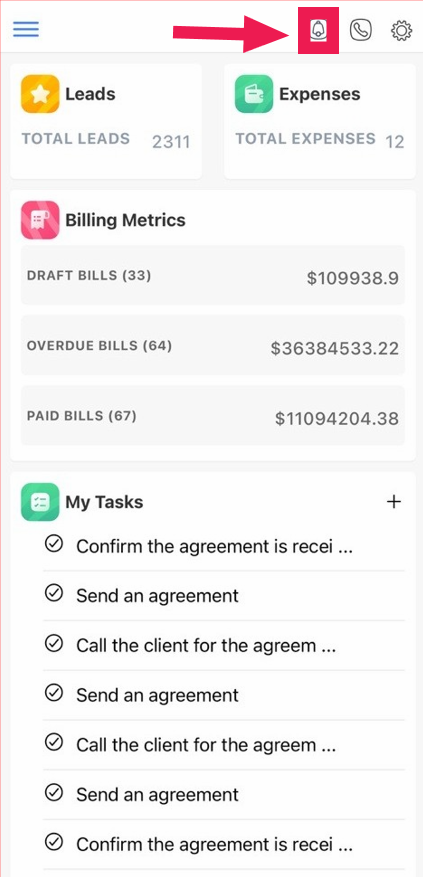
After signing in, you’ll be taken to the Dashboard, where you can quickly monitor important information about your firm. The dashboard provides an overview of your total leads, total expenses, billing metrics—including draft, overdue, and paid bills—and your current tasks.
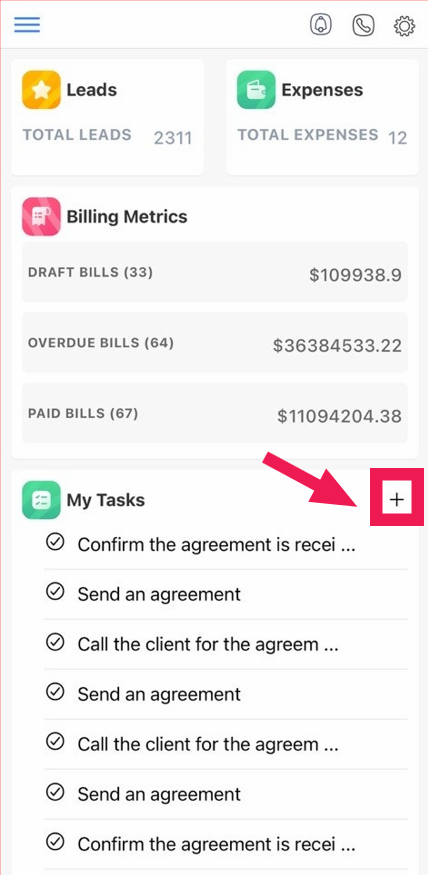
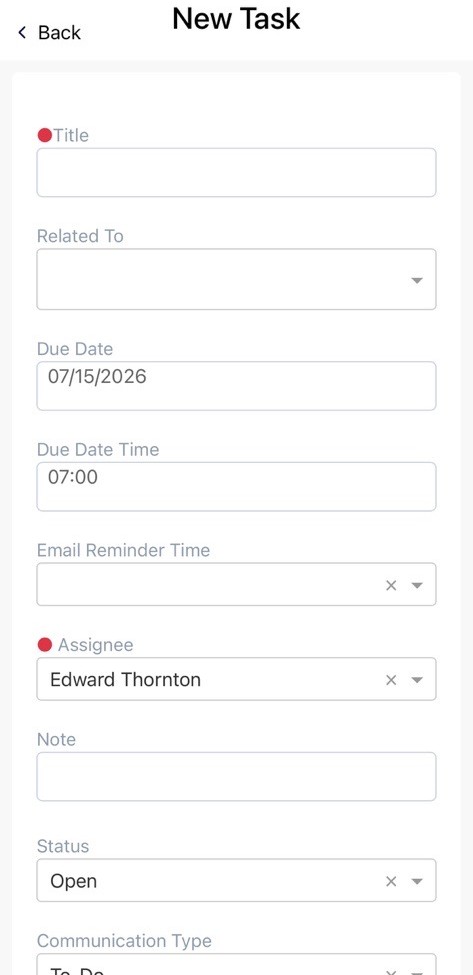
To create a new task, tap the + icon in the My Tasks section. A New Task window will open, where you can enter the required information to create the task.
Clients
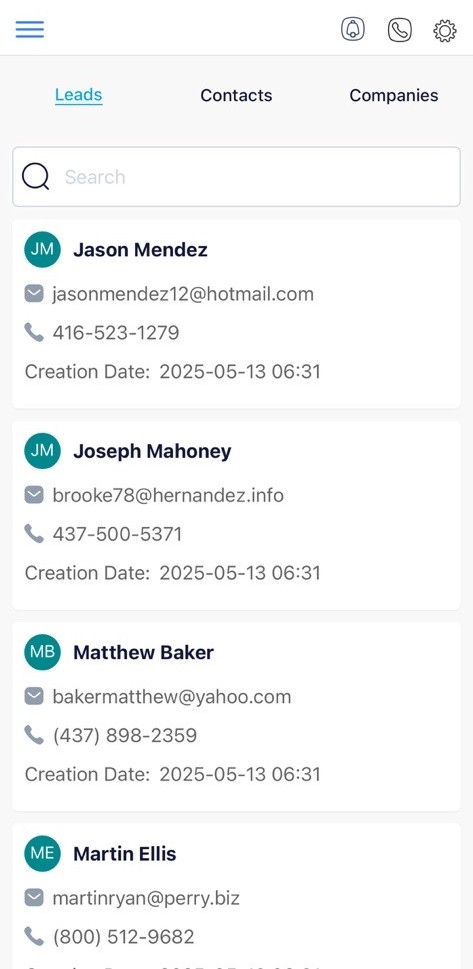
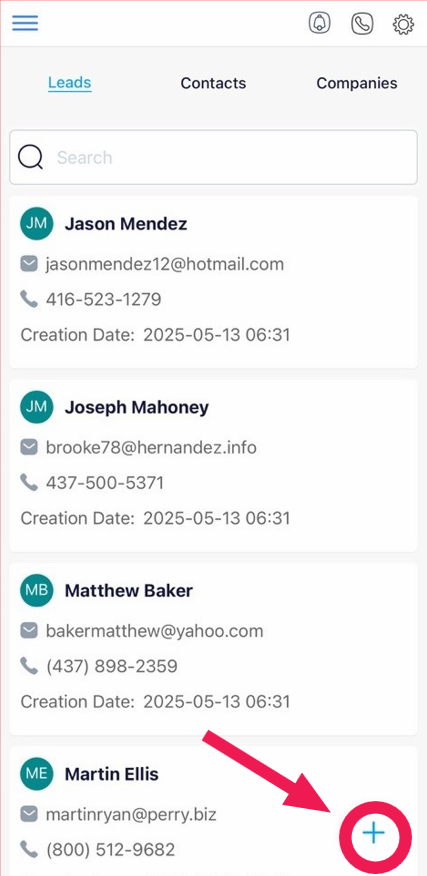
The Clients section allows you to manage your firm’s leads, contacts, and companies from a single, convenient location. Switch between the Leads, Contacts, and Institutions tabs to access different types of records. Use the search bar to quickly find a specific record, and view key information such as names, email addresses, phone numbers, and creation dates. Tap any record to open and view its complete details.
To add a new lead, contact, or institution, tap the + icon at the bottom of the screen.
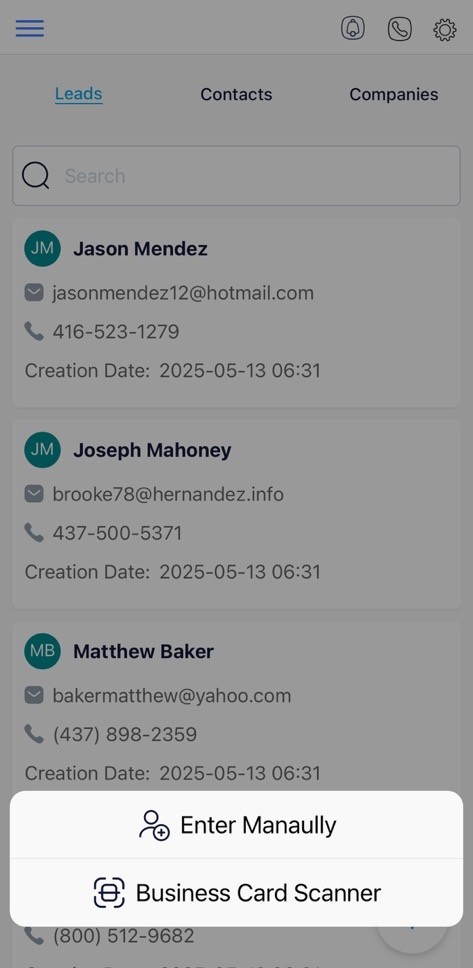
You can then choose one of the following options:
- Enter Manually to create a new record by entering the information yourself.
- Business Card Scanner to scan a business card and automatically capture the contact details.
Finances
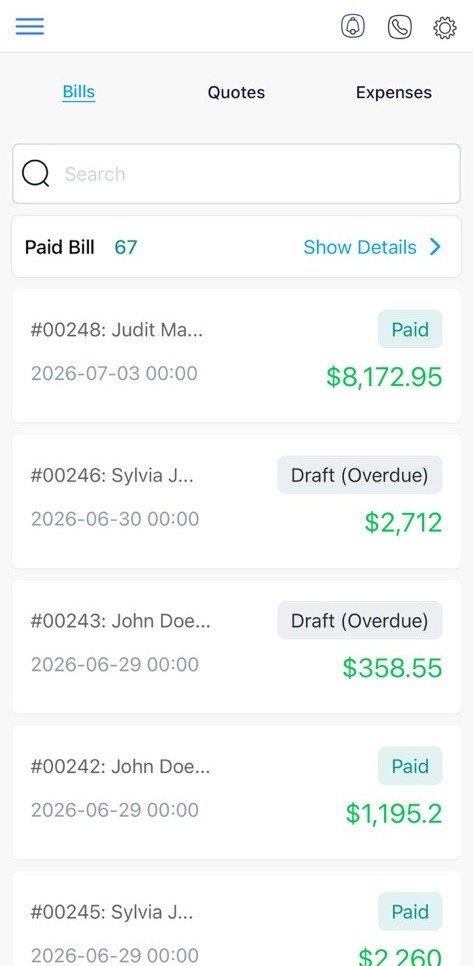
The Finances section gives you quick access to your firm’s financial information. From this page, you can switch between the Bills, Quotes, and Expenses tabs, search for invoices, review bill statuses such as Paid, Draft, Sent, Partially Paid, or Overdue, view invoice numbers, billing dates, and amounts, and open any bill to view additional details.
Matters
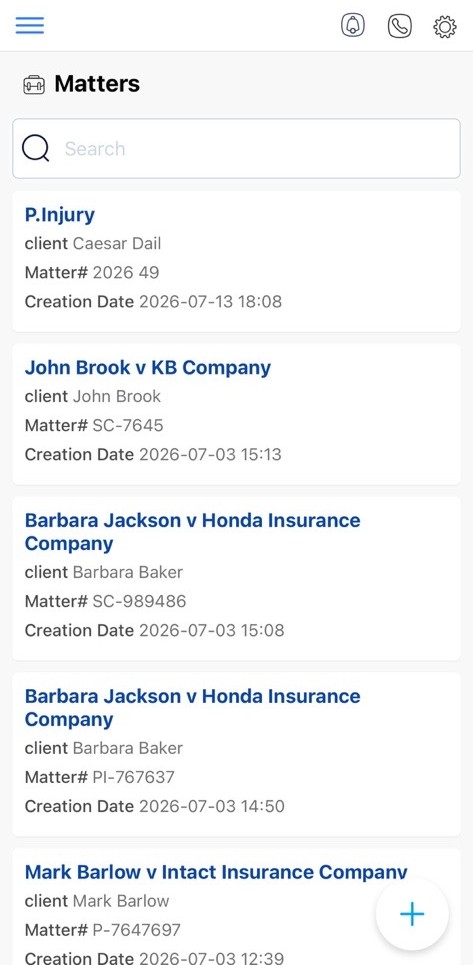
The Matters section provides a centralized view of all your legal matters, making it easy to manage and access case information. You can use the search bar to quickly locate a matter, and each record displays the matter name, associated client, matter number, and creation date. Tap any matter to open its details.
Within a matter, you can quickly manage communications by sending emails, scheduling meetings, creating notes, or adding activity logs using the action buttons at the top of the screen.
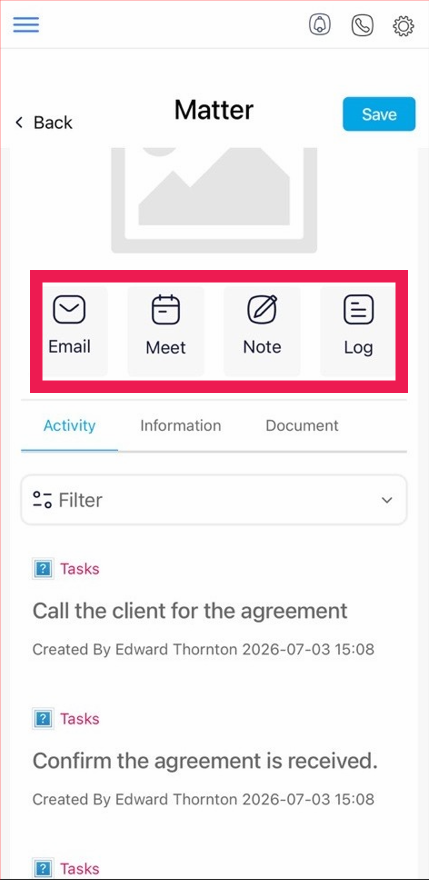
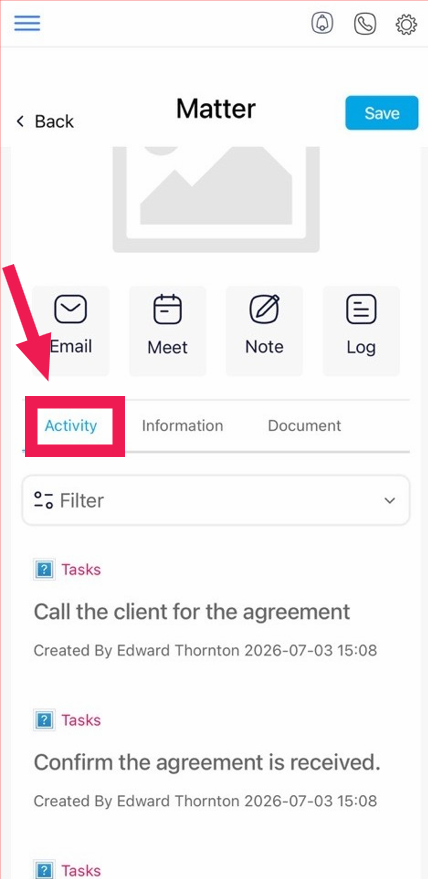
The Activity tab displays a timeline of matter-related activities, including tasks, communications, and other updates, helping you keep track of everything associated with the matter.
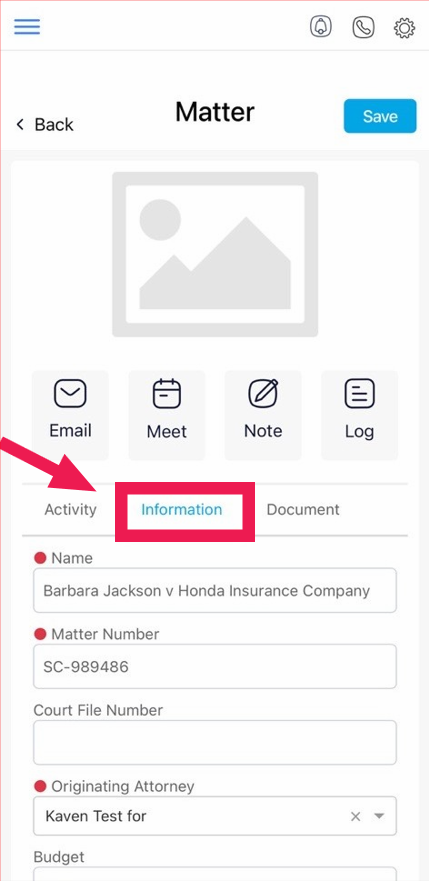
The Information tab contains the matter’s details, such as the matter name, matter number, court file number, originating attorney, budget, and other related information. You can update these details as needed and tap Save to apply your changes.
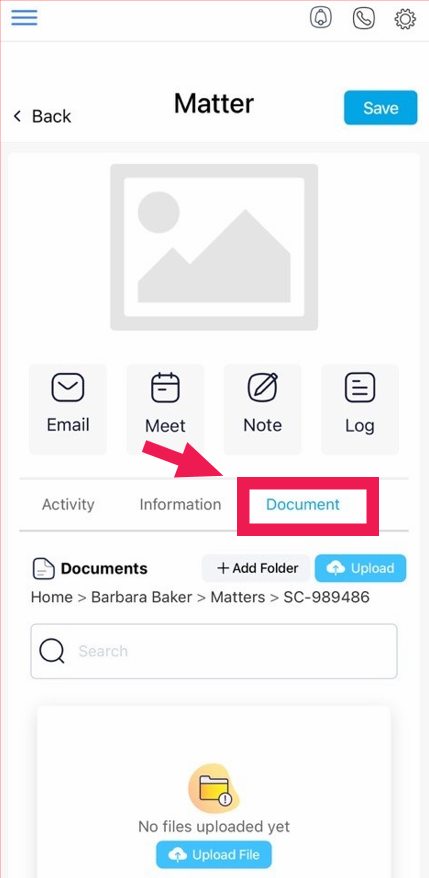
The Document tab allows you to organize and manage files related to the matter. You can create folders, upload documents, search for existing files, and keep all matter-related documents stored in one convenient location.
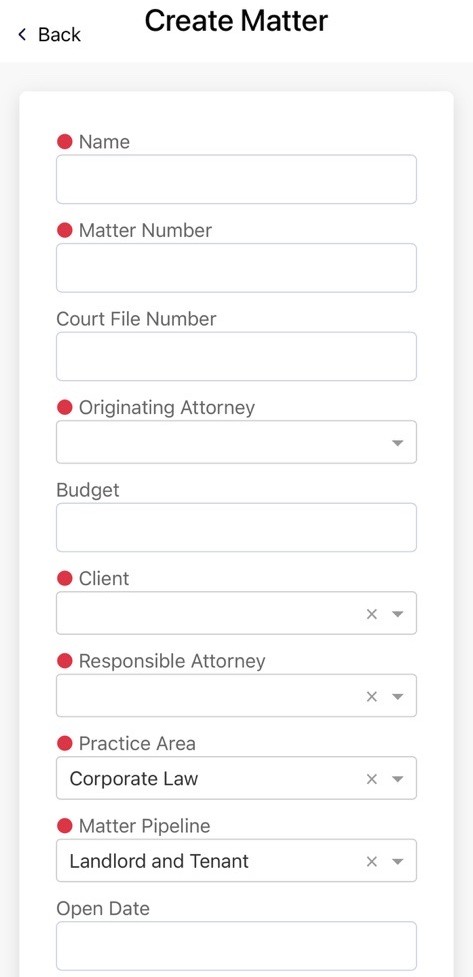
To create a new matter, tap the + icon at the bottom of the screen.
Image 15
A new Matter window will open, where you can enter the required information and then tap Save to create the matter.
Timesheets
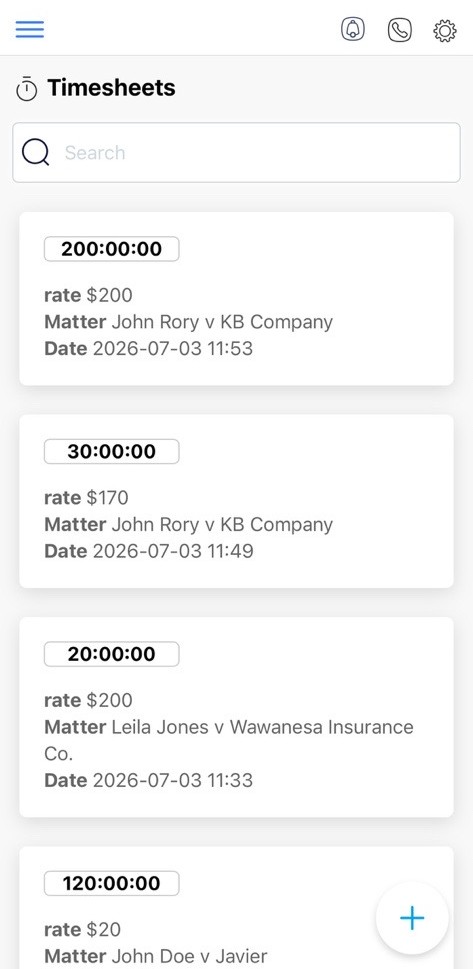
The Timesheets section helps you record and manage your time entries. You can search existing timesheets, review recorded hours, view hourly rates, see the associated matter for each entry, and check the entry dates. To add a new time entry, tap the + button.
Documents
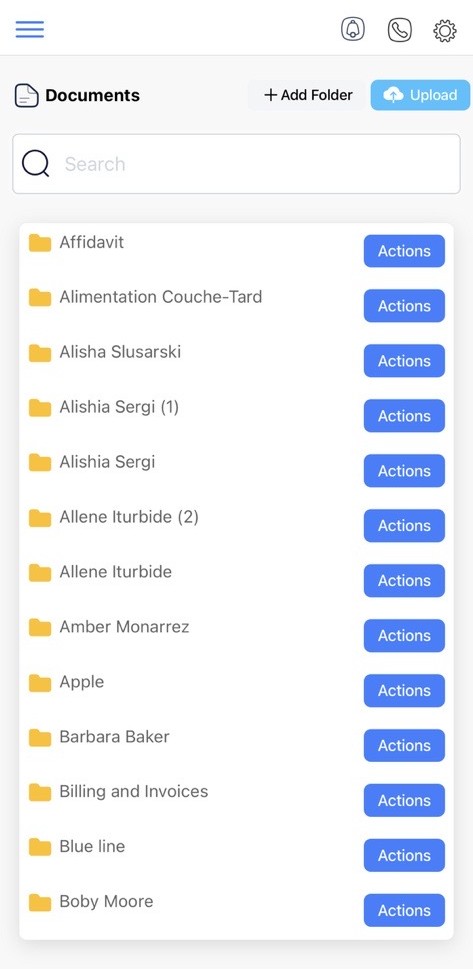
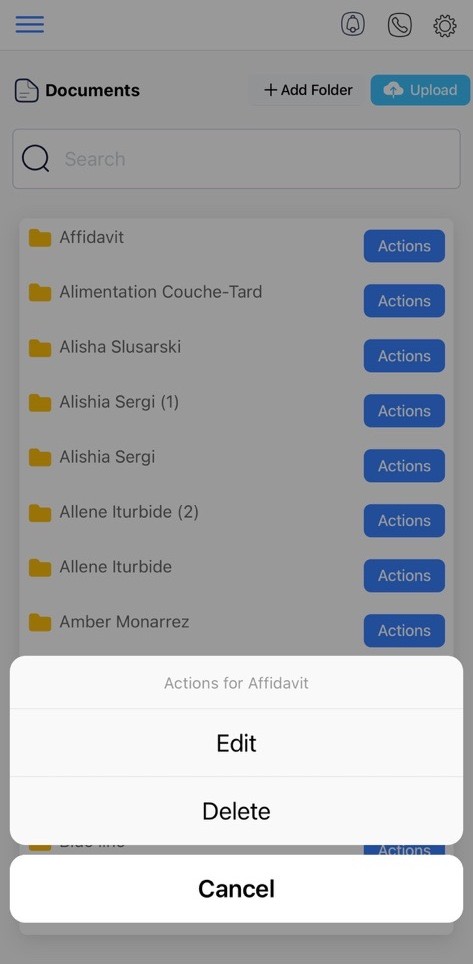
The Documents section allows you to organize and manage your files directly from the mobile app. You can browse folders, search for documents, create new folders, upload individual files or entire folders, and access additional folder management options.
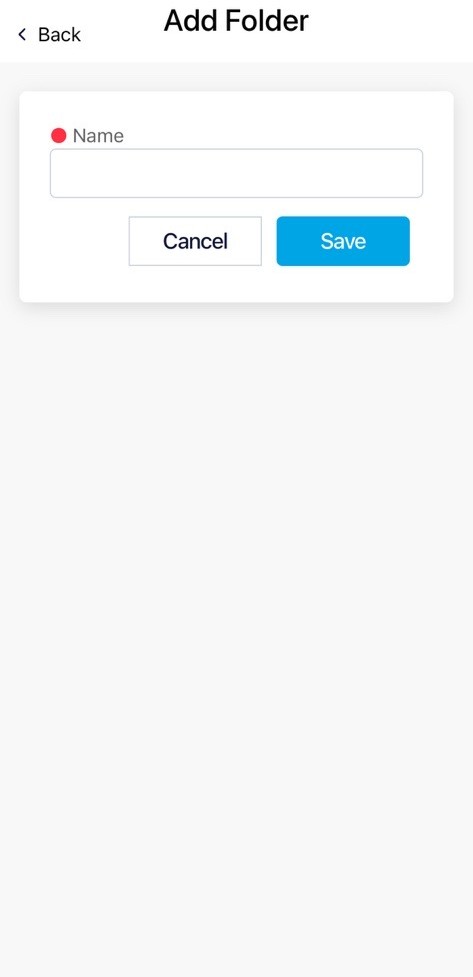
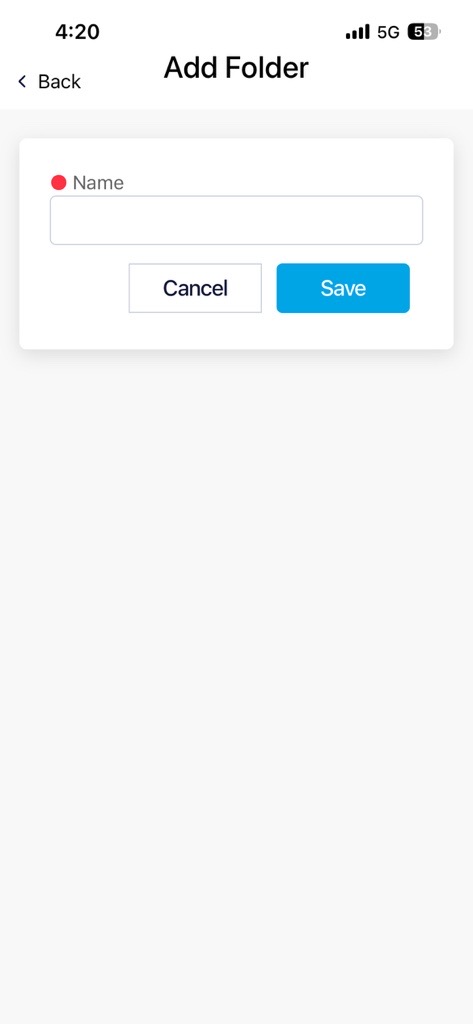
To create a new folder, tap + Add Folder. Enter a name for the folder, then tap Save to create it. If you decide not to create the folder, tap Cancel to return without saving your changes.
To manage a specific folder, tap Actions beside the folder. It allows you Edit or Delete the folder.
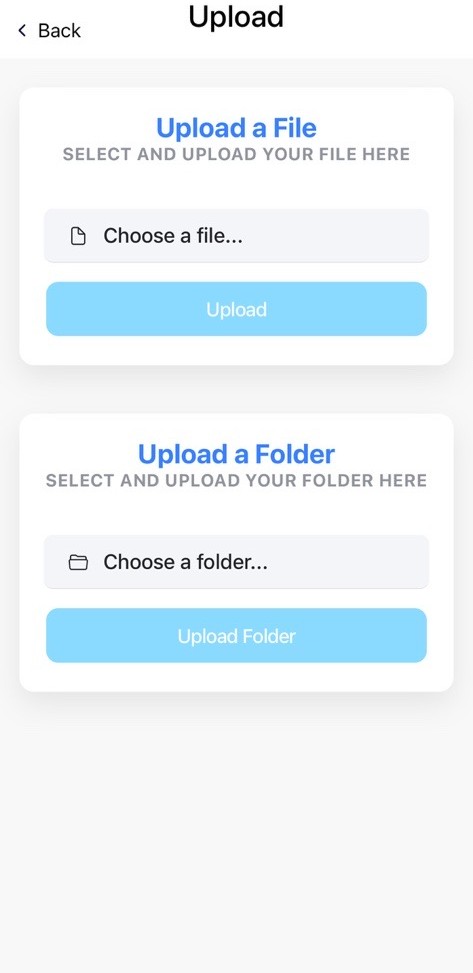
RunSensible allows you to upload both individual files and entire folders from your mobile device. To upload content, tap Upload, and choose whether you’d like to upload a file or a folder. Select the desired item from your device, then tap Upload to add it to your RunSensible account.
Notifications
The Notifications feature keeps you informed about important updates and activities across your firm. To view your notifications, tap the Notifications icon in the top-right corner of the app.
Making Calls
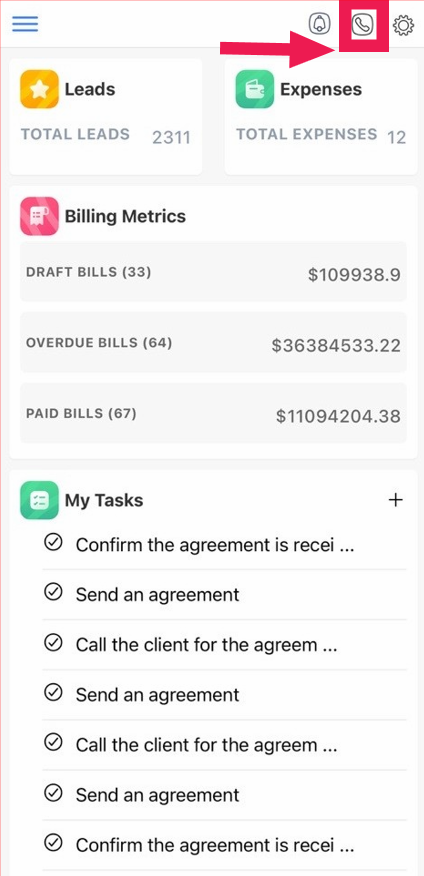
The RunSensible Mobile App allows you to quickly contact your clients and contacts directly from within the app. To make a phone call, tap the Phone icon located in the top-right corner of the screen. The app displays your available contacts and their phone numbers. You can use the search bar to quickly find a specific contact. Tap the Call button next to the desired contact to place the call using your device’s phone application.
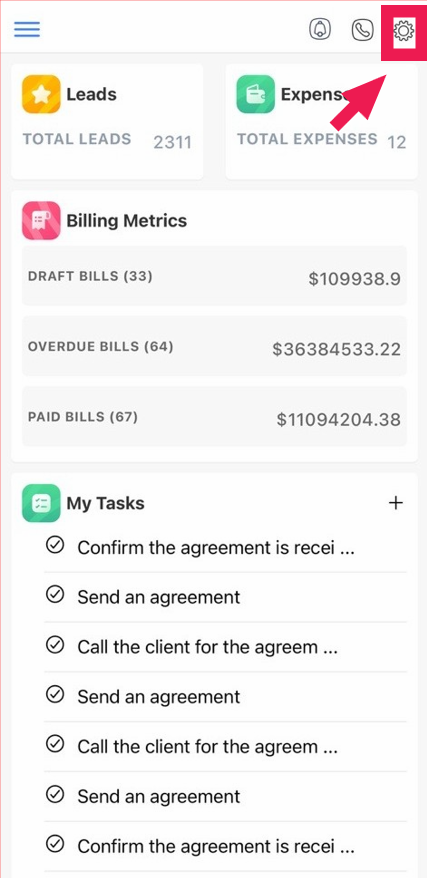
Tap the Settings icon in the upper-right corner of the app to access your account settings.
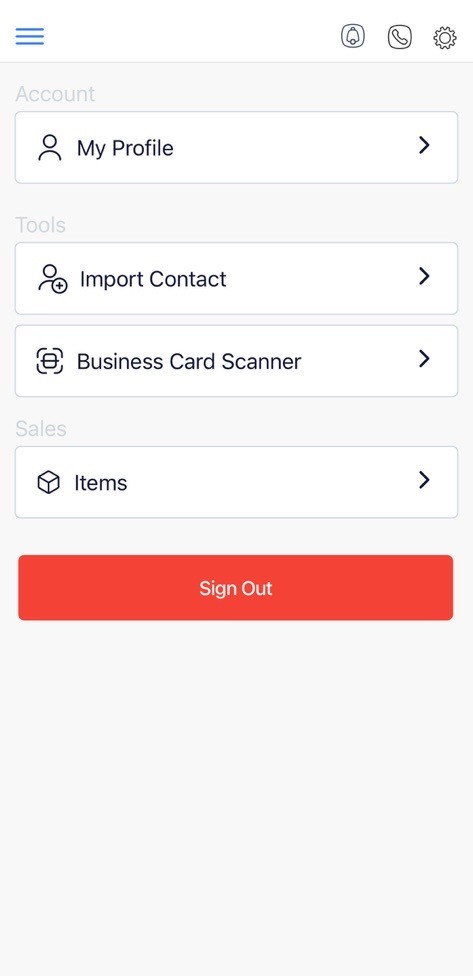
From this page, you can view and update your profile information, import contacts from your mobile device, use the Business Card Scanner to quickly create new leads or contacts, manage billing items used by your firm, and securely sign out of your RunSensible account.