Customizing Your Email Signature
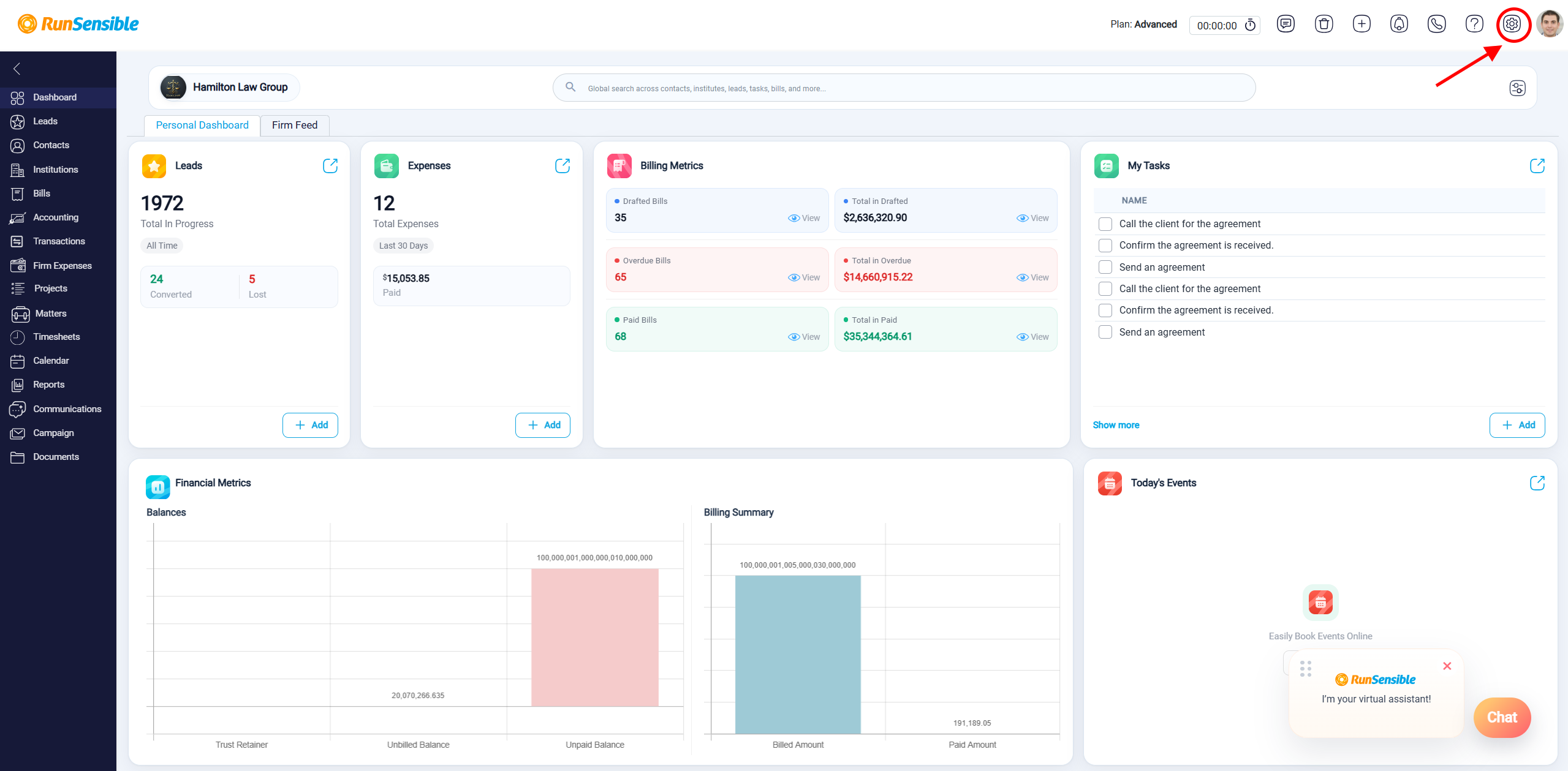
Beyond basic profile information, you can also customize your Email Signature. This feature allows you to add a personal signature to your communications, making your emails more professional. To set up your email signature go to Settings.
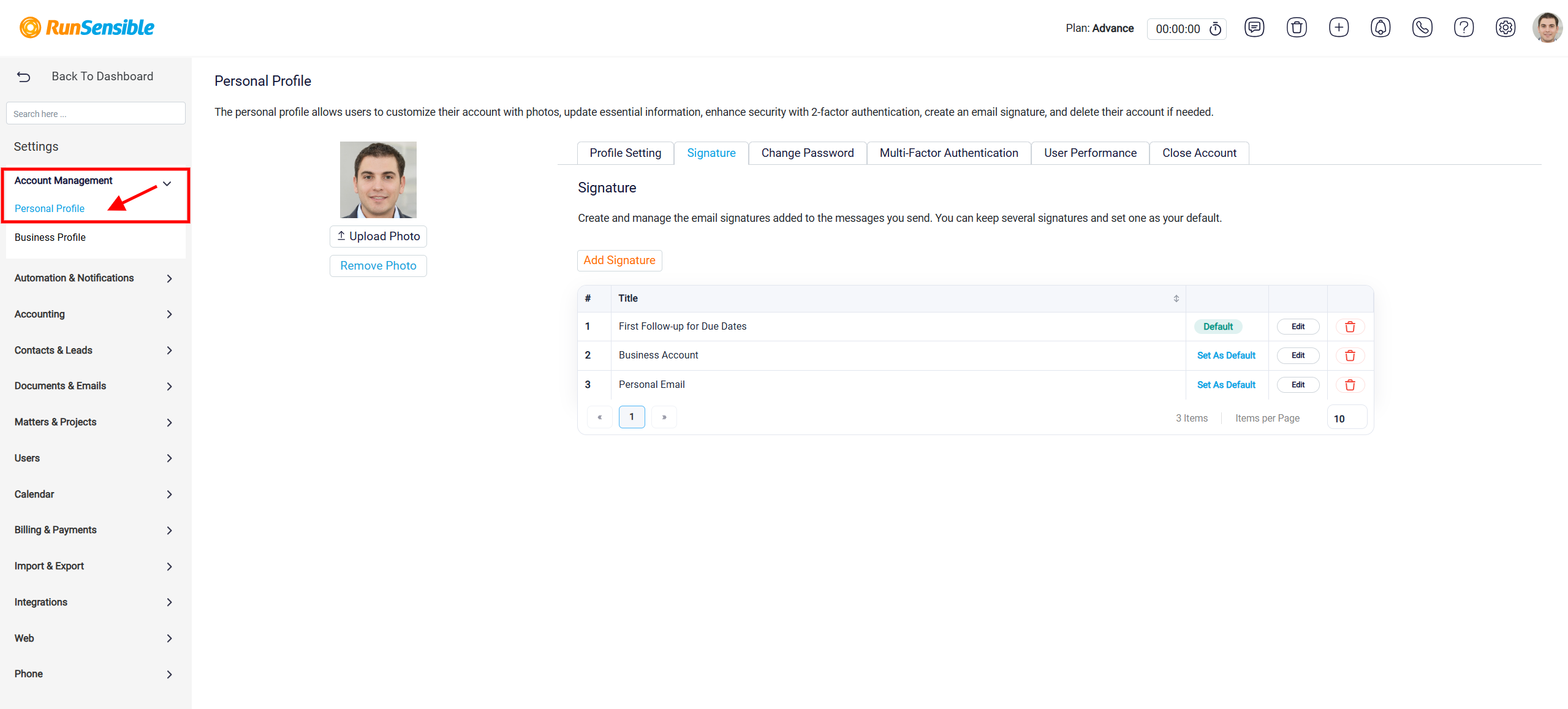
Then click Account Management, select Personal Profile, and open the Signature tab.
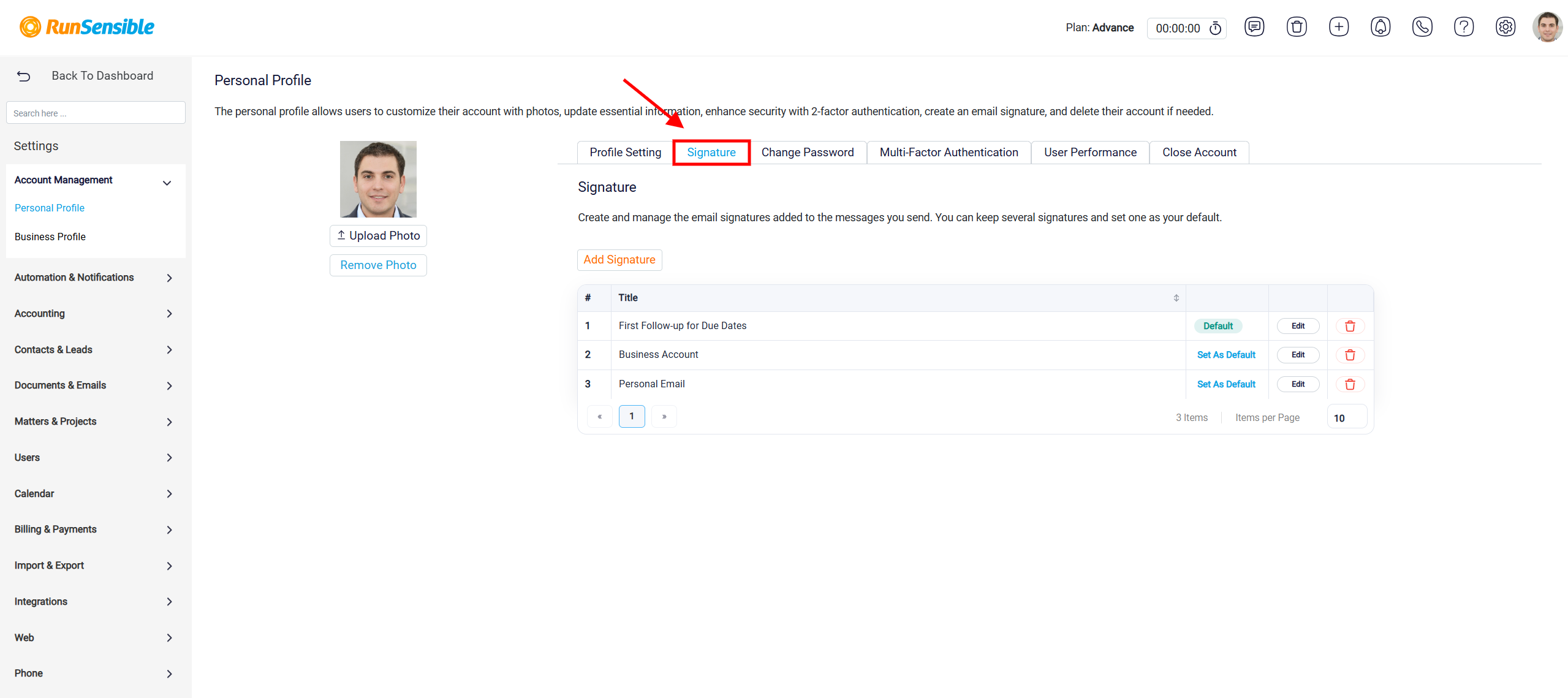
The Signature tab is used to create and manage email signatures for the user account.
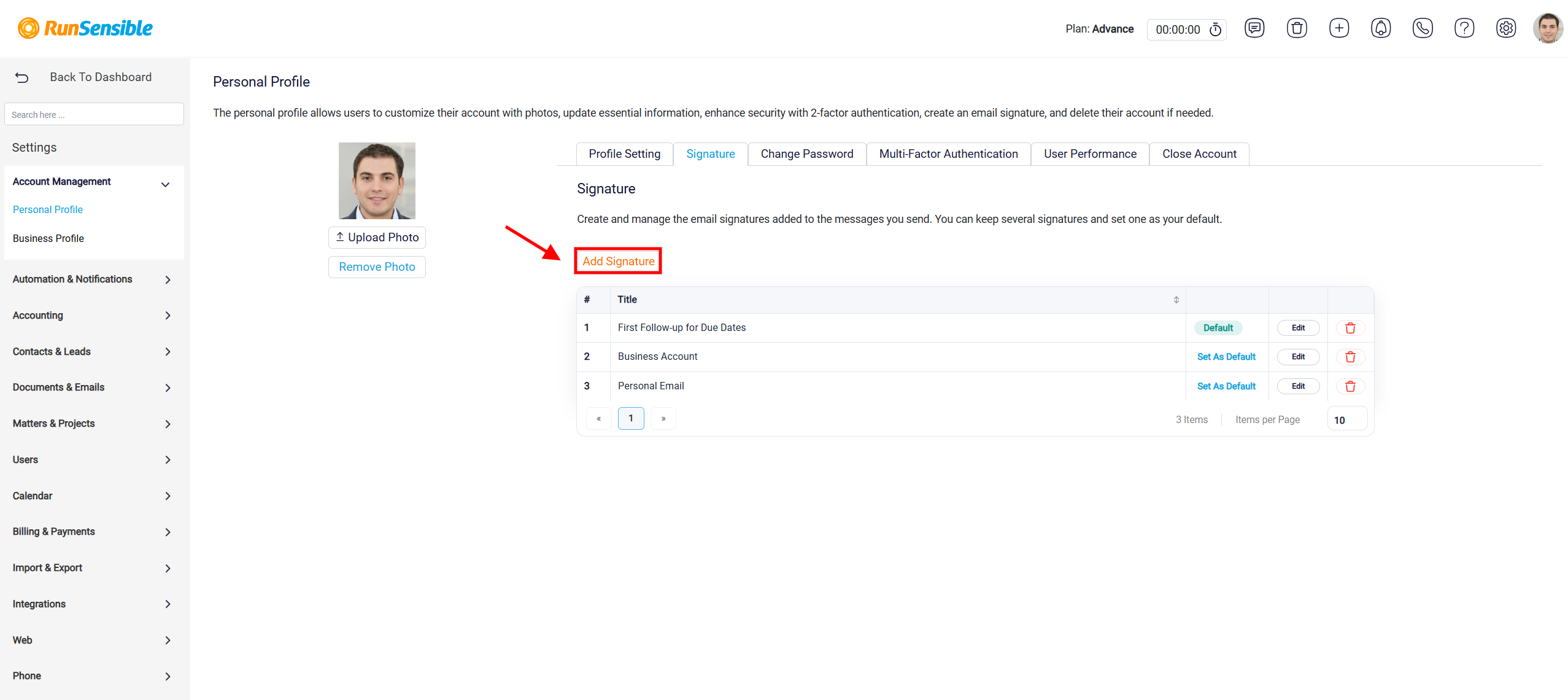
The Add Signature button is used to create a new signature.
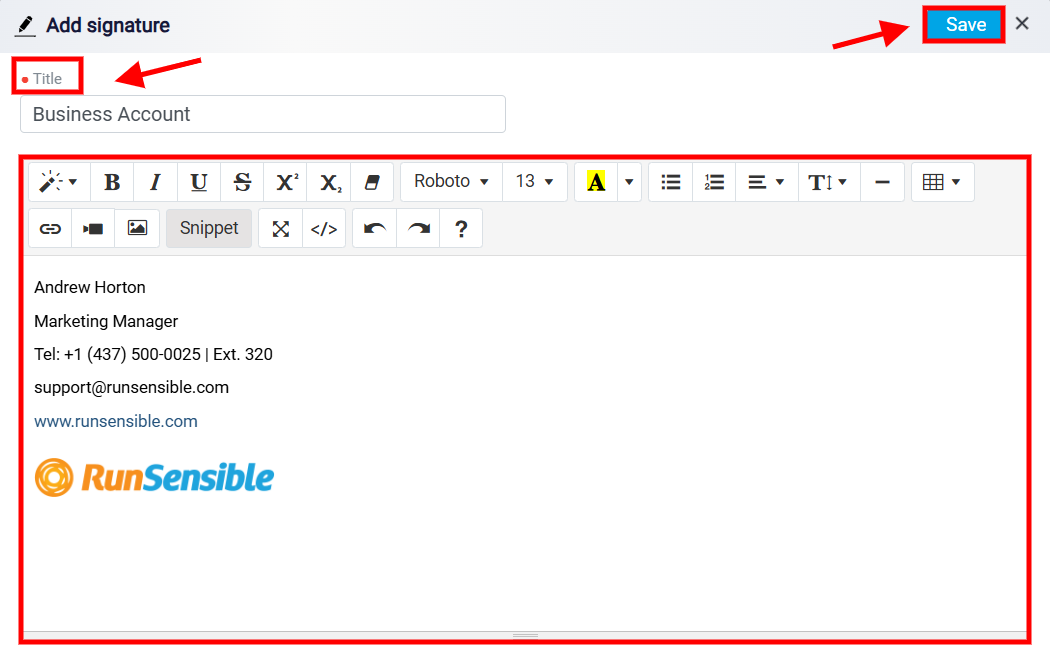
When clicked, the Add Signature panel opens. The user enters a title for the signature and writes the signature content in the editor. After the signature is complete, the user clicks Save, and the signature becomes available for future emails.
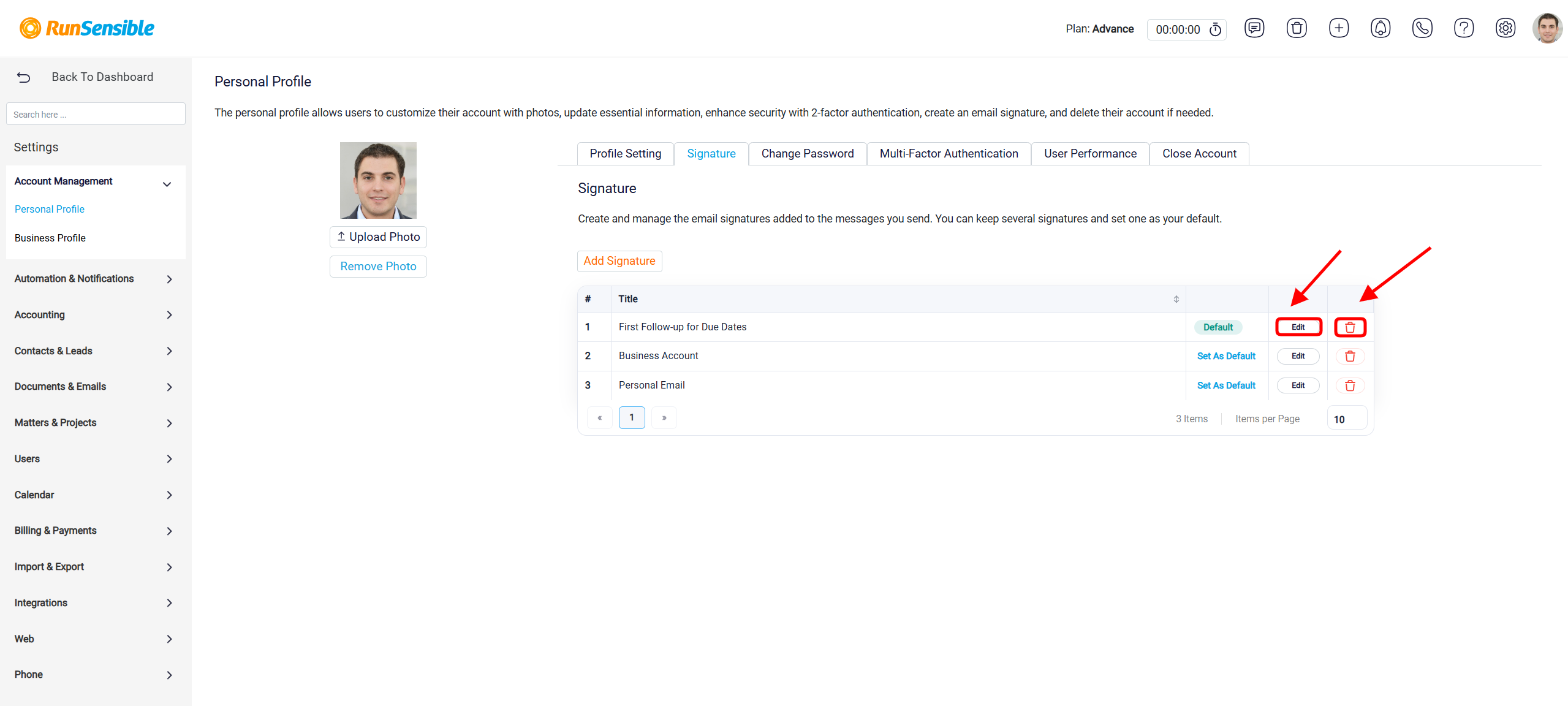
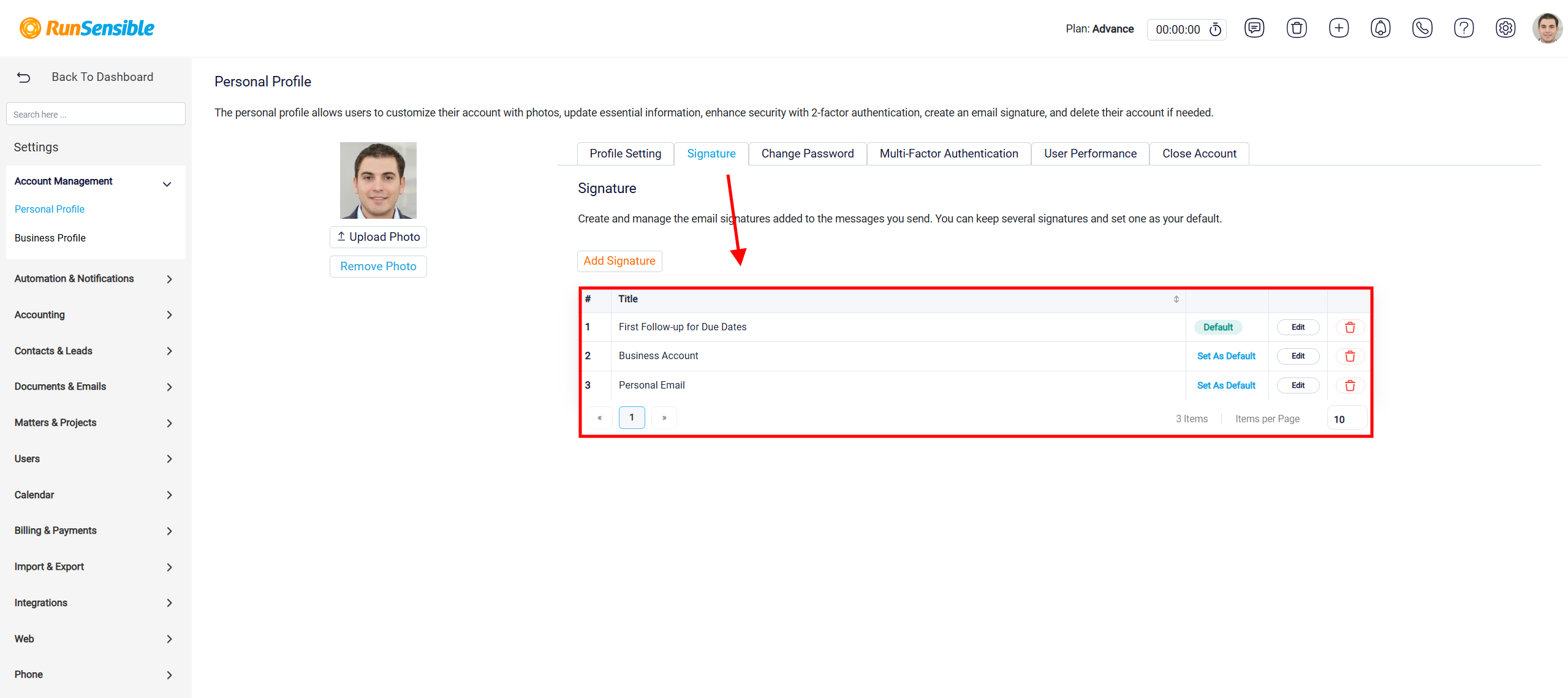
The table shows all signatures that have already been created. Each row represents one signature and shows its title.
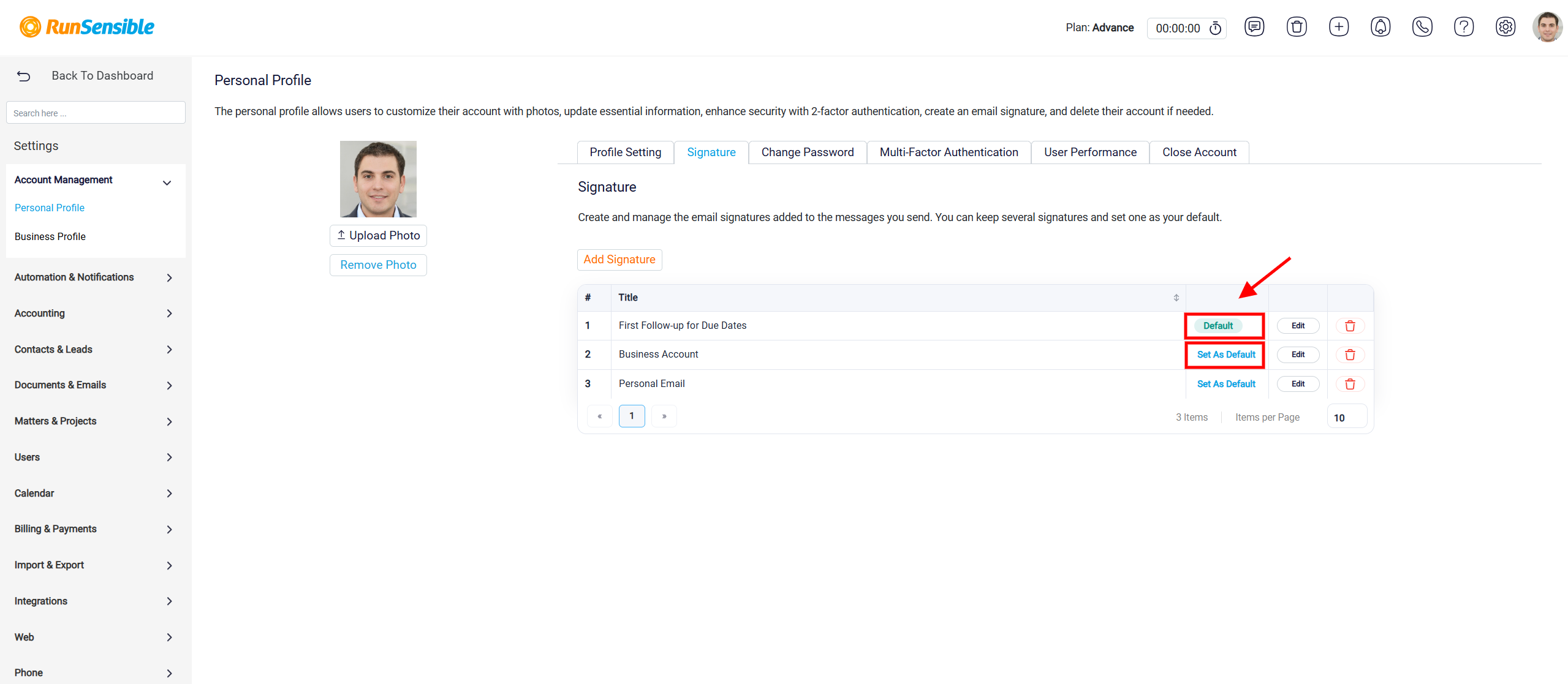
One signature can be marked as the Default signature. The default signature is used automatically unless the user selects a different one. If another signature should become the default, the user can click Set As Default beside that signature.
The Edit button allows the user to update an existing signature. The Delete icon removes a signature that is no longer needed.