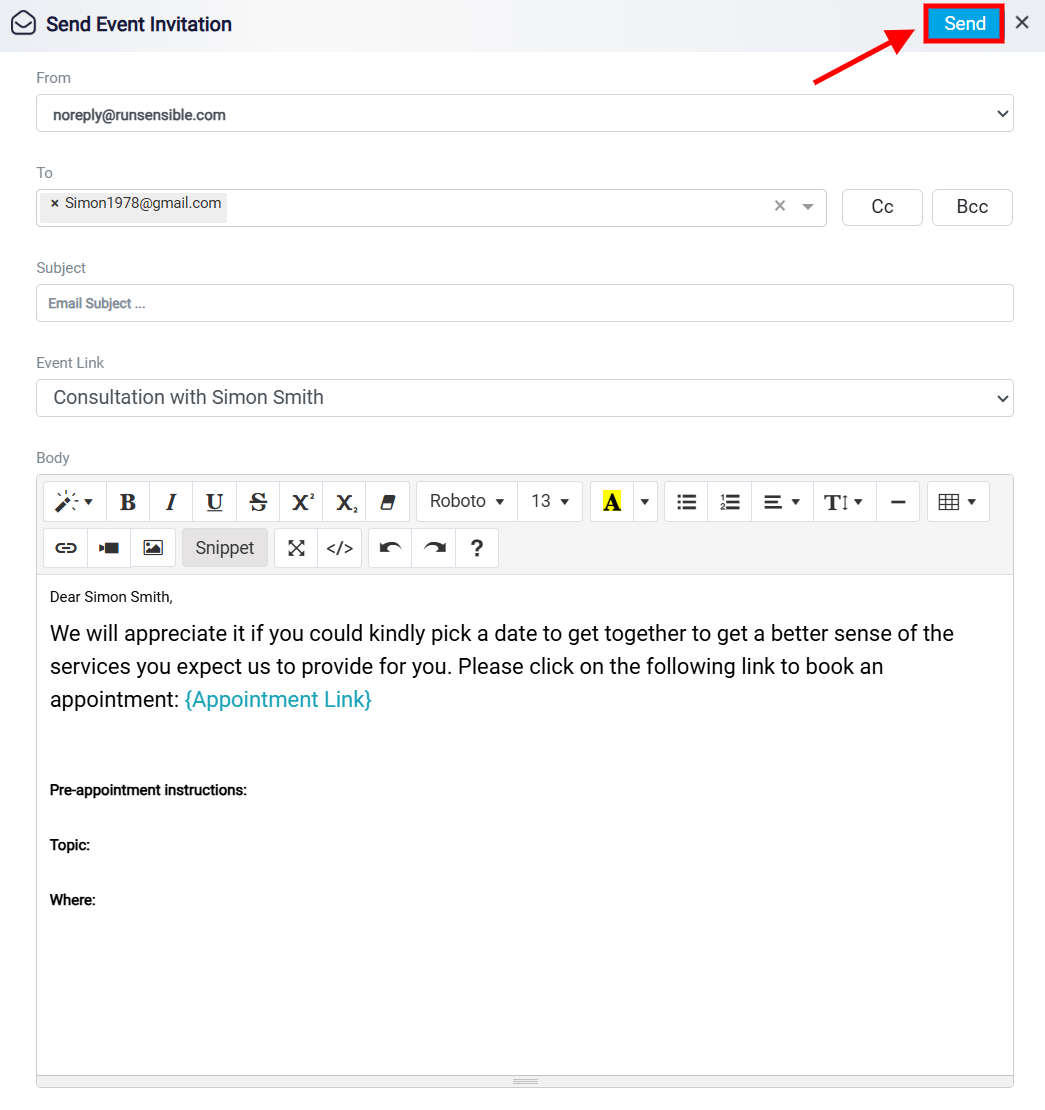
Invite Client with Booking Link
The Invite Client with Booking Link button is used to send the lead or contact an email invitation to book a meeting.
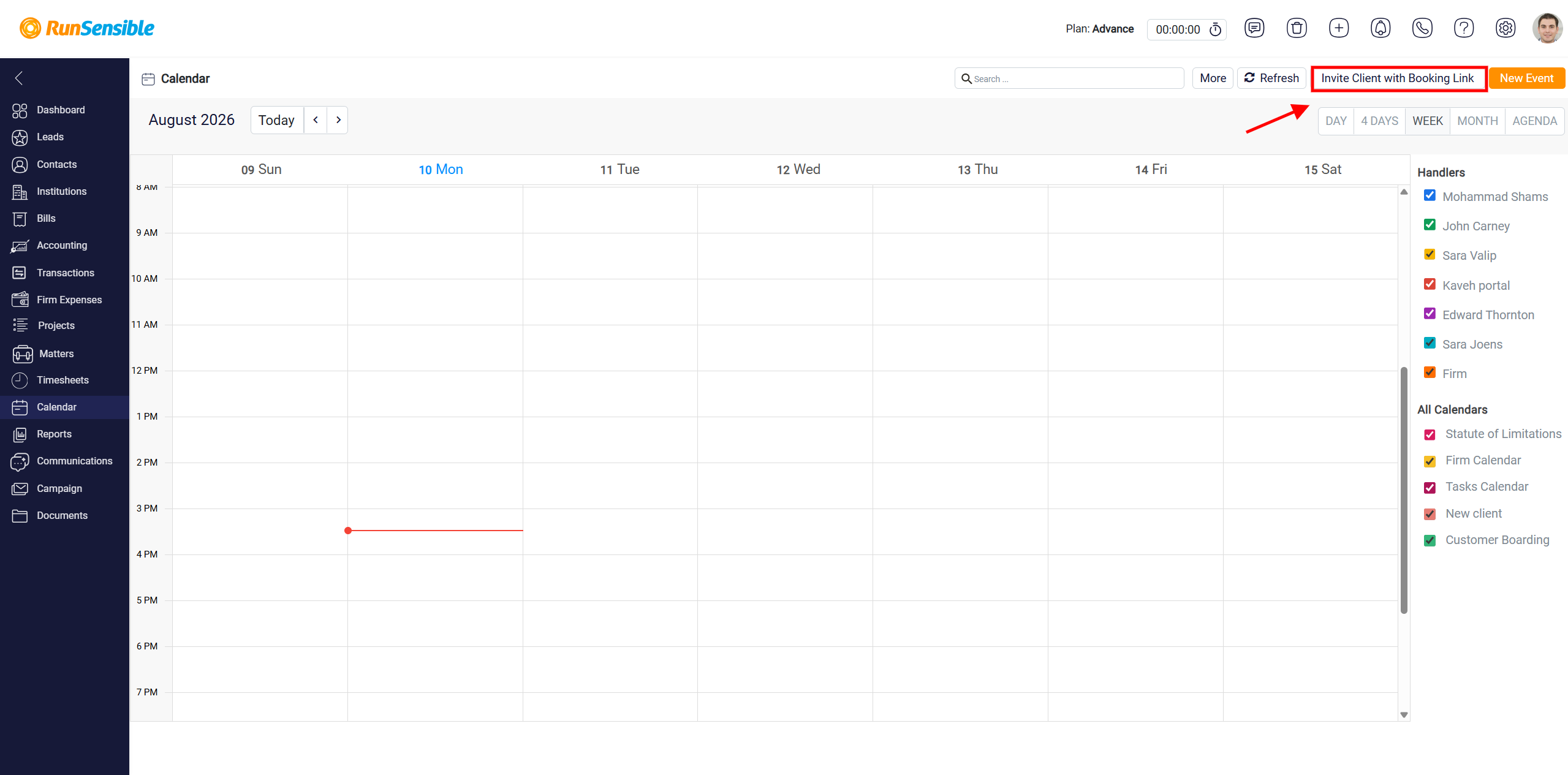
When the user clicks this button, a Send Email panel opens. This email includes a booking link that the lead can use to choose a meeting time based on the selected event configuration.
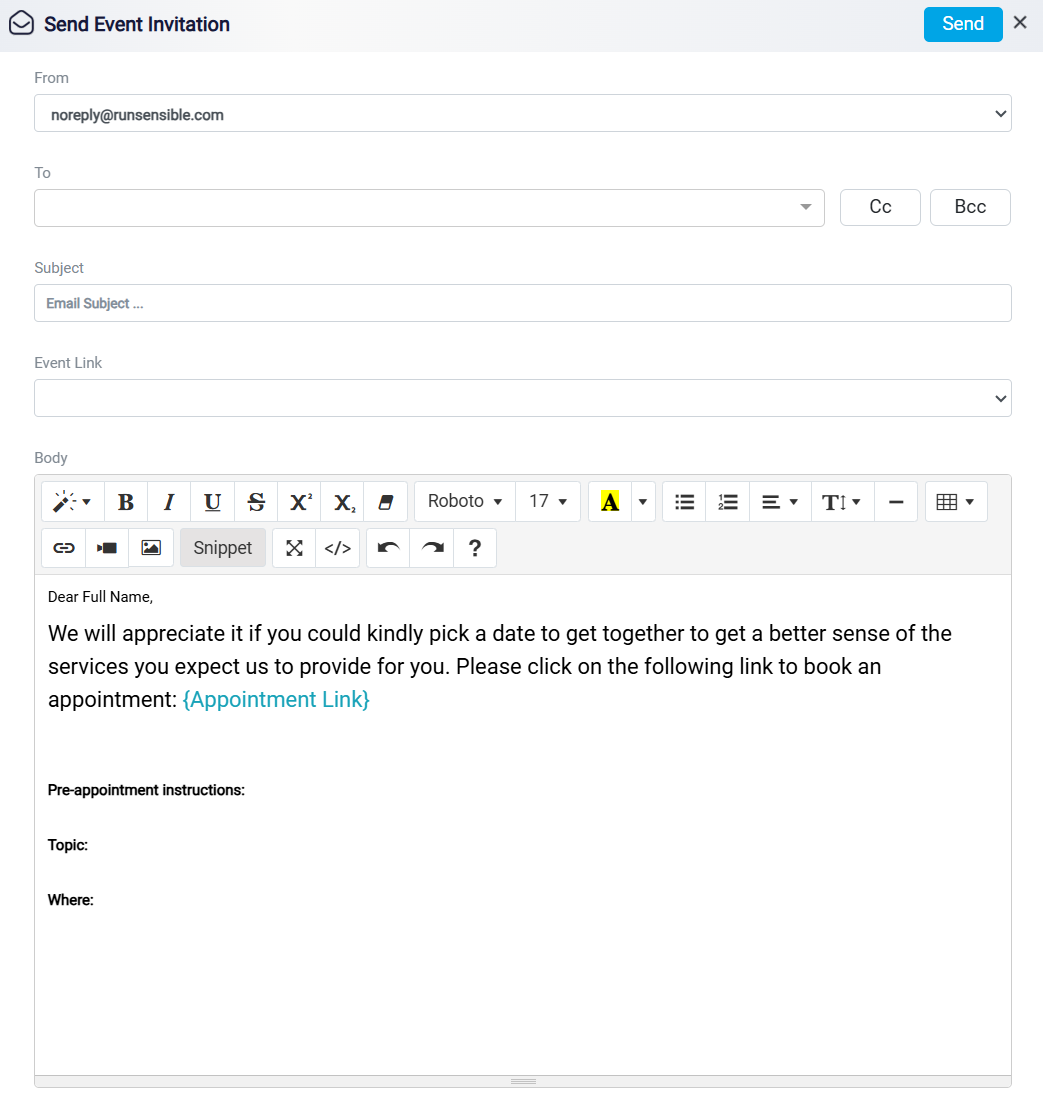
At the top of the email panel, the From field shows the sender email address. This is usually the default email address set in the system. If more than one sender email is available, the user can choose a different address from the dropdown.
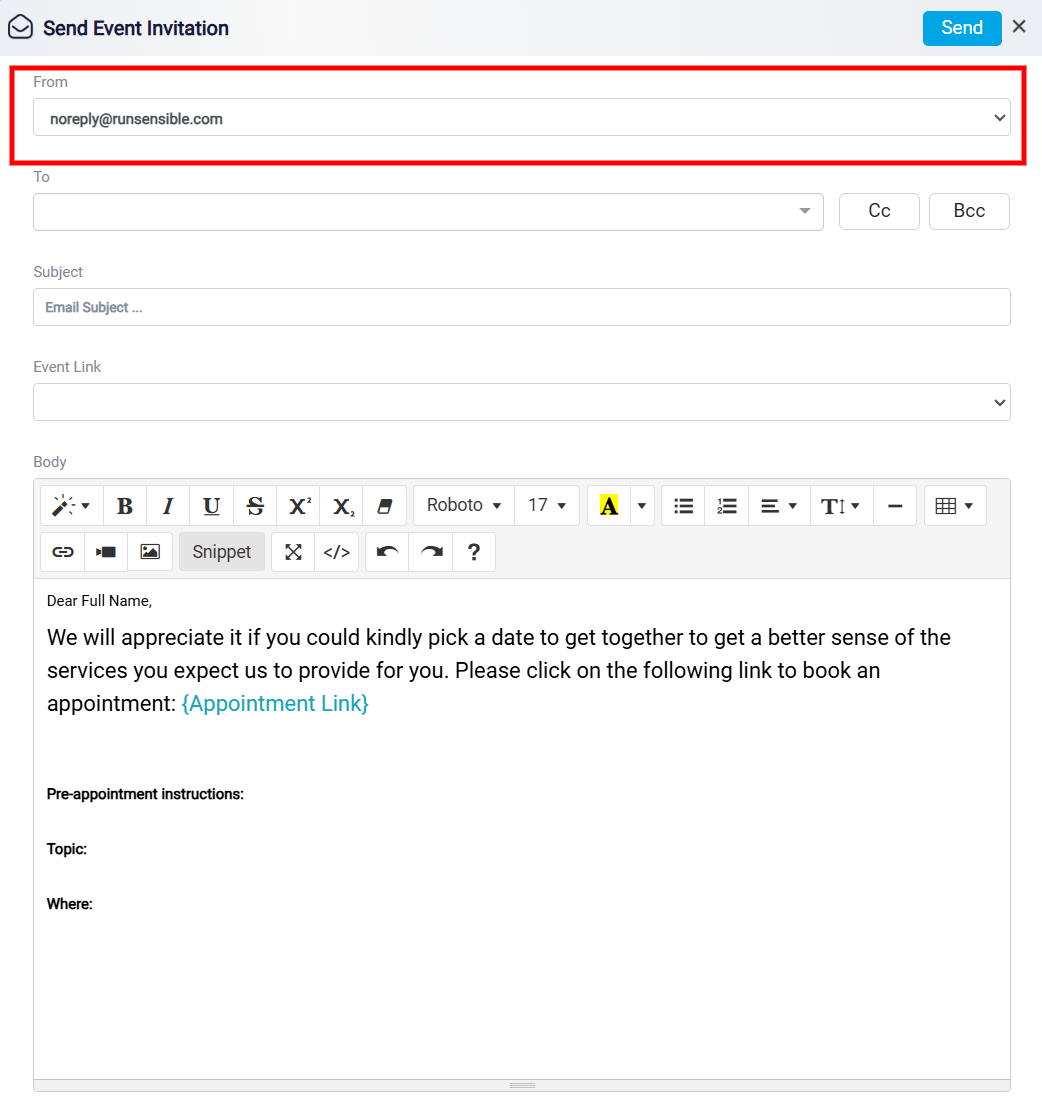
The To field shows the lead’s email address. If the lead has more than one email address saved in the system, the user can choose a different recipient from the dropdown. The user can also add more than one email address if the invitation should be sent to multiple recipients.
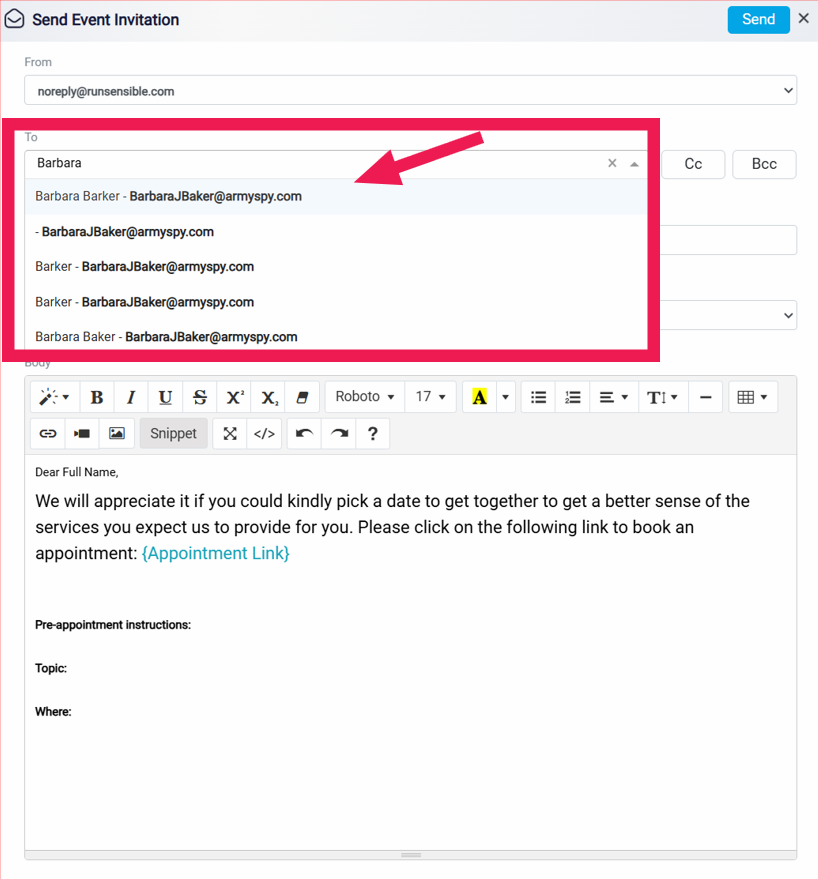
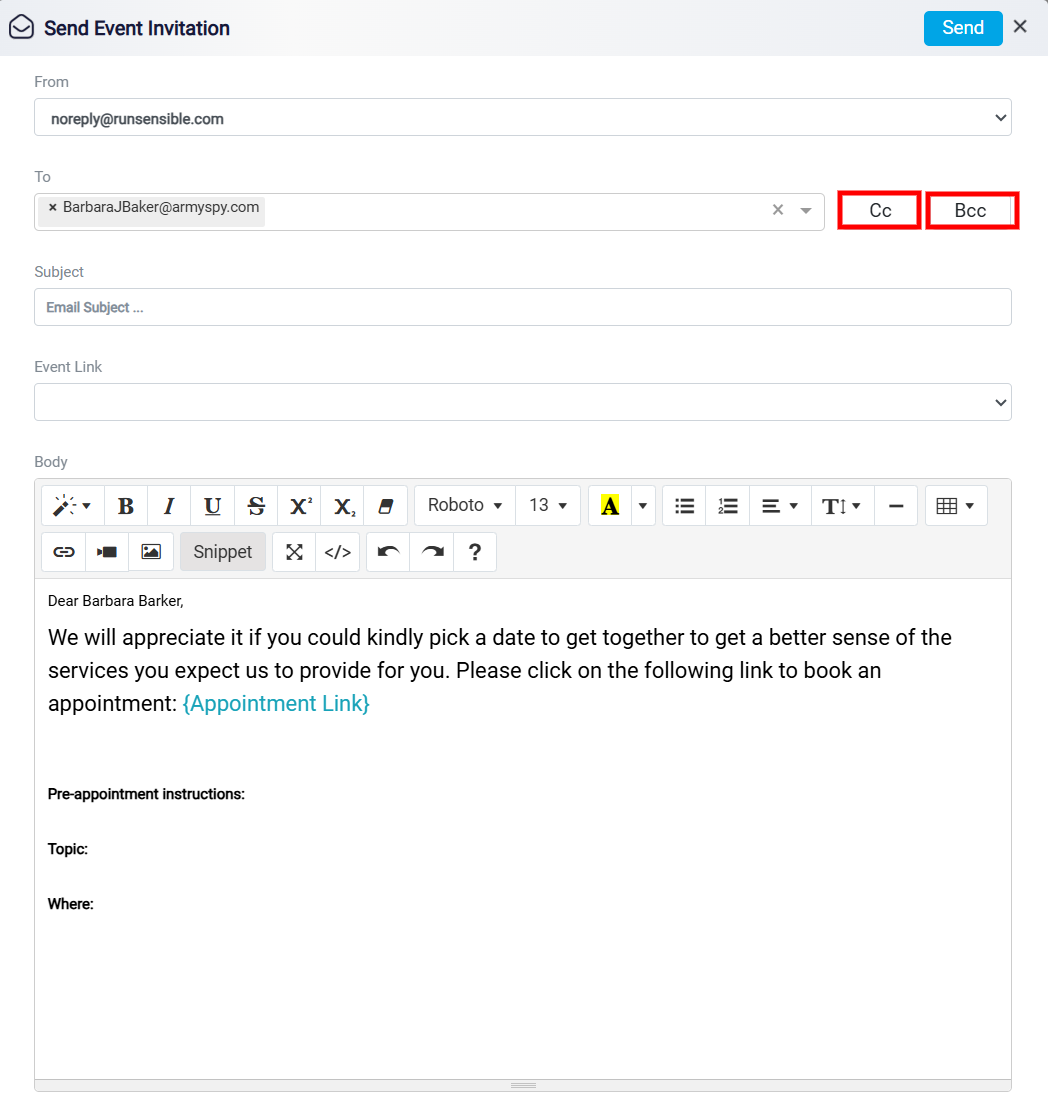
To add additional recipients to the event invitation, click Cc or Bcc next to the To field. Use Cc to send a copy of the invitation to recipients whose email addresses will be visible to everyone receiving the email. Use Bcc to send a copy to recipients whose email addresses you want to keep hidden from the other recipients.
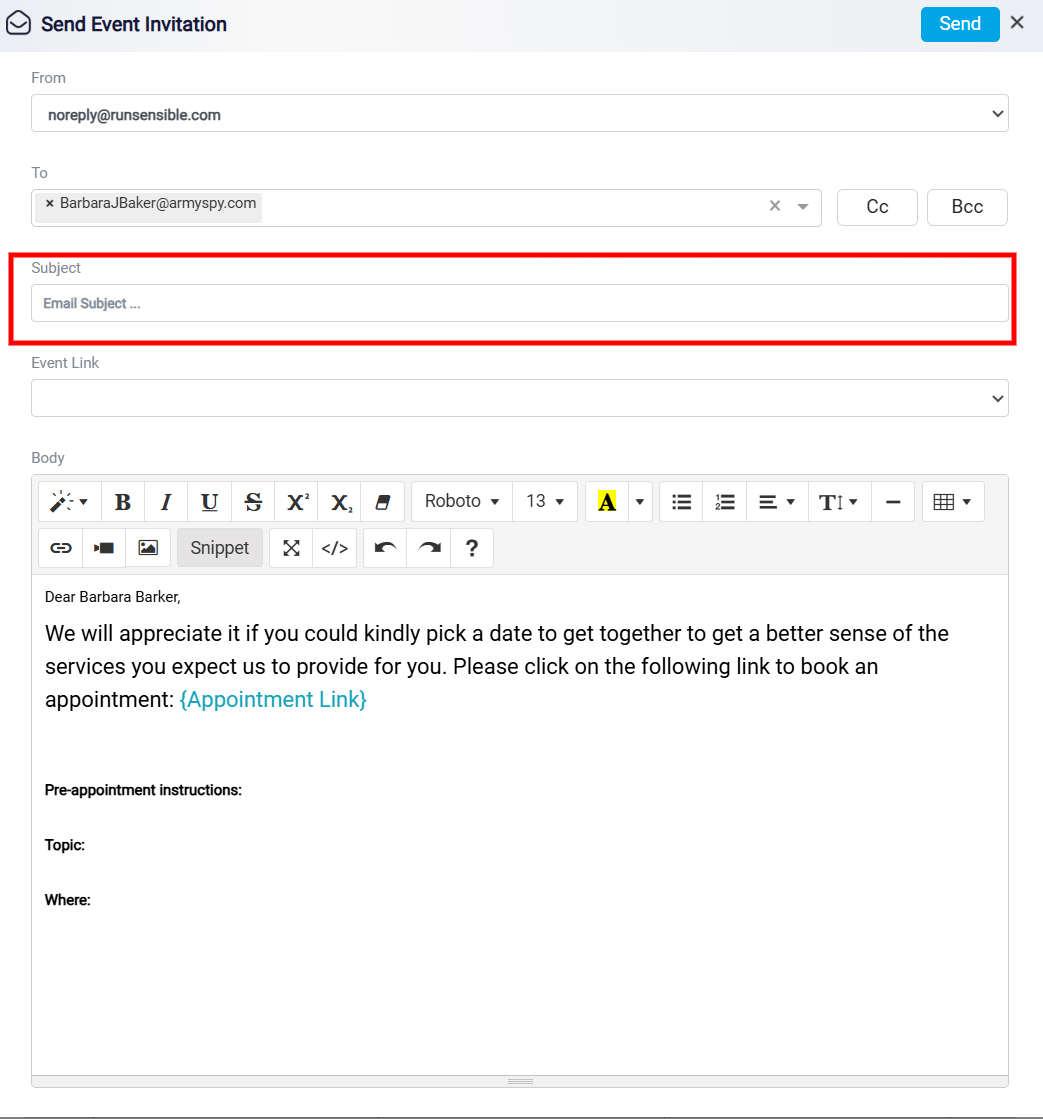
The Subject field is used to enter the email subject line.
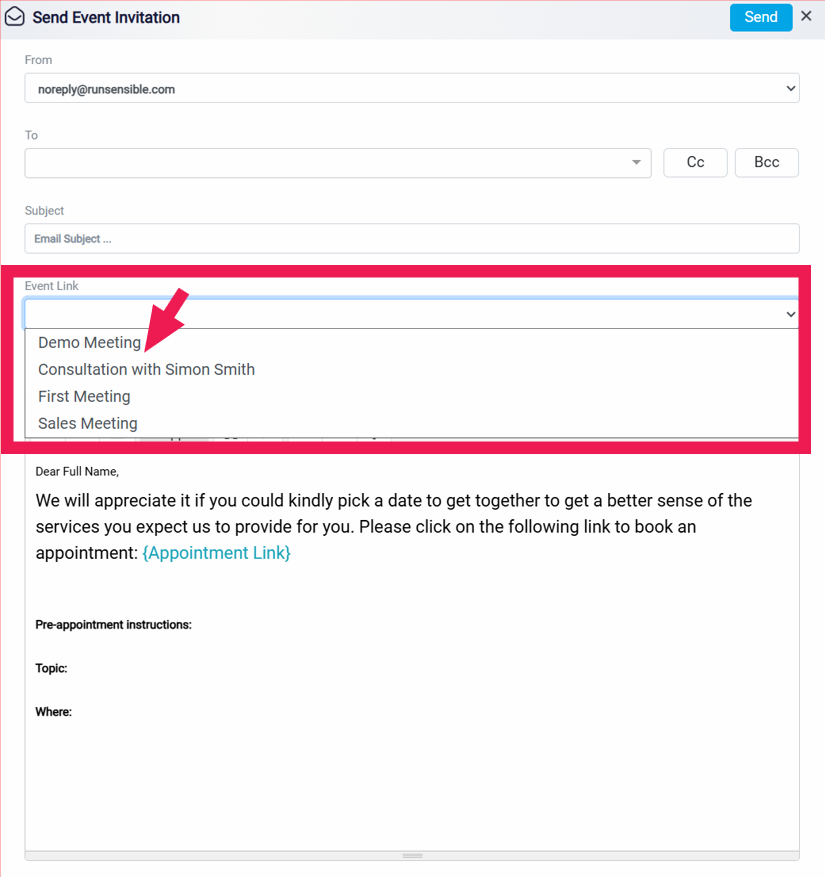
The Event Link dropdown shows the event configurations that have already been created in the system. When the user selects an event configuration, the matching booking link is inserted into the email message.
The email body includes a default invitation message, but the user can edit it before sending. The booking link appears in the message so the recipient can open it and schedule the meeting.
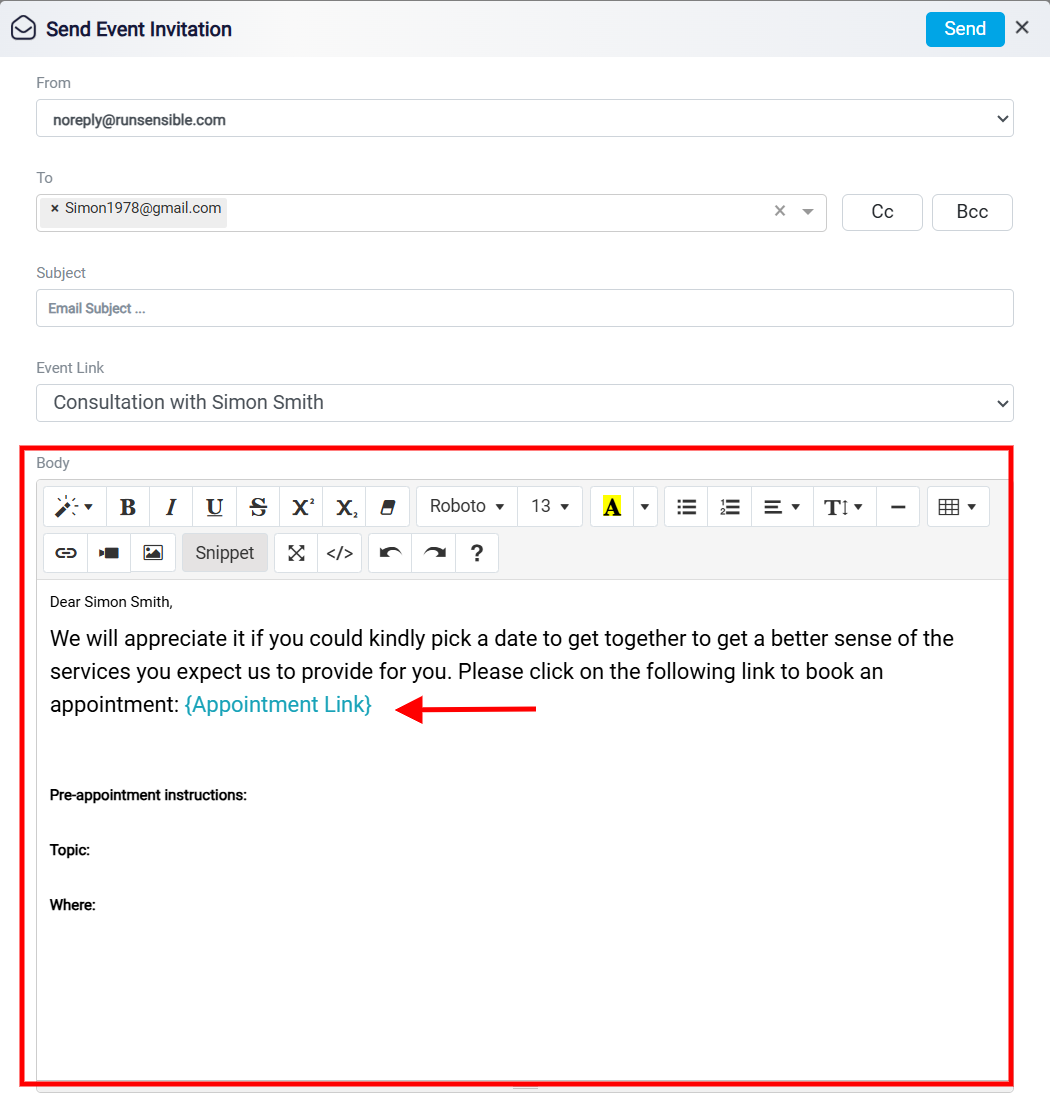
After reviewing the sender, recipient, subject, event link, and message, the user clicks Save at the top right of the panel to send the invitation.