Managing Institute Types
The Institute Type settings allow you to create and manage categories for institutions in RunSensible. Institute Types help organize institutions based on their role or organization type, such as Law Firm, Bank, Court, Hospital, Insurance Company, Corporation, Government Organization, or other categories relevant to your practice.
To access this section, go to Settings, expand Contacts & Leads, and select Institute Type.
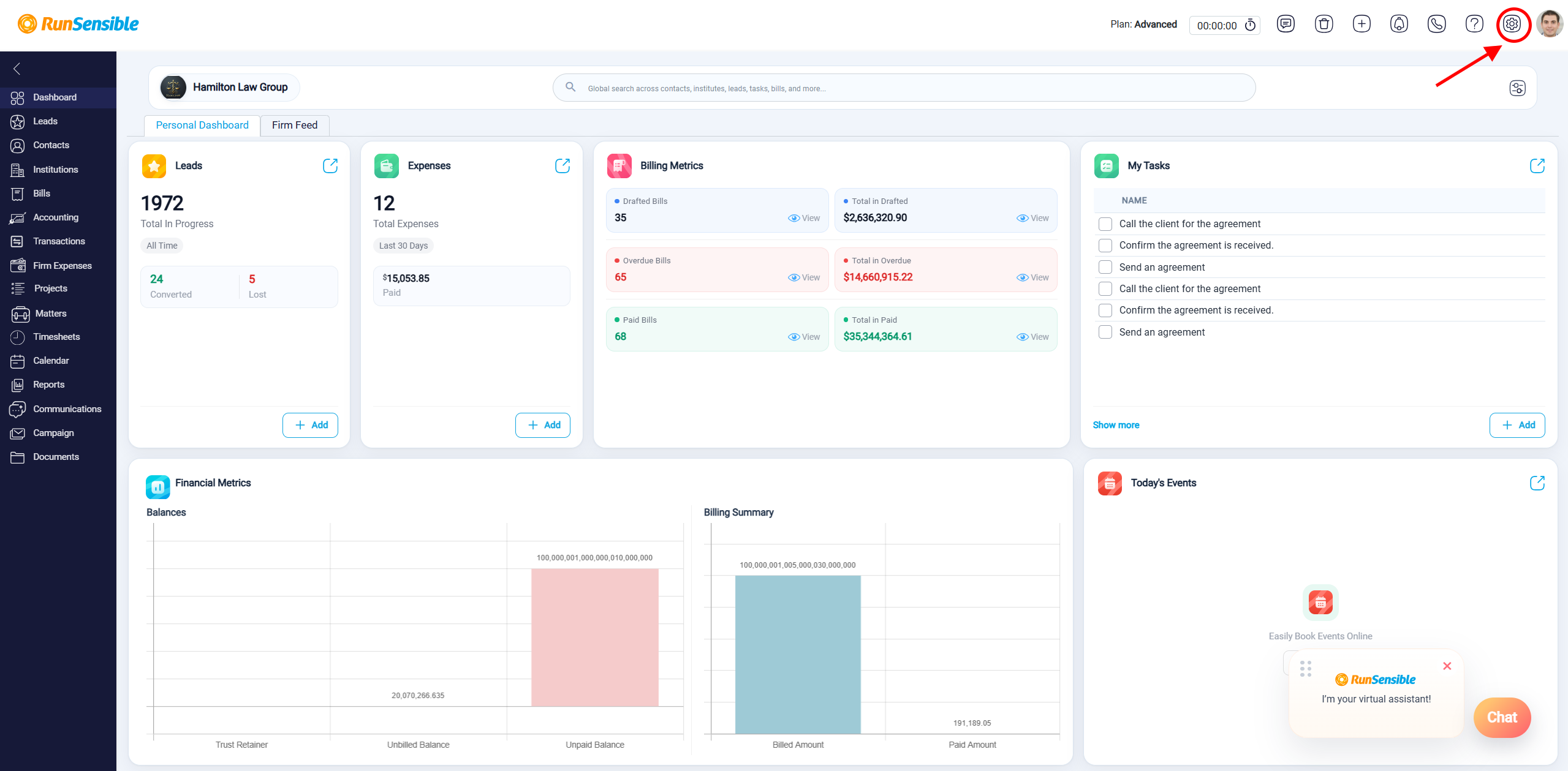
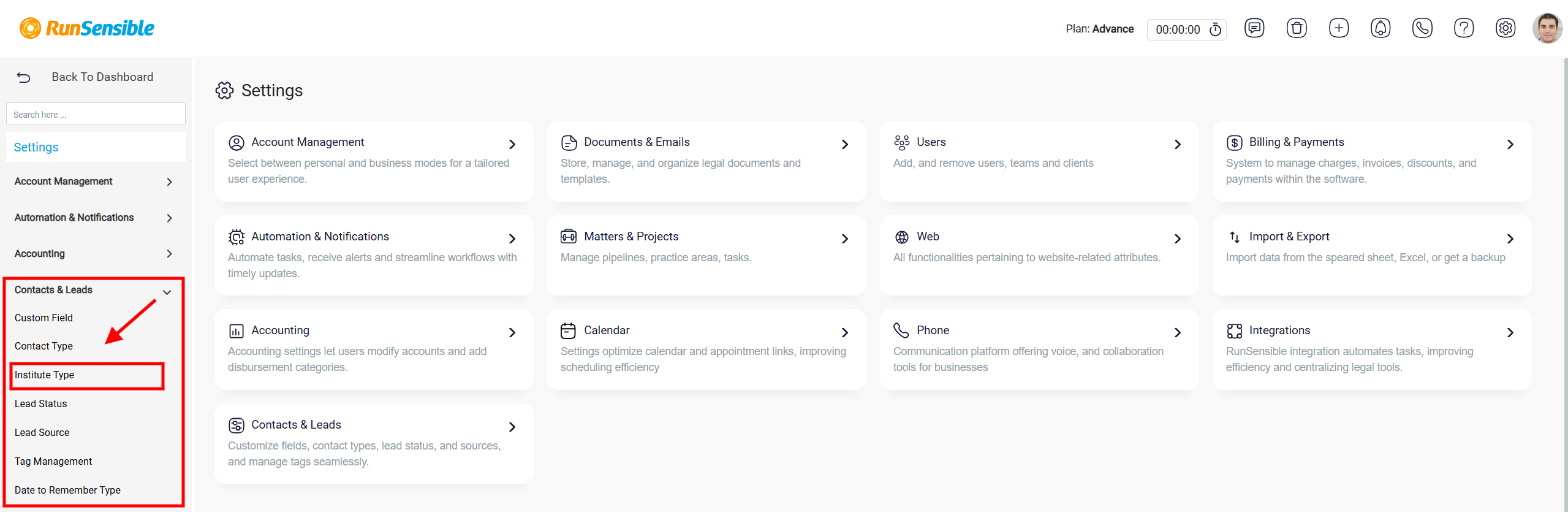
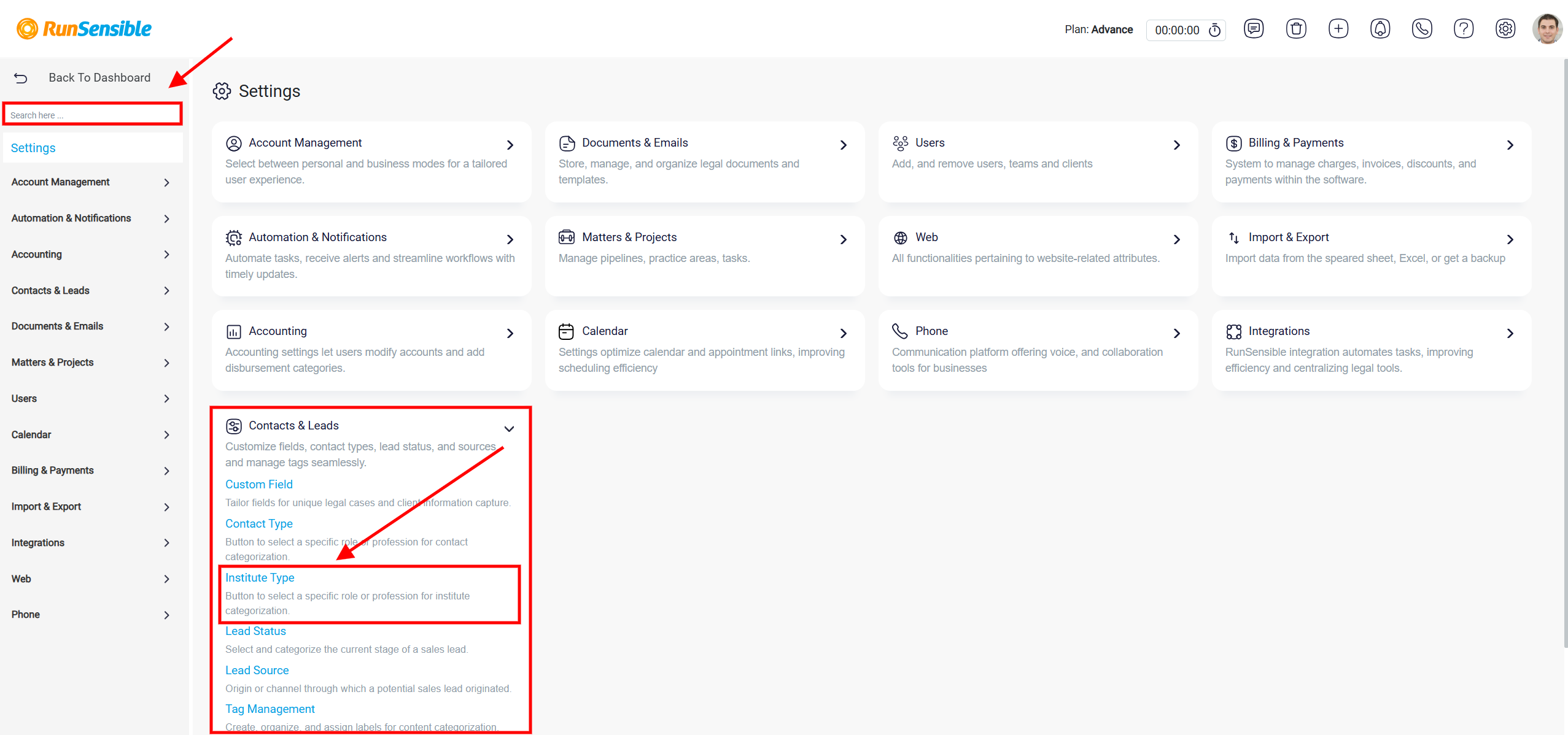
You can also use the Search box in Settings to quickly find Institute Type, or locate Contacts & Leads in the center of the Settings page and select Institute Type from there.
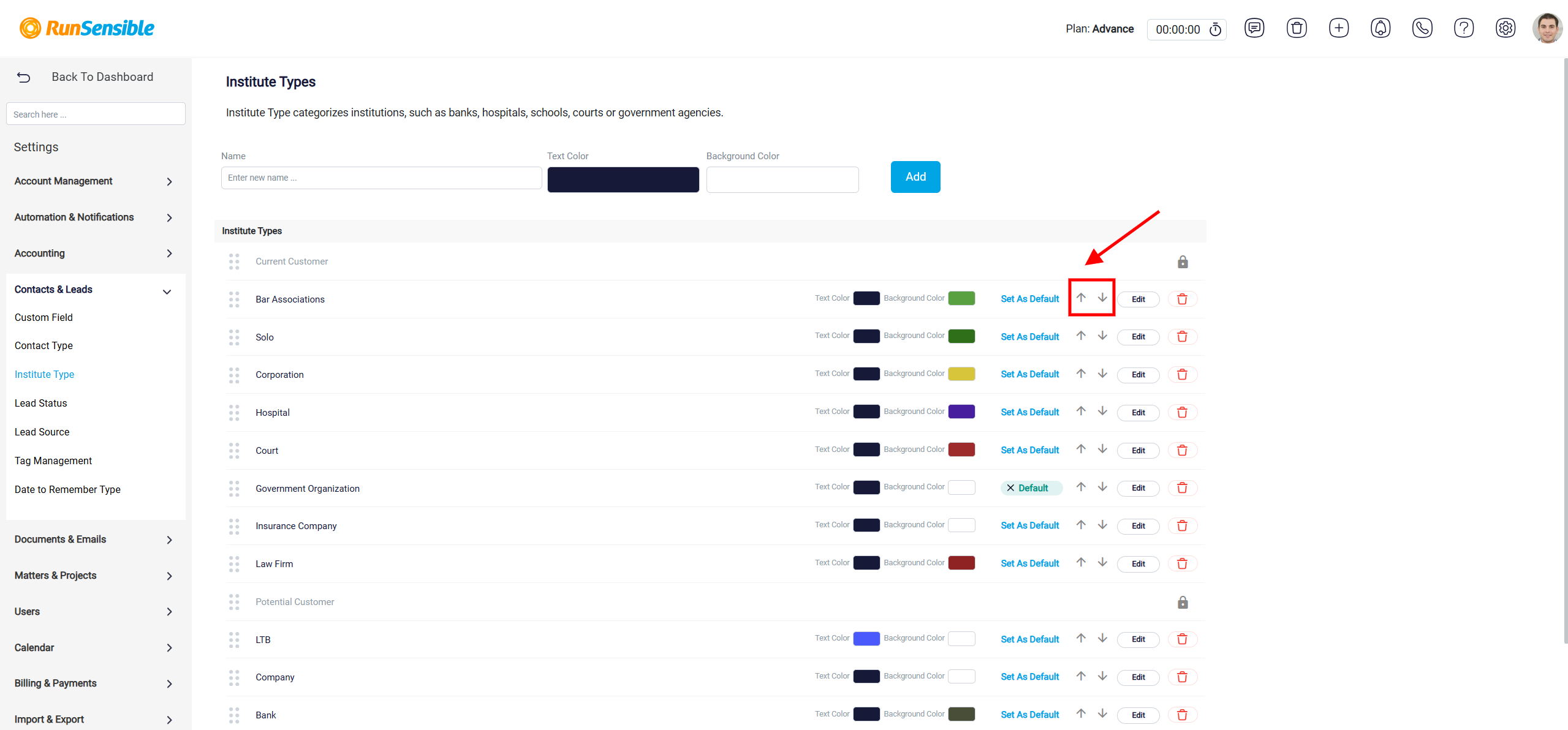
To create a new Institute Type, enter the desired category name in the Name field. You can select a Text Color and Background Color to make the Institute Type easier to identify throughout the system.
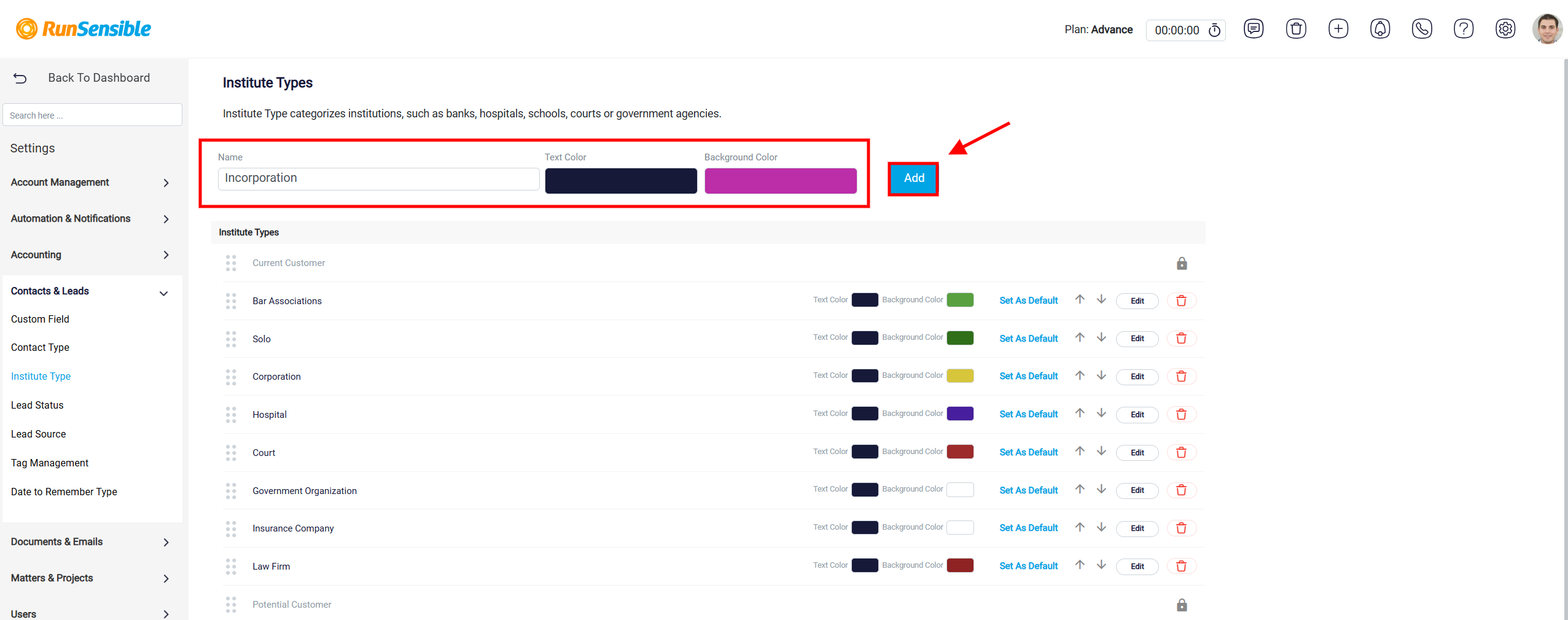
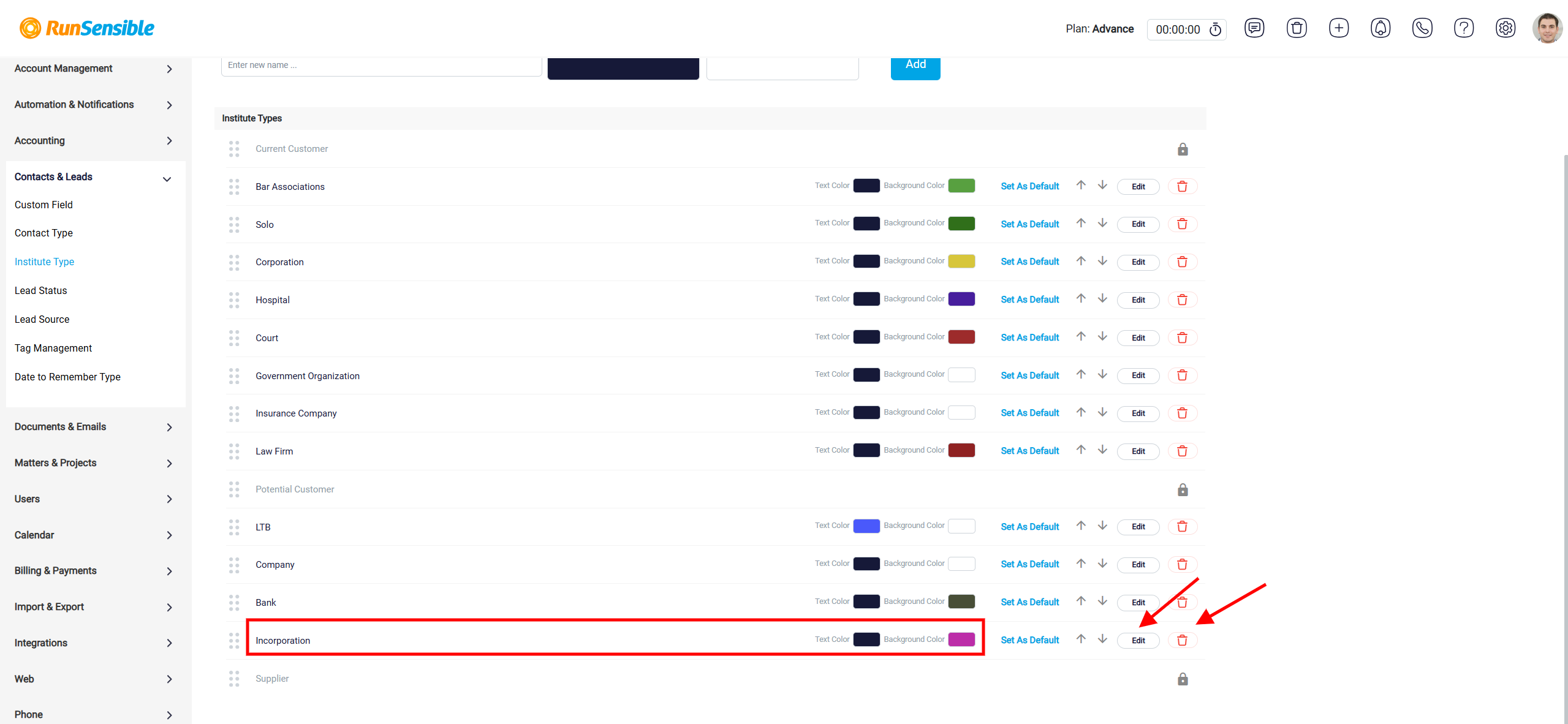
Once you have entered the information, click Add. The new Institute Type will appear in the list below. Existing Institute Types can be managed directly from the list. Click Edit to update the name, text color, or background color of an Institute Type. To remove an Institute Type that is no longer needed, click the Delete icon next to it.
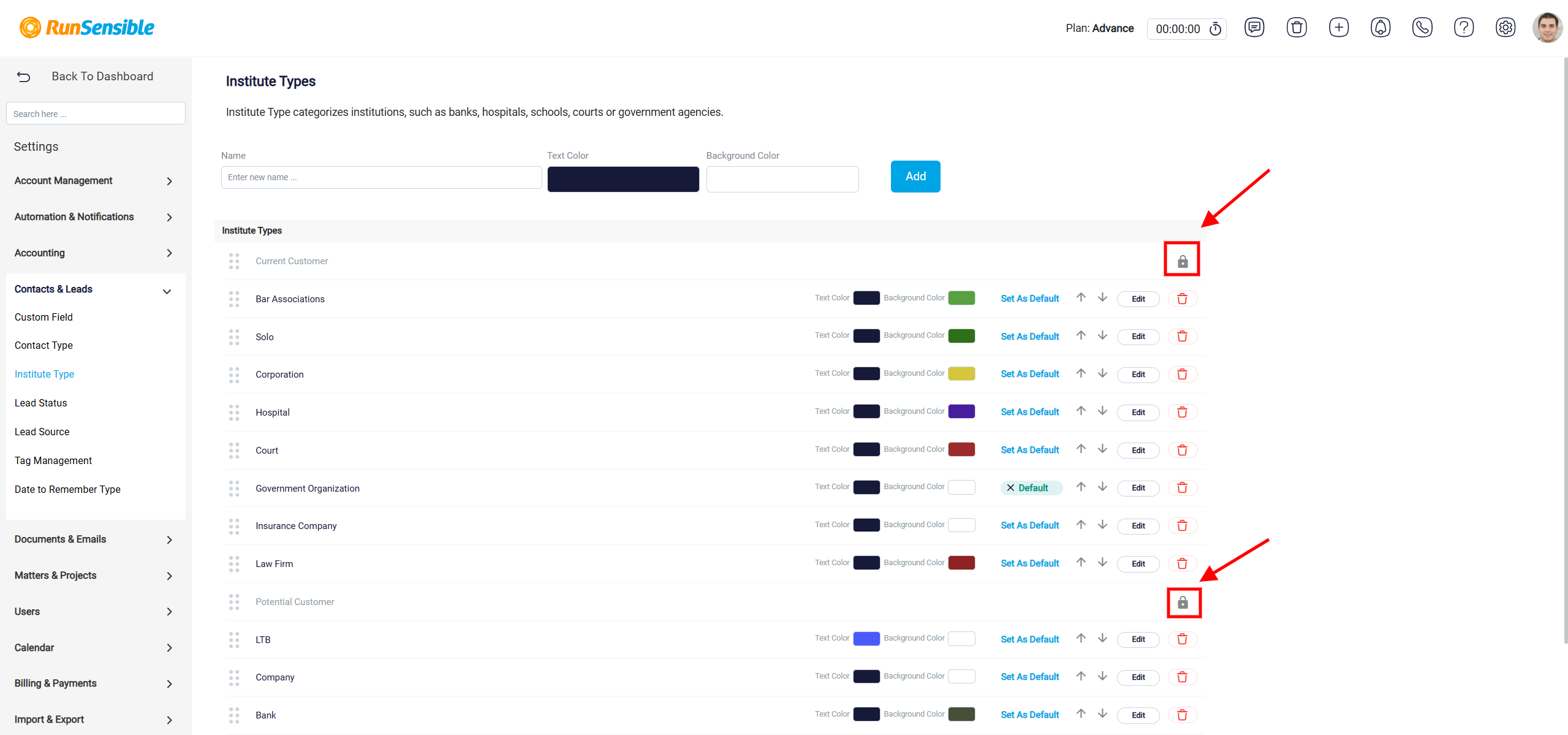
Some predefined Institute Types display a Lock icon. These are system-defined types and cannot be edited or deleted.
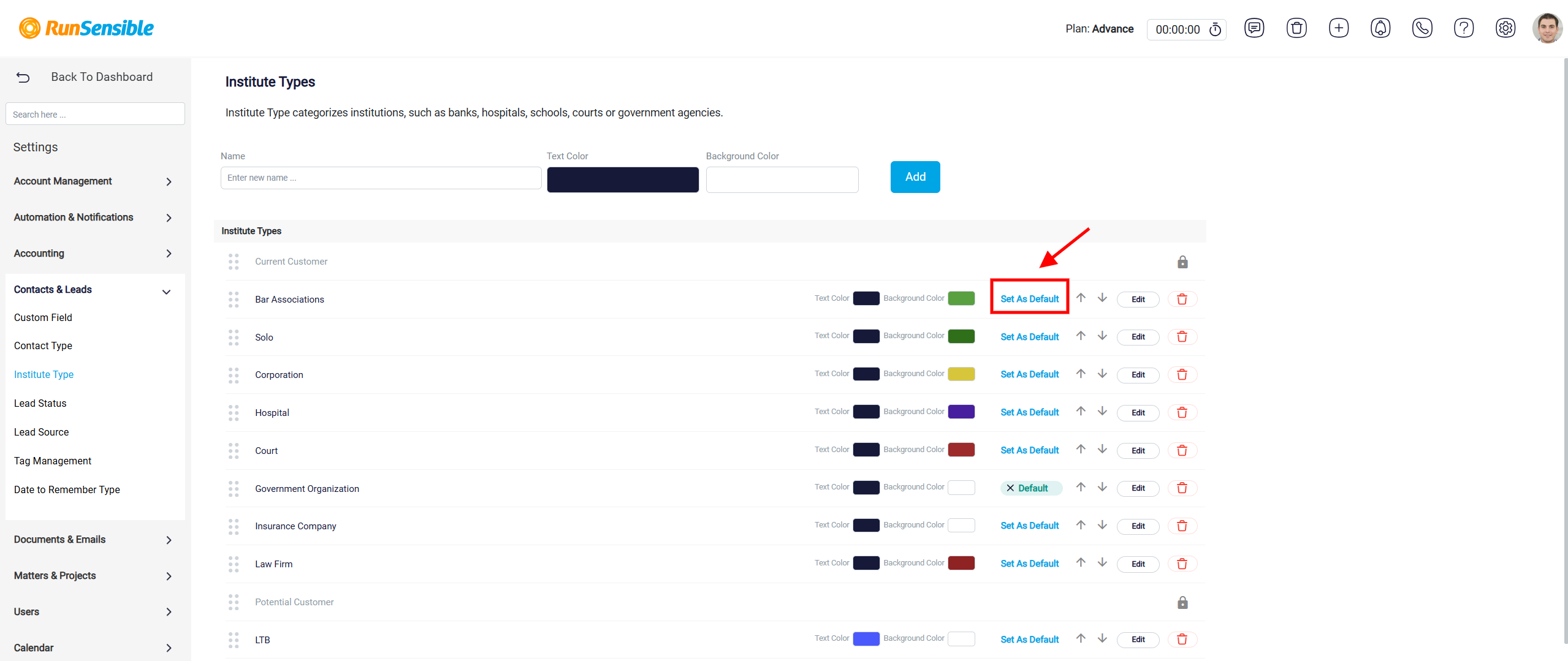
You can designate an Institute Type as the default by clicking Set As Default next to the desired type. The selected type will then display a Default indicator. This helps ensure that the preferred Institute Type is automatically used where applicable.
Use the up and down arrows next to an Institute Type to change its position in the list. This allows you to arrange Institute Types in the order that is most convenient for your organization.