
Microsoft 365 Email Setup for Sending and Receiving Emails in RunSensible
This guide explains how to prepare a Microsoft 365 email account so it can be connected to RunSensible, especially when you want RunSensible to send emails using that Microsoft 365 mailbox.
RunSensible supports Microsoft 365 email accounts, but the mailbox must allow the required email apps and protocols before the integration can work correctly.
Before you begin
You need access to the Microsoft 365 admin center with permission to manage users and mailbox settings.
Go to: https://admin.cloud.microsoft
Sign in with your Microsoft 365 admin account.
Step 1: Open the Microsoft 365 admin center
After logging in, open the Microsoft 365 admin center.
From the left sidebar, select Users → Active users
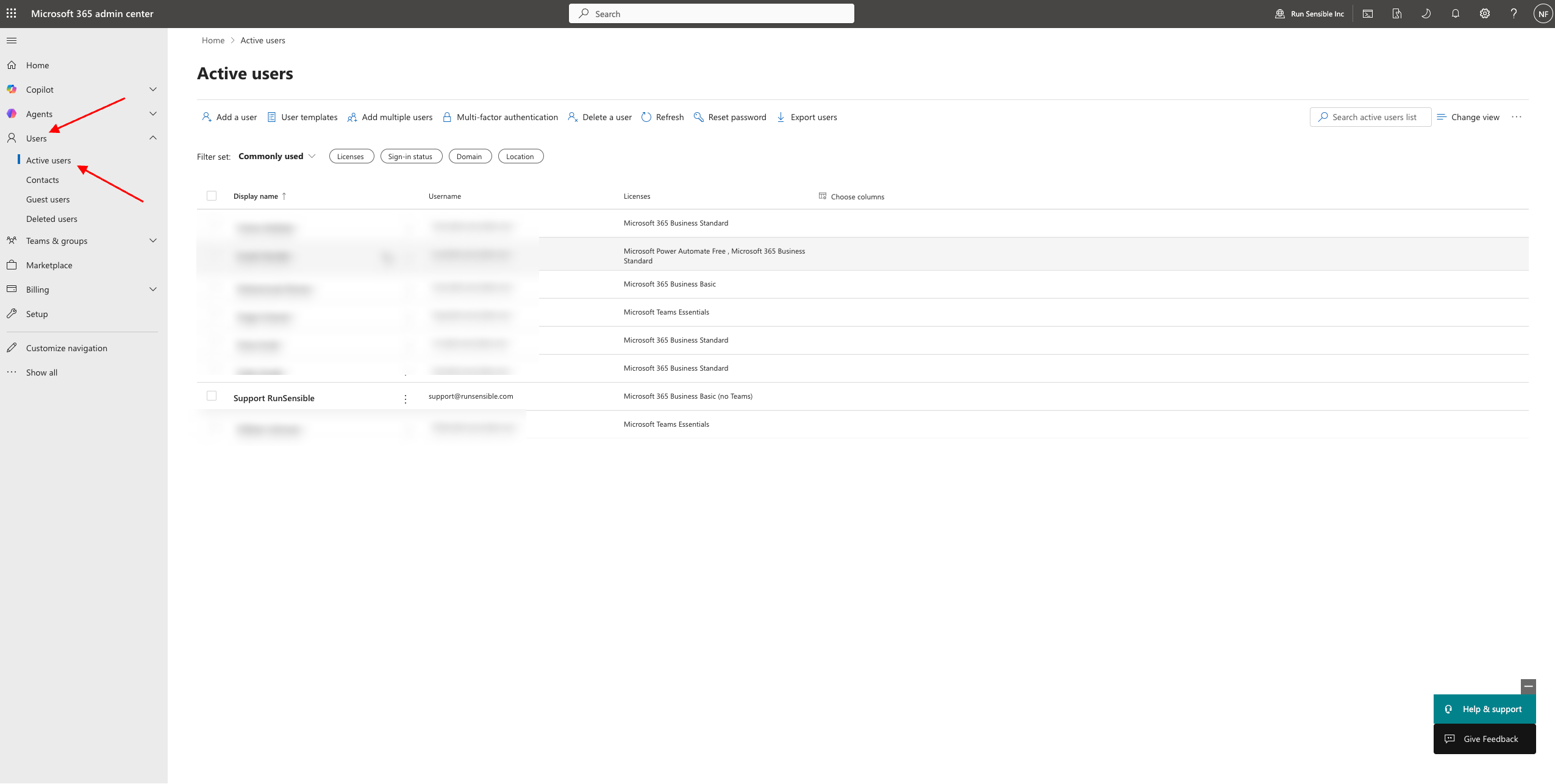
Step 2: Select the user you want to connect to RunSensible
From the Active users list, click the Microsoft 365 user account you want to integrate with RunSensible.
For example, this may be a shared support mailbox or a team mailbox used for sending and receiving customer emails.
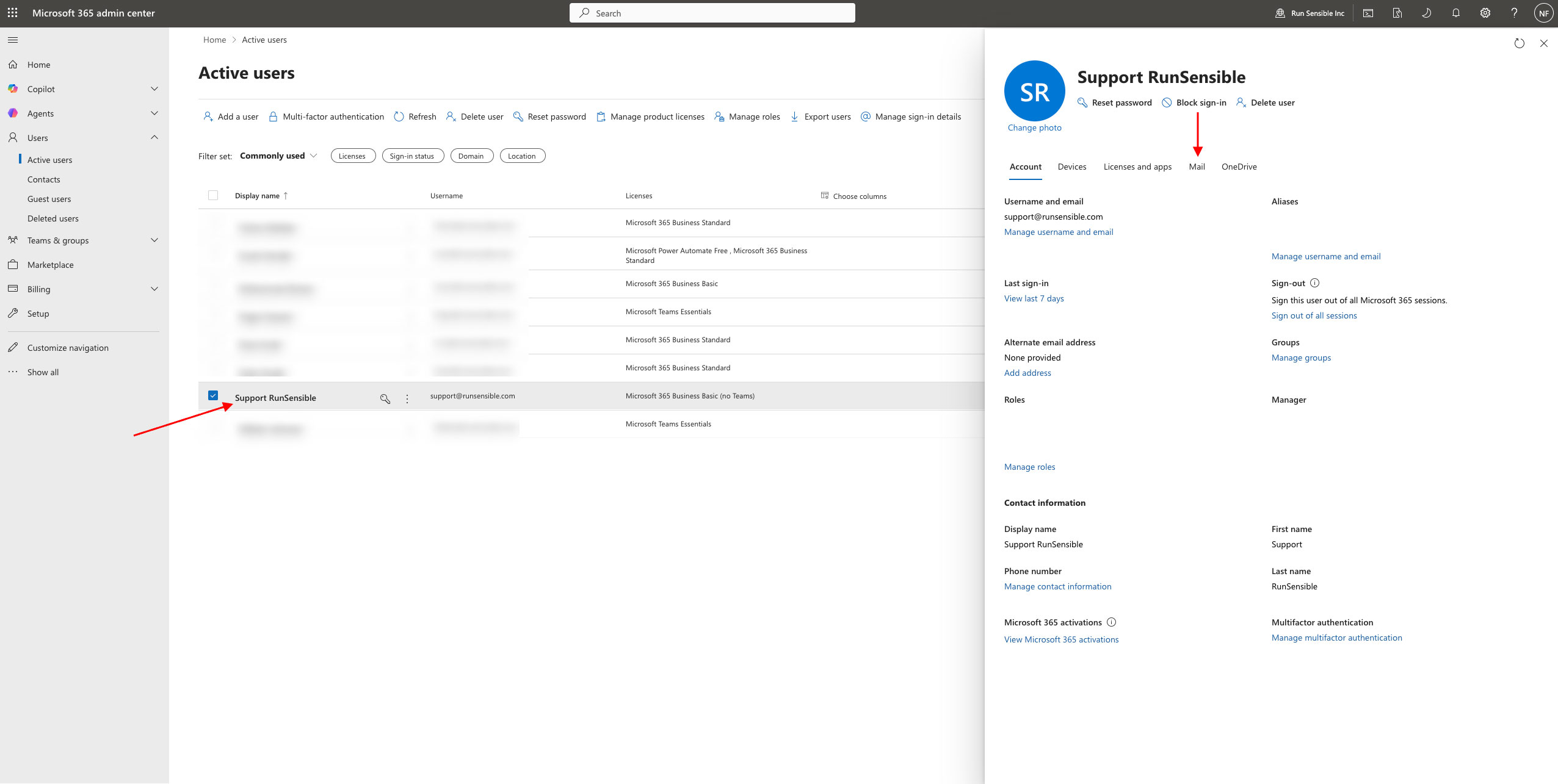
Step 3: Open the Mail settings
After selecting the user, a user details panel will open.
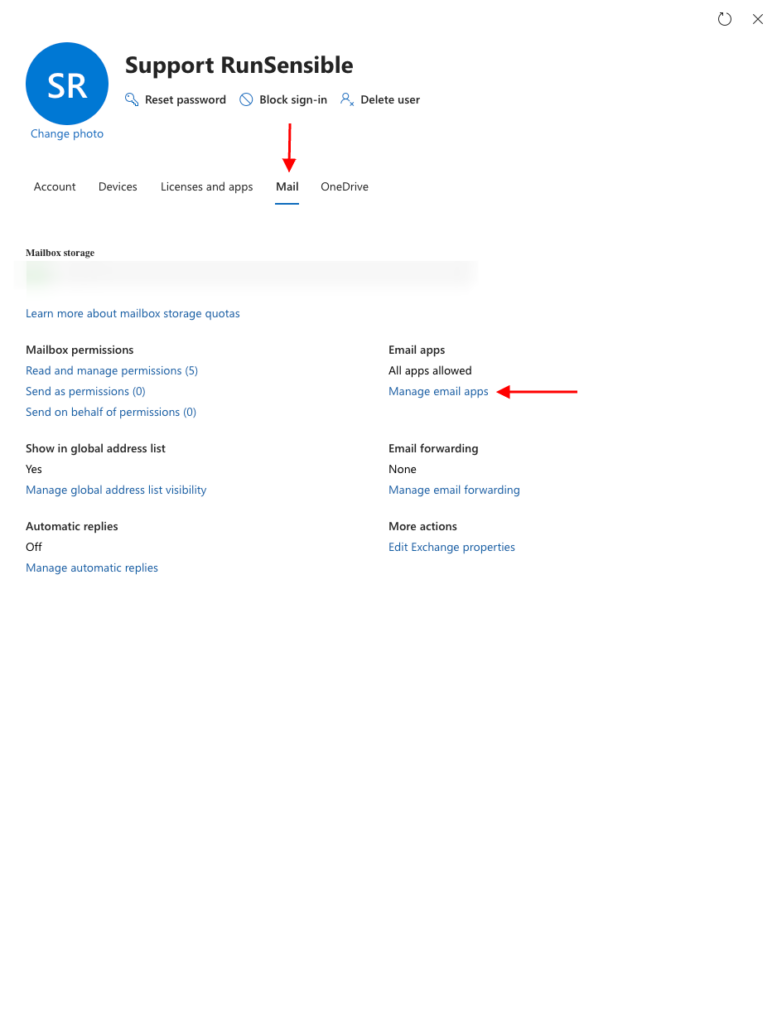
Click the Mail tab.
In the Mail section, look for Email apps.
Then click Manage email apps
Step 4: Enable the required email apps
In the Manage email apps panel, make sure the available email app options are enabled.
For the RunSensible Microsoft 365 email integration, the most important options are:
- IMAP
- POP
- Authenticated SMTP
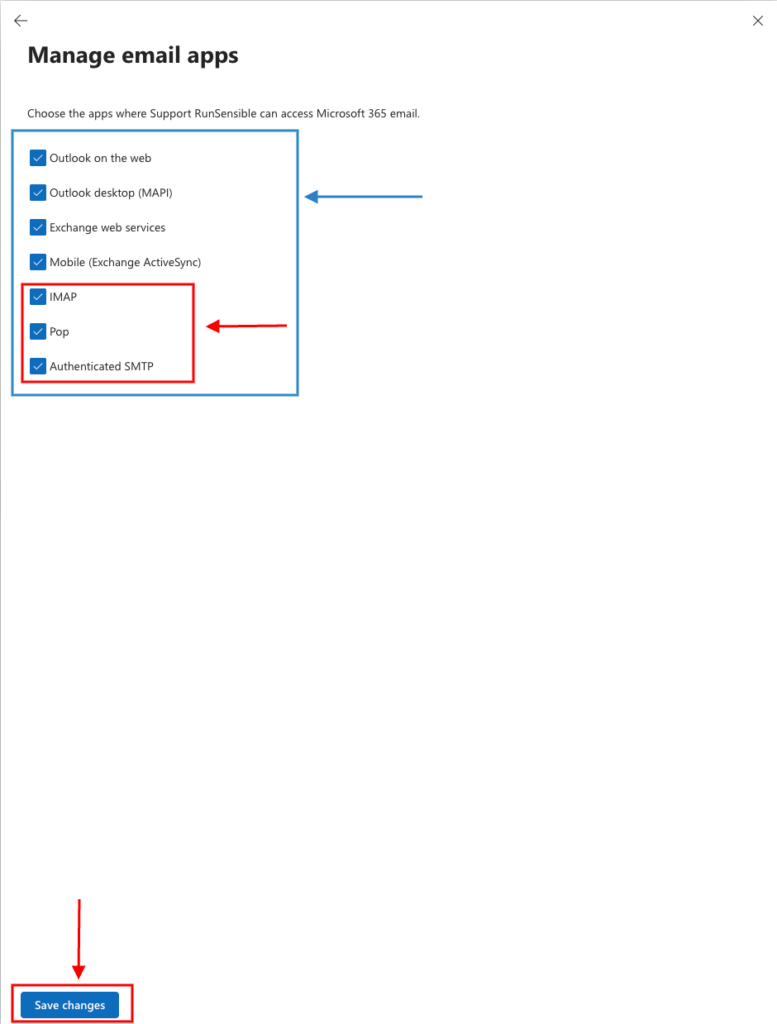
We recommend checking all available options unless your organization has a specific security policy that requires otherwise.
The options may include:
- Outlook on the web Outlook desktop (MAPI)
- Exchange web services
- Mobile (Exchange ActiveSync)
- IMAP
- POP
- Authenticated SMTP
Make sure Authenticated SMTP is enabled if you want RunSensible to send emails from this Microsoft 365 mailbox.
Step 5: Wait for Microsoft to apply the changes
After enabling the required options, click Save changes.
After enabling the required options, wait a few minutes for Microsoft 365 to apply the updated mailbox settings. Then return to RunSensible and continue the email integration process.
Step 6: Connect Microsoft 365 email in RunSensible
Once the Microsoft 365 mailbox settings are updated, return to RunSensible and continue the Microsoft 365 email integration process.
Use the Microsoft 365 email address you prepared in the admin center.