Creating a New Task
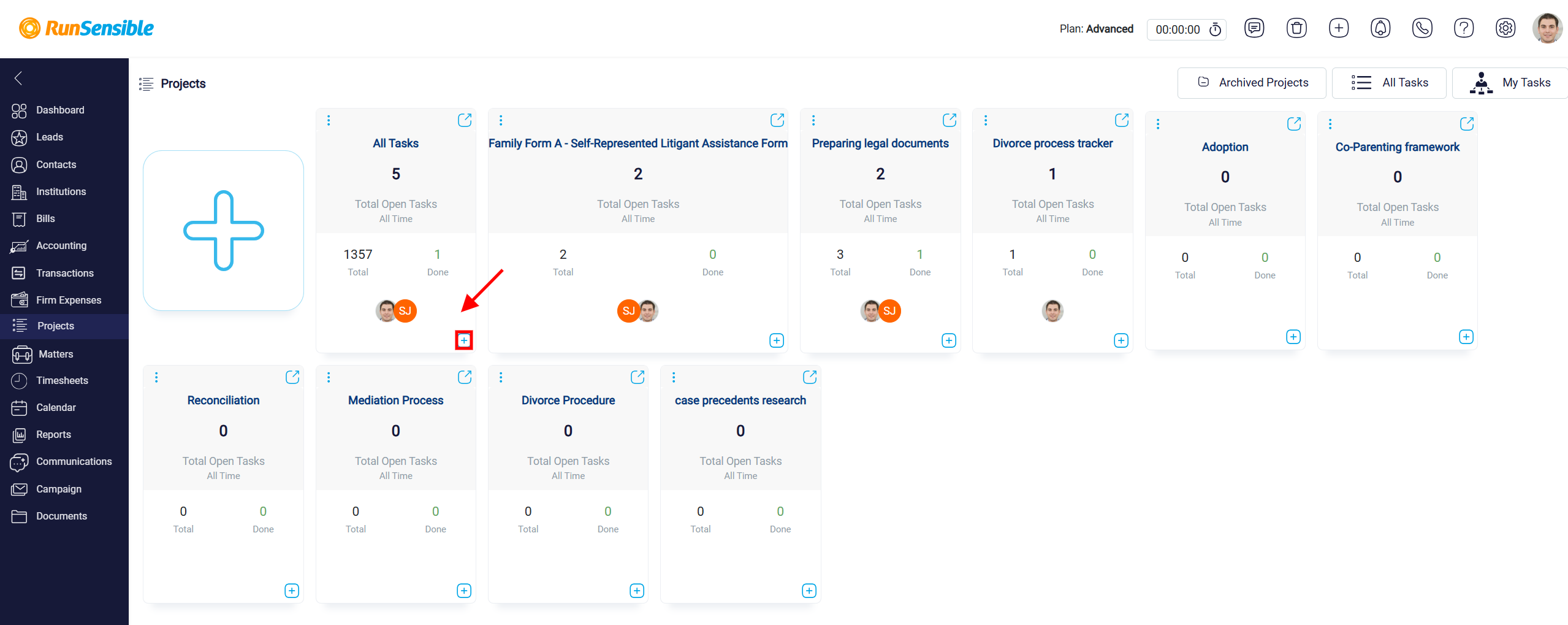
To create a new task, locate the project you want to add the task to, then click the (+) button in the bottom-right corner of the project card.
Alternatively, you can click on the desired project name. 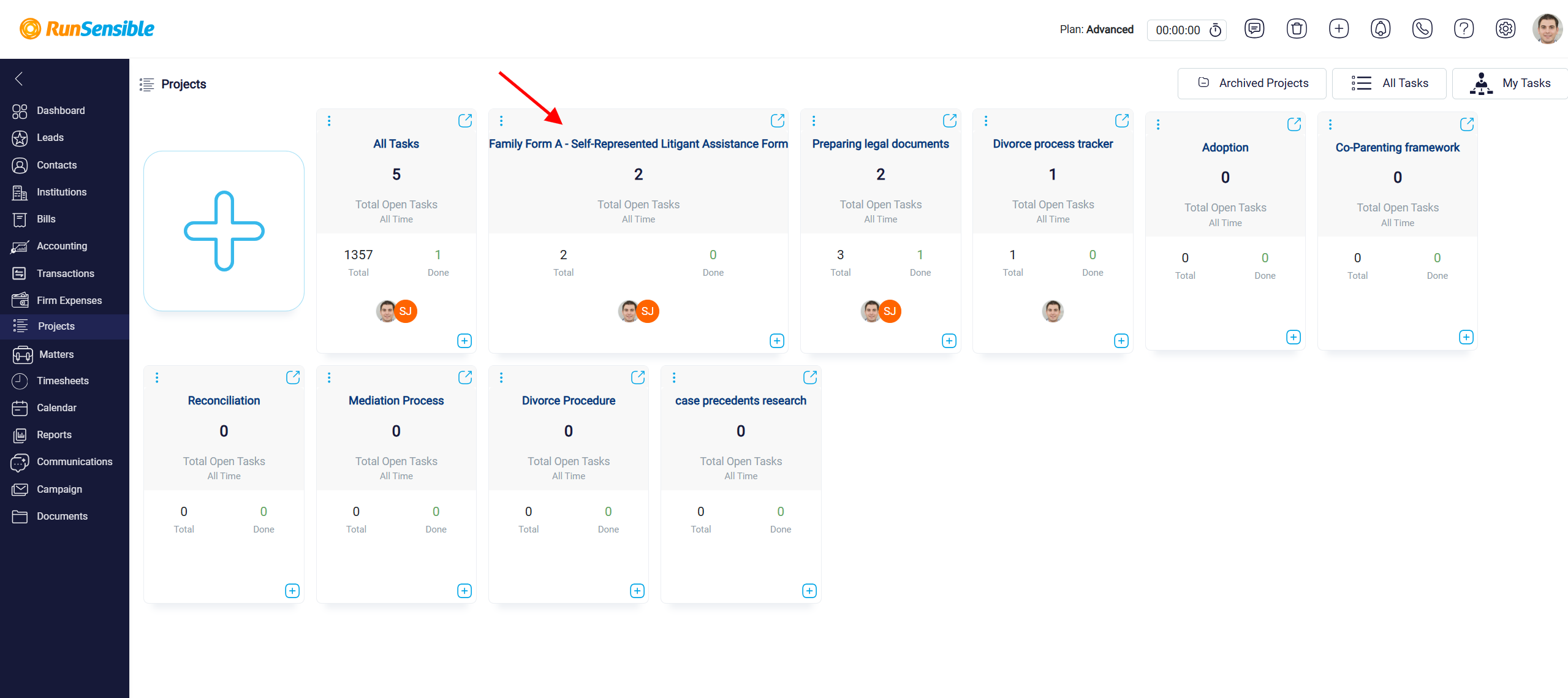
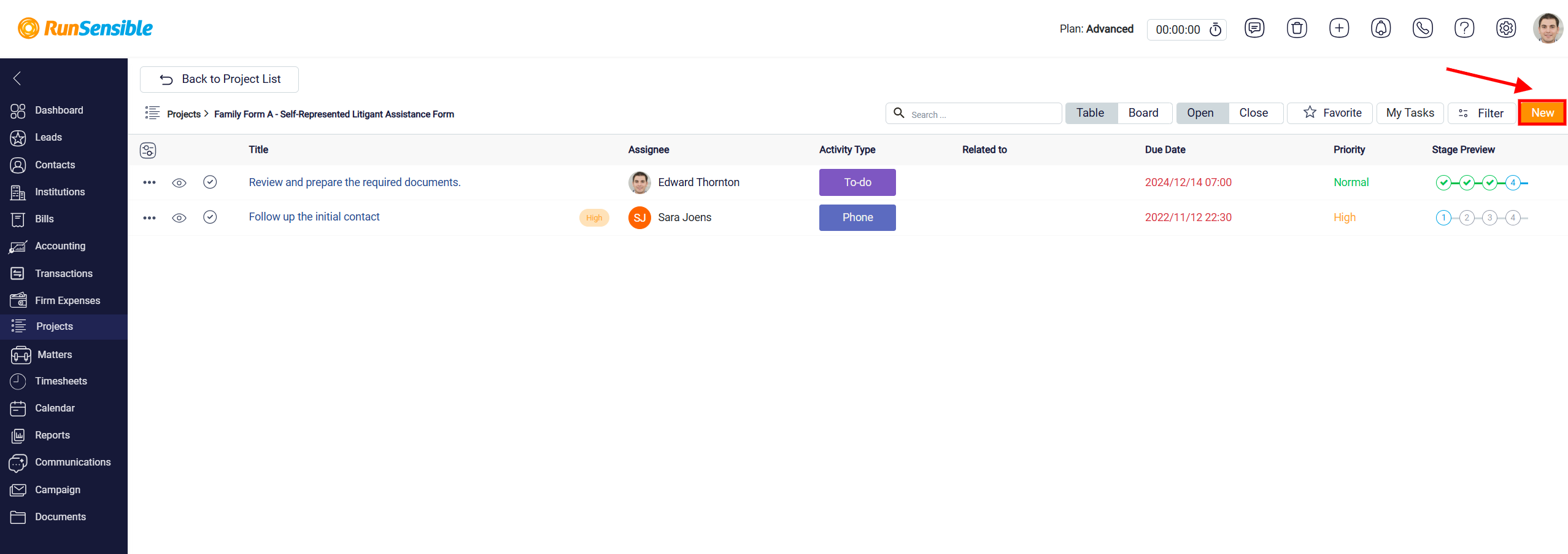
The project task list will open. Click the New button in the top-right corner to create a new task.
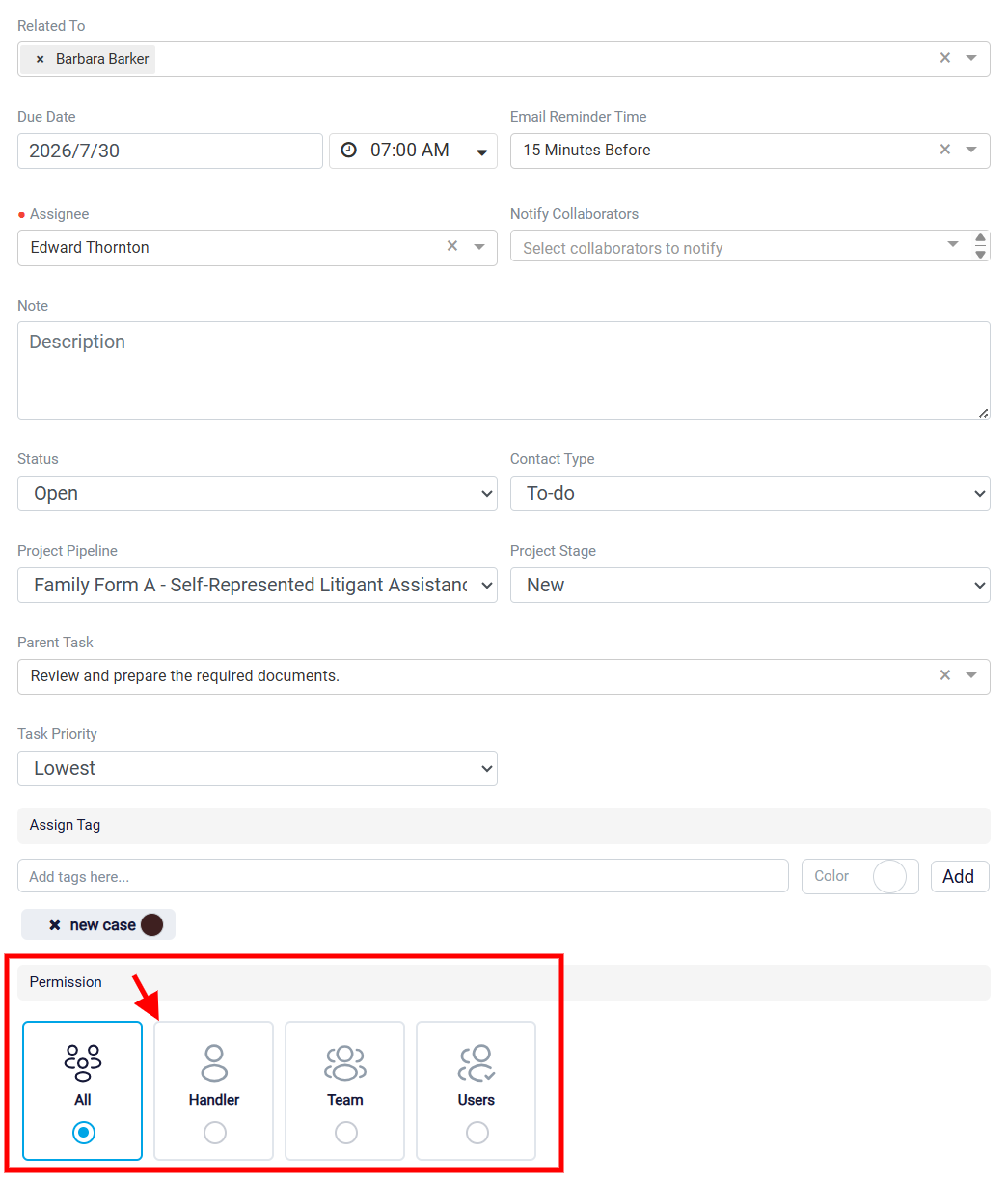
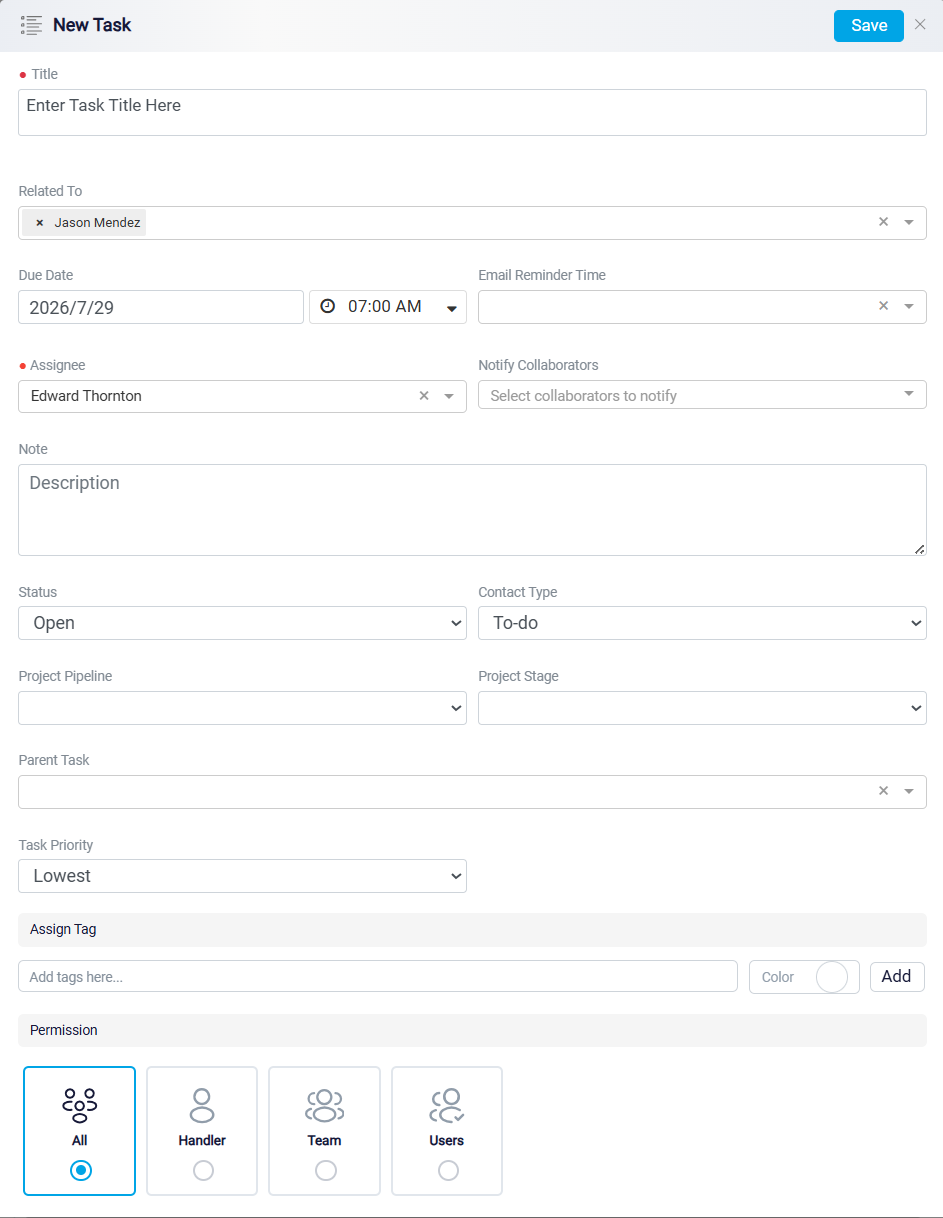
Then New Task panel opens. This panel is used to enter and save task details in the system so that all follow-up actions, responsibilities, deadlines, and related work remain organized and trackable.
Task Title and Related Records
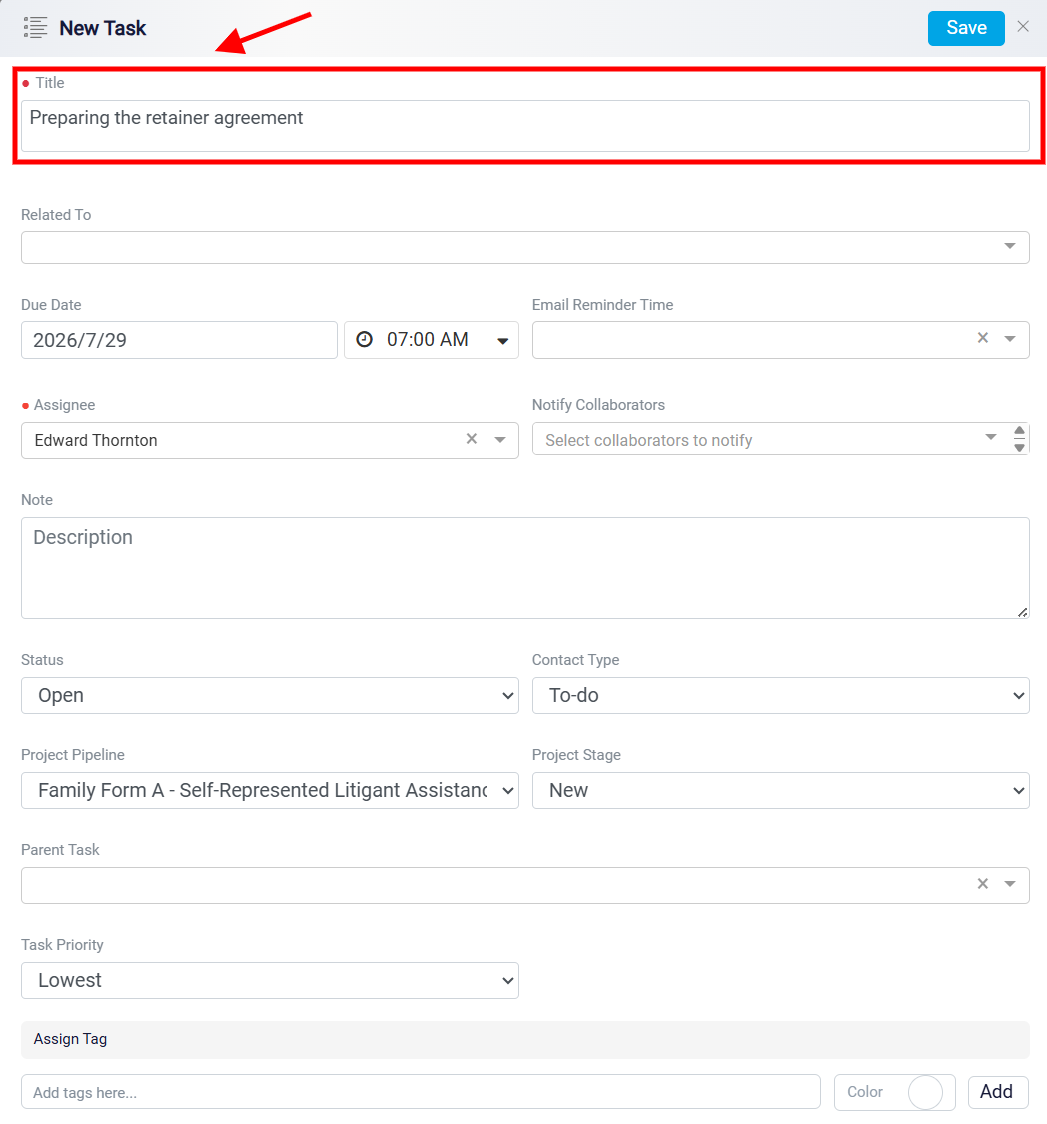
The Title field is used to enter the name of the task. The title should clearly describe the action that needs to be completed, so the assignee and other users can understand the purpose of the task without opening the full task details.
The Related To field shows which record the task is connected to. By default, it shows the lead you are currently working with. If the task is also related to another lead, contact, or institute, you can search for that record in the same field and add it.
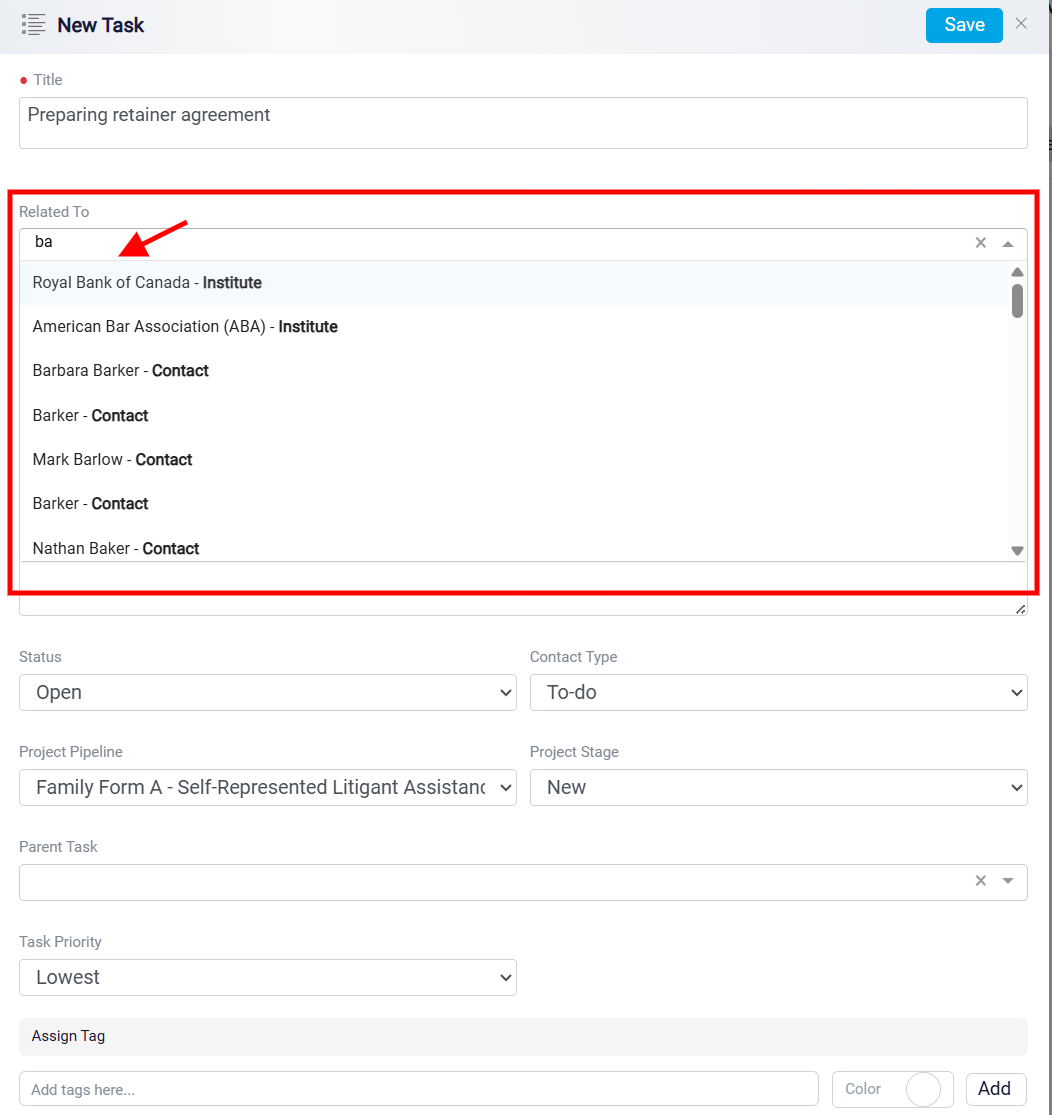
When more than one record is added to the Related To field, the task will appear in the Tasks tab of each related profile. This helps you connect one task to all relevant records without creating the same task multiple times.
Due Date and Email Reminder
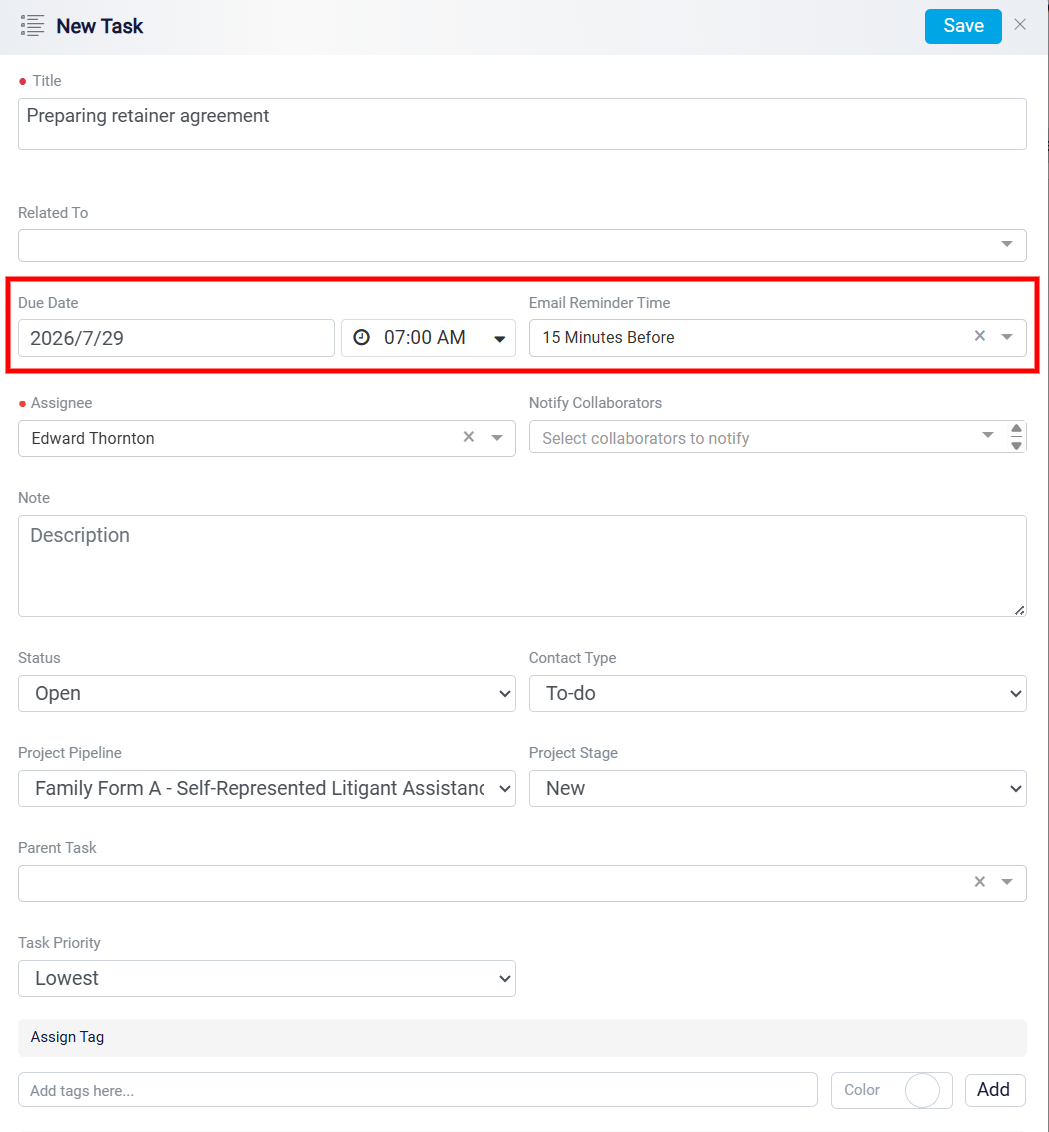
The Due Date section is used to define when the task should be completed. The user can select both a date and a time.
The Email Reminder Time field is used to set a reminder before the task is due. When the user opens this dropdown, they can choose how many minutes before the due date and time the assignee should be notified. This reminder helps the assignee prepare for the task and complete it on time.
Assignee and Collaborators
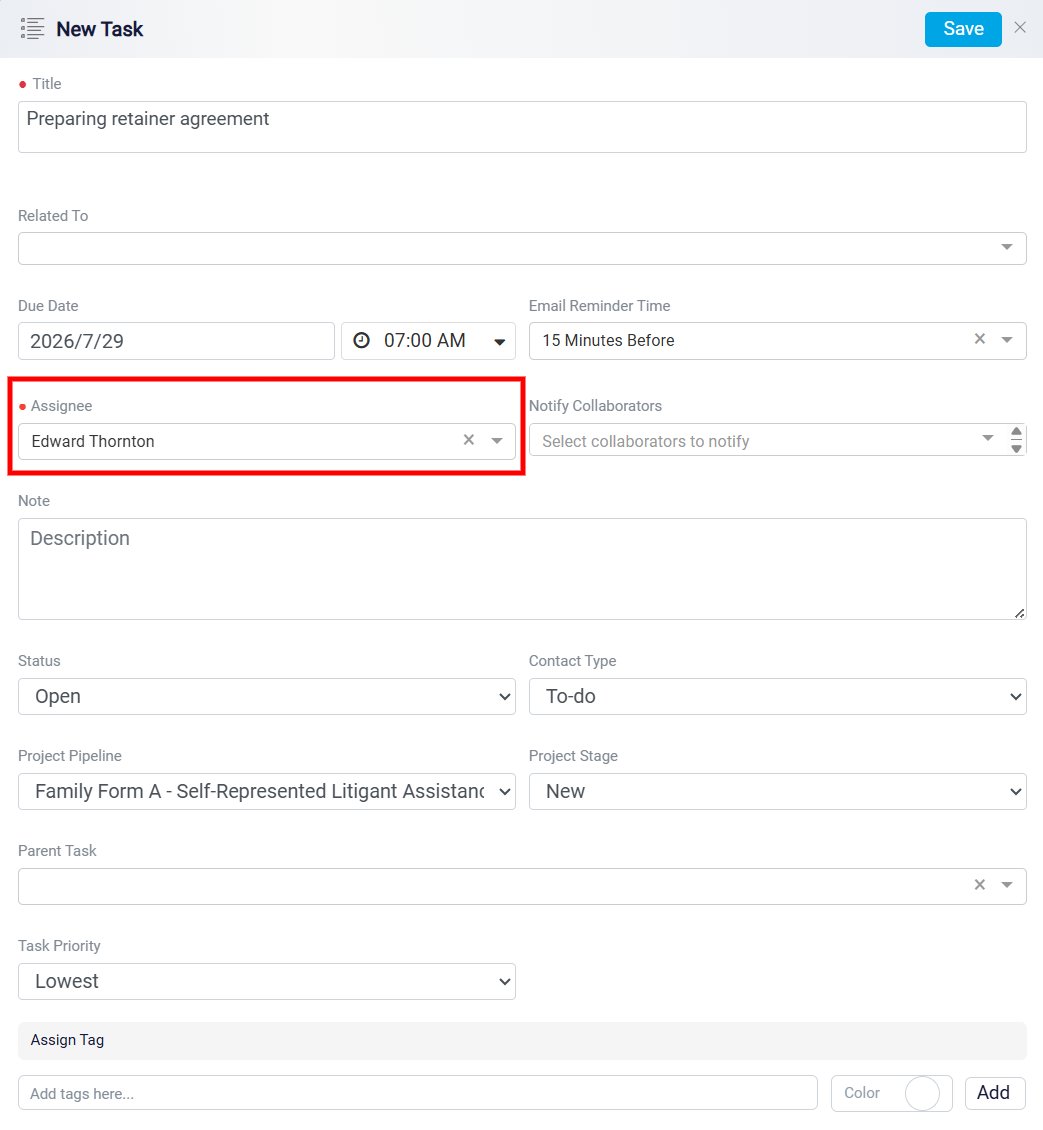
The Assignee field identifies the user who is responsible for completing the task. The assigned user is the main handler of the task and is expected to manage it until it is completed. Once a task is created and assigned to a specific user, that user should receive a notification inside the system. The user should also receive an email notification at the email address connected to their account, informing them that a task has been assigned to them.
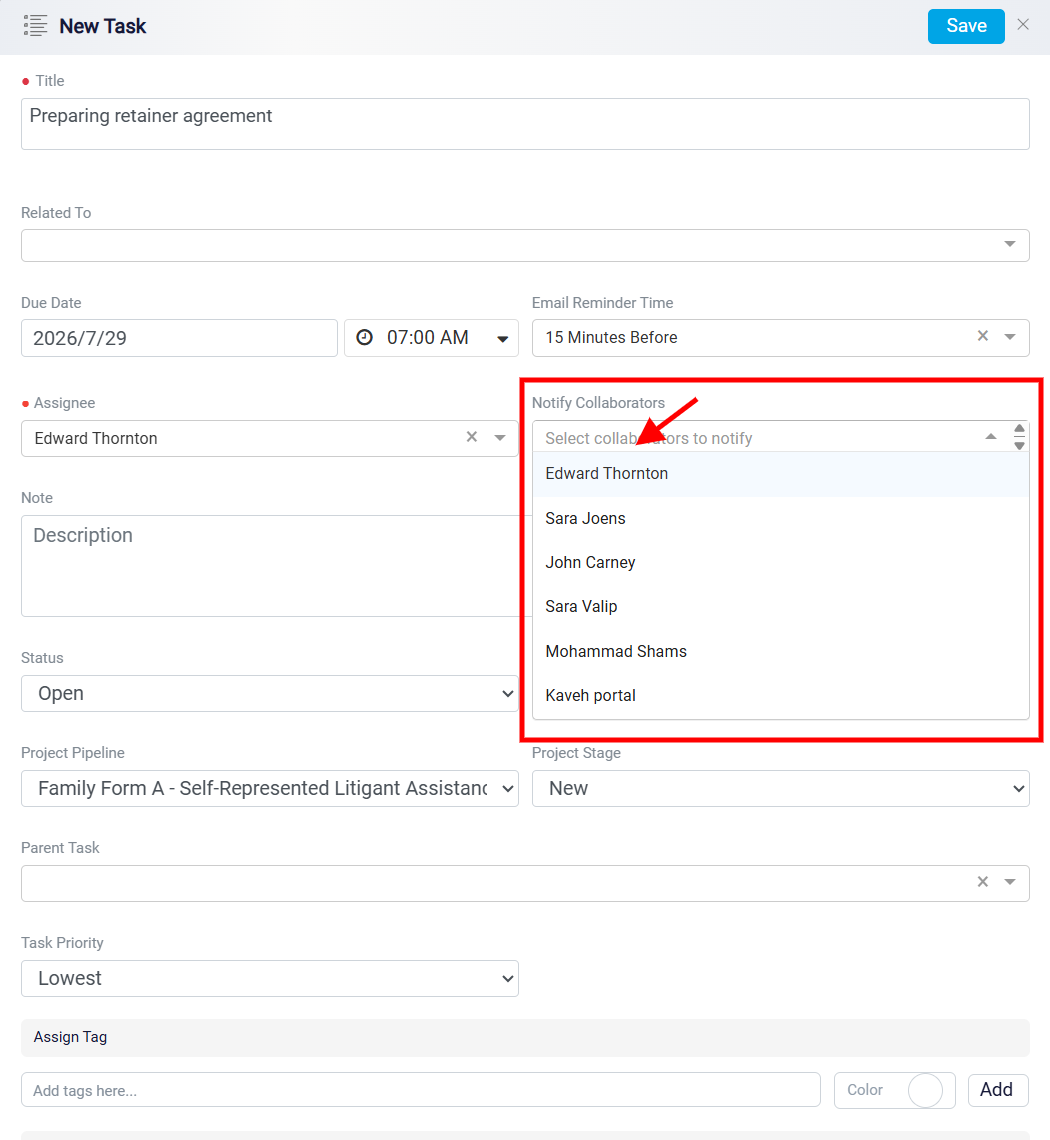
The Notify Collaborators dropdown allows the task creator to select additional internal users who should be involved in or informed about the task. This dropdown displays a list of internal users in the system and allows multiple users to be selected as collaborators. While only one person can be assigned as the main handler of the task, multiple collaborators can be added when other users need to stay informed, assist with the task, or participate in the related work.
Task Notes and Status
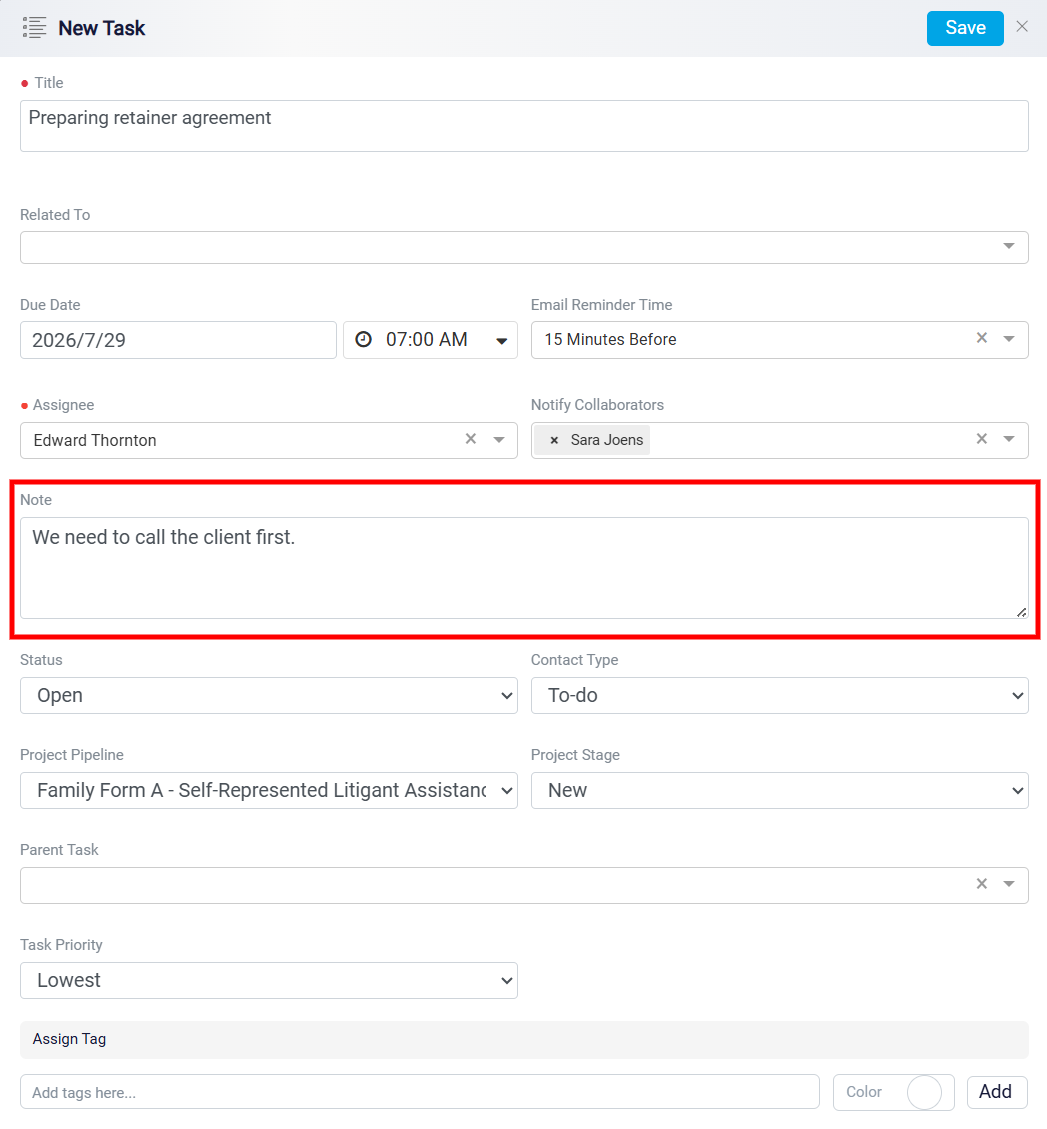
The Note field is used to add more details about the task. The user can include instructions, background information, context, requirements, or any other information the assignee needs in order to complete the task properly. This field helps make sure the assigned user understands what needs to be done and why the task has been created.
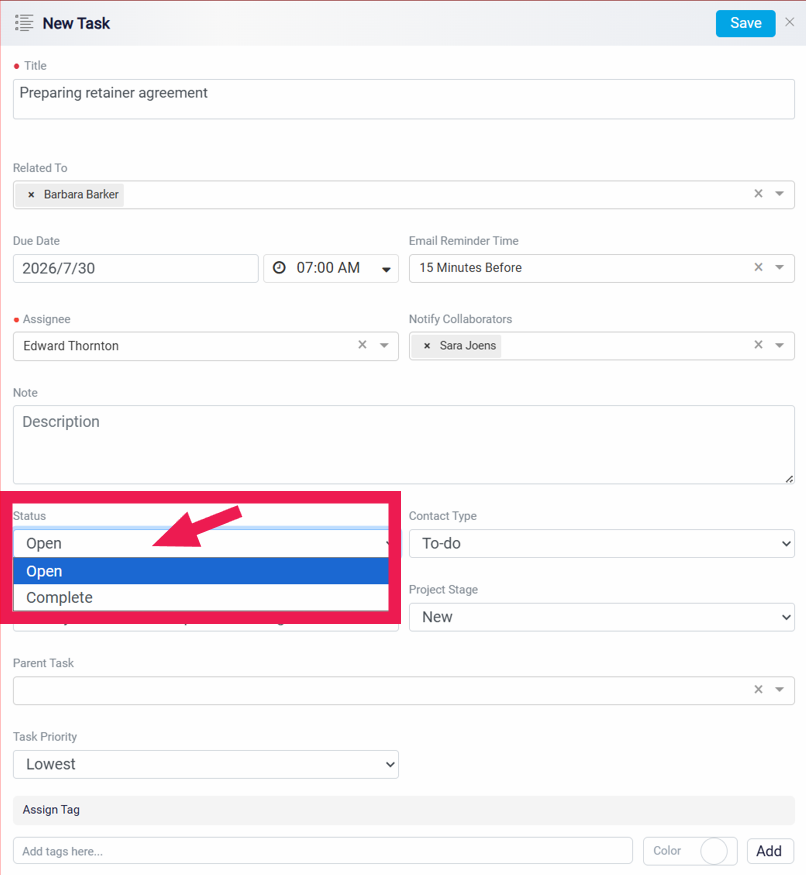
The Status field shows the current state of the task. The available options are Open and Complete. This status is separate from the project pipeline and does not represent the task’s position within a project workflow. Instead, it is used only to show whether the task still needs to be completed or whether it has already been finished. This makes it easier to record both pending tasks and tasks that have already been completed but still need to be documented in the system.
Task Type
The Task Type field is used to classify the type of task or the type of communication required. For example, the task may involve a phone call, an email, or a general to-do item. If the task creator does not have a specific communication method in mind, they can select a general task type such as to-do. This field helps users understand the expected form of action before working on the task.
To create, customize, and manage various task categories please see Task Types.
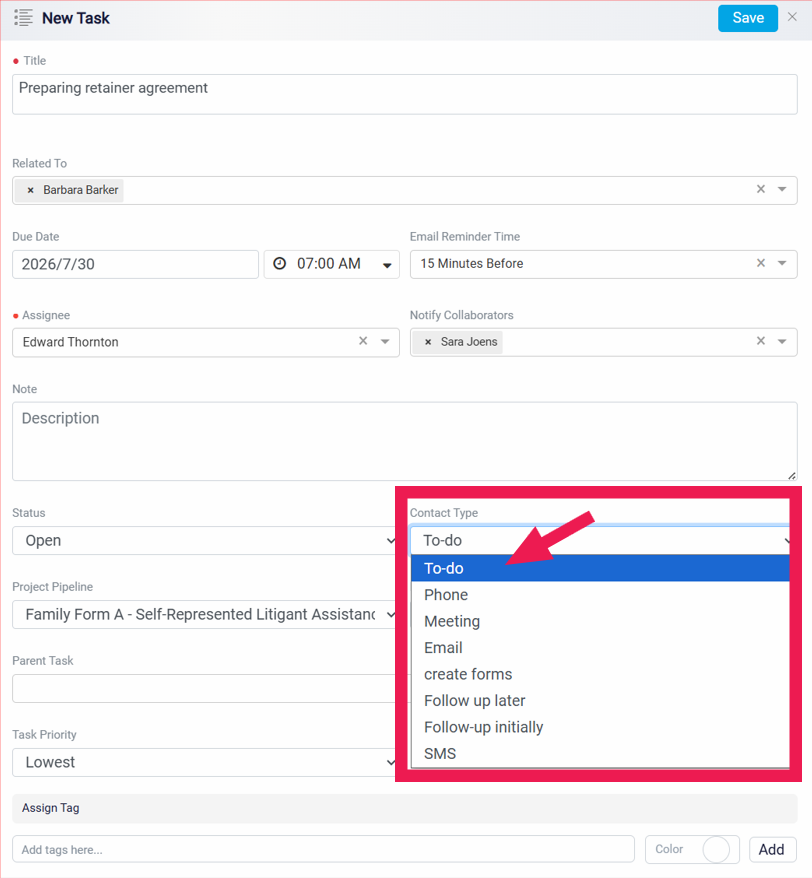
Project Pipeline and Project Stage
The Project Pipeline and Project Stage fields are used to place the task under the correct project and stage. In RunSensible, tasks can be managed as part of a project. Each project has its own pipeline, which defines the steps or stages used to organize the work.
When the user opens the Project Pipeline dropdown, they can see the available projects in the system. Selecting a project means the task will be connected to that project and will follow the pipeline assigned to it.
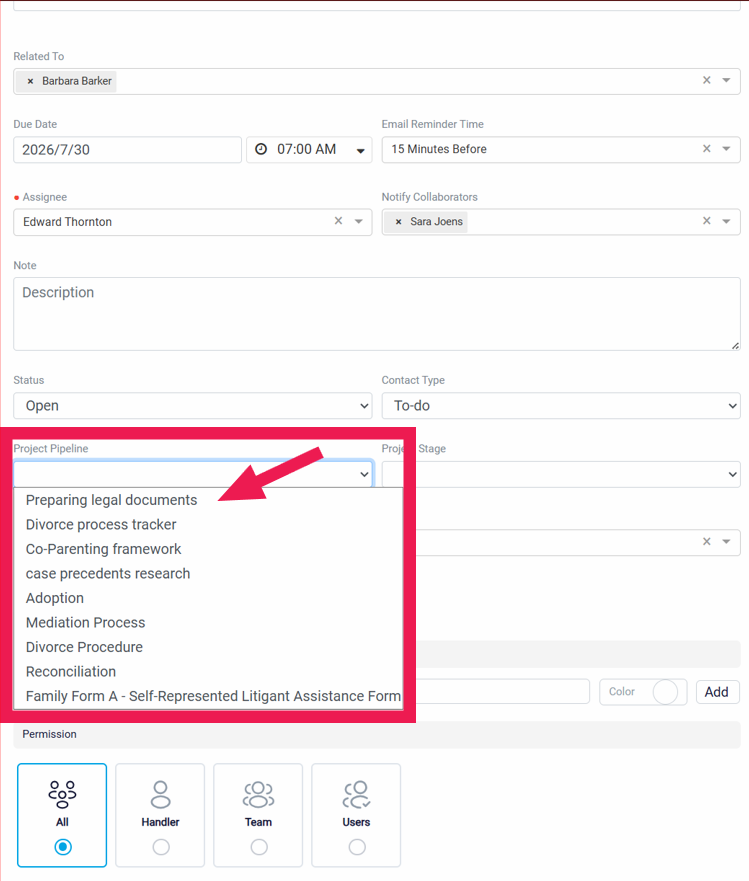
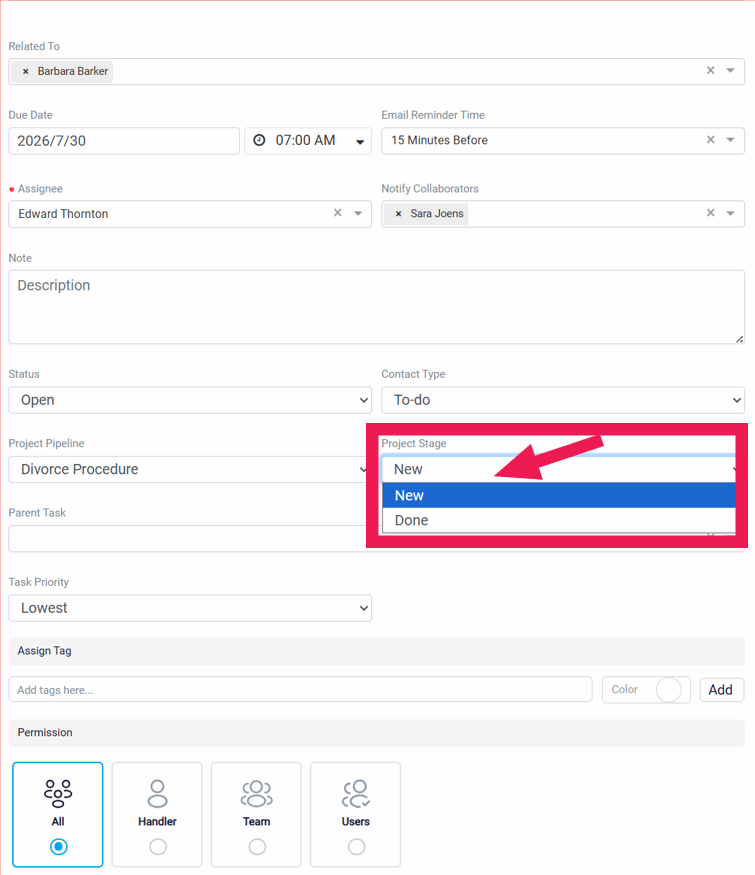
After selecting a project, the user can choose a Project Stage. The Project Stage dropdown shows the stages that belong to the selected project’s pipeline. Every project pipeline includes a New stage by default, but the user can select another stage if the task already belongs to a later part of the workflow. This helps keep the task organized in the correct place within the project process.
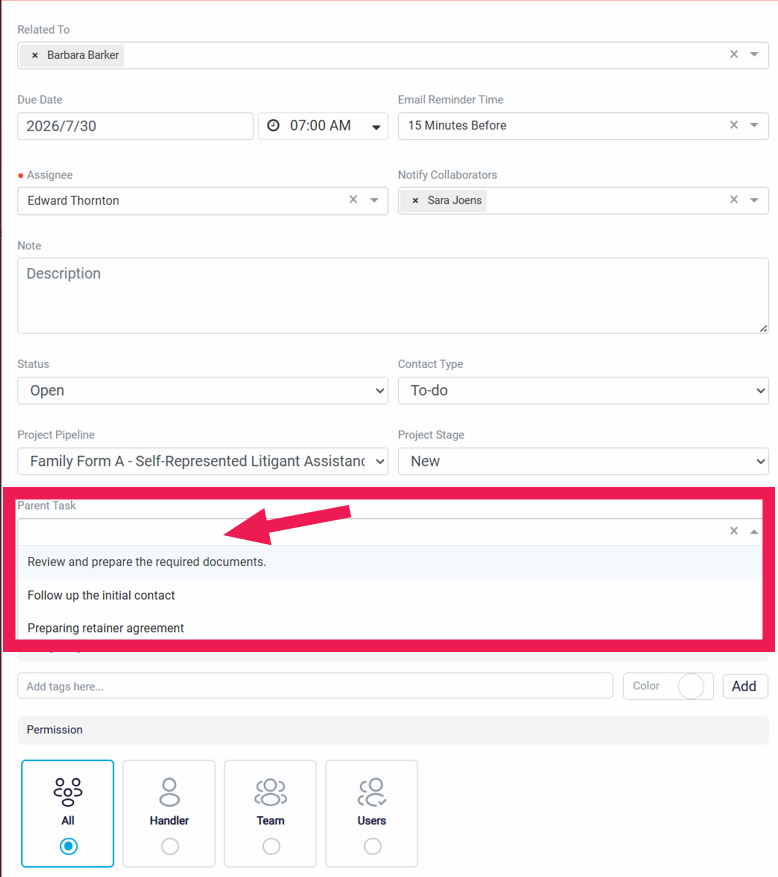
Parent Task and Task Priority
The Parent Task field is used when the new task belongs under another task. This is useful when a larger task needs to be divided into smaller related tasks. By connecting a task to a parent task, users can organize work into tasks and subtasks, making large responsibilities easier to manage and complete step by step.
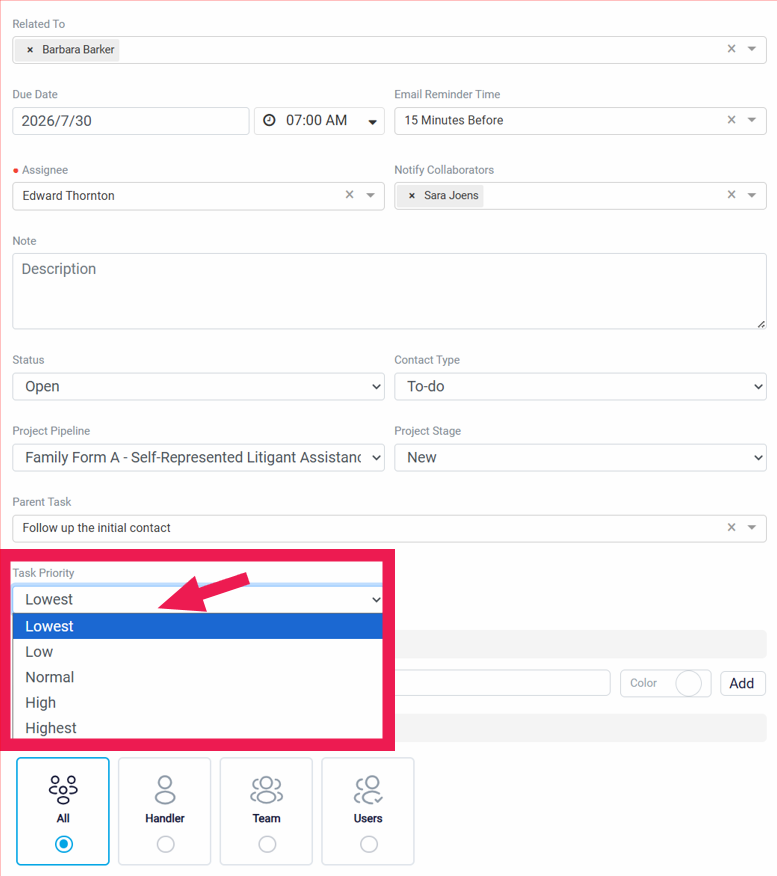
The Task Priority field shows how important or urgent the task is. The available priority levels may include options such as Low, Normal, and High. The user can choose the priority based on how quickly the task needs attention and how important it is compared with other tasks.
Task Tags and Permissions
The Assign Tag section allows the user to add tags to the task. Tags help organize tasks and make them easier to search, filter, and identify later. The user can enter a tag name, choose a color, and click Add to attach the tag to the task.
To learn how to assign tags to your tasks, please see Assigning Tags to Tasks.
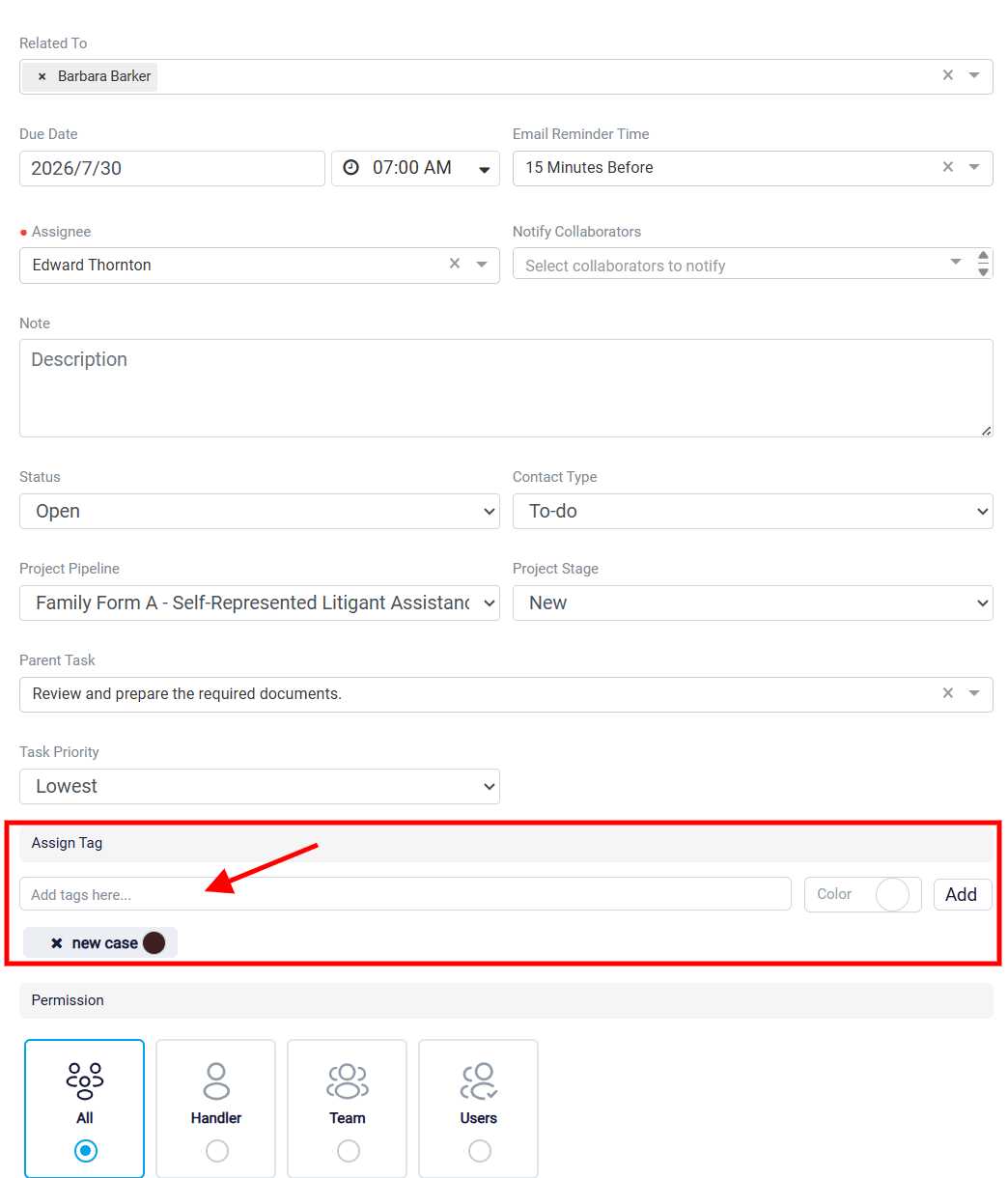
The Permission section controls who can view or manage the task. The default option is All, which means all users can access the task. The user can also restrict access to only the Handler, a specific Team, or selected Users. This is useful when the task contains private information or should only be visible to certain people.