
Connecting your Gmail Account
Connecting your Gmail account to RunSensible allows you to send emails directly from the platform. Once connected, you can keep your communications organized and maintain email correspondence alongside your contacts and matters.
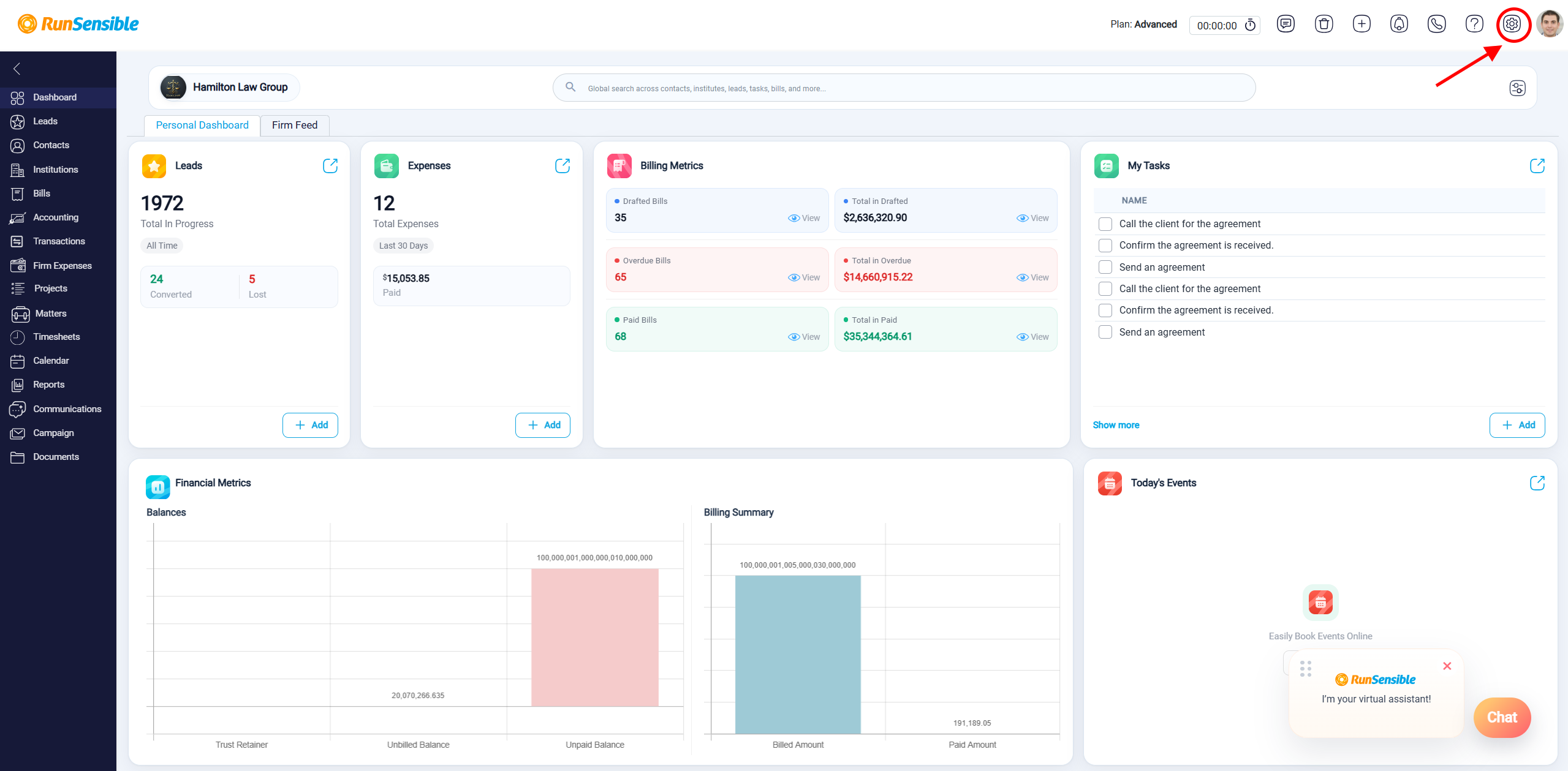
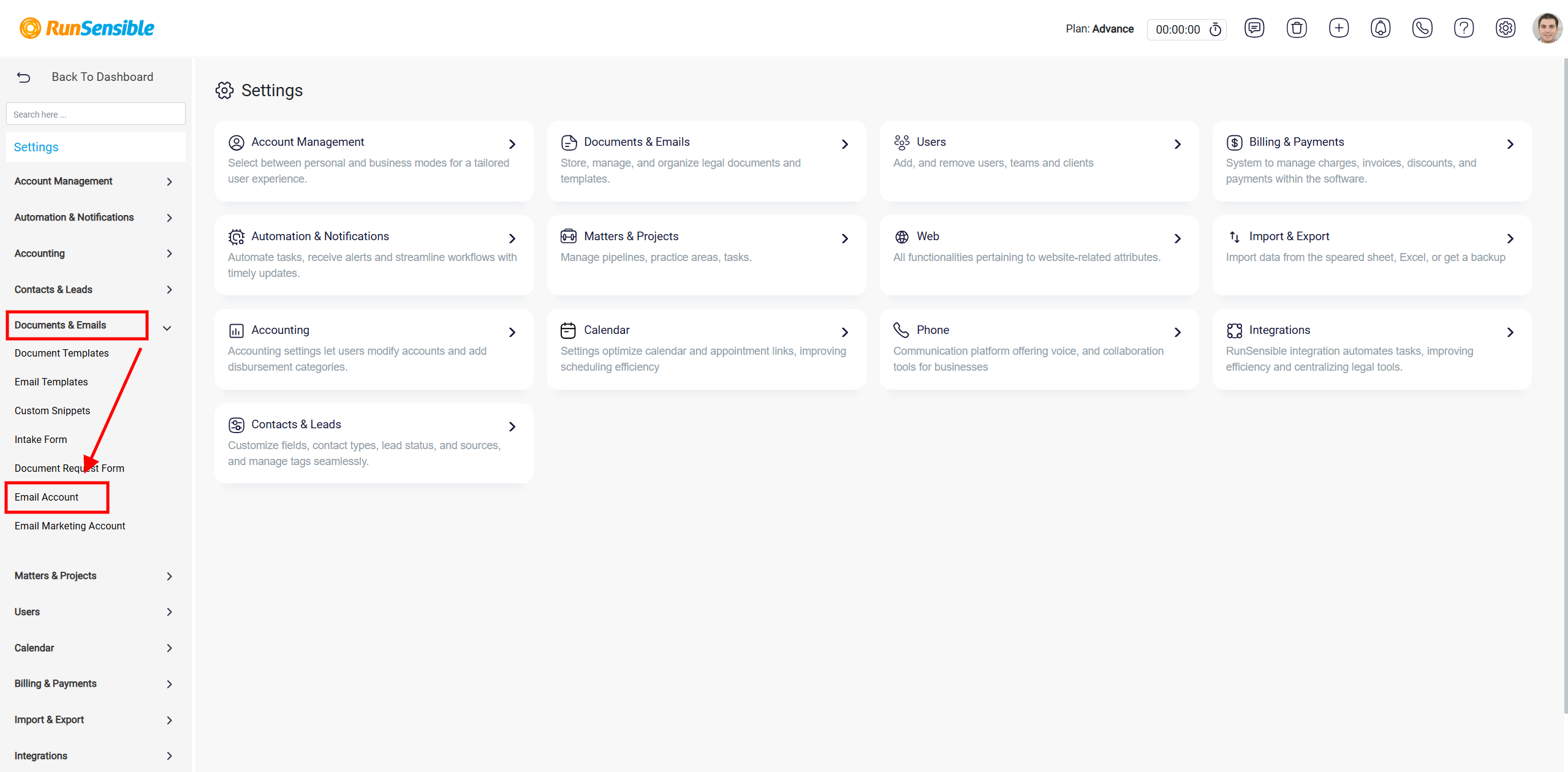
Navigate to Settings, select Documents & Emails from the left menu, and then choose Email Account.
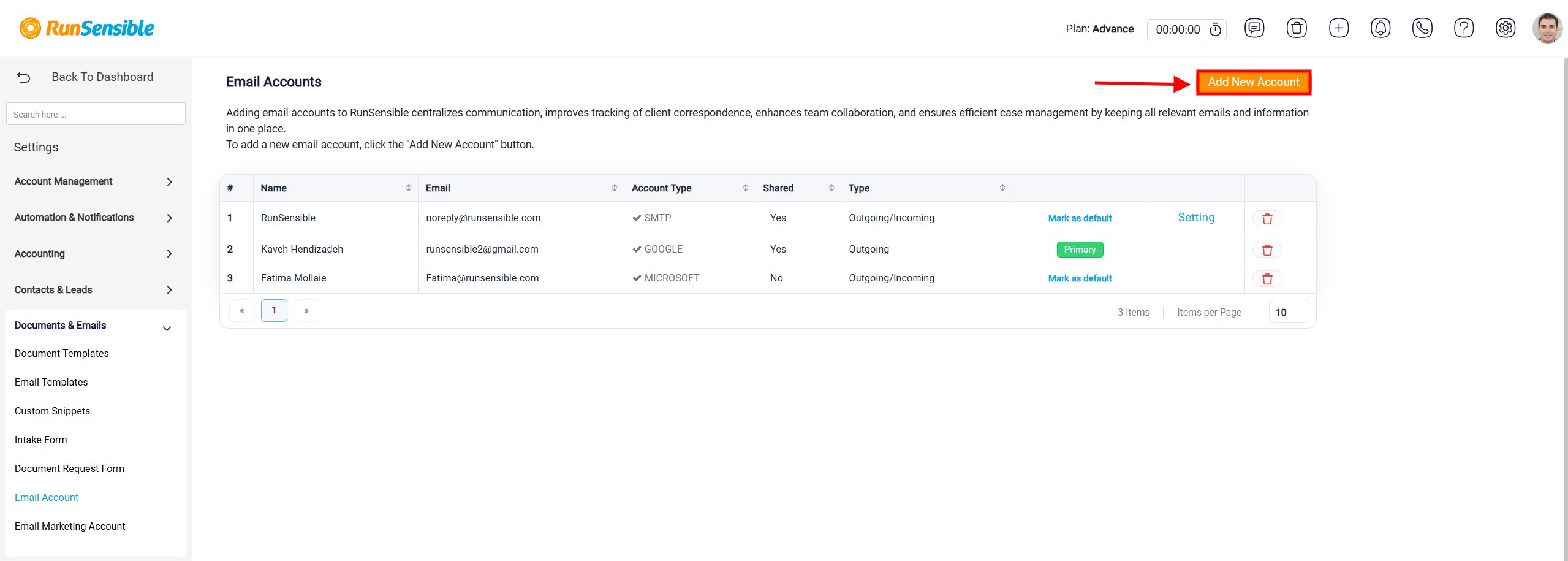
To add a new email account, click the Add New Account button located at the top of the page. Here, you’ll be prompted to select the type of account you’re adding.
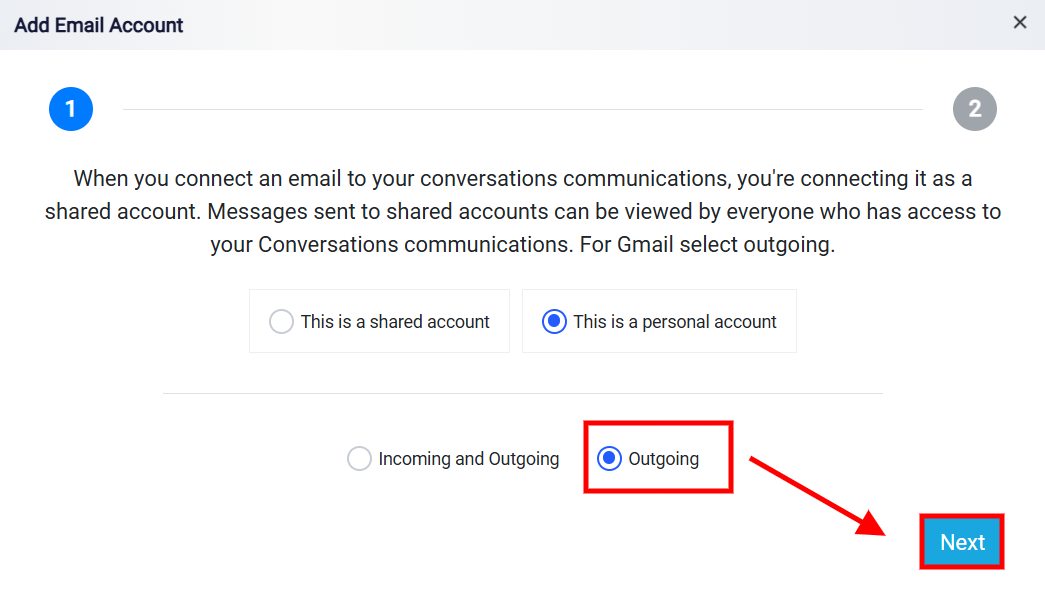
To connect your Gmail account to RunSensible, first choose whether the email account will be a Shared Account or a Personal Account. A shared account can be accessed by users who have permission to view conversations communications, while a personal account is intended for your individual use.
For Gmail integration, select Outgoing as the email flow option. This allows RunSensible to send emails using your Gmail account. Once Outgoing is selected, click Next to continue.
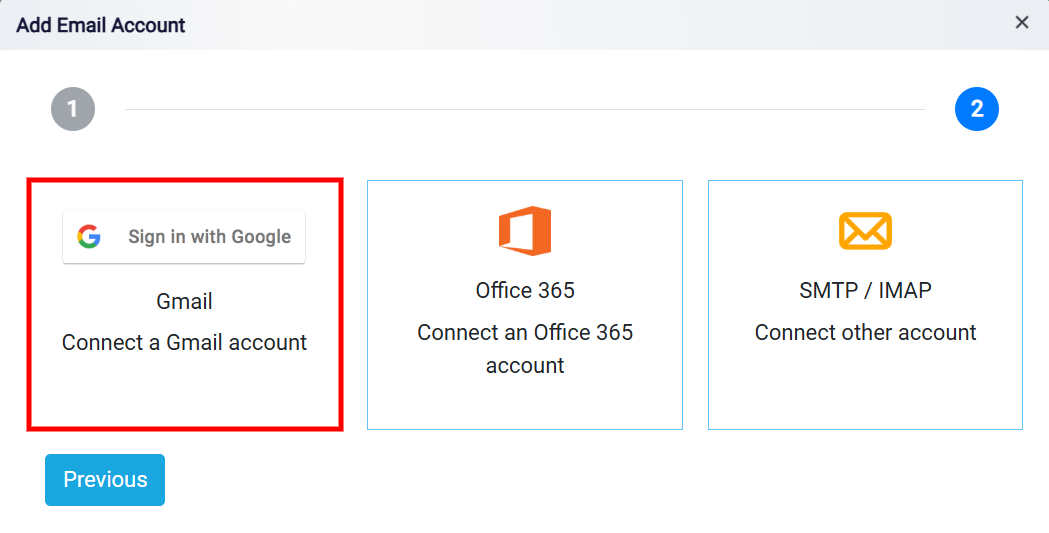
On the Add Email Account page, select Gmail and click Sign in with Google. You will be redirected to Google, where you can sign in to the Gmail account you want to connect and authorize the required permissions.
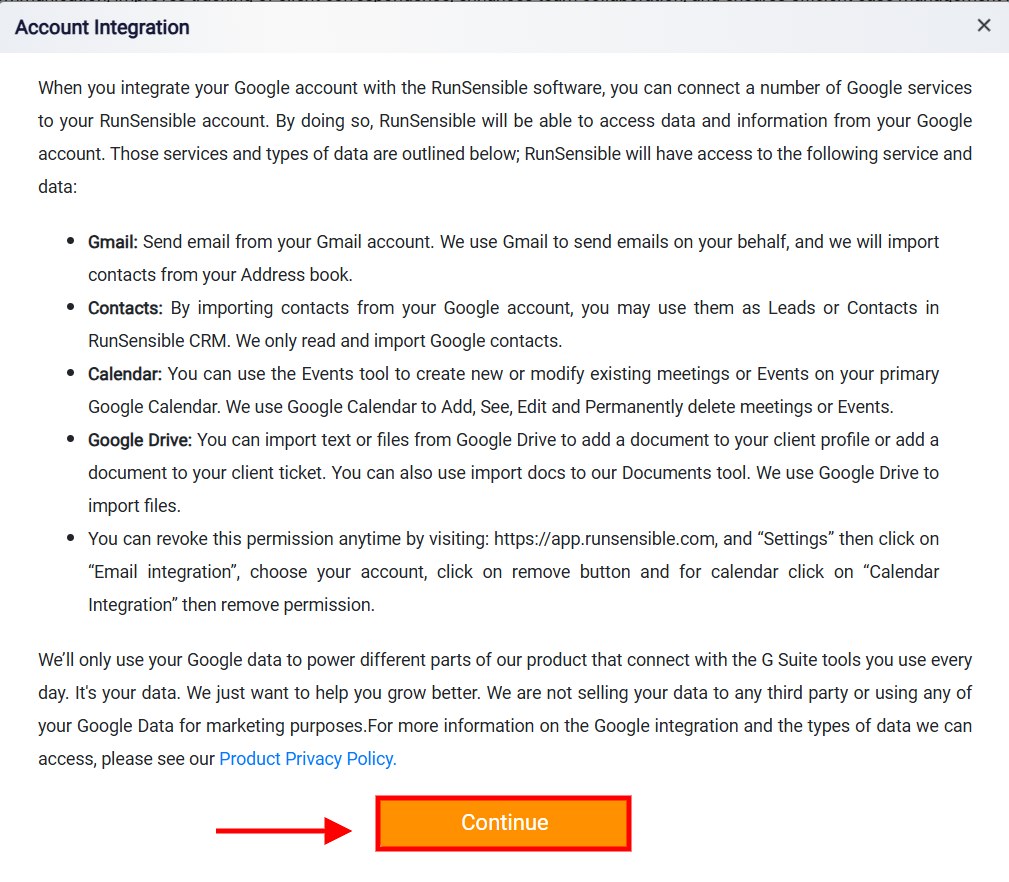
After signing in, the Account Integration window will display information about the Google services and data that RunSensible may access, including Gmail, Contacts, Calendar, and Google Drive. Review the information carefully, then click Continue to proceed with the integration.
Follow the remaining Google authorization prompts to grant the requested permissions. Once authorization is complete, your Gmail account will be connected to RunSensible and can be used to send outgoing emails directly from the platform.