
Outlook Add-in Installation and Setup
The RunSensible Outlook Add-in connects Microsoft Outlook with your RunSensible account, allowing you to search and access Contacts, Companies, Matters, and Leads directly from Outlook. The add-in also helps you quickly associate emails with the appropriate RunSensible records without leaving your inbox.
How to Install the RunSensible Outlook Add-in
To install the RunSensible Outlook Add-in, open Outlook on the web and select any email. On the Home tab, click More apps from the Outlook ribbon.

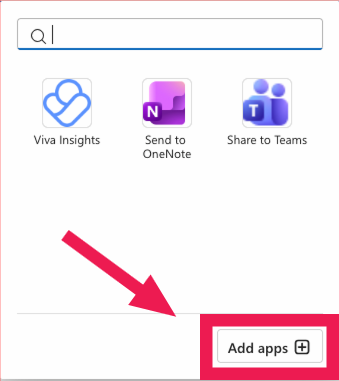
From the Apps panel, click Add apps to open the Microsoft App Store.
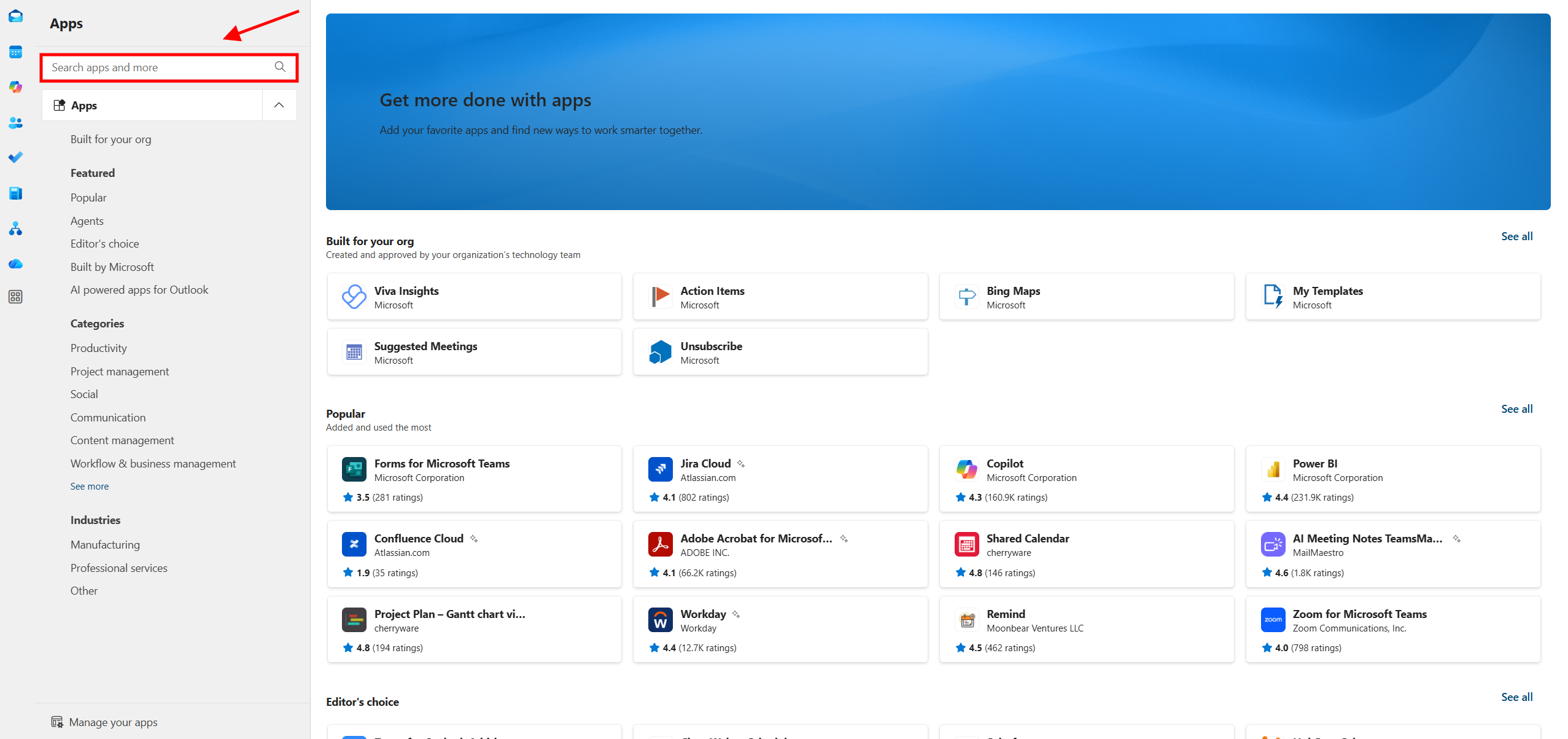
In the Search apps and more box, type RunSensible, then select RunSensible for Outlook from the search results.
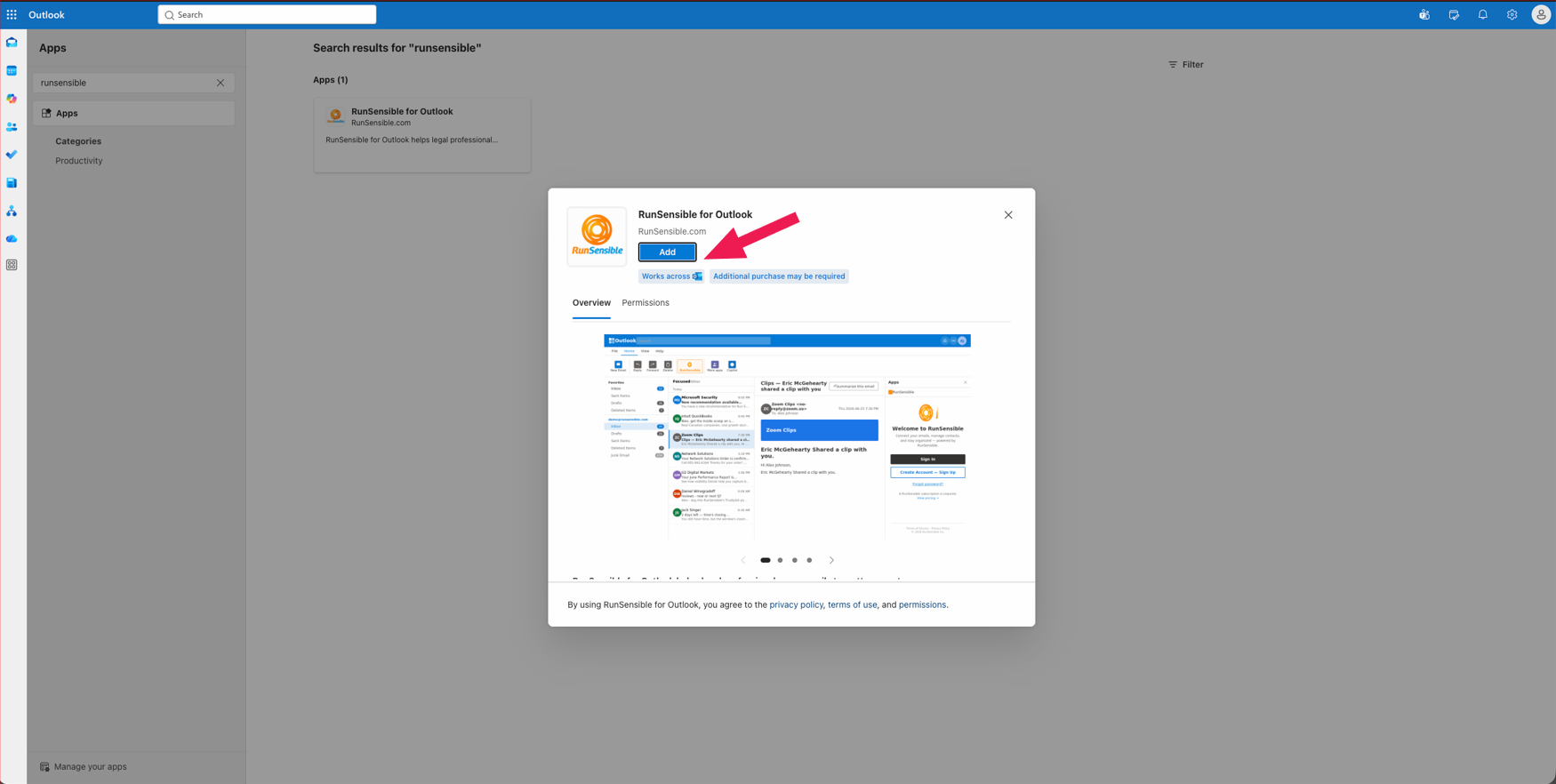
Click Add to install the add-in.
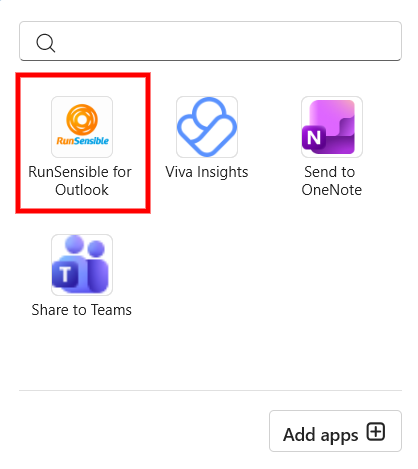
Once the installation is complete, RunSensible for Outlook will appear in your Outlook Apps list and is ready to use.
To launch the add-in, open the email you want to work with, click More apps on the Outlook ribbon, and then select RunSensible for Outlook. The RunSensible panel will open on the right side of Outlook.
Click Sign In and enter your RunSensible account credentials. If you do not already have a RunSensible account, click Create Account — Sign Up to create one. After signing in, the add-in automatically loads information related to the currently selected email, allowing you to quickly search and connect the email to your RunSensible records.
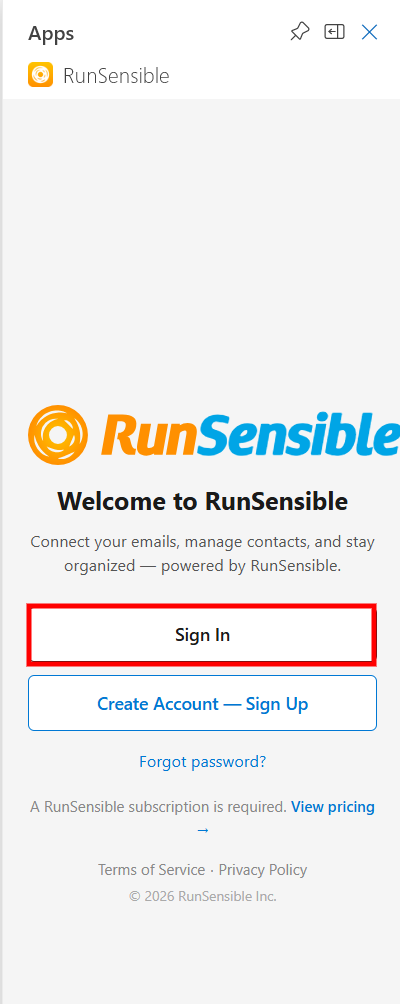
After you sign in, the add-in automatically detects the sender of the selected email and searches for any matching records in your RunSensible account. You can also manually search by selecting one of the available record types:
- Contacts
- Institutions
- Matters
- Leads
Choose the appropriate tab based on the type of record you want to locate.
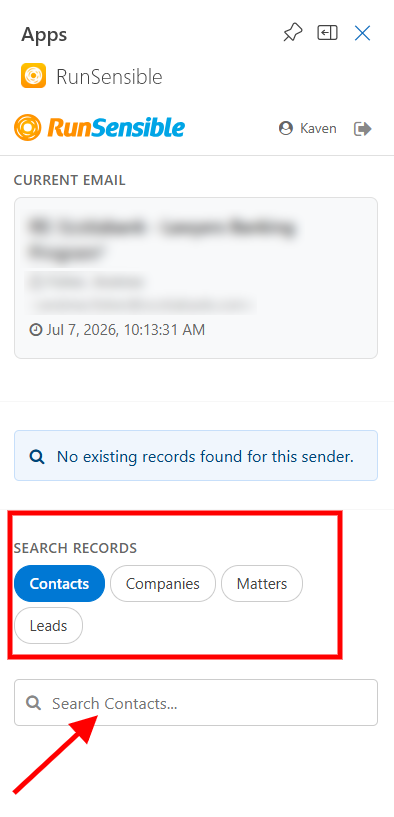
To perform a search, select the desired record type and enter at least two characters in the search box. Matching records are displayed automatically in the results list.
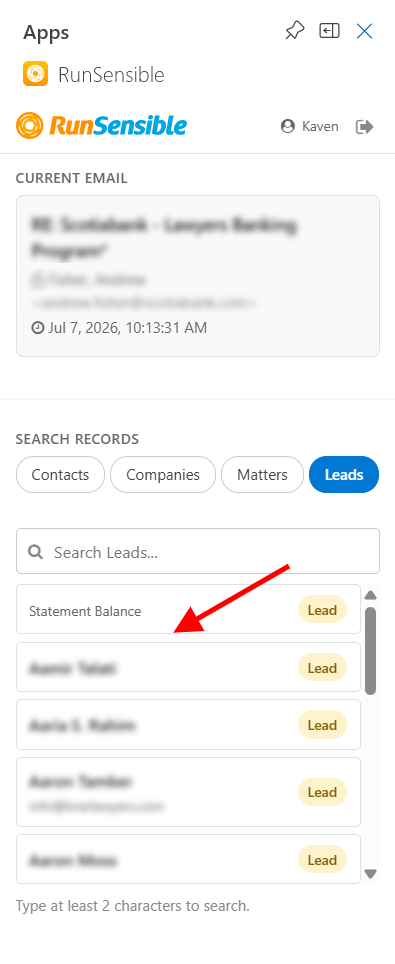
Click any record to view its details or associate it with the currently selected email. If no matching records are found, the message “No existing records found for this sender.” is displayed. You can then perform a manual search using any of the available record types to locate the appropriate record.