
Configure and Manage Currency
The Currency settings in RunSensible allow you to configure the currencies your organization uses for billing and financial transactions. You can add currencies, select a default currency, and edit or remove existing currencies.
To access the Currency settings in RunSensible, navigate to Settings, click Billing & Payments and select Currency. From this section, you can view and manage the currencies available for your billing and financial transactions.
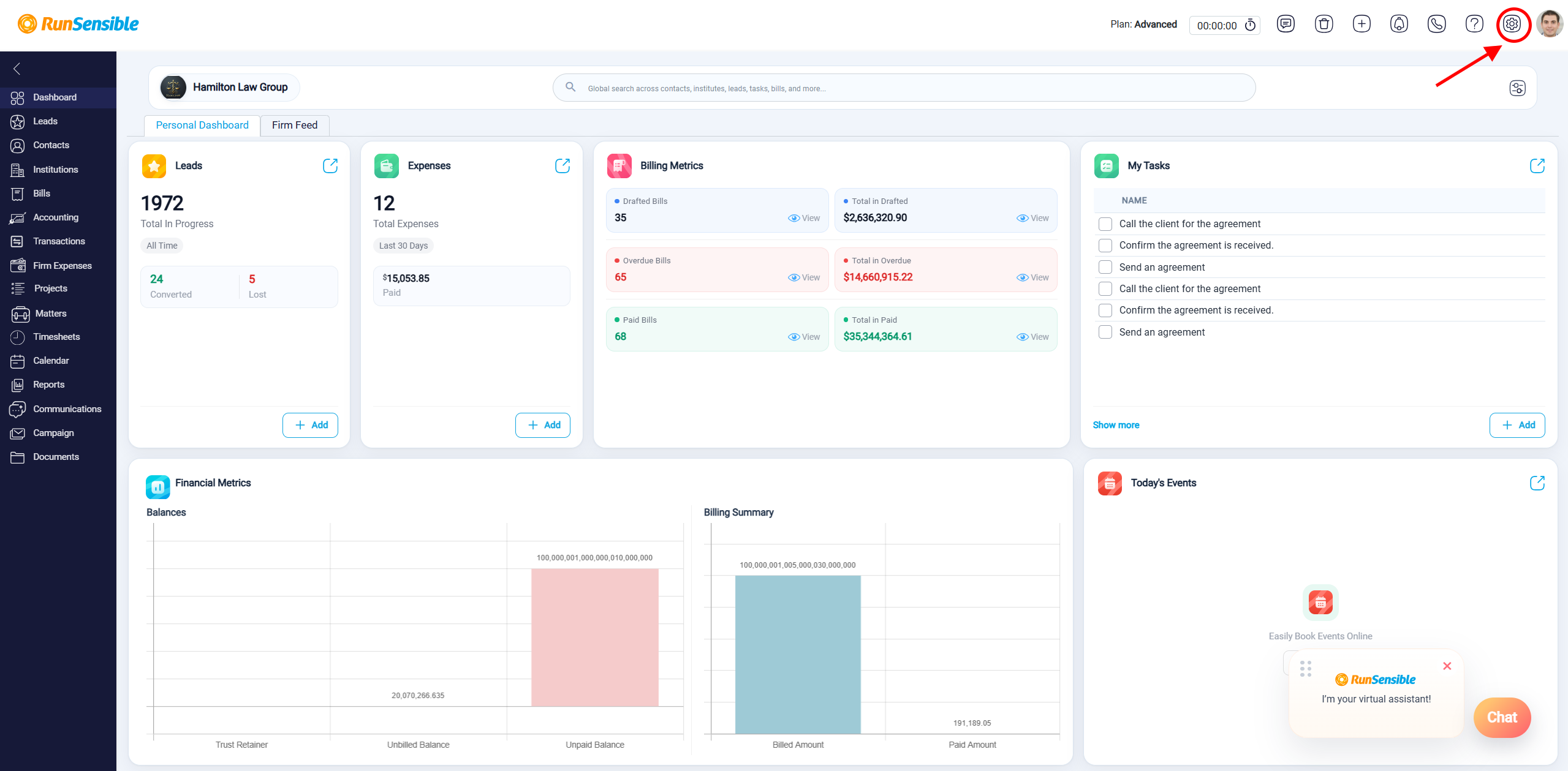
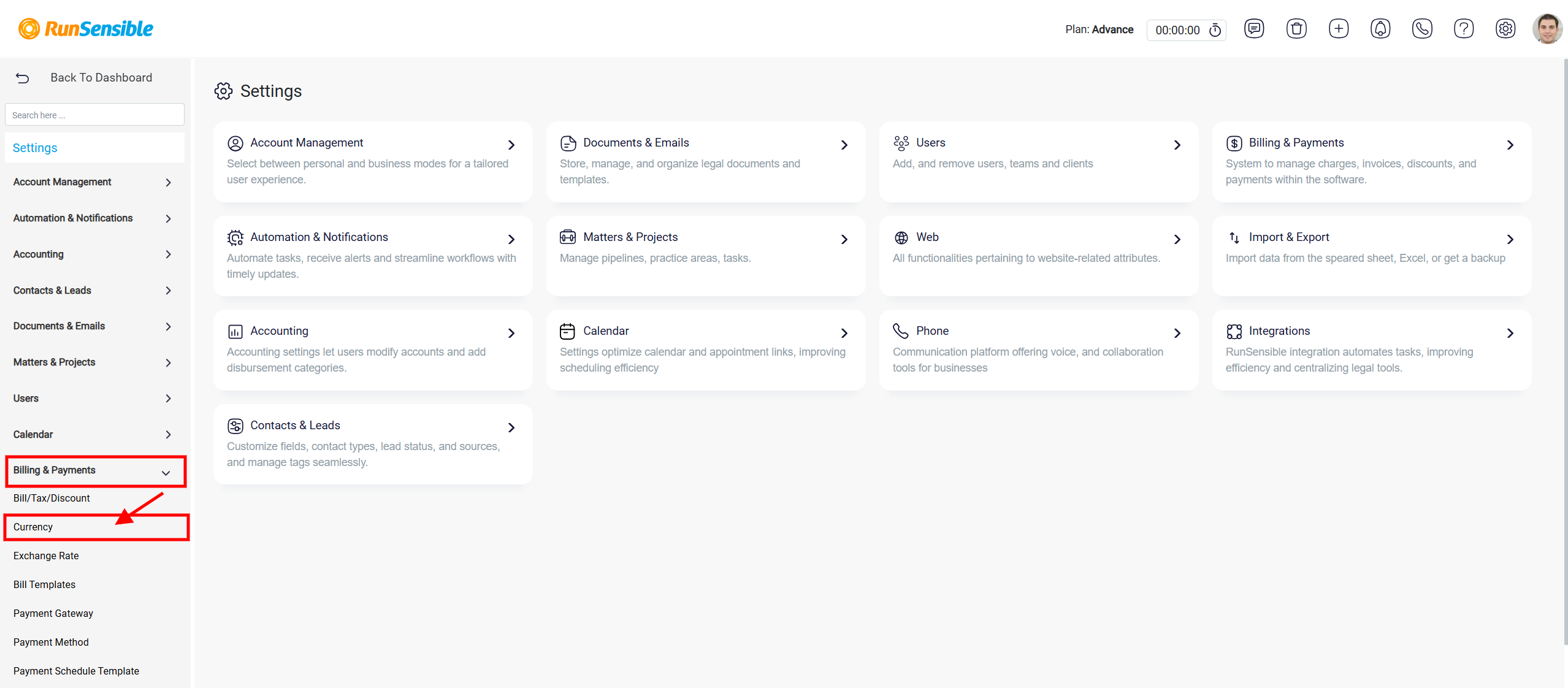
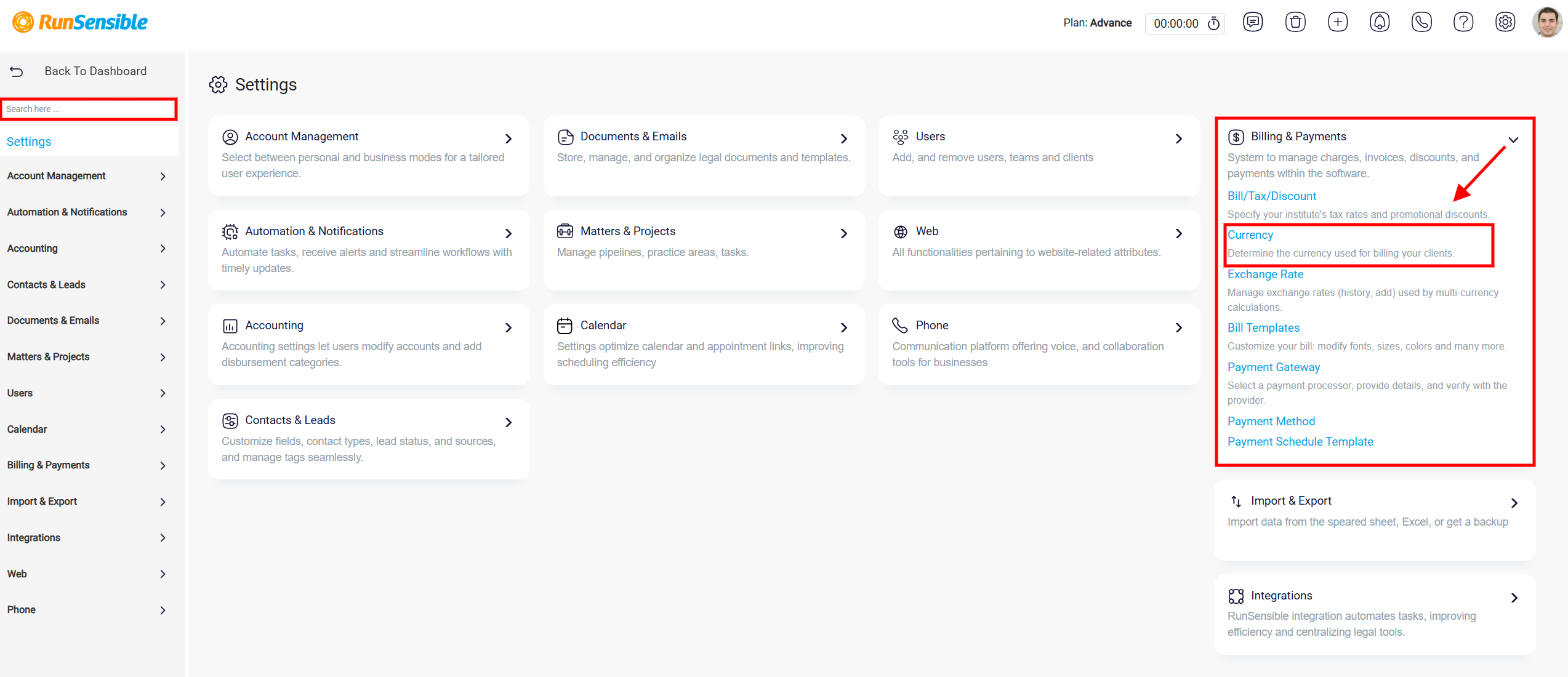
Alternatively, you can quickly locate the Currency settings by entering “Currency” in the Search box on the Settings page. You can also find it in the Billing & Payments section in the main area of the Settings page and select Currency from the available options.
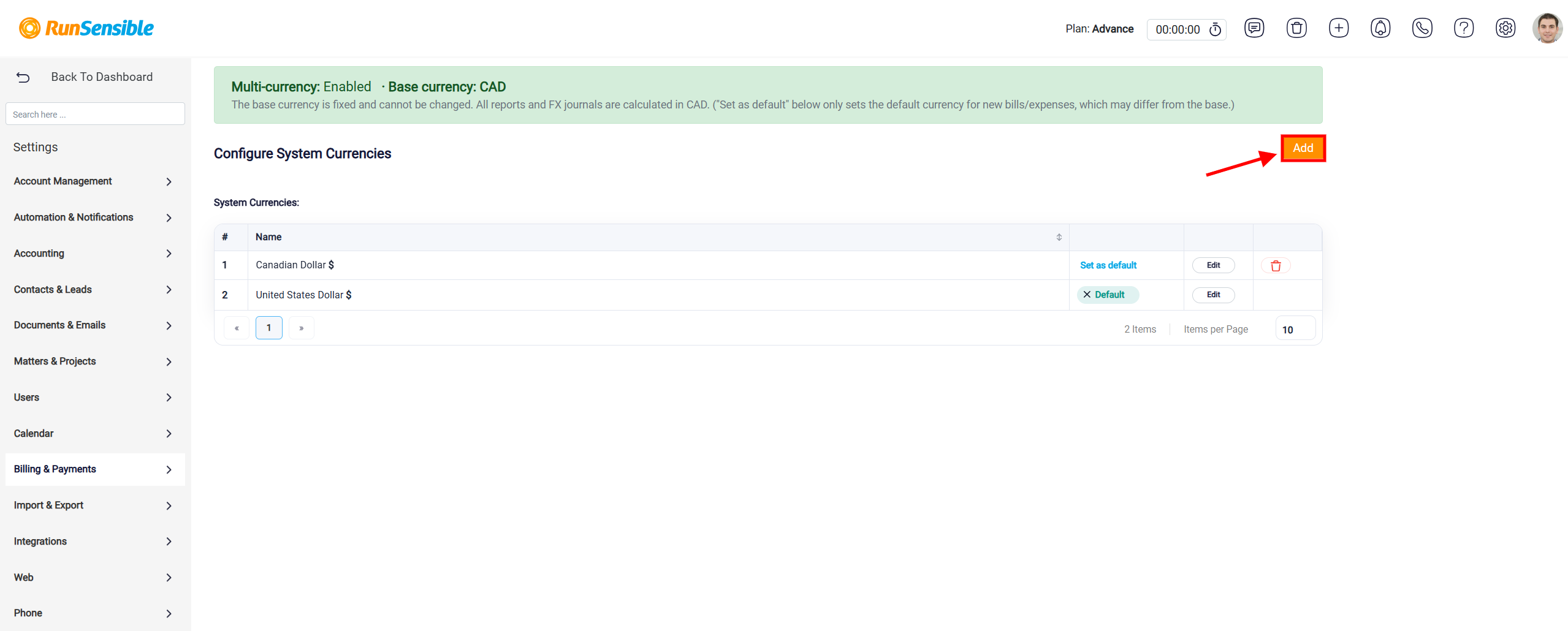
To add a new currency, click Add button.
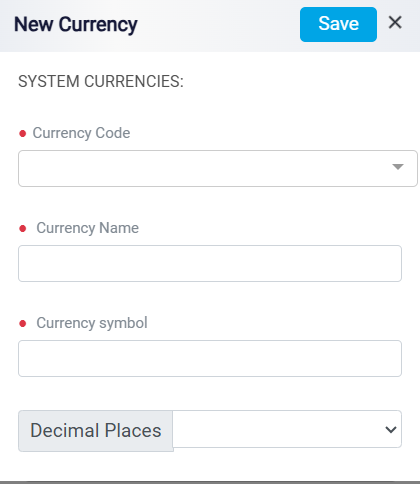
In the New Currency window, select the appropriate Currency Code, then review or enter the Currency Name and Currency Symbol. Next, choose the desired number of Decimal Places for the currency. Once all the information is complete, click Save to add the new currency to the system.
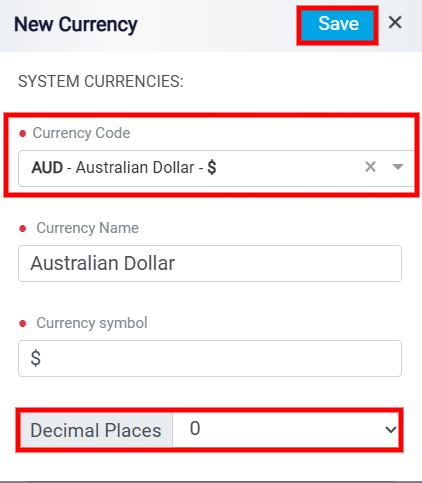
The new currency will appear in the System Currencies list. To choose the currency that should be used by default for new transactions, locate it in the System Currencies list and click Set as default. The selected currency is identified by the Default label.
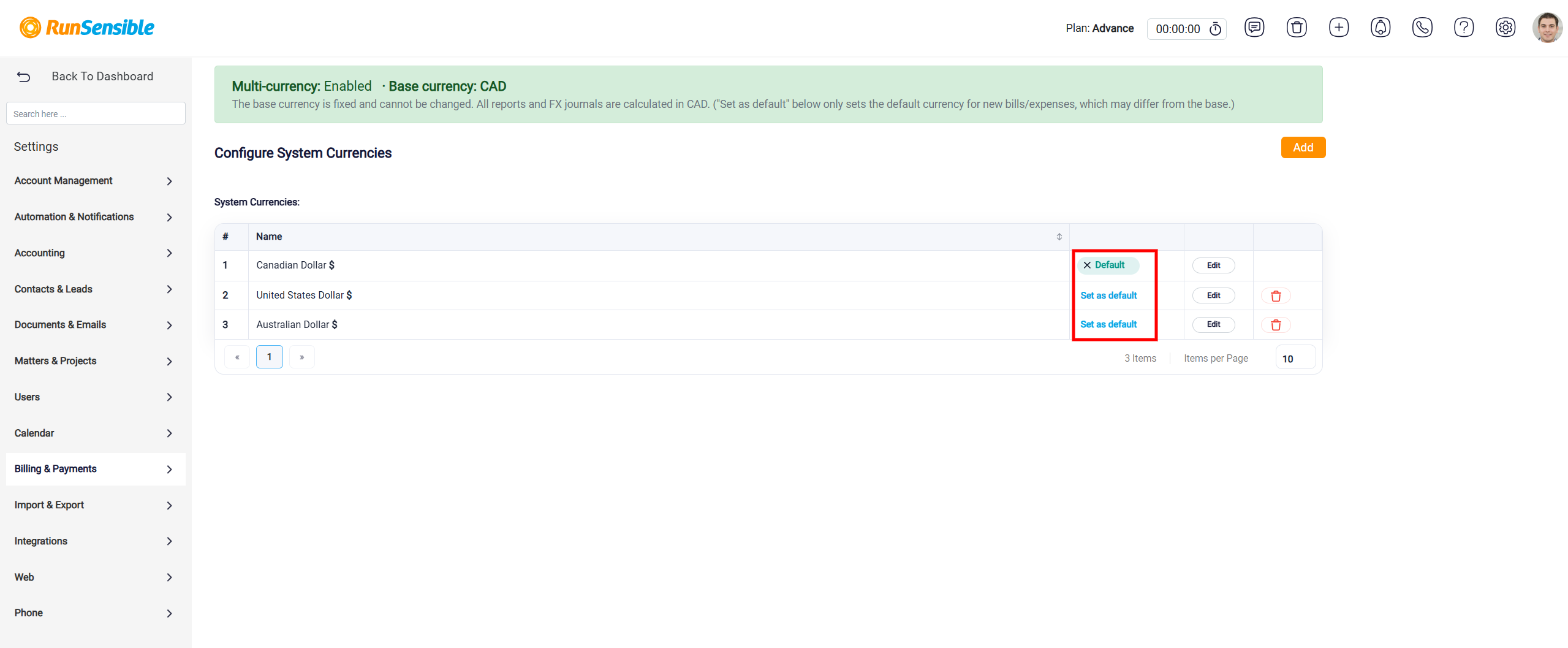
Note: The default currency may be different from your organization’s base currency. Changing the default currency does not change the base currency used for reporting and foreign exchange calculations.
To edit or remove an existing currency, locate the currency you want to update in the System Currencies list and click Edit or Delete.
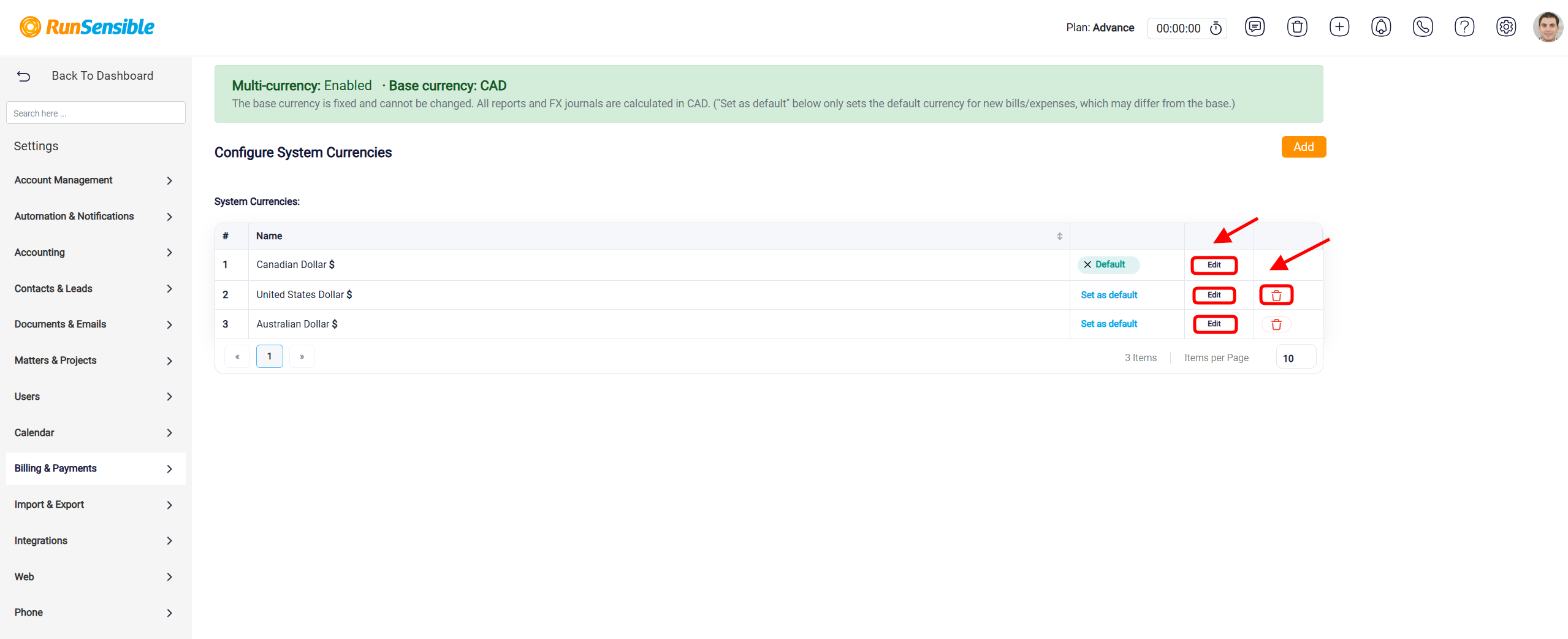
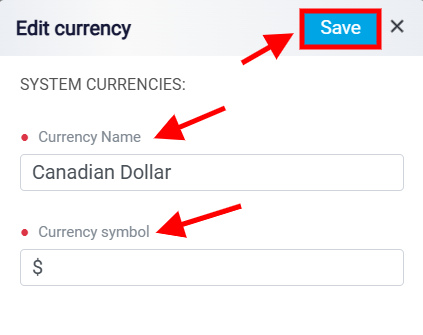
In the Edit Currency window, update the Currency Name or Currency Symbol as needed, then click Save to apply your changes.
By managing these settings, you can keep your organization’s currency options accurate and consistent, helping ensure that billing and other financial transactions use the appropriate currency information.