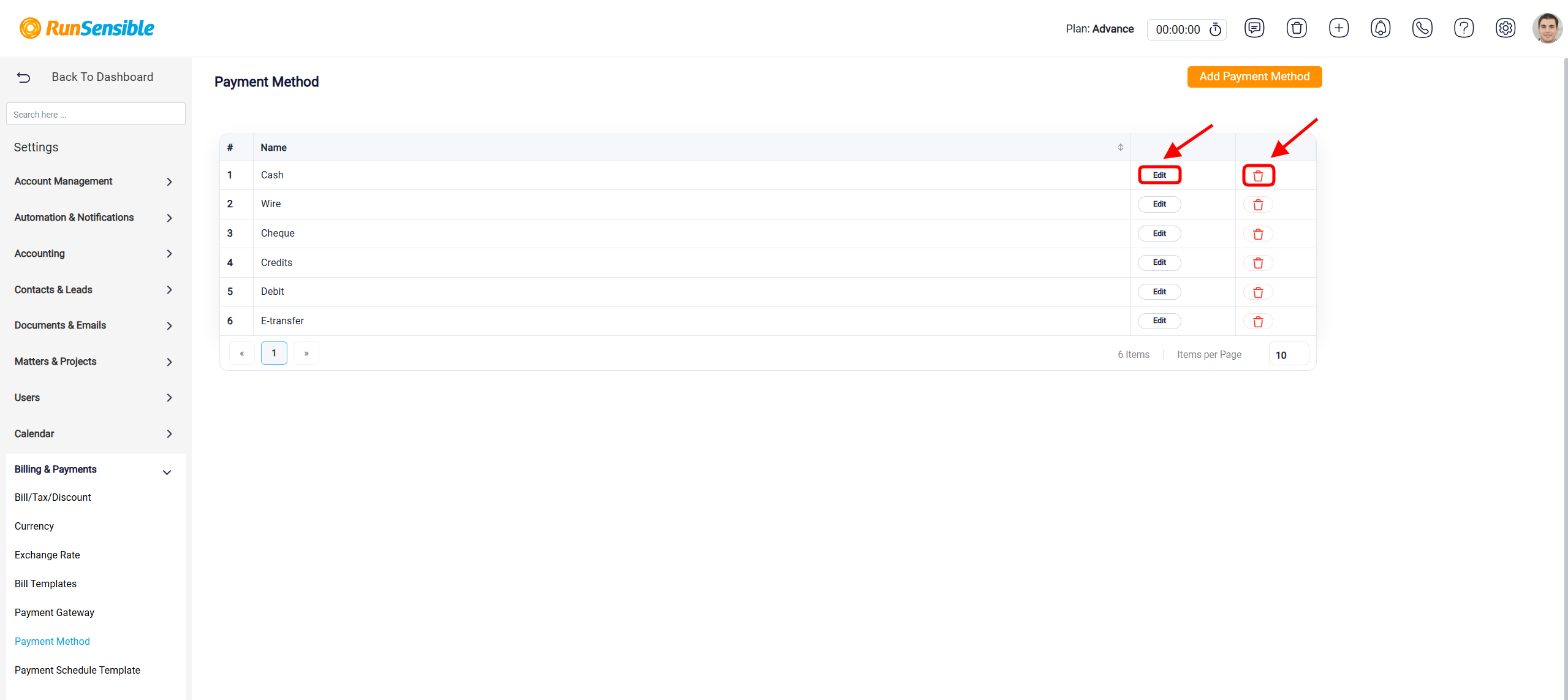
Managing Payment Method
The Payment Method settings allow you to create and manage the payment methods used when recording payments in RunSensible. You can add methods such as Cash, Wire, Cheque, Debit, E-transfer, or any other payment option your firm accepts.
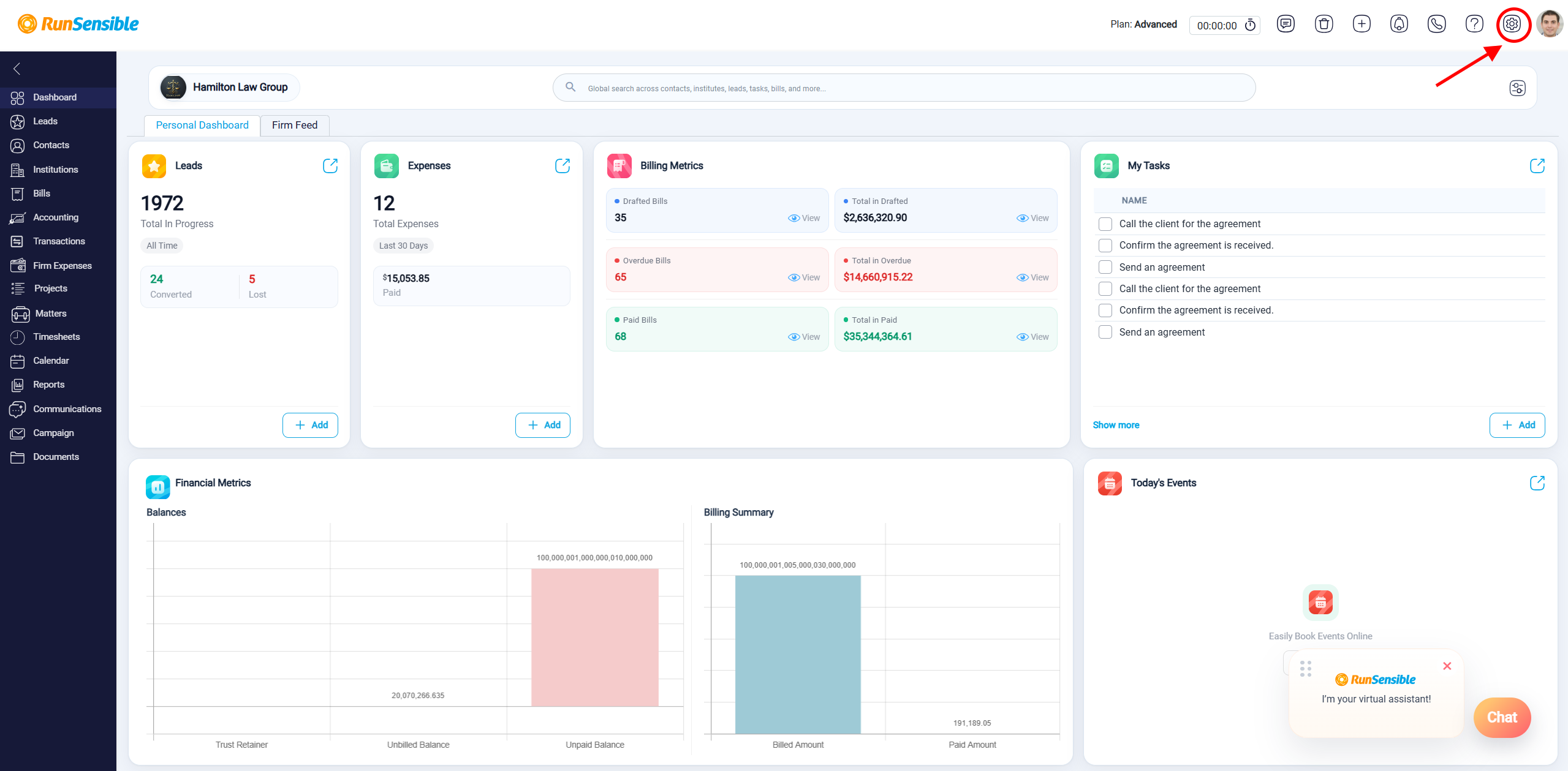
To access Payment Method, go to Settings.
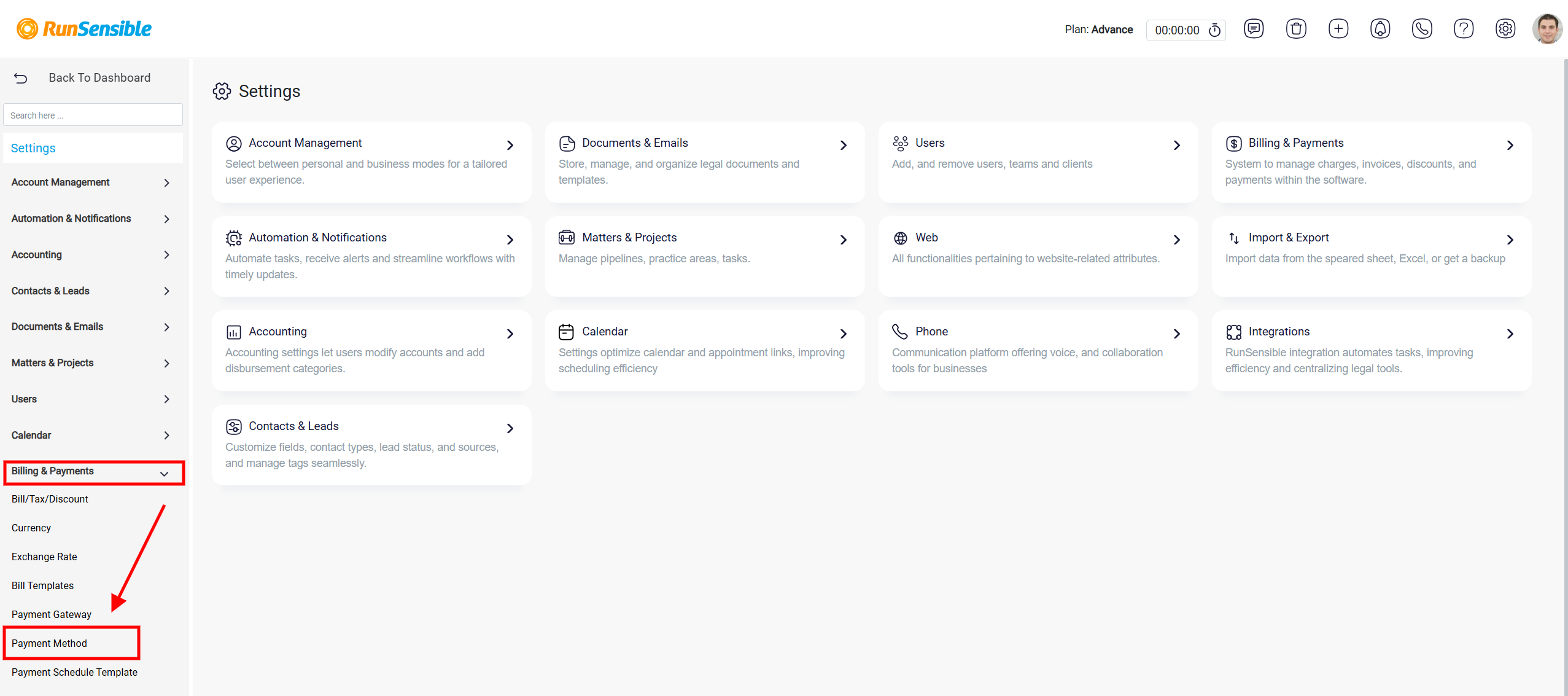
Select Billing & Payments, then choose Payment Method from the list of available settings.
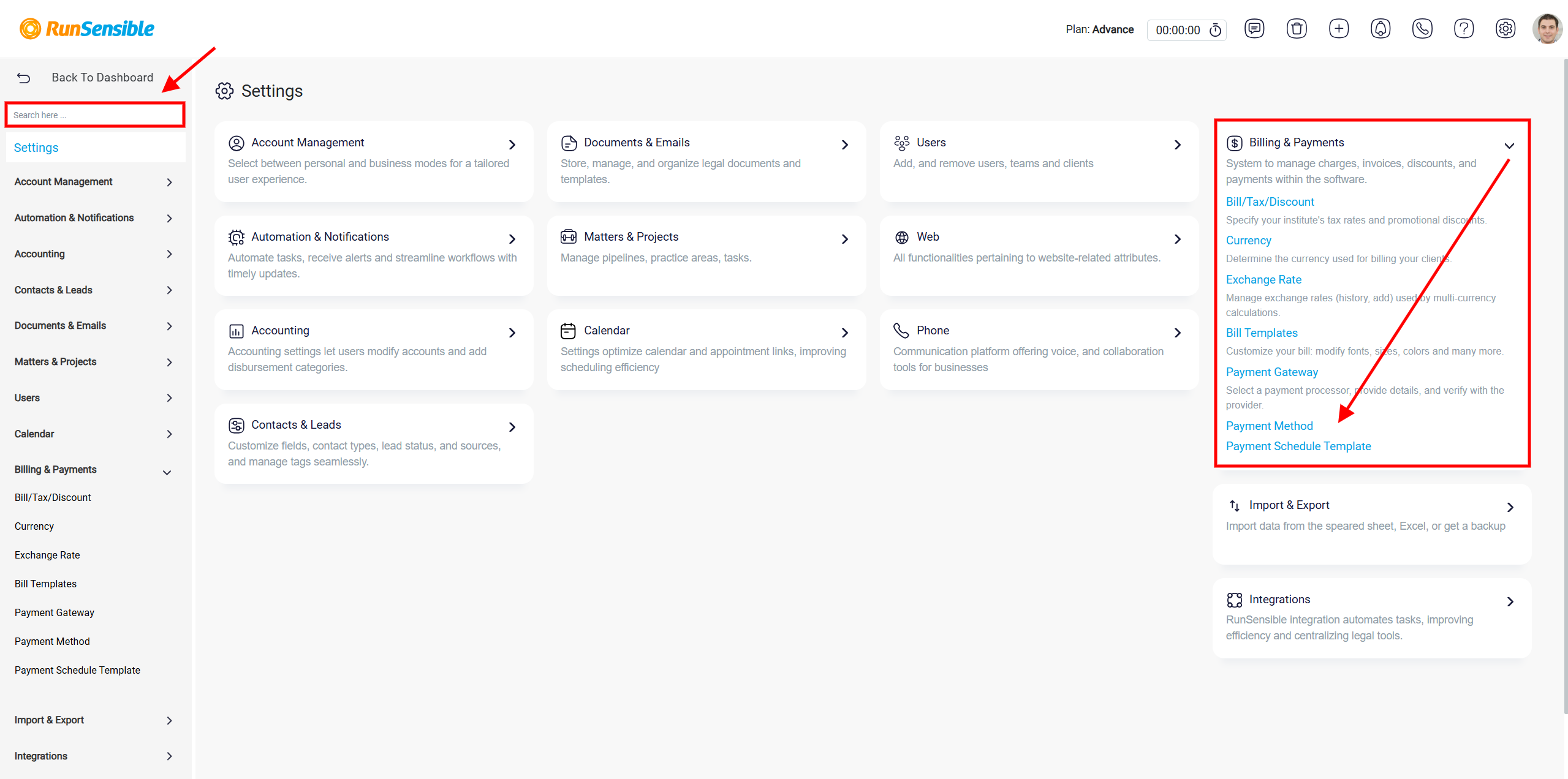
Alternatively, you can access Payment Method directly from the Billing & Payments section on the main Settings page or use the Search box to quickly locate it.
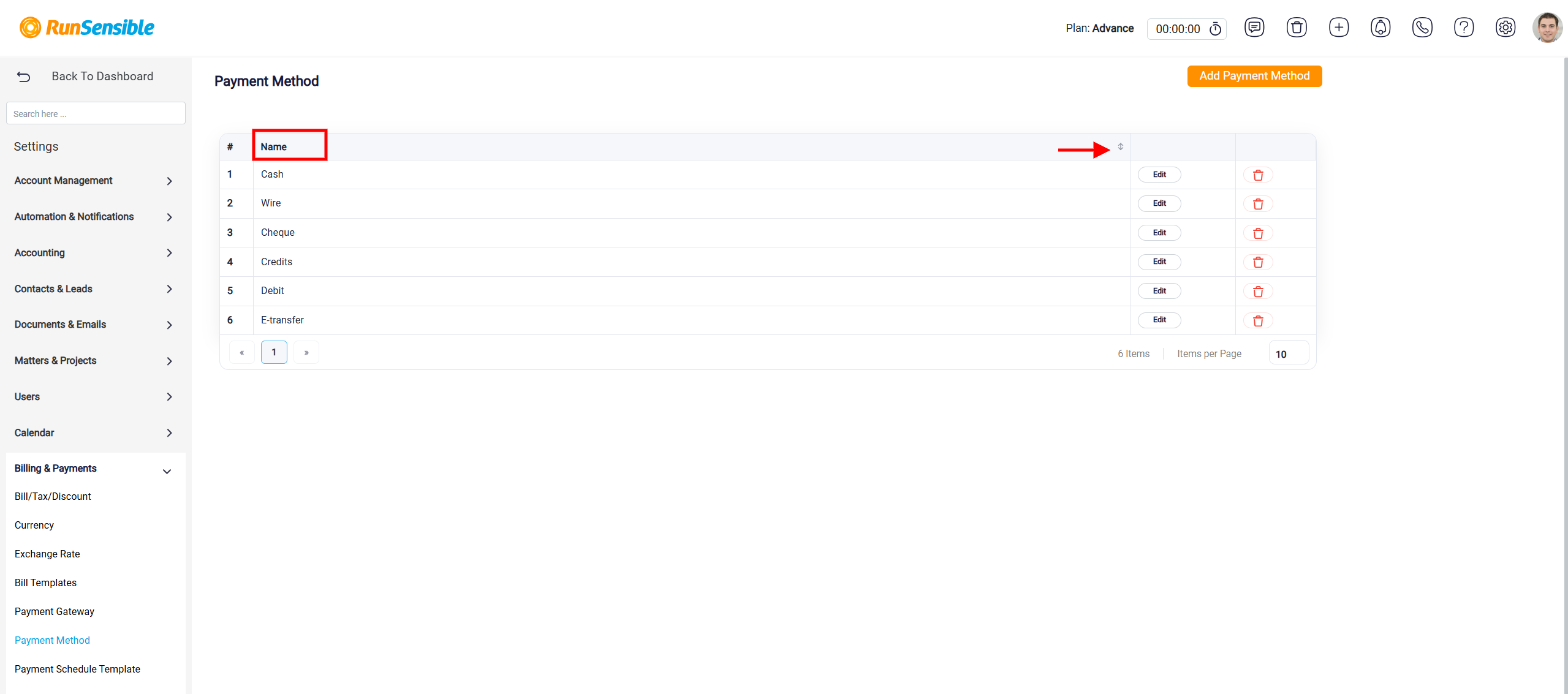
The Payment Method page displays all existing payment methods in a table. The Name column shows the name of each payment method. You can use the sorting arrows beside the column heading to organize the list and make specific payment methods easier to locate.
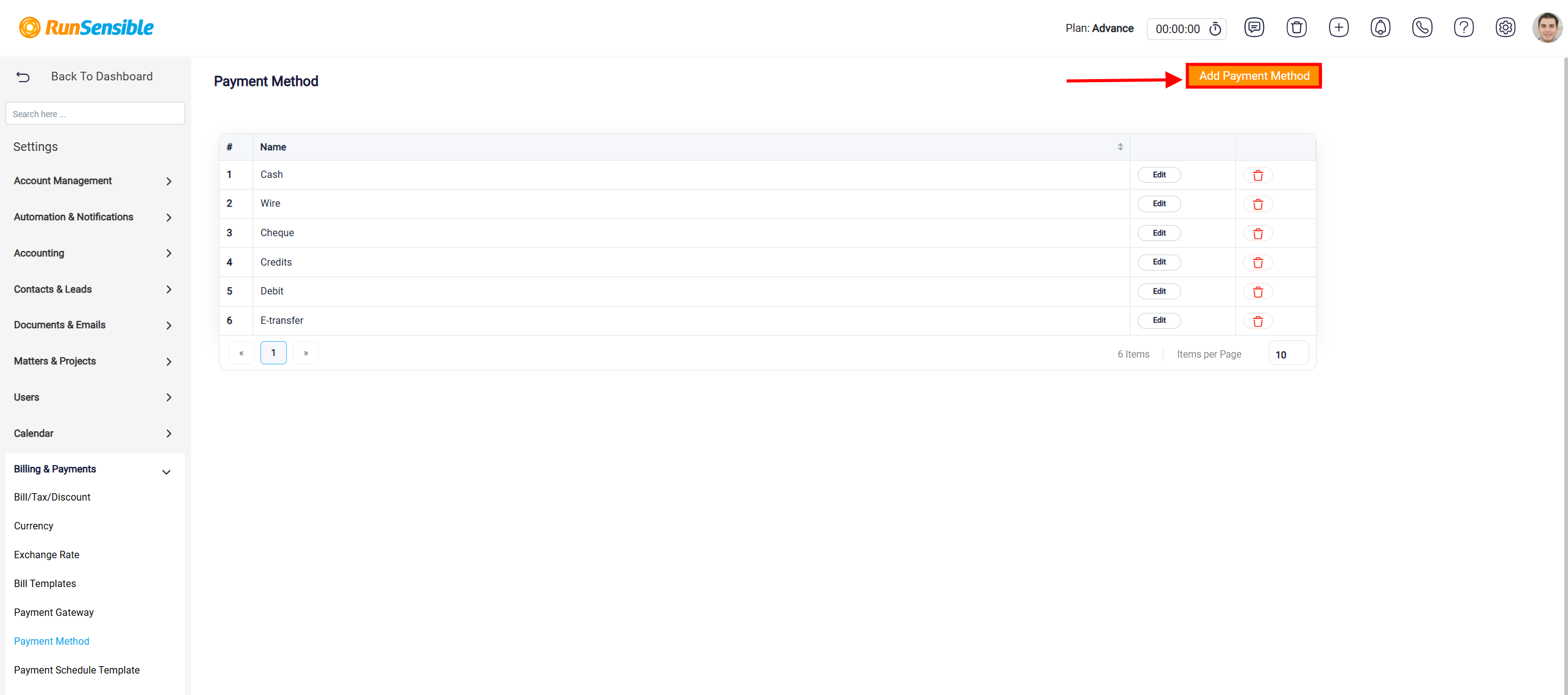
To create a new payment method, click Add Payment Method in the upper-right corner of the page.
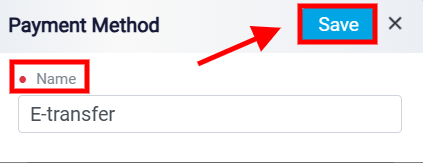
Enter the payment method in the Name field, such as E-transfer, and click Save. The new payment method will then be added to the list.
To update an existing payment method, locate it in the list and click Edit. Make the necessary changes and save them. To remove a payment method that is no longer needed, click the Delete (trash) icon beside it.