RunSensible Drive
RunSensible Drive allows you to access and manage the files and folders stored in RunSensible Documents directly from your Windows desktop. Changes made through the Drive are synchronized with RunSensible, making it easier to work with your documents without having to download and upload files each time.
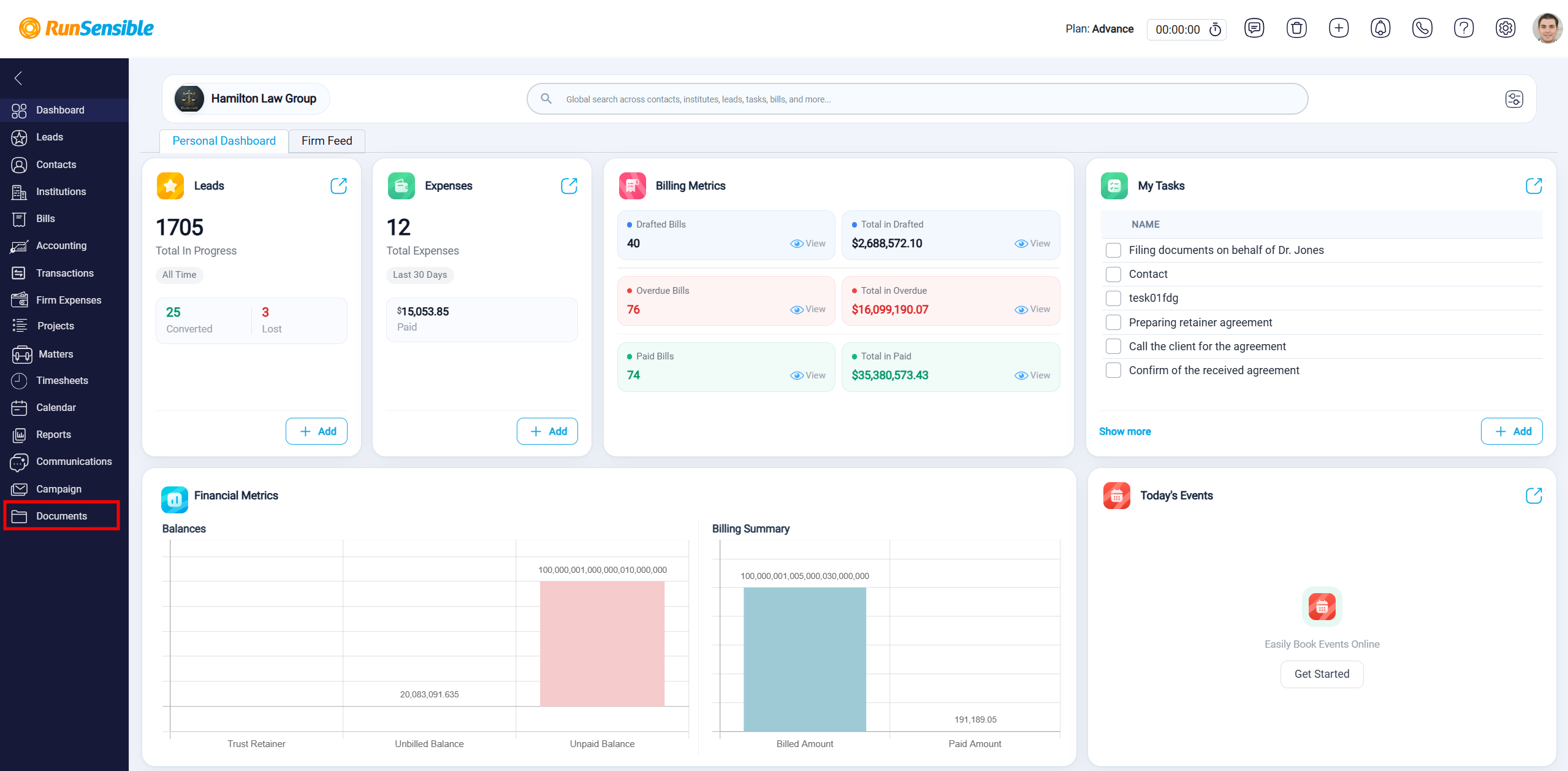
To get started, go to the Documents section in RunSensible.
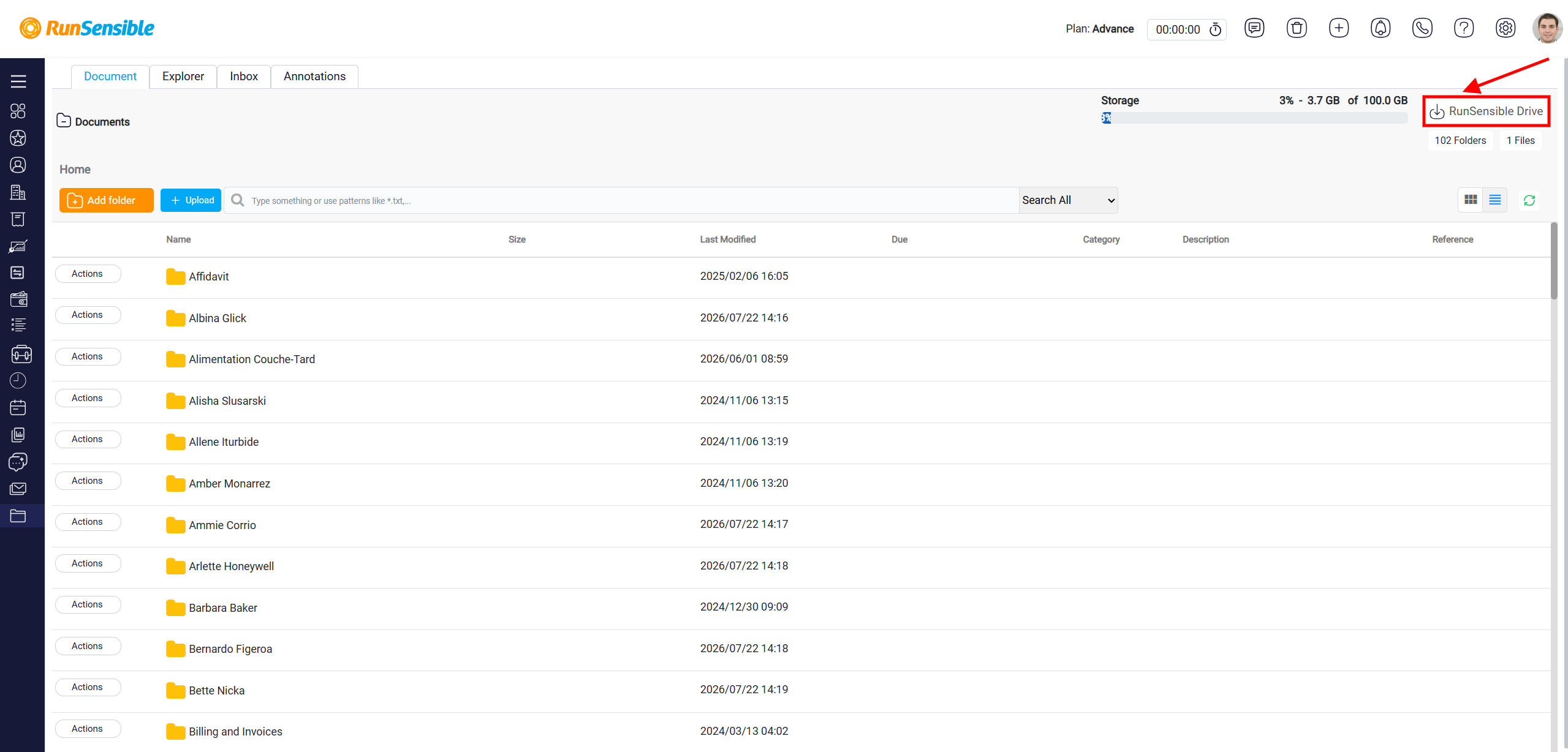
In the upper-right corner of the page, click RunSensible Drive.
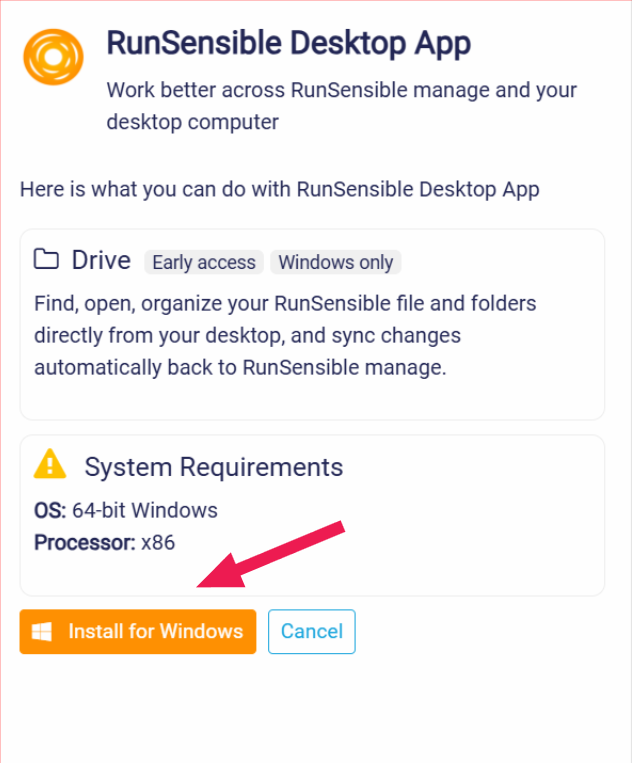
A window will appear with information about the RunSensible Desktop App, including the system requirements. RunSensible Drive is currently available for 64-bit Windows systems. Click Install for Windows to download and install the desktop application.
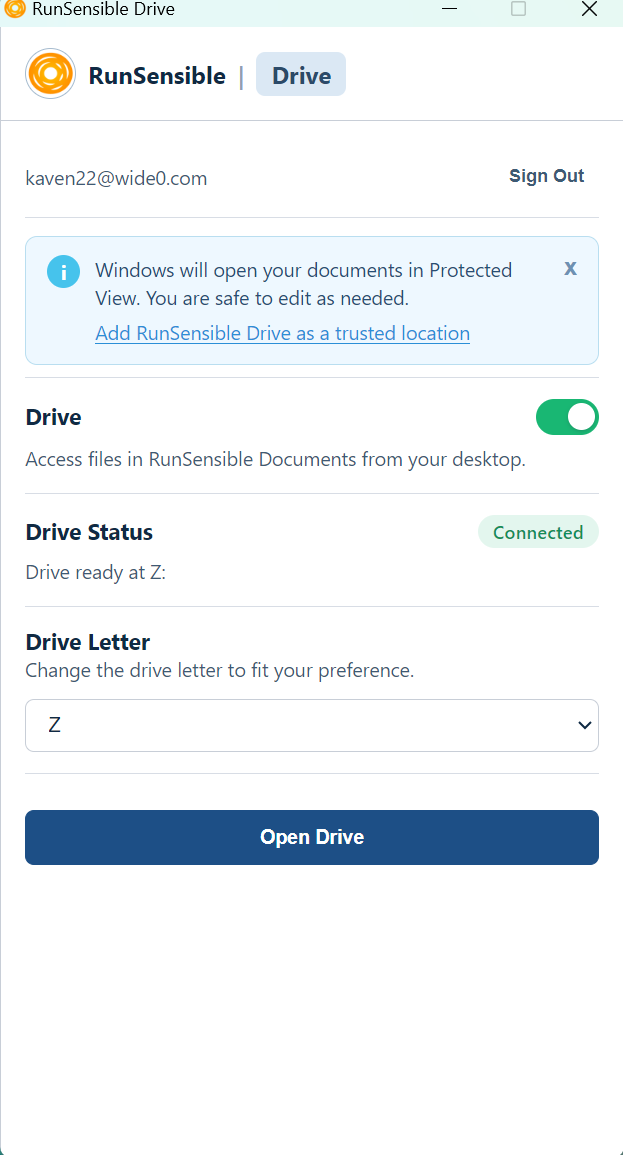
After installing the application, open RunSensible Drive and sign in to your RunSensible account.
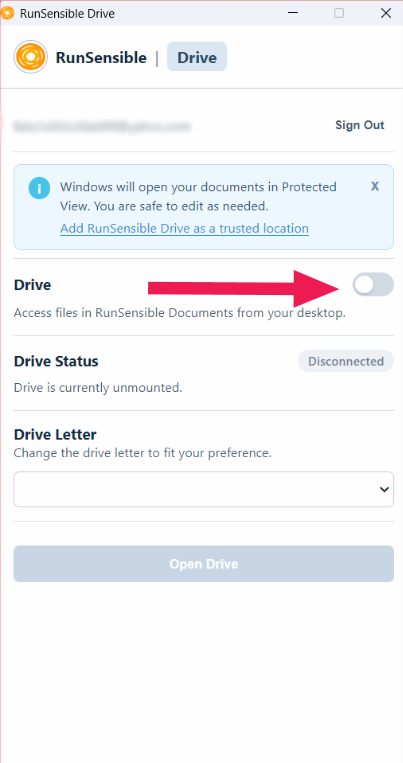
To activate the Drive, turn on the Drive toggle. When the Drive is turned off, its status appears as Disconnected, and the Drive is not mounted on your computer.
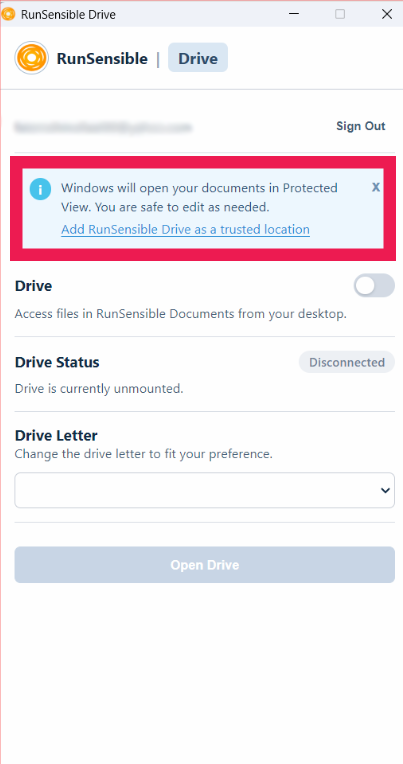
You may also see a message explaining that Windows will open documents in Protected View. If you regularly work with RunSensible documents and want to avoid Protected View, click Add RunSensible Drive as a trusted location and follow the provided instructions.
Once you turn on the Drive, RunSensible will connect and mount it on your computer. The Drive Status will change to Connected and display the drive letter currently assigned to RunSensible Drive, such as Z:.
Under Drive Letter, you can select the letter you want to use for RunSensible Drive. Choose your preferred available drive letter from the drop-down menu. This makes it easier to identify and access RunSensible Drive through Windows File Explorer.
Once the Drive is connected, click Open Drive to open it in Windows File Explorer. From there, you can find, open, and organize your RunSensible files and folders directly from your desktop. Changes made to your files and folders are automatically synchronized with the Documents section in RunSensible.