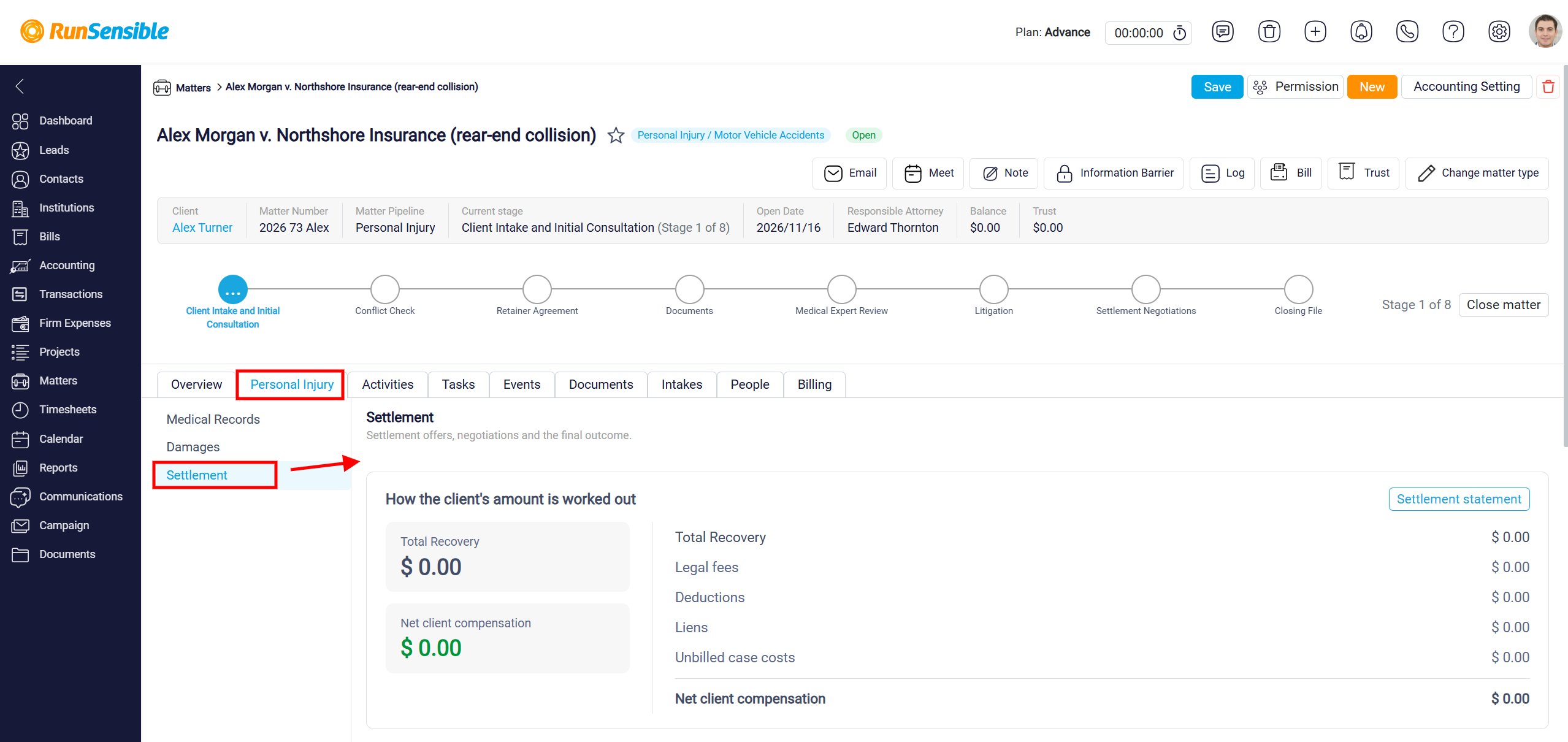
Processing Settlements and Distributing Funds in Personal Injury Matters
The Settlement section helps you manage the financial aspects of resolving a personal injury claim. It allows you to record settlement recoveries, calculate legal fees, track deductions, manage liens, and review settlement distributions.
This section is designed to help you organize the amounts recovered, identify outstanding financial obligations, and determine the funds available for distribution to the client and other payees.
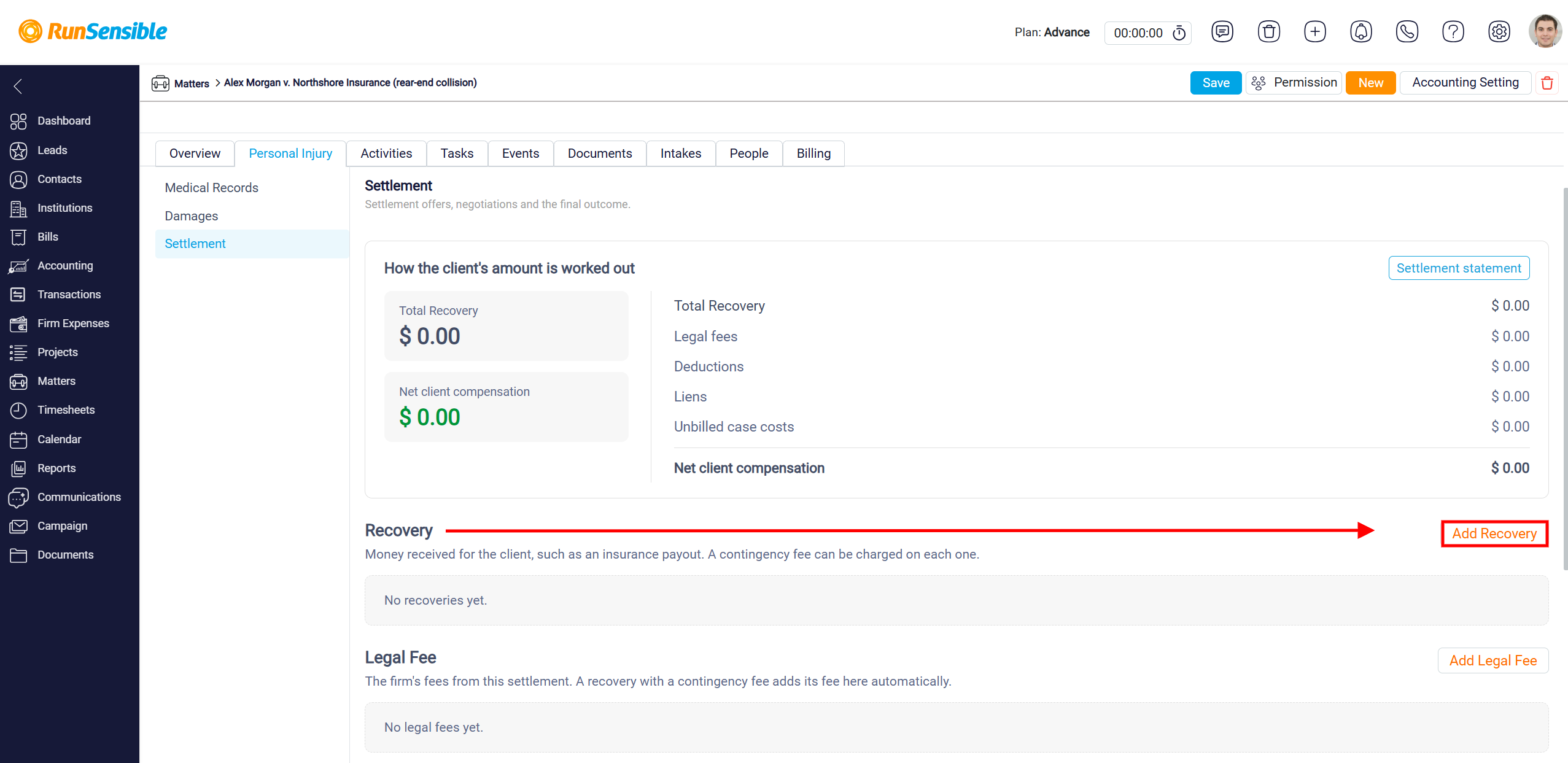
Adding a Recovery
The Recovery section allows you to record money received or recovered on behalf of the client, such as an insurance settlement payment. To add a new recovery, click Add Recovery on the right side of the section.
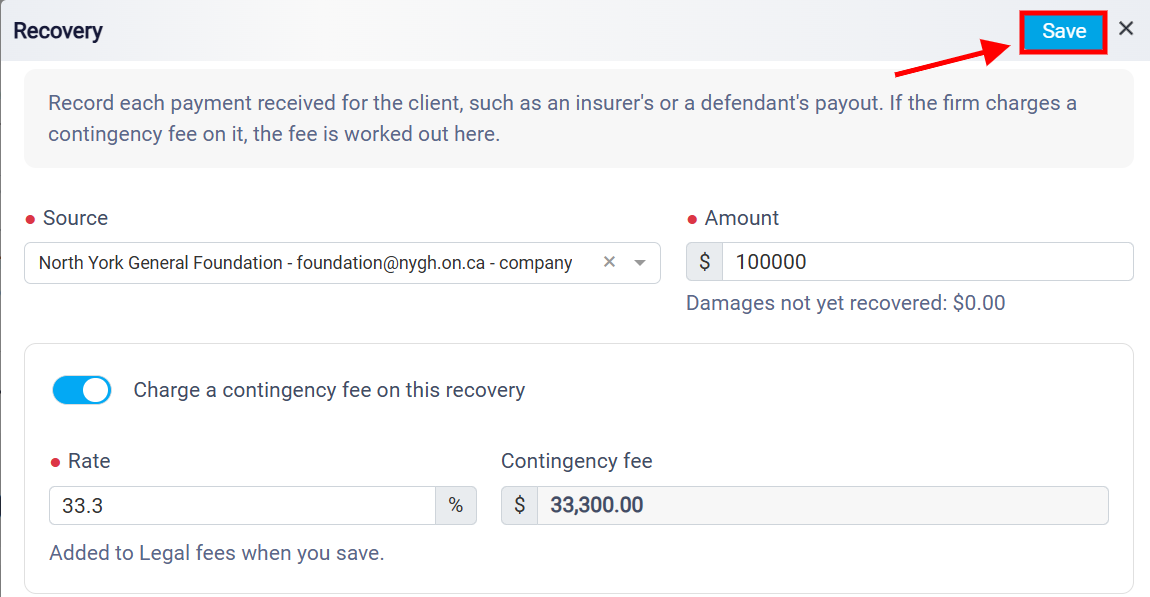
In the Recovery window, select the Source from the dropdown menu to identify the person or organization providing the settlement payment, such as an insurance company or defendant.
Next, enter the Amount recovered on behalf of the client. If the law firm charges a contingency fee on the recovery, enable the Charge a contingency fee on this recovery toggle. Then, enter the applicable percentage in the Rate field. The system automatically calculates the Contingency Fee based on the recovery amount and the specified rate. For example, a 33.3% contingency fee on a $100,000 recovery results in a legal fee of $33,300.
Once all information has been entered, click Save in the upper-right corner.
The recovery will be recorded in the Recovery section, and the calculated contingency fee will automatically be added to the Legal Fee section.
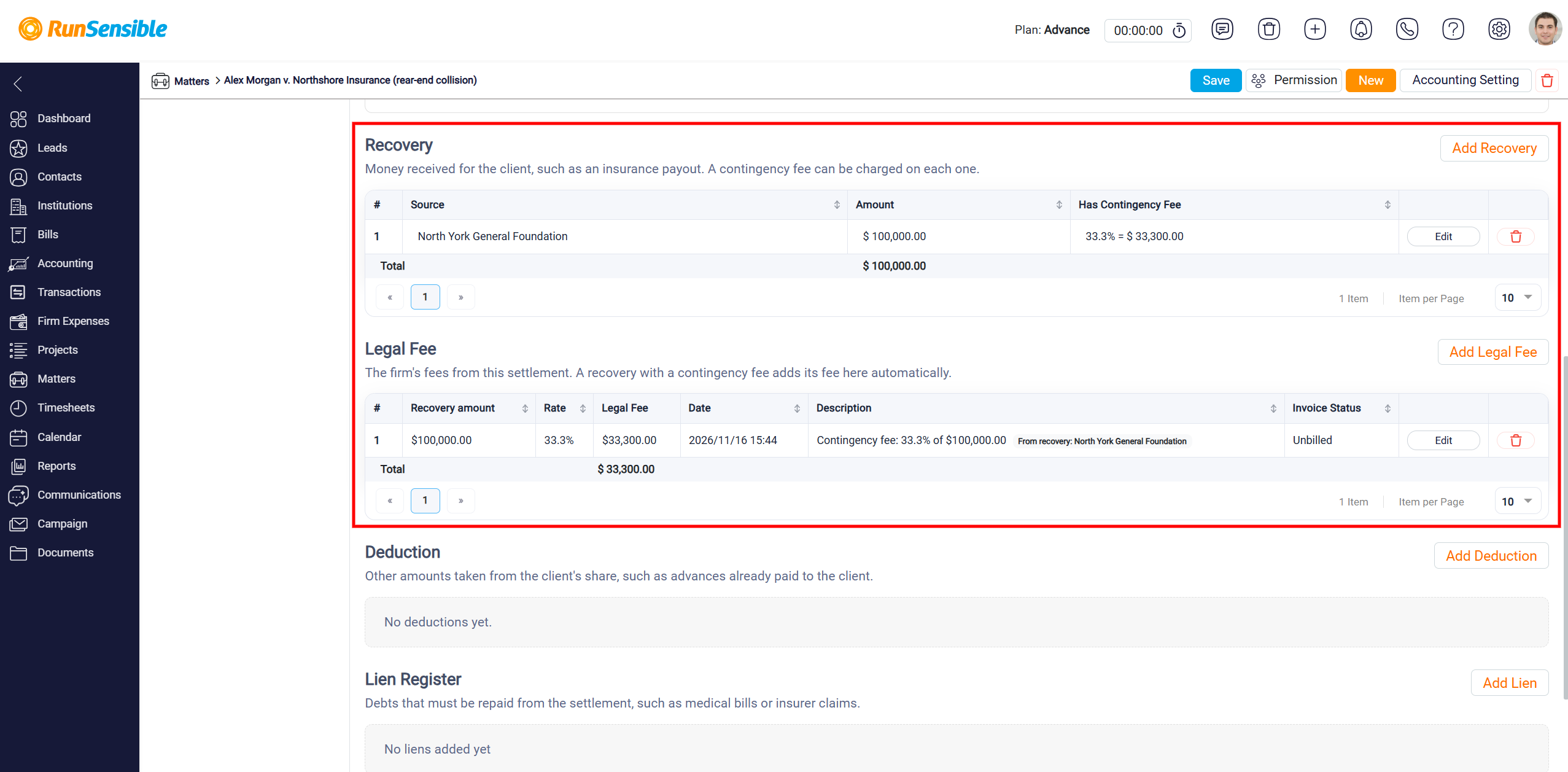
To manage existing recoveries and legal fees, click Edit to update the relevant information or use the Delete icon to remove an entry.
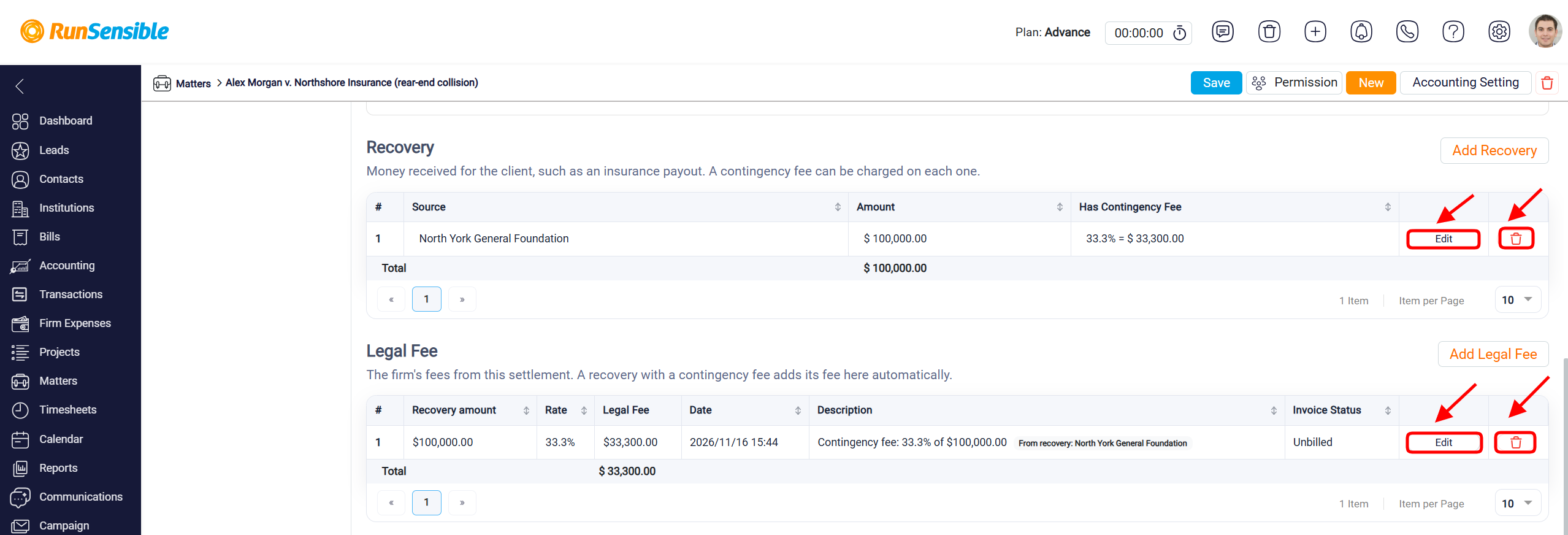
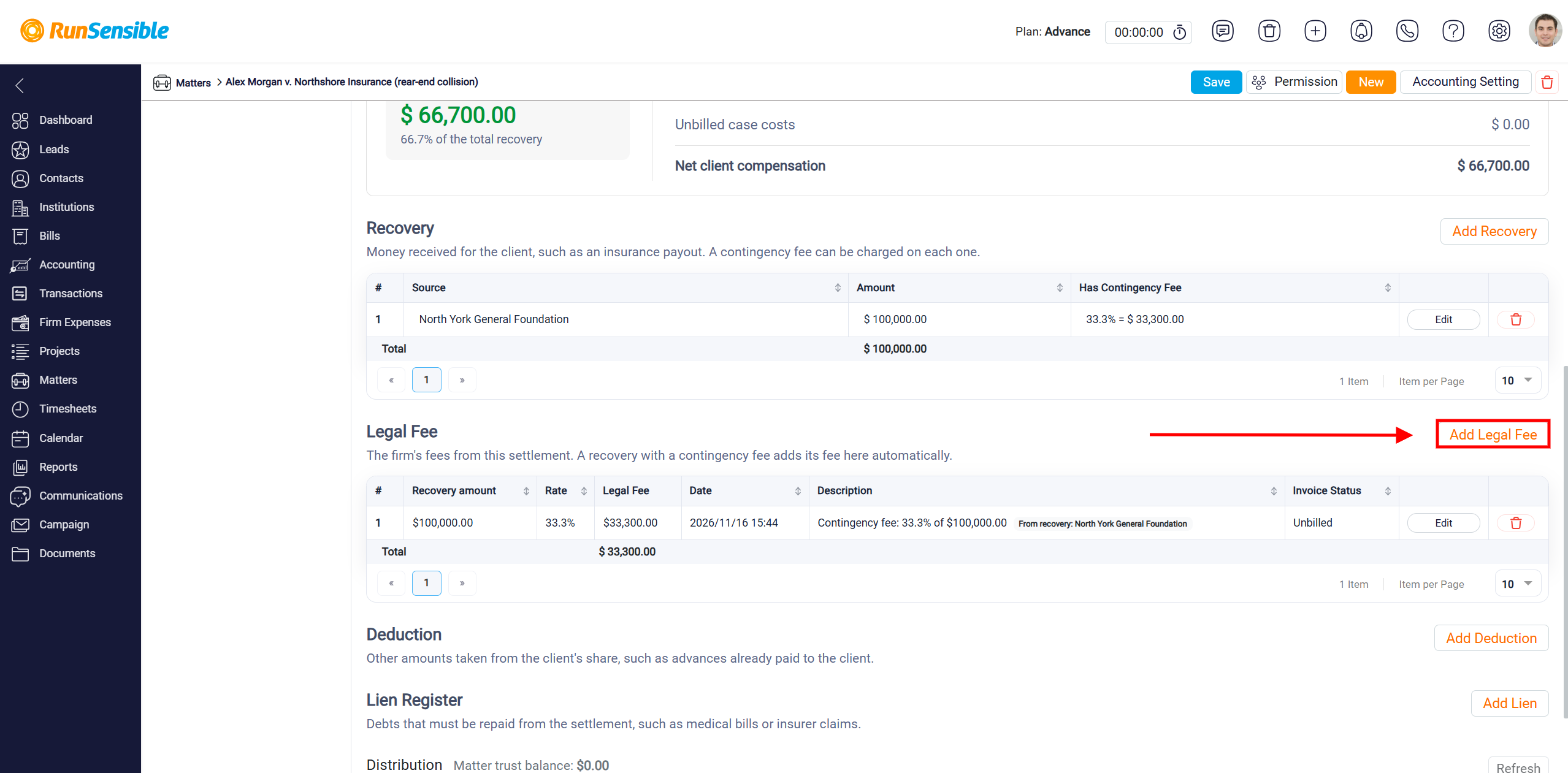
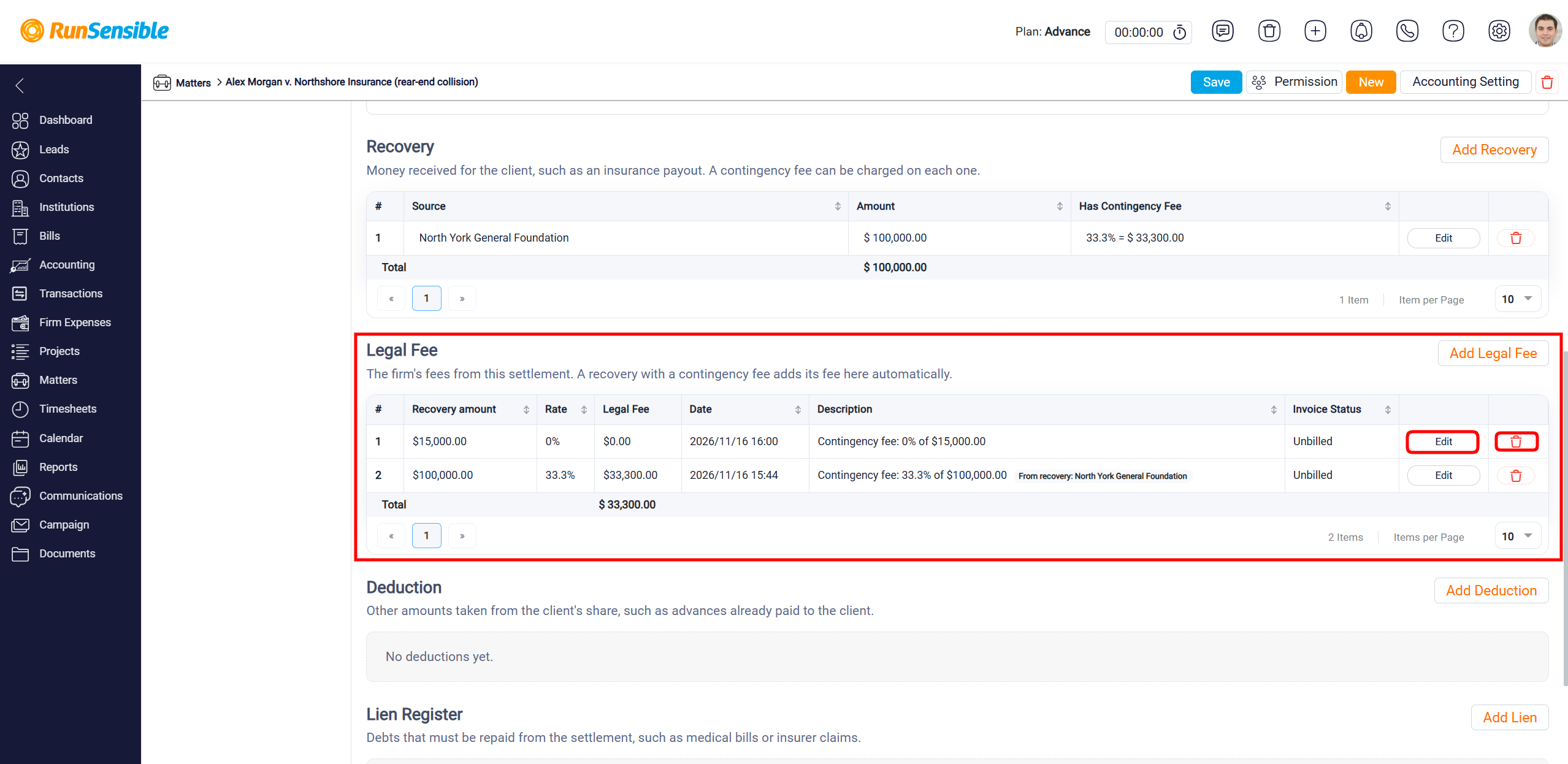
The Legal Fee section allows you to record and manage legal fees associated with a Personal Injury matter. These fees represent the amount earned by the firm from a settlement or recovery. If a contingency fee is applied when adding a recovery, the system automatically calculates the fee and displays it in the Legal Fee table. To manually record an additional legal fee, click the Add Legal Fee button.
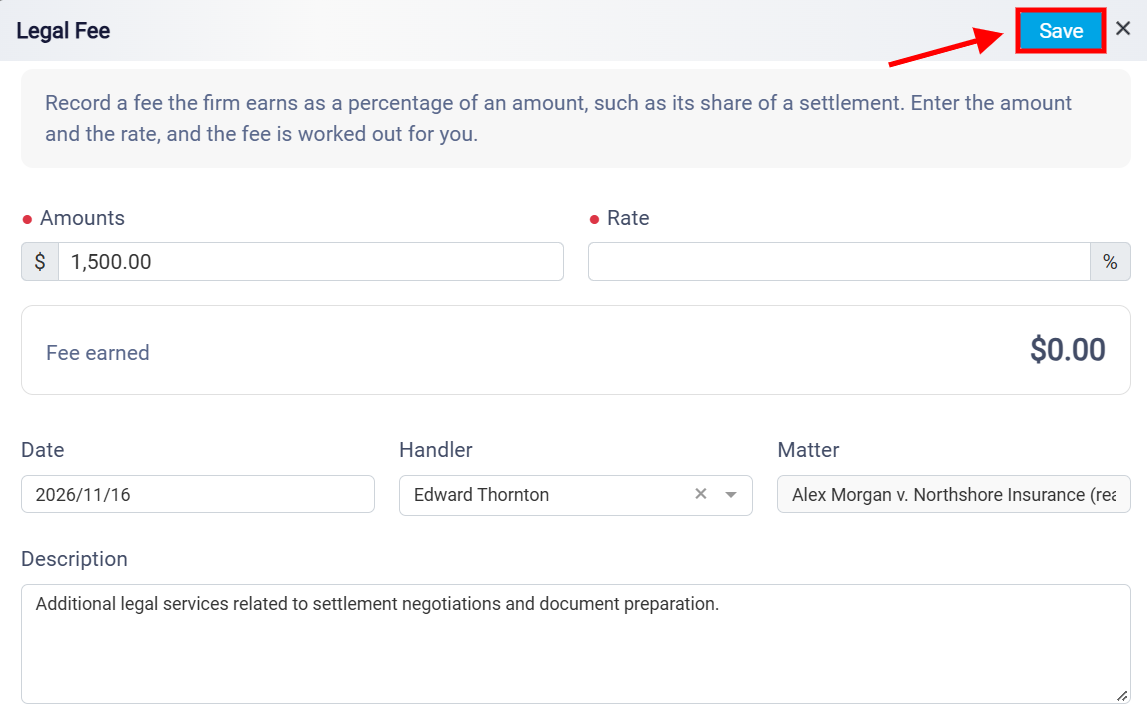
This opens the Legal Fee window, where you can enter the relevant fee information. In the Amounts field, enter the amount on which the legal fee will be calculated. Next, enter the applicable percentage in the Rate field. The system automatically calculates the Fee Earned based on the amount and percentage entered.
Select the appropriate Date for the legal fee and choose the responsible lawyer or staff member from the Handler dropdown menu. In the Matter field, select the Personal Injury matter associated with the fee.
Use the Description field to provide additional details about the legal fee, such as settlement negotiations, document preparation, or other legal services provided.
Once all required information has been entered, click the Save button in the upper-right corner to record the legal fee.
The new entry will appear in the Legal Fee table, where you can review the recovery amount, rate, calculated legal fee, date, description, and invoice status. To manage existing legal fees, click Edit to update the relevant information or use the Delete icon to remove an entry.
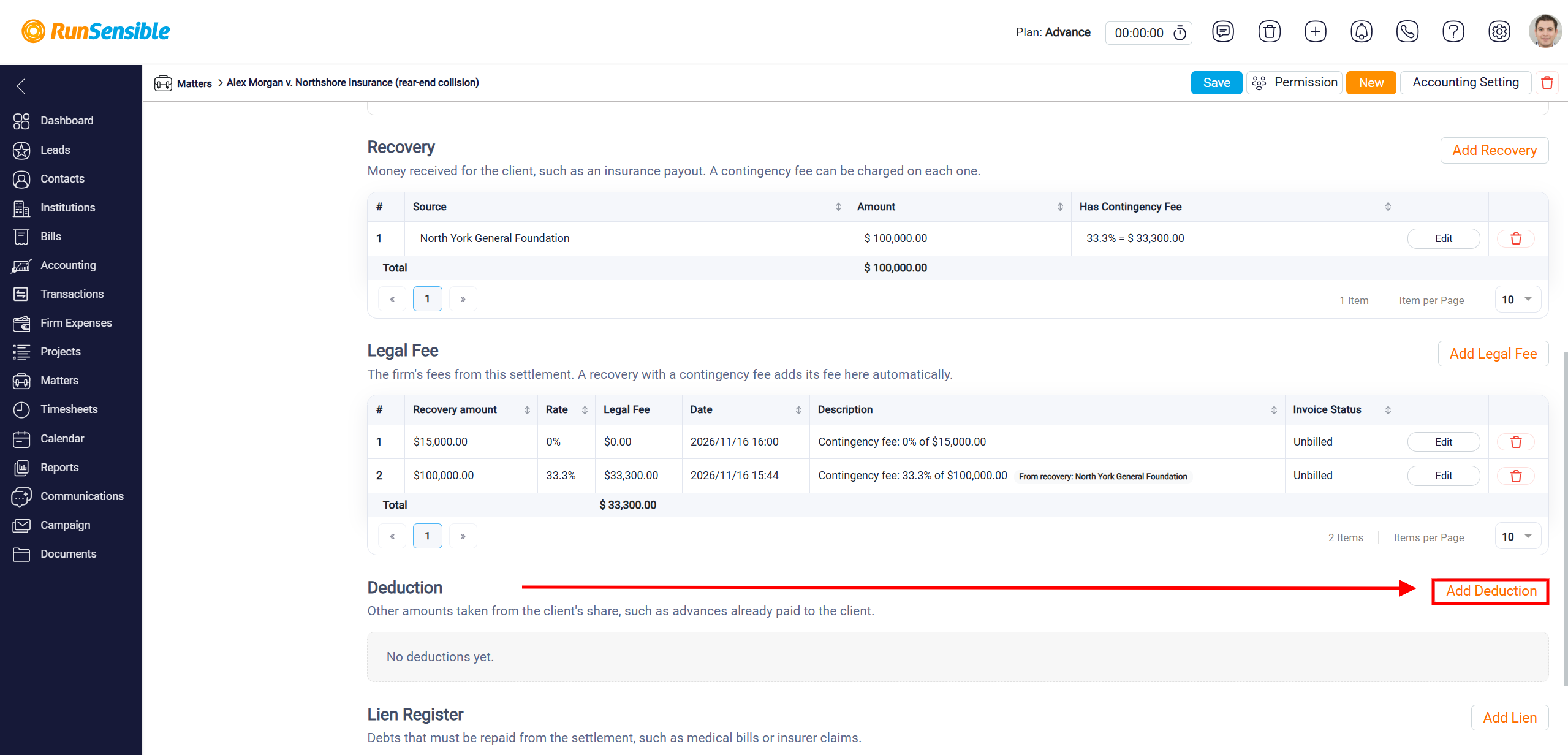
The Deduction section allows you to record and manage amounts deducted from the client’s share of a settlement in a Personal Injury matter. These deductions may include advance payments or other amounts previously provided to the client. Recording deductions helps ensure that the final settlement amount accurately reflects the funds the client is entitled to receive.
To add a new deduction, click the Add Deduction button.
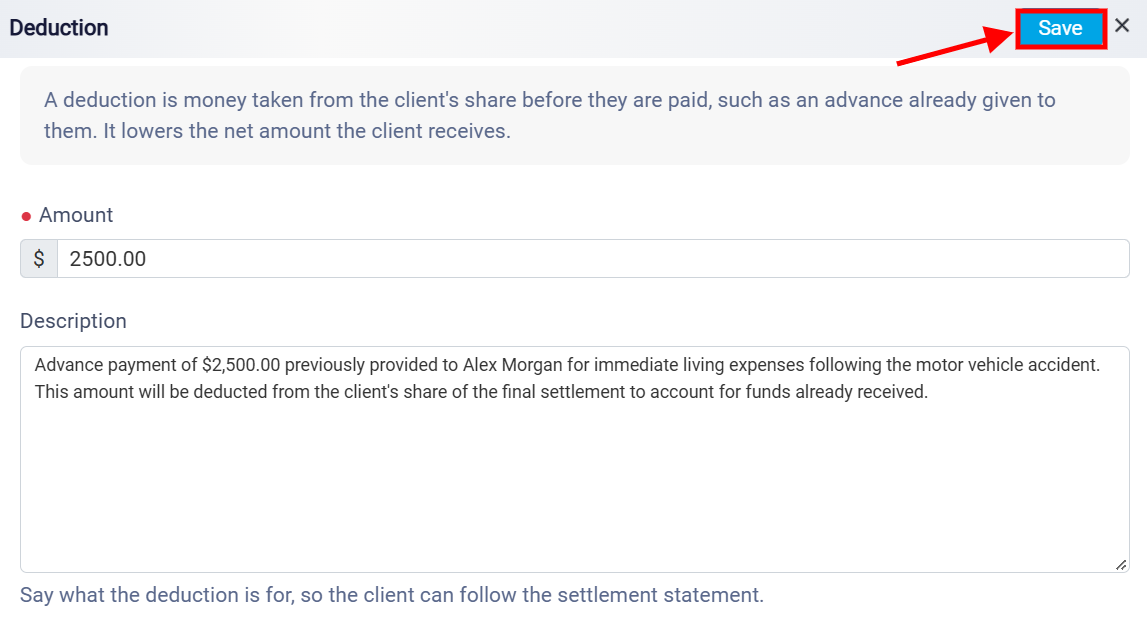
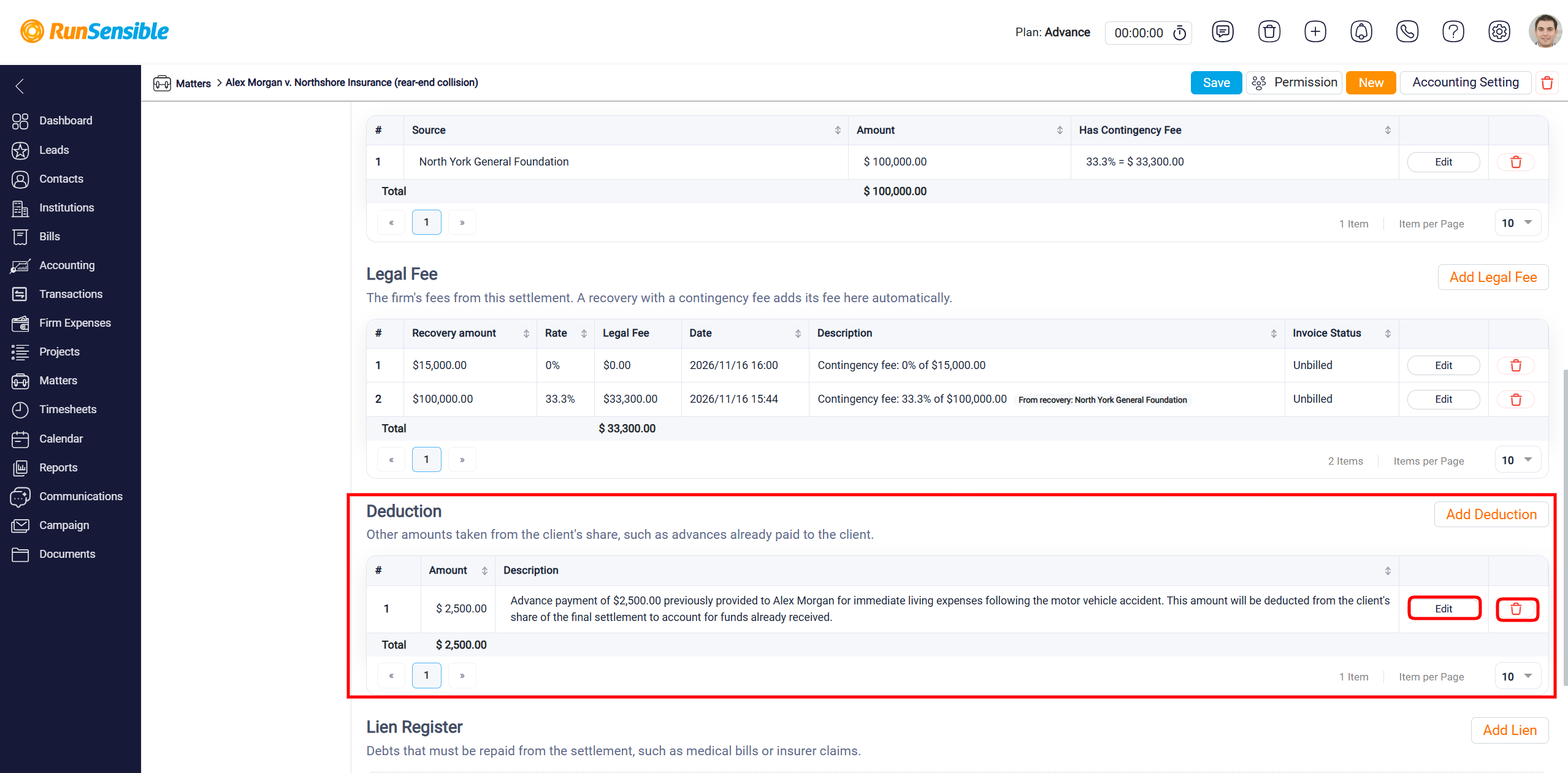
This opens the Deduction window, where you can enter the relevant information. In the Amount field, enter the amount to be deducted from the client’s settlement. Next, use the Description field to explain the reason for the deduction, such as an advance payment provided to the client for living expenses following an accident. Providing a clear description helps maintain accurate records and allows the client to understand the deductions listed in their settlement statement. Once you have entered the required information, click the Save button in the upper-right corner to record the deduction. The saved deduction will appear in the Deduction section and reduce the net amount payable to the client.
You can add additional deductions by clicking Add Deduction again. To manage existing deductions, use the available Edit option to update their information or the Delete icon to remove entries that are no longer applicable.
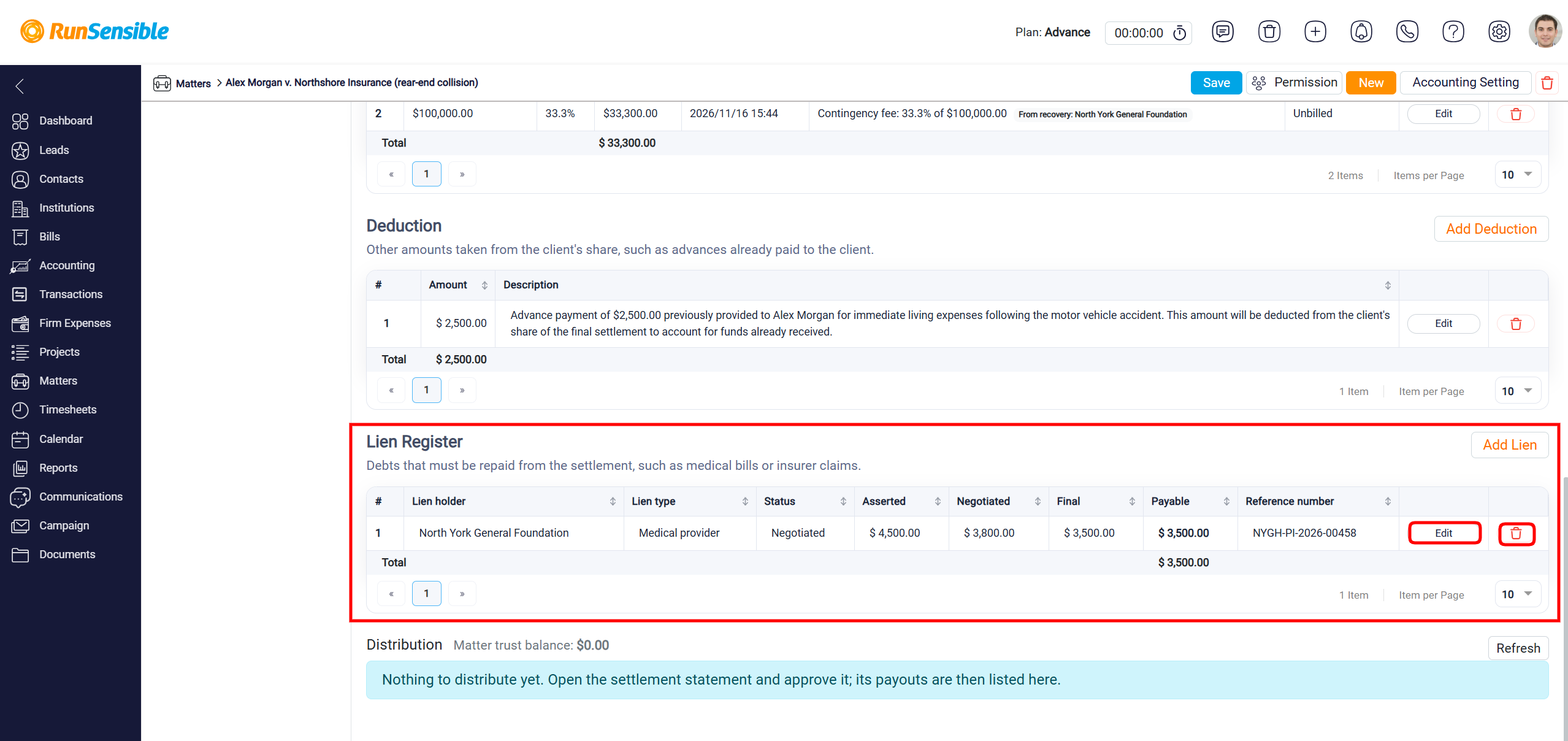
The Lien Register section allows you to record and manage outstanding debts or claims that must be repaid from a client’s settlement in a Personal Injury matter. These may include unpaid medical bills, hospital expenses, health insurance claims, or other amounts owed to third parties. Recording liens helps ensure that outstanding obligations are accounted for when calculating the client’s final settlement amount.
To add a new lien, click the Add Lien button.
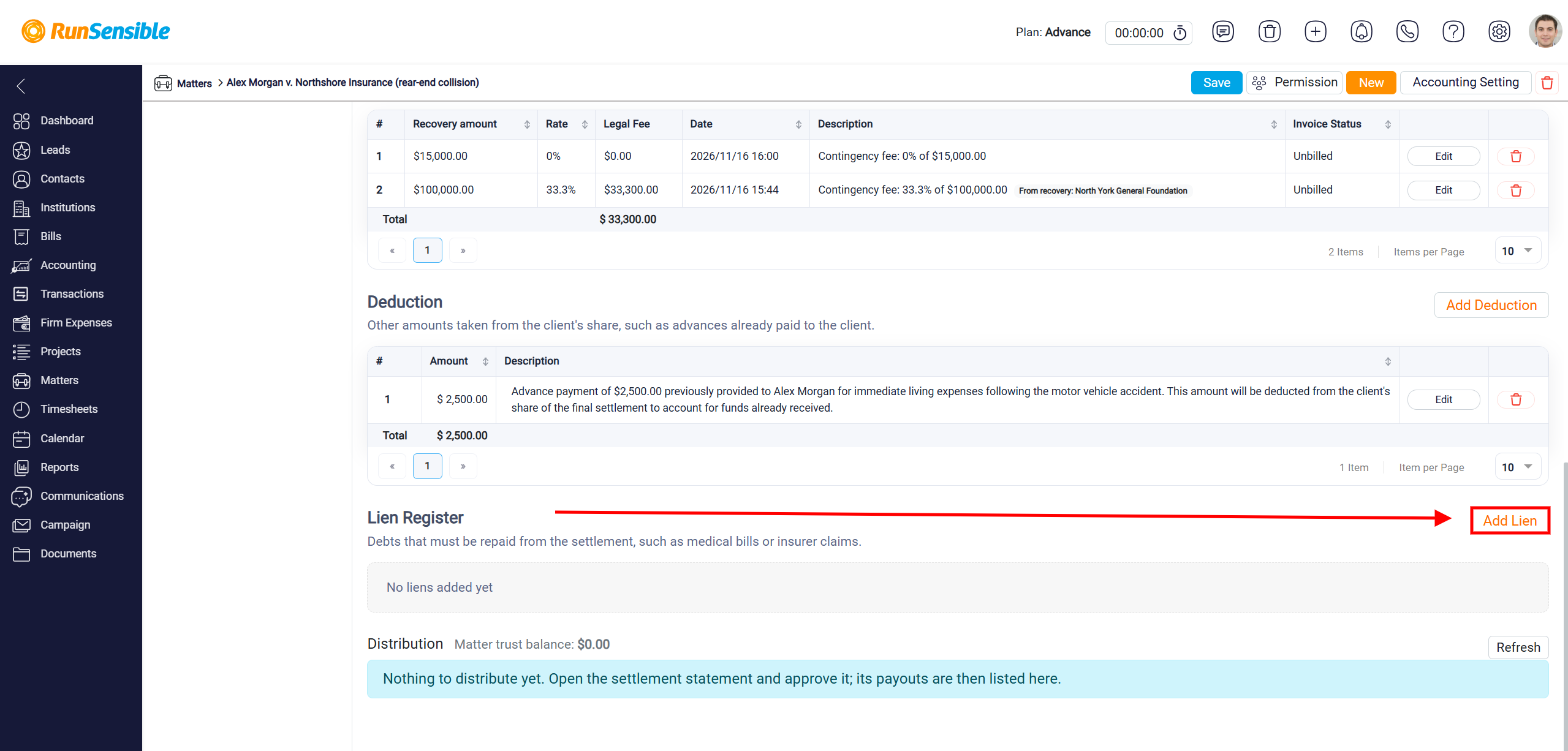
This opens the Lien window, where you can enter the relevant information.
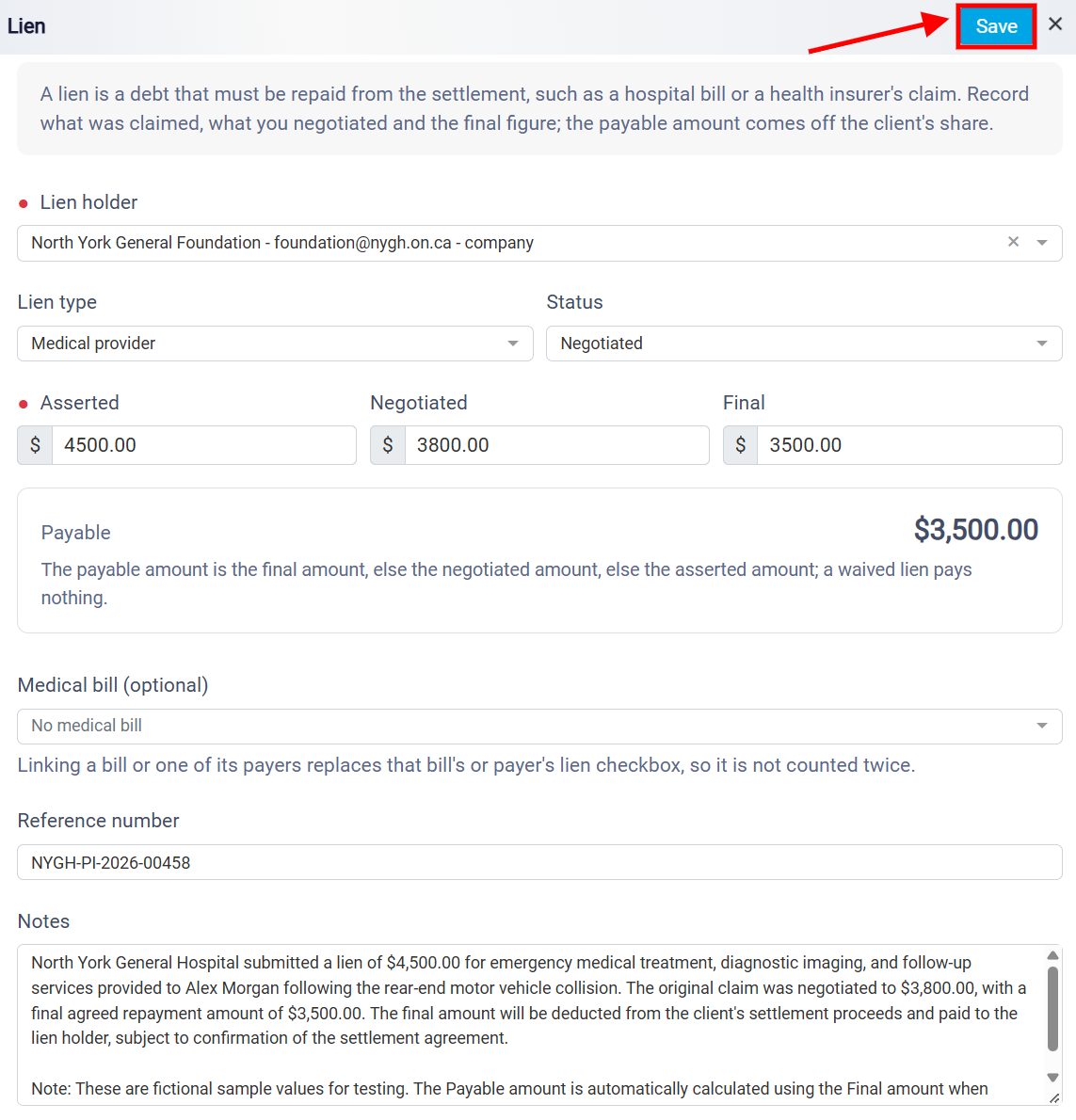
In the Lien Holder field, select the person or organization entitled to receive payment from the settlement. Next, choose the appropriate Lien Type from the dropdown menu, such as Medical Provider, and select the current Status of the lien, such as Asserted or Negotiated.
In the Asserted field, enter the original amount claimed by the lien holder. If the amount has been negotiated, enter the revised amount in the Negotiated field. Once the final repayment amount has been determined, enter it in the Final field. The system automatically calculates the Payable amount based on the information entered. If a final amount is provided, the system uses that amount; otherwise, it uses the negotiated amount or, if neither is available, the asserted amount. If the lien is waived, the payable amount becomes zero.
You can also use the optional Medical Bill dropdown menu to associate the lien with an existing medical bill recorded in the matter. Linking a medical bill or one of its payers replaces the corresponding lien checkbox to prevent the same amount from being counted twice.
In the Reference Number field, enter any relevant claim, invoice, or identification number associated with the lien. Use the Notes field to provide additional information, such as the reason for the lien, details of negotiations, or the final repayment agreement.
Once all required information has been entered, click the Save button in the upper-right corner to record the lien. The saved entry will appear in the Lien Register section, where you can review the recorded information and track amounts payable from the client’s settlement.
To record additional liens, click Add Lien again. You can also use the Edit option to update existing lien information or the Delete icon to remove an entry when necessary.