Creating and Managing Levy Assessments in Real Estate Matters
RunSensible allows you to create, manage, and track transaction levy assessments directly within your Real Estate matters. You can determine levy applicability, enter assessment amounts, approve assessments, post approved levies to accounting, and monitor filing and remittance statuses.
Once the property’s jurisdiction is identified, RunSensible displays the applicable transaction levy, such as the LawPRO Real Estate Transaction Levy (LawPRO_ON) for Ontario real estate matters.
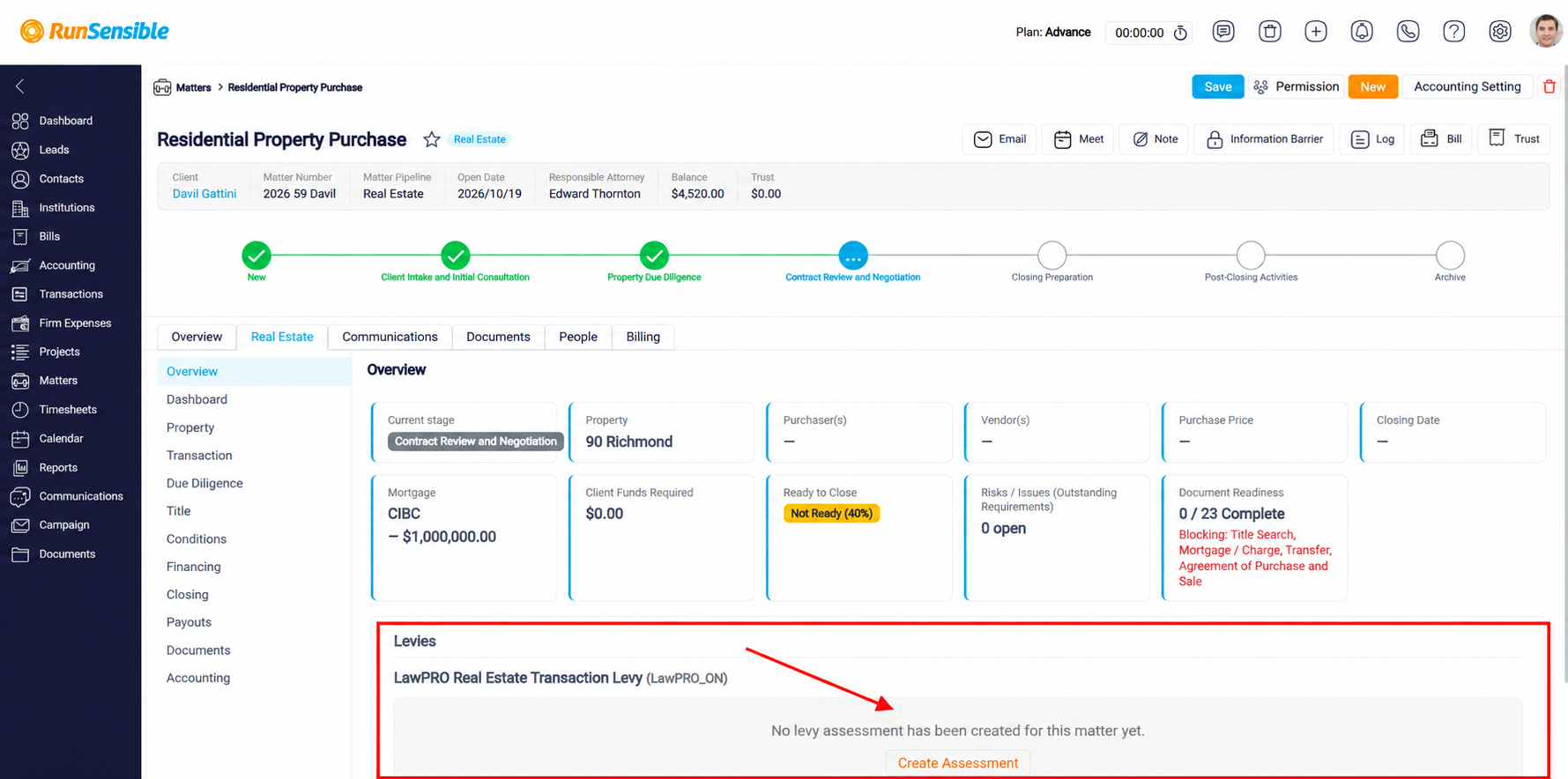
If no levy assessment has been created, the system displays the message “No levy assessment has been created for this matter yet.” To begin, click Create Assessment to initiate the levy assessment process for the selected matter.
The Levies section helps you keep track of transaction levy assessments within your real estate workflow, ensuring that applicable levy requirements can be reviewed and managed alongside other important matter details.
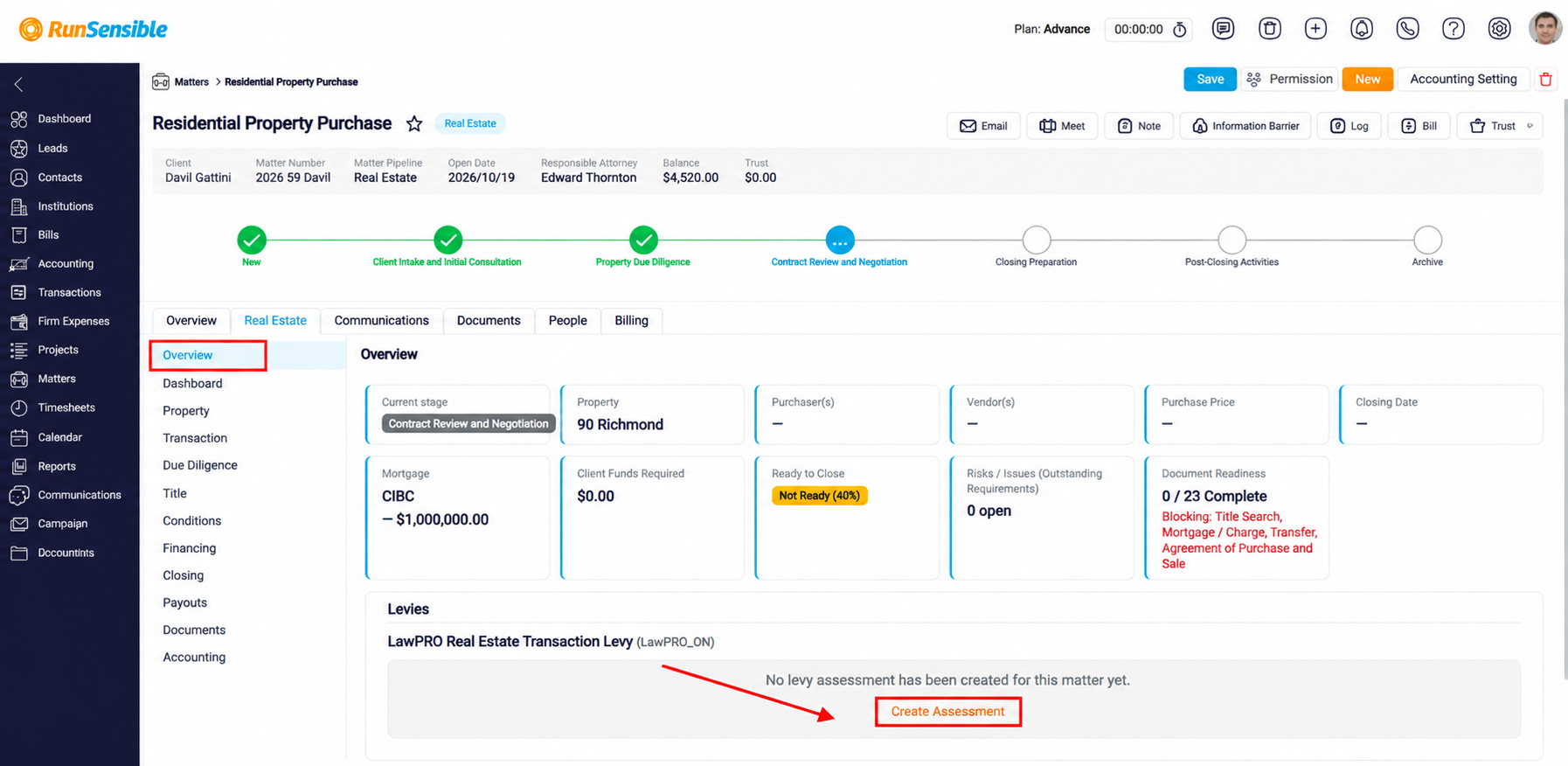
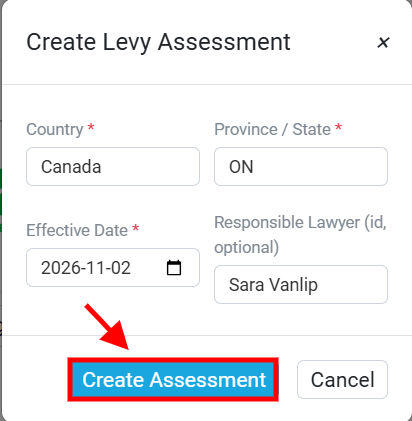
The Create Levy Assessment window will appear, allowing you to enter the required information. Select the Country and Province / State where the property is located, then specify the Effective Date of the assessment using the calendar icon. You may also enter the Responsible Lawyer in the optional field to identify the lawyer associated with the assessment.
Once you have completed all required fields, click Create Assessment to save the information and create the levy assessment for the matter. Alternatively, click Cancel to close the window without creating an assessment.
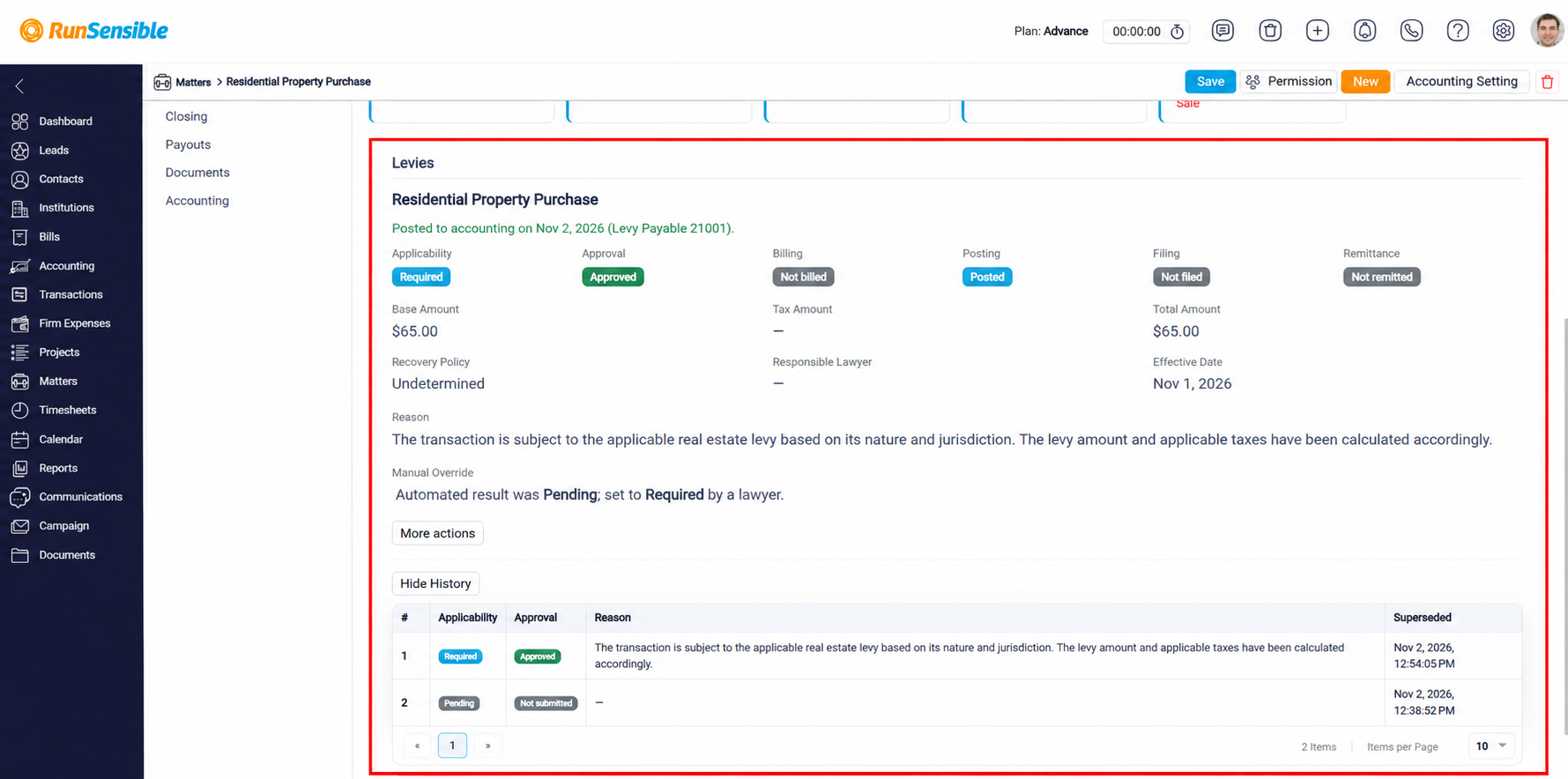
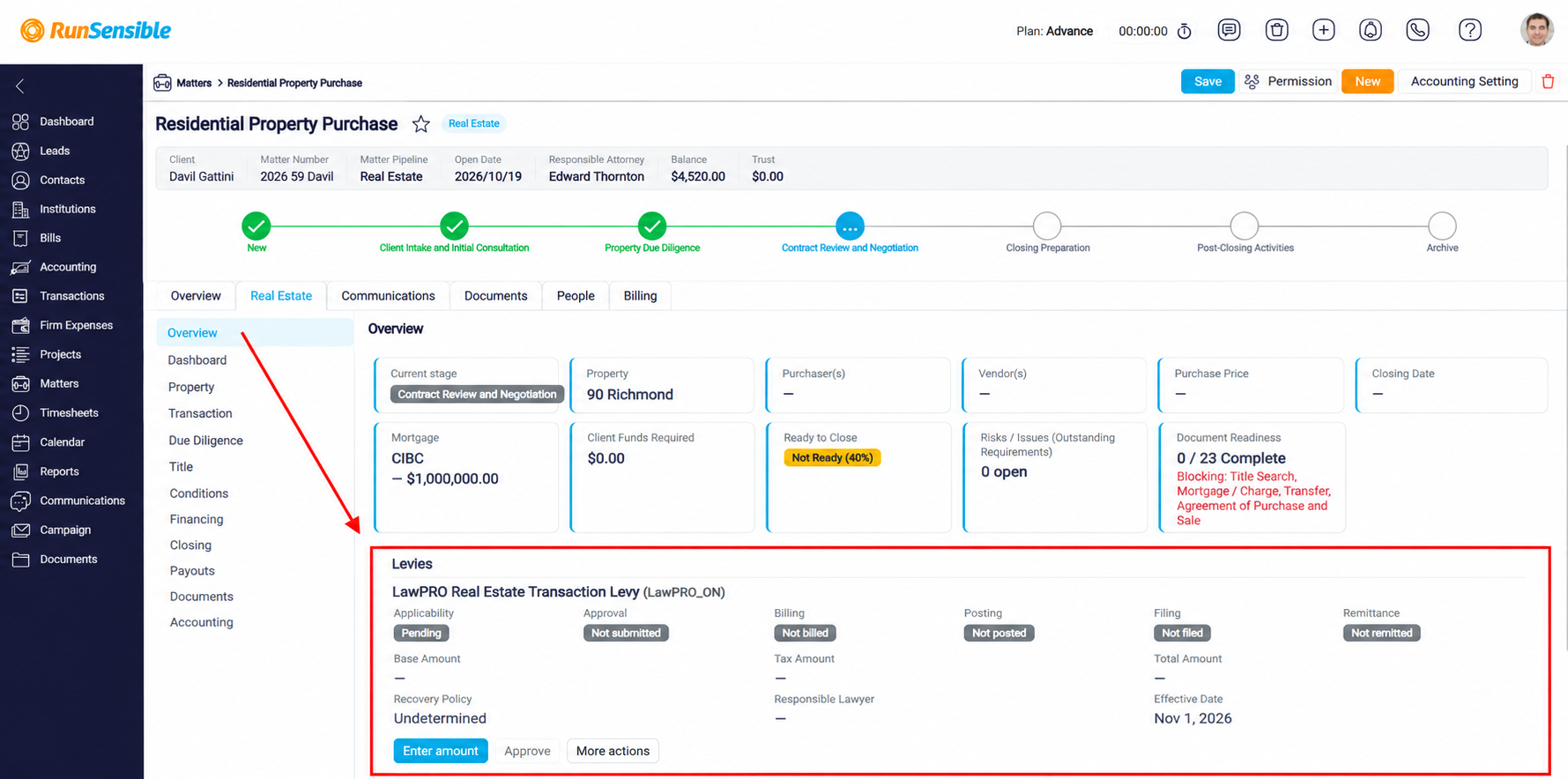
Once a levy assessment has been created, it will appear in the Levies section under the Real Estate tab’s Overview page. This section provides a summary of the assessment, allowing you to monitor its status and manage the applicable real estate transaction levy.
The assessment displays important information, including Applicability, Approval, Billing, Posting, Filing, and Remittance statuses. These indicators help you track the progress of the levy assessment throughout its lifecycle. You can also review financial details such as the Base Amount, Tax Amount, and Total Amount, along with the Recovery Policy, Responsible Lawyer, and Effective Date.
This section provides a centralized view of your transaction levy assessment, helping you monitor its financial details, approval status, and remaining administrative steps within the real estate matter.
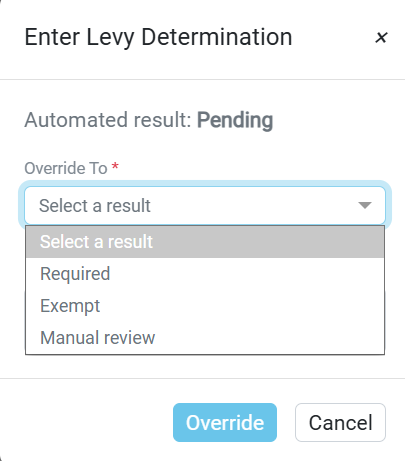
To determine whether a transaction levy applies to the real estate matter, open the Enter Amount window. The system displays the current Automated Result, which may initially appear as Pending.
Under the Override To dropdown menu, select the appropriate determination based on the transaction’s circumstances. Choose Required if the transaction is subject to the levy, Exempt if the transaction qualifies for an exemption, or Manual Review if further assessment is needed to determine whether the levy applies.
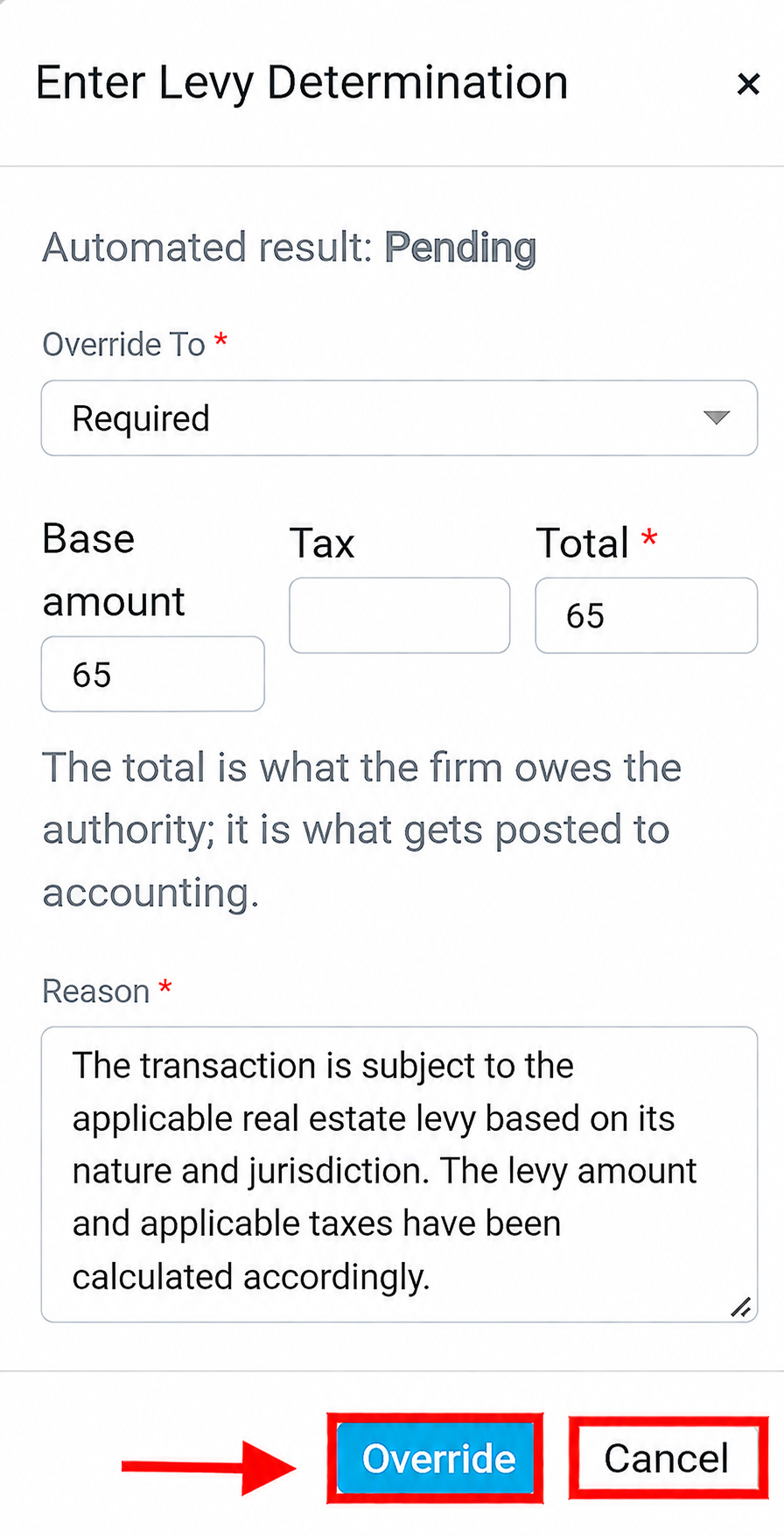
If you select Required from the Override To dropdown menu, you can manually confirm that a transaction levy applies to the real estate matter. Enter the Base Amount of the levy and any applicable Tax. The Total represents the full amount the firm owes to the relevant authority, including taxes, and is the amount recorded in accounting.
In the Reason field, provide a brief explanation of why the levy is required. Once all required information has been entered, click Override to save your determination or Cancel to discard the changes.
Once you have selected the appropriate option, click Override to save your determination and update the assessment. Alternatively, click Cancel to close the window without making any changes.
After manually setting the levy determination to Required, the system displays the updated levy details, including the base amount, tax, total amount, reason, and effective date. The Manual Override section also confirms that the automated result was changed from Pending to Required by a lawyer.
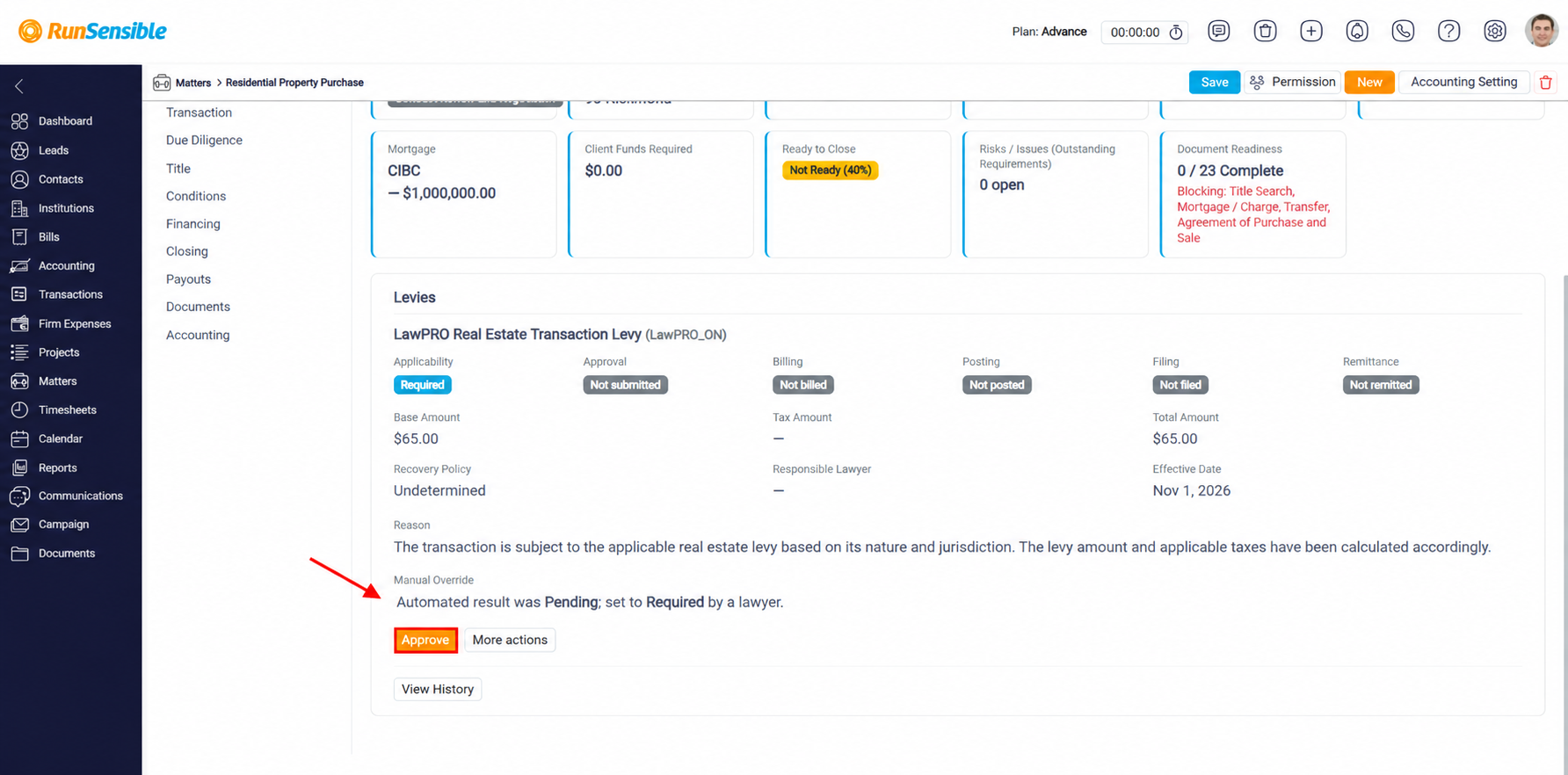
To proceed, click Approve to approve the levy determination.
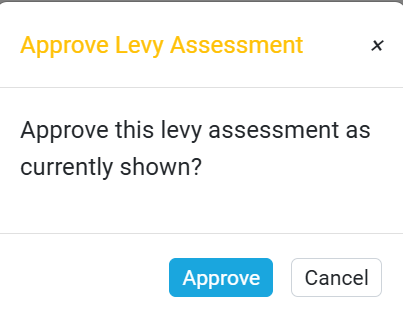
Once the levy determination is approved, the Approval status changes to Approved, and the Post to Accounting button becomes available.
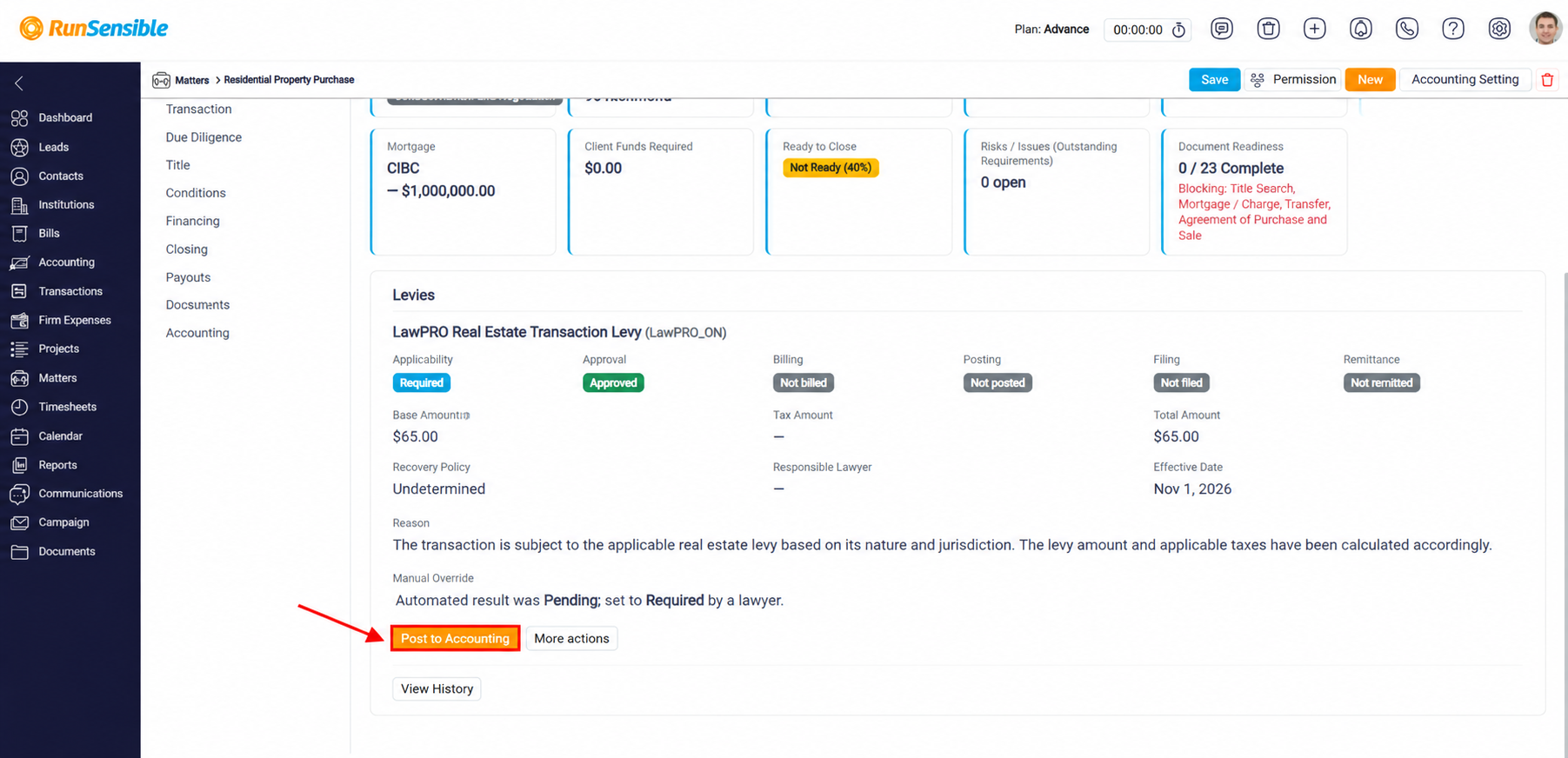
Click Post to Accounting to record the approved levy amount in RunSensible’s accounting system. This allows you to track the firm’s levy obligation and manage the related financial transactions.

For additional options, click More actions to access other available assessment management functions.
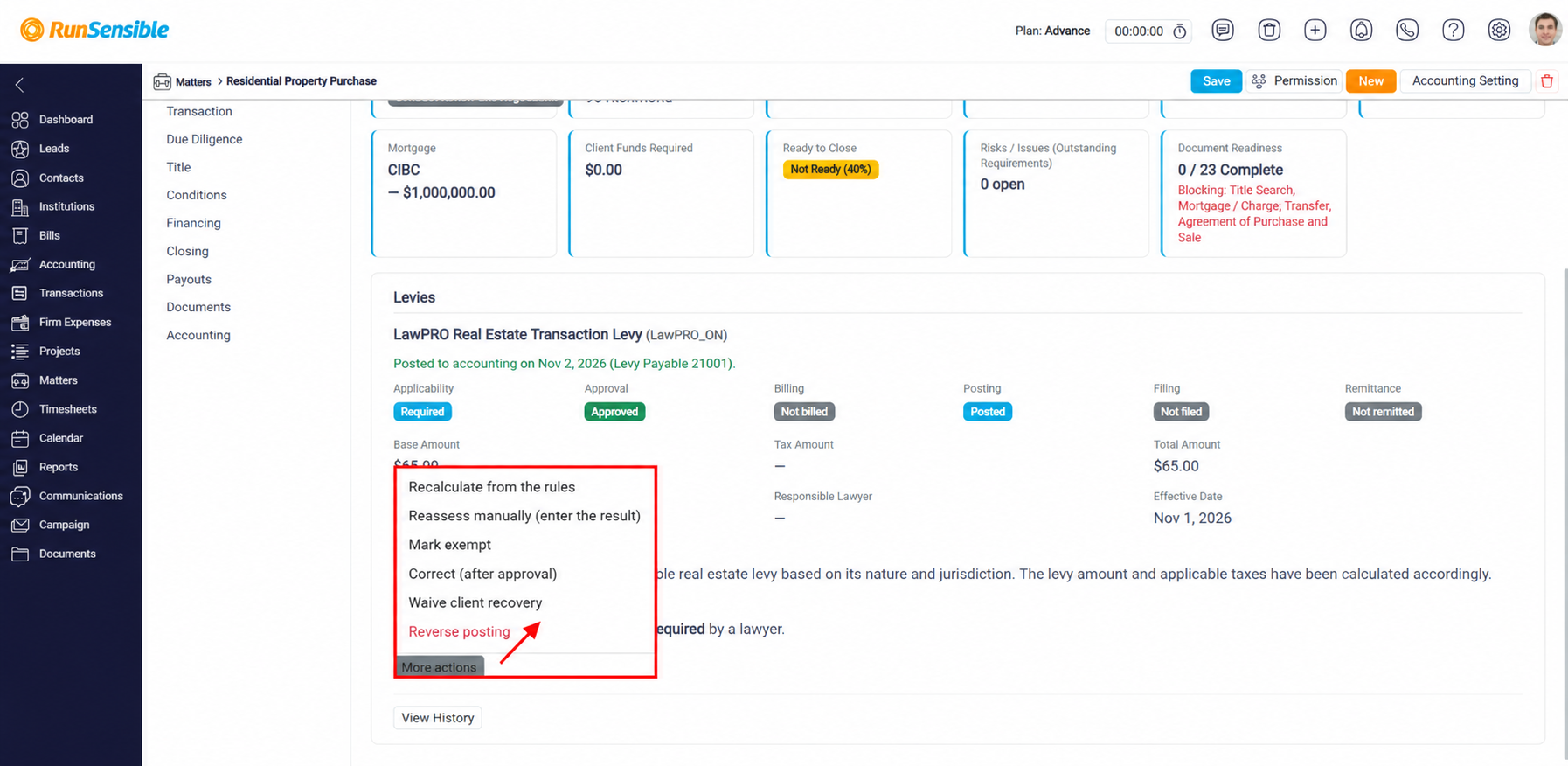
You can also click View History to review previous levy determinations, changes, and recorded actions.
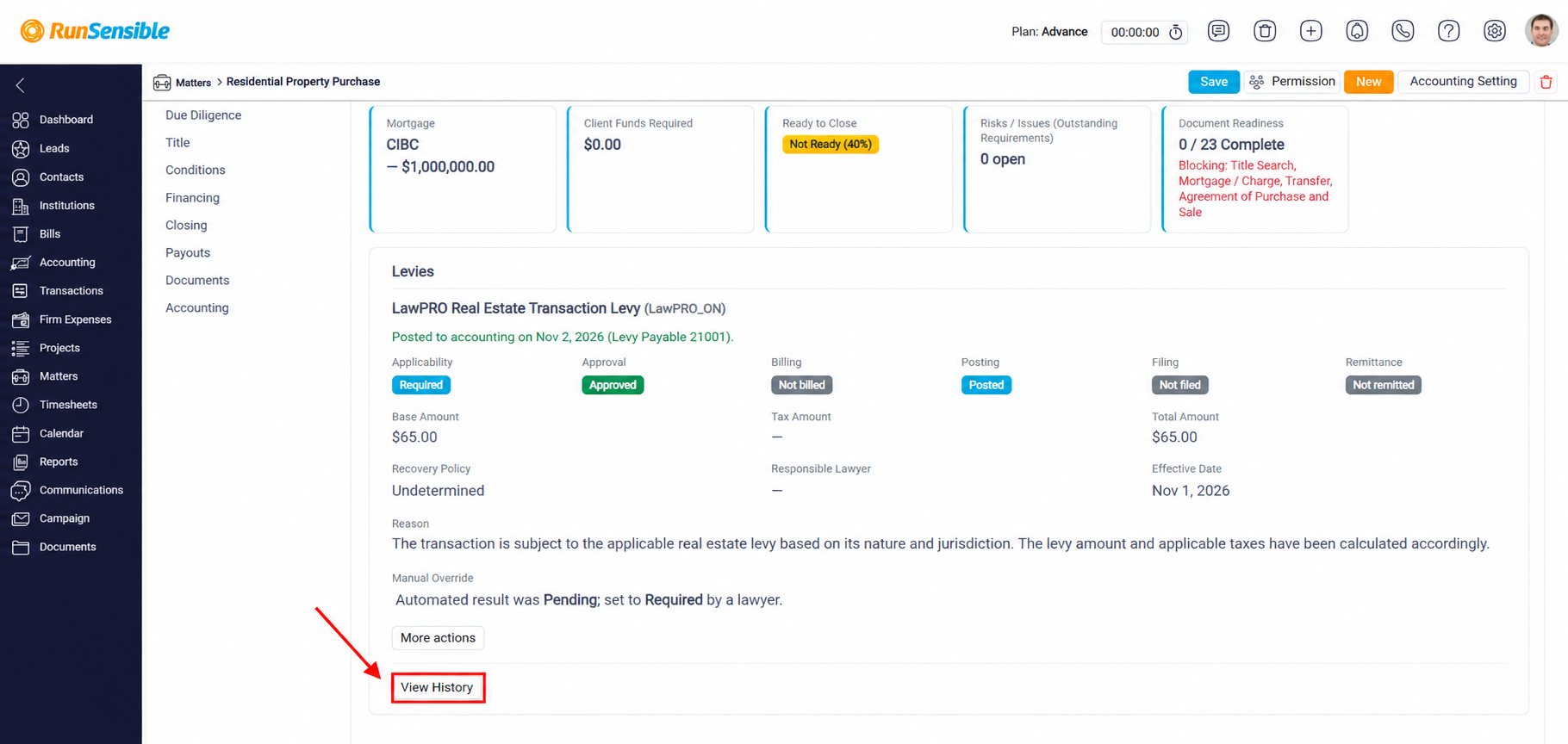
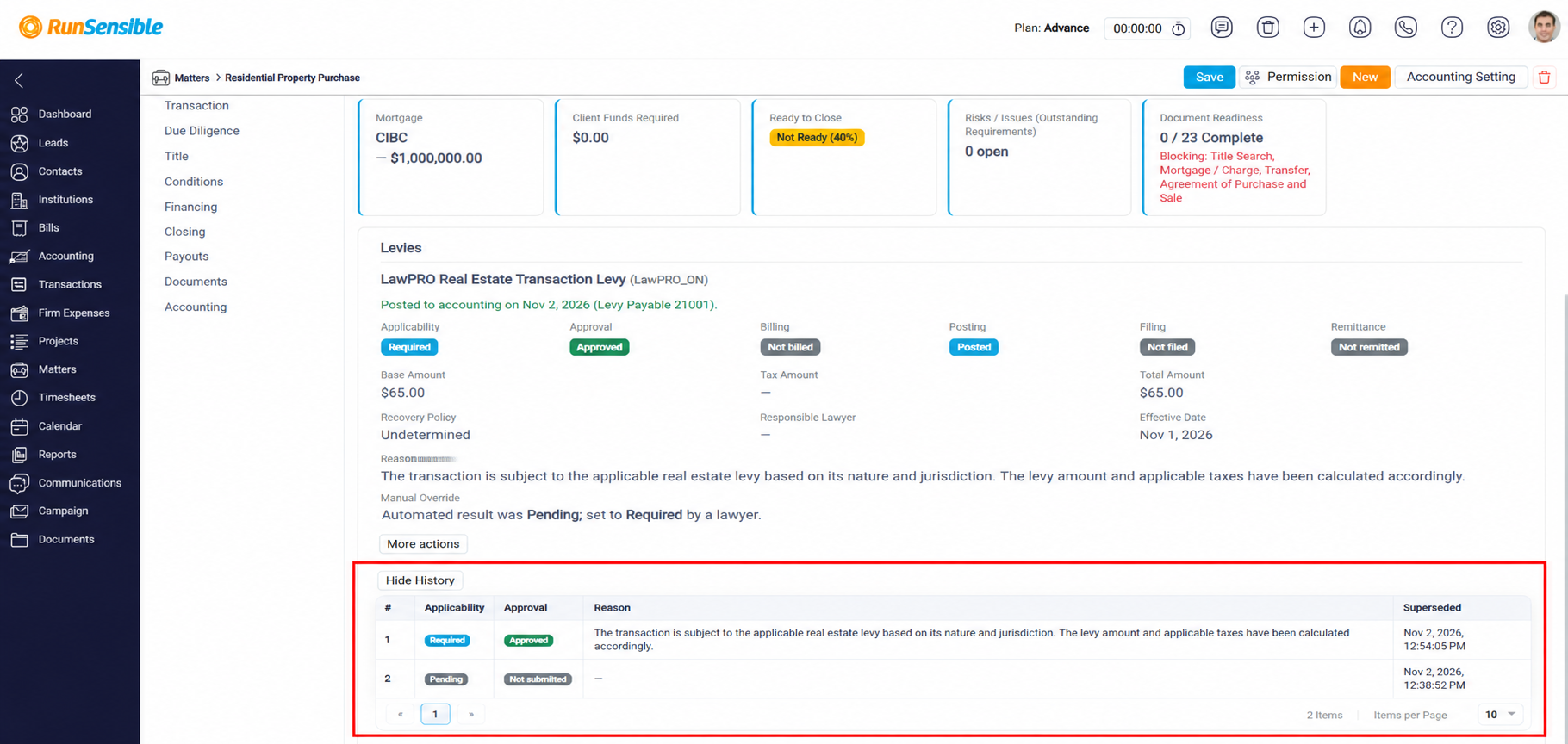
The Levies section now displays the updated levy information, including its applicability, approval, billing, posting, filing, and remittance statuses, along with the levy amounts and supporting details.