Adding and Tracking Medical Records in Personal Injury Matters
The Medical Records section allows you to organize and manage medical providers, treatment information, medical records, and medical bills associated with a Personal Injury matter. This section helps you maintain a comprehensive history of the client’s medical treatment, track outstanding medical expenses, and keep supporting documentation organized and easily accessible.
To add a medical provider, click the Add Medical Records button and enter the relevant information. Once saved, the provider will appear in the Medical Records section, where you can review their details, monitor treatment dates, track medical record and billing requests, and manage associated documents. Each provider has a dedicated section where you can add, view, and manage medical records and bills related to the client’s treatment.
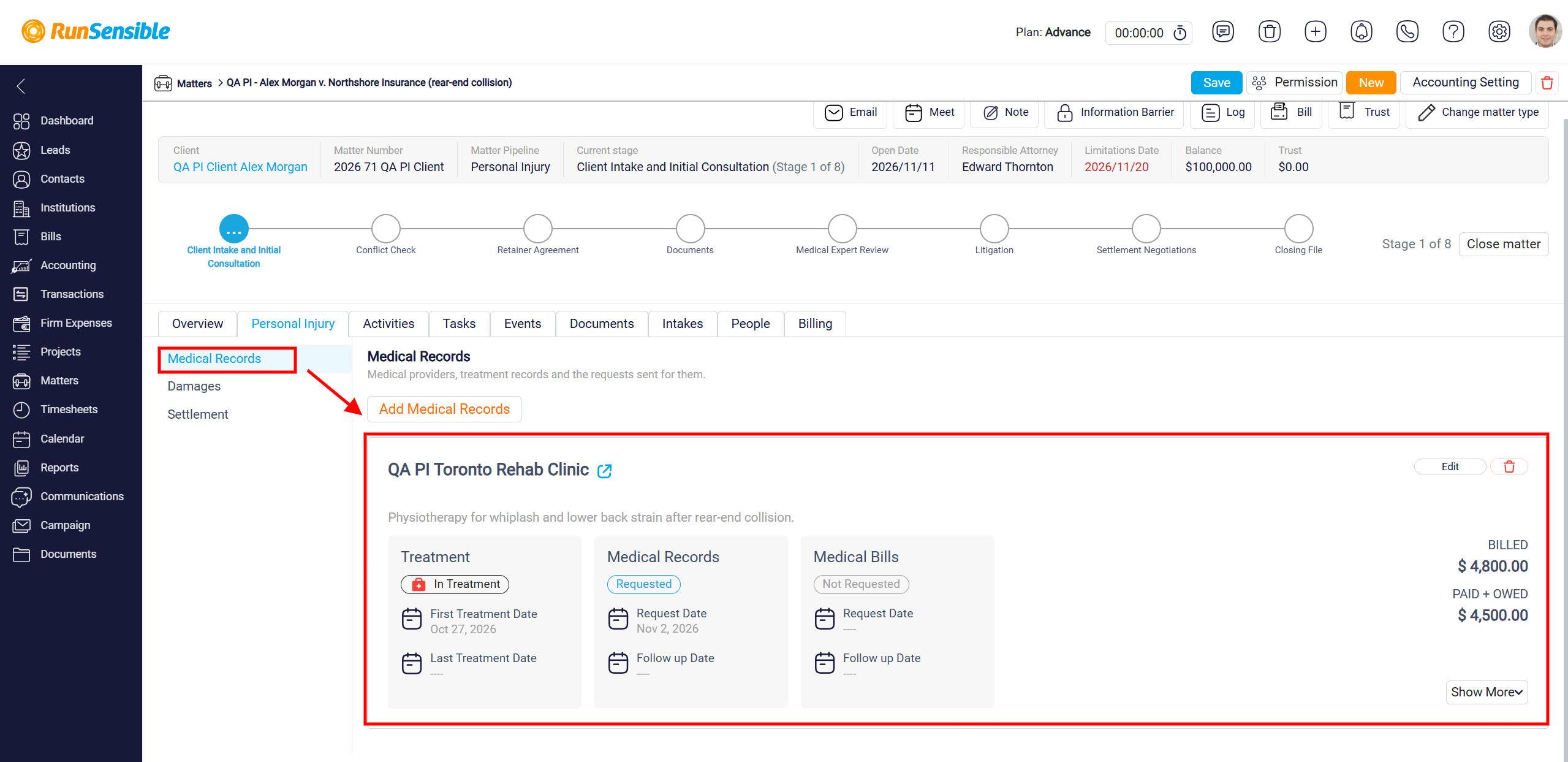
To add a medical provider, click the Add Medical Records button.
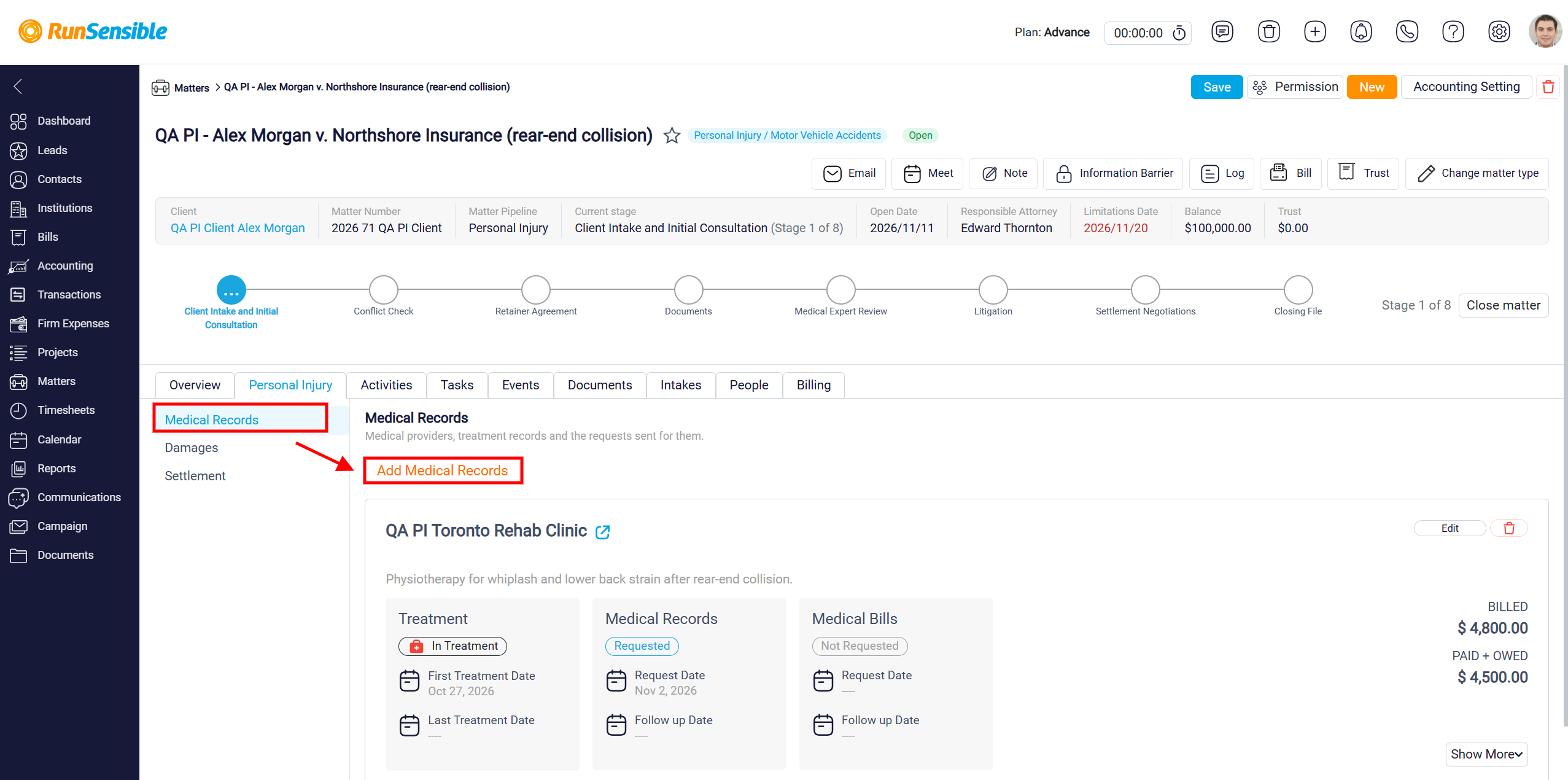
The Medical Record window allows you to manage a client’s medical treatment information, track medical record requests, and monitor related billing documents within a Personal Injury matter.
Under Medical Provider Details, select the Medical Provider from the dropdown menu. Then, use the Description field to summarize the client’s injuries, treatment received, and other relevant medical information.
In the Treatment Dates section, enter the First Treatment Dates and Last Treatment Dates to indicate when treatment began and ended. If the client has completed treatment, enable the Treatment is complete toggle.
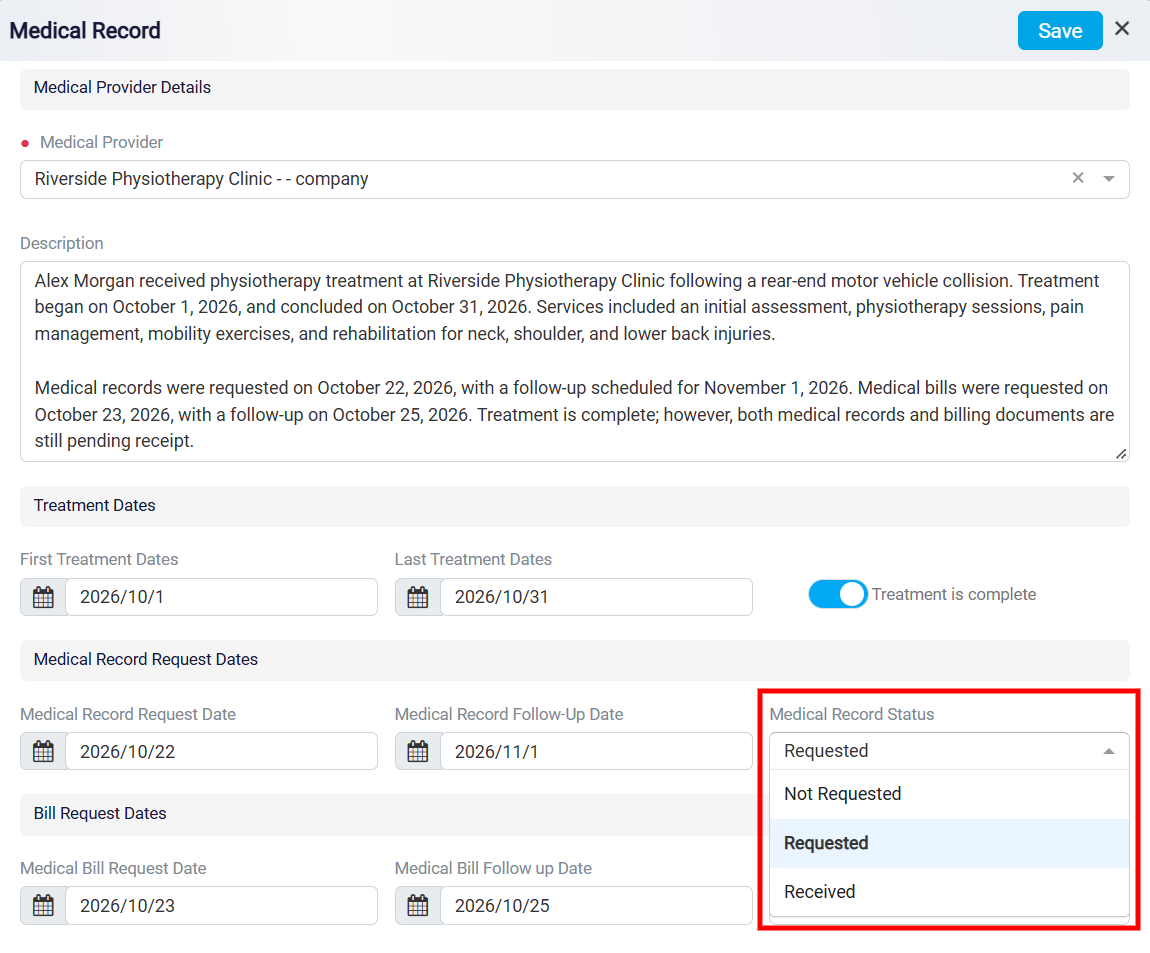
Under Medical Record Request Dates, enter the Medical Record Request Date and Medical Record Follow-Up Date to track when records were requested and when follow-up is needed. Use the Medical Record Status dropdown menu to track the progress of medical record requests. Select Not Requested if no request has been made, Requested if the records have been requested but not yet received, or Received once the medical records have been obtained.
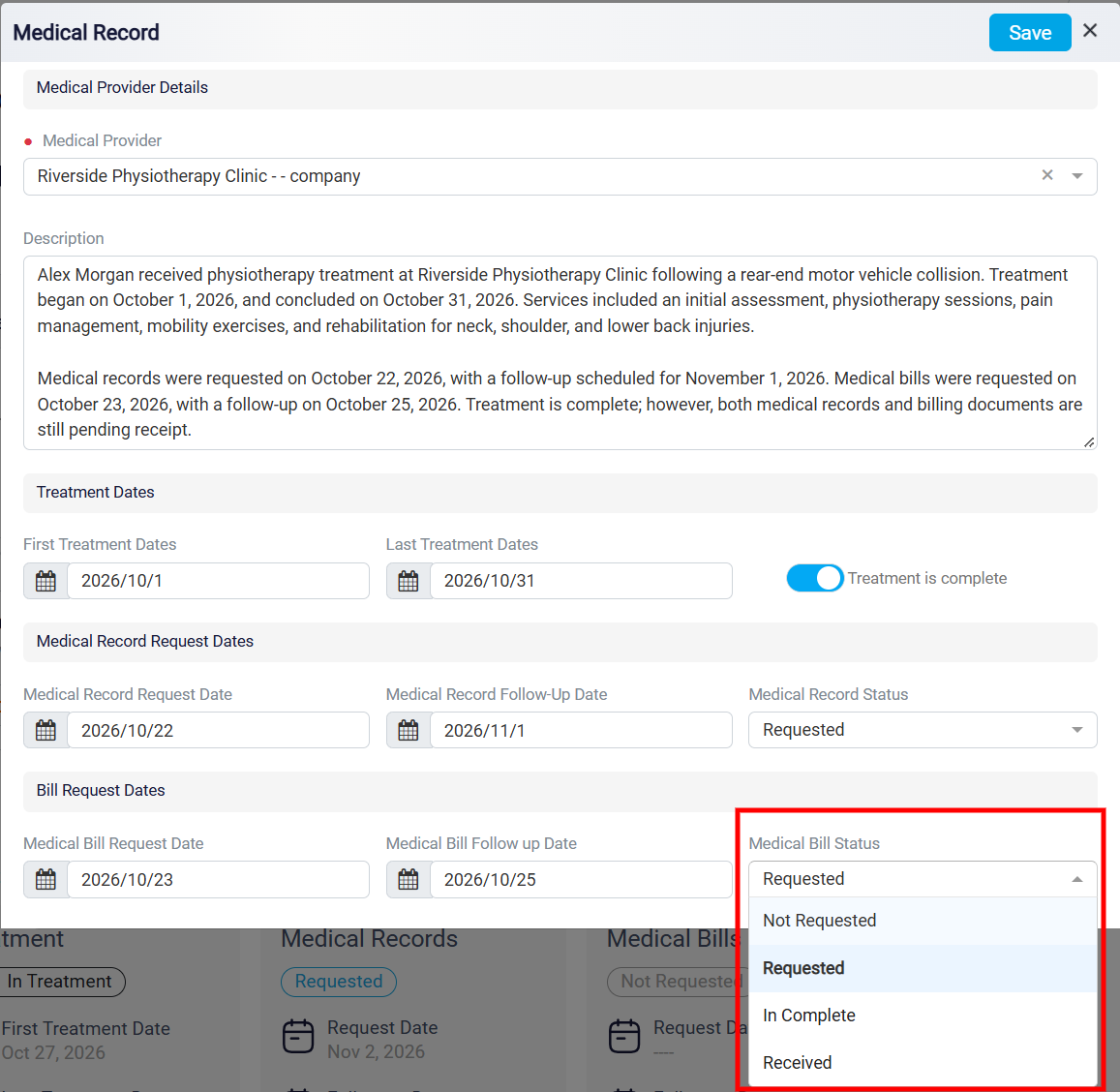
In the Bill Request Dates section, enter the Medical Bill Request Date and Medical Bill Follow up Date to track requests for medical bills. Similarly, use the Medical Bill Status dropdown menu to monitor medical billing requests. Select Not Requested if no bill has been requested, Requested if the request has been submitted, In Complete if the billing documentation is incomplete, or Received once the medical bills have been obtained.
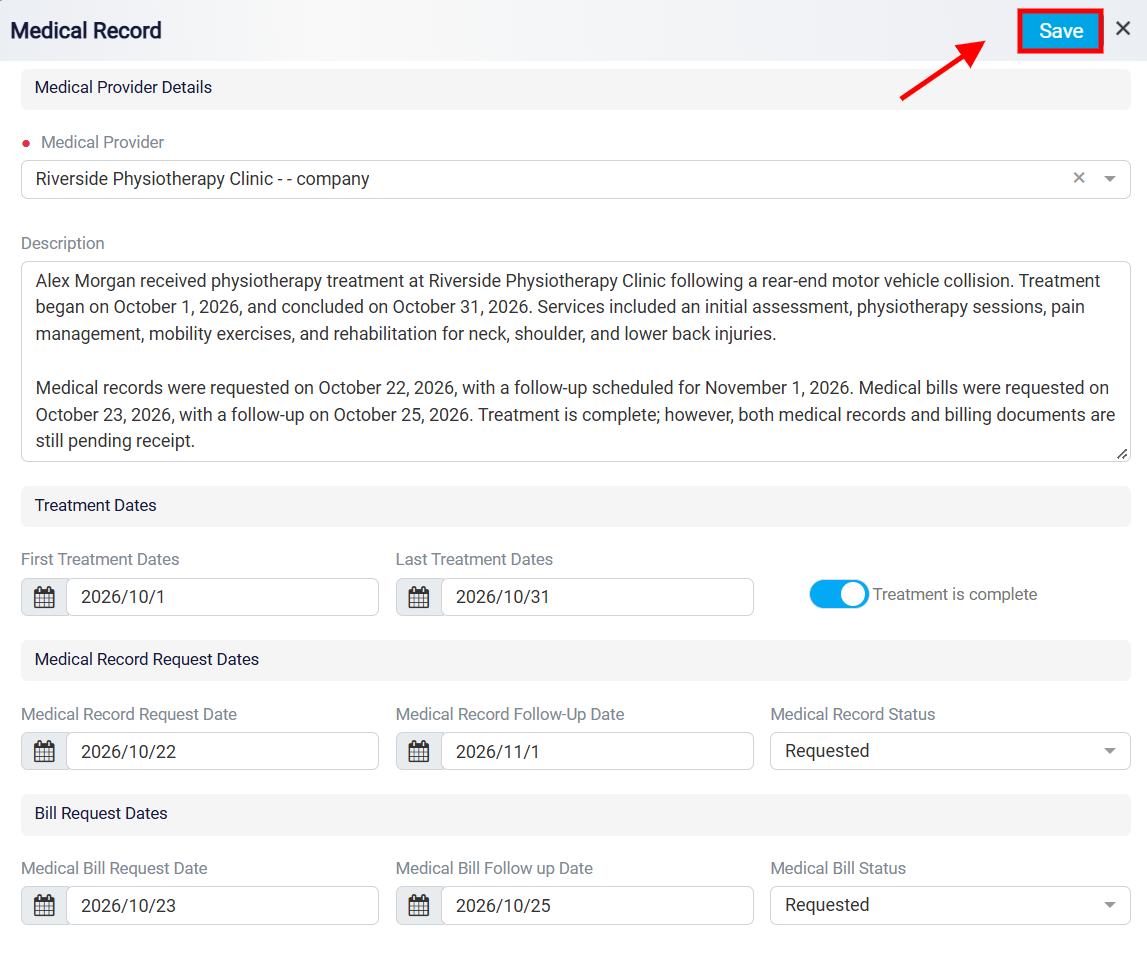
Once all necessary information has been entered, click Save in the upper-right corner to save the medical record.
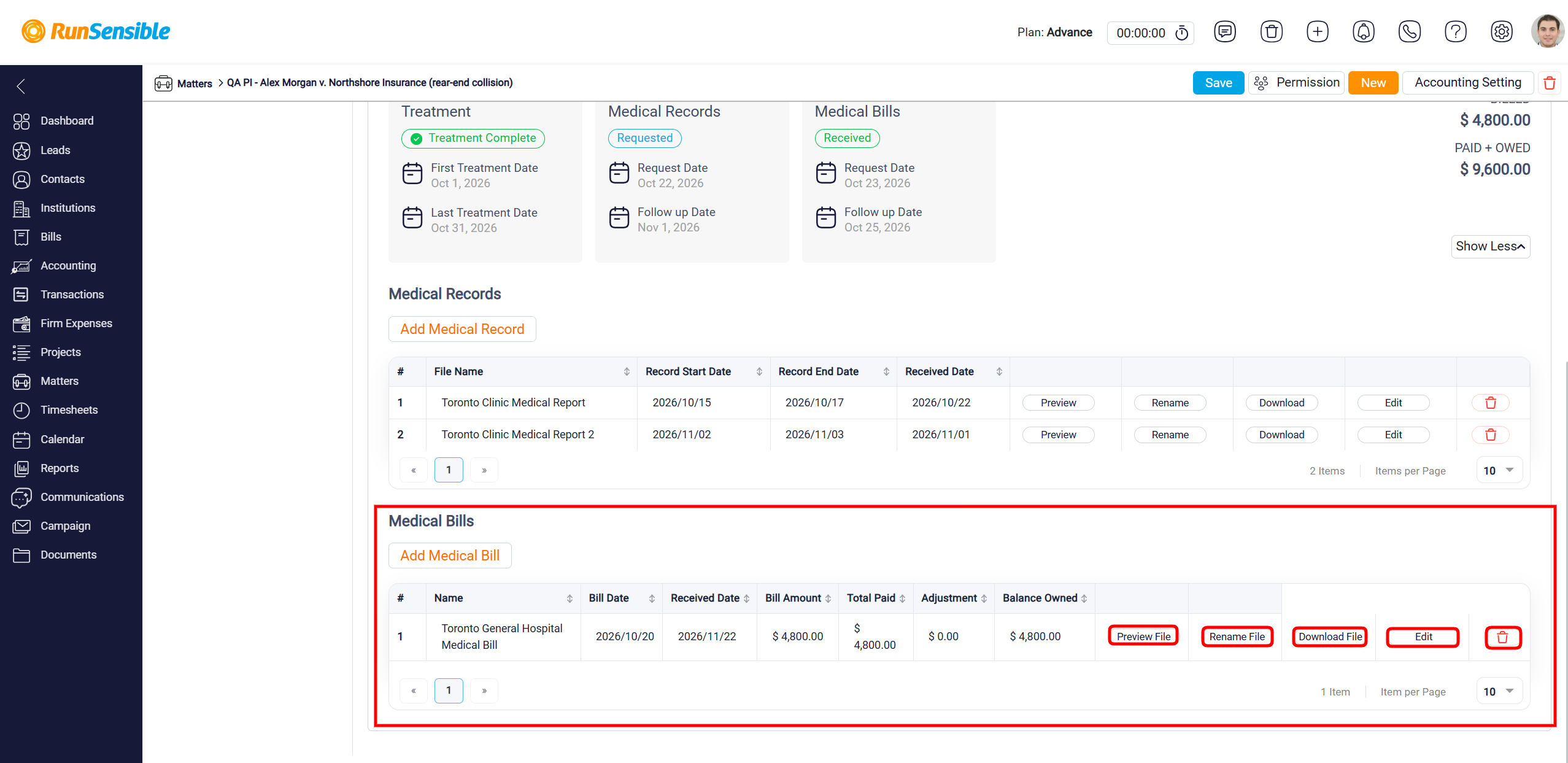
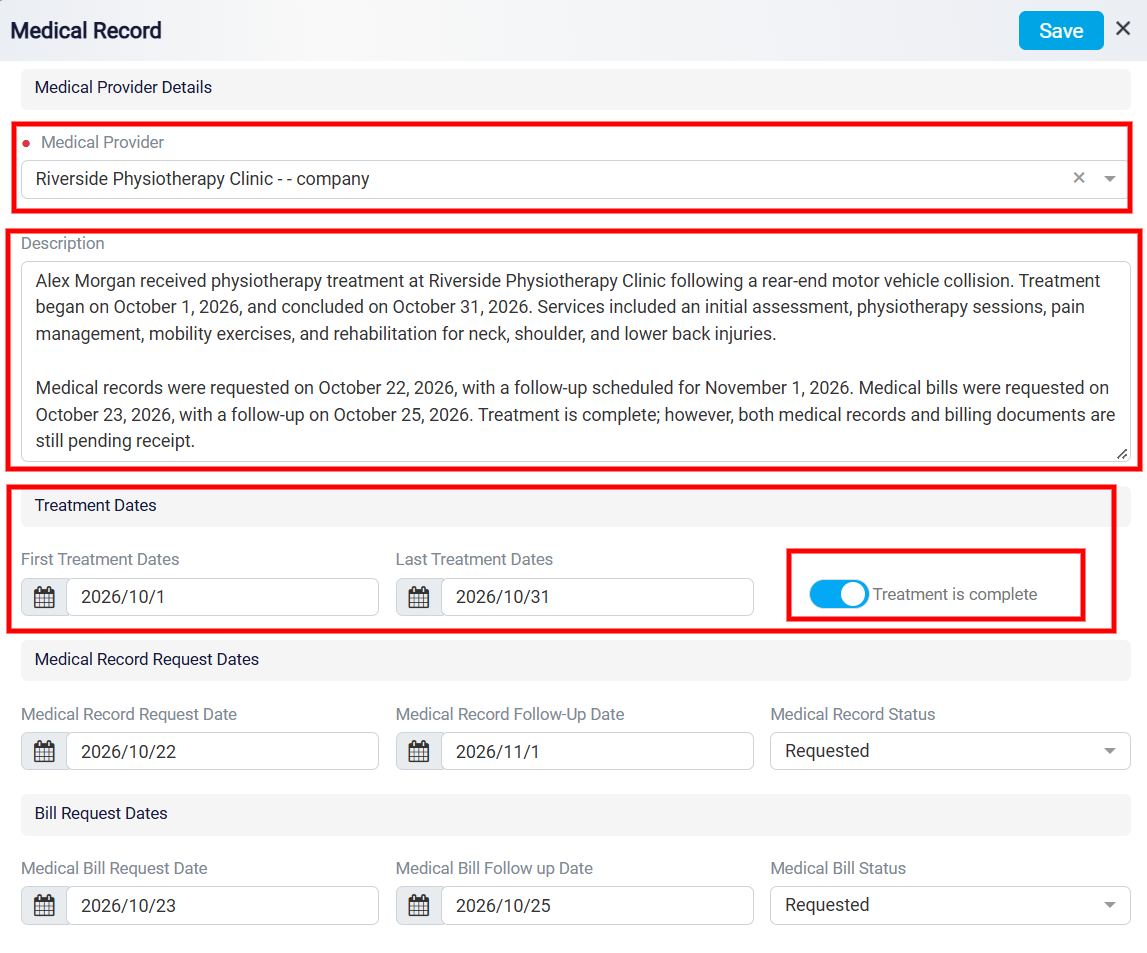
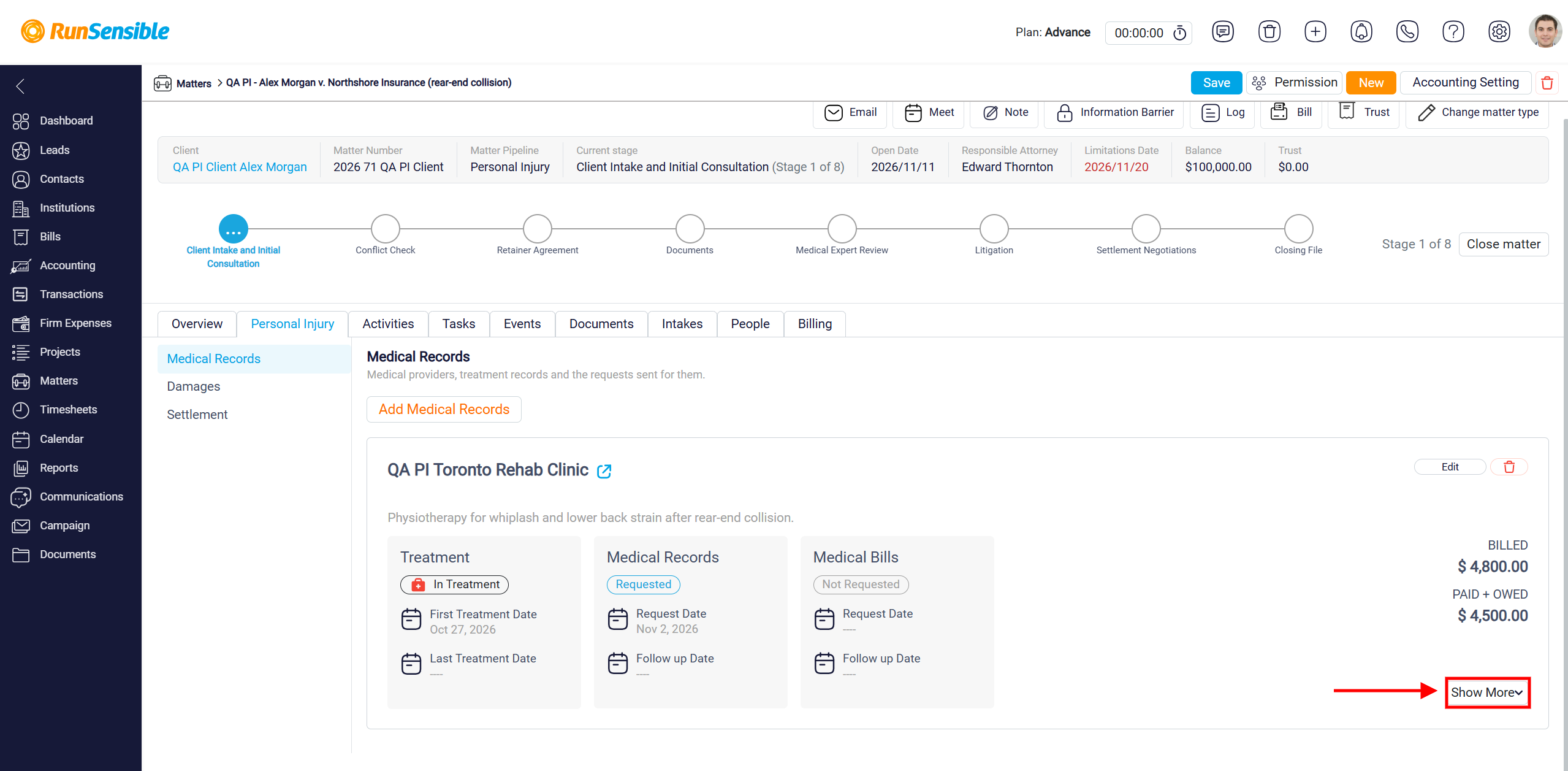
Once a medical provider has been added, their information will appear in the Medical Records section. Each provider’s card displays an overview of the client’s treatment, including the Treatment Status, First Treatment Date, and Last Treatment Date. The card also shows the Medical Records and Medical Bills request statuses, along with their request and follow-up dates.
You can also use the Edit button to update the provider’s information or the Delete icon to remove the entry.
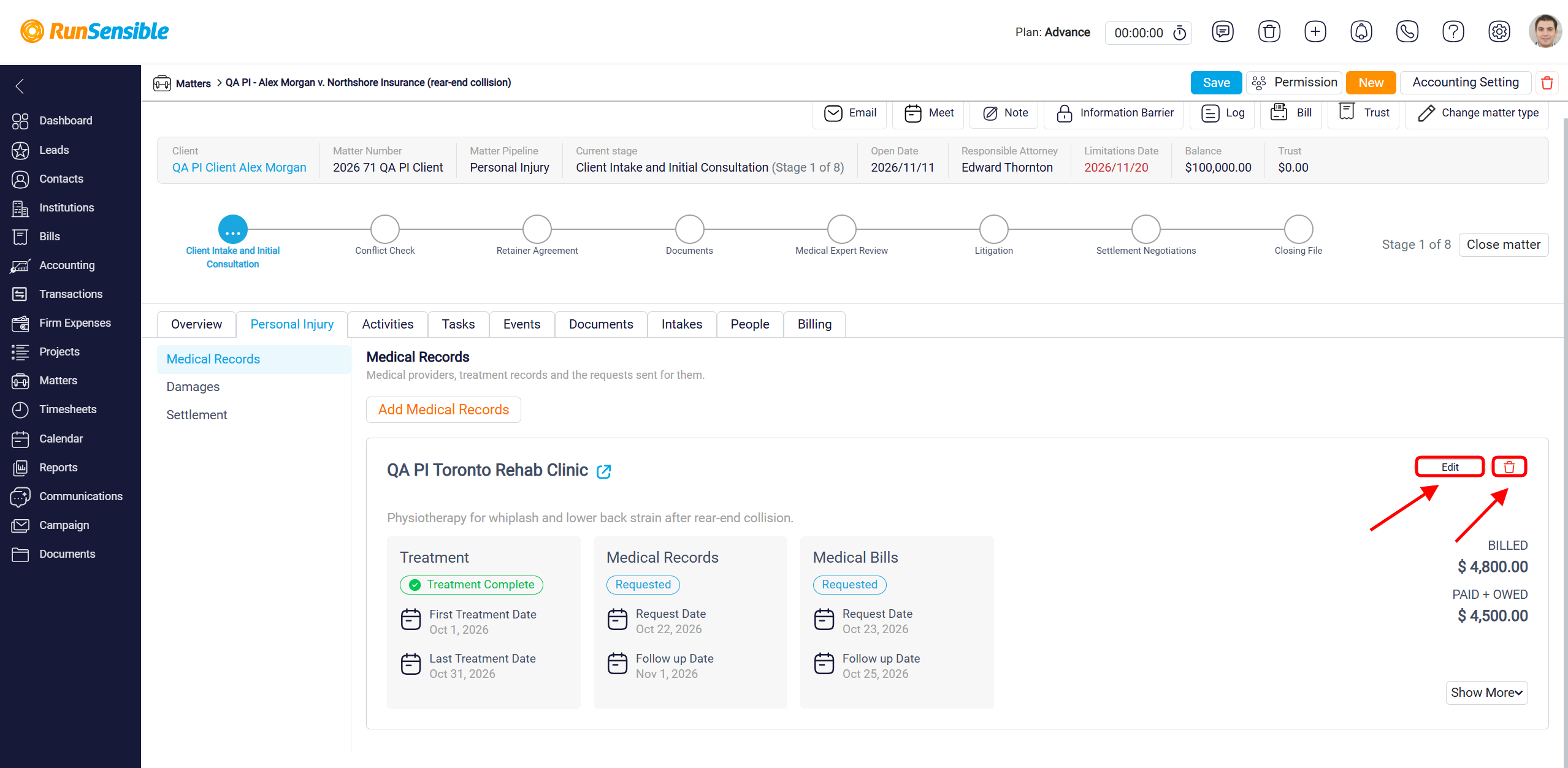
To view additional information, click Show More in the bottom-right corner of the provider’s card. This expands the section, allowing you to access and manage the medical records and bills associated with that provider.
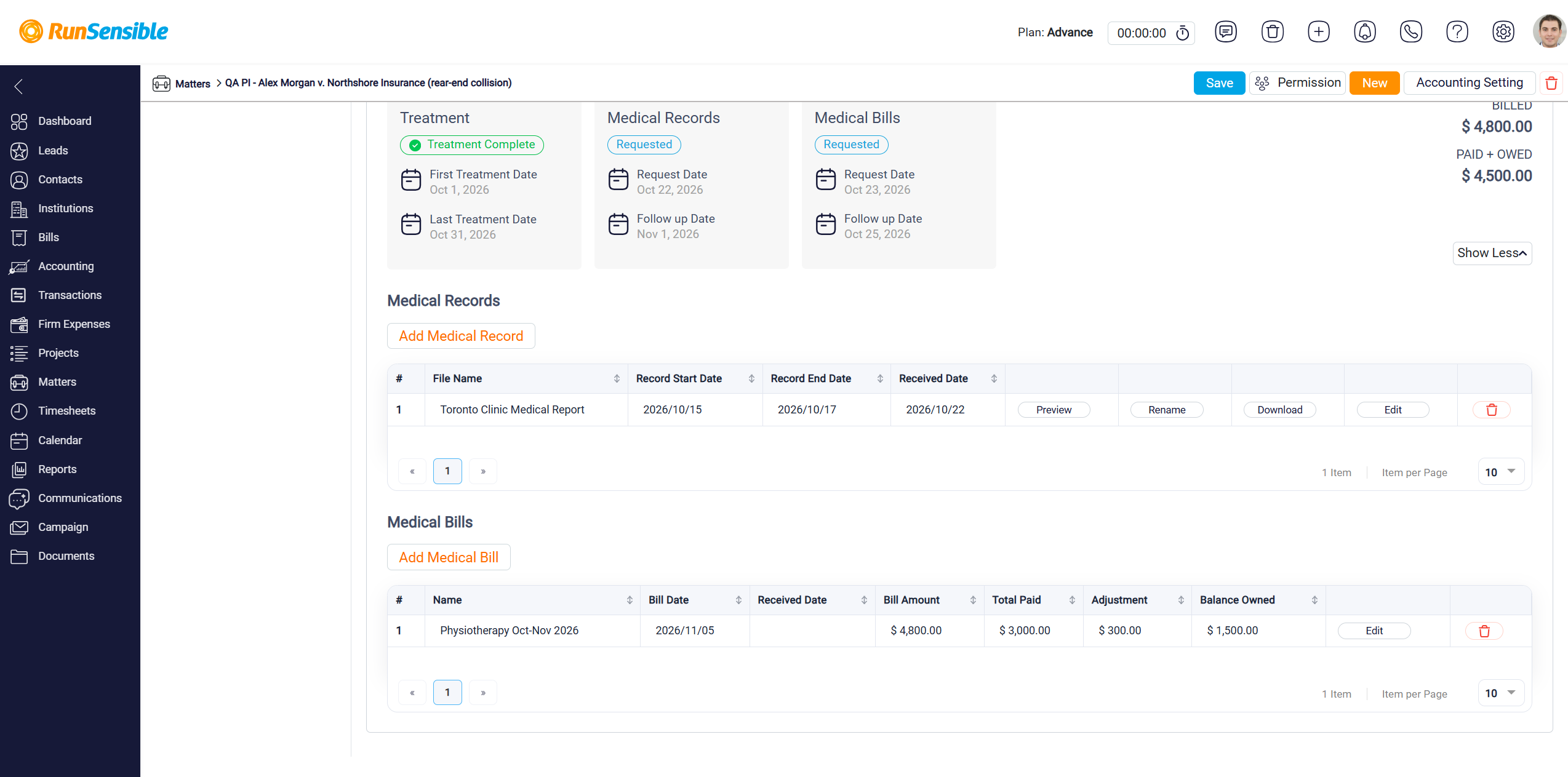
After clicking Show More, the medical provider’s section expands to display the Medical Records and Medical Bills tables, where you can add and manage documents associated with the client’s treatment.
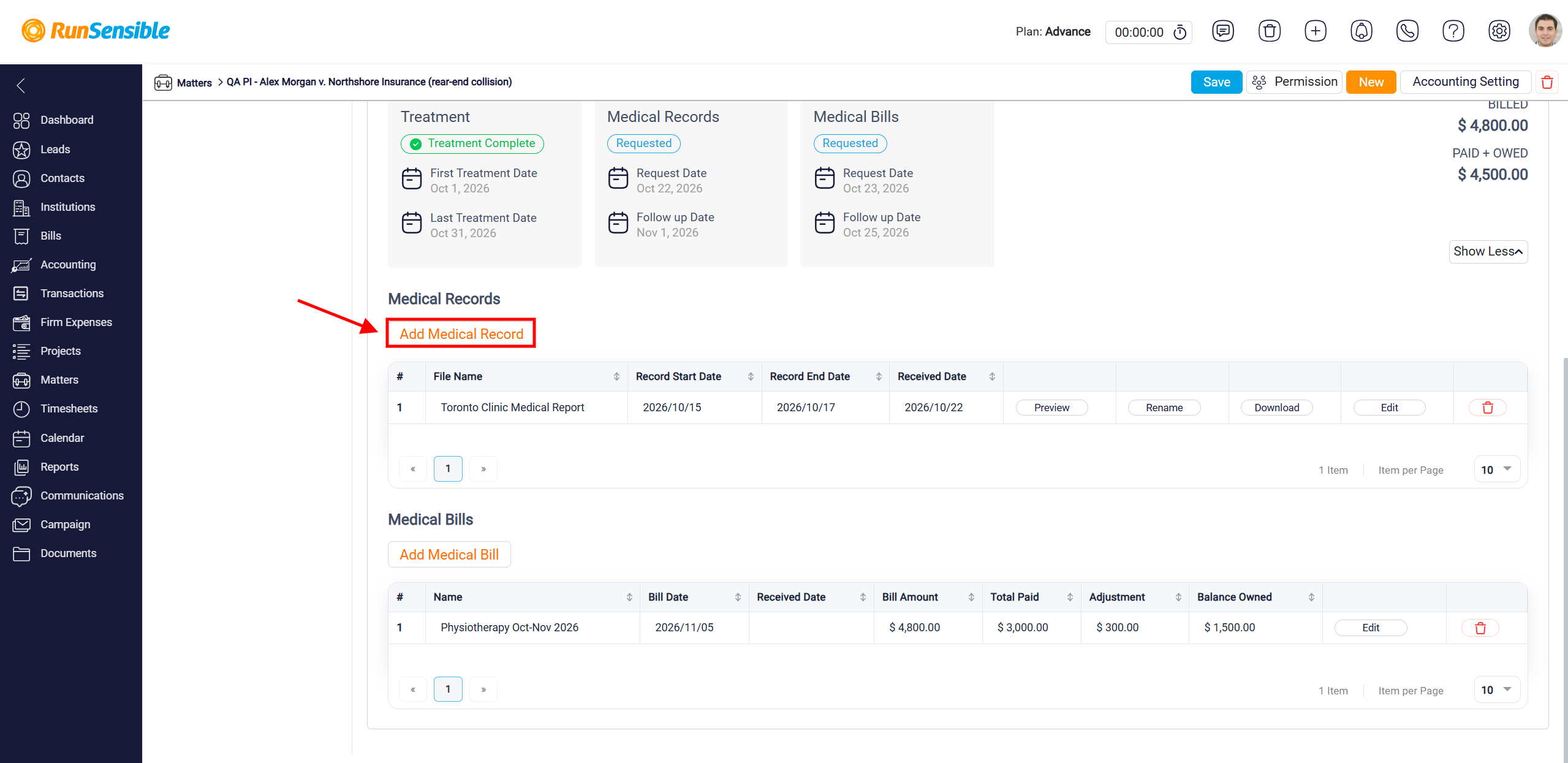
To add a medical record, click Add Medical Record within the selected medical provider’s section.
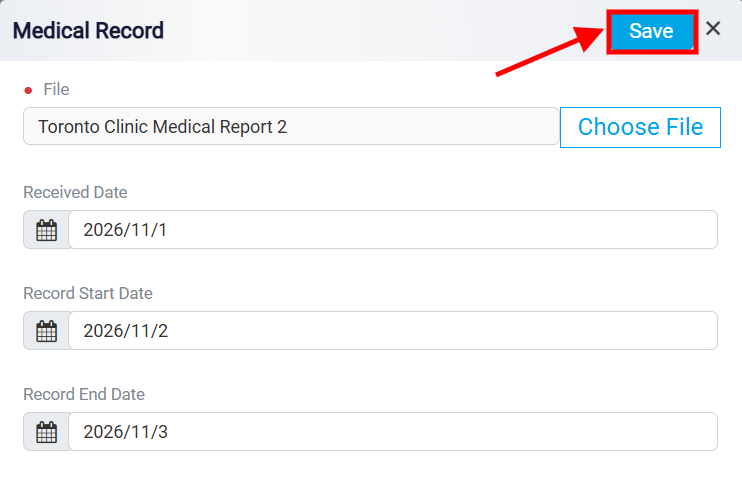
This opens the Medical Record window, where you can upload medical documents and enter their associated dates. Click Choose File to upload the medical report or supporting document. Next, enter the Received Date to indicate when the document was received, and specify the Record Start Date and Record End Date to identify the treatment period covered by the record. Once all required information has been entered, click Save in the upper-right corner to add the medical record.
The uploaded document will appear in the Medical Records table, displaying its File Name, Record Start Date, Record End Date, and Received Date. You can use Preview to view the document, Rename to change its file name, Download to save a copy, Edit to update the record’s information, or the Delete icon to remove it.
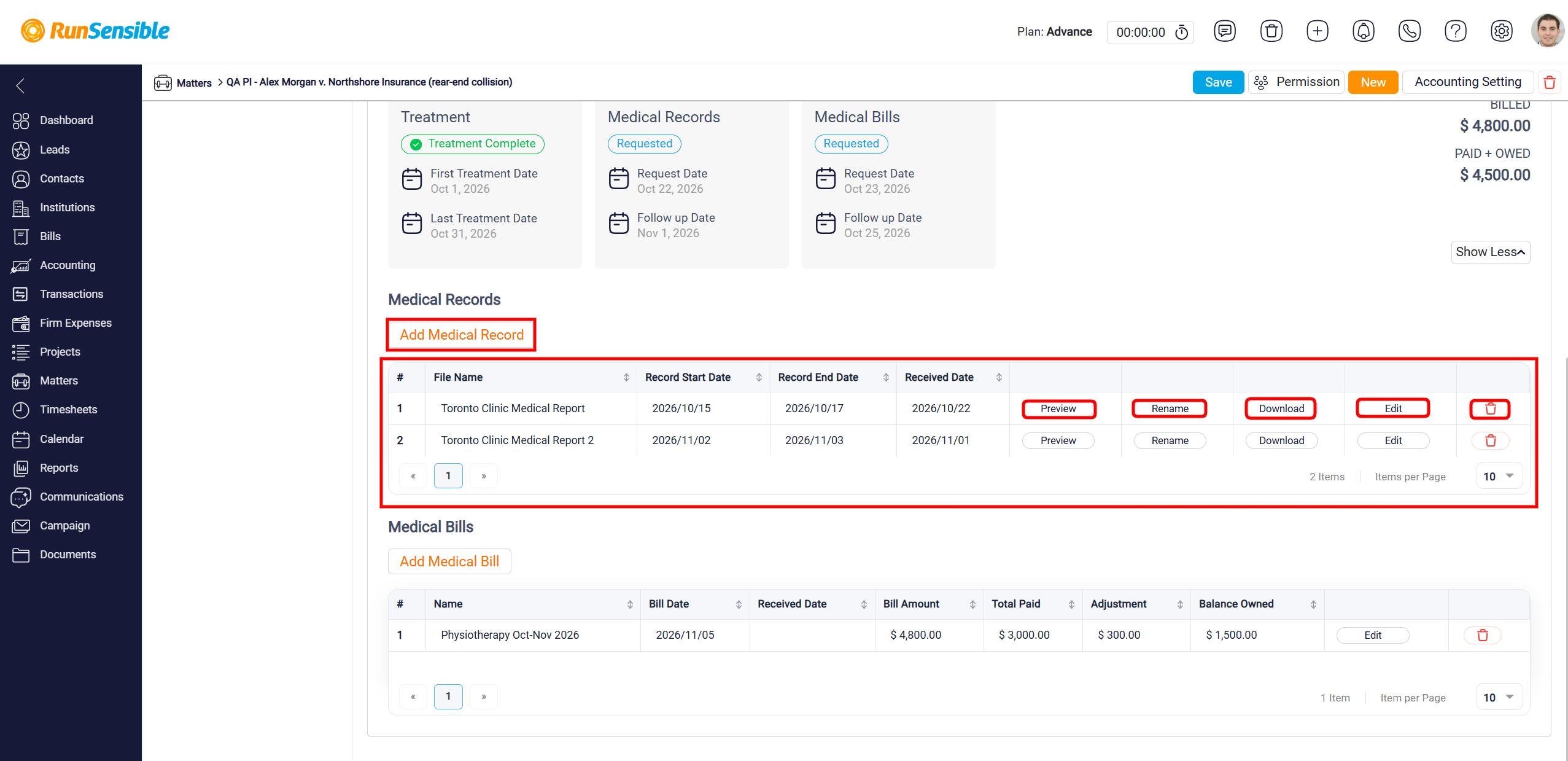
To add a medical record, click Add Medical Record within the selected medical provider’s section.
This opens the Medical Record window, where you can upload medical documents and enter their associated dates.
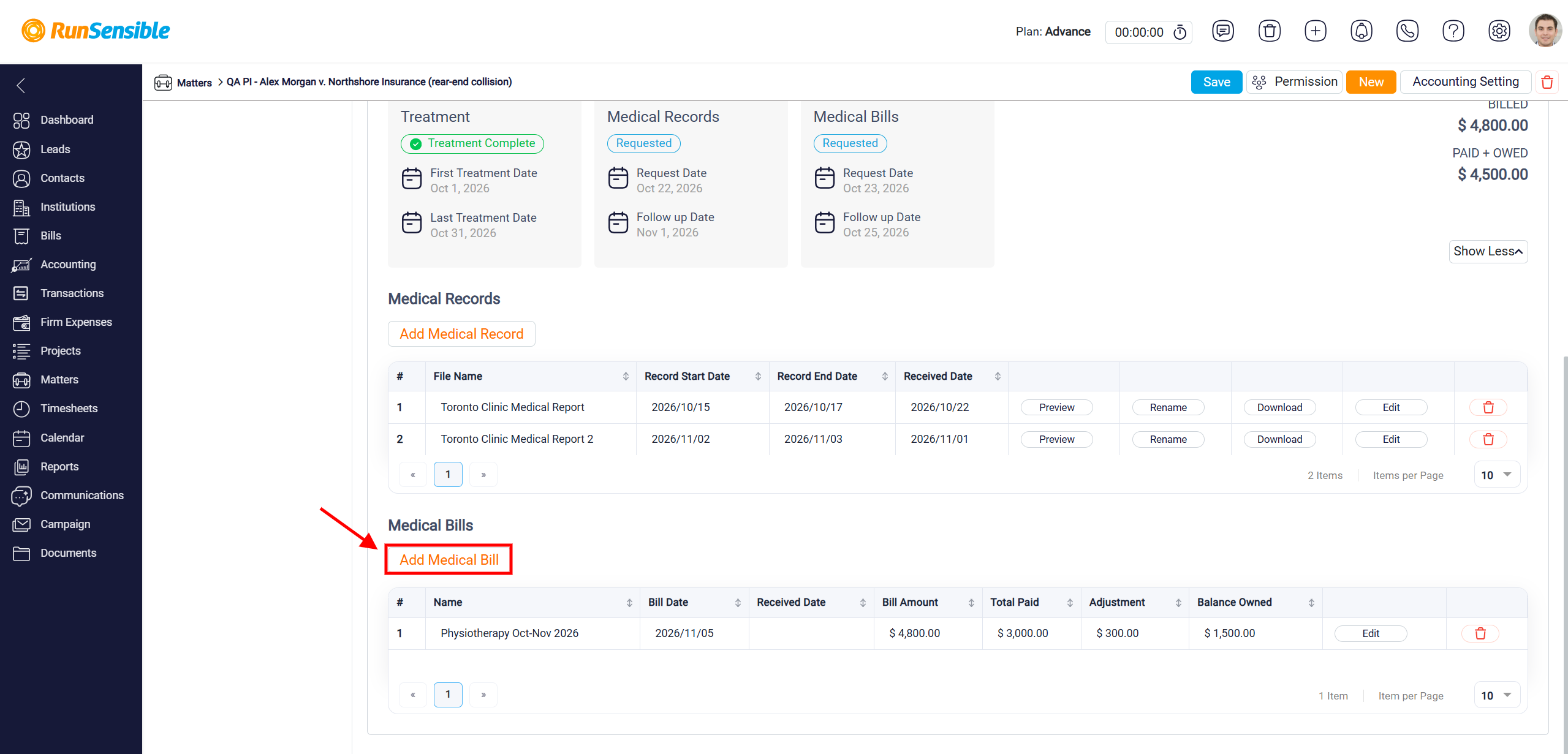
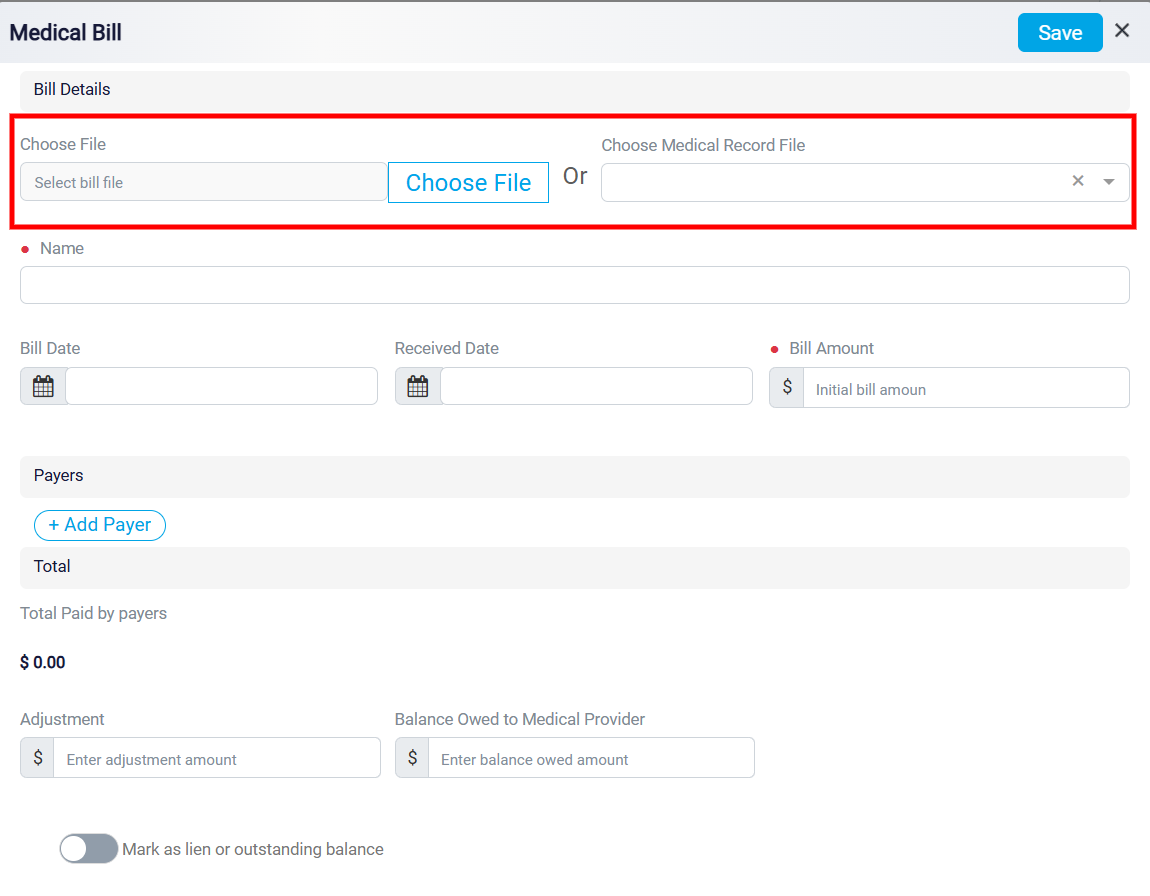
To attach a medical bill, click Choose File to upload a document from your device, or use Choose Medical Record File to select an existing uploaded document. You can choose either option based on where the medical bill is stored.
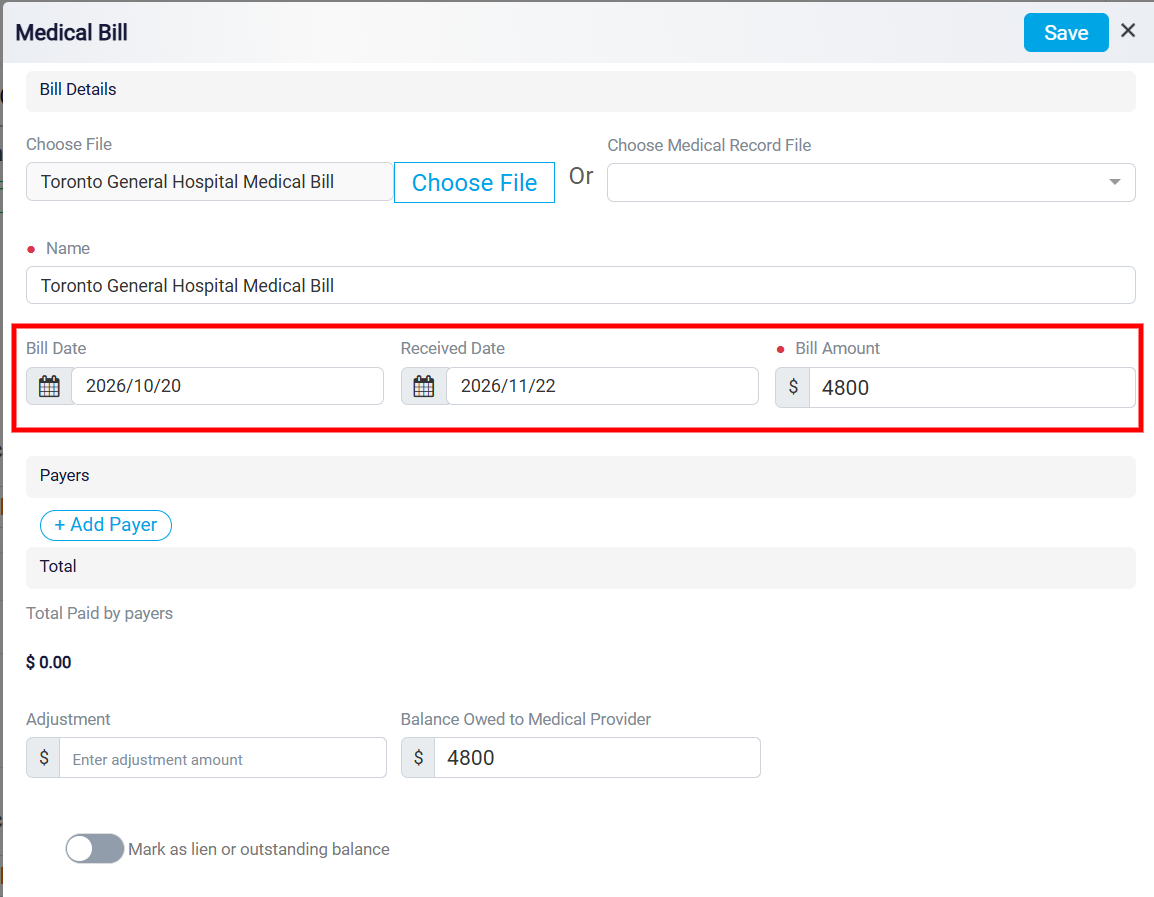
Specify the Bill Date to indicate when the bill was issued and the Received Date to record when it was received. Then, enter the total amount charged by the medical provider in the Bill Amount field.
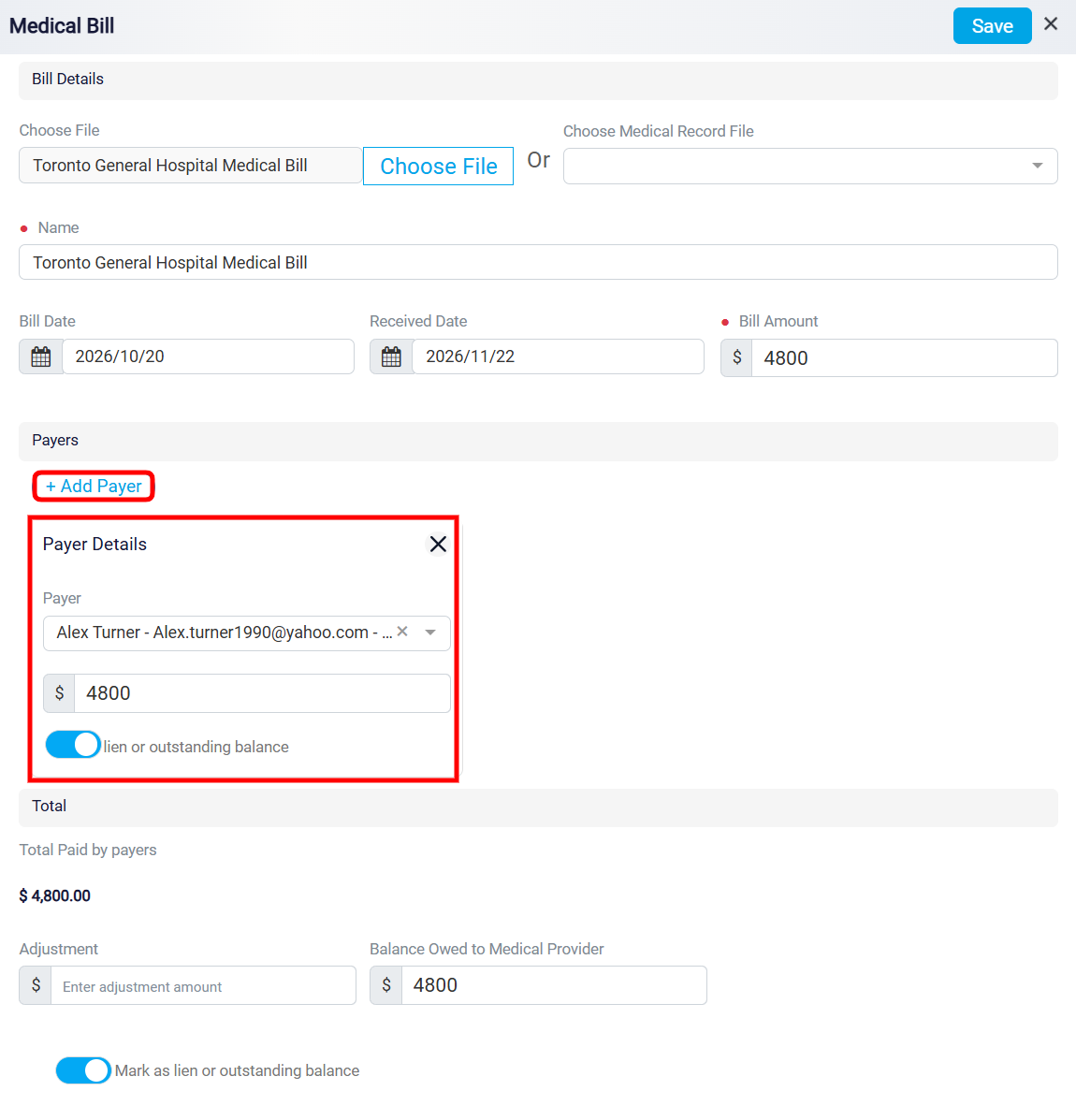
Under the Payers section, click + Add Payer to enter information about a person or organization responsible for paying the medical bill. This opens the Payer Details section, where you can select the Payer from the dropdown menu and enter the corresponding payment amount.
If the amount represents a lien or outstanding balance, enable the lien or outstanding balance toggle to identify it accordingly. You can add multiple payers if more than one party is responsible for the medical expenses.
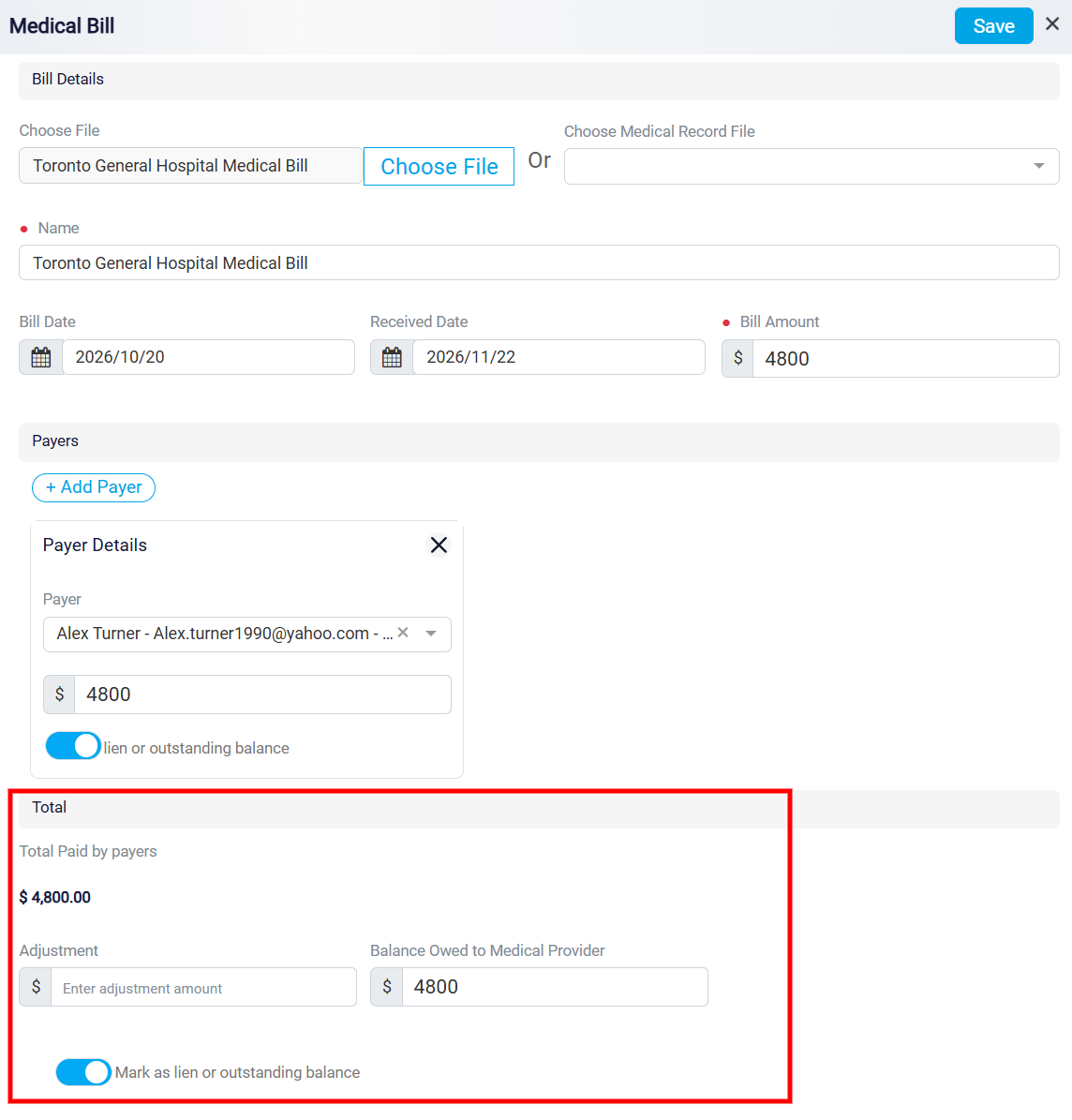
The Total section provides a summary of the medical bill’s payment information, adjustments, and outstanding balance. The Total Paid by payers field displays the combined amounts entered for all payers in the Payers section. The Adjustment field allows you to record any reductions or changes to the original bill amount, such as discounts or negotiated adjustments. The Balance Owed to Medical Provider field allows you to specify the remaining amount payable to the healthcare provider after accounting for applicable payments and adjustments.
If the medical bill represents a lien or an outstanding financial obligation that must be considered during settlement, enable the Mark as lien or outstanding balance toggle.
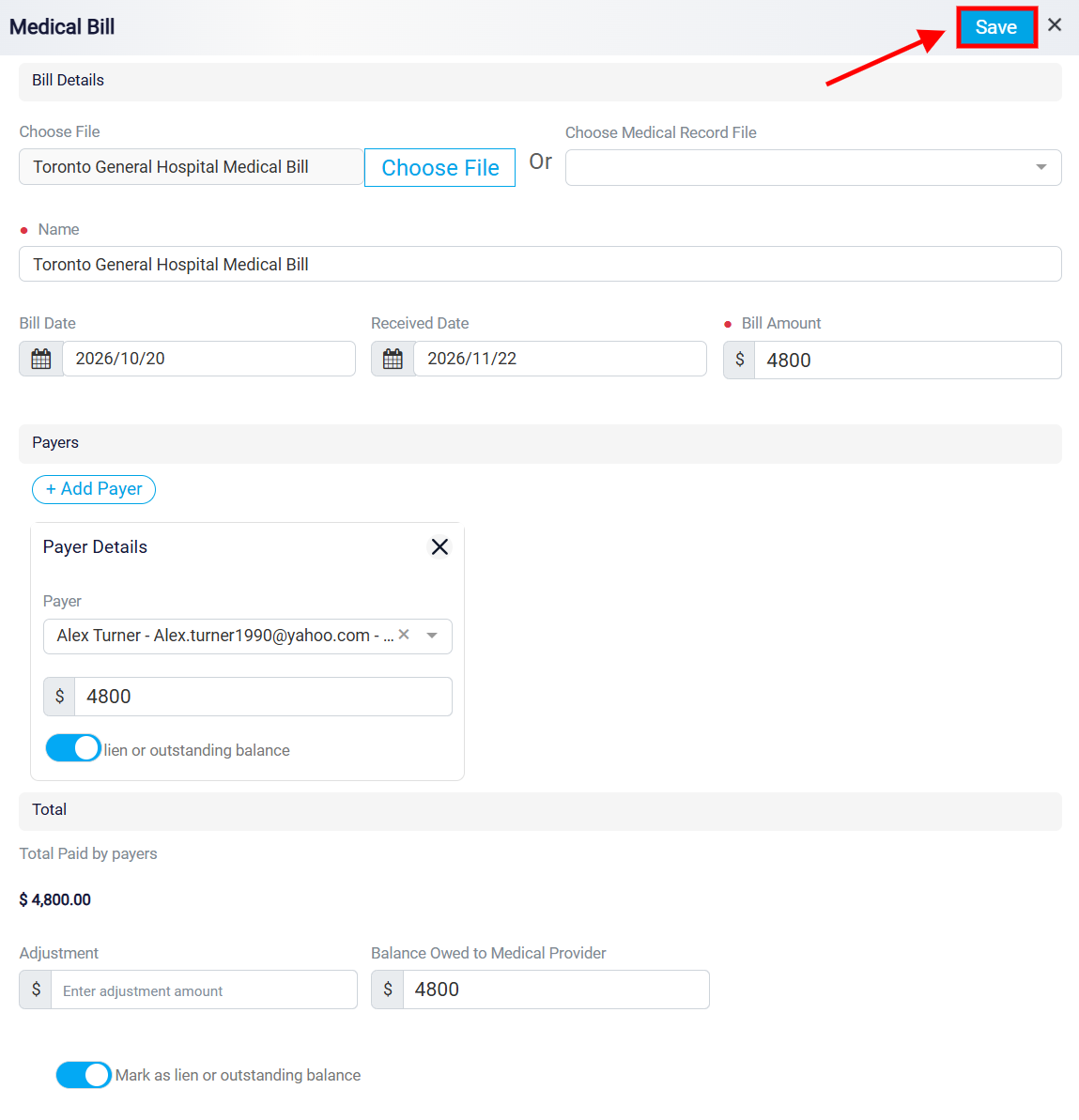
Once all required information has been entered, click Save in the upper-right corner to add the medical record.
Once a medical bill has been saved, it will appear in the Medical Bills table under the selected medical provider. The table displays important billing information, including Name, Bill Date, Received Date, Bill Amount, Total Paid, Adjustment, and Balance Owed.
You can manage each medical bill using the available options. Click Preview File to view the attached document, Rename File to change its name, or Download File to save a copy to your device. To update the bill’s details, click Edit, or use the Delete icon to remove the bill.
The Medical Bills section helps you keep track of medical expenses, recorded payments, adjustments, and outstanding balances associated with the client’s treatment.