Creating a Log in RunSensible
The Log button is used to document activities and communications related to a lead, contact, institution, task, or matter that occurred outside of RunSensible. This is useful when the user wants to keep a complete history of all interactions related to the lead, even if the activity did not take place inside RunSensible. For example, if the user spoke with the lead by phone outside the system, had an in-person conversation, or completed another related activity, they can record it using the Log button.
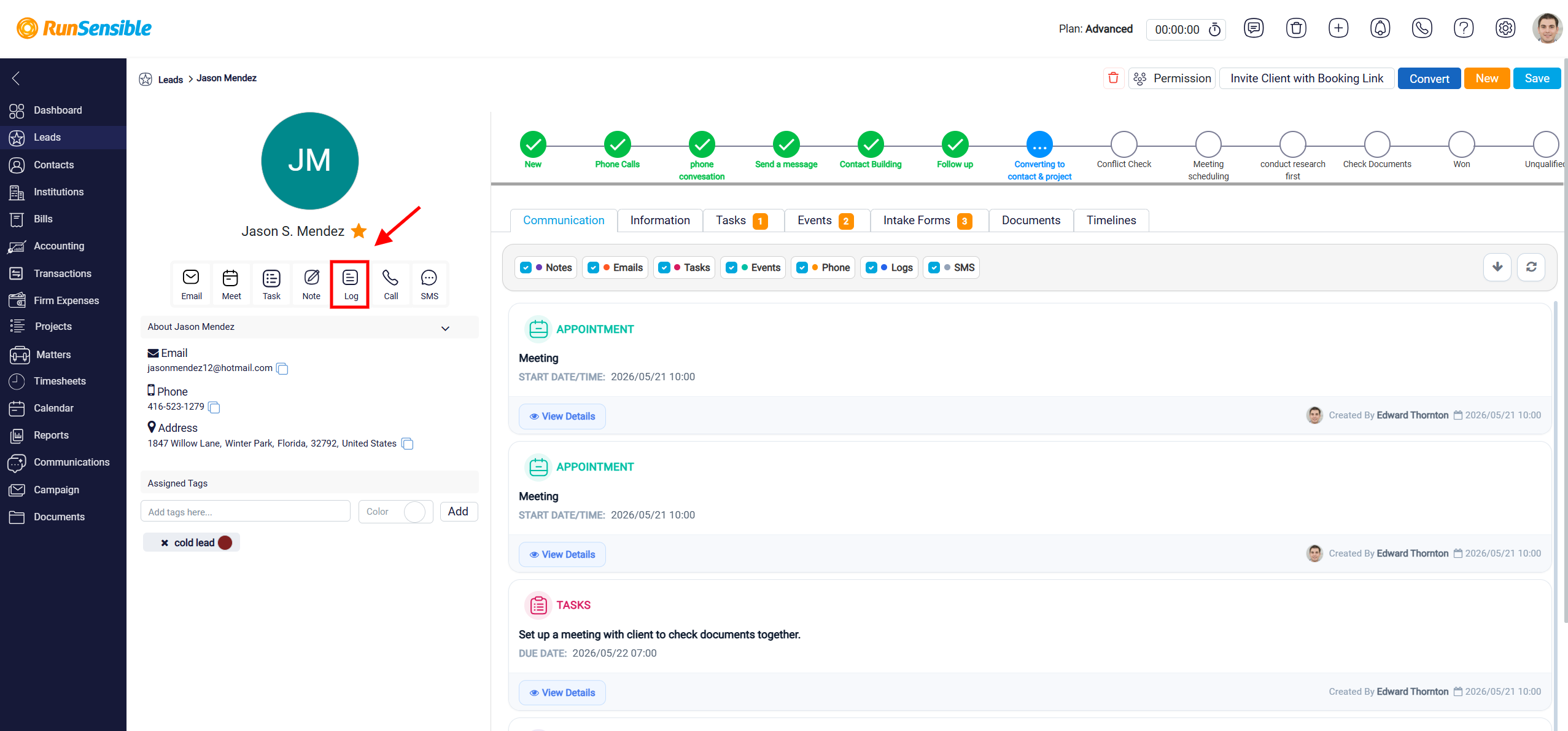
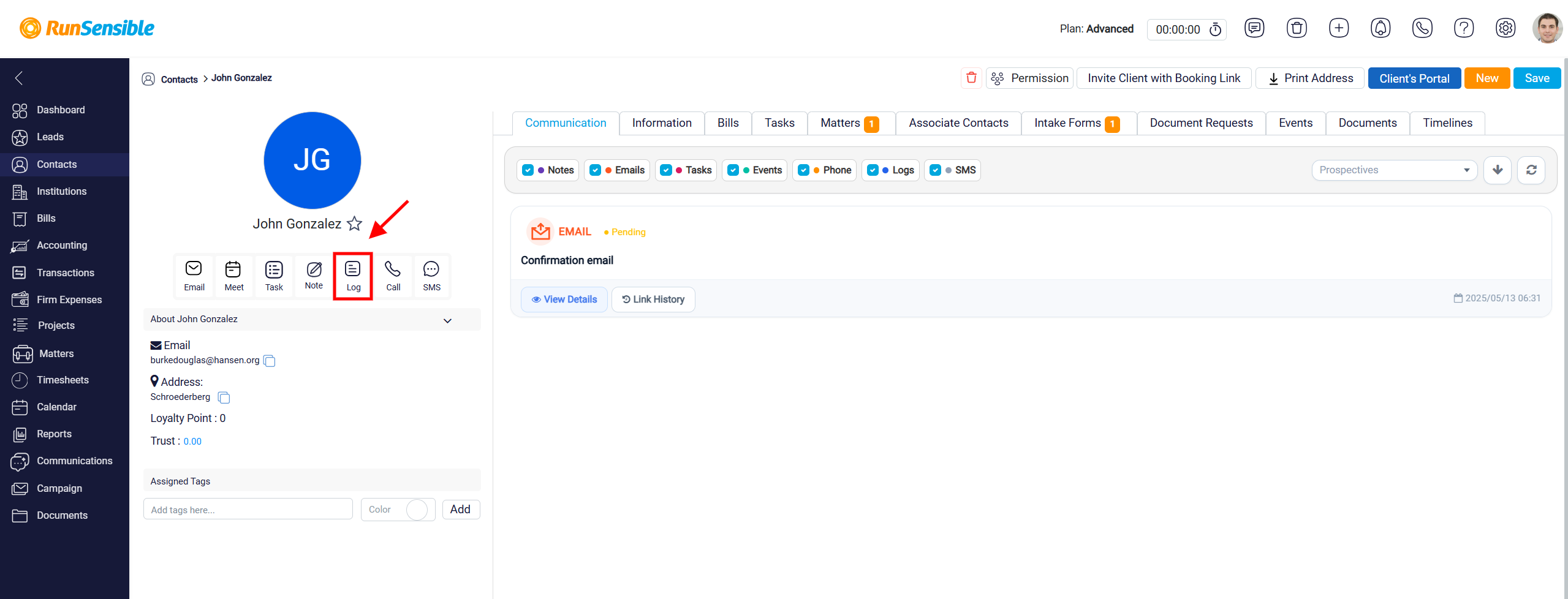
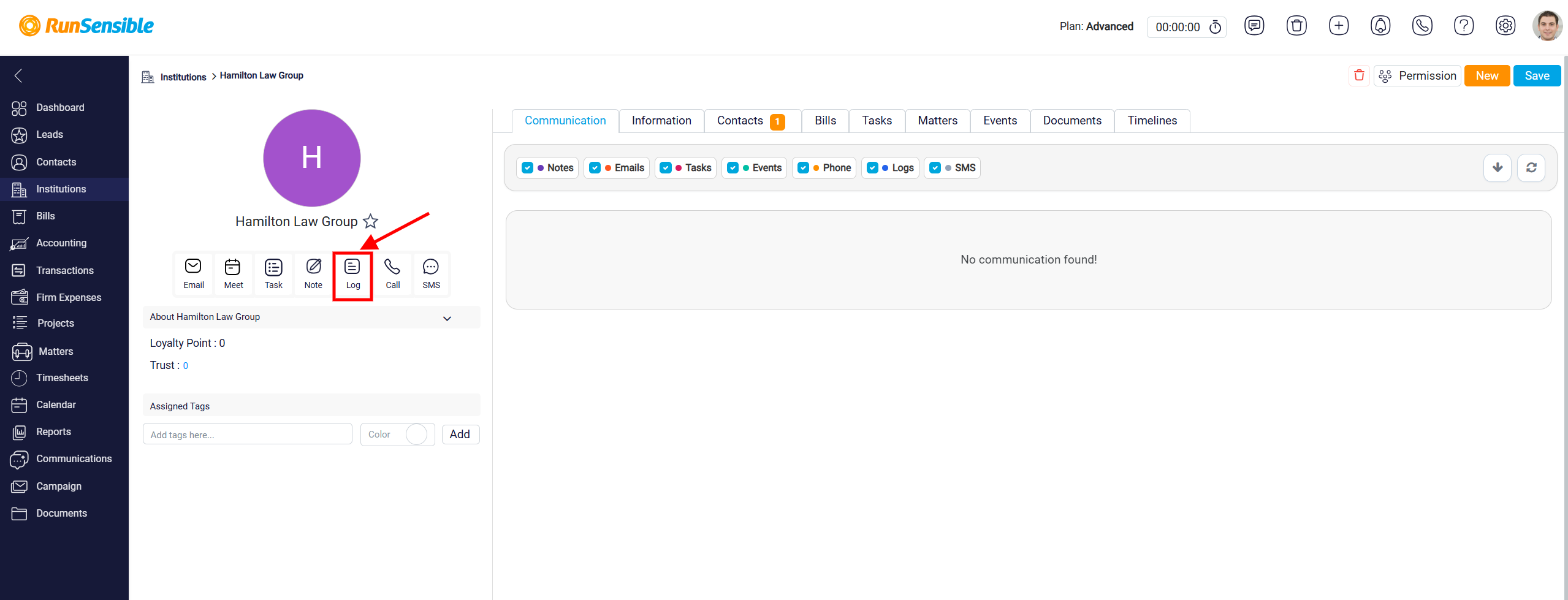
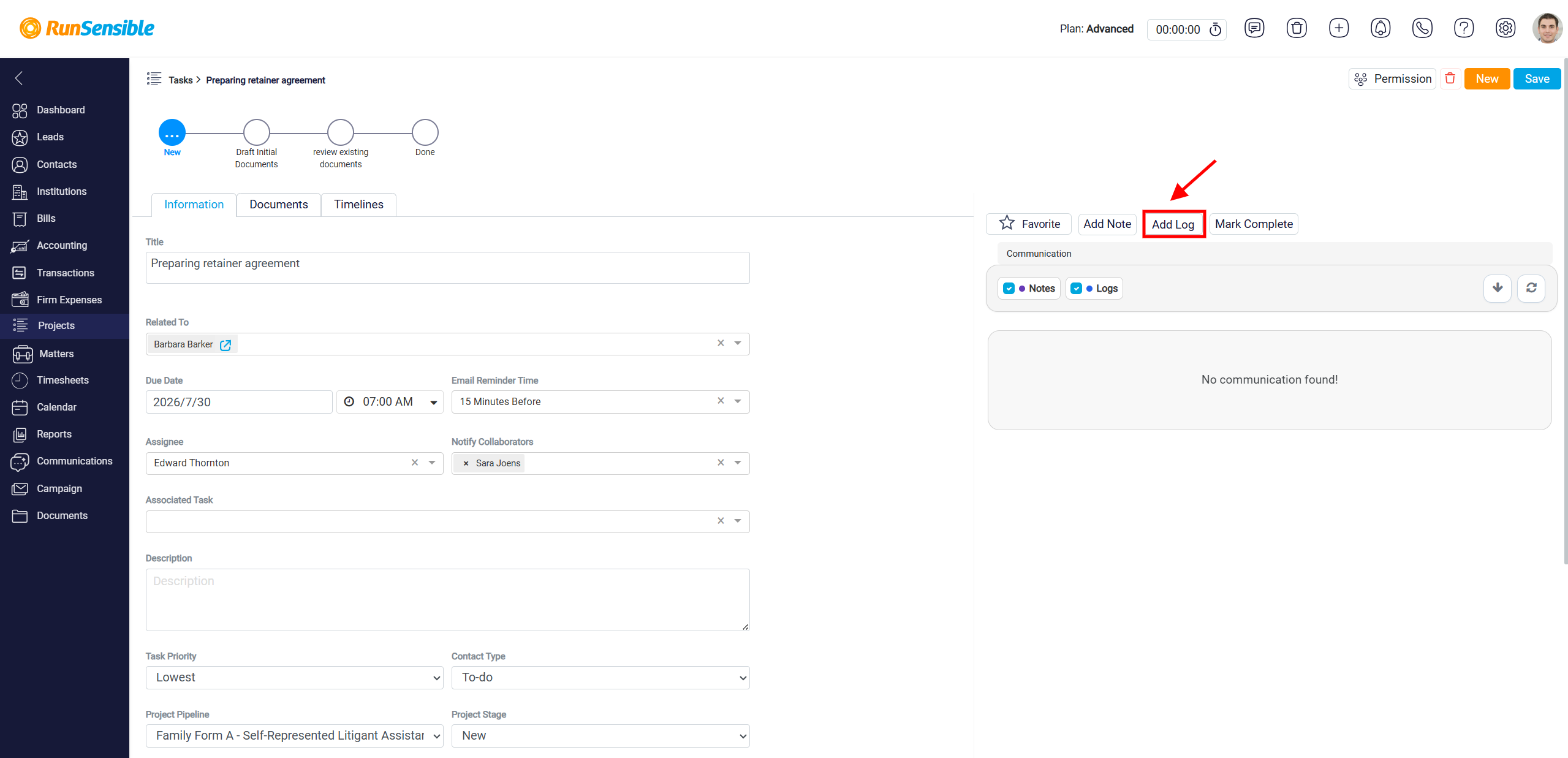
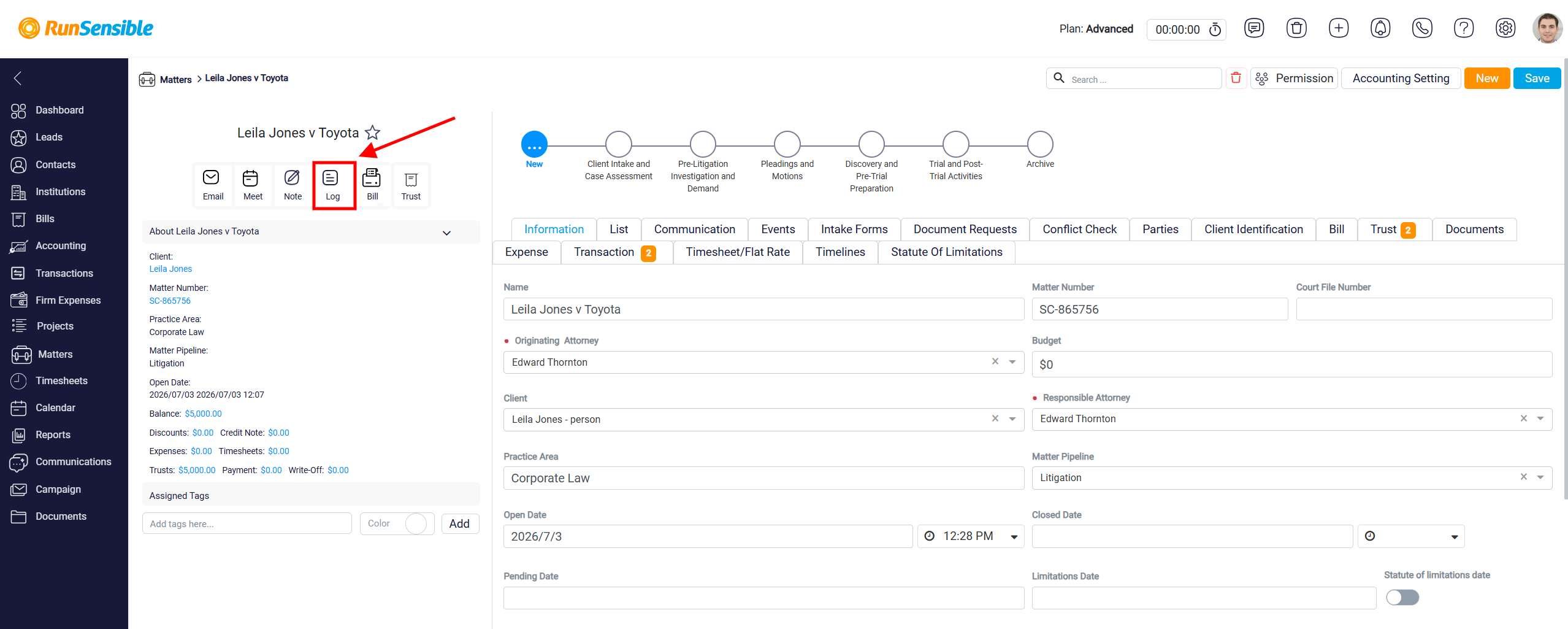
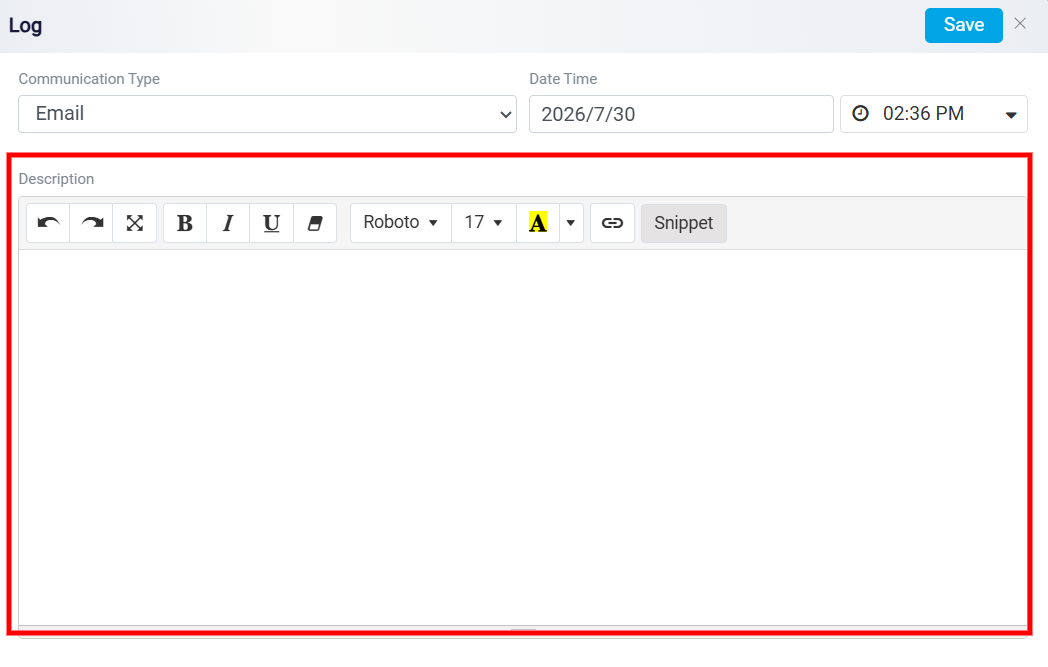
We have When the user clicks Log, the Log panel opens.
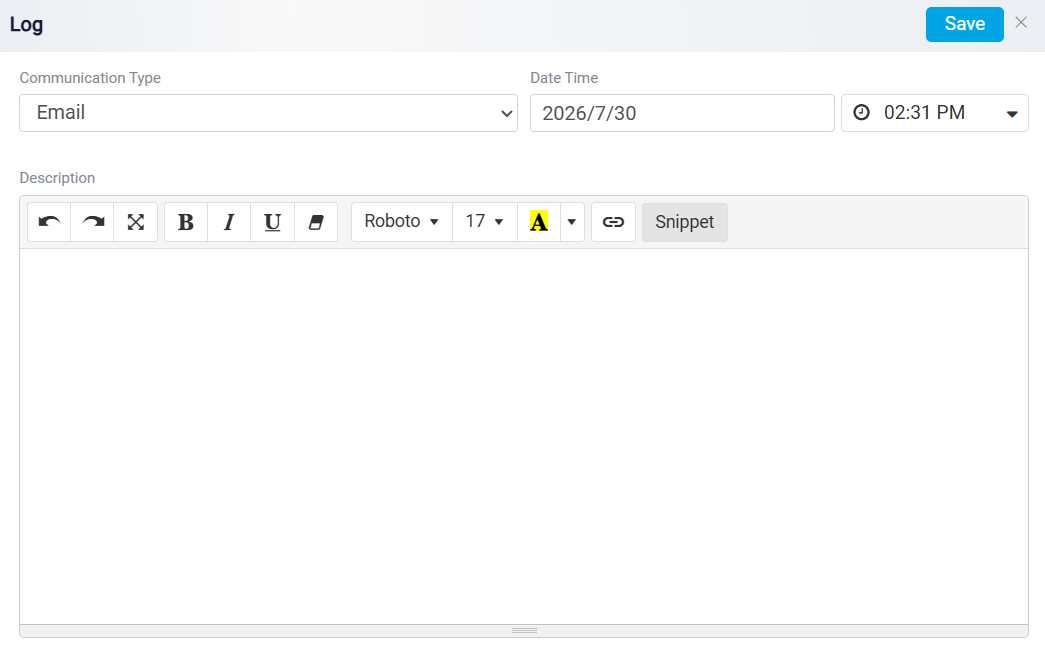
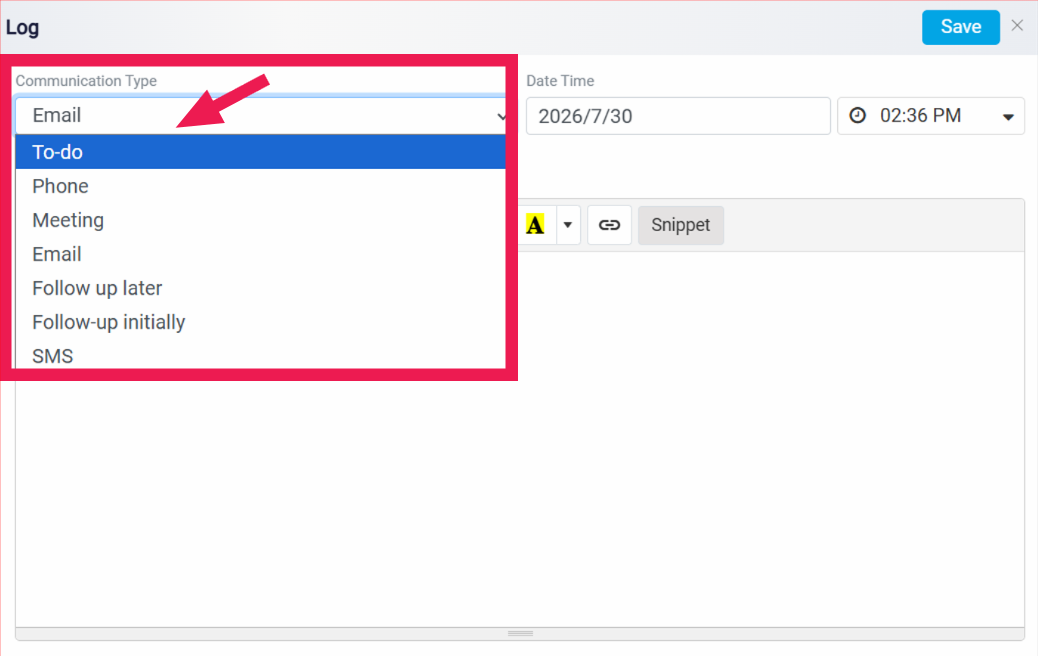
In this panel, the user selects the Communication Type to show what kind of activity is being recorded. This may include an email, phone call, meeting, or another type of communication, depending on the available options in the system.
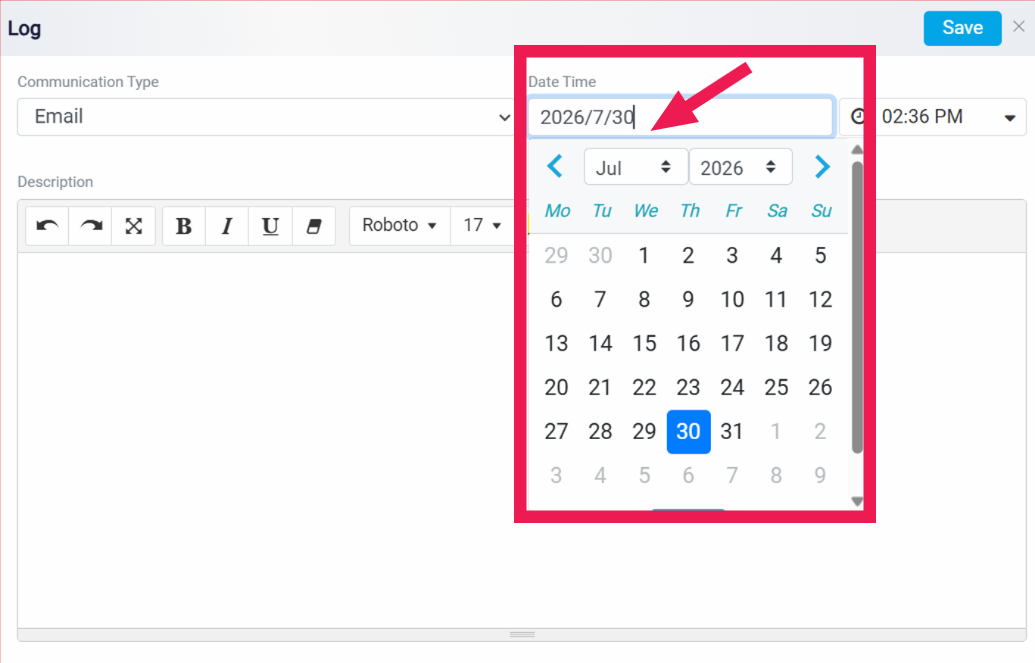
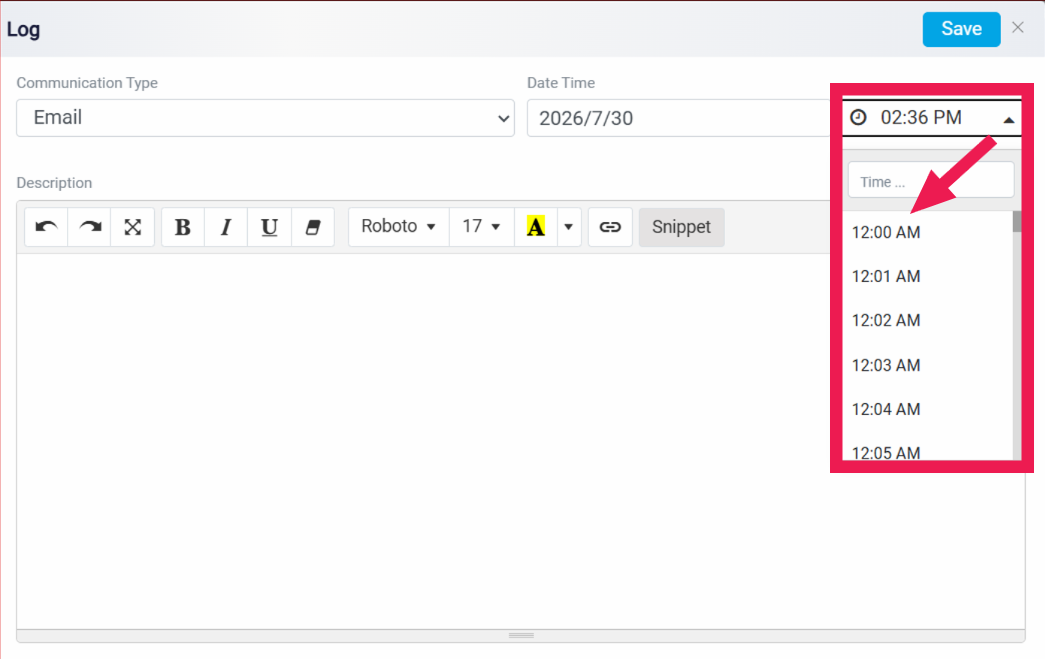
The Date Time fields are used to record when the activity happened. The user can enter the date and select the time, including AM or PM. This keeps the activity history organized in the correct order and helps other users understand when the interaction took place.
The Description box is used to enter the details of the activity. The user can summarize what happened, what was discussed, what action was taken, or what should be remembered later. After entering the information, the user clicks Save to add the log to the lead record. The X button can be used to close the panel without saving.