Sending SMS in RunSensible
The SMS button is used to send a text message to the lead, contact, and institution directly from the system.
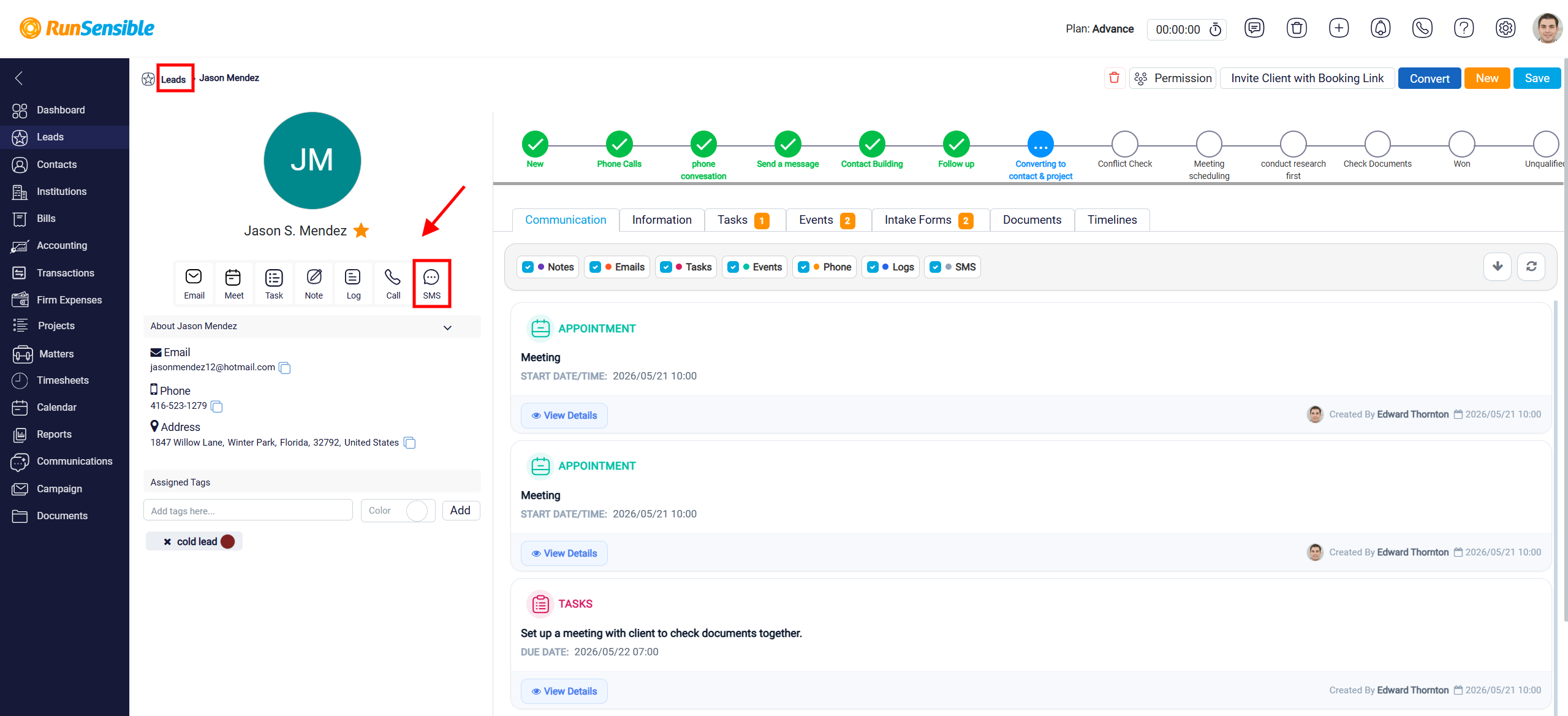
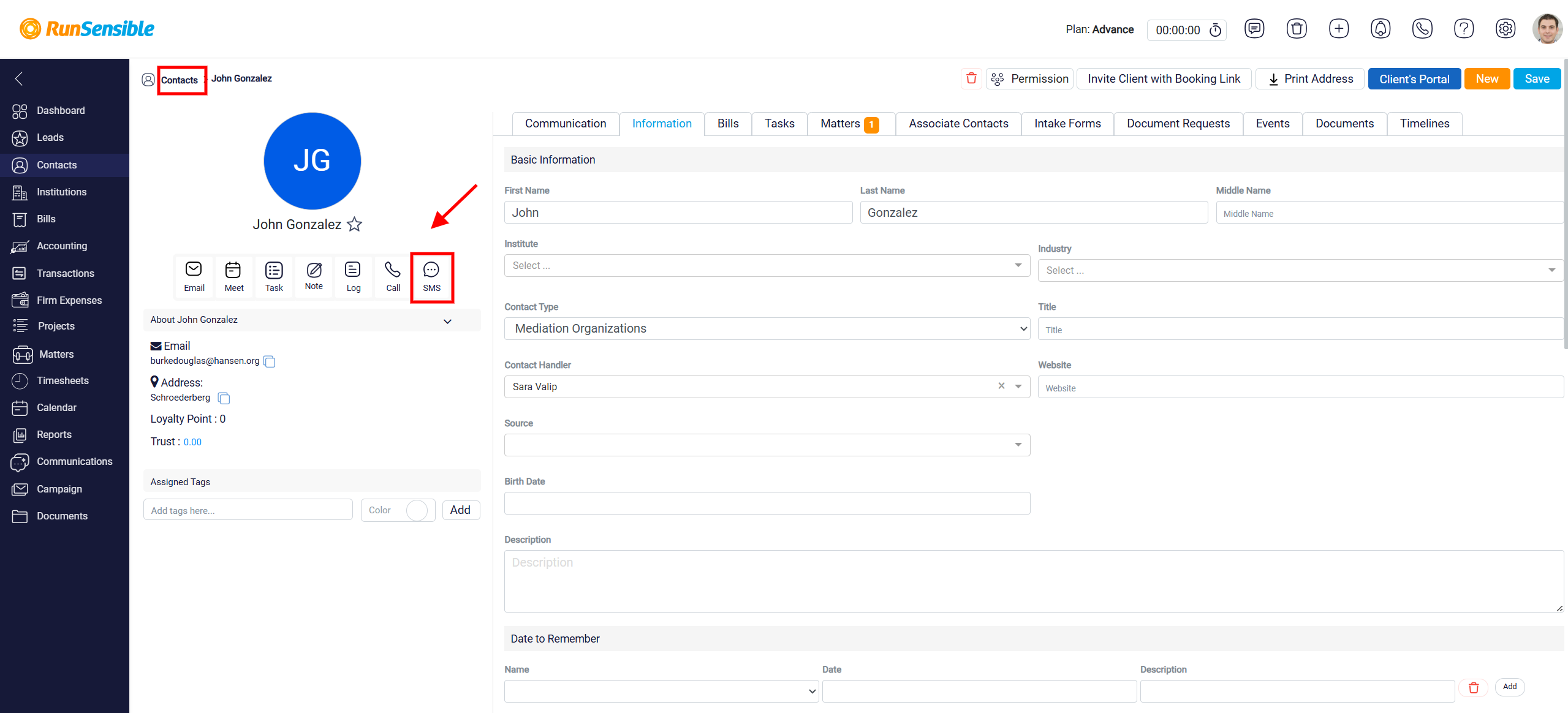
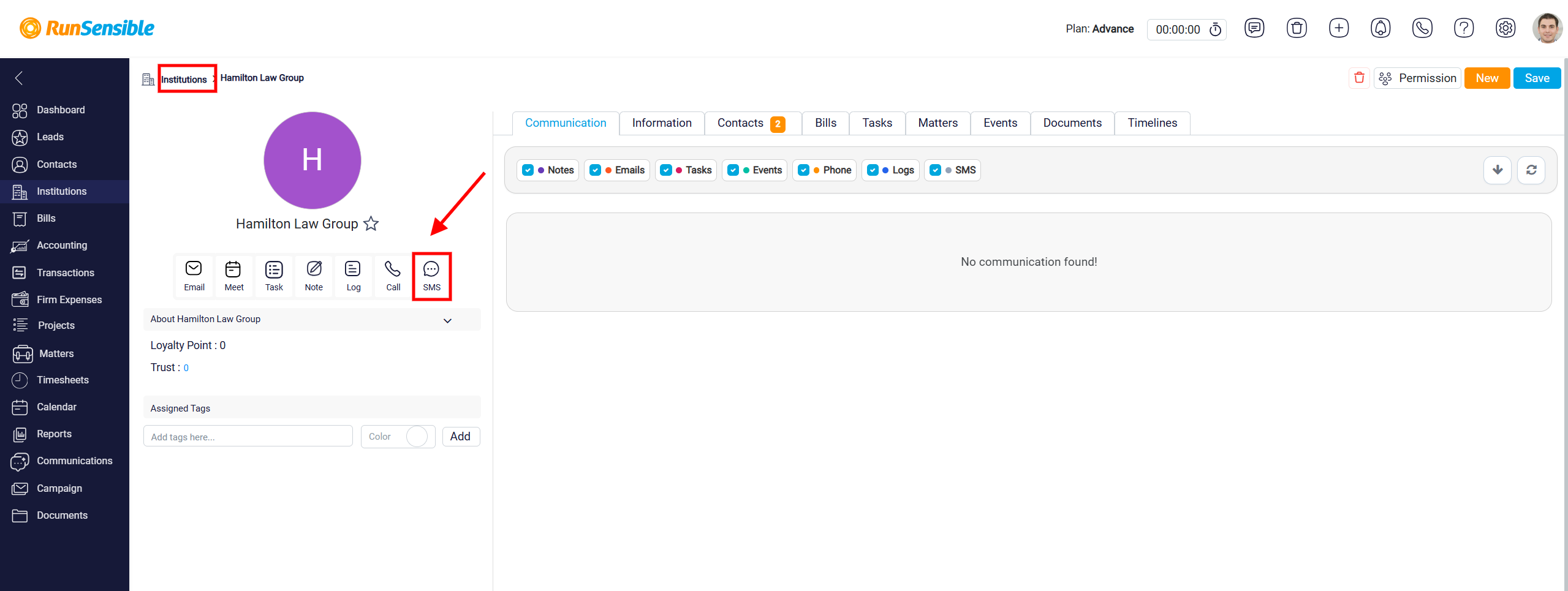
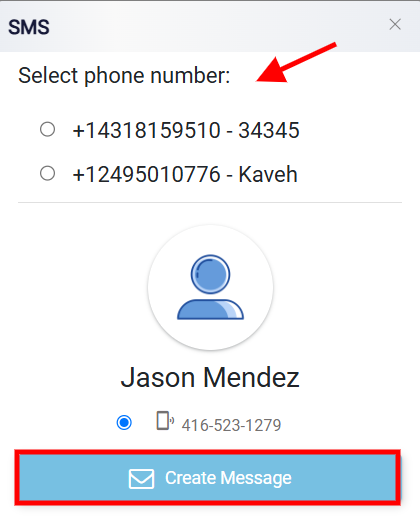
When the user clicks this button, the SMS panel opens. At the top of the panel, the user selects the phone number they want to send the message from. These are the phone numbers registered in the system and available for SMS communication.
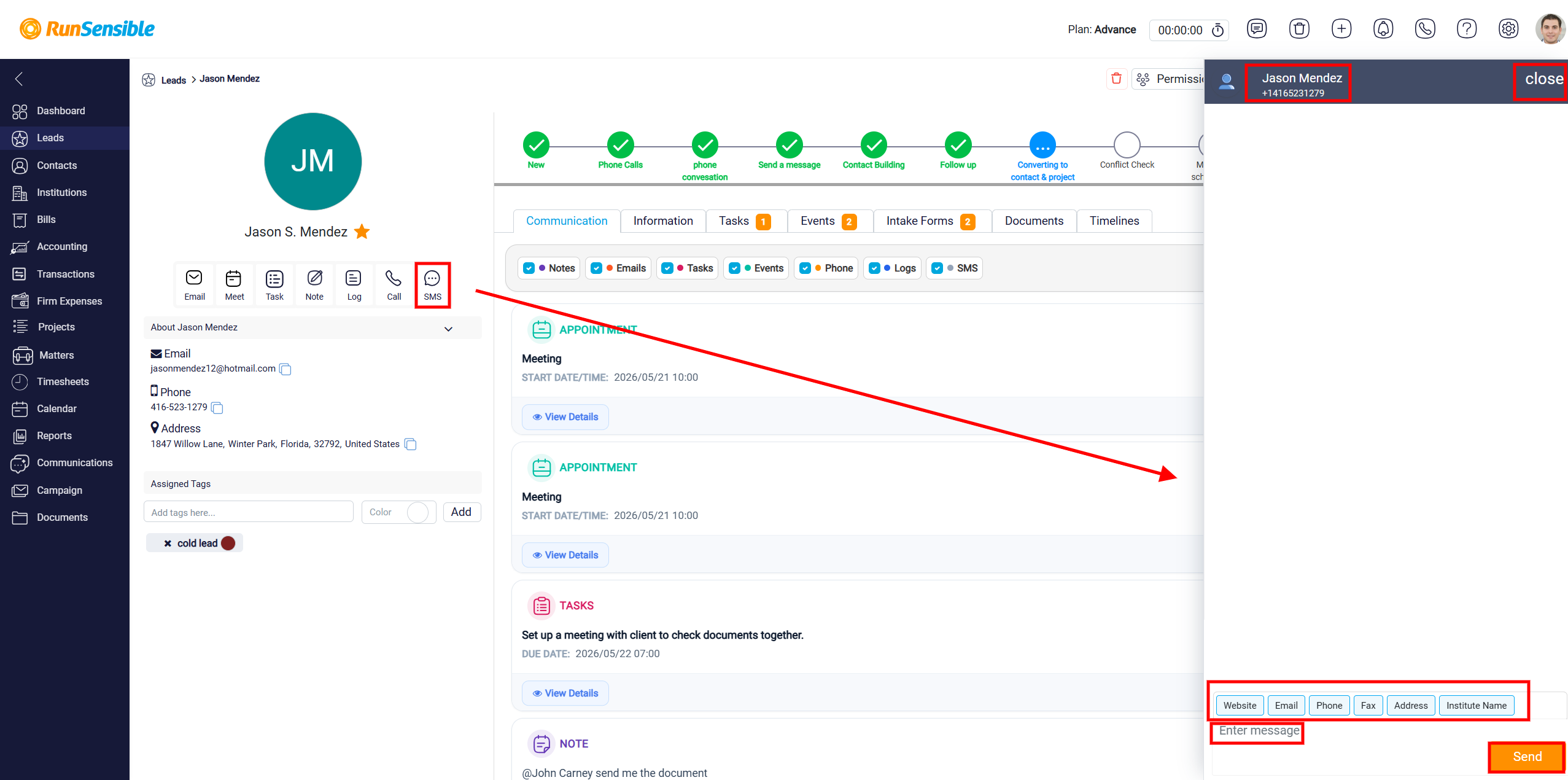
The panel also shows the lead, contact, or institution who will receive the message. After selecting the sending number, the user clicks Create Message. This opens the messaging area on the right side of the screen, where the user can write and send the text message.
In the message panel, the recipient’s name and phone number appear at the top. The main area can show the conversation or message history. At the bottom, the user types the message in the Enter message field and clicks Send to deliver it.
The buttons above the message box, such as Website, Email, Phone, Fax, Address, and Institute Name, can be used to quickly insert saved firm or user information into the message. This helps the user add common details without typing them manually each time.
When the user is finished, the Close option at the top right of the message panel can be used to close the SMS window.