Bank Account Cards in the Transactions Section
After connecting your bank accounts and importing transaction data into RunSensible, all related information becomes visible in the Transactions interface. At the top of this section, each internal bank account is displayed as a separate card.
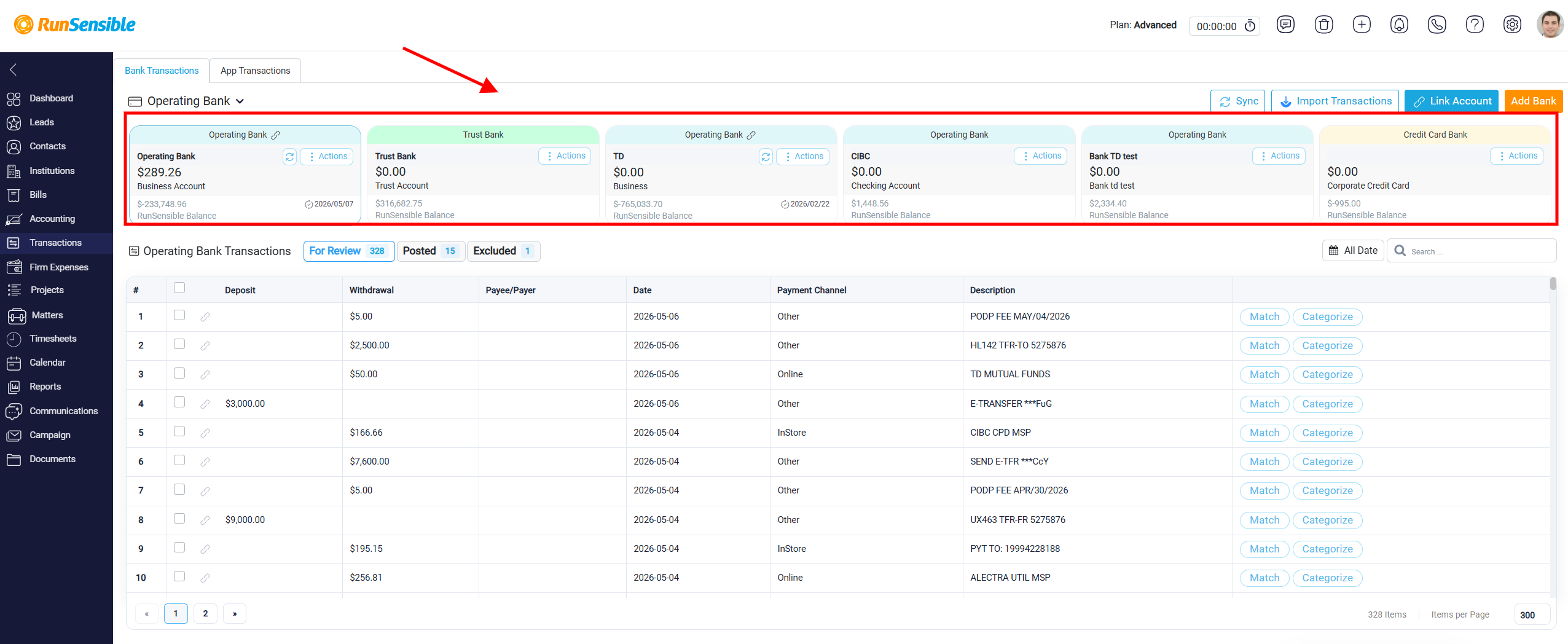
These cards provide a quick summary of the most important details for each account, allowing users to easily review account status and balances without opening the full account record. To view the transactions associated with a specific bank account, select the corresponding bank account card. The transaction table below will then update to display only the transactions related to that selected account.
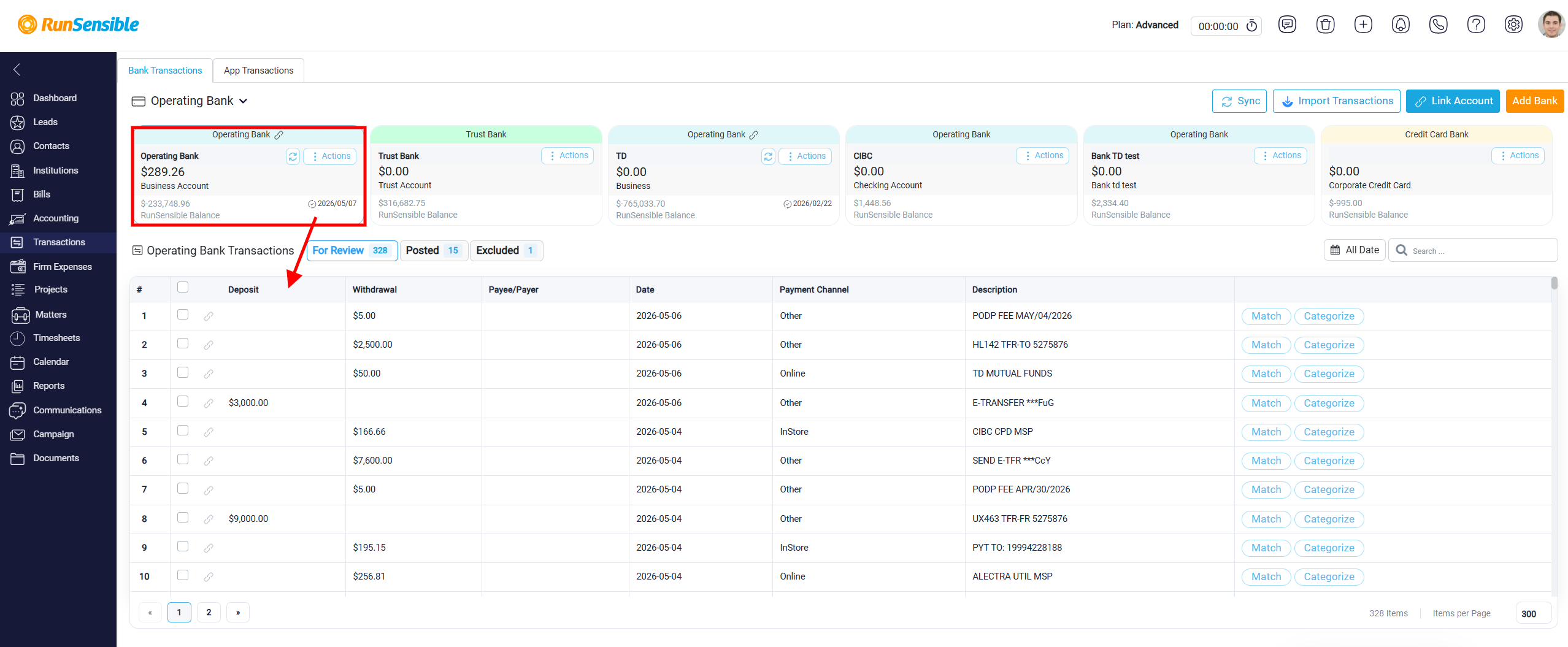
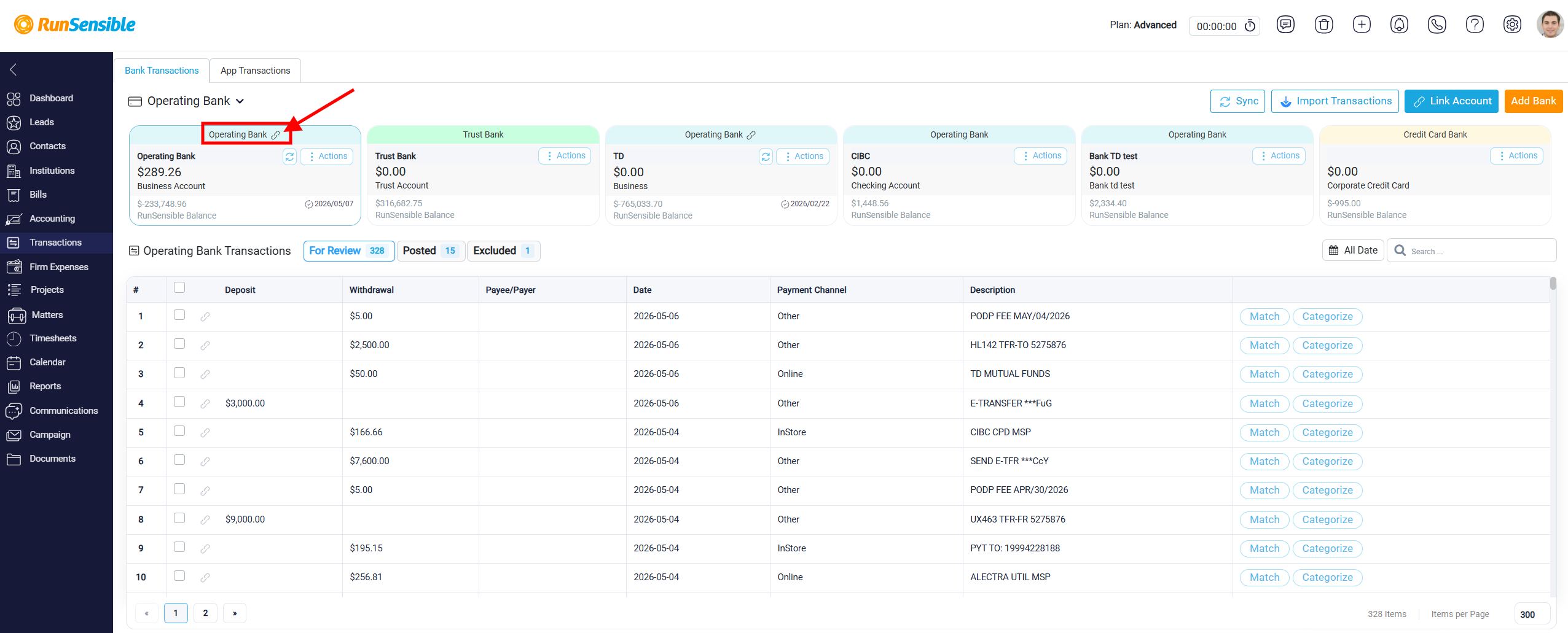
Each card represents one internal bank account created within the system. The card displays the account name at the top, such as Operating Bank or Trust Bank, making it easy to identify the specific account. If the internal account is linked to a real-world bank through Plaid, a small link icon appears next to the account name to indicate that an active connection exists.
Directly beneath the account name, a large bold figure shows the current balance retrieved from the connected real bank account. This balance reflects the live bank data synchronized through Plaid. It is important to understand that this figure only reflects accounts that are actively linked to a real bank. It does not include balances derived from transactions that were manually imported using a file. The displayed amount represents the actual balance reported by the external financial institution.
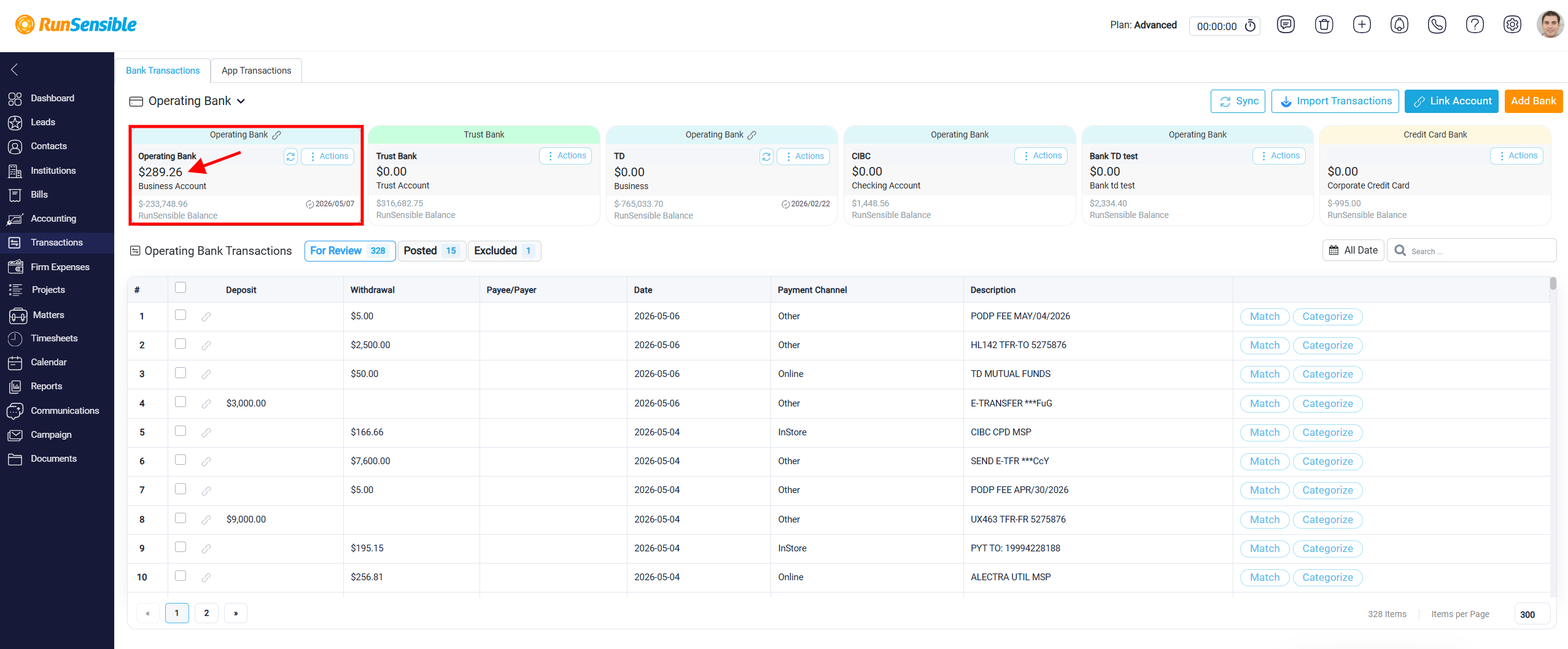
Below the bank balance, the card shows the corresponding account name from the chart of accounts. This indicates how the internal bank account is structured within your accounting framework and ensures clarity in financial reporting.
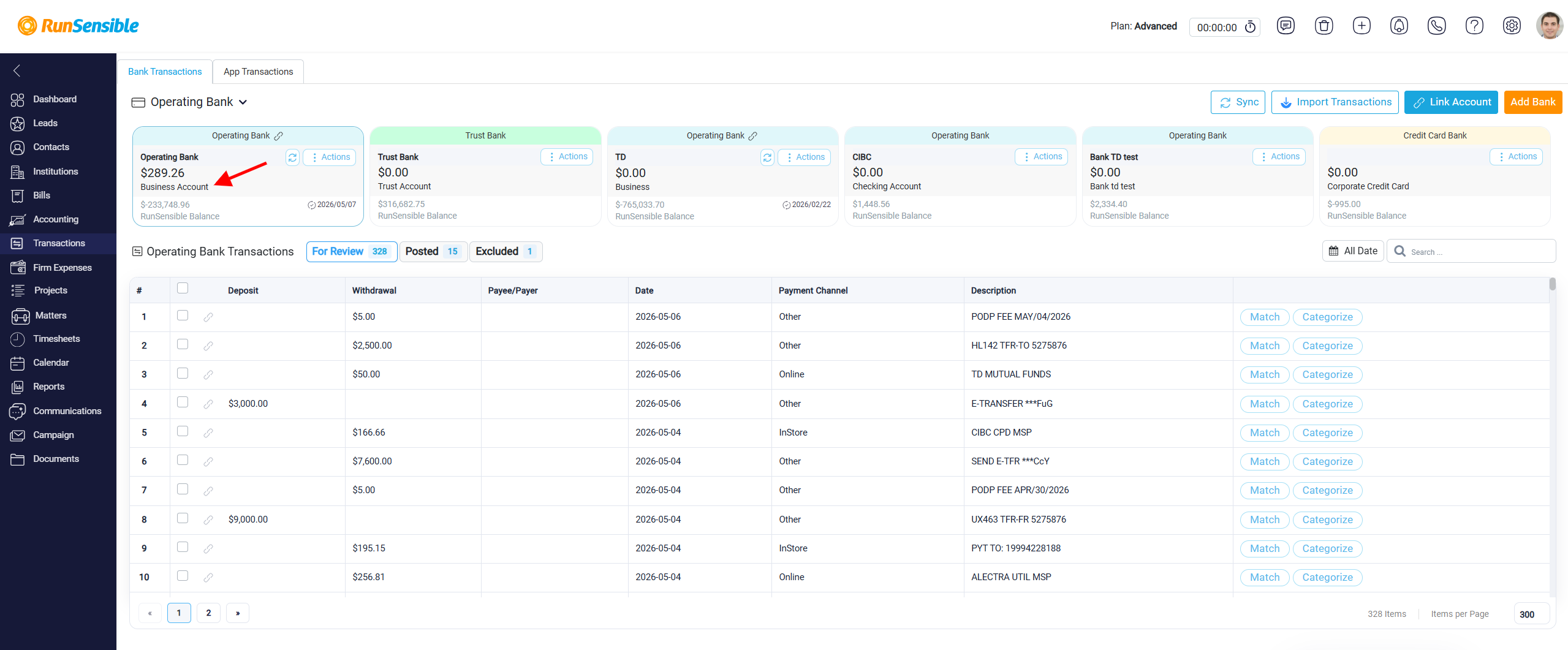
Further down on the card, the RunSensible Balance is displayed. This balance is calculated based on the transactions recorded inside RunSensible itself, meaning the transactions created or processed within the system as part of your internal accounting workflow.
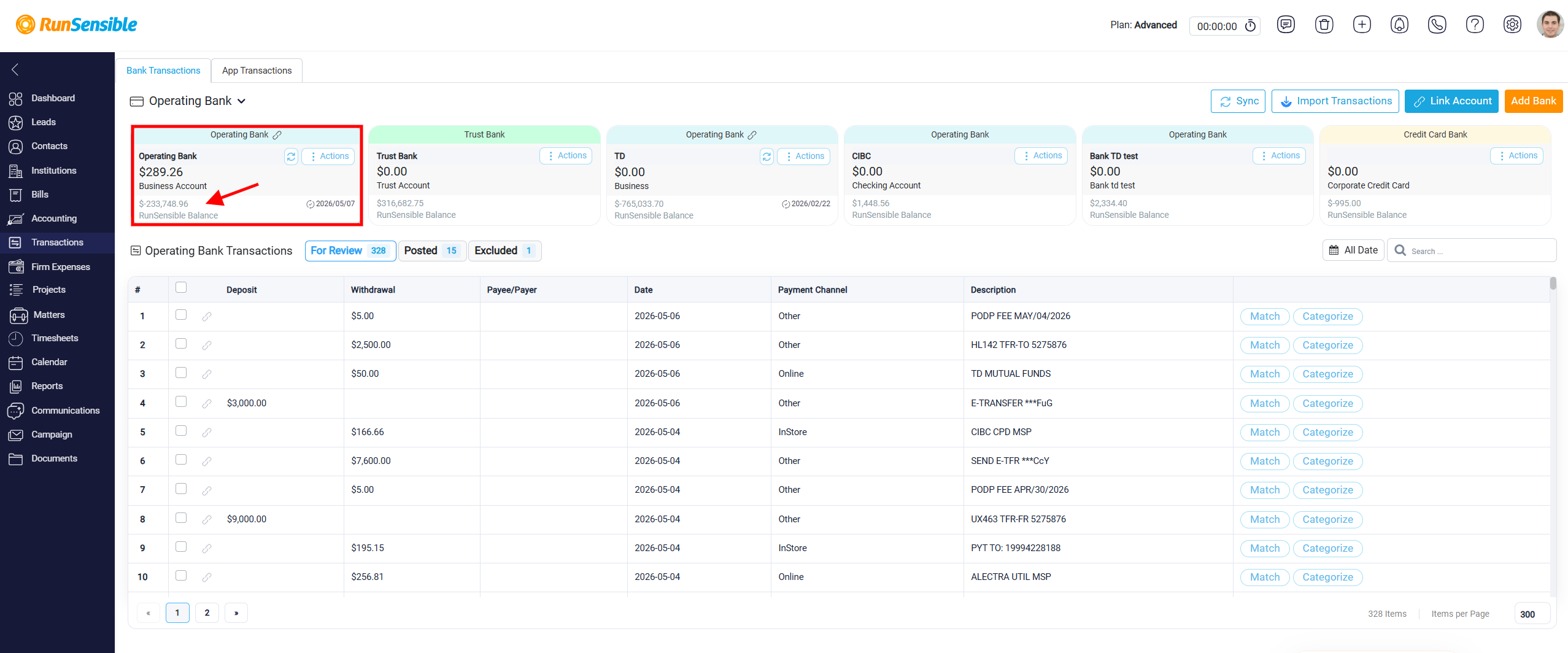
It is important to distinguish this from imported bank transactions. Imported transactions reflect activity from your real bank account, while the RunSensible Balance reflects the balance based on transactions recorded within the application.
If your internal account is linked to a real bank and all transactions have been properly recorded inside RunSensible, the RunSensible Balance should match the bank balance. However, if certain transactions exist at the bank level but have not been recorded in the system as application transactions, the two balances may differ.
If the account is connected to a real bank, a synchronization date may appear on the card. The date indicates the last time the system synced with the external bank.
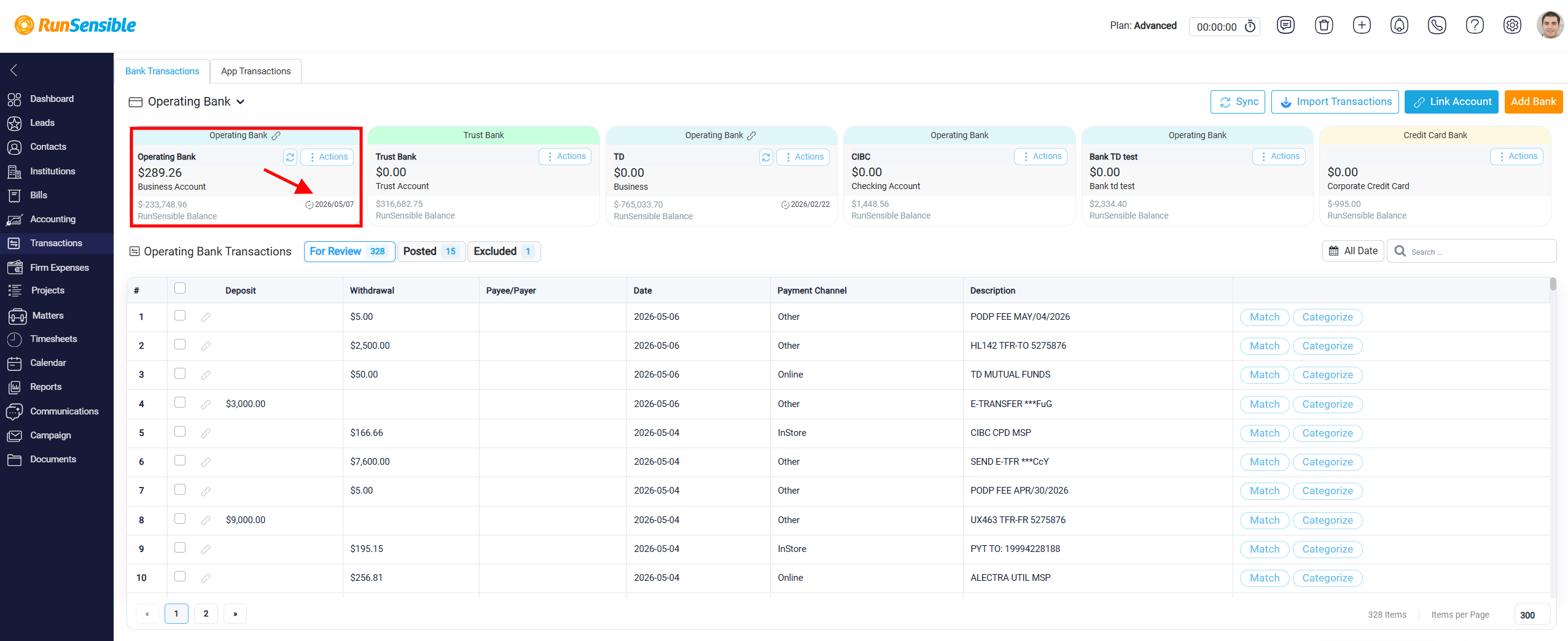
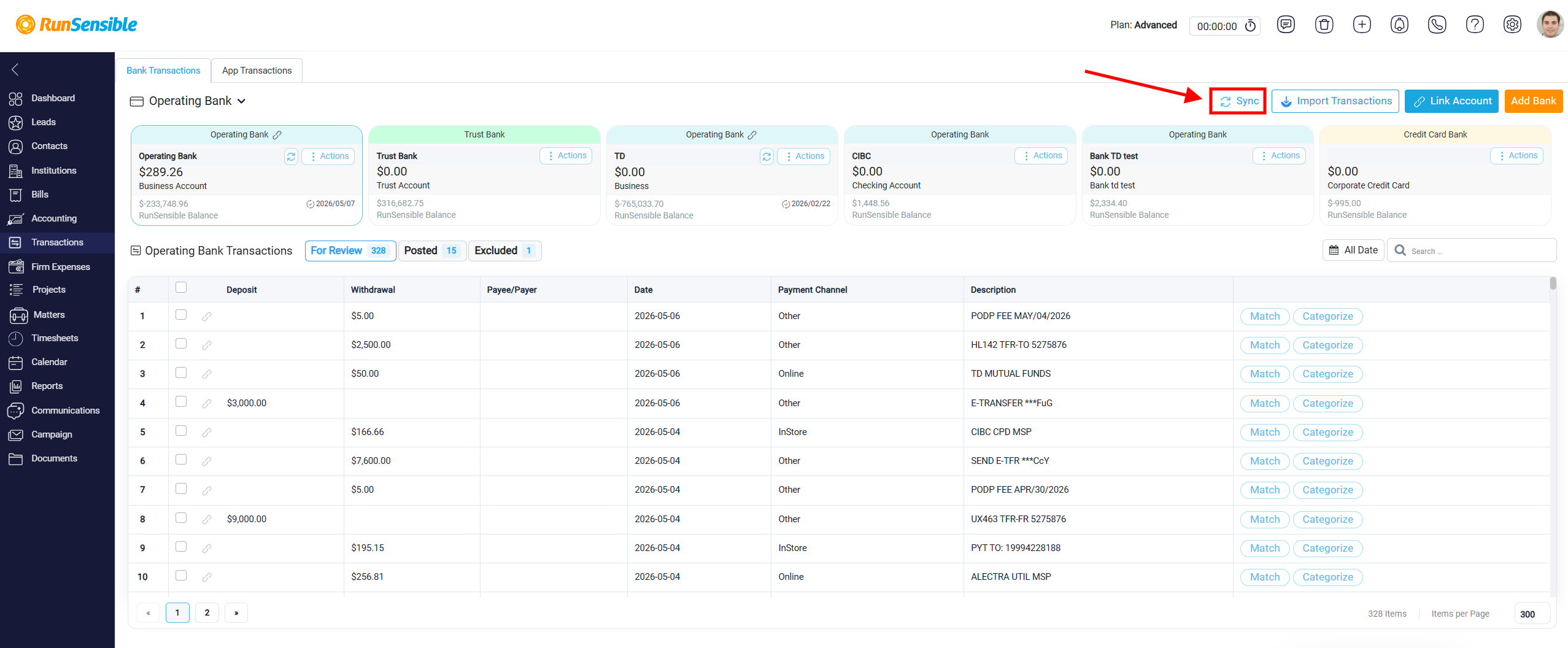
In the top-right corner of each card, you will see this sync symbol along with an Actions button. Clicking the sync symbol allows you to manually update the connected bank account and refresh the bank transaction data within the system. The Actions button provides additional management options for that specific internal bank account.