
Importing Bank Transactions Using a File
RunSensible supports importing transaction data from external files such as CSV or XLSX bank statements exported from an online banking portal. To begin this process, click the Import Transaction button located next to the Link Account button.
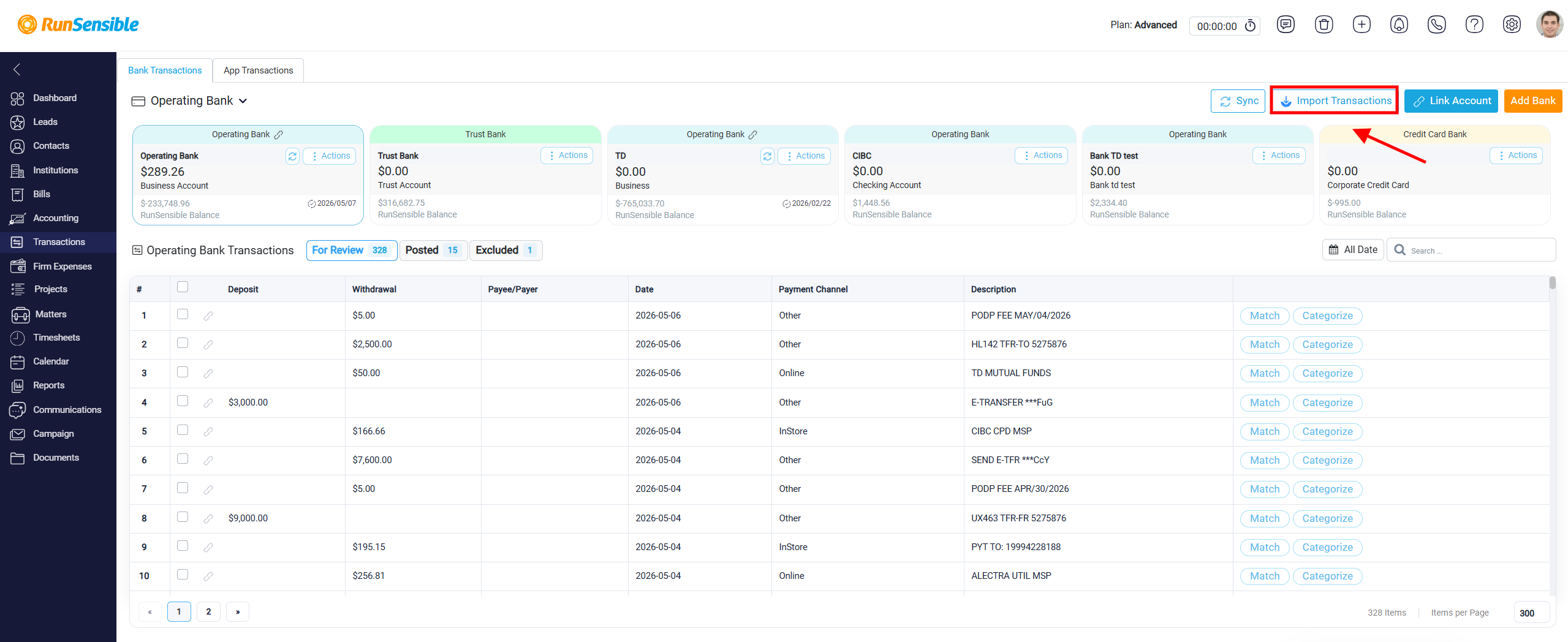
This opens the Import Bank Transactions interface, where users can choose between uploading a file manually or linking a bank account through Plaid.
On the left side of the interface, users can upload a file directly. The system provides a drag-and-drop area, along with a clickable Browse File link inside that area, which allows users to select and upload a file from their device. This option is useful for importing historical records, working with banks that are not supported by Plaid, or managing transactions manually.
On the right side of the interface, users can link a bank account through Plaid for automatic transaction synchronization. After selecting and uploading a file, click Continue at the bottom right of the screen to move to the next step.