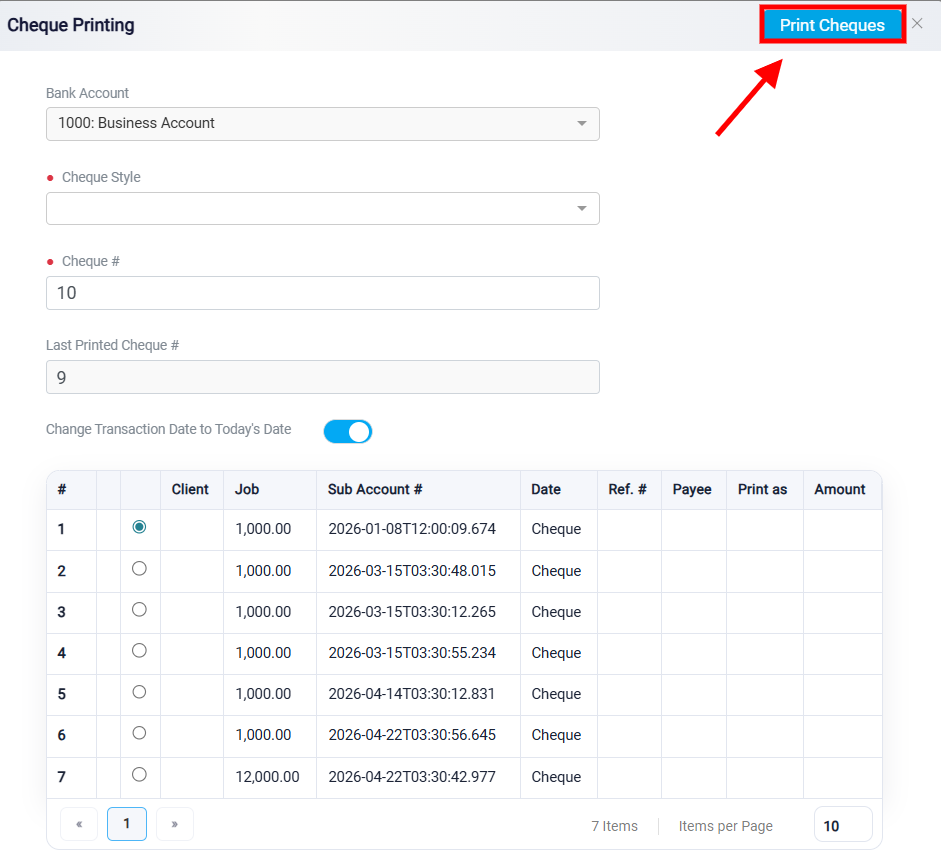
Cheque Printing
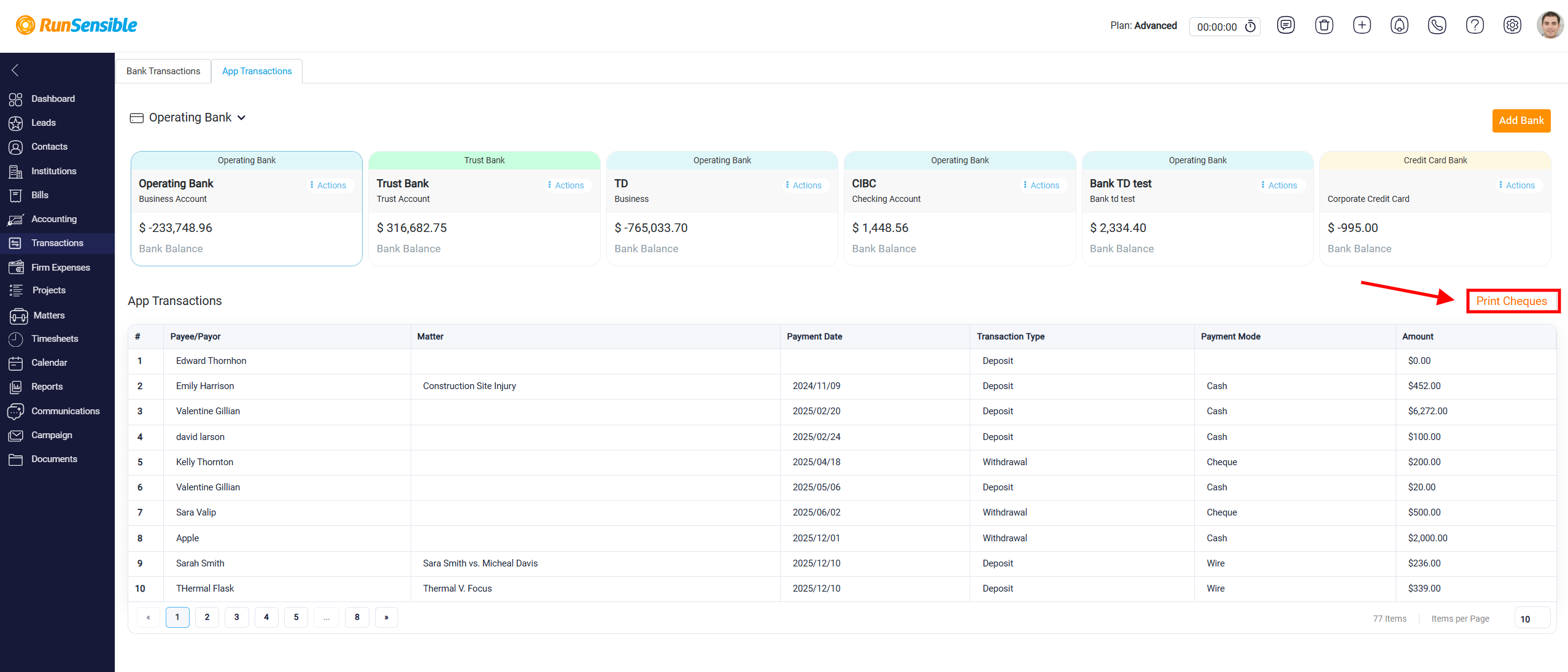
The Cheque Printing panel is accessed from the App Transactions tab by clicking the Print Cheques button located at the top right side of the transaction table.
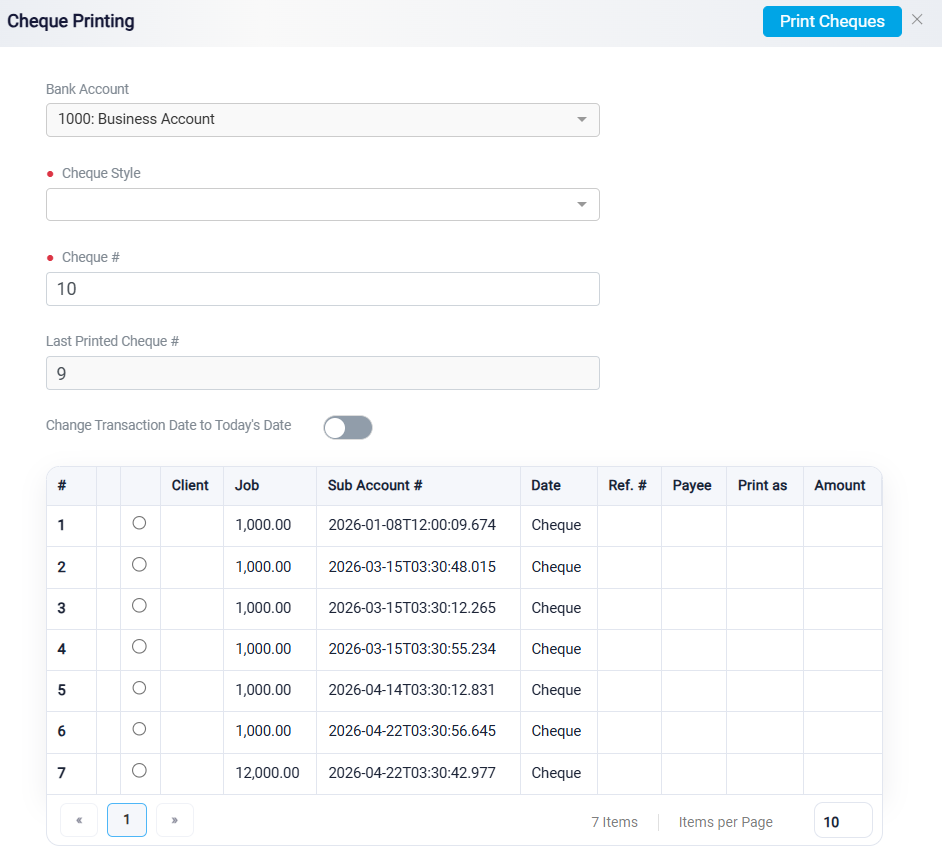
This function is used for withdrawal transactions that have a cheque as their payment method. These may include firm expense payments, hard expense payments, trust withdrawals, or other withdrawal transactions recorded in the system with a cheque as the payment mode. The purpose of this panel is to prepare physical cheques using transaction information already recorded in RunSensible. The system uses the selected transaction details, such as payee, reference number, date, and amount, to generate a printable cheque.
At the top of the panel, you can see the chart of accounts affected by the transaction. This account cannot be changed from the Cheque Printing panel because the transaction has already been created in RunSensible, and the accounting entry has already been recorded. Cheque printing does not create a new transaction. Instead, it uses an existing transaction that was already recorded in the system and prepares it as a physical cheque. In simple terms, the system already knows the accounting impact of the transaction; printing the cheque only helps you complete the real-life payment using that recorded transaction.
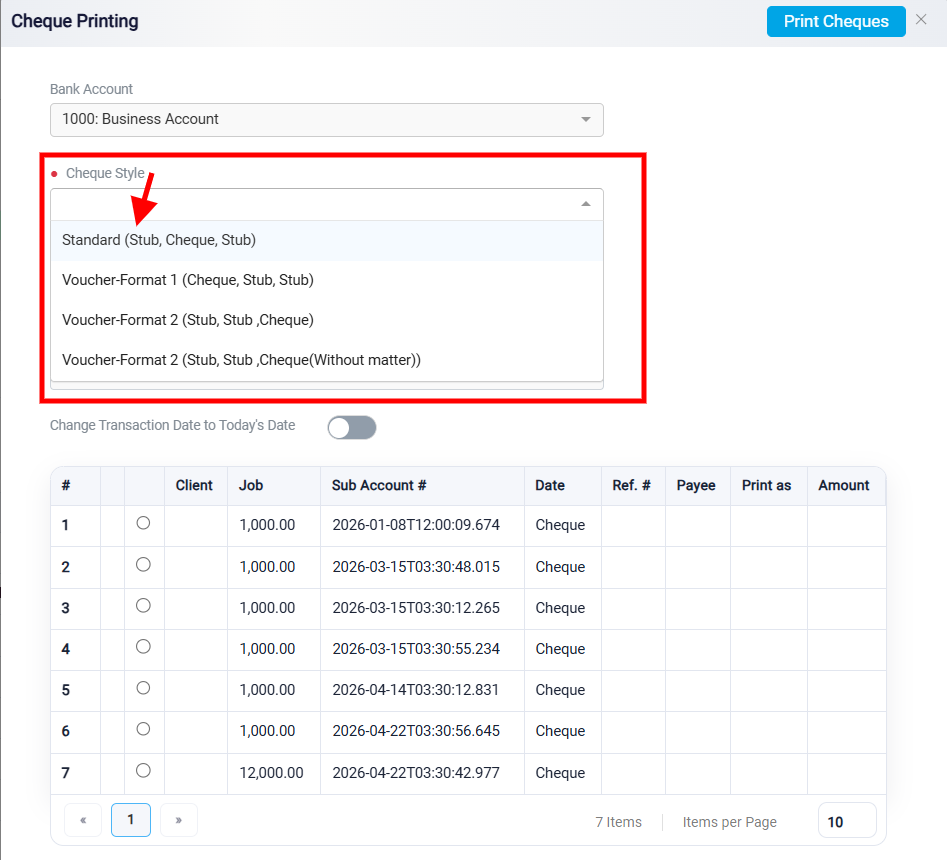
The Cheque Style field allows users to choose the cheque layout that matches the physical cheque paper being used. Available styles may include Standard (Stub, Cheque, Stub), Voucher-Format 1 (Cheque, Stub, Stub), and Voucher-Format 2 (Stub, Stub, Cheque). When a style is selected, the preview on the right side updates to show where the cheque information will appear on the printed page.
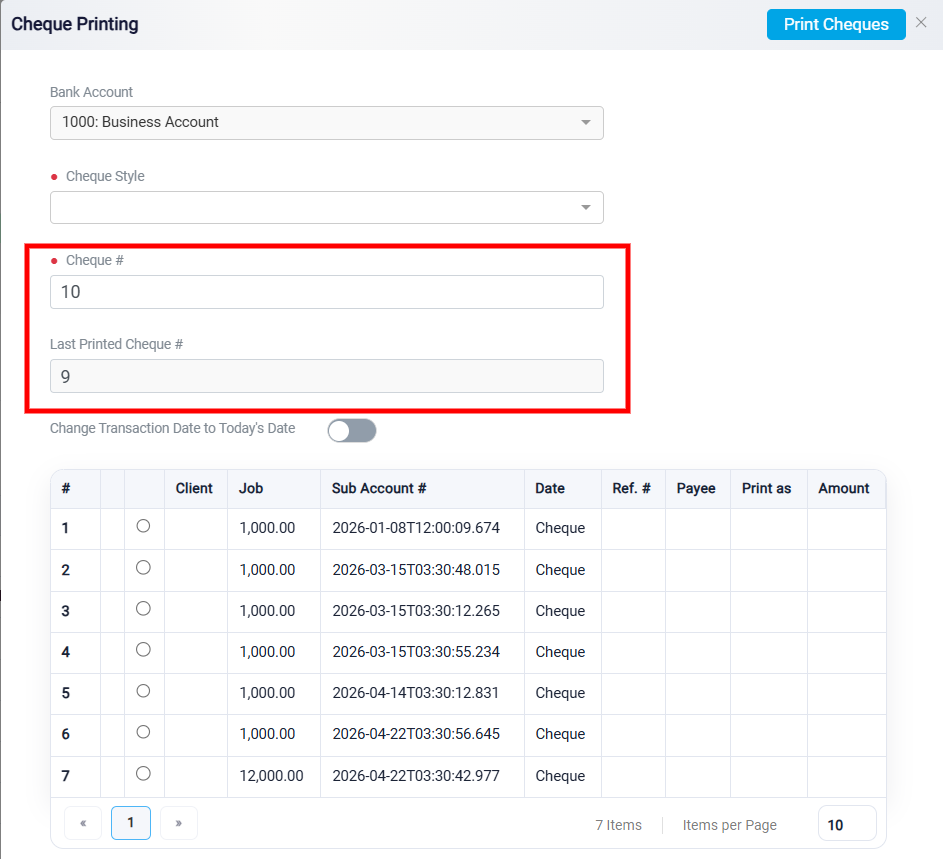
The Cheque # field shows the next cheque number that will be printed. The Last Printed Cheque # field shows the most recent cheque number that was previously printed, helping users keep track of cheque numbering.
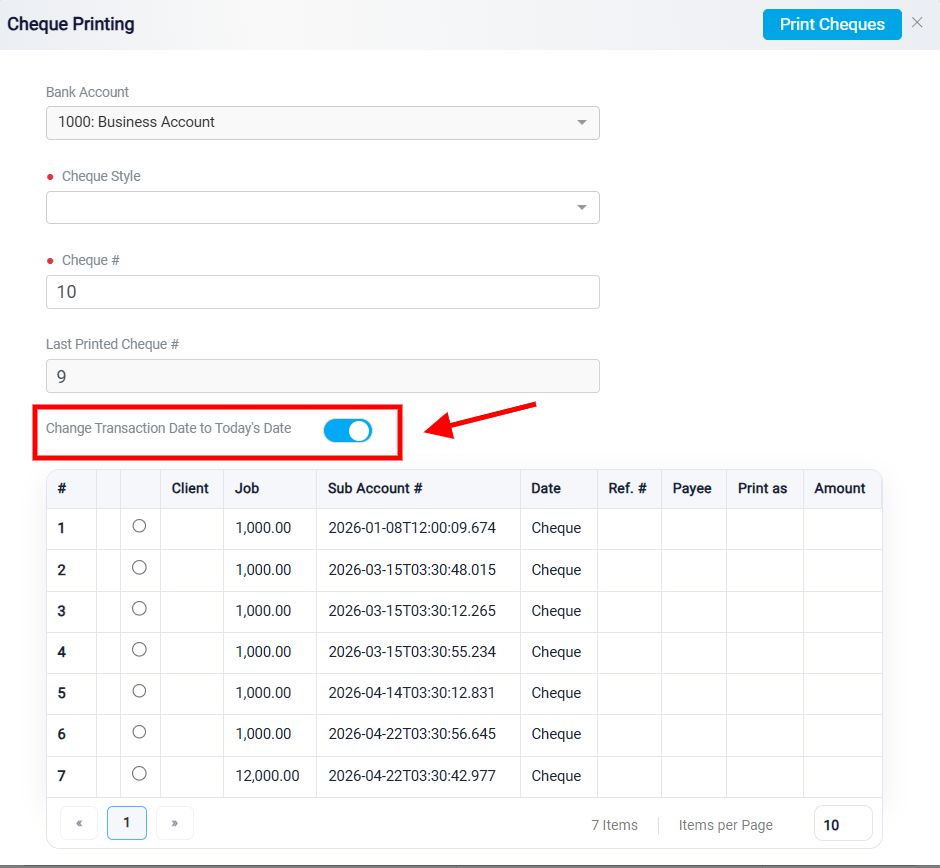
If needed, you can also update the transaction date to today’s date by turning on the Change Transaction Date to Today’s Date toggle.
The table in the lower part of the panel displays transactions eligible for cheque printing. Each row represents a withdrawal transaction recorded with a cheque as the payment method. Users select the transaction they want to print, and the system uses the transaction details to prepare the cheque. Fields such as Payee and Print help control how the recipient’s name appears on the printed cheque.
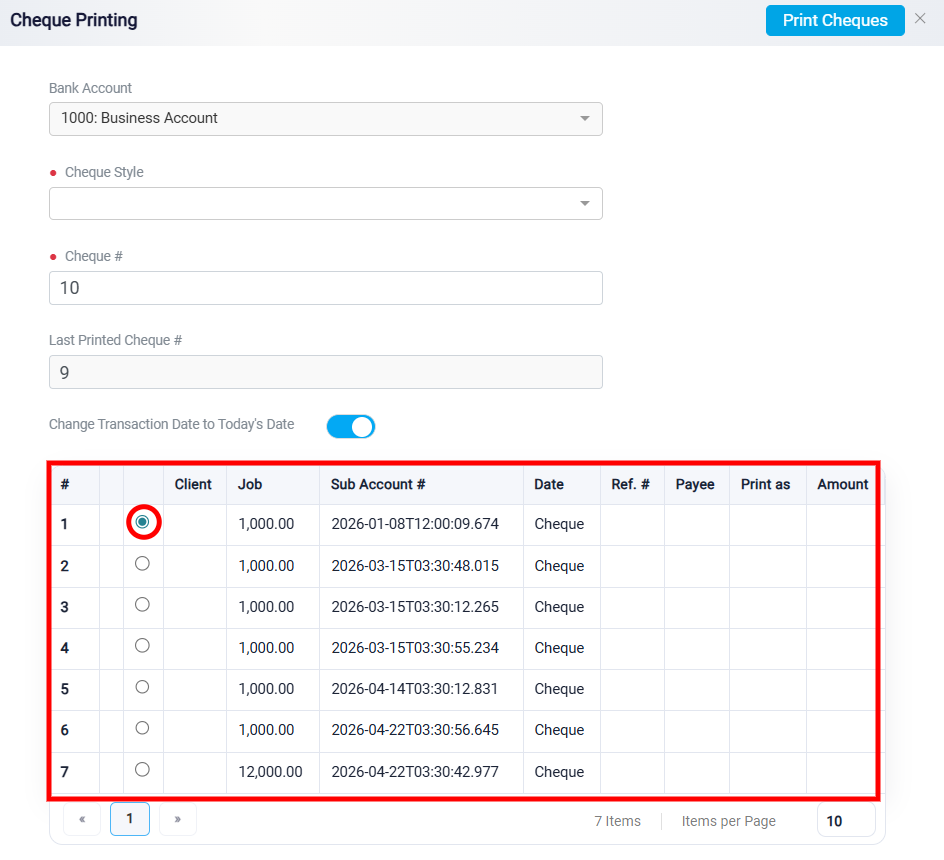
After confirming the cheque details, click Print Cheques at the top right of the panel. RunSensible then generates the cheque using the selected style and transaction information, and the cheque PDF is automatically downloaded to the user’s device.