Posted Transactions
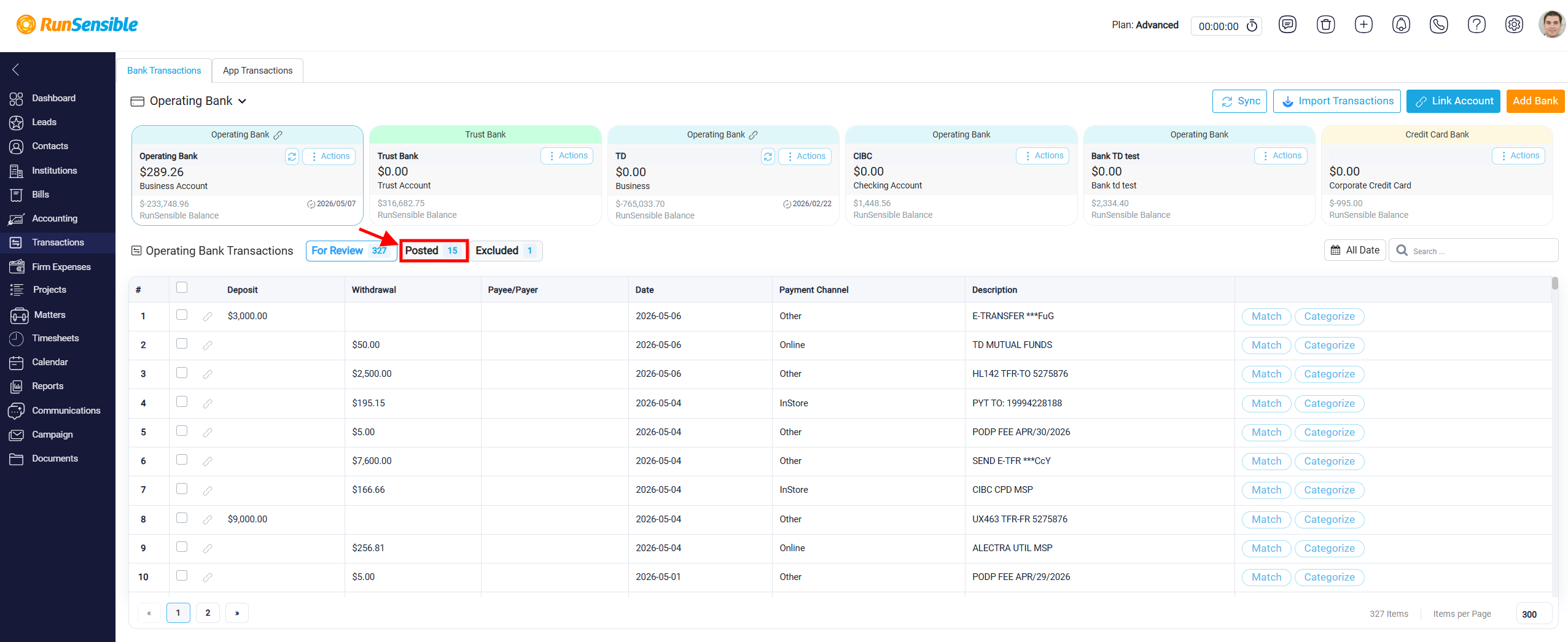
After a bank transaction has been matched or categorized, it is moved to the Posted tab.
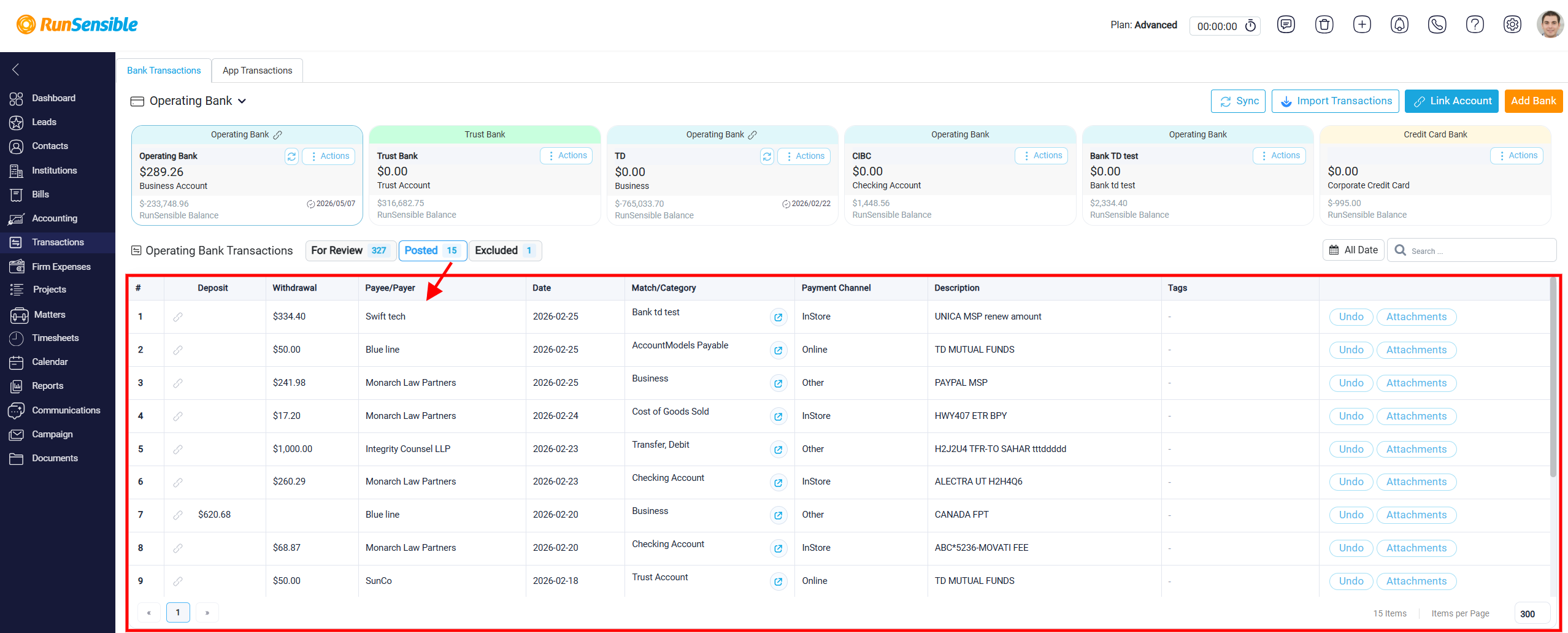
This tab contains all bank transactions that have already been processed, whether they were matched to an existing internal transaction or categorized to create a new accounting entry. Each row in the Posted tab represents one completed transaction and shows the final details of how it was processed.
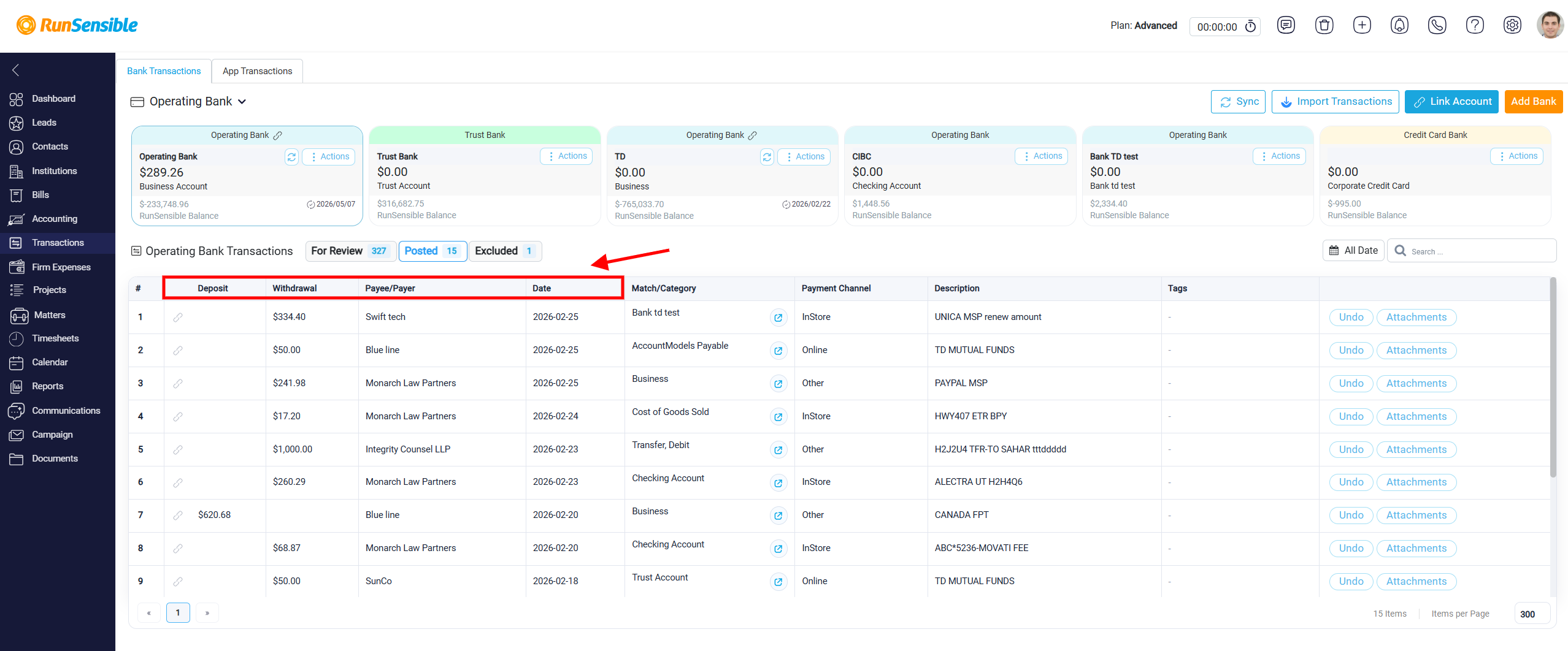
The Deposit and Withdrawal columns show whether money was received or paid out. The Payee/Payer column identifies the person or organization involved in the transaction, and the Date column shows when the bank transaction occurred.
The Match/Category column explains how the transaction was handled. For categorized transactions, it shows the chart of accounts account affected by the categorization. This field may appear as a dropdown, allowing the user to adjust the affected account if needed.
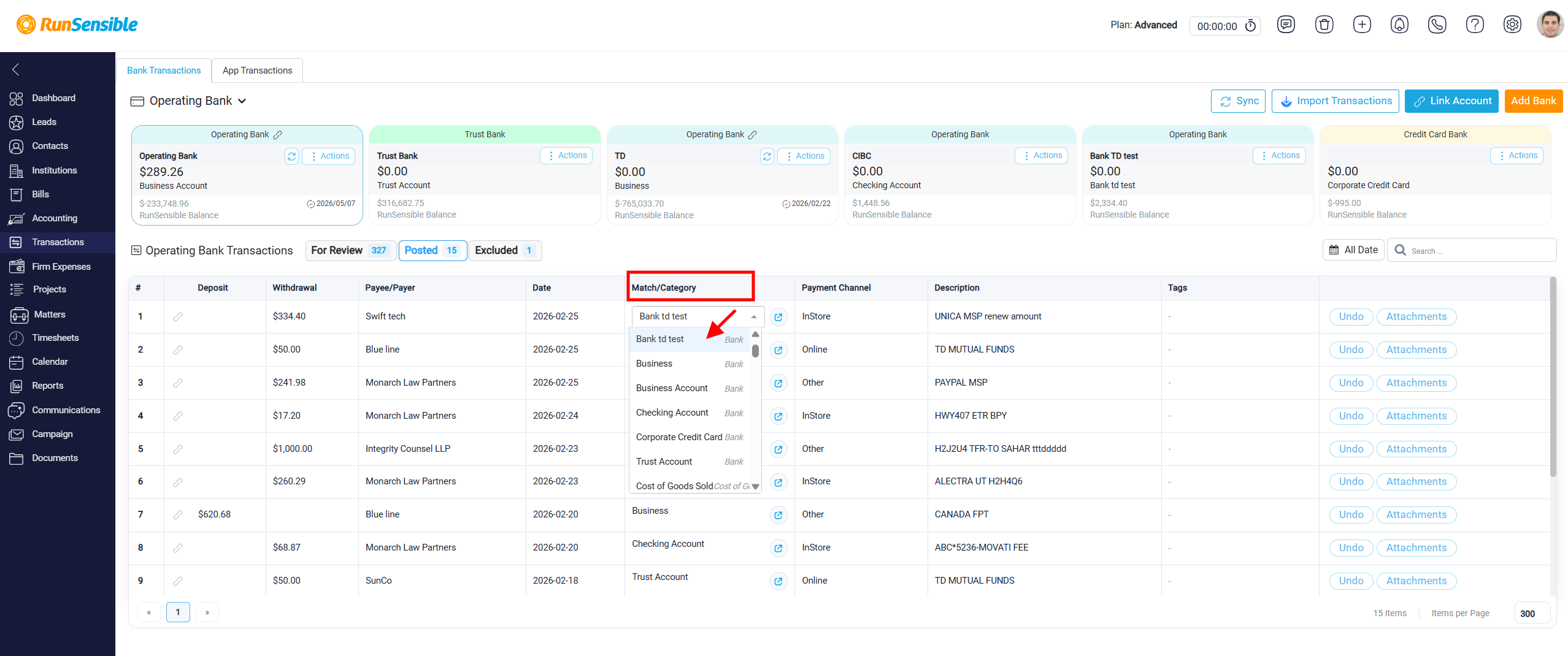
For matched transactions, the column indicates that the transaction was matched to an existing internal record. This helps users understand whether the transaction was processed through categorization or matching.
A blue button may also appear on the right side of the Match/Category column.
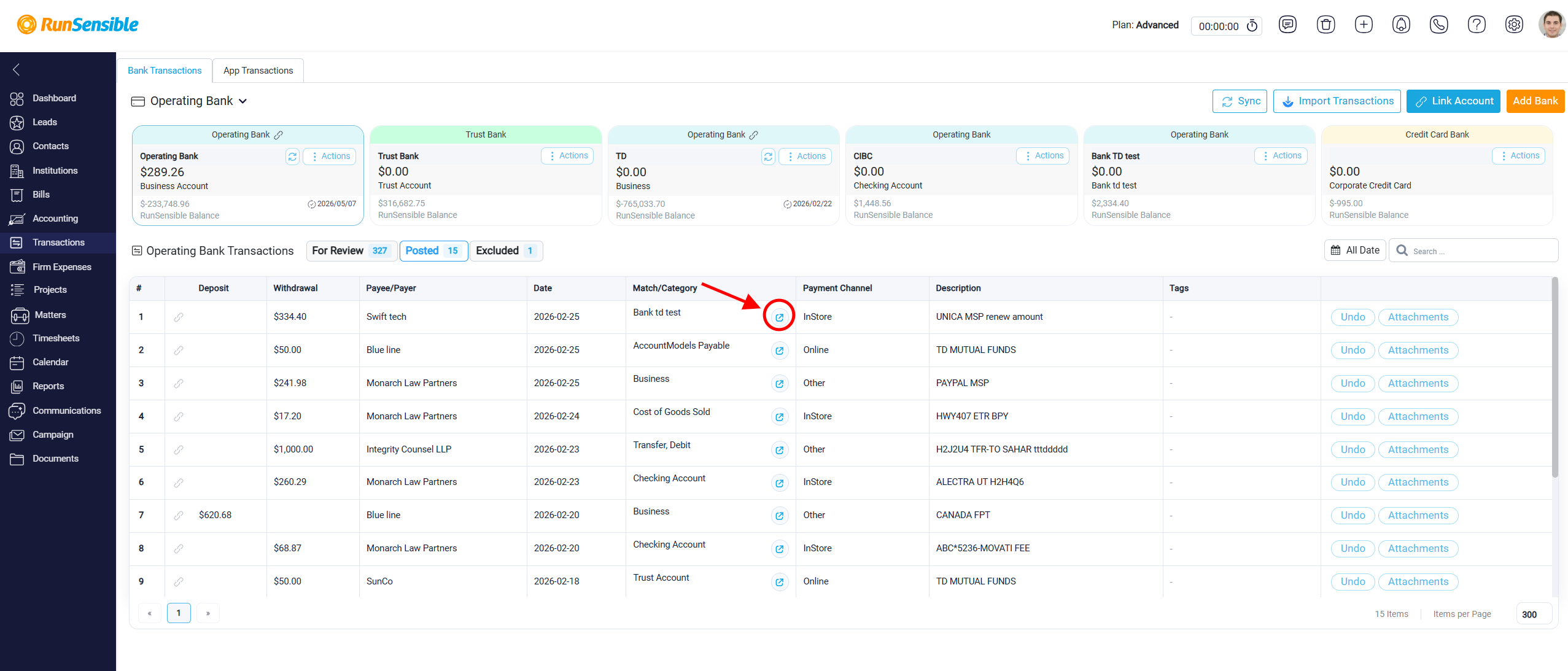
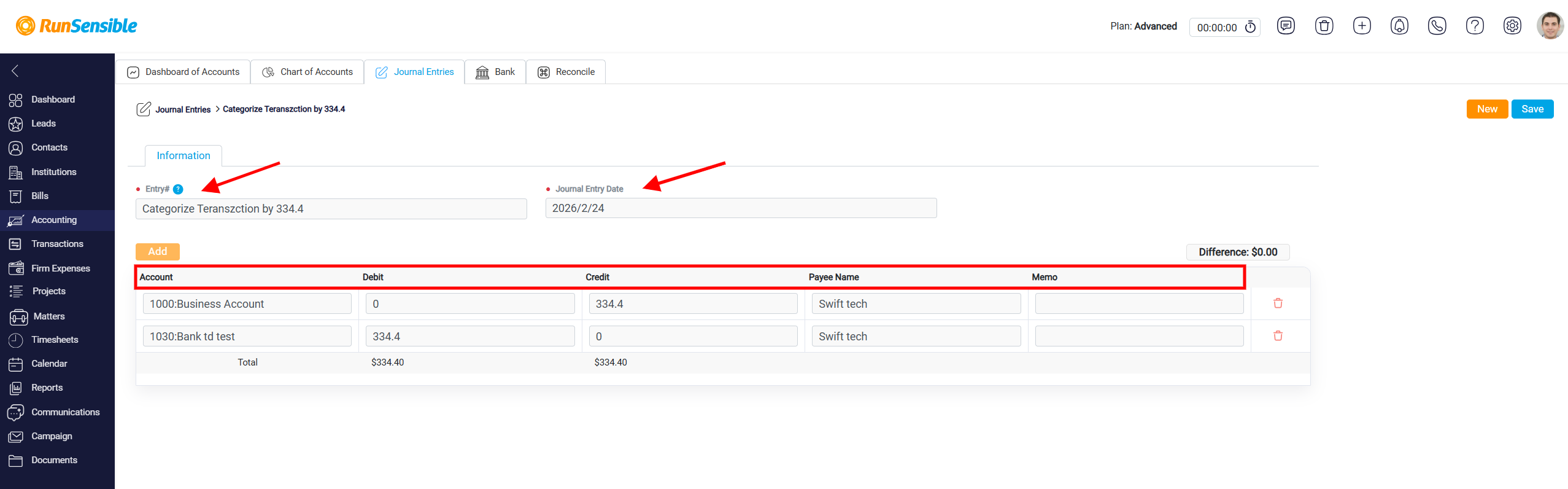
For categorized transactions, clicking this button opens the related journal entry created by the categorization. The journal entry page shows how the transaction was recorded in the accounting system, including the Entry Title, Journal Entry Date, affected Accounts, Debit and Credit amounts, Payee Name, Memo, and other related details. The debit and credit totals should balance, confirming that the accounting entry was recorded properly.
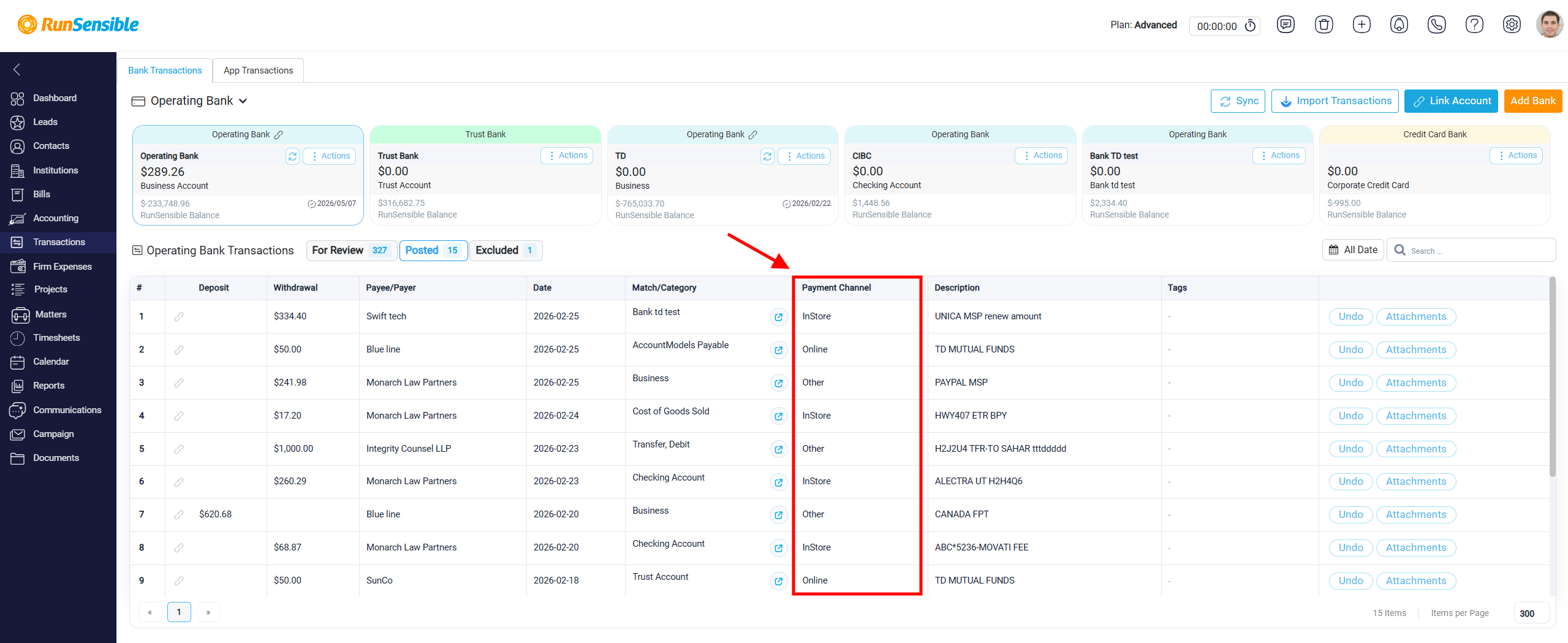
The Payment Channel column shows how the transaction was processed, such as InStore, Online, or Other, when this information is available.
The Description column shows the original bank description imported from the bank record.
The Tags column displays any tags that were added while categorizing the transaction. Tags are only available for categorized transactions because the matching process does not include an option to add tags.
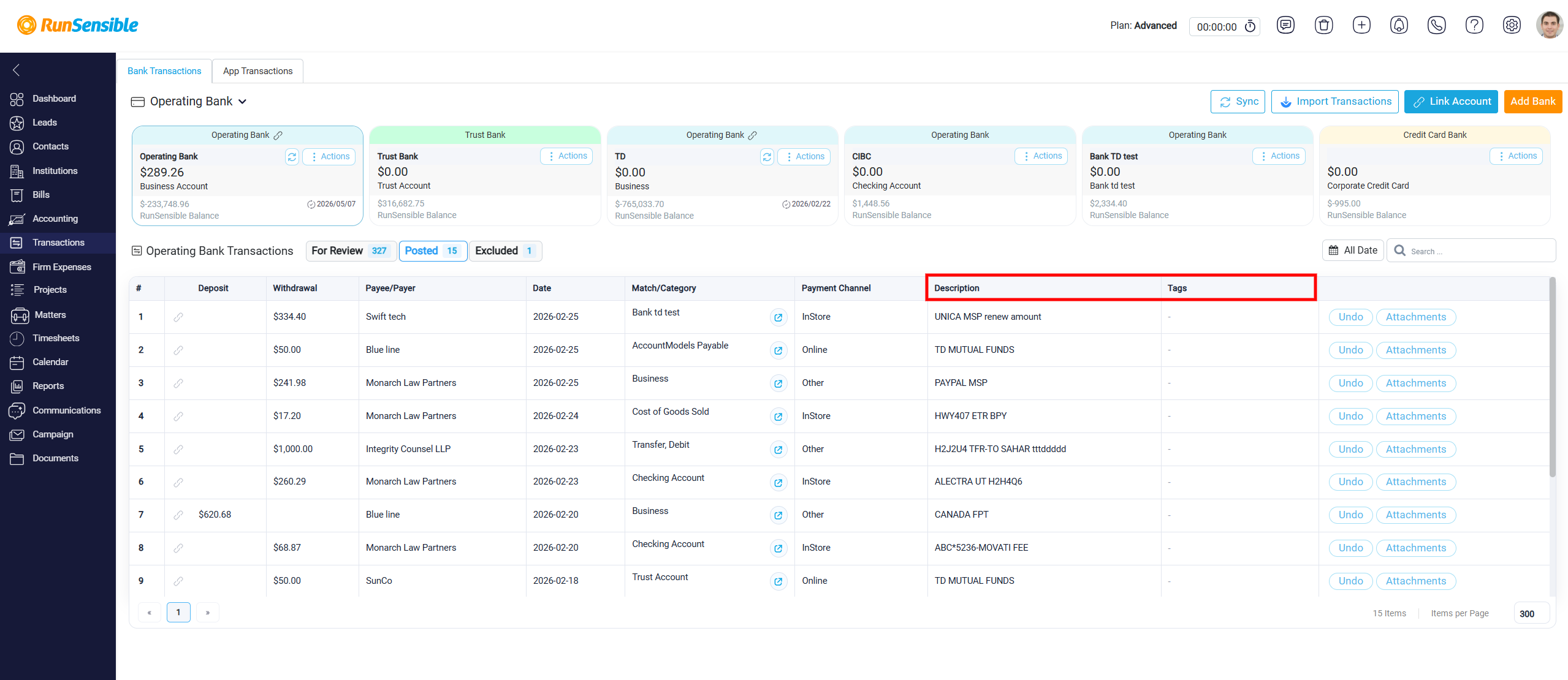
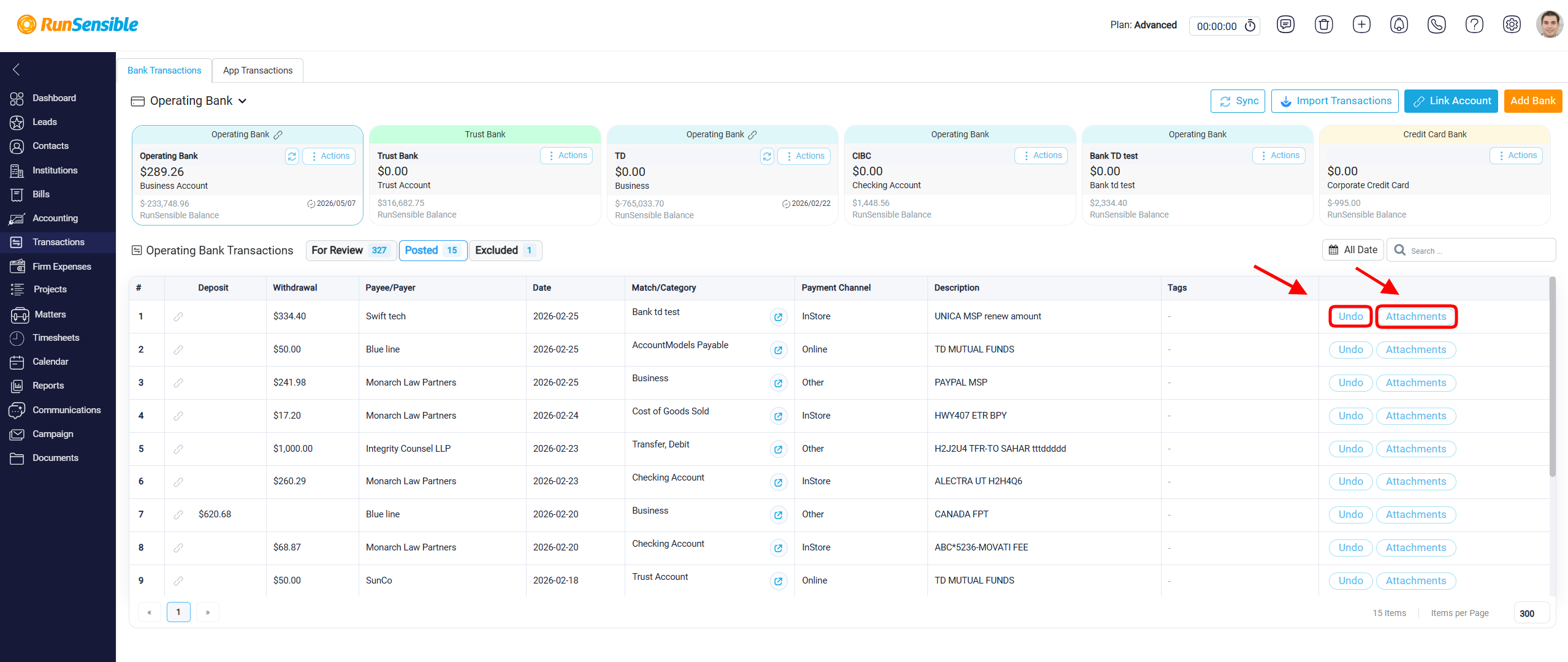
On the right side of each row, the Undo button allows the user to reverse the processed transaction and move it back to the review stage if needed. The Attachments button allows users to add or view files connected to the transaction for record-keeping.