Viewing and Processing Bank Transactions
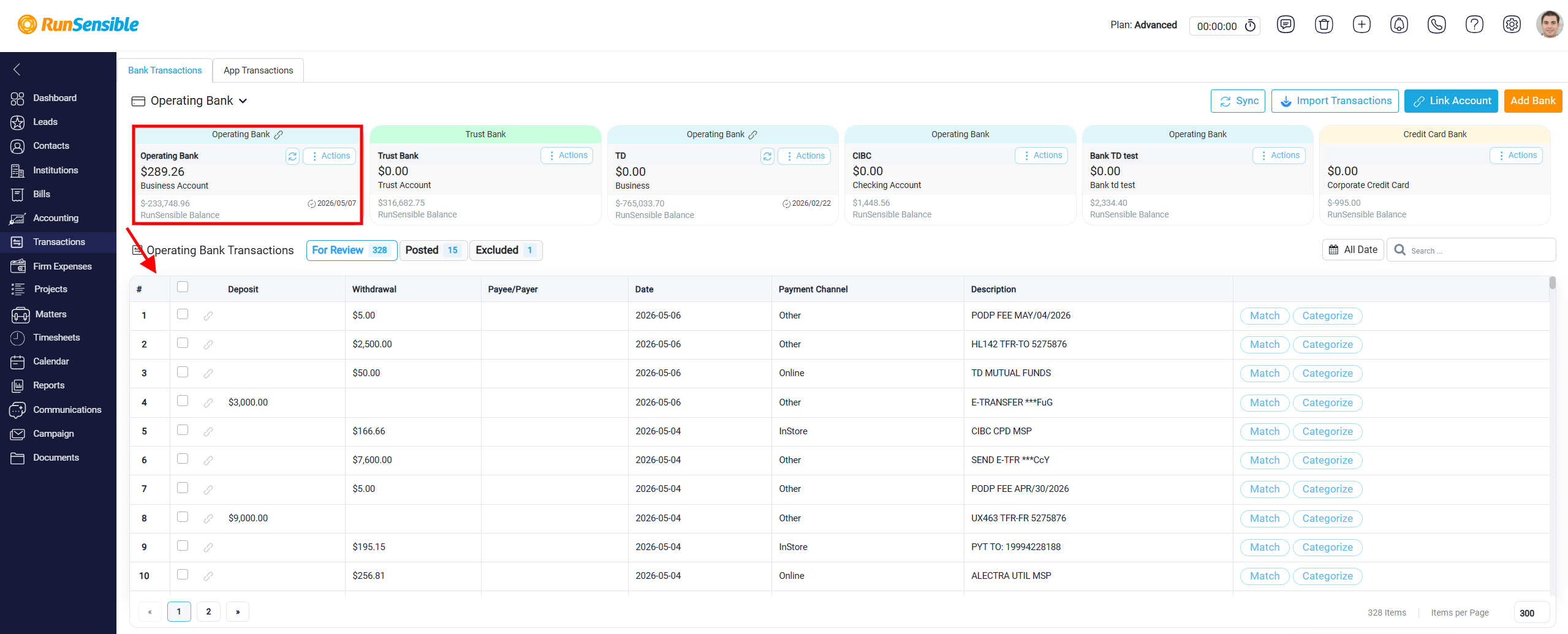
After a bank account is connected to RunSensible or transaction data is imported manually, the related banking activity appears in the Transactions section. The transaction list is connected to the selected bank account, which means the system only displays transactions for the account currently selected. To view transactions for a specific account, select the appropriate bank account card. Once selected, the transaction table below automatically updates and displays only the transactions related to that account. Selecting a different card updates the table again, allowing users to review each bank account separately.
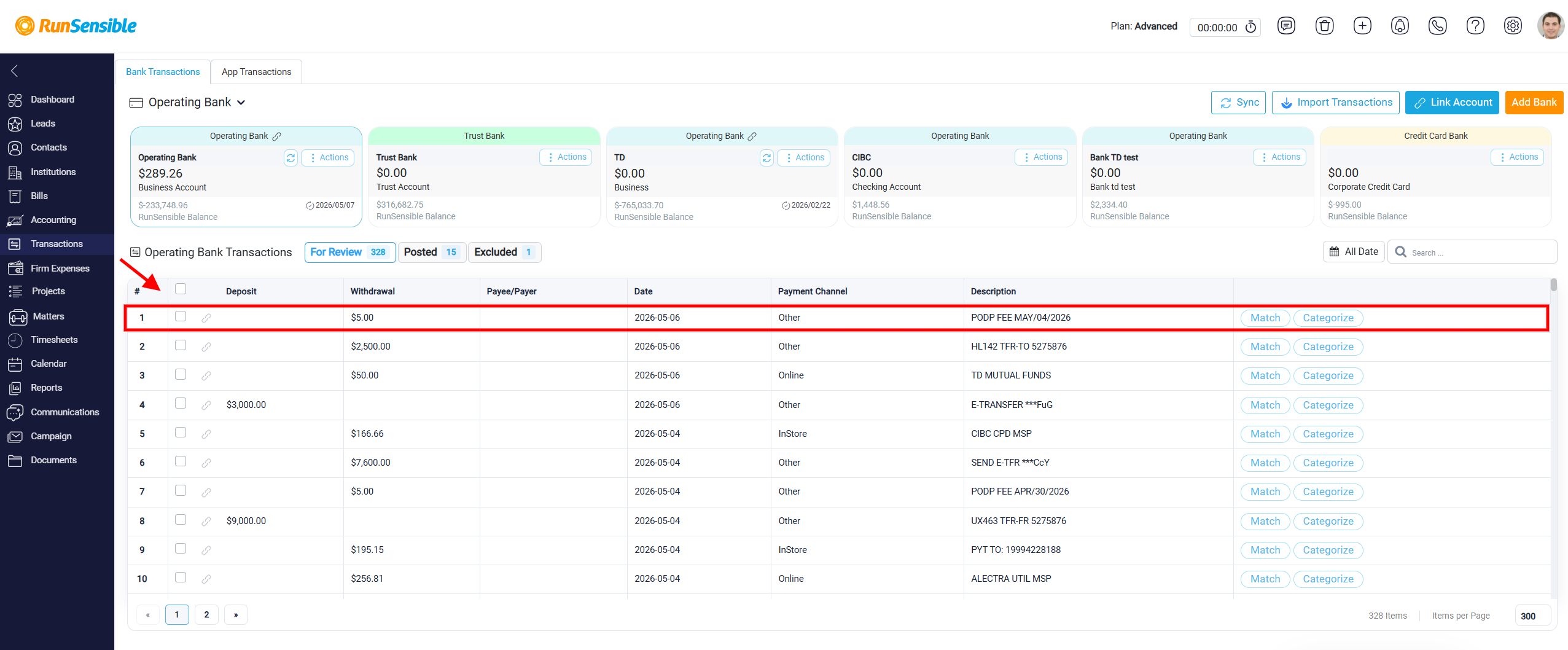
Each row in the transaction table represents one bank transaction that has been imported or synchronized into RunSensible. The table helps users review each transaction, understand what it represents, and decide how it should be handled.
Each row includes a checkbox that allows users to select one or more transactions.
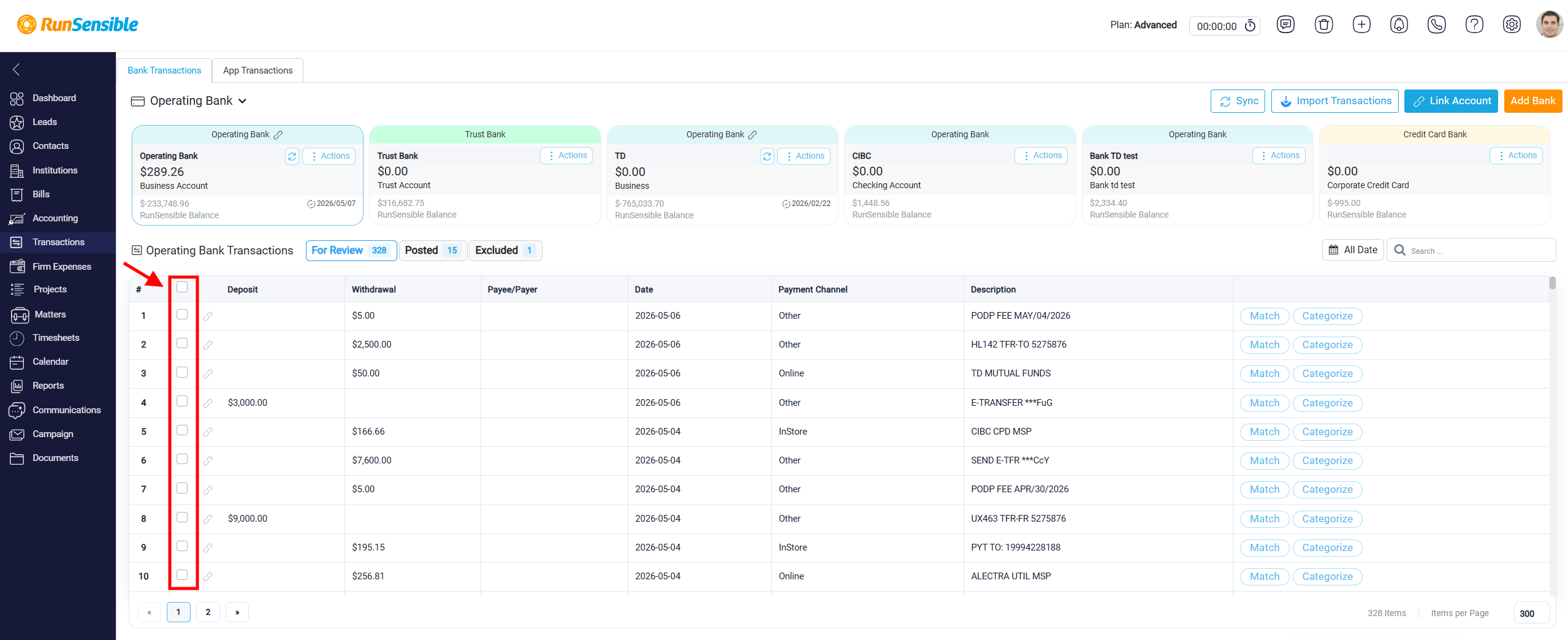
When at least one transaction is selected, an Exclude button appears above the table on the right side. This button is used when a transaction should not be included in the review process or financial records. For example, a transaction may be excluded if it was imported more than once, if it is personal and unrelated to the business, or if it was posted incorrectly by the bank and later reversed. Excluding a transaction does not delete it from the system. Instead, it moves the transaction to the Excluded tab for reference.
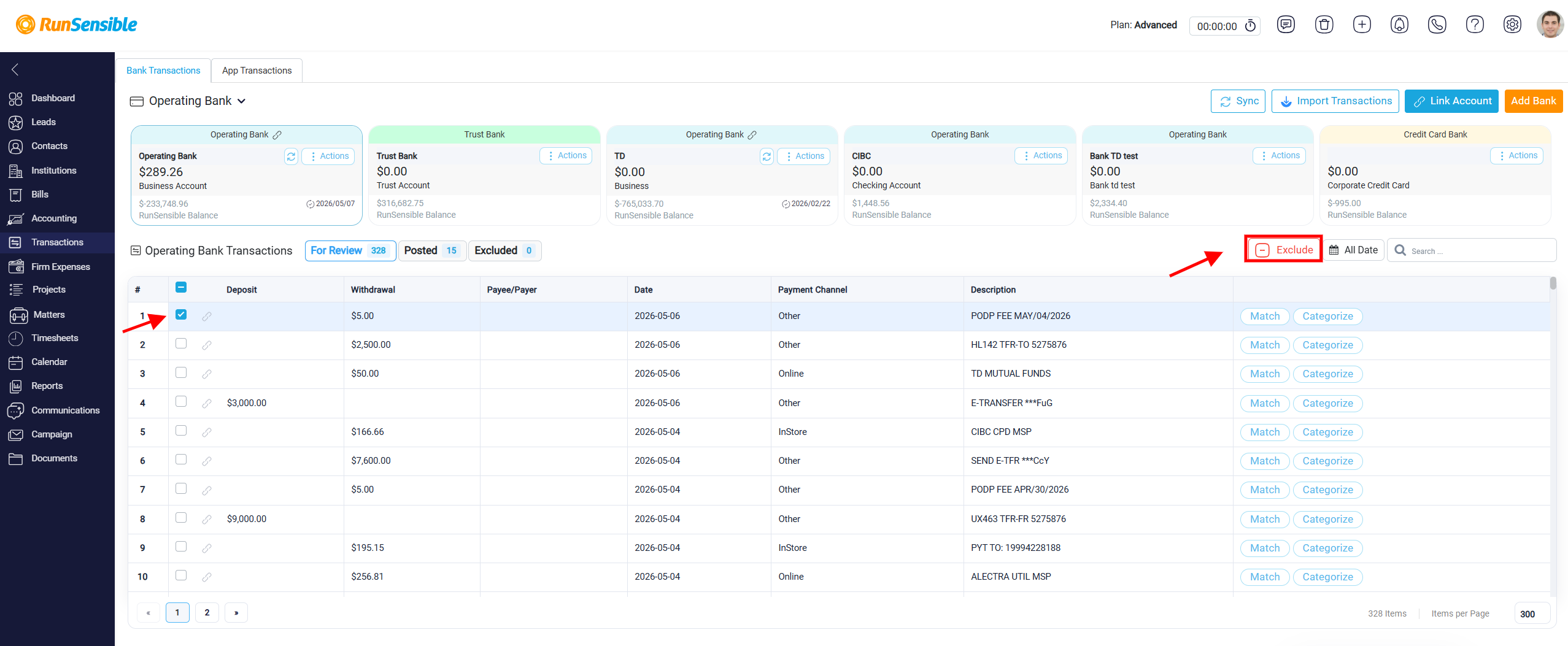
To access excluded transactions, go to the top of the transaction list where the For Review, Posted, and Excluded tabs are displayed.
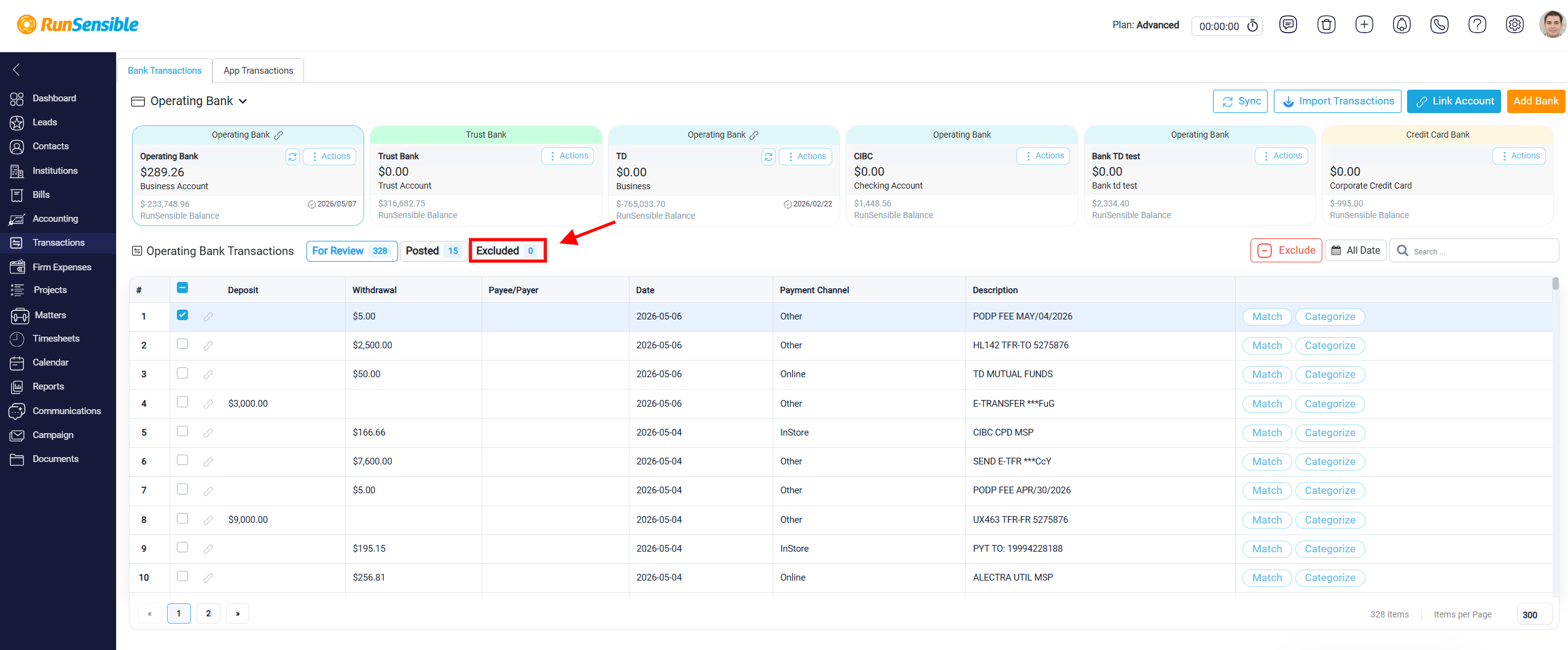
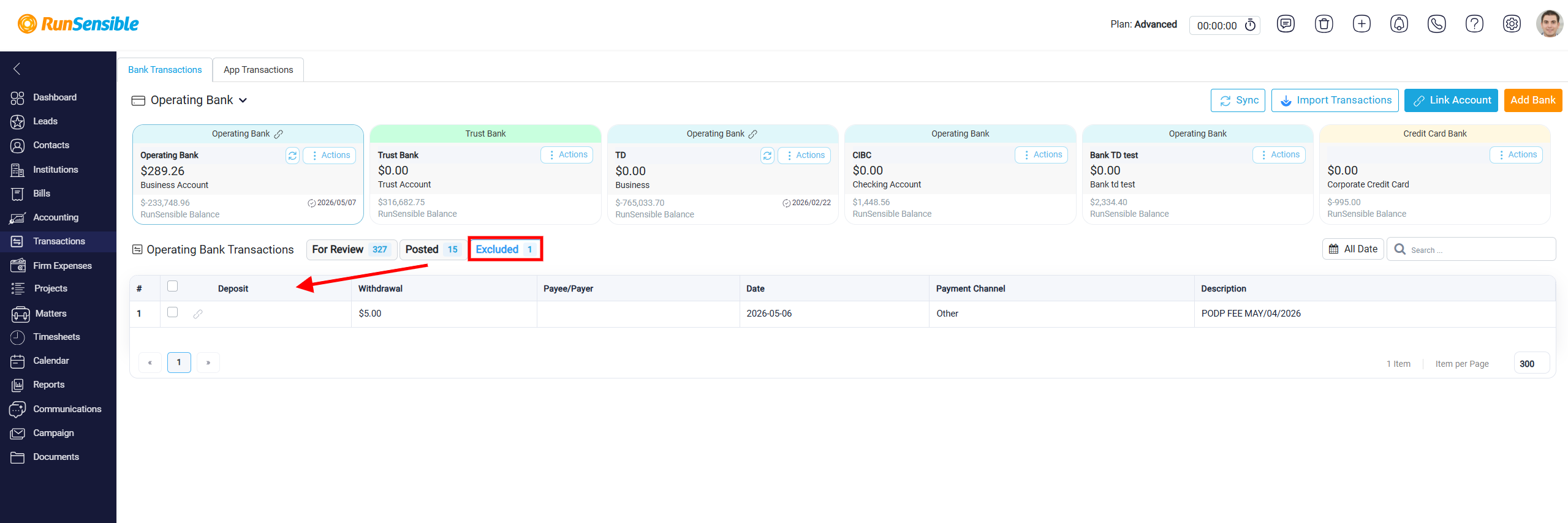
Click the Excluded tab, located next to the Posted tab. This tab shows all transactions that have been excluded from processing.
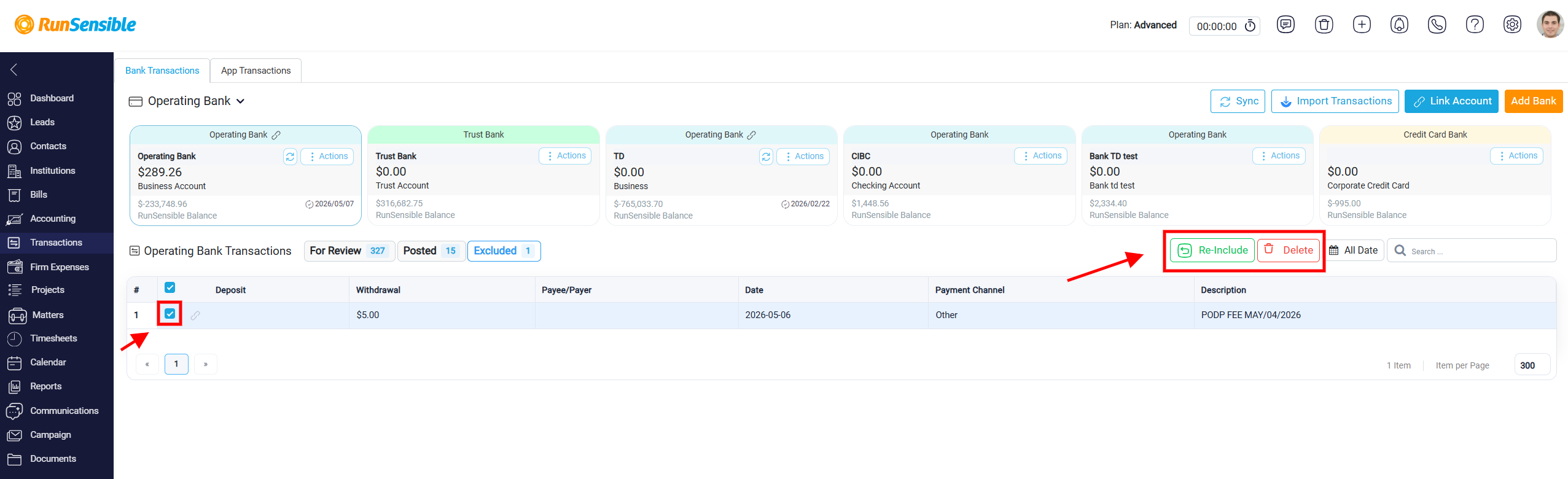
From this tab, users can select one or more excluded transactions using the checkboxes on the left side of each row. Once a transaction is selected, two options appear at the top right of the table: Re-Include and Delete. The Re-Include button moves the selected transaction back to the For Review tab, while the Delete button permanently removes it from the system.
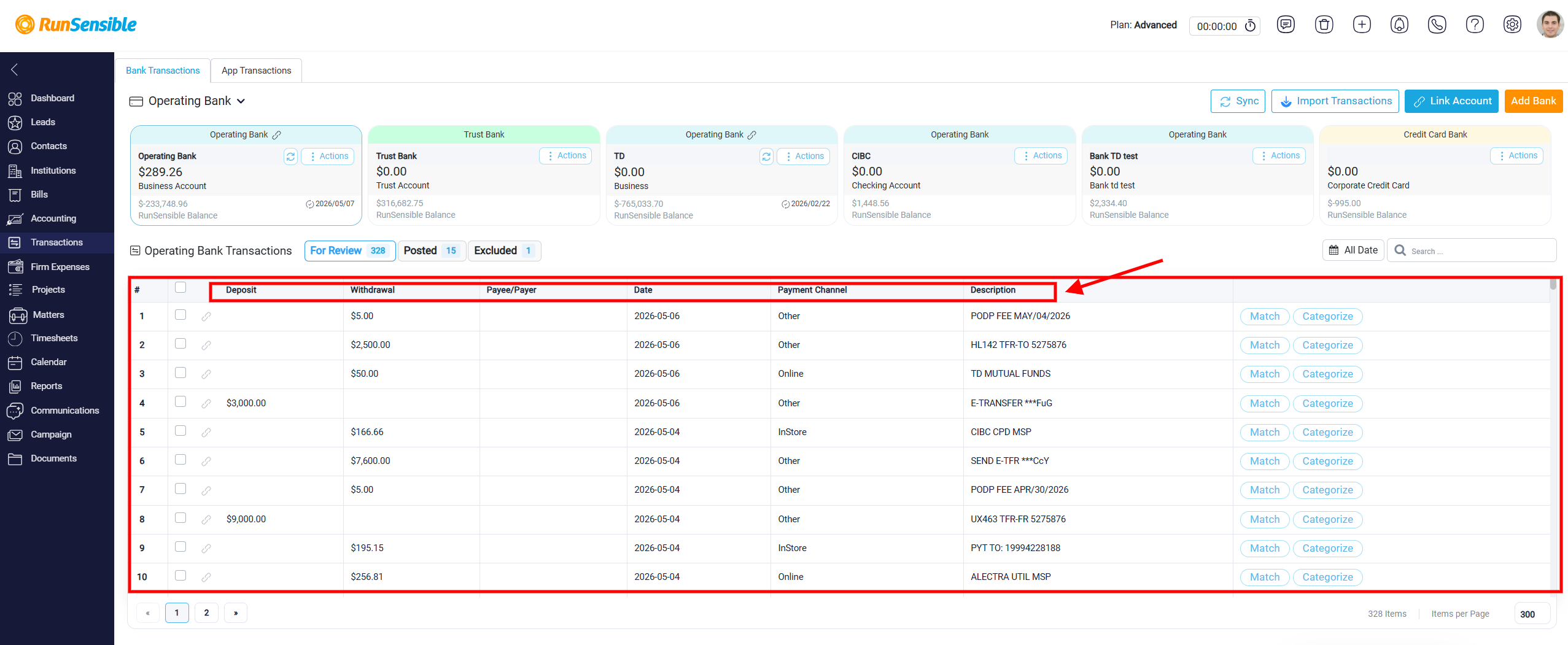
The transaction table also includes several columns that describe each bank transaction. The Deposit column shows money received into the selected bank account, while the Withdrawal column shows money paid out of the account. Usually, only one of these columns contains an amount for each transaction, depending on whether money entered or left the account.
The Payee/Payer column shows the person or organization associated with the transaction when that information is available. This helps users understand where the money came from or where it was sent. The Date column shows the transaction date based on the bank record.
The Payment Channel column shows how the transaction was processed, such as InStore, Online, or another payment method. This information only appears for transactions linked through RunSensible. Manually imported transactions do not include payment channel data, so this column may remain empty for those records.
The Description column displays the reference or memo text provided by the bank. This may include merchant names, transaction notes, reference numbers, transfer details, or other identifying information from the financial institution. This description helps users recognize the transaction before deciding whether to match, categorize, or exclude it.