Searching for Specific Leads
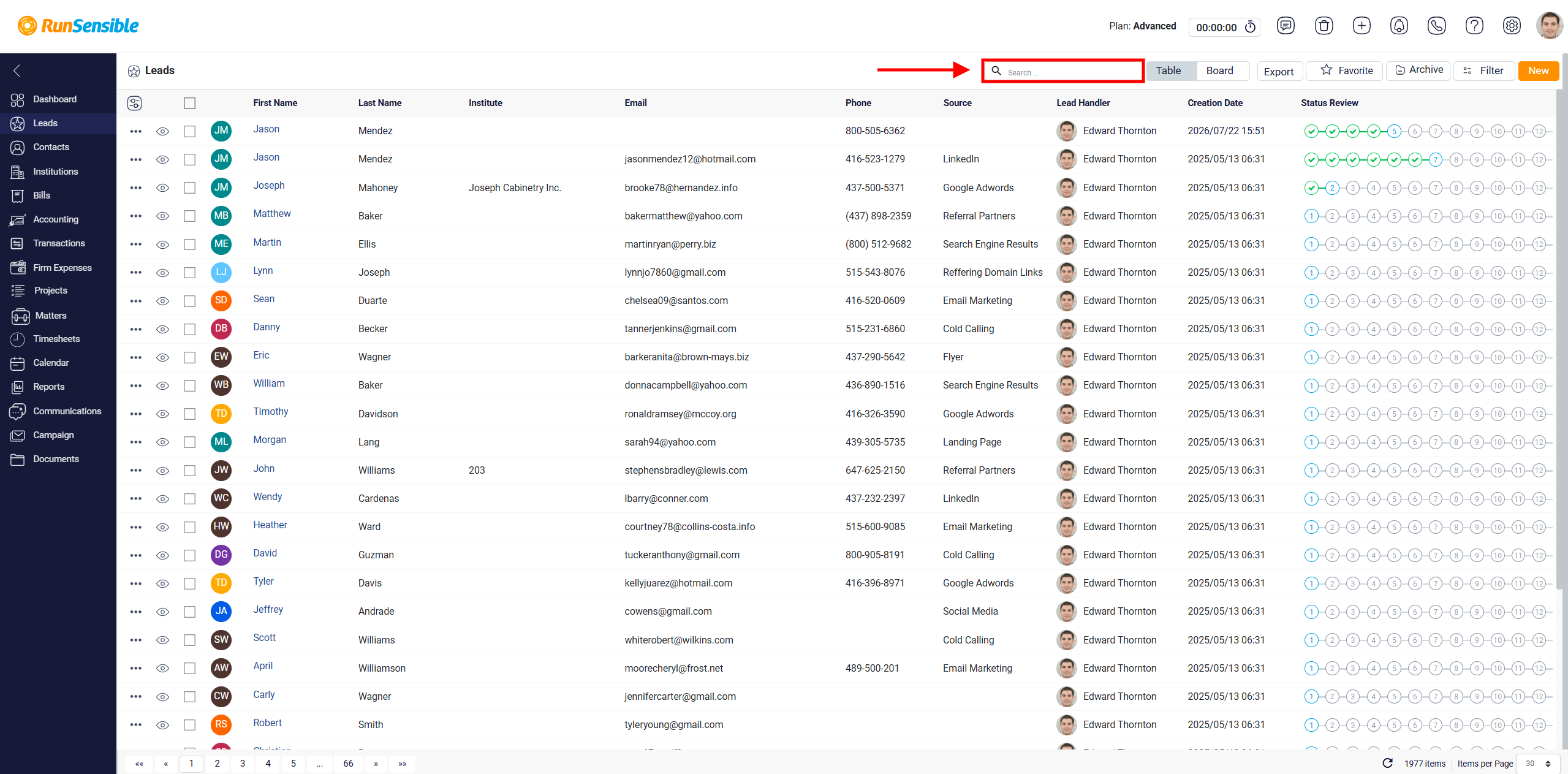
The Search box is located near the top middle of the Leads list. It is used to quickly find a specific lead without opening the filter panel. The user can enter a name, keyword, or other related text, and the system will search the lead list for matching results.
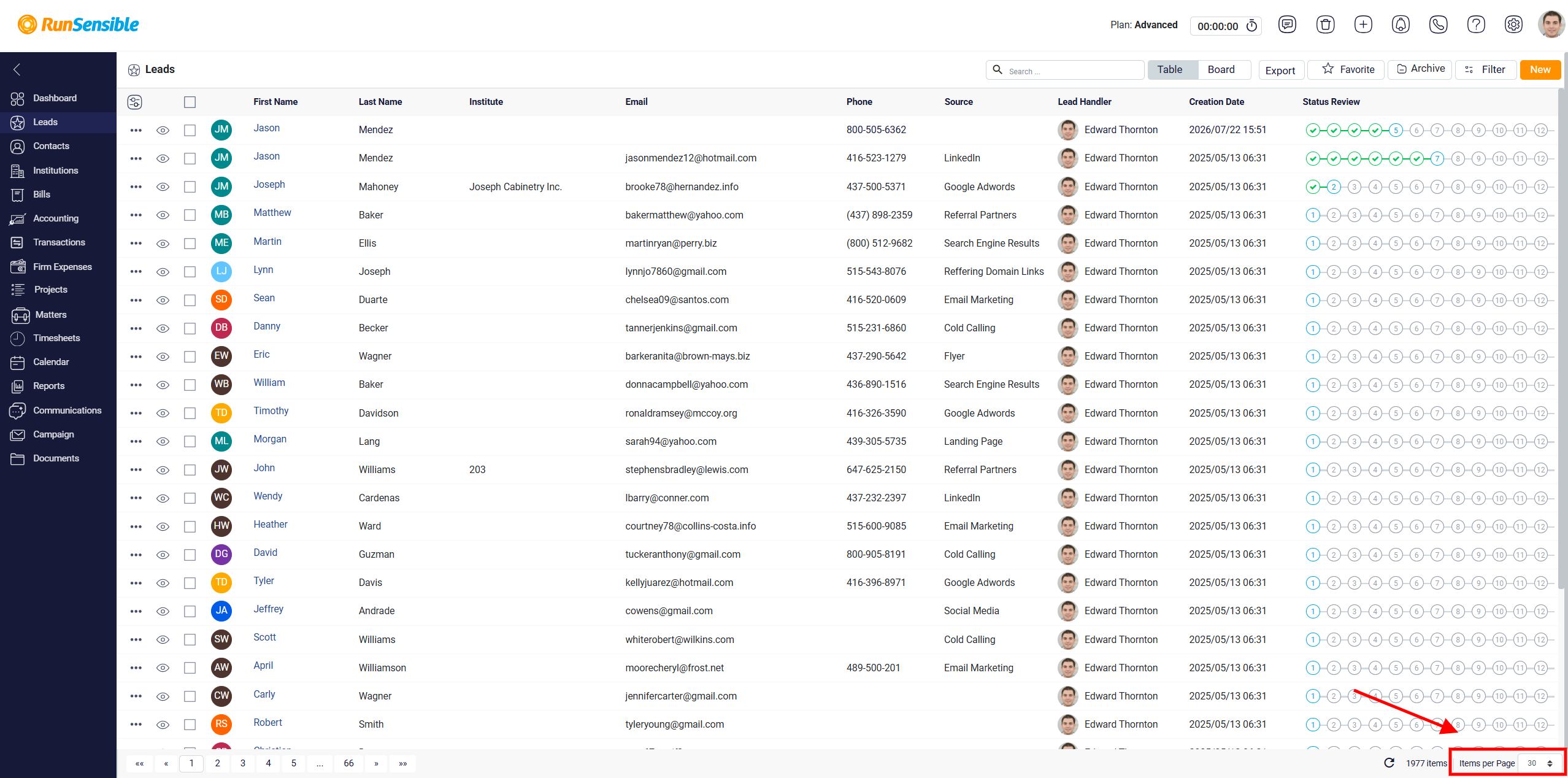
In the Leads table view, the system shows 30 leads per page by default. If the total number of leads is more than 30, the system automatically separates the leads into multiple pages. This keeps the table easier to read and prevents too many records from appearing on the screen at once. For example, if you input a higher number, more leads will be displayed on a single page, reducing the number of pages you need to navigate through. Conversely, entering a lower number will result in fewer leads per page, spreading them across more pages.
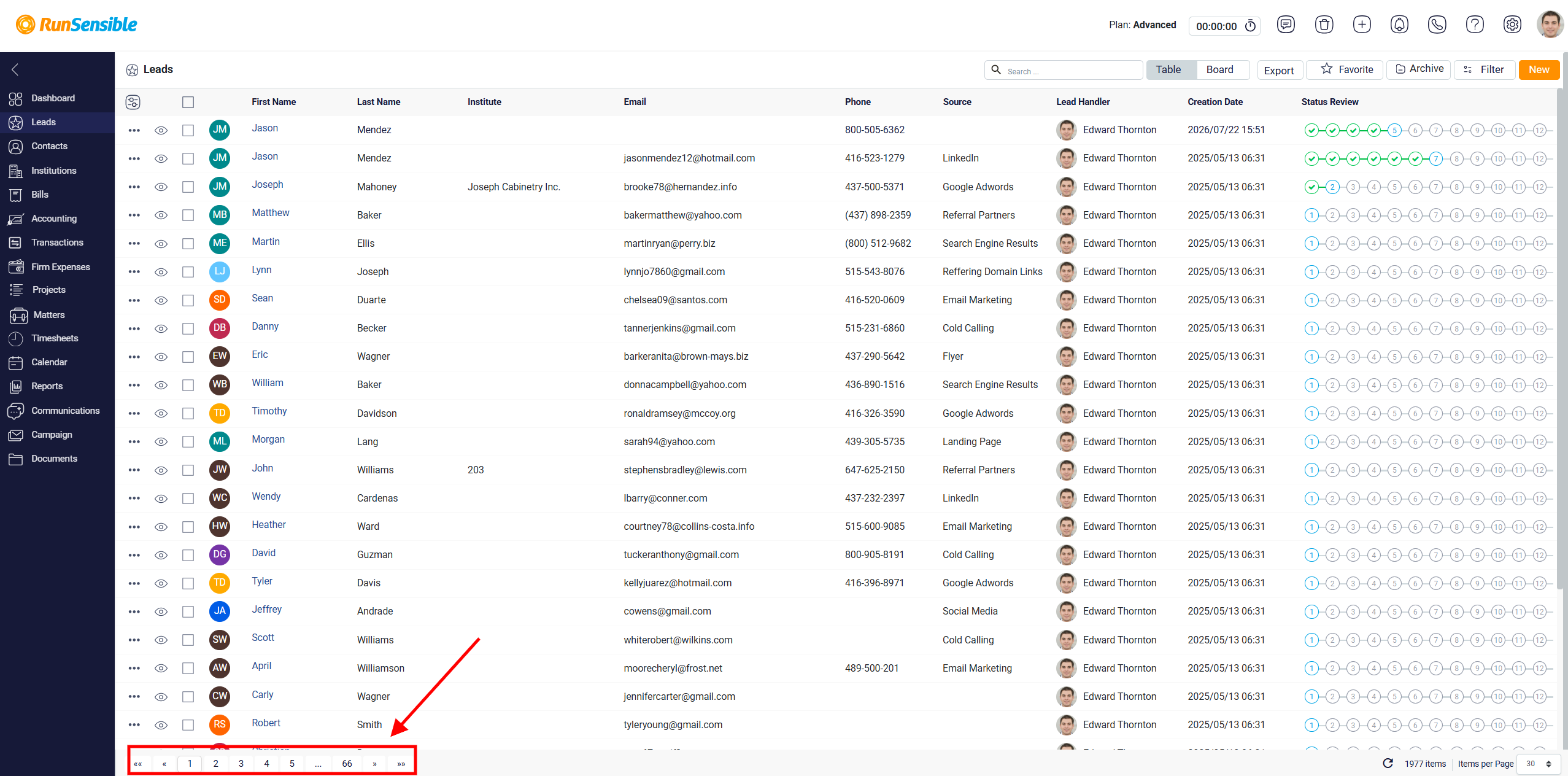
The Page Numbers are shown at the bottom left corner of the Leads list. Each number represents a different page of lead records. To move to another page, click the page number you want to open. The table will then show the leads saved on that page.