
Using Board View for Managing Lead Stages
The Board view is used to manage leads visually based on their current status in the lead pipeline. To open this view, click the Board button at the top right corner of the Leads page. Instead of showing leads in rows like the table view, the board view shows each lead as a card inside a status column.
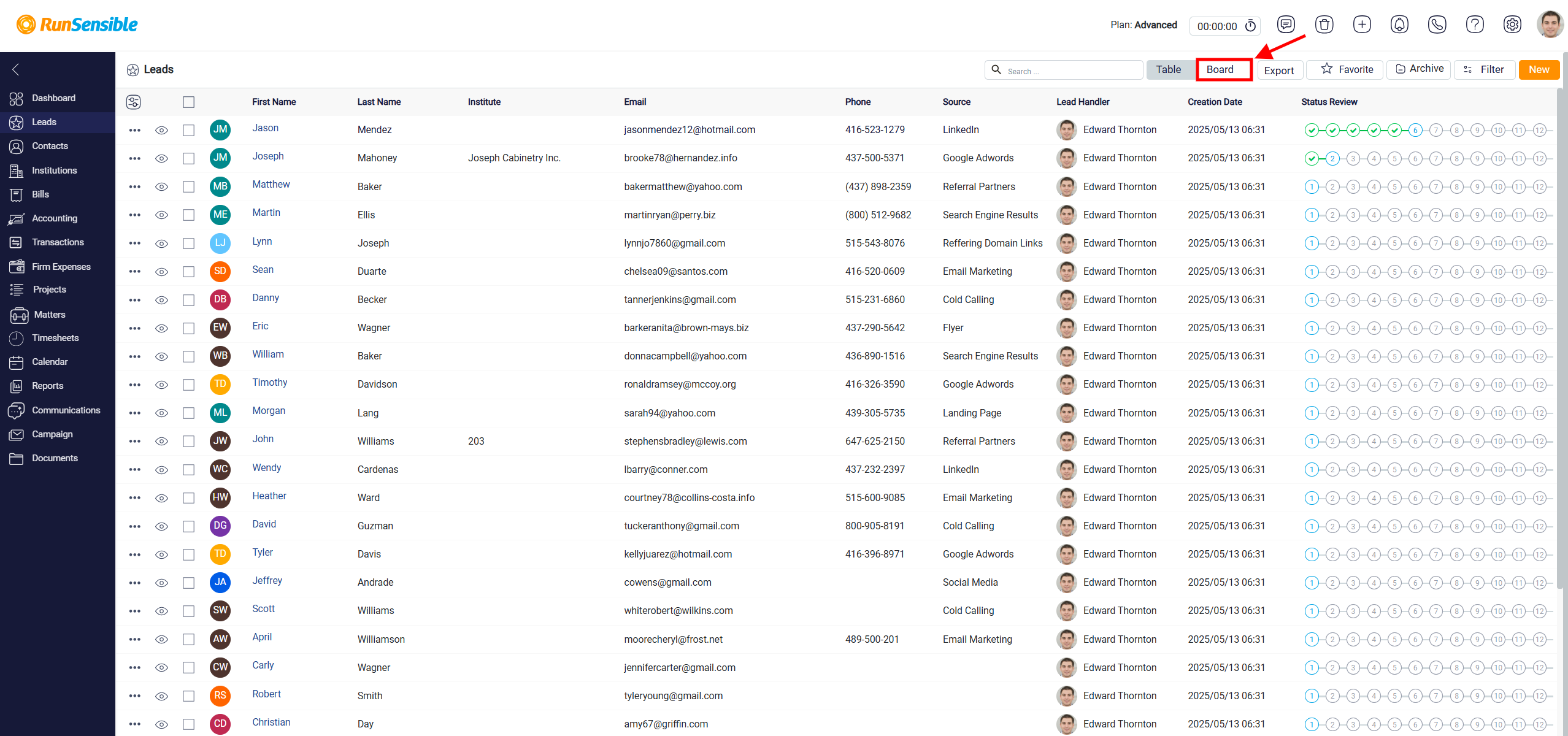
Each column represents one stage in the lead pipeline, such as New, Phone calls, Phone Conversation, Send a message, Contact Building, Follow up, etc. The leads inside each column are the leads currently assigned to that status. This makes it easier to see where each lead stands in the conversion process and how many leads are currently in each stage.
At the top of each column, the system shows the status name and the number of leads in that status. Inside the column, each lead appears as a card. The card usually shows the lead’s name, creation date, and any related labels or tags. This layout helps the user review leads in a more visual way and understand the overall progress of the pipeline more quickly.
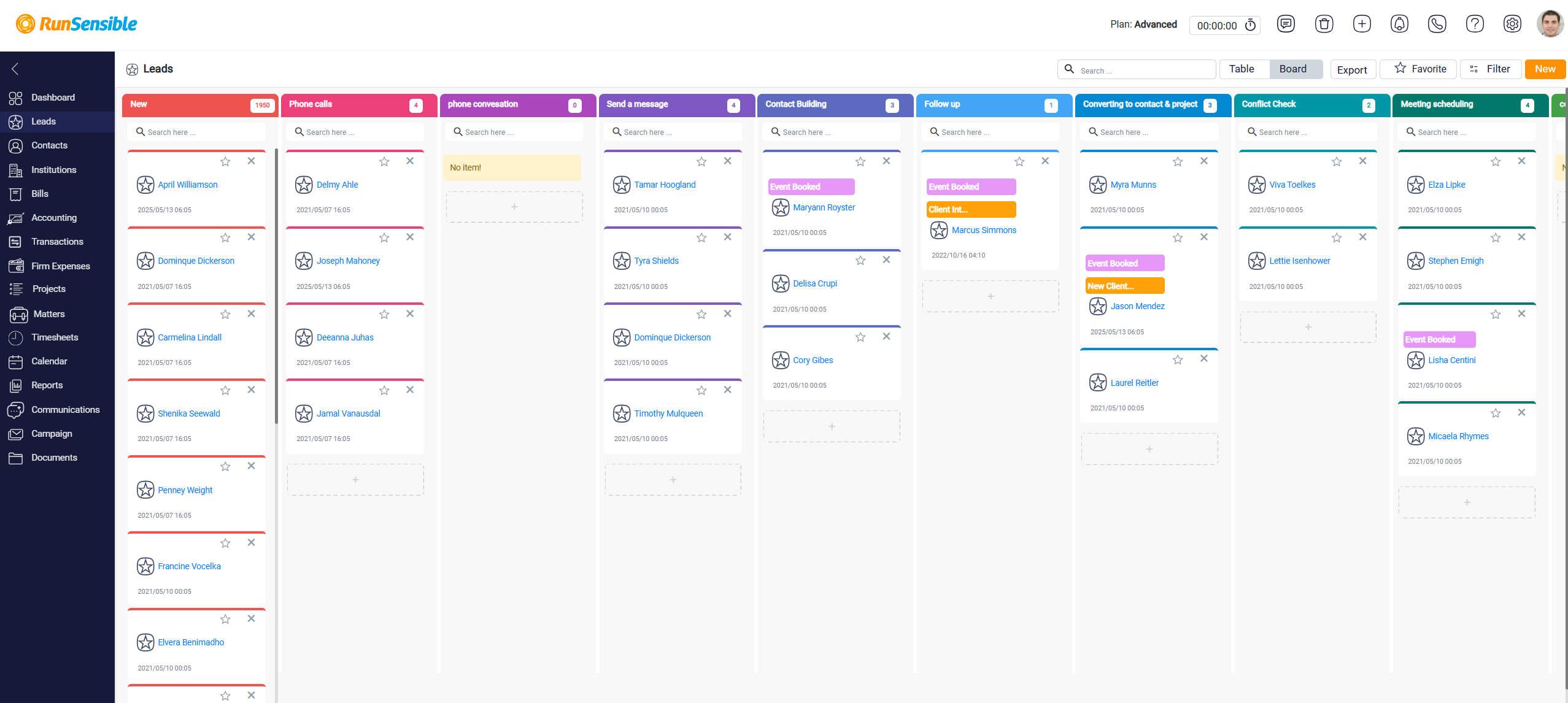
The search box inside each column allows the user to search only within that specific status. This is useful when a column contains many leads and the user wants to find one lead without searching through the entire board.
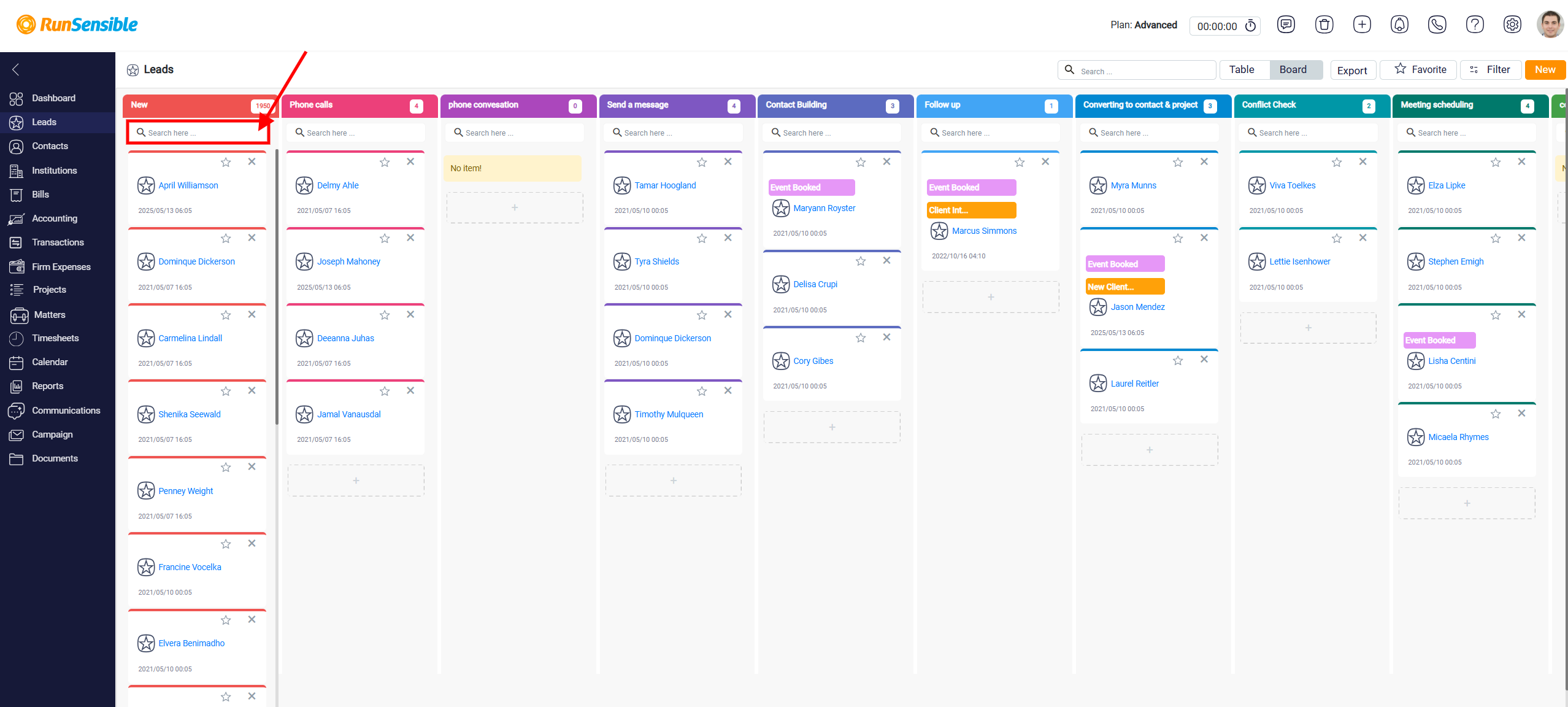
Each lead card also includes action icons. The Star icon can be used to mark the lead as a favorite.
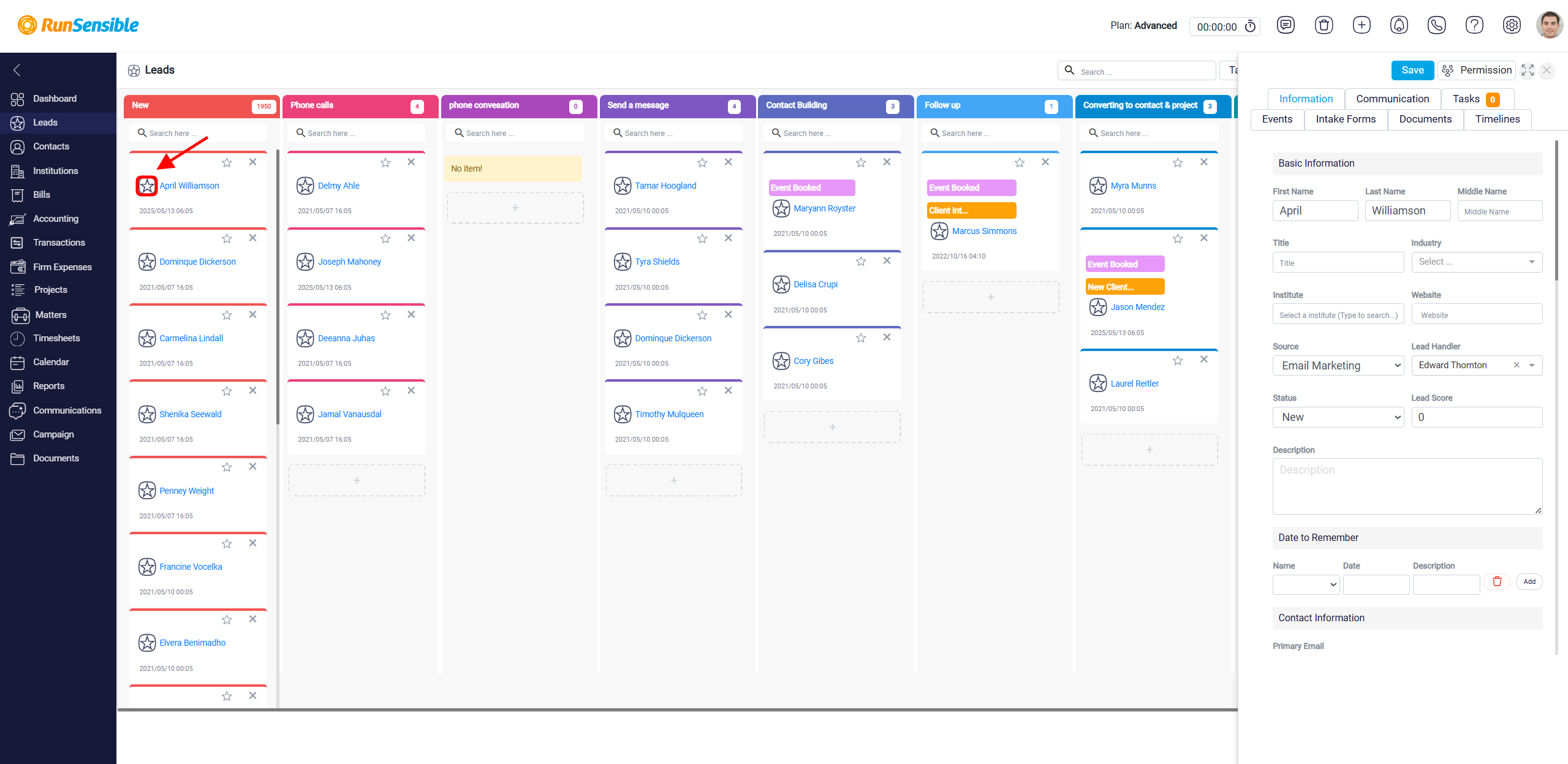
The remove or delete icon can be used to remove or manage the lead, depending on the available system action. If a column does not contain any leads, the system may show a message such as No item, which means there are currently no leads in that status.
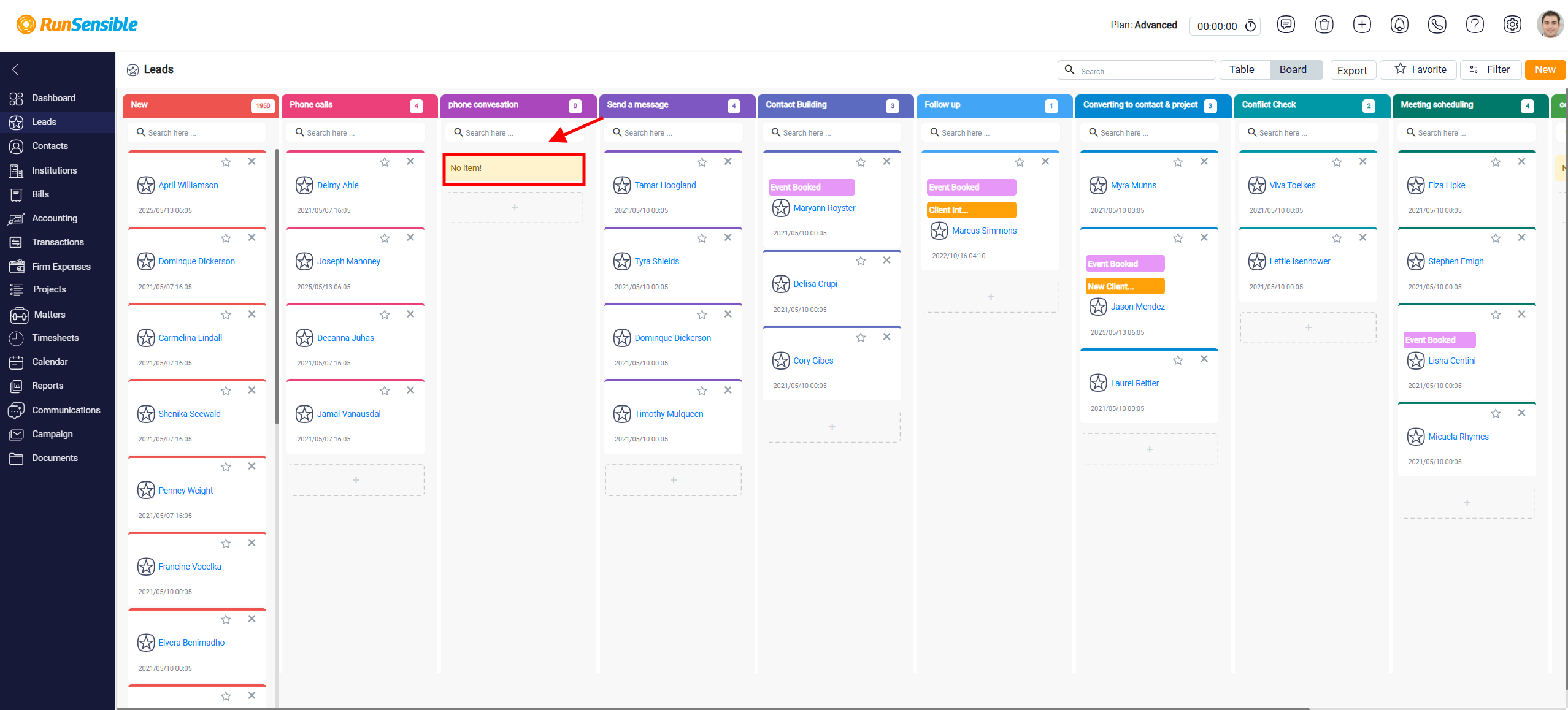
The board view also allows the user to update a lead’s status by dragging the lead card from one column to another. For example, if a lead moves from Phone calls to Follow up, the user can drag the card into the Follow up column.