
Lead Detail Action Buttons
At the top right side of the lead detail panel, there are action buttons that allow the user to manage the lead more quickly. The Save button is used to save changes made in the lead detail panel. Whenever the user edits any lead information, they should click Save before leaving the page to make sure the updates are kept.
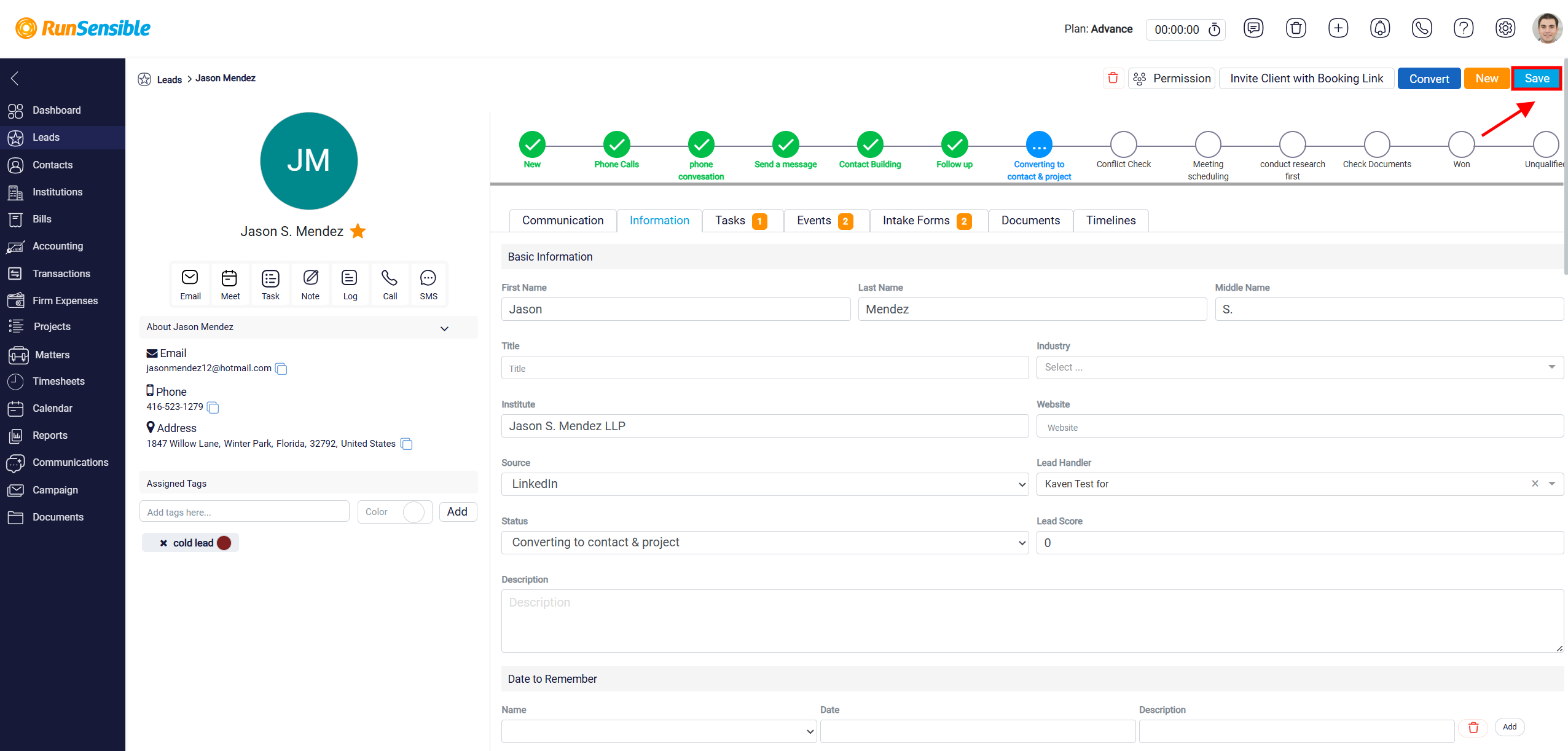
The New button is used to create another lead directly from the detail panel. It works the same way as the New button in the main Leads list and opens the lead creation form.
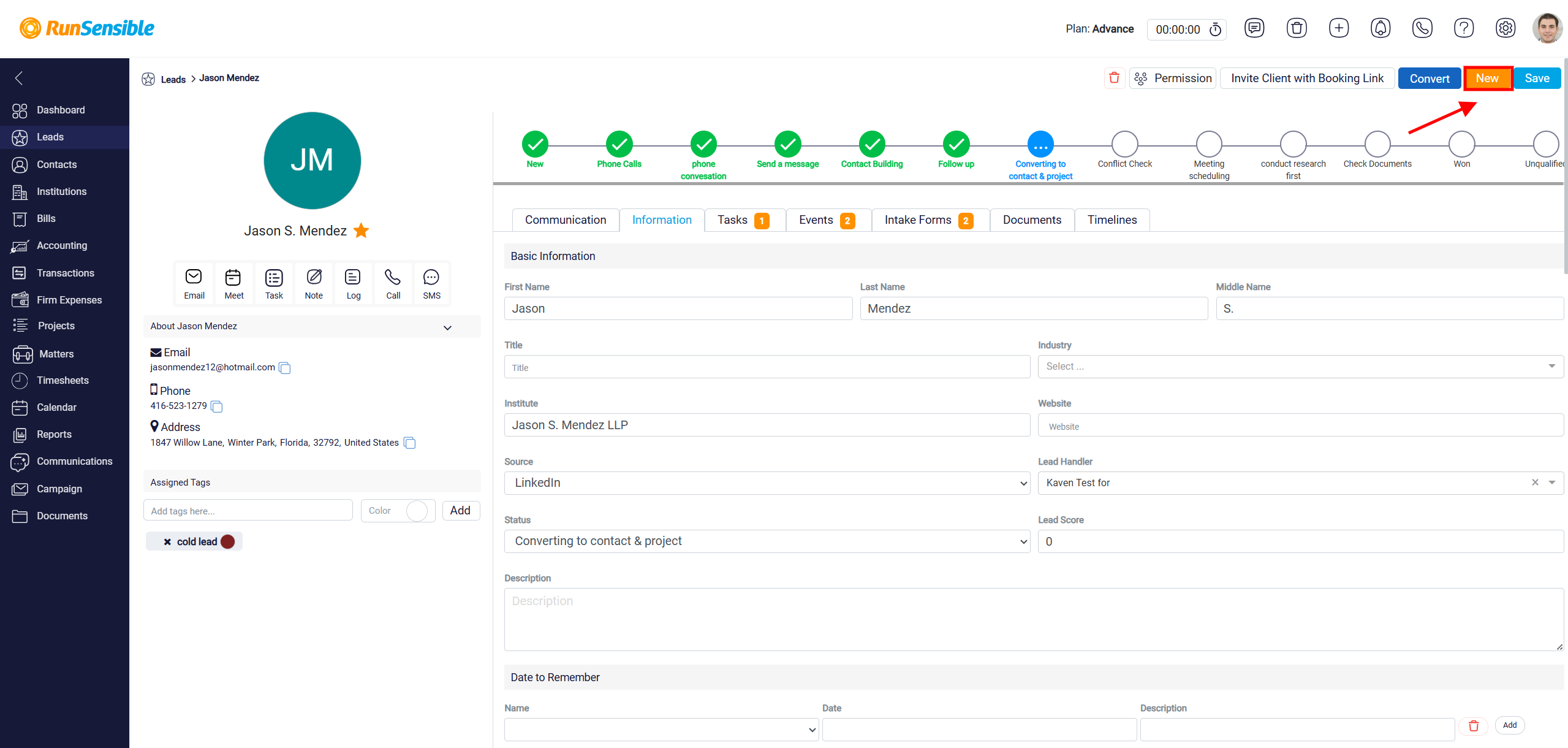
The Convert button is used to convert the current lead into a contact or connect the lead to an institute. It works the same way as the Convert option available from the Leads list. When clicked, it opens the lead conversion panel so the user can complete the conversion process for that specific lead.
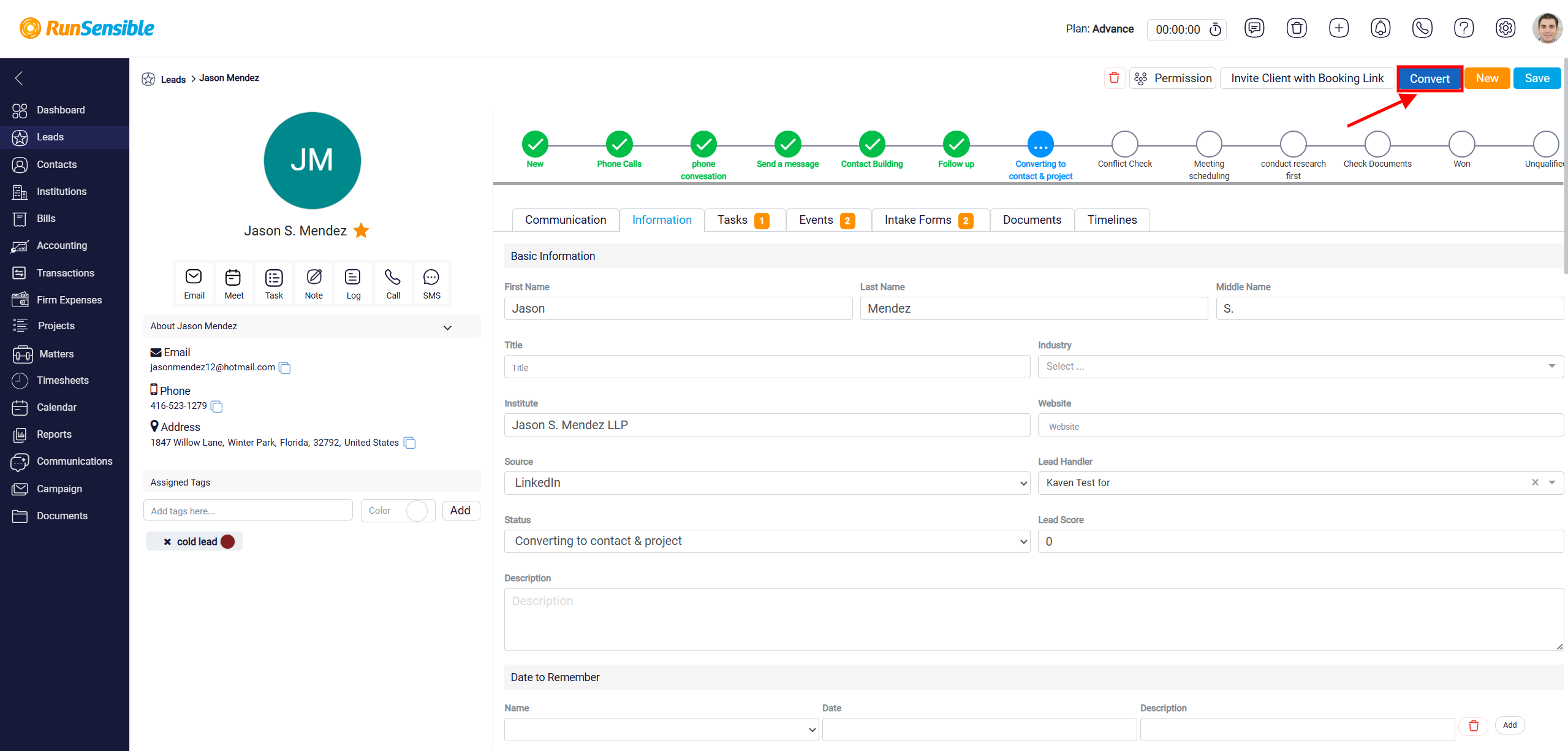
Invite Client with Booking Link
The Invite Client with Booking Link button is used to send the lead an email invitation to book a meeting. When the user clicks this button, a Send Email panel opens. This email includes a booking link that the lead can use to choose a meeting time based on the selected event configuration.
To learn how to create and send an email invitation,, please see Invite Client with Booking Link.
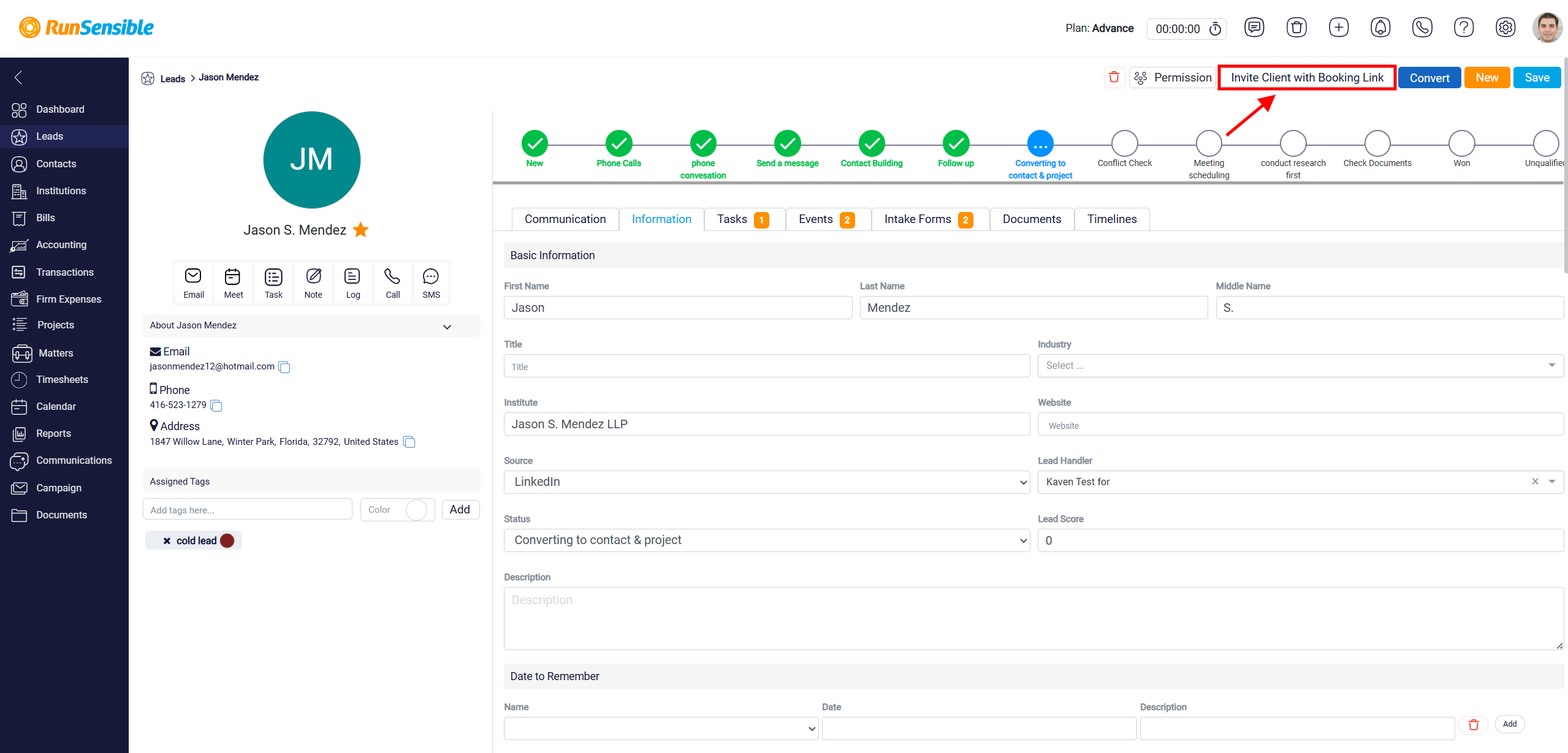
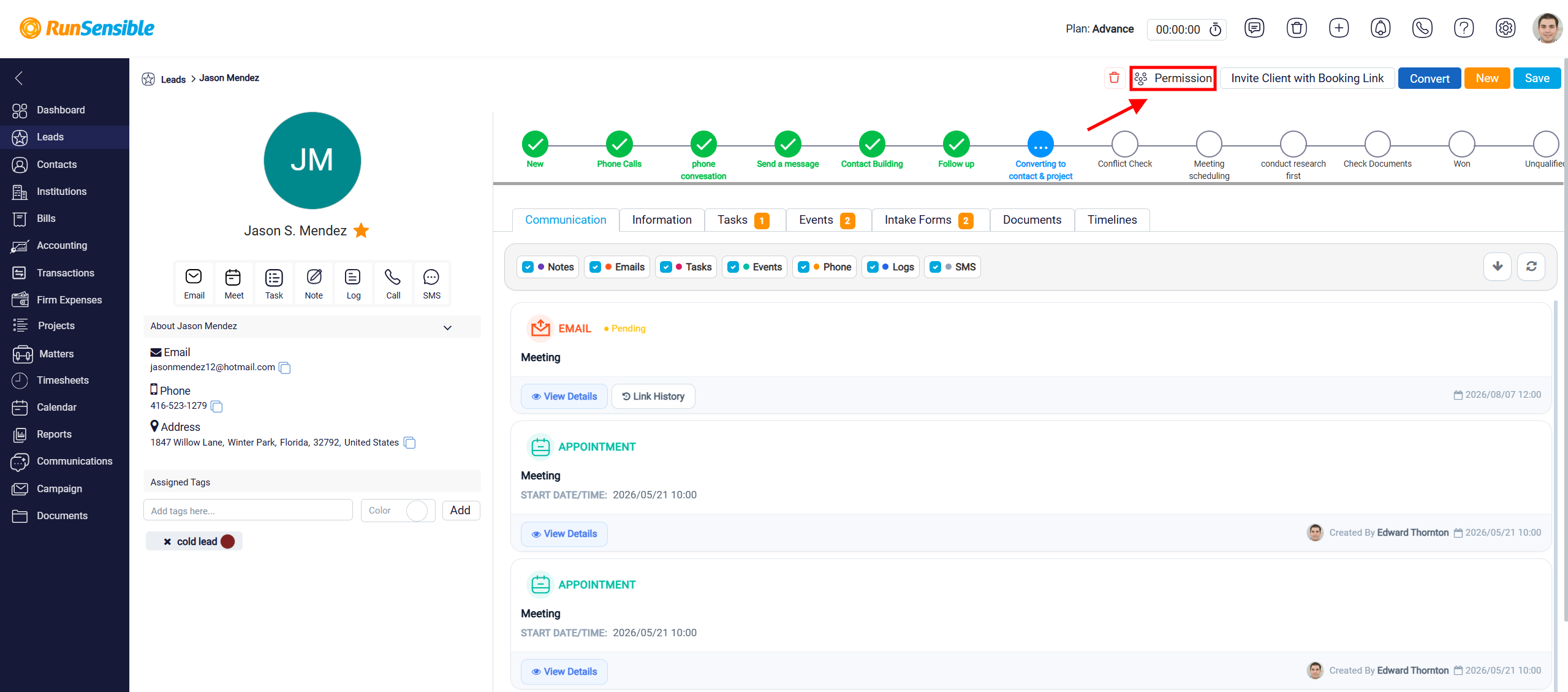
Permission Button
The Permission button is used to control who can access the lead. By using this button, the user can decide whether the lead should be available to all users or restricted to specific users, teams, or handlers. This helps manage lead visibility when the record should only be accessed by certain people in the system.
To learn set up permission, please see User Management and Team Management.
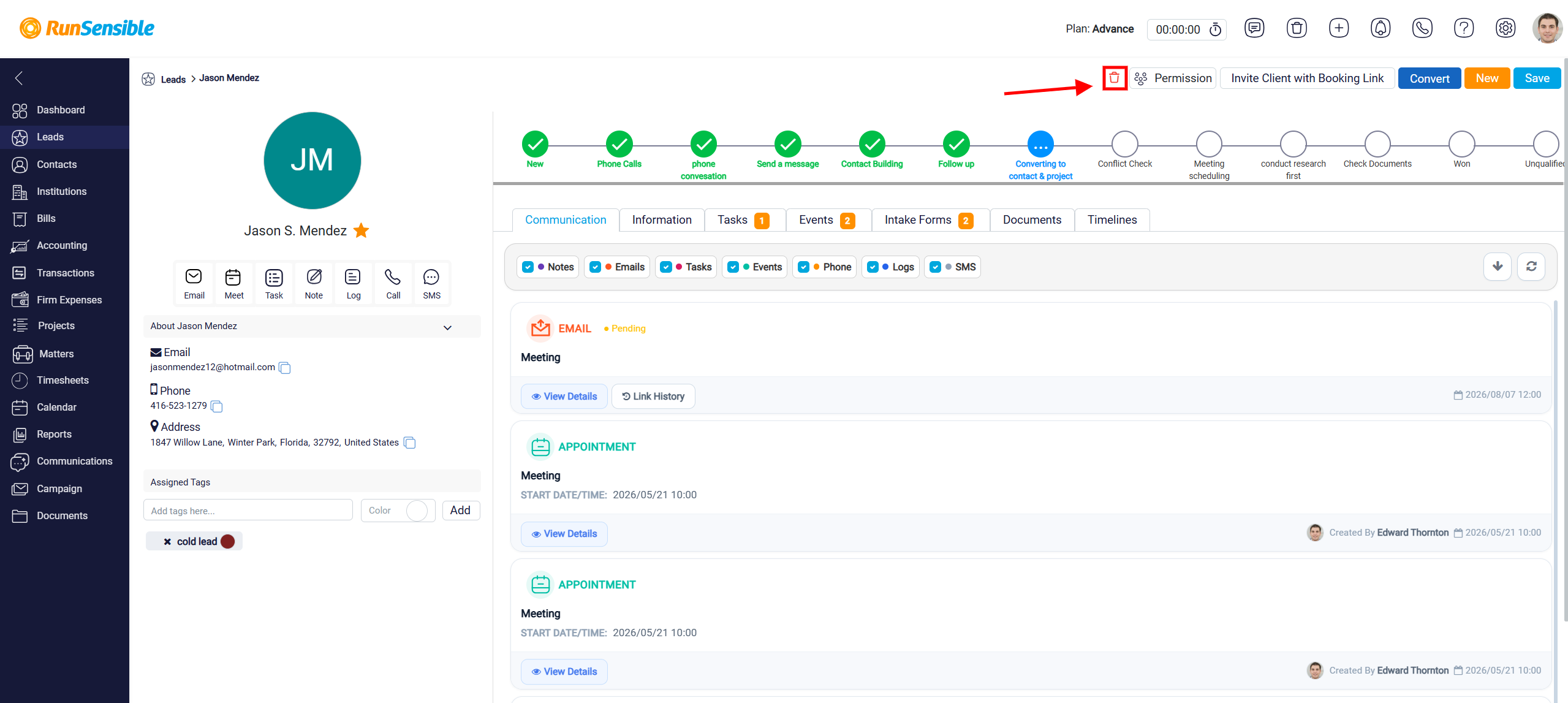
Delete Lead
The trash button is used to delete the lead from the system. This should be used only when the lead record is no longer needed, because deleting the lead removes it from the lead list.
Lead Pipeline
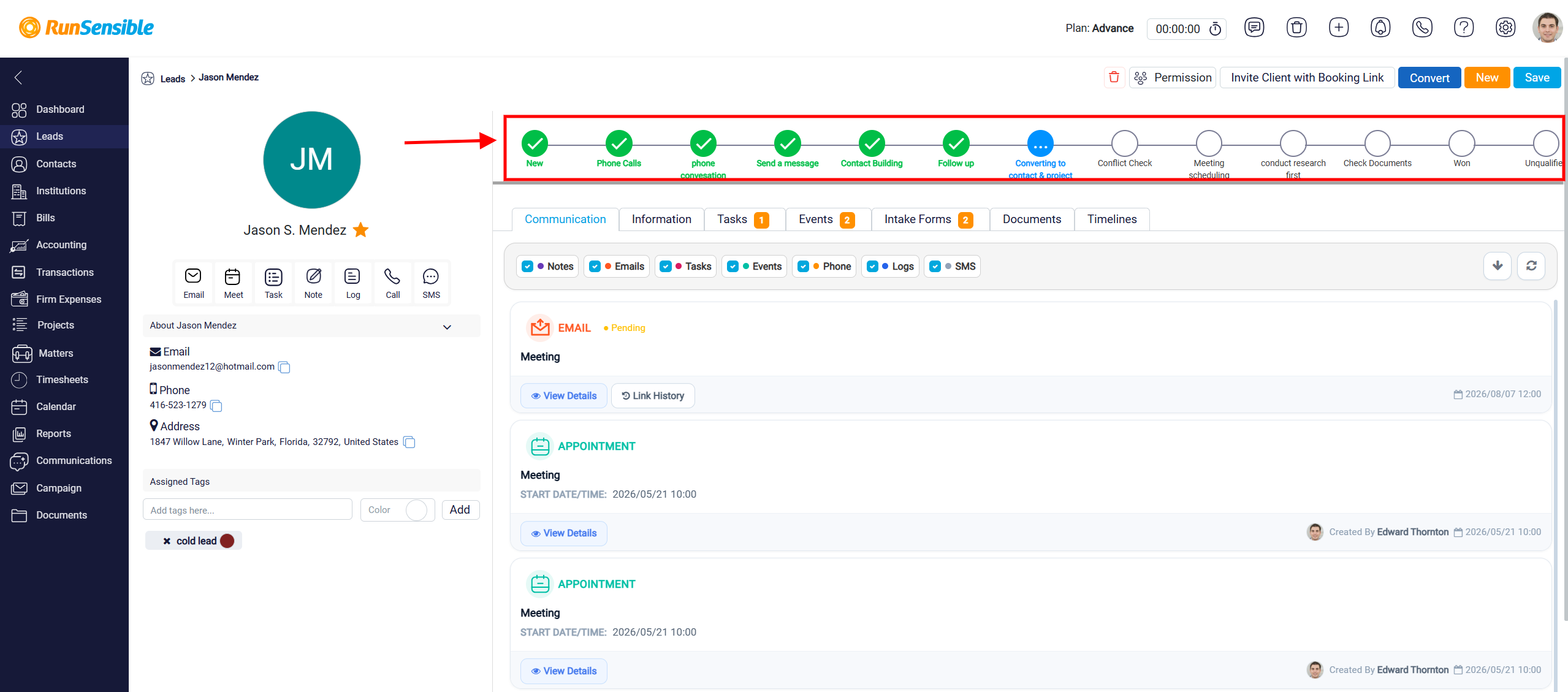
The pipeline at the top of the lead detail page shows the lead’s current position in the lead conversion process. Each circle represents one status or step in the pipeline, such as New, Phone calls, Follow up, Won, or Unqualified. The highlighted circle shows the lead’s current status.
The user can update the lead’s status directly from the pipeline by clicking another step. For example, if the lead has moved from New to Follow up, the user can click the Follow up status to move the lead forward. This allows the user to update the lead’s progress without returning to the lead list or editing the full lead form.
Some pipeline statuses trigger additional panels. If the lead is moved to Won, the system opens the conversion panel so the user can convert the lead into a contact or connect it to an institute. If the lead is moved to Unqualified, the system opens the disqualification panel so the user can select a reason and add a description. After the disqualification is saved, the lead is archived.
To learn how to customize lead pipeline in RunSensible, please visit Lead Status.