
Adding a Document Request to a Matter
The Document Requests tab is used to request documents from the client connected to a matter. This tab allows you to send a document request form to the client through the client portal, so the client can review the request, upload the required files, and submit the completed request back to the firm. The submitted documents are then saved in the system and remain connected to the matter.
Before using this tab, the client of the matter must have an active client portal. If the client does not have an active portal and you try to add a document request, the system may show an error. This is because document requests are completed through the client portal, so the portal must exist before the client can receive and manage the request.
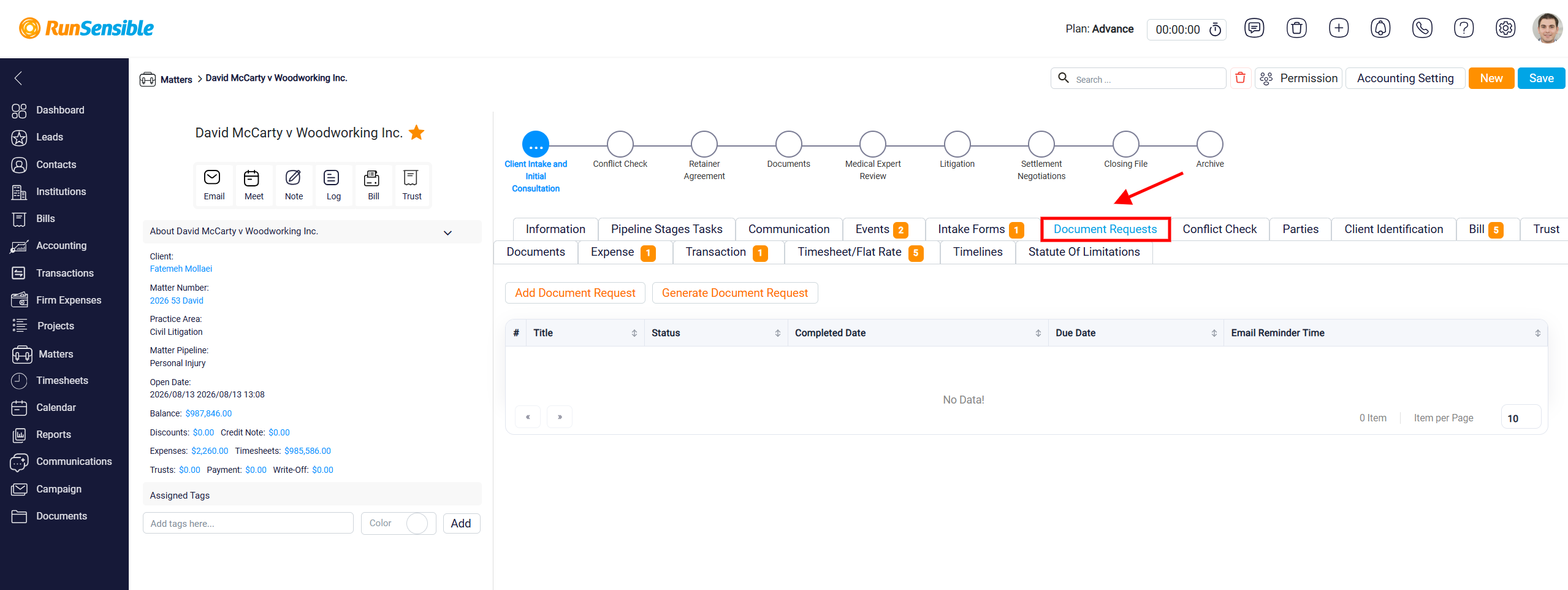
Adding a Document Request to a Matter
To create a document request for a matter, open the matter’s Document Requests tab. In this tab, you can see all document requests that have already been created or added to the matter. Each request is shown in a table so you can review its title, status, completed date, due date, and reminder information.
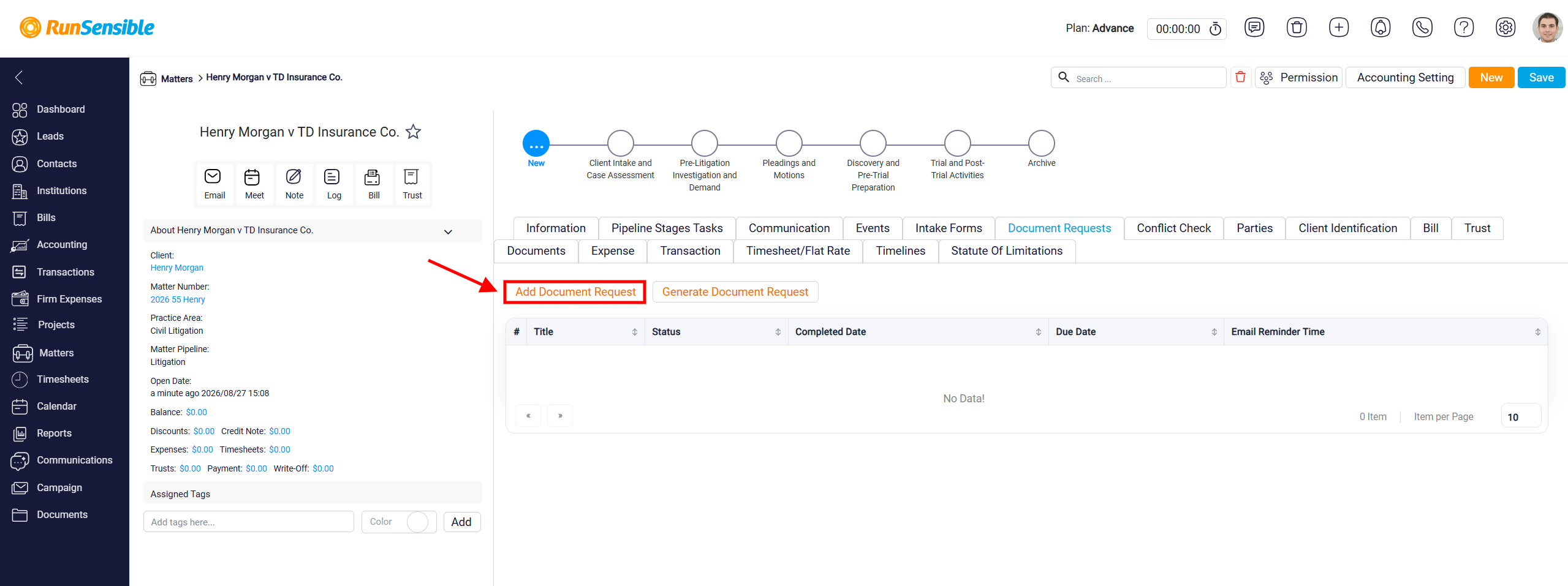
To attach an existing document request form to the matter, click Add Document Request.
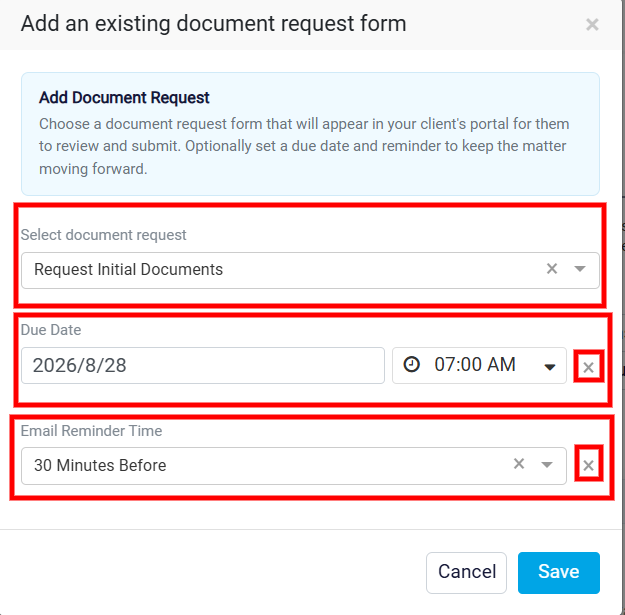
The Add an existing document request form panel opens. This panel allows you to choose a document request form that will appear in the client’s portal. The client can then review the request, upload the required documents, and submit the completed request from their portal.
In the Select document request field, choose the document request form you want to send or assign to the matter. This dropdown shows document request forms that have already been created in the system.
The Due Date section is used to set the deadline for the document request. It includes a Date field and a Time field. The date field sets the day the request is due, and the time field sets the exact time on that day. If you do not want to set a due date, you can remove it by clicking the x beside the due date area.
The Email Reminder Time field controls when the client should receive a reminder before the due date. When you open this dropdown, you can choose options such as 15 Minutes Before, 30 Minutes Before, 1 Hour Before, 2 Hours Before, or other available reminder times. This helps remind the client before the document request becomes due.
After selecting the document request form, setting the due date if needed, and choosing the reminder time if needed, Save the panel. Once saved, the document request is connected to the matter and becomes available to the client through the client portal.
Client Submission
After the document request is available in the portal, the client can open it, upload the requested documents, and submit the request. Once submitted, the completed request is saved in the matter’s Document Requests tab. The uploaded documents are also saved in the Documents tab.
In the Documents tab, the uploaded files are stored under a folder named after the document request. This makes it easier to find the files later because the uploaded documents are grouped under the request they belong to.
Creating a Document Request Form
If the existing document request forms do not meet your needs, you can create a new one from the matter’s Document Requests tab by clicking Generate Document Request.
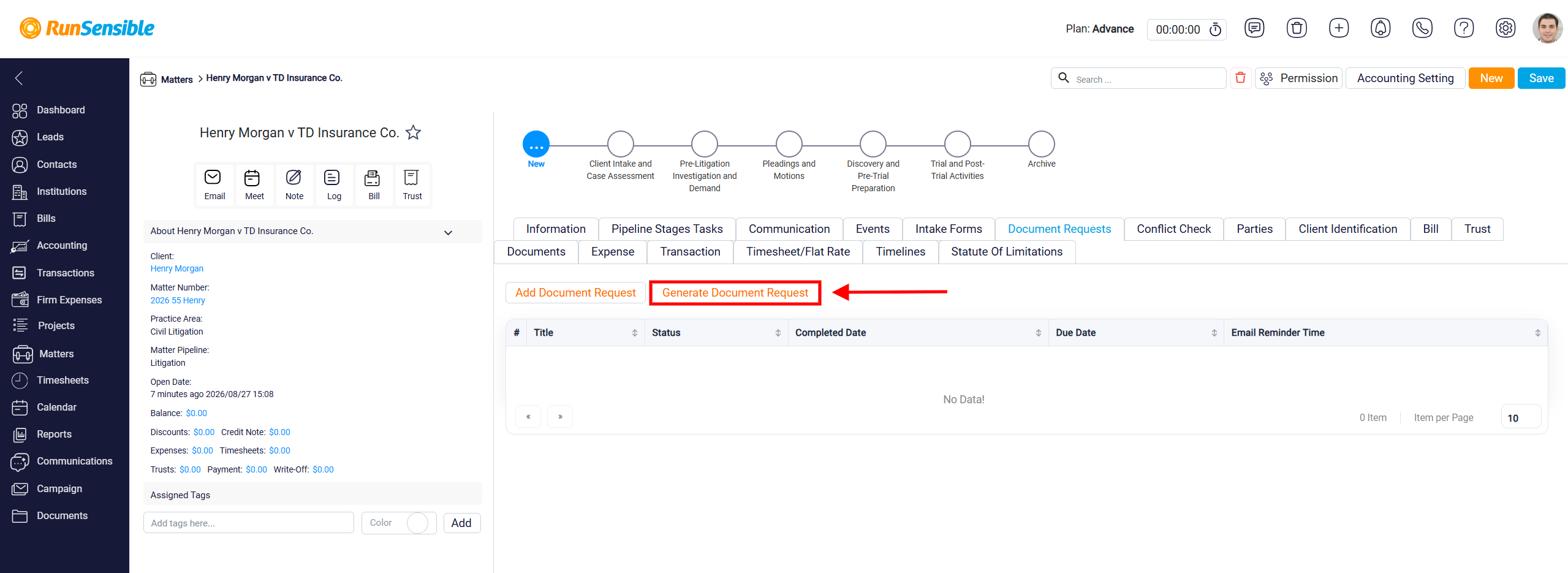
This opens a form builder that works similarly to the intake form builder, but it is designed specifically for requesting documents from the client.
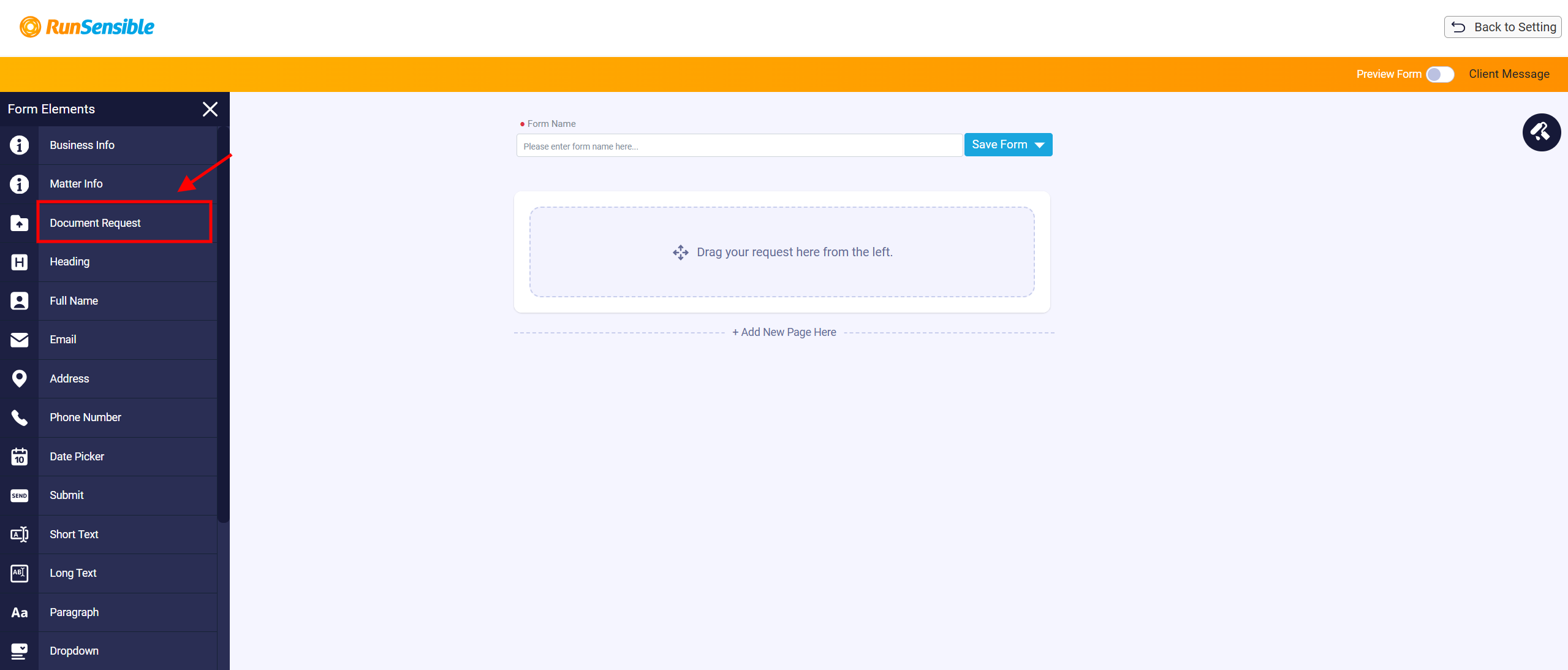
The document request builder uses drag-and-drop elements. You can add instructions, text sections, upload areas, and other fields to guide the client through the request.
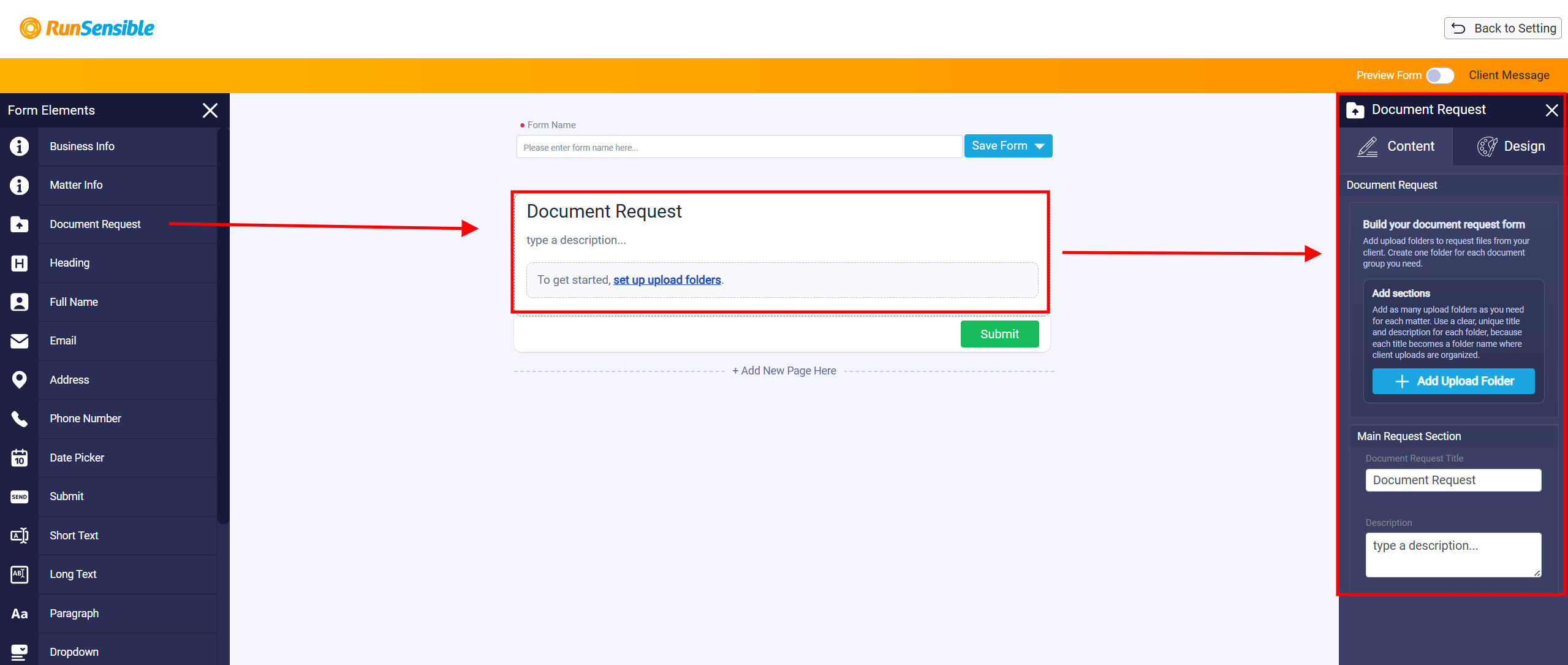
Although it works similarly to an intake form, there are two important differences. The first difference is the Matter Info element. This element displays information that already exists in the matter record. It does not ask the client to enter new information. Instead, it shows matter details such as the matter name, matter number, court file number, assigned attorney, matter date, limitation date, and matter description.
The Matter Info element uses placeholders, such as {MatterName}, {MatterNumber}, and {AssignedAttorney}. When the document request is connected to a real matter, the system replaces these placeholders with the actual information from that matter. This helps confirm that the request is connected to the correct matter.
The second difference is how uploaded files are saved. In an intake form, uploaded files remain part of the intake form submission. In a document request form, uploaded files are treated as requested documents. When the client submits the request, the uploaded files are automatically saved in the matter’s Documents tab.
The submitted files are stored inside a folder named after the document request. This keeps the uploaded documents organized and makes them easier to find later from the matter record.
Document Request List
The Document Requests tab shows all document request forms connected to the matter. Each request appears as a row in the table. This allows you to quickly see what has been requested from the client and whether the request has been completed.
The Title column shows the name of the document request. The Status column shows whether the request is Completed or Incomplete. If the client has submitted the required documents or completed the request, the status can appear as Completed. If the client has not finished the request, the status appears as Incomplete.
The Completed Date column shows the date when the client completed and submitted the request. The Due Date column shows the deadline, if one was set.
The Email Reminder Time column shows when the reminder email will be sent before the due date.
Viewing a Document Request
Each request row includes a View option. When you open a request, the system displays the full document request form. This preview can show the firm information, matter information, and the document request section where the client uploads or submits the required files.
If the request has already been completed, you can also access the submitted documents from this view. The view panel may also include options to print or download the form. This is useful when you need a saved or physical copy of the request and the submitted information.
Editing and Removing a Document Request
Each request row also includes an Edit option. This opens the edit panel for that document request. From there, you can update the title, add or change the due date, and add or change the email reminder time. This is useful if the deadline changes or if you want to adjust when the client receives a reminder.
There is also a delete icon beside each request. This is used to remove a document request from the matter if it was added by mistake or is no longer needed. Deleting the request removes it from the matter’s Document Requests tab, so it should only be used when the request is no longer required.