
Accessing Client Profiles from Board View
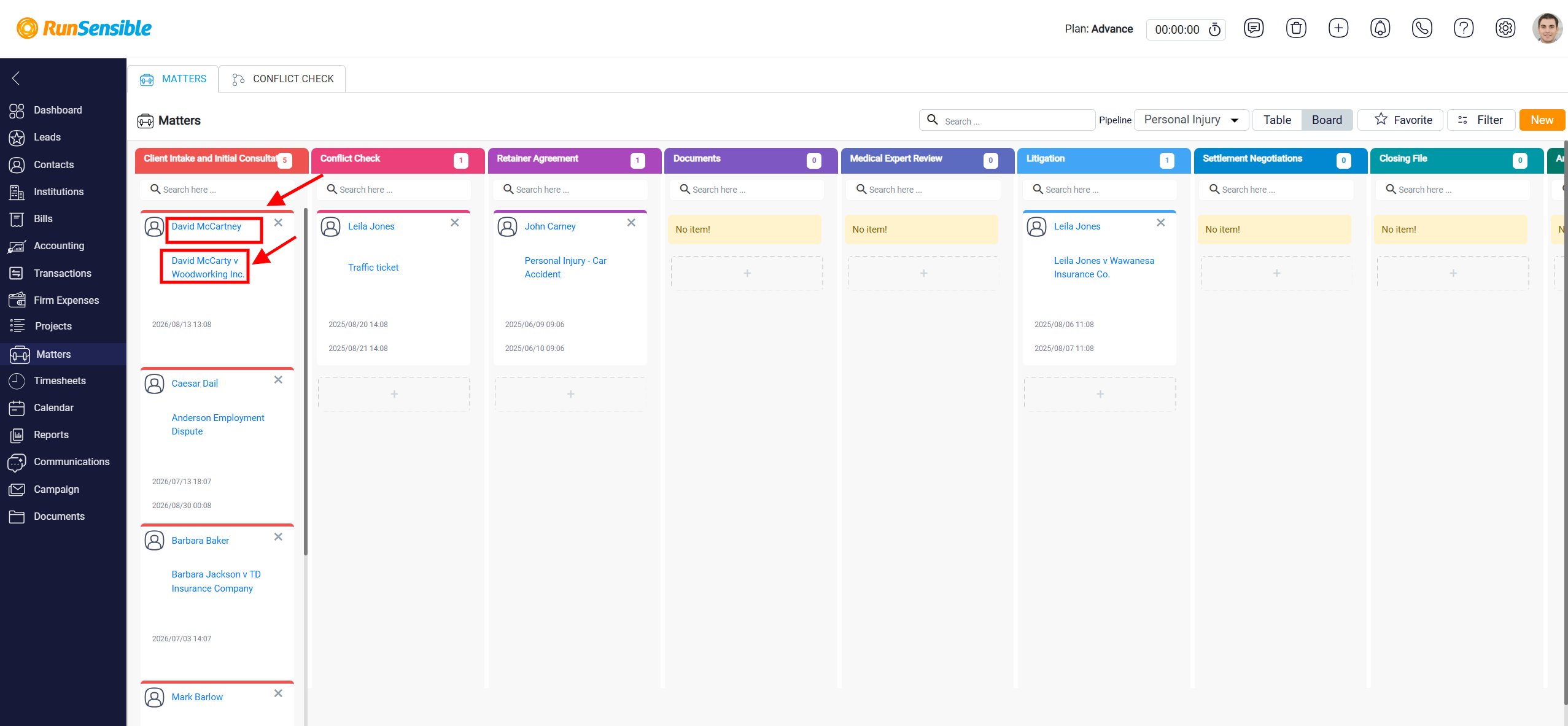
In Board View, each matter appears as a card inside the pipeline stage column. The card provides quick access to both the client profile and the matter details without needing to leave the board. At the top of the matter card, the client’s name appears as a clickable hyperlink. Clicking the client name opens the client’s profile in the Contacts section, where you can review detailed information related to the client, such as contact information and associated records.
Below the client name, the matter name is also displayed as a clickable hyperlink. Clicking the matter name opens the Matter Details panel, where you can review and manage all information related to the matter. The matter card may also display additional information such as the matter date, helping users quickly identify the matter while reviewing the pipeline.
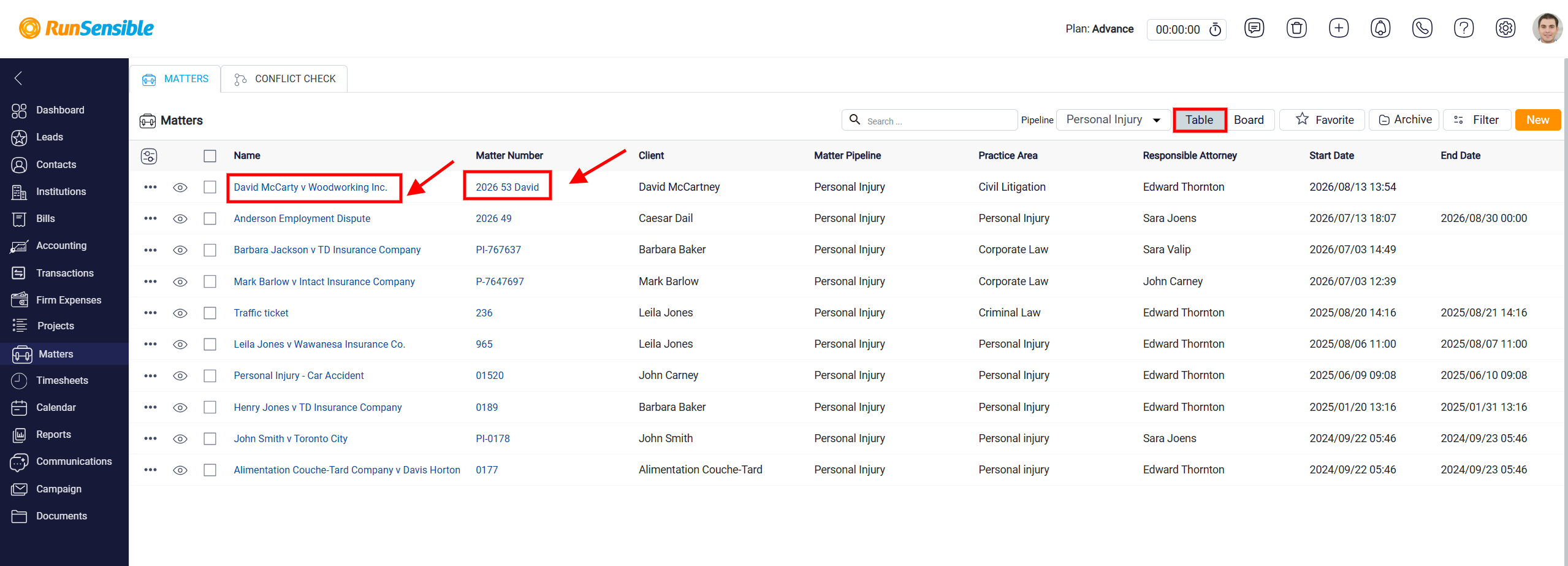
You can also access the Matter Details panel from Table View mode. In the matters table, both the Matter Name and the Matter Number are displayed as clickable hyperlinks. Clicking either of these links opens the Matter Details panel for the selected matter.
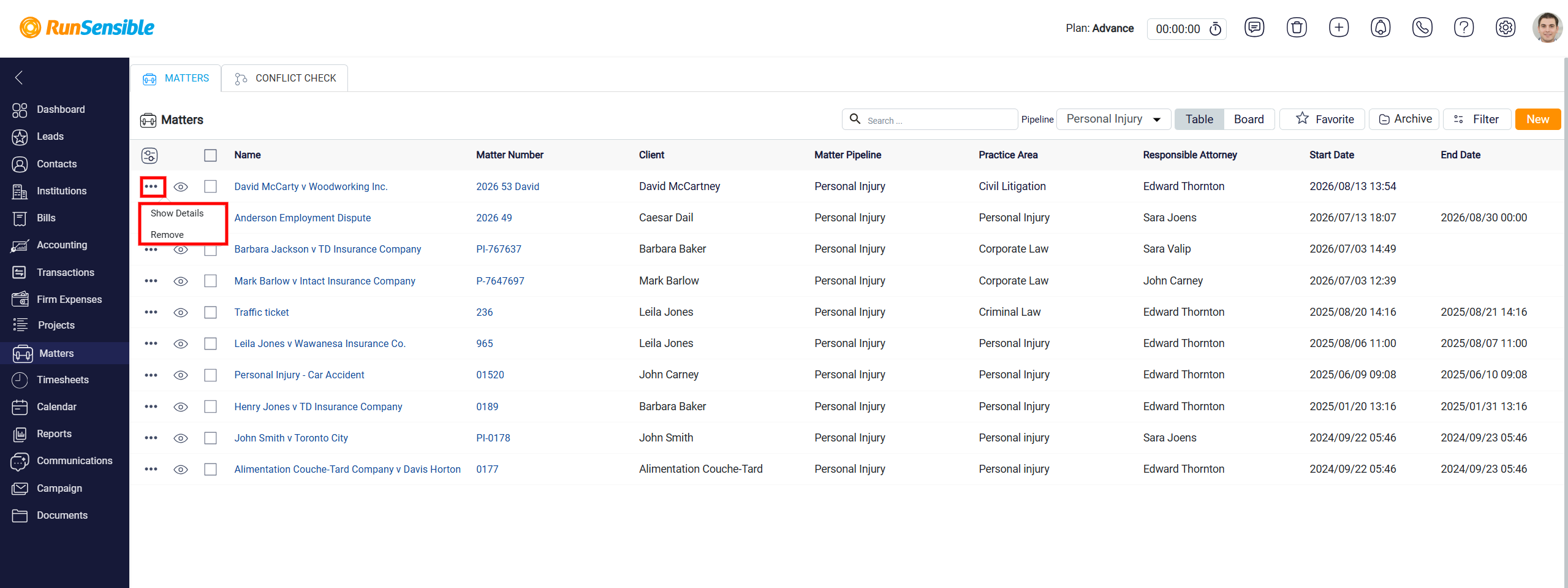
Another way to open the Matter Details panel in Table View is through the three-dot menu located beside each matter row. Clicking this menu opens a small action menu with options such as Show Details and Remove. Selecting Show Details opens the Matter Details panel for that matter.
When the Matter Details panel opens, it is divided into two main sections. The left side contains actions and management options related to the matter, allowing users to manage different parts of the case directly from the panel.