Setting Bill Reminders for Clients
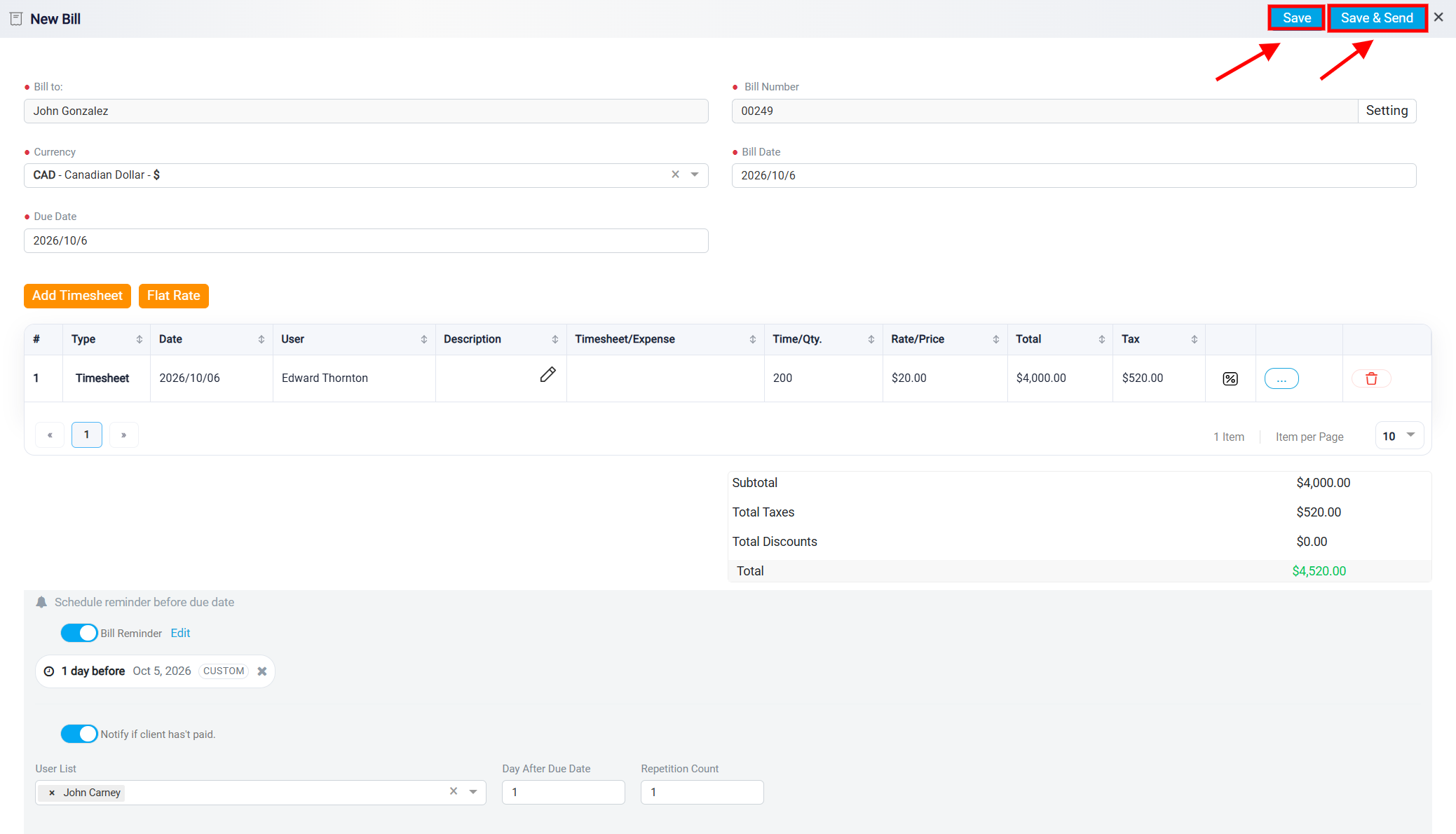
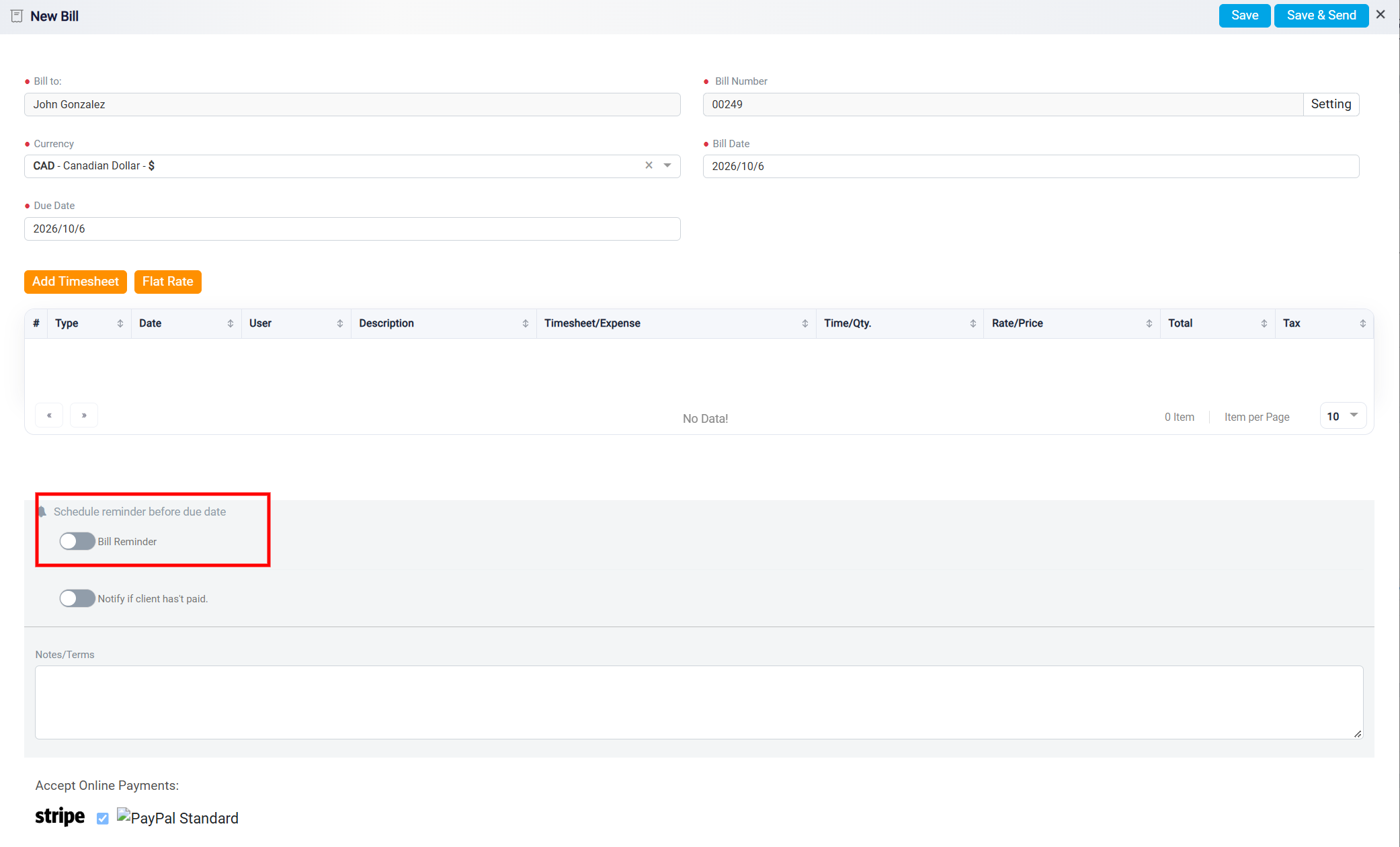
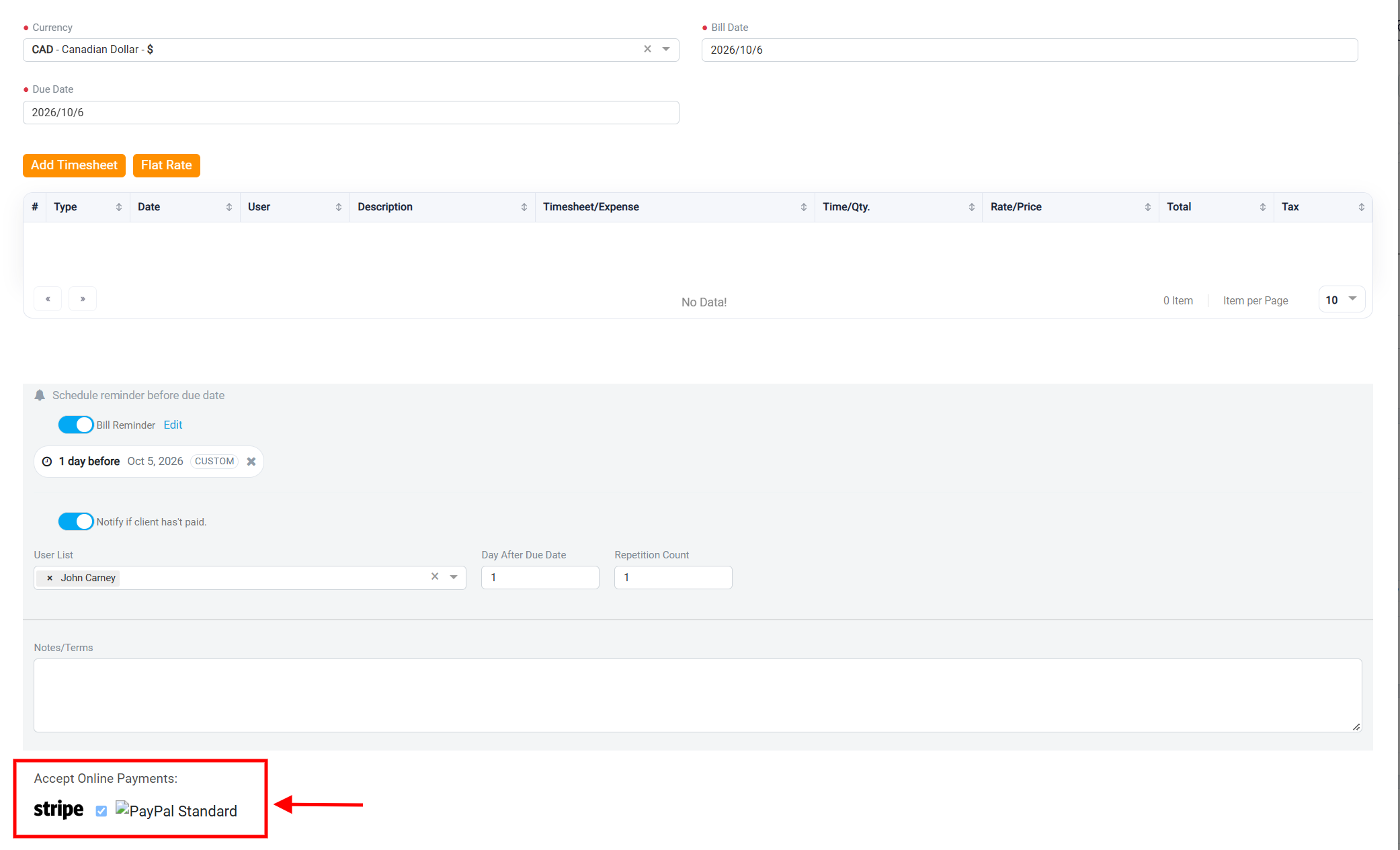
The Bill Reminder section controls whether the client receives reminders before the bill due date. When the Bill Reminder toggle is turned on, the system will send reminder notifications according to the reminder schedule you set. When this toggle is turned off, no automatic reminder will be sent to the client, and any follow-up about payment must be handled manually.
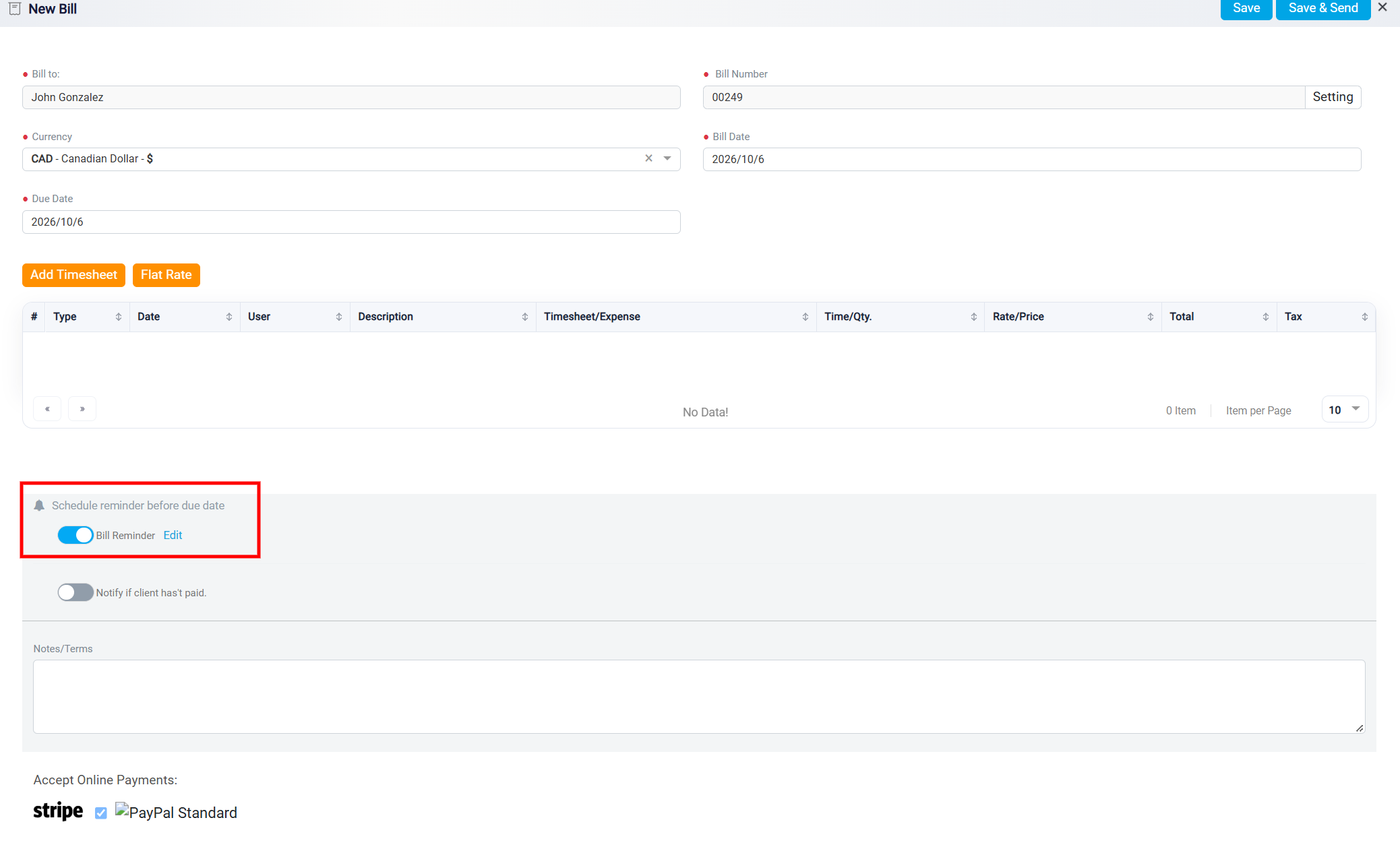
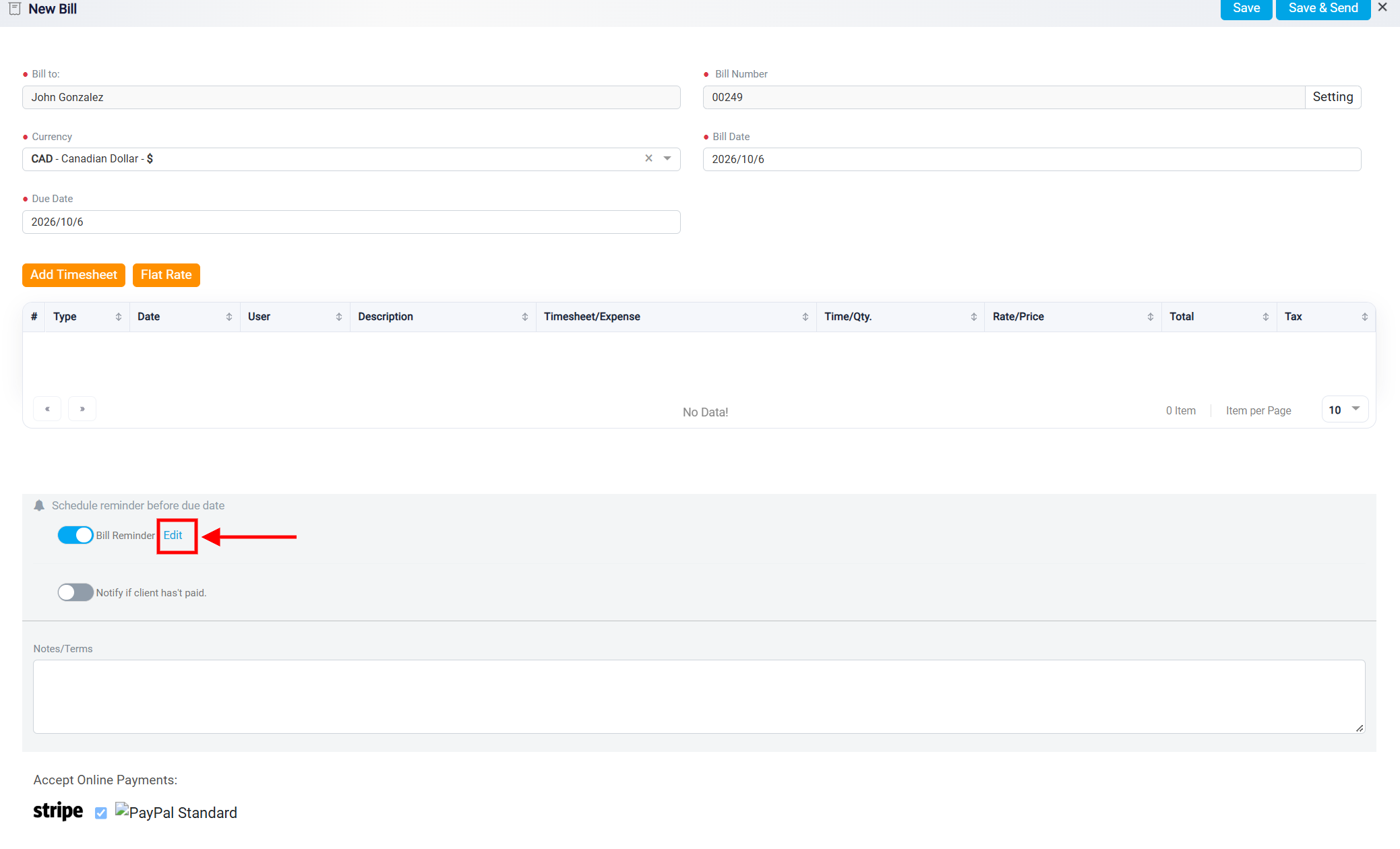
By default, the system may already have a reminder schedule set, such as sending a reminder before the due date. To change when reminders are sent, click the Edit button beside the Bill Reminder toggle. This opens the reminder settings panel, where you can choose when the client should be reminded.
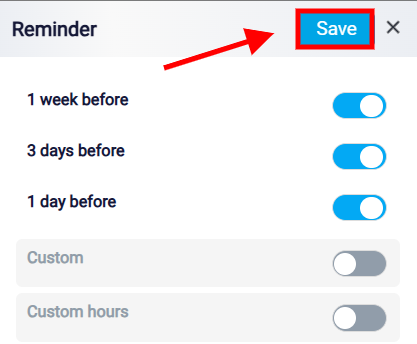
Inside the Reminder settings panel, you can turn preset reminder options on or off. These options may include reminders such as 1 week before, 3 days before, or 1 day before the bill due date. If a preset toggle is turned on, the system will send a reminder at that time. If a preset toggle is turned off, the system will not send a reminder for that specific time.
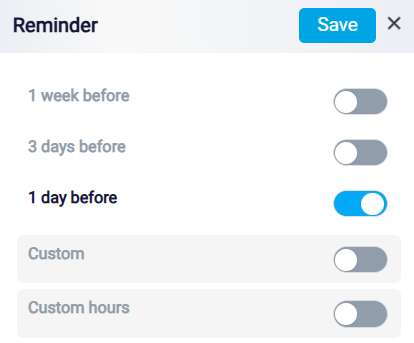
You can turn on more than one reminder option if you want the client to receive multiple reminders before the bill is due. For example, you may choose to send one reminder one week before the due date and another reminder one day before the due date. After adjusting the reminder settings, click Save to apply the changes.
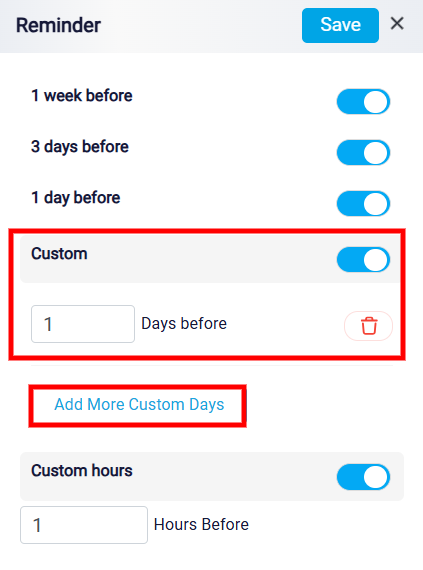
If the preset reminder options do not match your needs, you can use the Custom reminder option. When the Custom toggle is turned on, the system allows you to enter the exact number of days before the bill due date when the reminder should be sent. If the Custom toggle is turned off, the custom day fields are not used. You can also add more than one custom reminder by clicking Add More Custom Days. This allows you to create multiple reminder points based on the number of days before the due date.
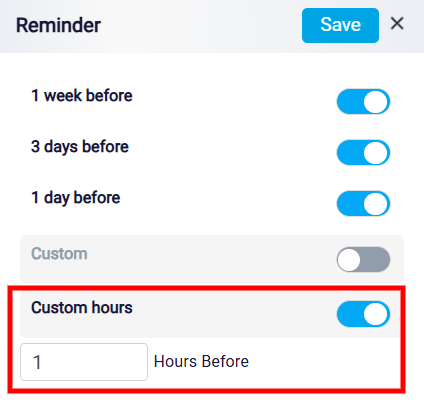
If the system also provides a Custom Hours option, turning that toggle on allows you to set reminders based on hours before the due date instead of days. If it is turned off, no hour-based reminder will be used.
Additionally, if you prefer that no reminders be sent to the client, you can toggle off the Bill Reminder button. This will prevent any notification from being sent, allowing you to manage reminders manually or through other means.
Unpaid Bill Notification
The Notify if client hasn’t paid toggle is used to notify a specific user if the client does not pay the bill by the due date. When this toggle is turned on, the system allows you to choose which user should be notified. This is helpful when someone in the firm needs to follow up after a missed payment.
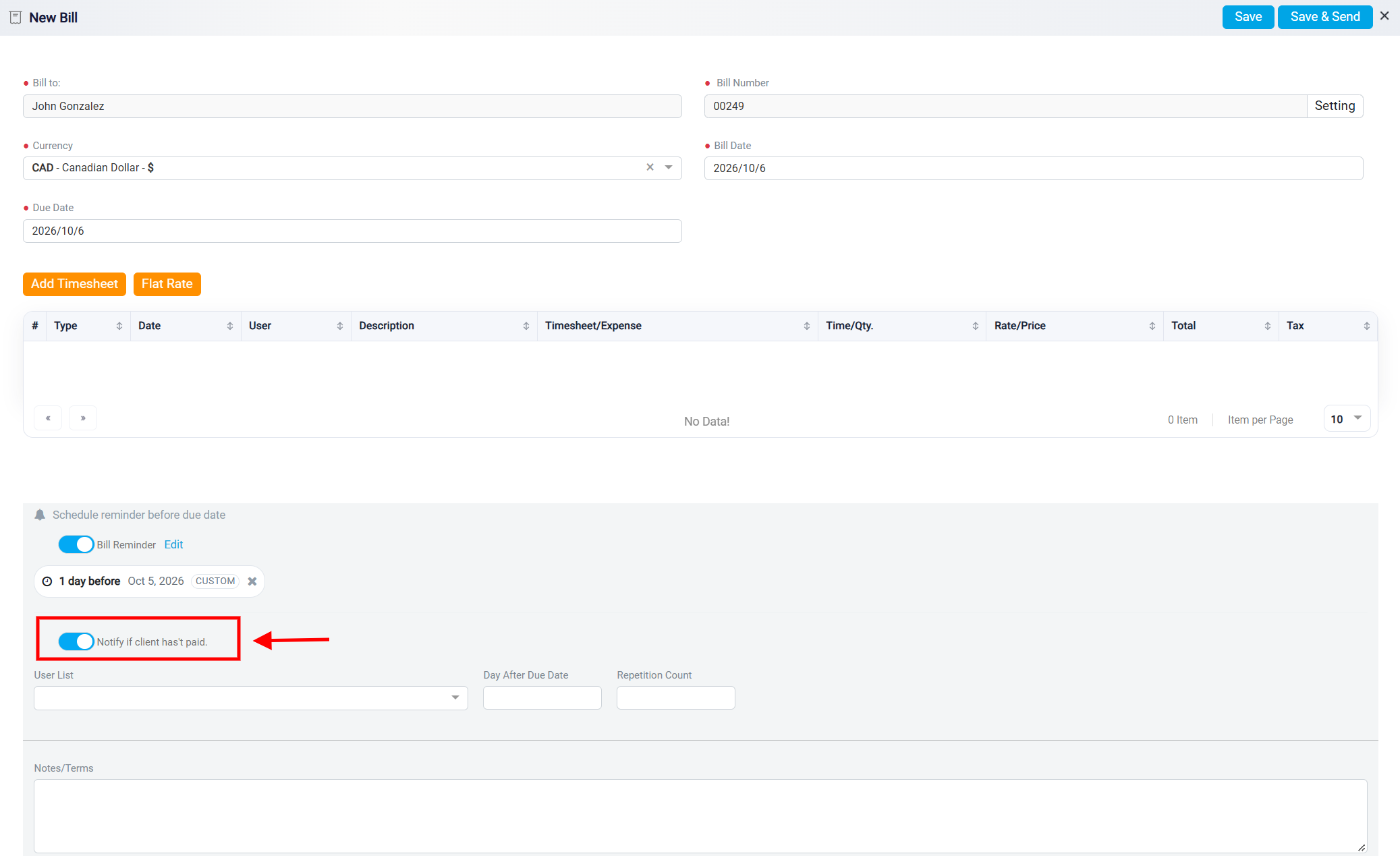
When setting this notification, you can select the user from the user list dropdown.
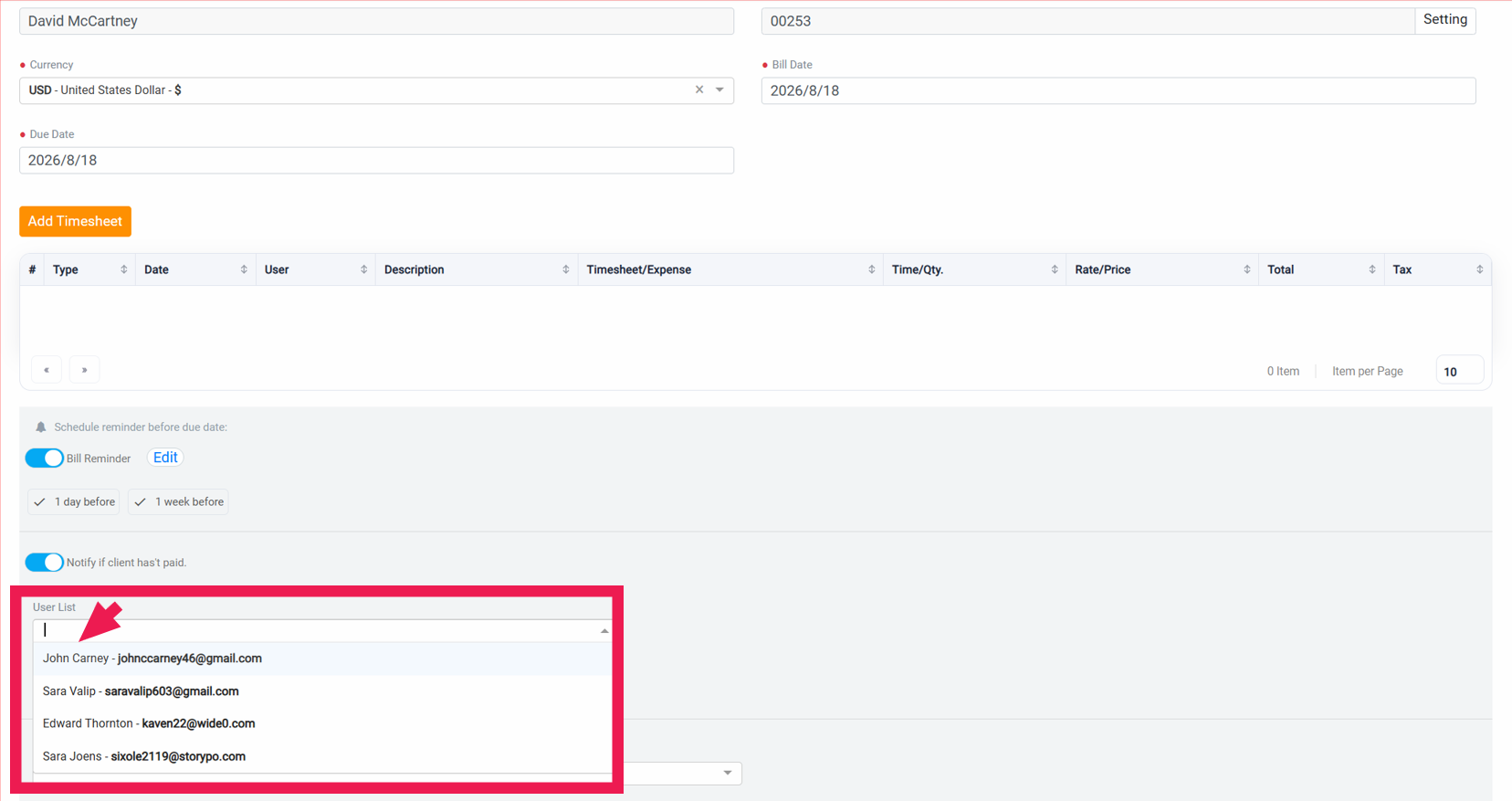
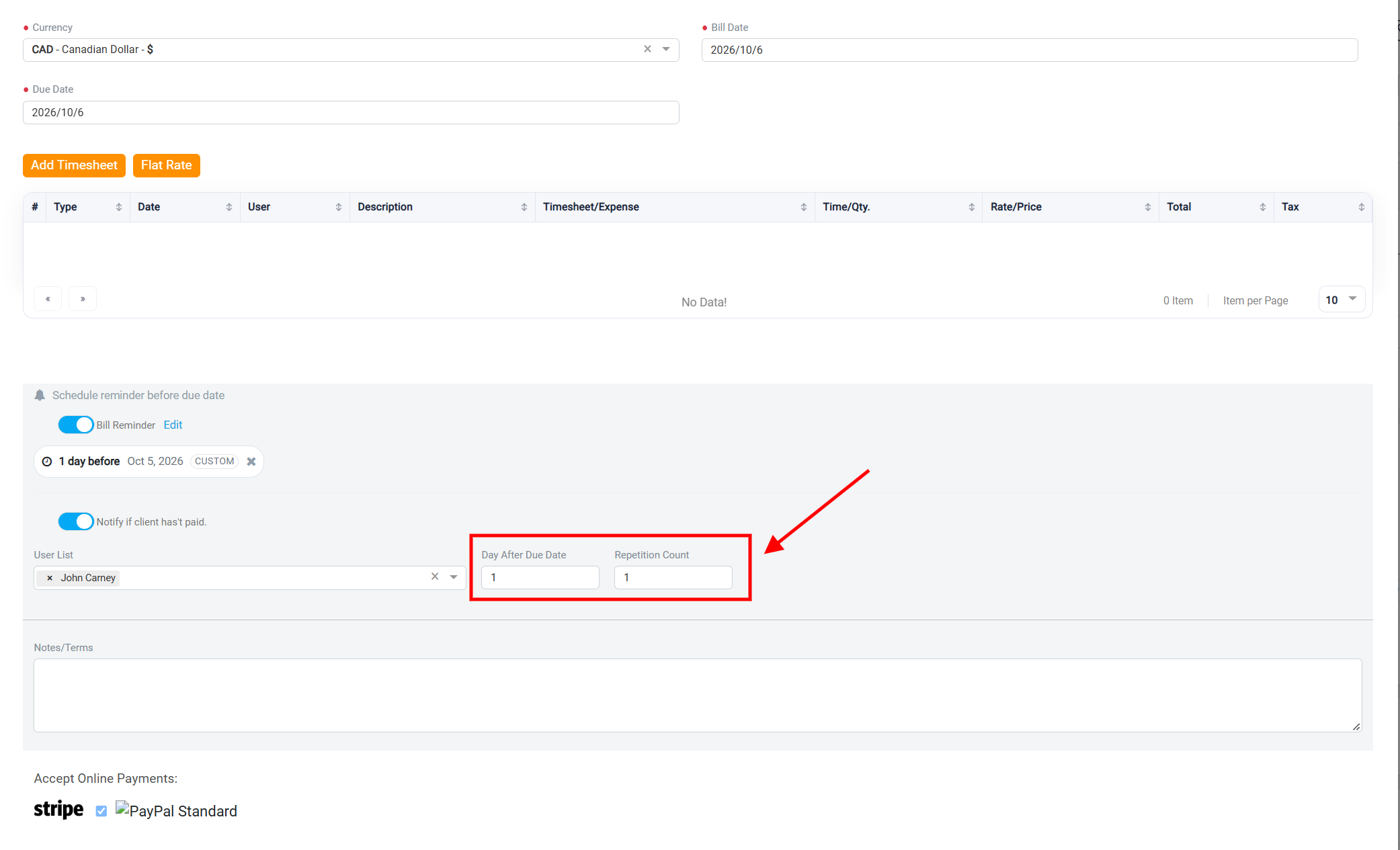
Next, in the Days After Due Date box, enter the number of days after the bill’s due date when you want the user to be notified. This feature allows you to set a specific time frame for when the notification should be triggered.
You can use the Repetition Count box to specify how many times the client must miss the payment due date before the user is notified. For instance, rather than notifying the user immediately after the first missed payment, you can set this feature to inform the user only after the client has missed multiple payment deadlines.
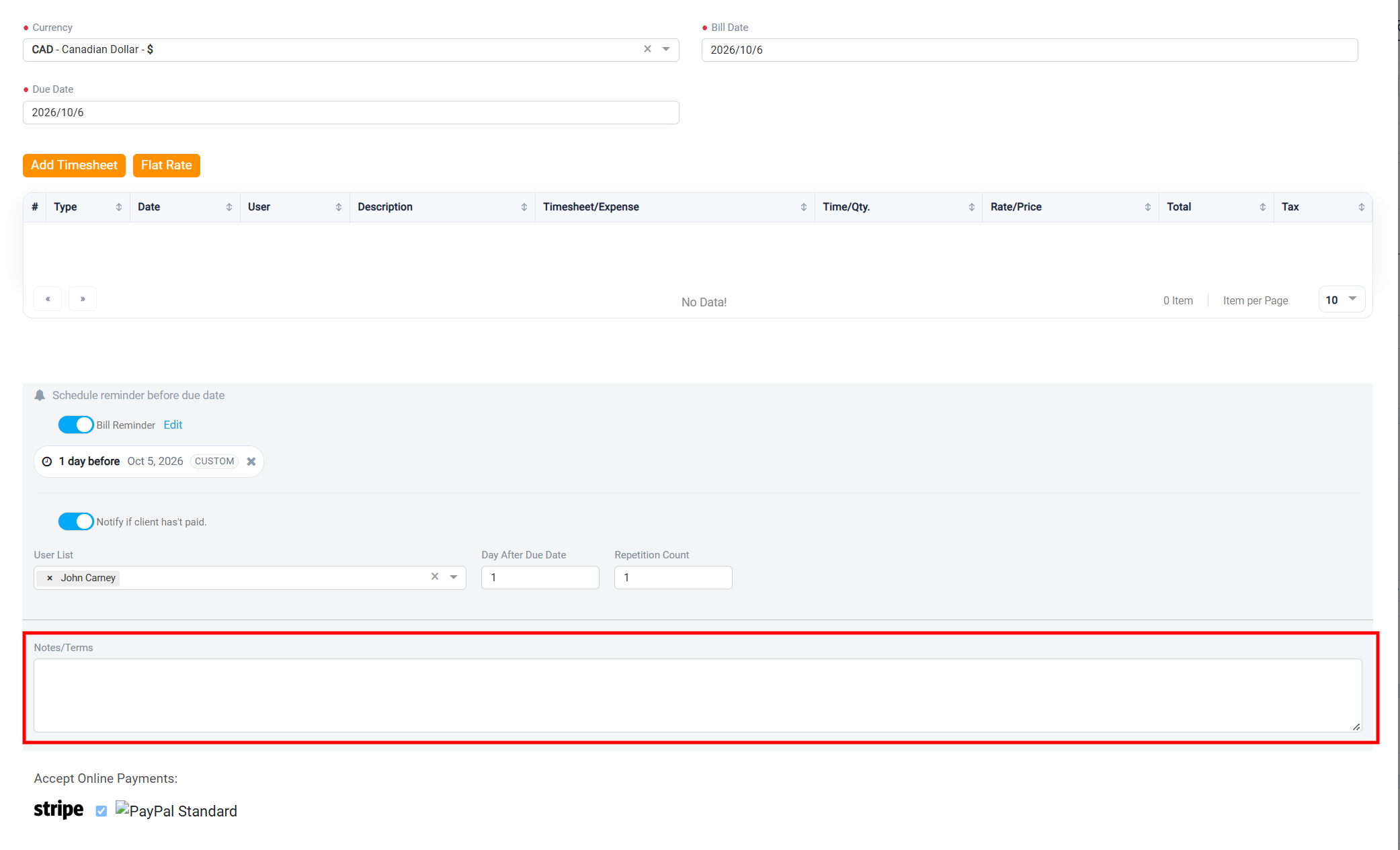
In the Note/Terms box, you can input any explanations, additional information, or specific terms related to the bill. This is where you can clarify payment conditions, provide detailed instructions, or include any other pertinent details that the client should be aware of.
At the bottom of the panel, you will see the Payment Gateways integrated into your system. If you have multiple gateways available, you can choose the one you wish to use for processing this particular bill. This selection allows you to manage how payments are received, ensuring that they are routed through the preferred gateway.
Once you have entered all the details, click the Save or Save & Send button located at the top of your screen to finalize your entry. Select Save to keep the bill without sending it, or Save & Send to save the bill and email it to the recipient.