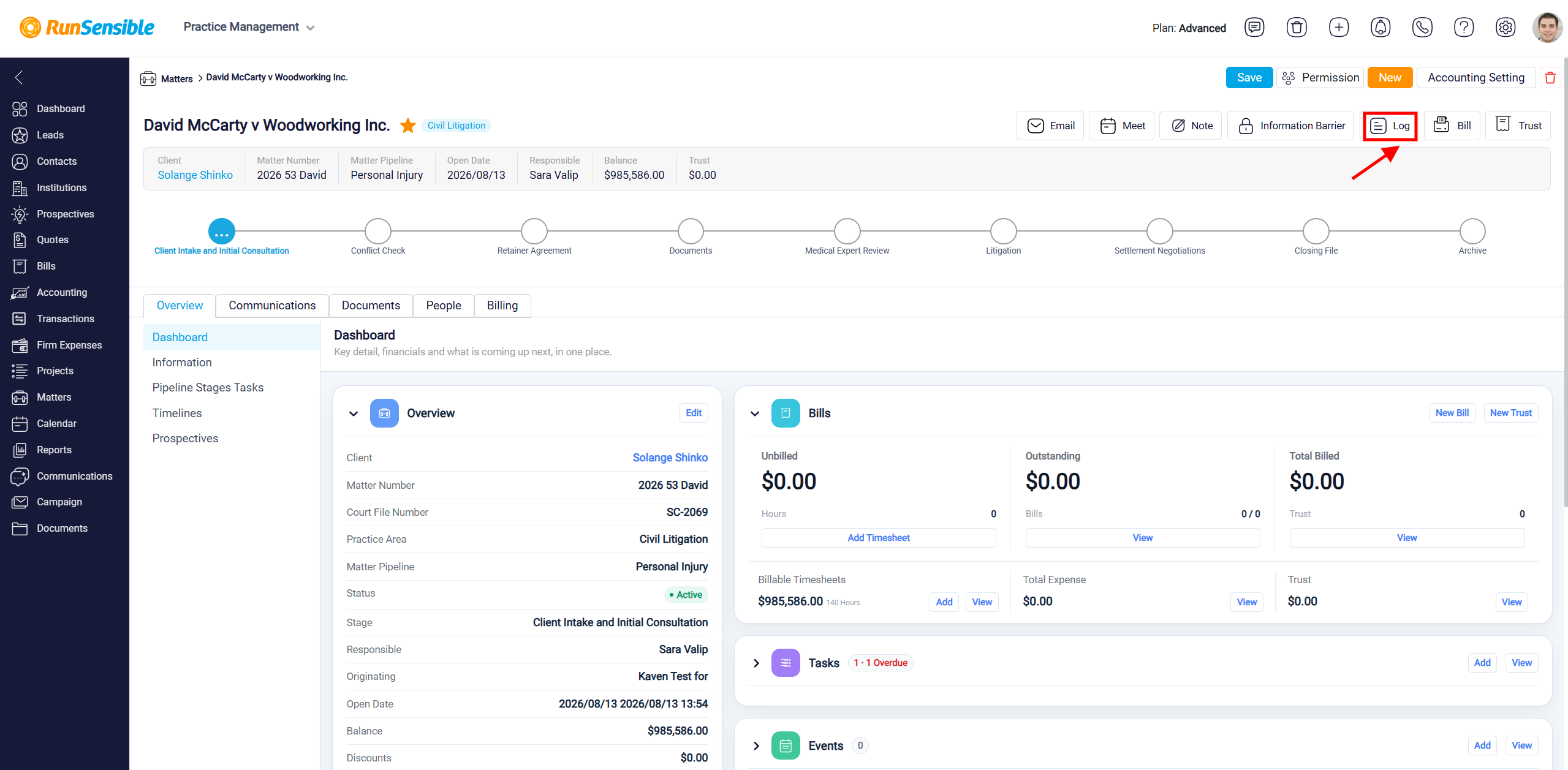
Adding Logs for External Actions
The Log button is used to record actions or events that happened outside the software but should still be saved in the system. This helps keep a complete history of important matter-related activity, even when the activity did not take place directly inside the platform.
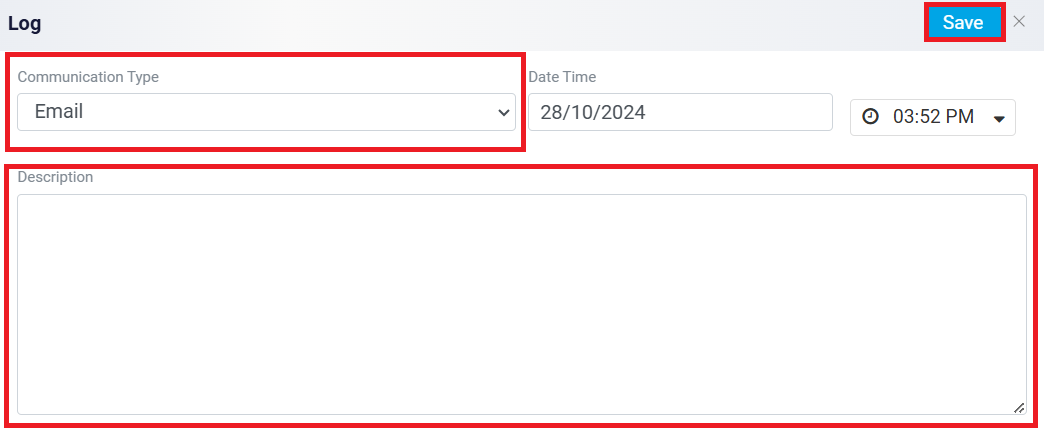
When you click the Log button, a panel opens where you can enter the details of the activity. First, select the type of action from the Communication Type dropdown. This identifies what kind of interaction or event you are recording. Then enter the correct Date and Time so the log accurately reflects when the activity happened.
If more information is needed, use the Description box to explain the details of the activity. This can include what happened, who was involved, and any important notes related to the matter.
After completing the fields, click Save in the top-right corner of the panel. The log will be saved in the system and can be found later in the Communication tab of the related matter.
To learn how to create a log, please visit Creating a Log in RunSensible.
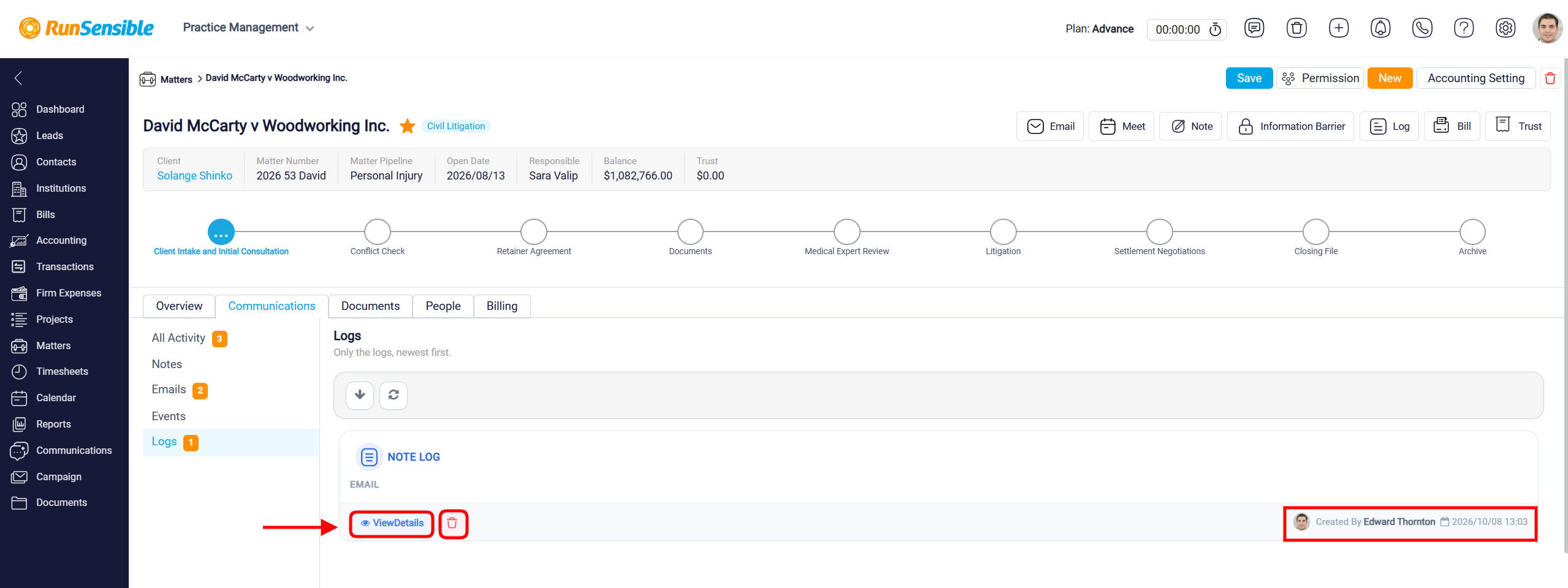
To view the logs, select the Communications tab, then click Logs from the left-hand menu. This section displays all logs recorded for the selected matter, with the newest entries appearing first.
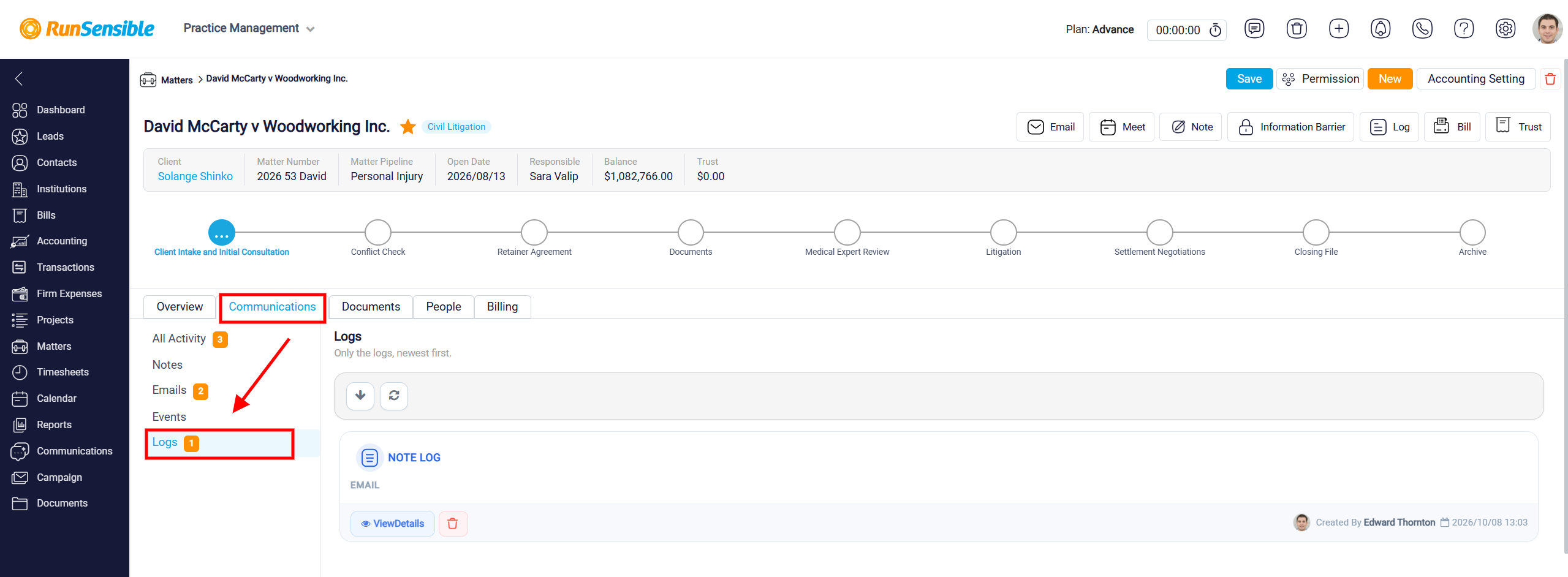
Each log entry displays its title and communication type, making it easier to identify the recorded activity. At the bottom of each log, you can see the name of the user who created it, along with the date and time it was recorded. This information helps you track communication history and identify who added each entry.
To review a log, click the View Details button located at the bottom of the entry. This allows you to access additional information about the recorded activity. If you need to remove a log, click the Trash icon next to the View Details button. Make sure you have selected the correct log before deleting it.
At the top of the Logs section, you can also use the Download button to export the available log records or click the Refresh button to update the list and display the latest information. These options help you keep track of recorded communications and maintain an organized history of activities related to each matter.