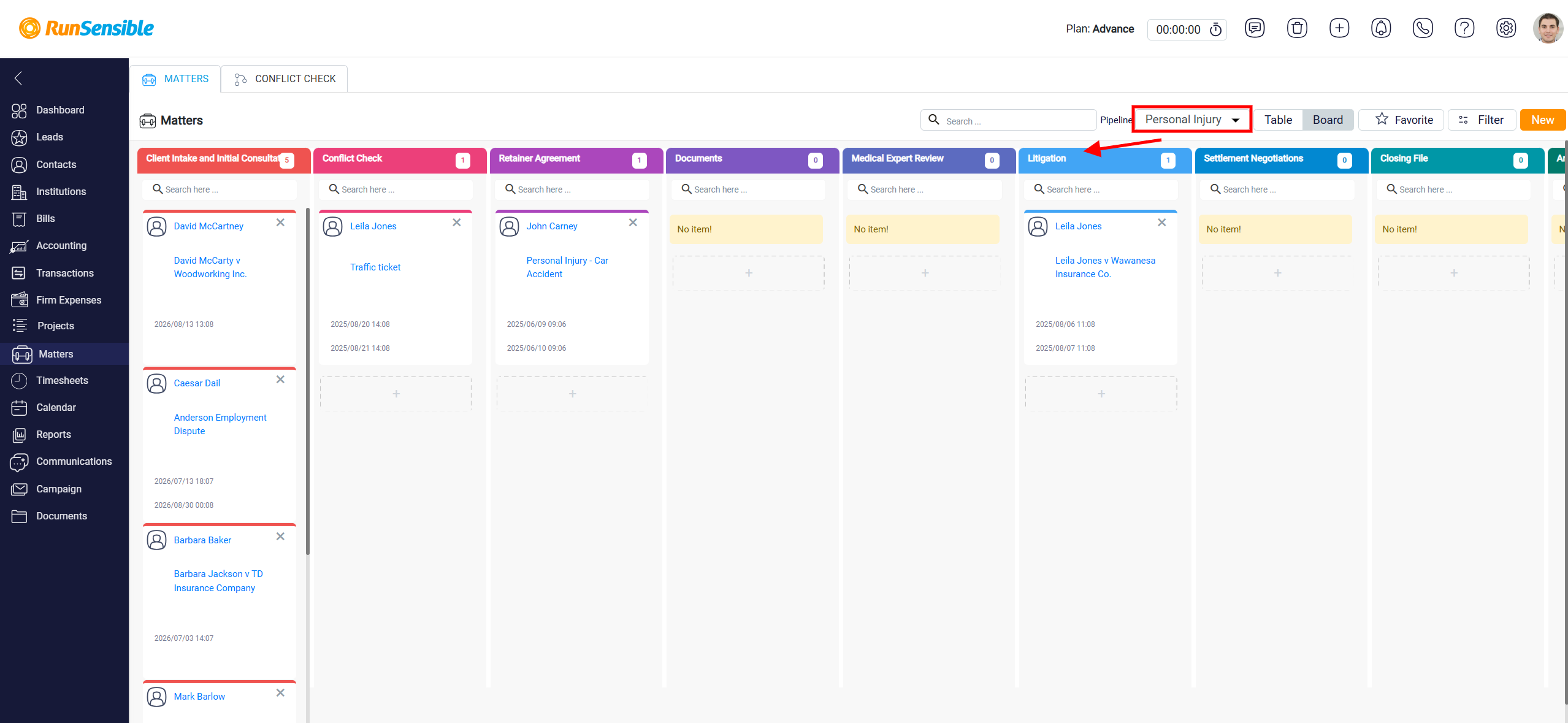
How to Switch to Board View
You can switch from Table View to Board View when you want to manage matters based on their pipeline status. Board View displays matters as cards arranged under columns. Each column represents a stage or status within the selected pipeline. This layout helps you see where each matter currently stands in the workflow.
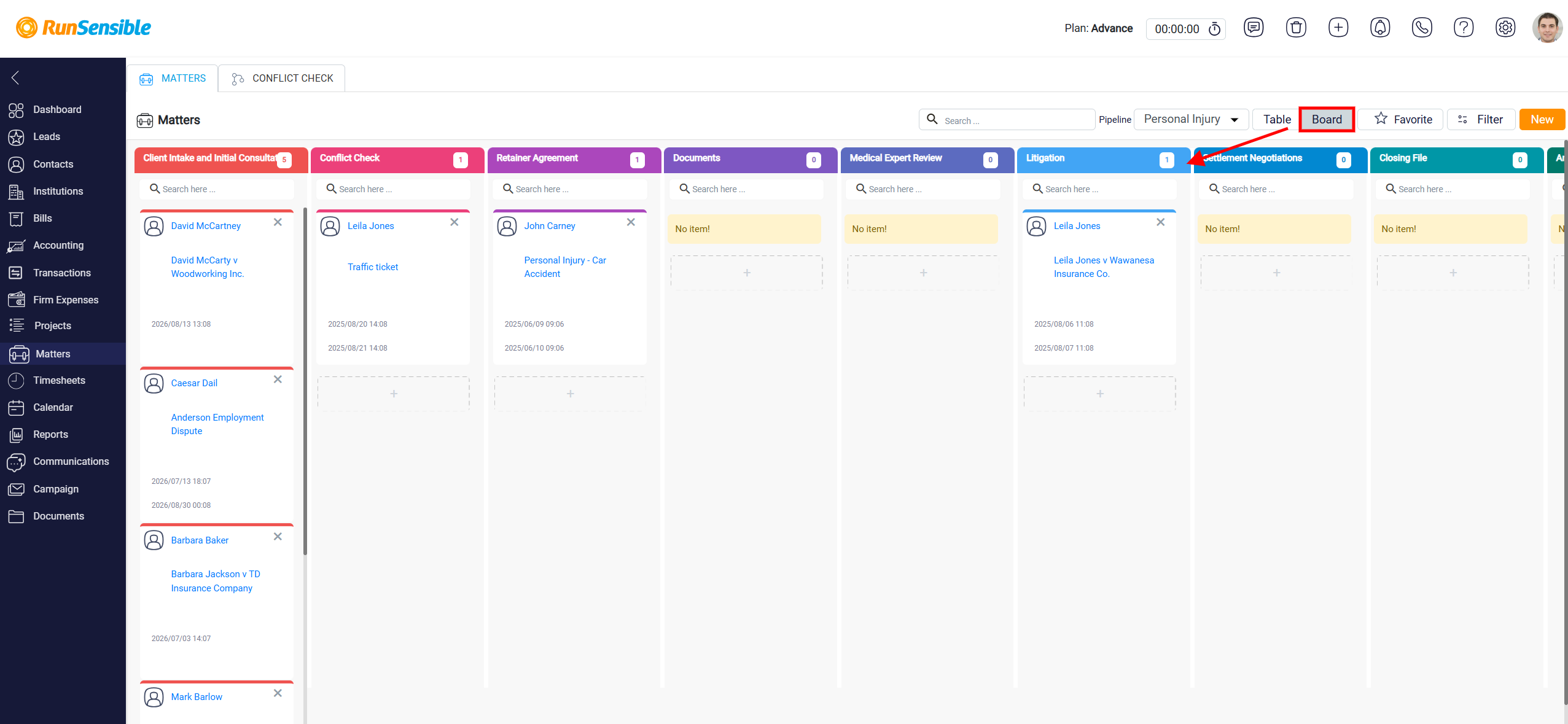
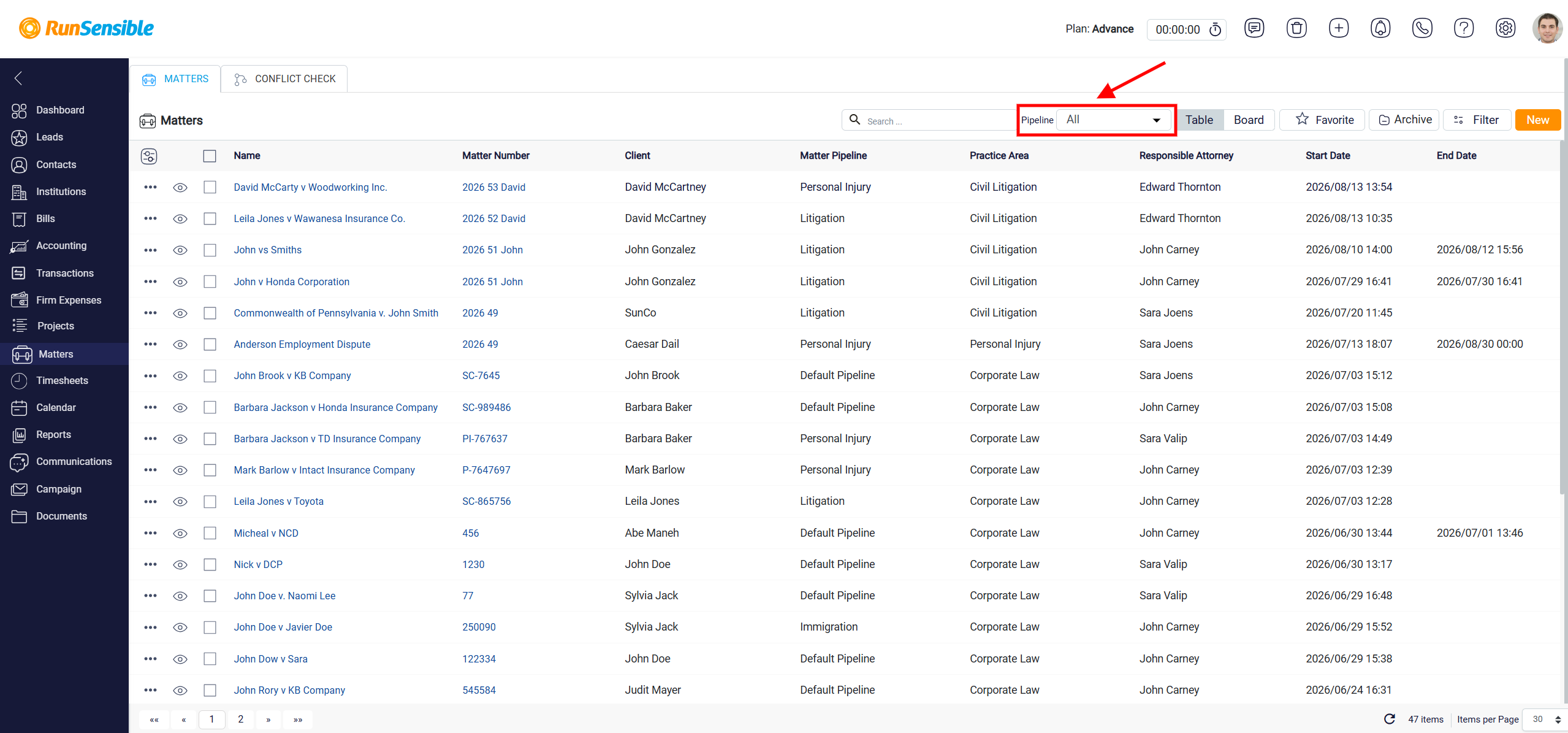
Before switching to Board View, you must select a specific Pipeline. This is required because Board View is organized based on pipeline stages. Different matters may belong to different pipelines, and each pipeline may have its own stages. Because of this, the system needs to know which pipeline you want to view before it can display the board correctly.
To select a pipeline, click the Pipeline dropdown menu at the top center of the screen. From the dropdown list, choose the pipeline you want to work with.
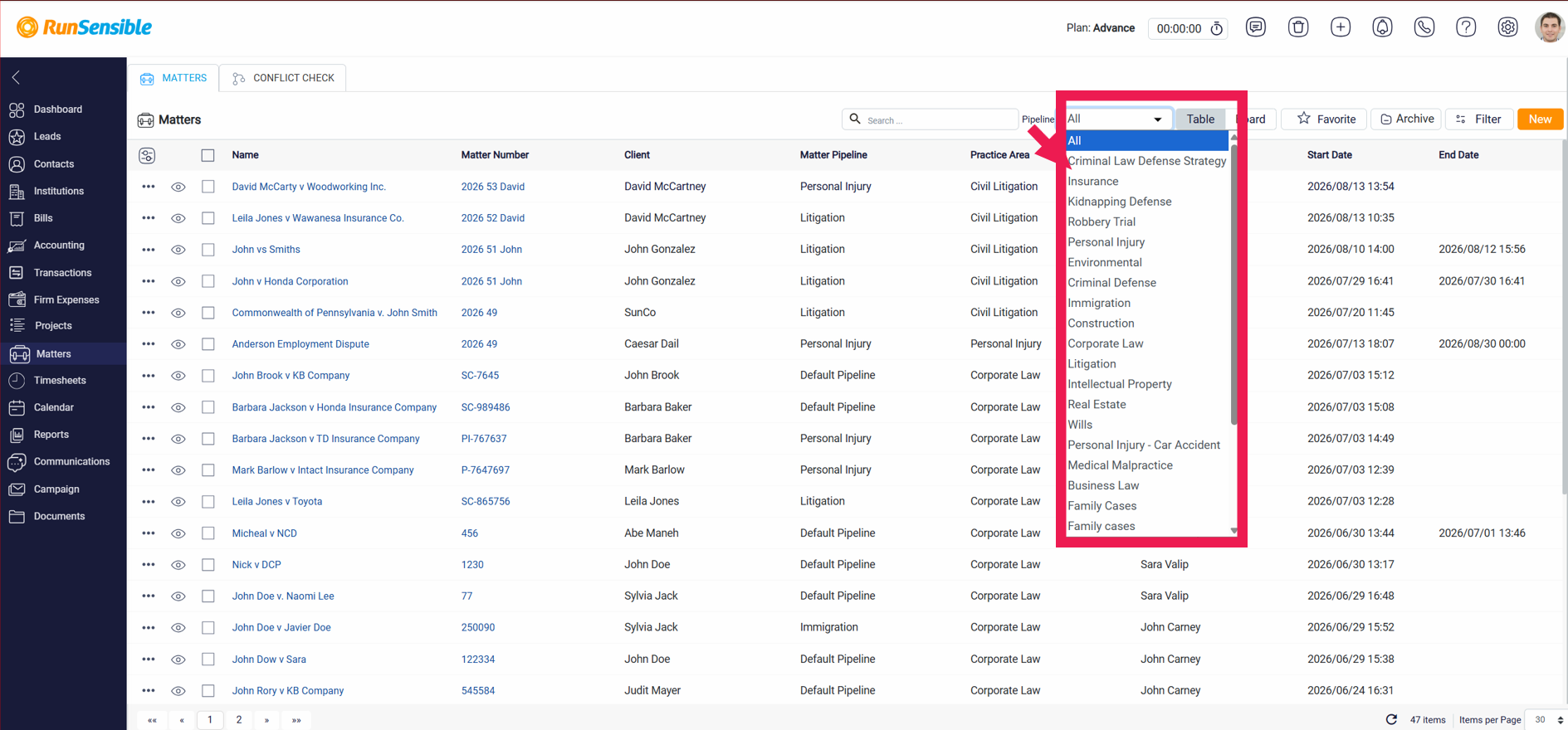
If the Pipeline dropdown is set to All and you try to switch to Board View, the system will show an error because Board View cannot display all pipelines at the same time.
After you select a pipeline, only the matters connected to that pipeline will appear in Board View. Matters assigned to other pipelines will not be shown in the same board. To view matters from another pipeline, you need to return to the Pipeline dropdown and select that different pipeline.
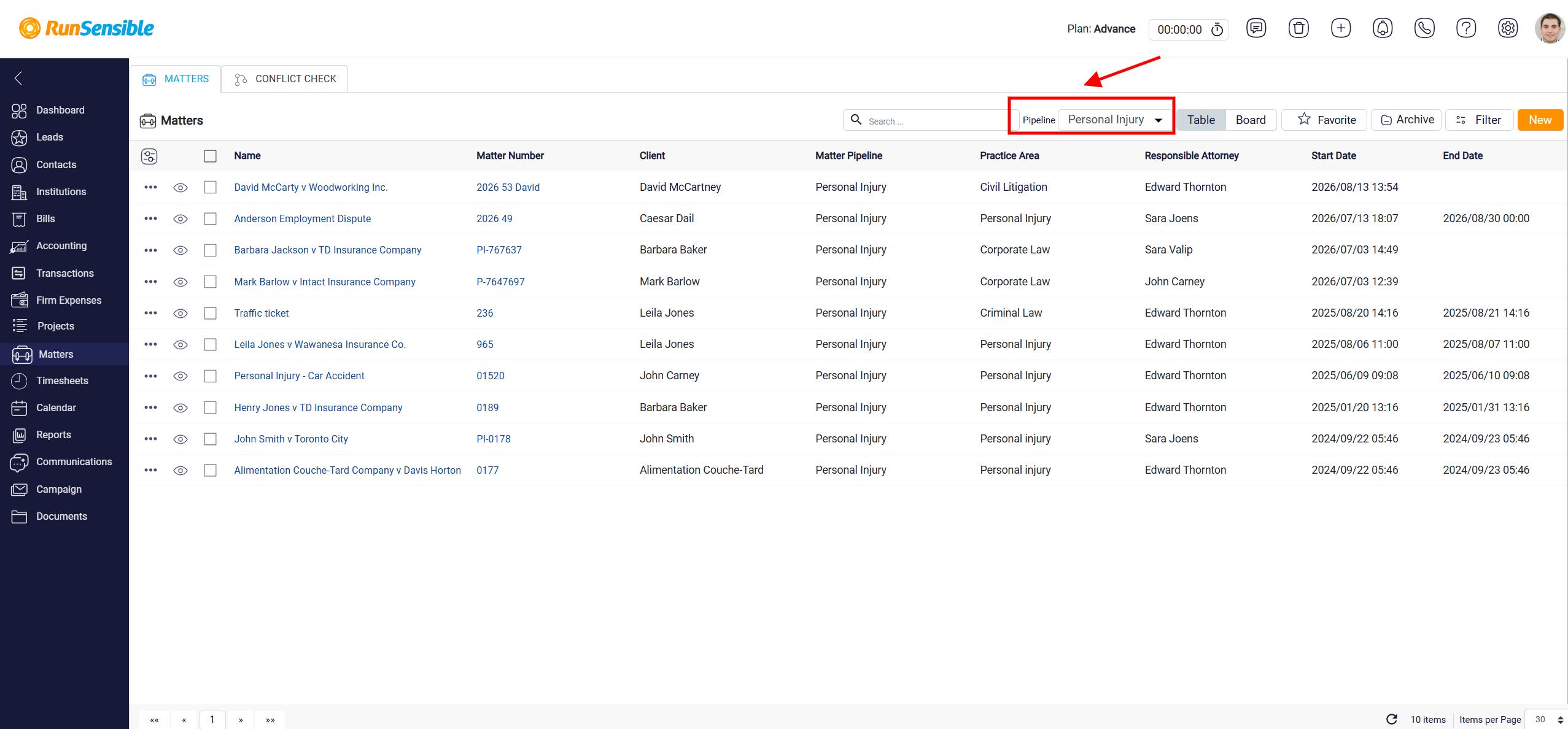
Once the correct pipeline is selected, click the Board View button in the top-right area of the screen. The matter list will change into a board layout, showing the matters from the selected pipeline as cards under their related stages.