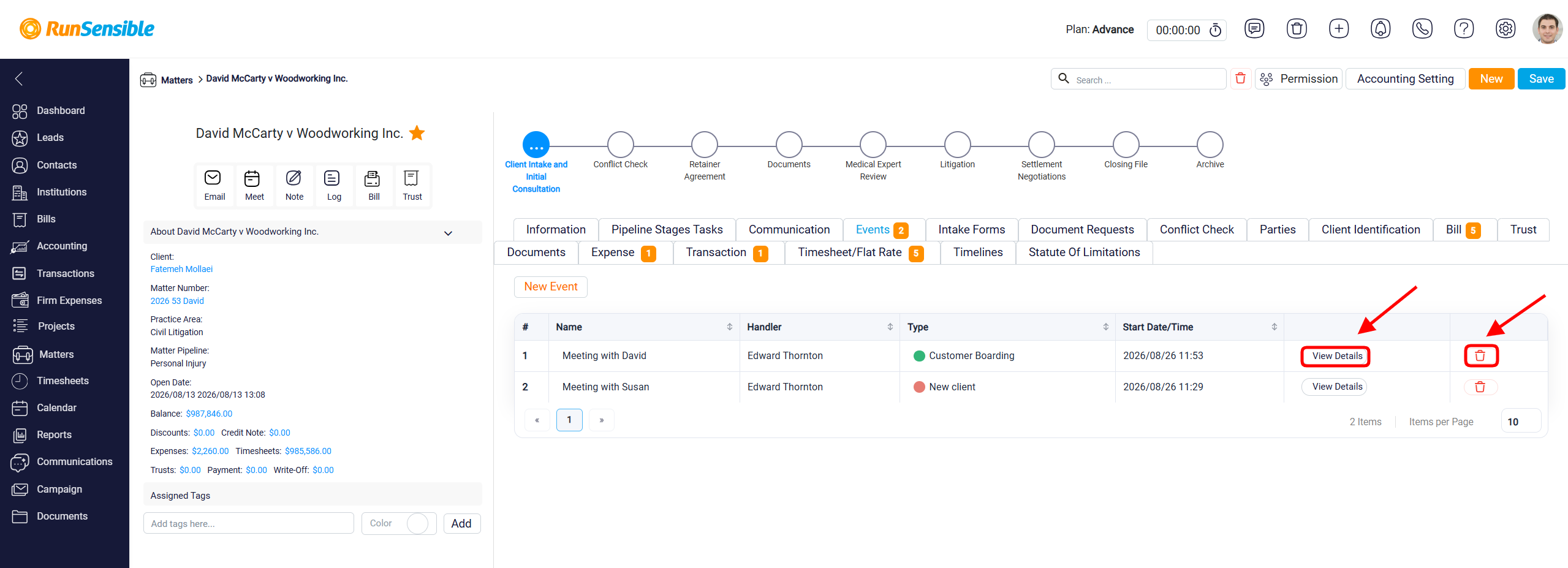
Managing Meetings in the Events Tab
The Events section allows you to view and manage meetings, appointments, deadlines, and other scheduled activities associated with a specific matter. This feature helps you keep track of important dates and ensures that all matter-related events are organized and easily accessible.
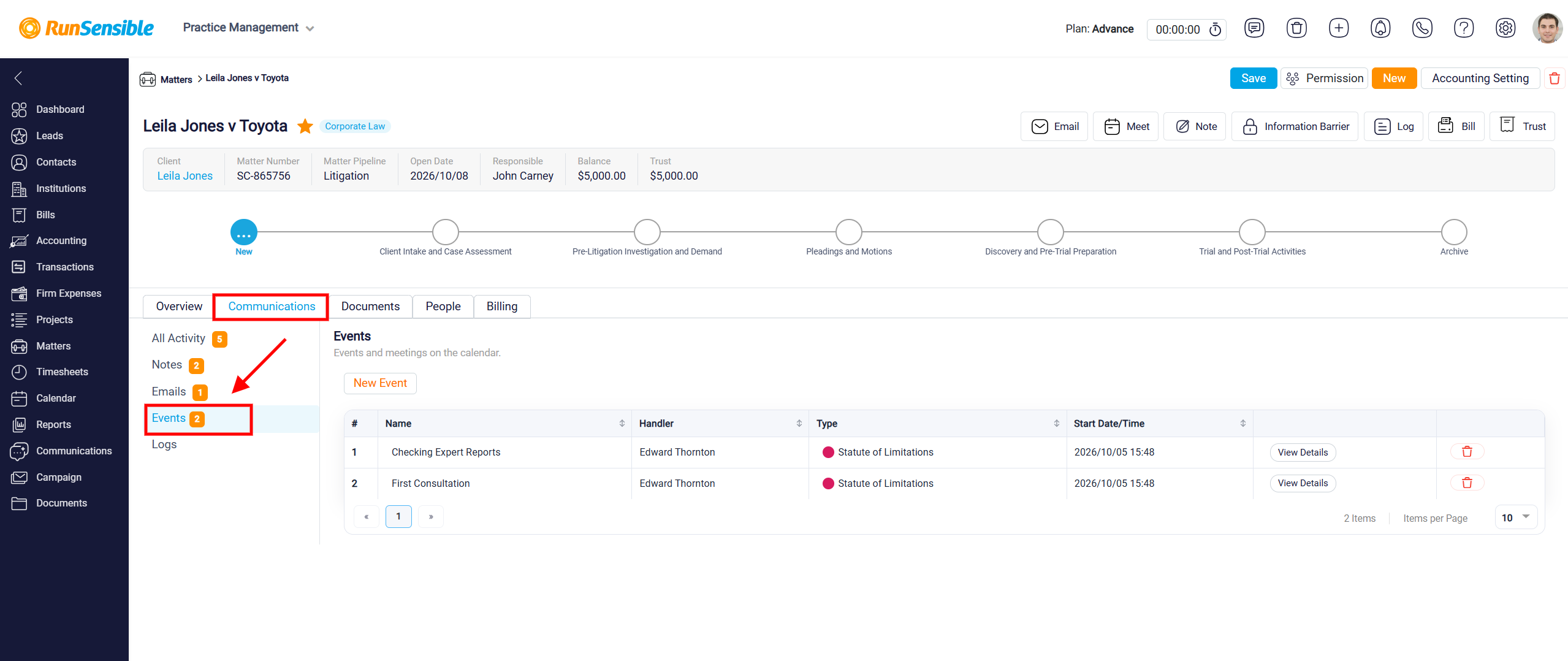
To access this section, navigate to Matters from the left-hand sidebar and open the desired matter. On the Matter Details page, select the Communications tab, then click Events from the left-hand menu. The Events section displays a list of all scheduled events associated with the selected matter. The number displayed beside Events indicates how many events are currently recorded.
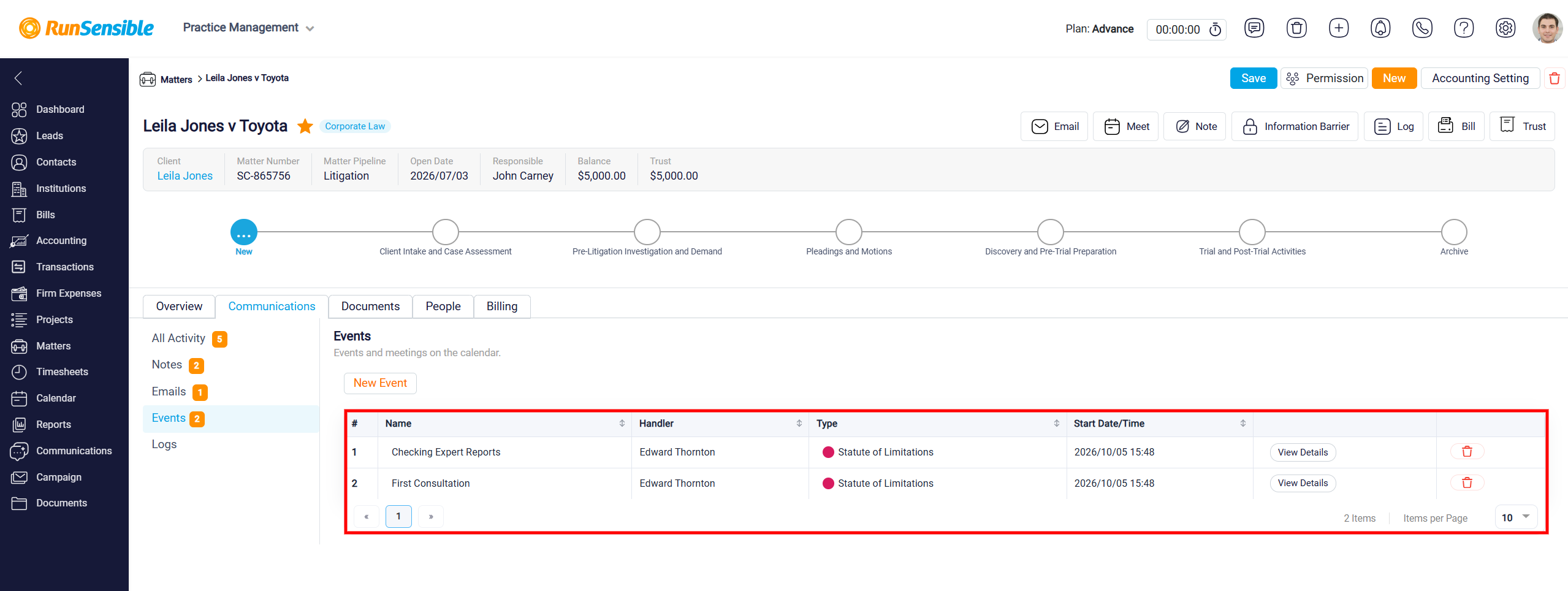
Each event appears in a table containing important details, including the Name, Handler, Type, and Start Date/Time. The Name column displays the title of the event, while the Handler column identifies the person responsible for it. The Type column shows the event category, such as a meeting or statute of limitations, and the Start Date/Time column indicates when the event is scheduled to begin. You can use the sorting arrows beside the column headings to organize the displayed information.
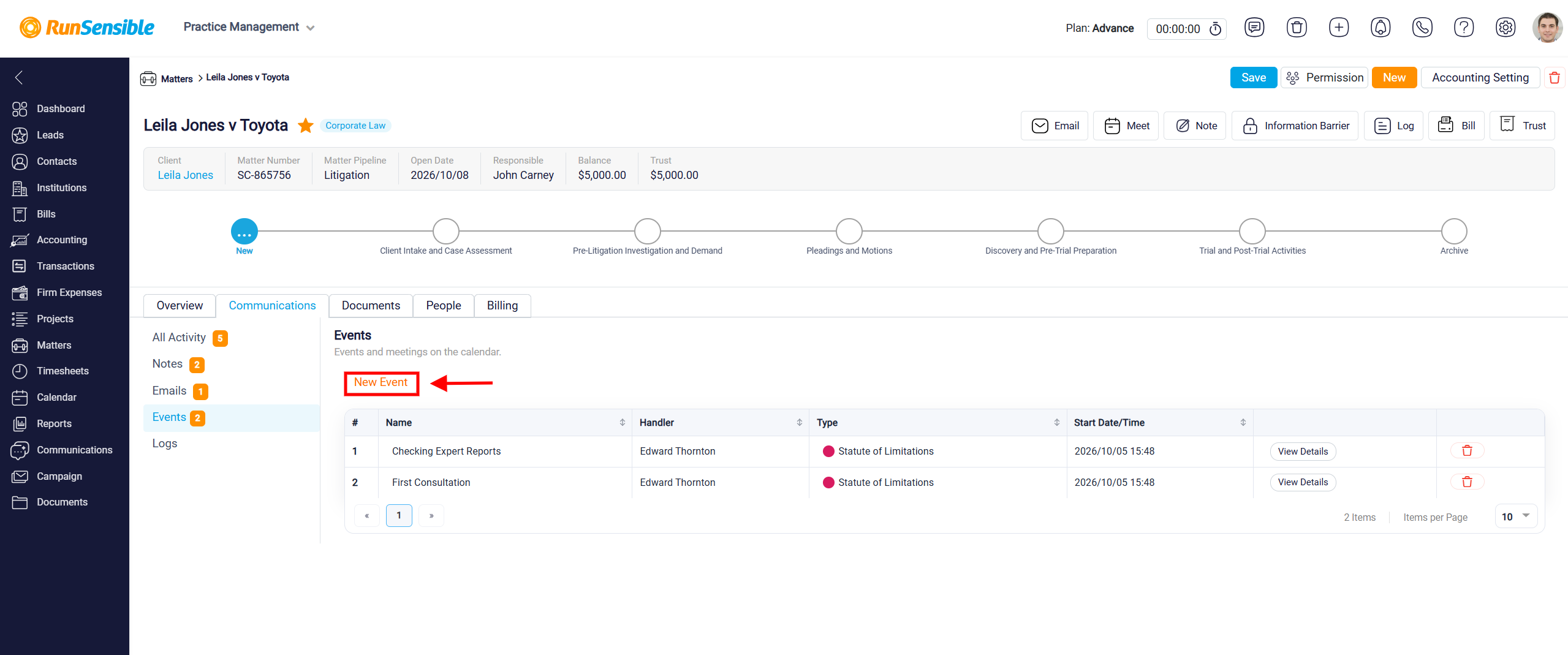
To create a new event, click the New Event button located above the events table.
Alternatively, you can click the Meet button at the top of the Matter Details page to begin scheduling a meeting directly from the selected matter.
To learn how to set up a new meeting or event, please visit Adding New Event.
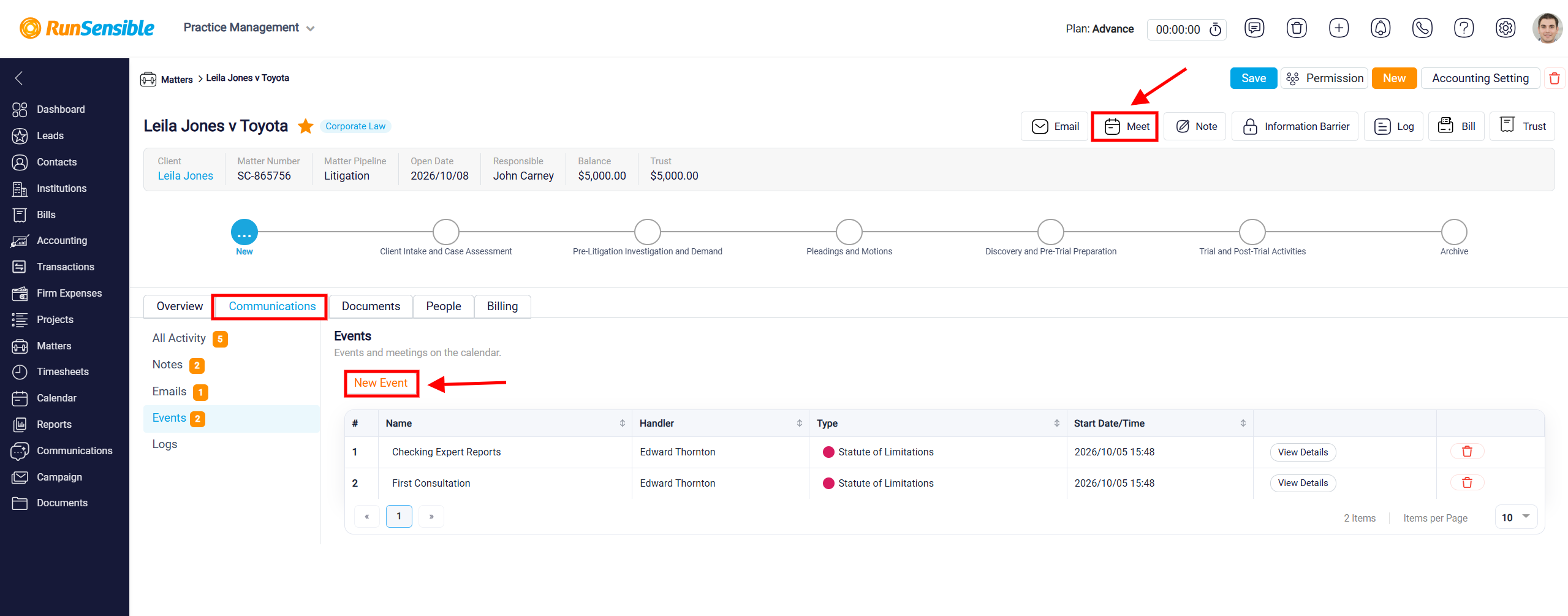
To review an existing event, locate it in the table and click the View Details button beside the corresponding entry. This allows you to access additional information about the selected event. If an event is no longer needed, click the Delete (trash) icon on the right side of its row to remove it. Make sure you select the correct event before proceeding with deletion.