Adding and Managing Tasks in the Pipeline Stages Tasks Tab
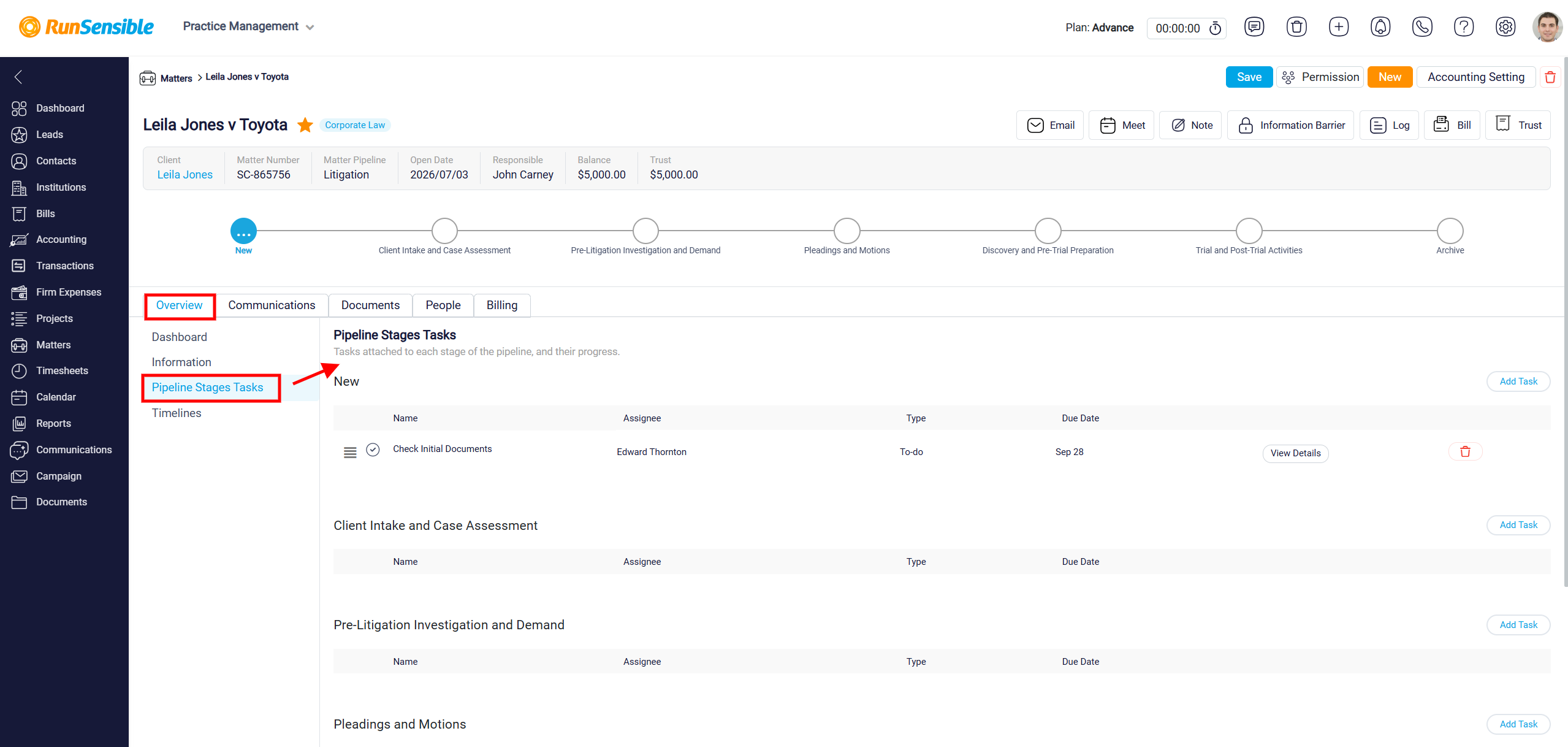
The Pipeline Stages Tasks tab shows the stages of the matter’s pipeline in separate sections. Each section represents one status or stage in the workflow. This allows you to see the matter’s pipeline structure and manage the actions that need to happen at each stage.
Within each stage, you can add tasks that should be completed when the matter reaches that point in the pipeline. These tasks help organize the work that needs to be done and allow you to assign responsibilities to users in your firm. This makes it easier to track what must happen at each stage of the matter.
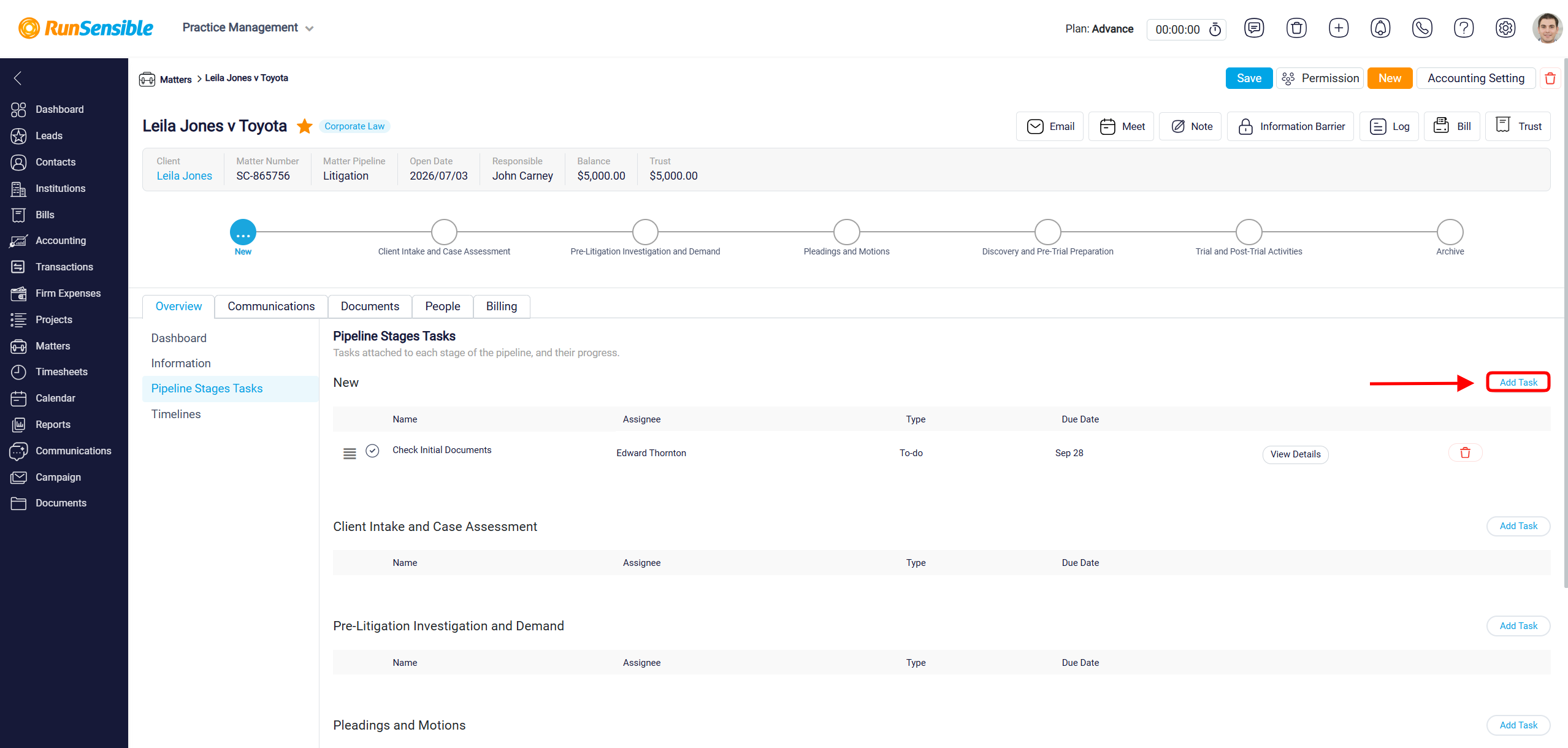
To add a task under a specific stage, click the Add Task button on the right side of that stage section.
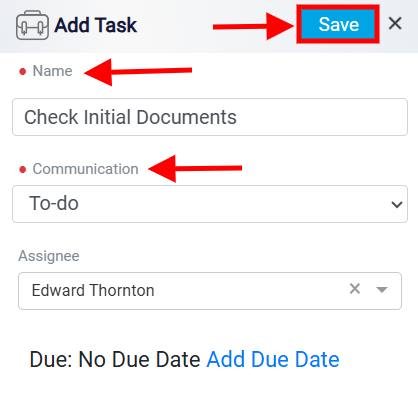
The task creation panel will open. Enter the task name in the Name field, then choose the communication type from the dropdown menu. After that, use the Assignee dropdown to select the user responsible for completing the task.
This will open the Add Task panel. Start by entering the name of the task in the Name box. Next, determine the type of communication required at this stage by selecting an option from the Communication dropdown menu. In the Assignee dropdown menu, choose the user responsible for completing this task.
By default, a new task does not have a due date. To add one, click the Add Due Date link. This opens the due date section at the bottom of the task form. You can enter the number of days and then choose whether the task should be due After the Start Date or Before the End Date of the project. This allows the system to calculate the task deadline based on the matter’s timeline.
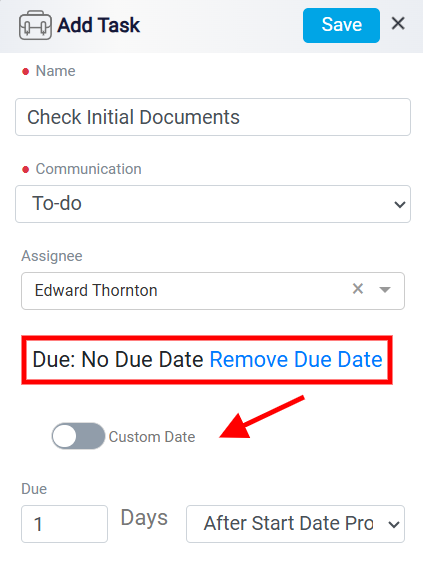
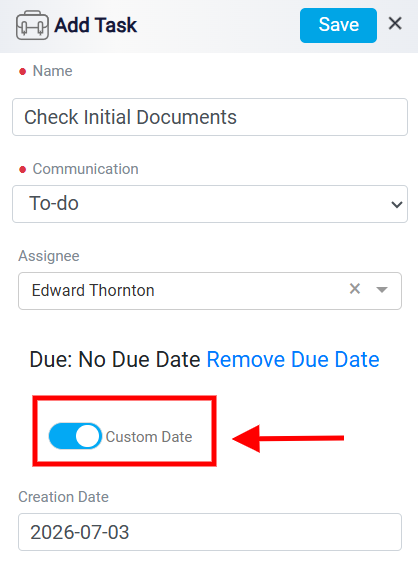
If you do not want to calculate the due date based on the start or end date, you can use the Custom Date toggle. When this option is turned on, you can select the exact due date for the task instead of entering a number of days before or after a project date.
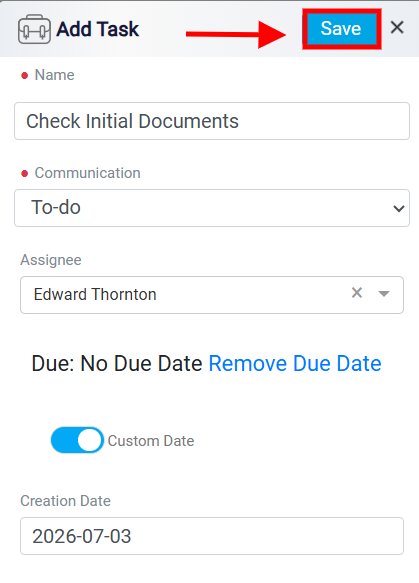
After completing the task details, click Save in the top-right corner.
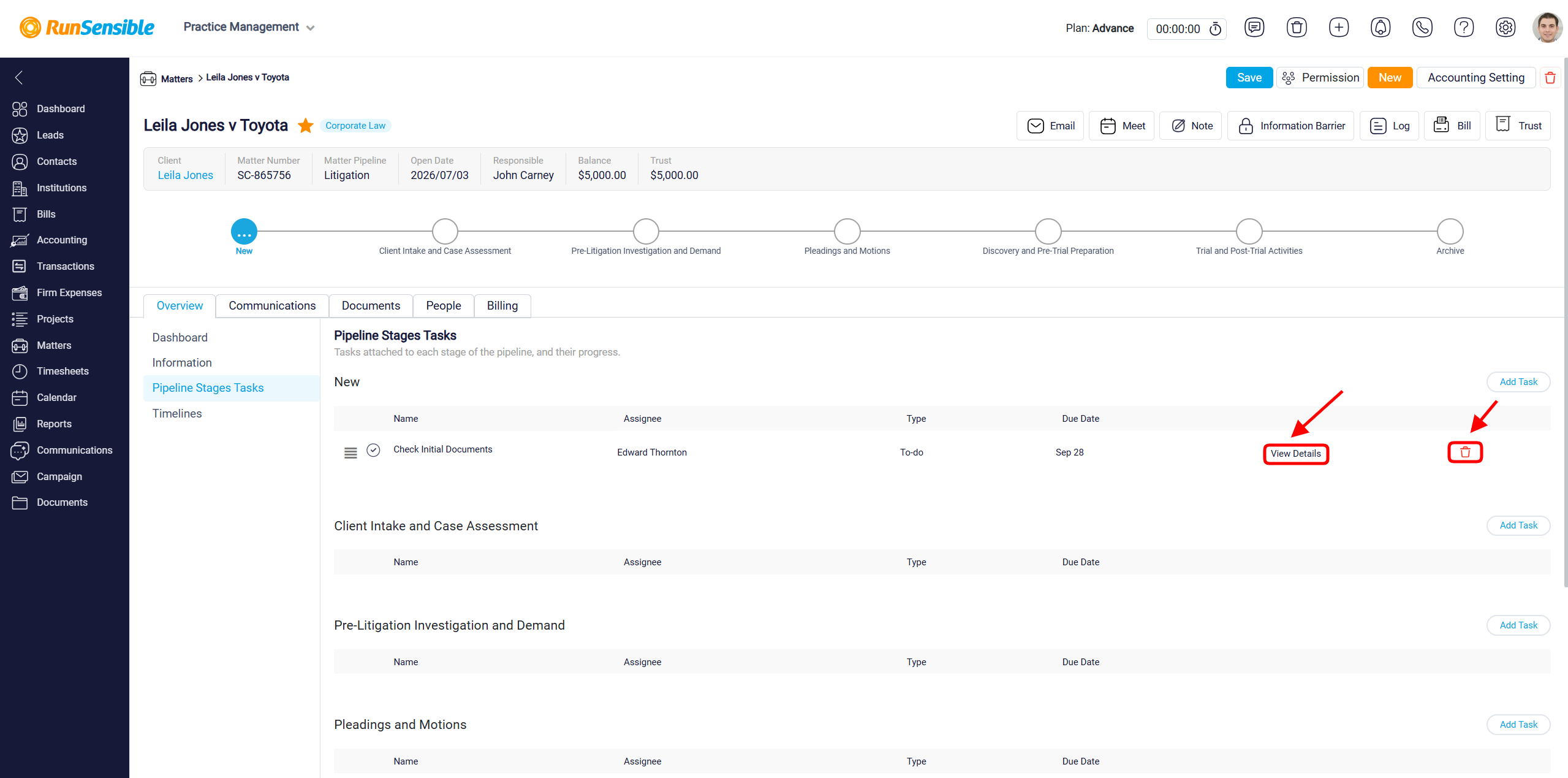
Once a task is saved, it appears as a row under the related pipeline stage. Each row shows the main task details, such as the task name, assignee, type, and due date. This makes it easy to review the tasks connected to each stage without reopening the full task form.
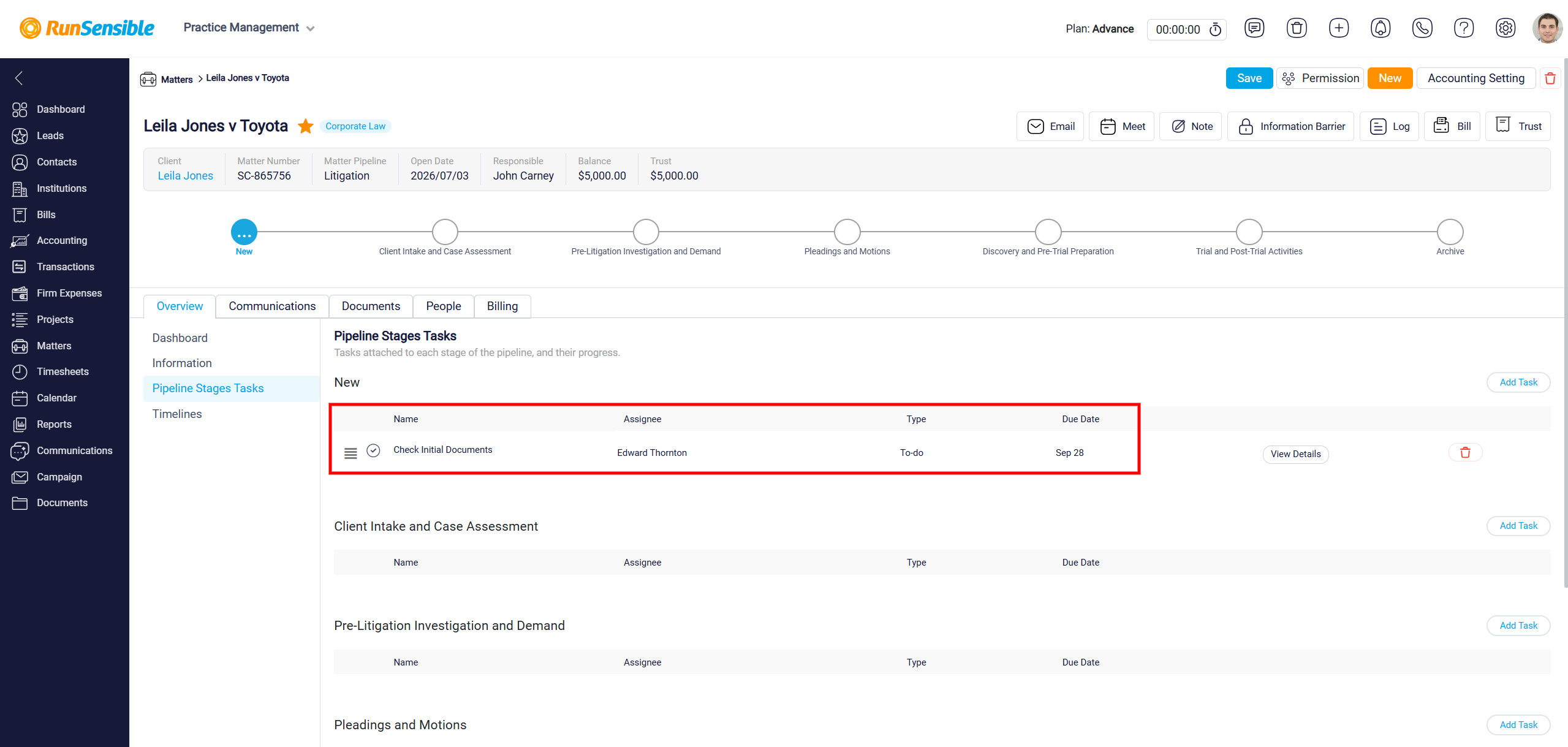
There is a View Details button. Clicking it will take you to the task’s main page, where you can view the complete task details. You can also delete the task by clicking the Delete icon.