Party Type
The Party Type settings allow you to create and manage the different roles that parties may have within a matter, such as Plaintiff, Defendant, Claimant, Respondent, Paralegal, or other roles relevant to a particular practice area. Each party type is associated with a Practice Area, helping you organize and use appropriate party roles when managing matters.
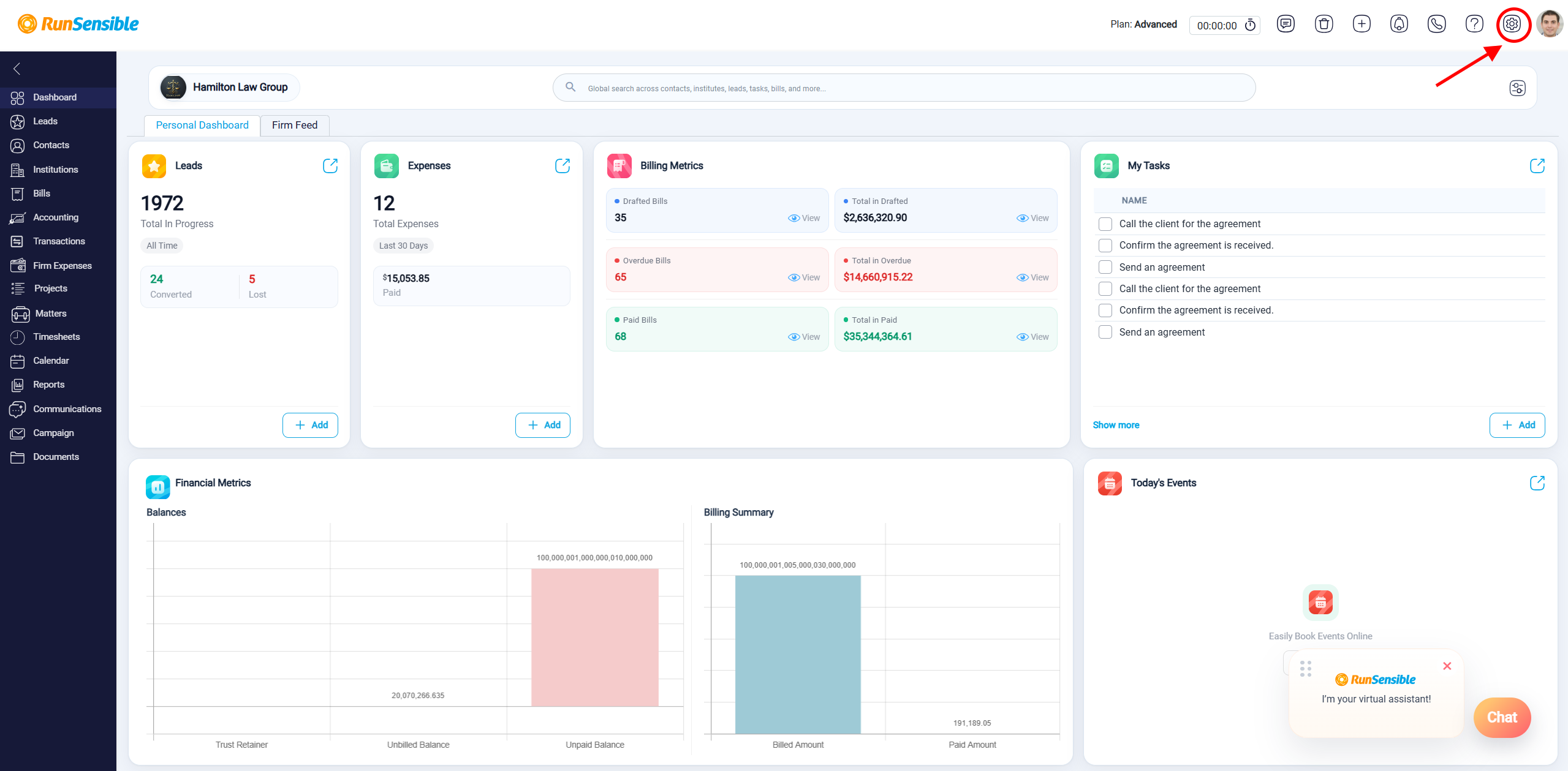
To access Party Types, go to Settings.
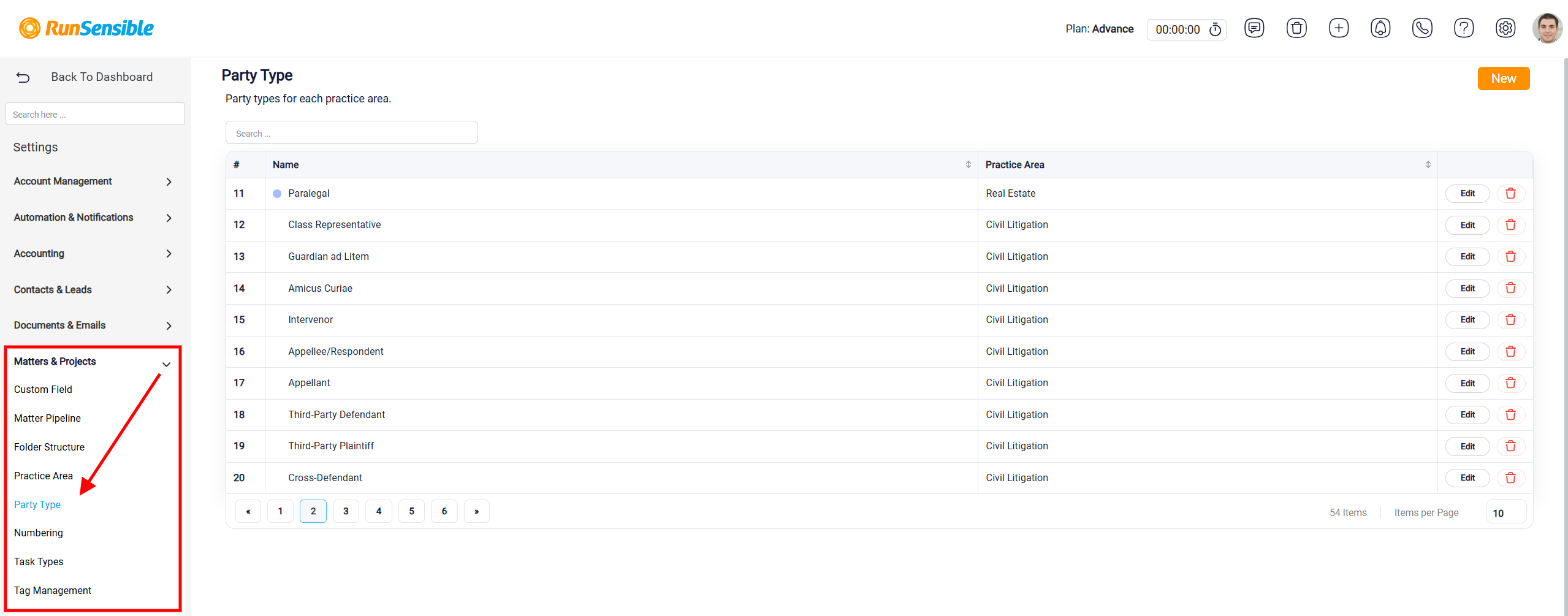
Locate Matters & Projects and click Party Type.
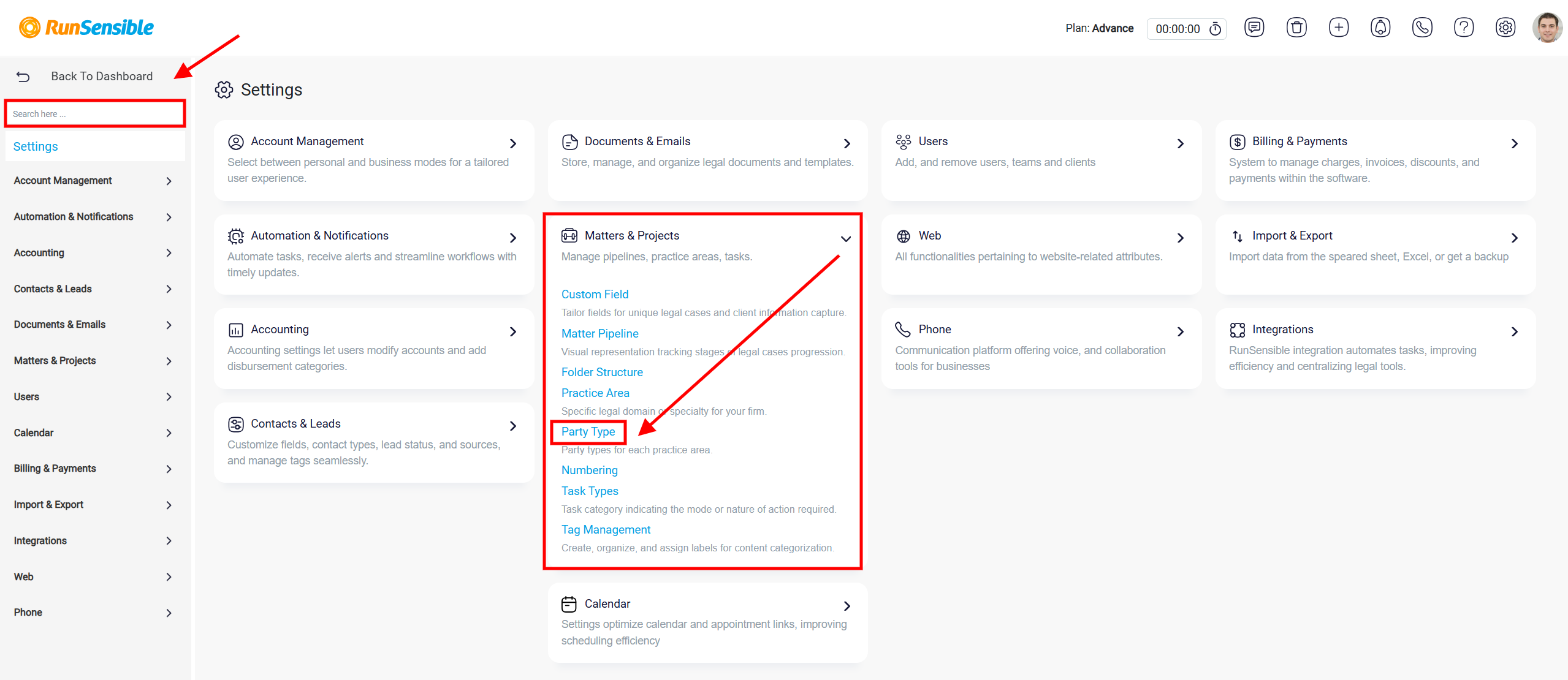
Alternatively, you can access Party Type directly from the Matters & Projects section located in the center of the Settings page, or use the Search box at the top of the Settings page to quickly find it.
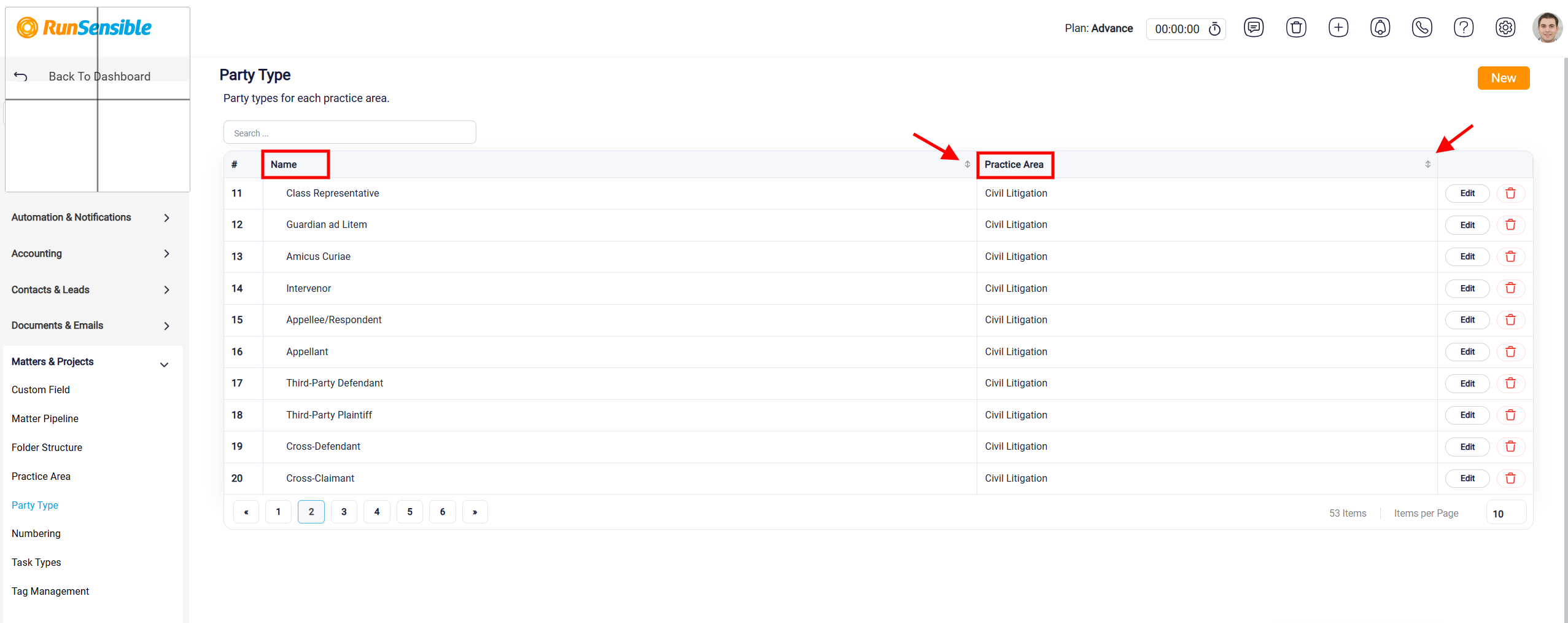
When you open the Party Type page, you’ll see a table displaying the Name and Practice Area columns. Use the sorting arrows next to each column heading to organize the list and quickly find the party type you’re looking for.
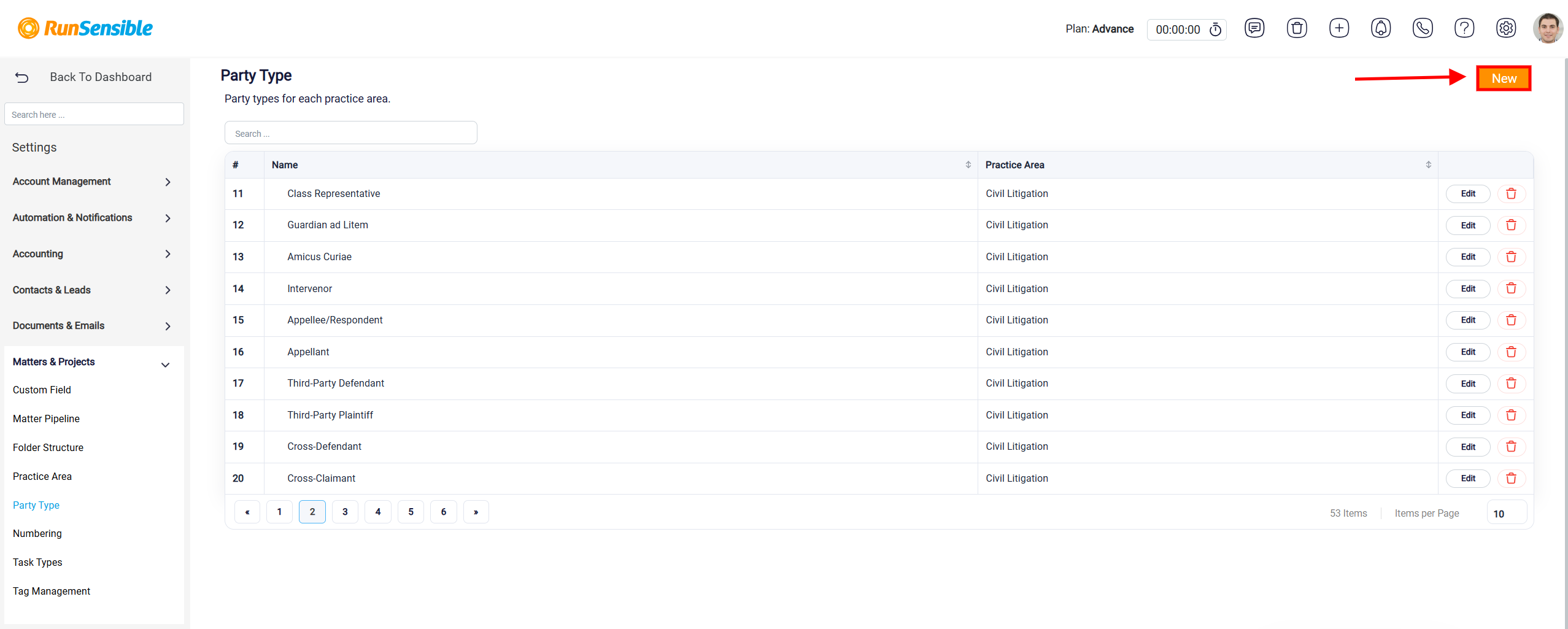
To create a party type, click New in the upper-right corner of the Party Type page.
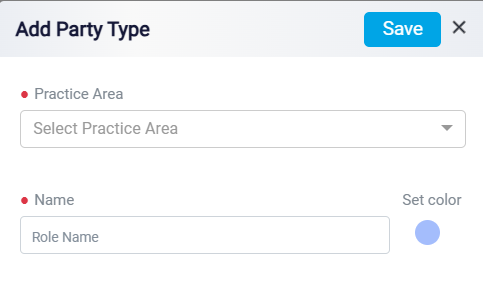
The Add Party Type panel will open.
Select the appropriate Practice Area from the drop-down menu. This determines which practice area the new party type belongs to.
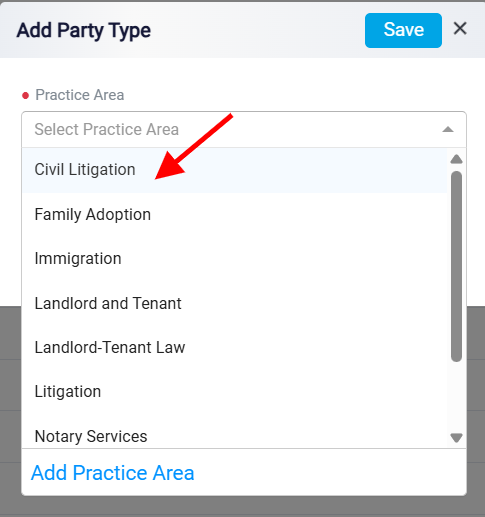
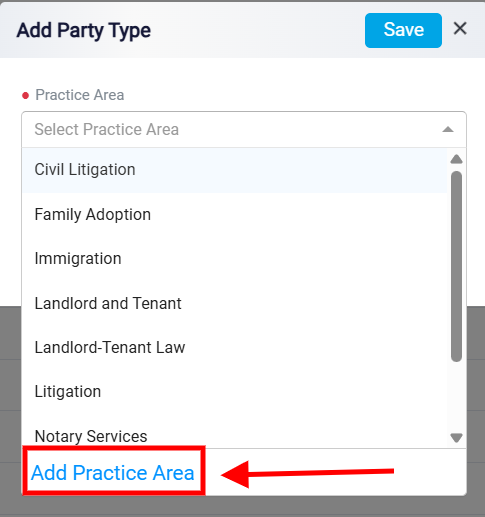
If the required practice area is not available in the Practice Area drop-down menu, click Add Practice Area at the bottom of the list.
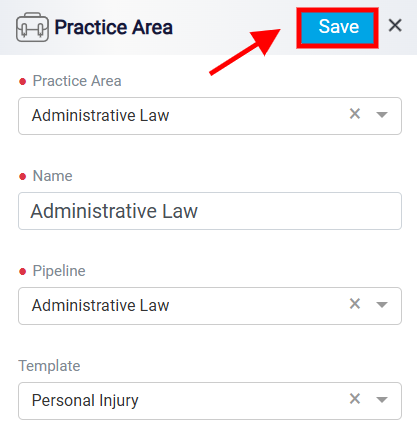
This opens the Practice Area panel, where you can enter the Practice Area Name, select the appropriate Pipeline, and, if applicable, select a Template. Click Save to create the practice area.
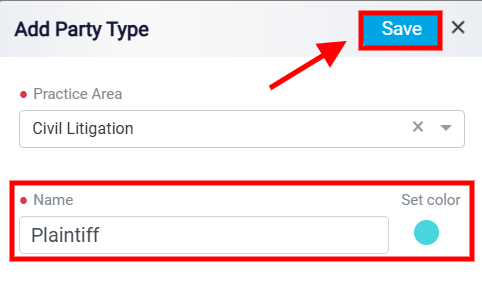
After selecting the Practice Area, enter the party type in the Name field, such as Client, Plaintiff, Defendant, or another applicable role. Then, assign a color to the party type and click Save to add it.
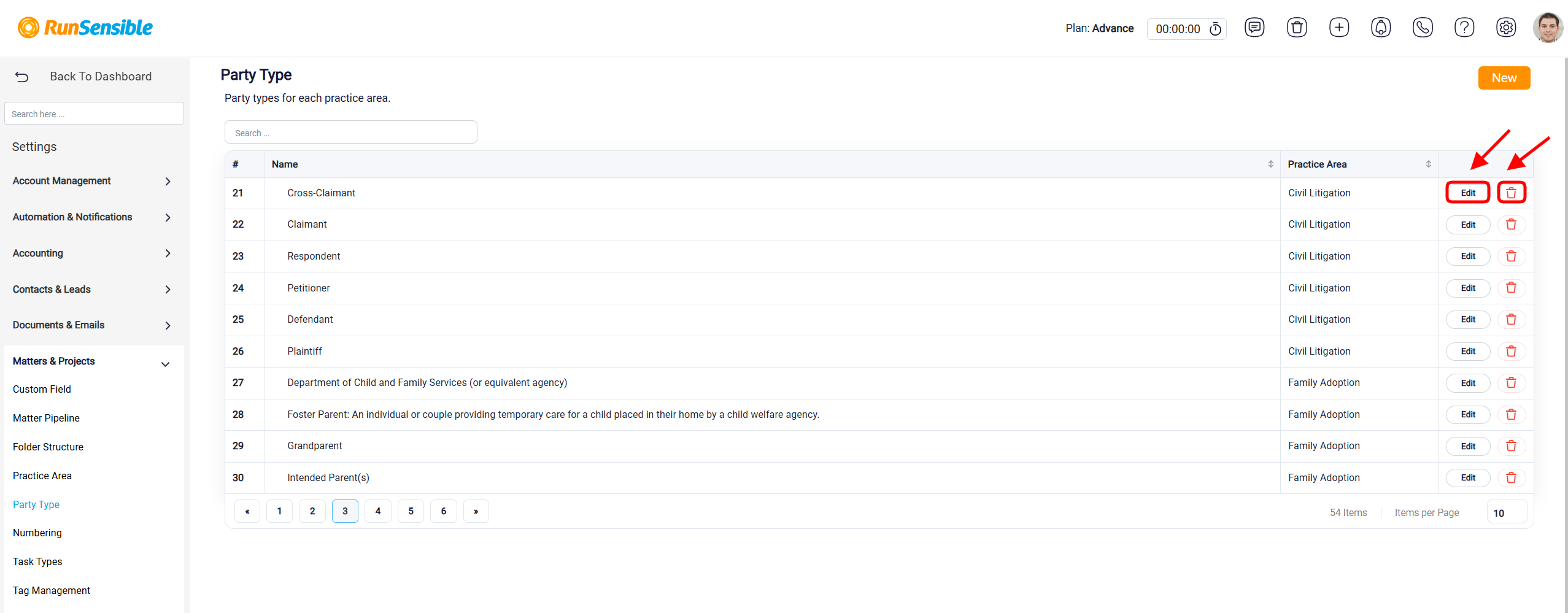
Use the Search box at the top of the Party Type page to quickly find a specific party type. Enter the name or relevant information to narrow the displayed results.
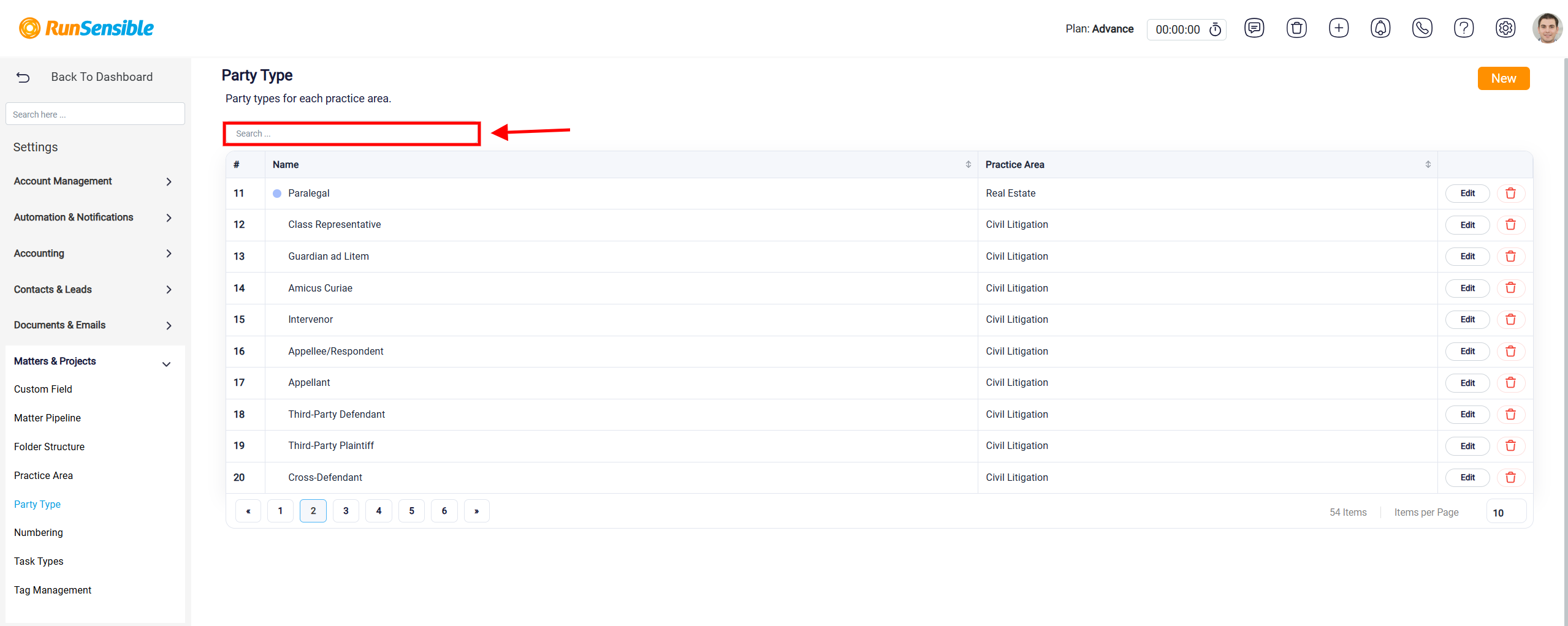
To update or remove an existing party type, locate it in the list and select the appropriate action. Click Edit to modify details such as the party type name, practice area, or color, then save your changes. To remove a party type, click the Delete (trash) icon beside it and confirm that the party type is no longer needed before deleting it.