Sending Emails from the Matter Details Panel
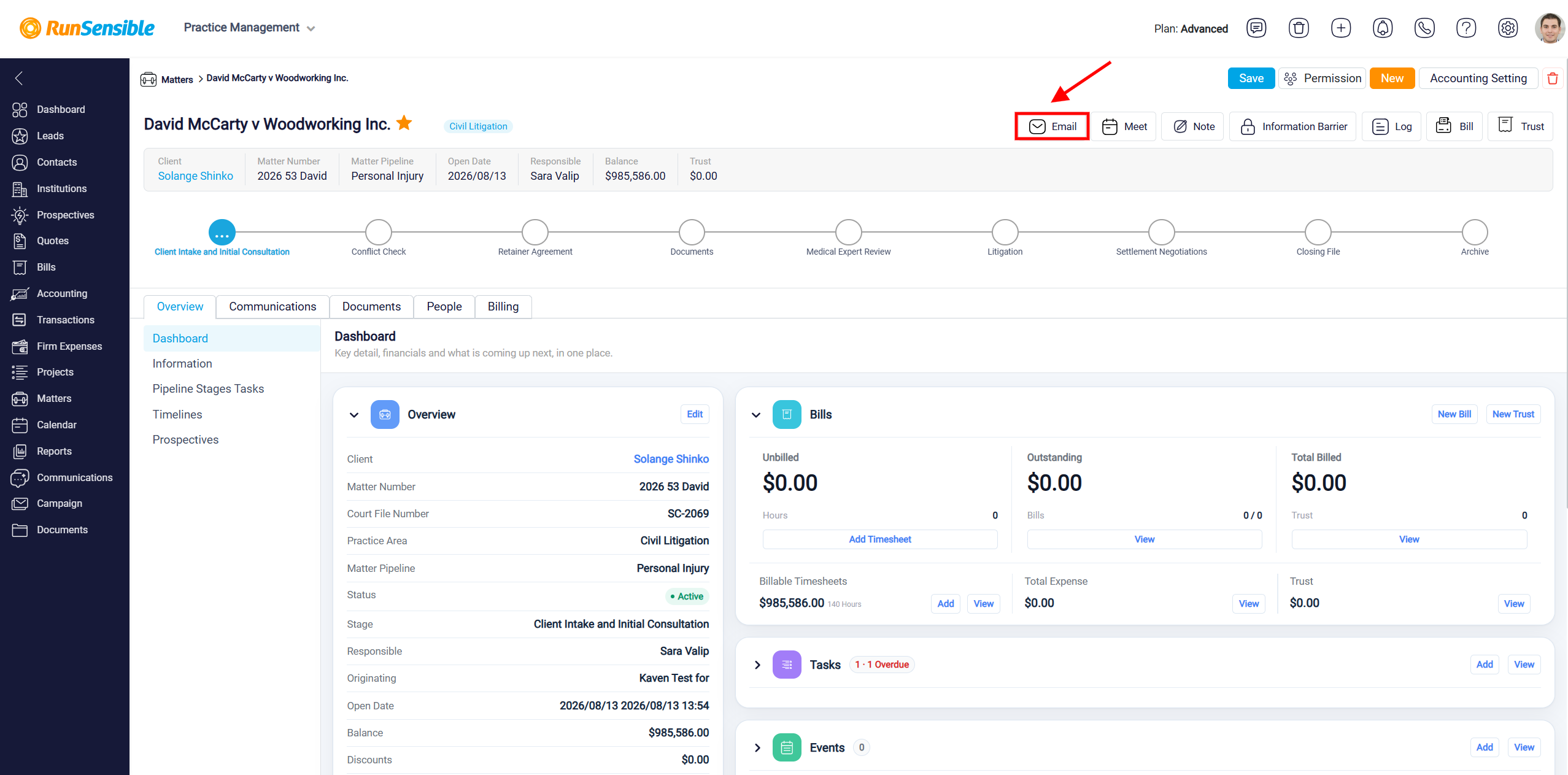
To send an email directly from a matter, open the appropriate matter and click the Email button at the top of the page. This allows you to create an email while working within the matter, helping you keep matter-related correspondence organized and connected to the appropriate client and matter.
To learn how to create, send, and schedule an email, please visit Sending and Scheduling Emails.
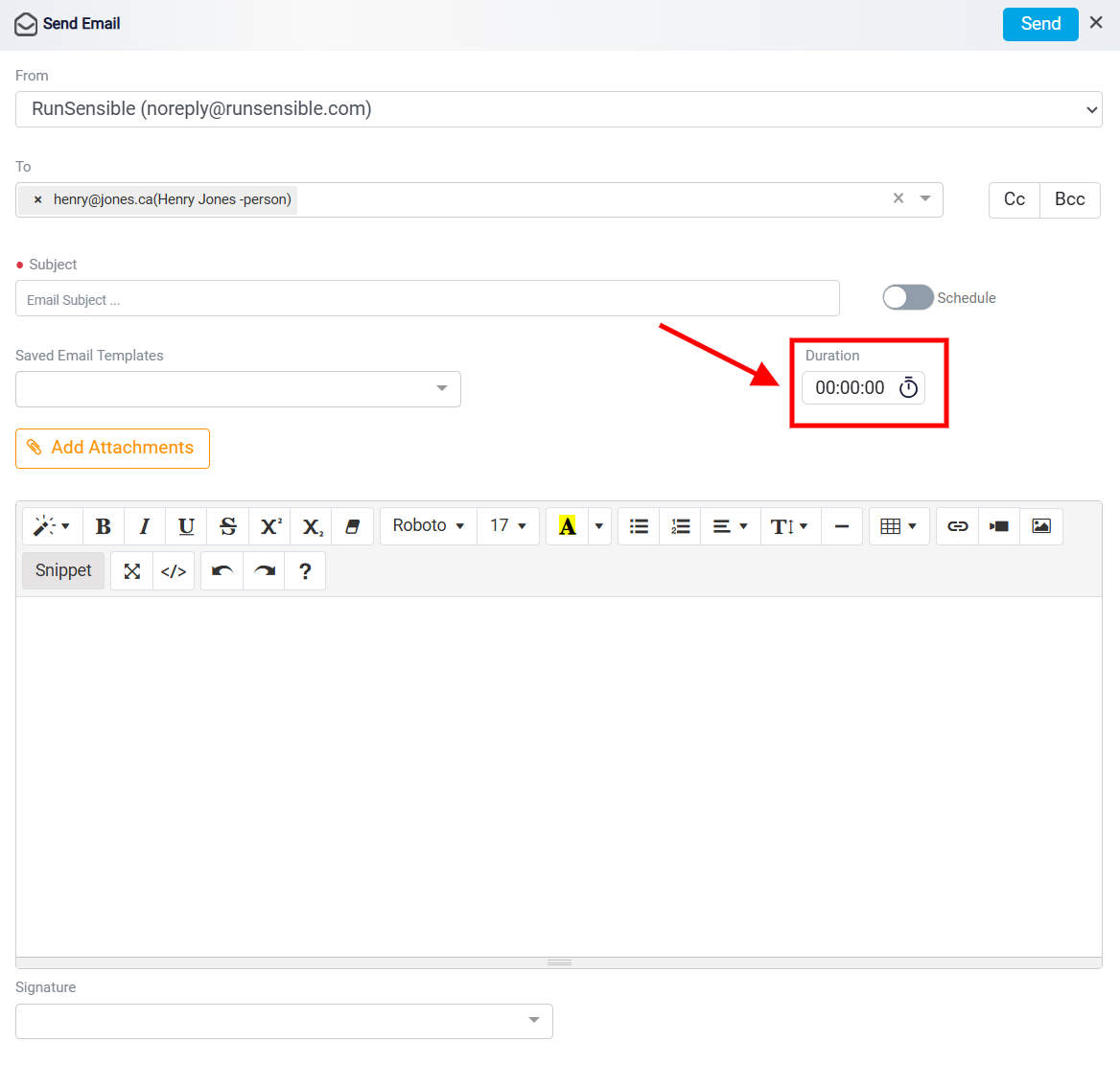
Note: If you recorded time while preparing the email, the Timesheet panel will open automatically after the email is sent. You can then review the recorded time and save it as a time entry connected to the email work.
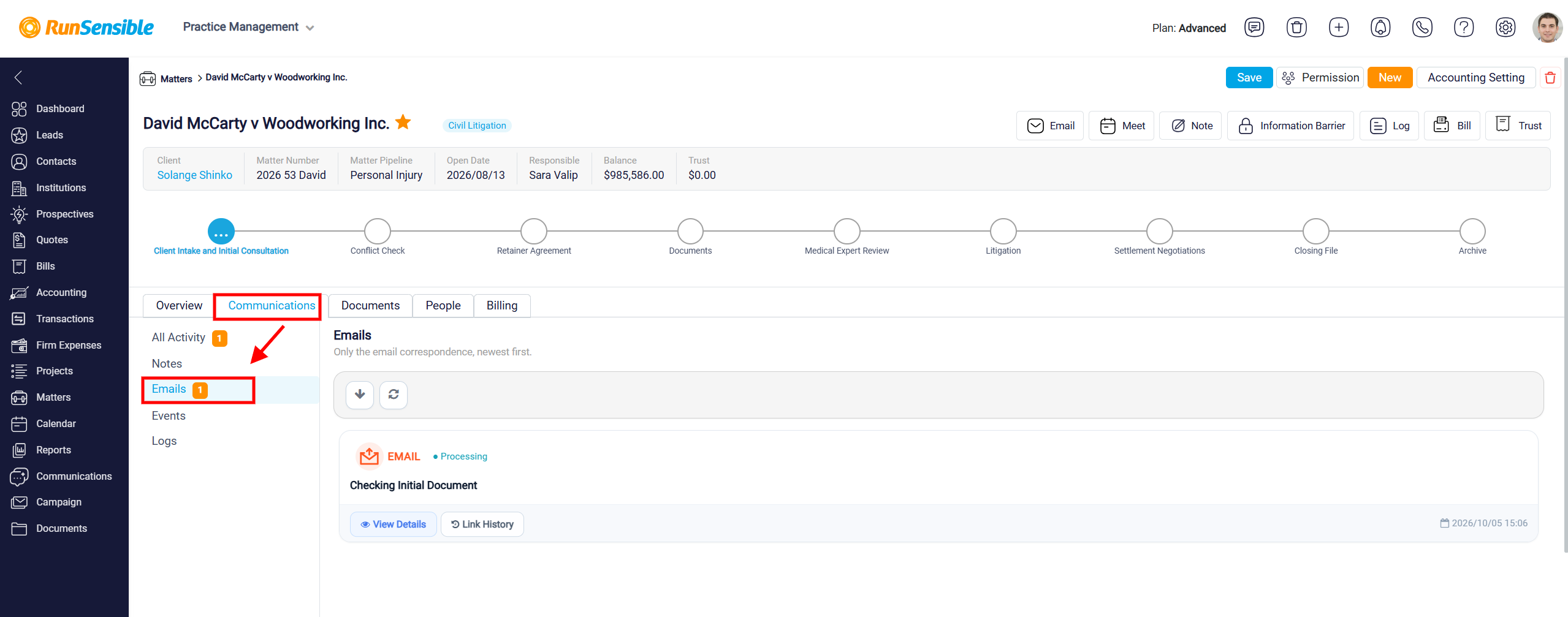
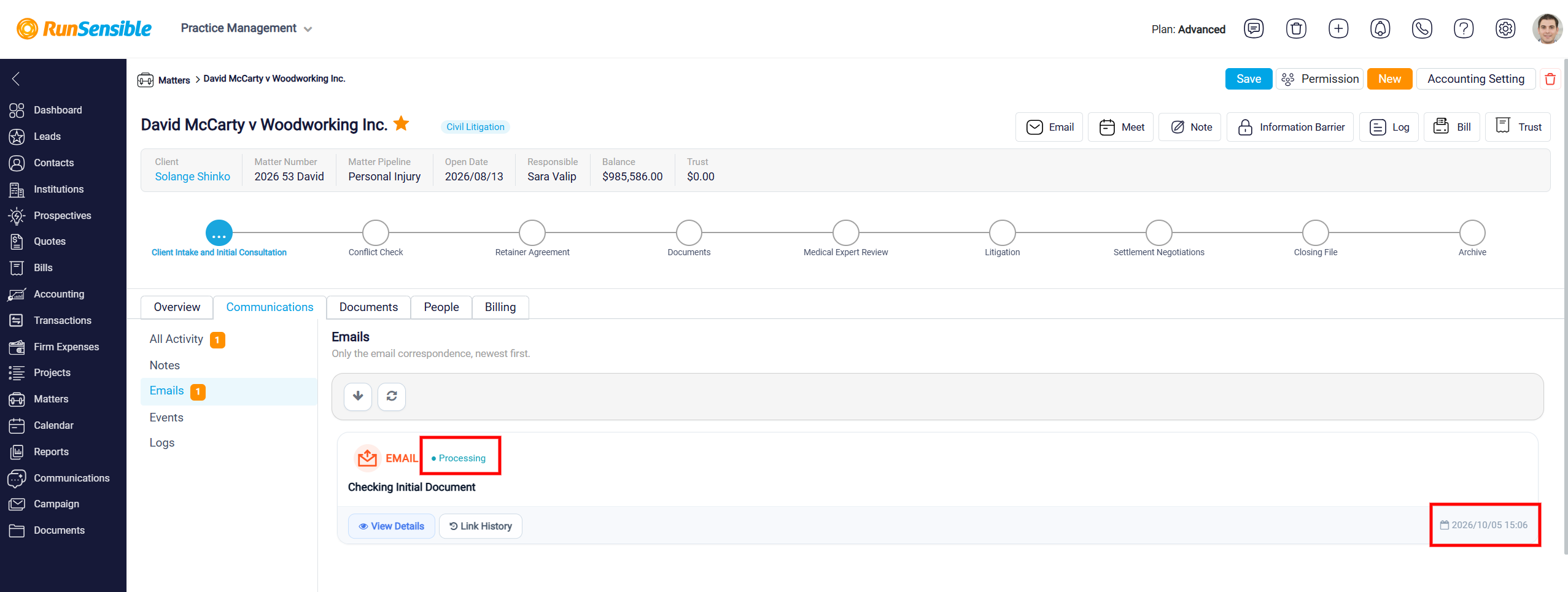
After the email is sent, you can review the related email correspondence by going to the Communications tab and selecting Emails. The Emails section displays email correspondence linked to the matter, with the newest emails appearing first. The number displayed next to Emails indicates the number of email records currently associated with the matter.
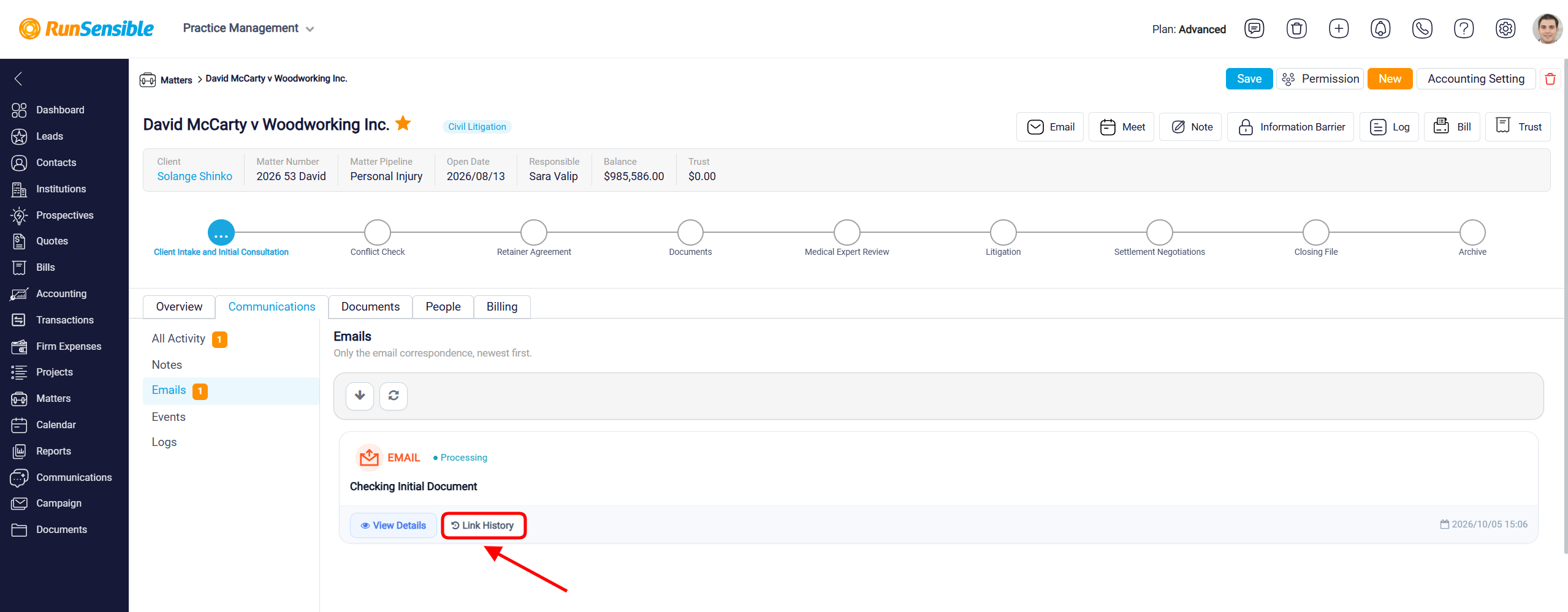
Each email record displays key information, including the email subject, status, and date and time.
Click View Details to open the email and review additional information about the correspondence.
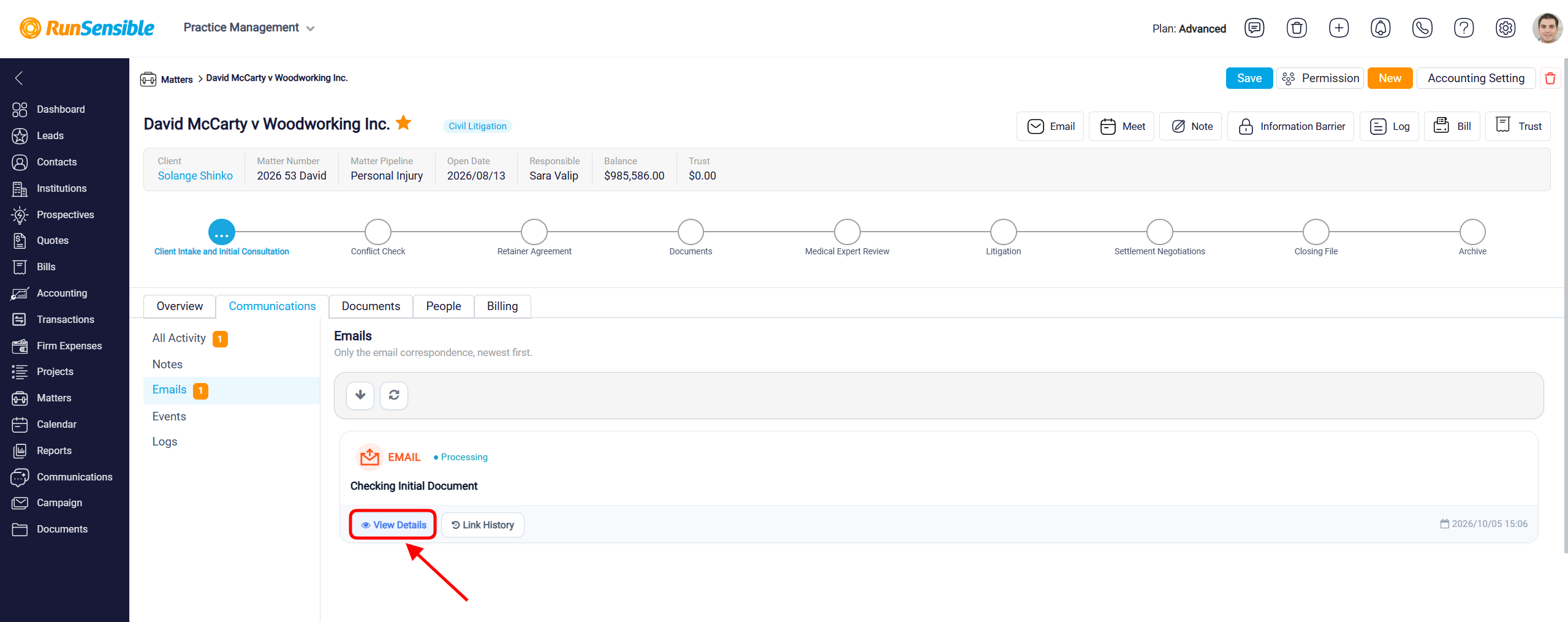
Use Link History to review information about how the email has been linked to the matter. You can also use the available controls at the top of the Emails section to refresh or manage the displayed email records.