Managing Matters in Board View
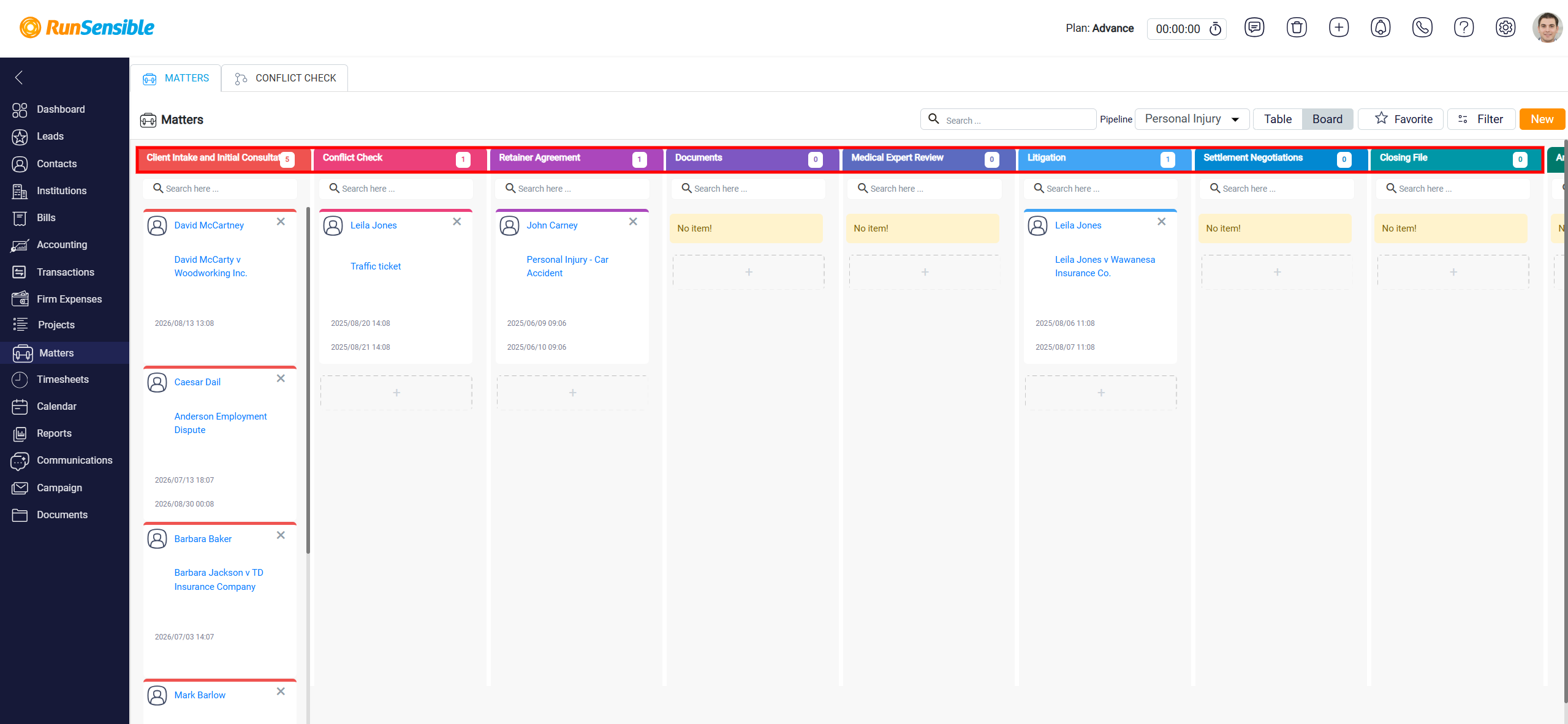
Board View shows matters in a visual workflow based on the selected pipeline. Instead of displaying matters in rows like Table View, it organizes them into columns. Each column represents one stage or status in the pipeline, making it easy to see where each matter currently stands.
Each column has a colored header that shows the stage name and the number of matters currently in that stage. Matters appear as cards inside the columns. Each card represents one matter and shows key details such as the client name, matter name, and date information. This allows you to review multiple matters at once without opening each record.
You can update a matter’s status by dragging its card from one column and dropping it into another column. When you do this, the matter moves to the new stage in the pipeline. This makes it easy to update the matter’s progress as it moves through the workflow.
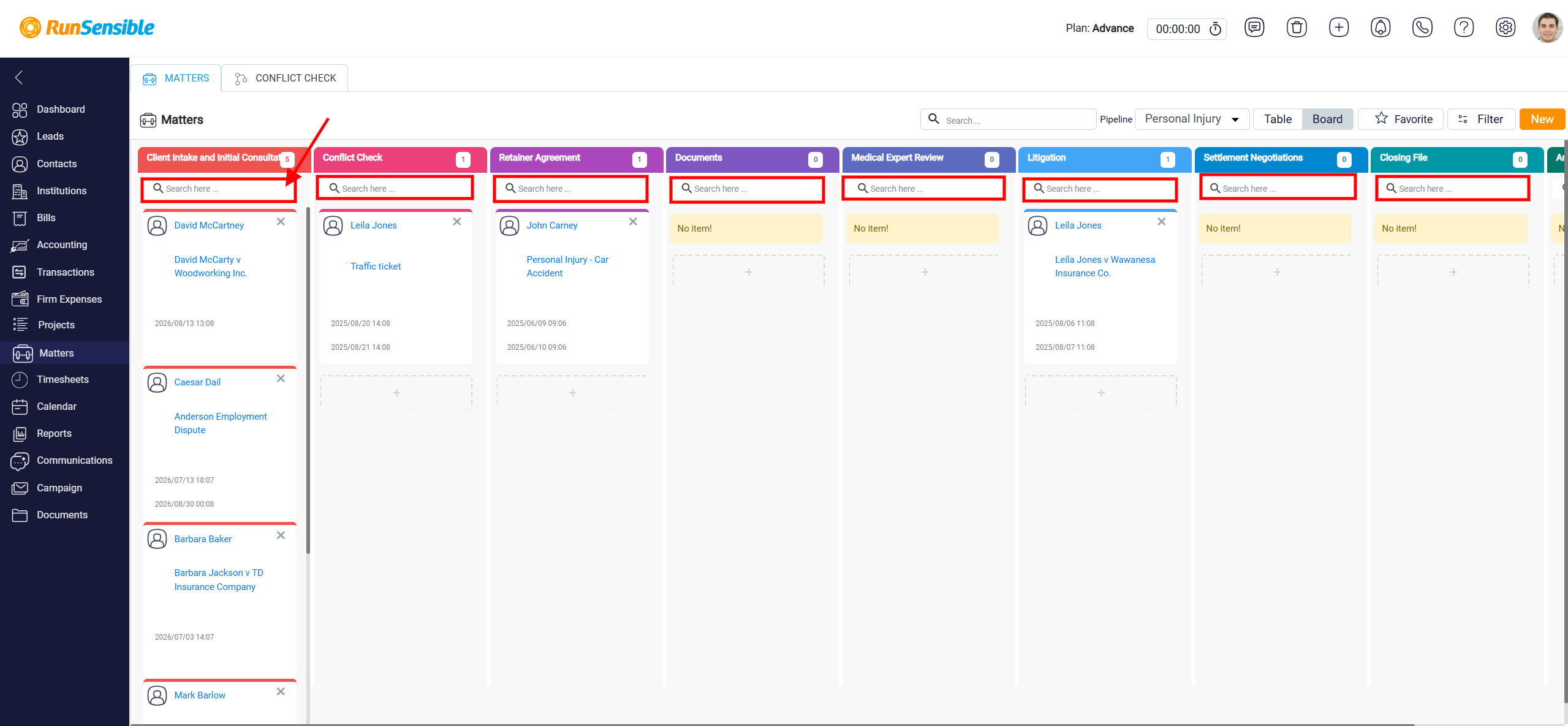
Each column also includes its own Search box at the top. You can use this search box to find a matter within that specific stage, which is helpful when a column contains many matter cards.
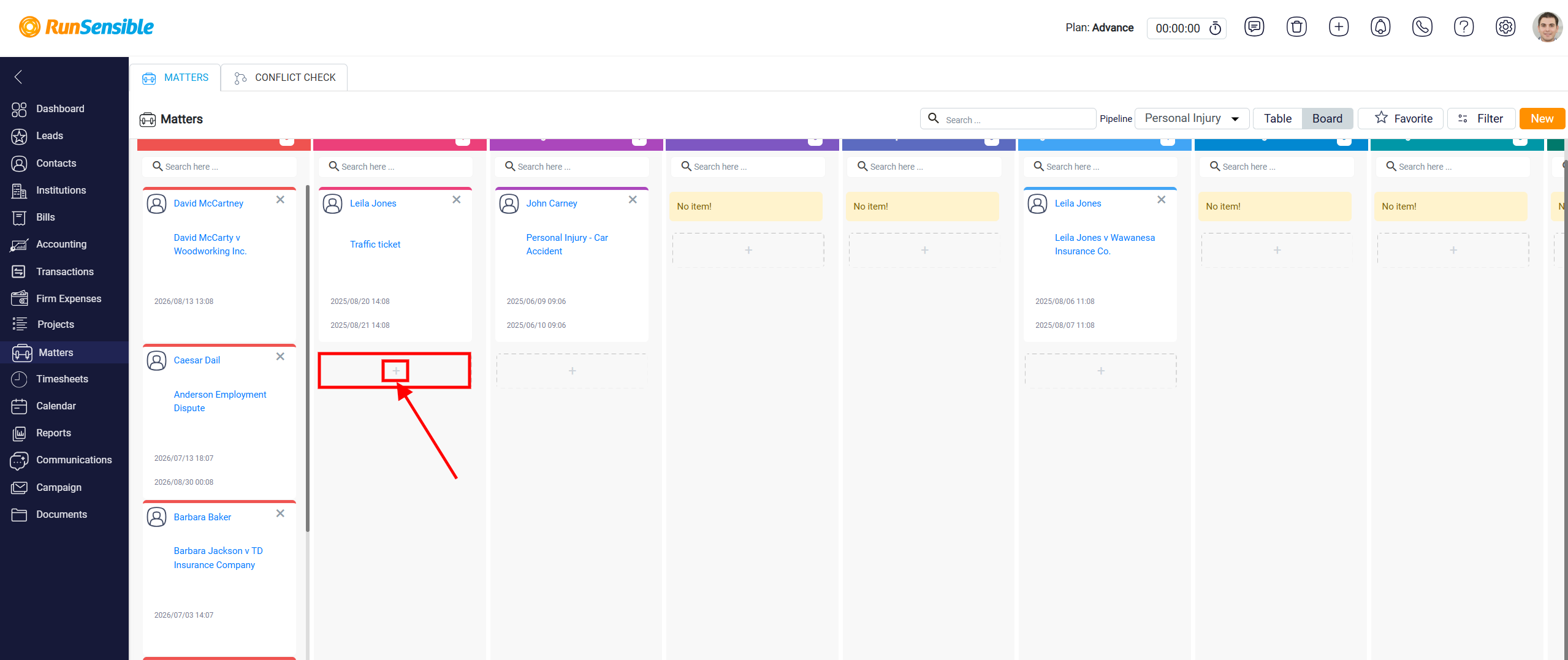
At the bottom of each column, you may see a dashed area with a Plus Icon. Clicking this plus icon opens the New Matter form. When you create a matter from this area, the system automatically uses the selected pipeline and the stage where you clicked the plus icon. This allows you to create a new matter directly in the correct stage of the Board View.