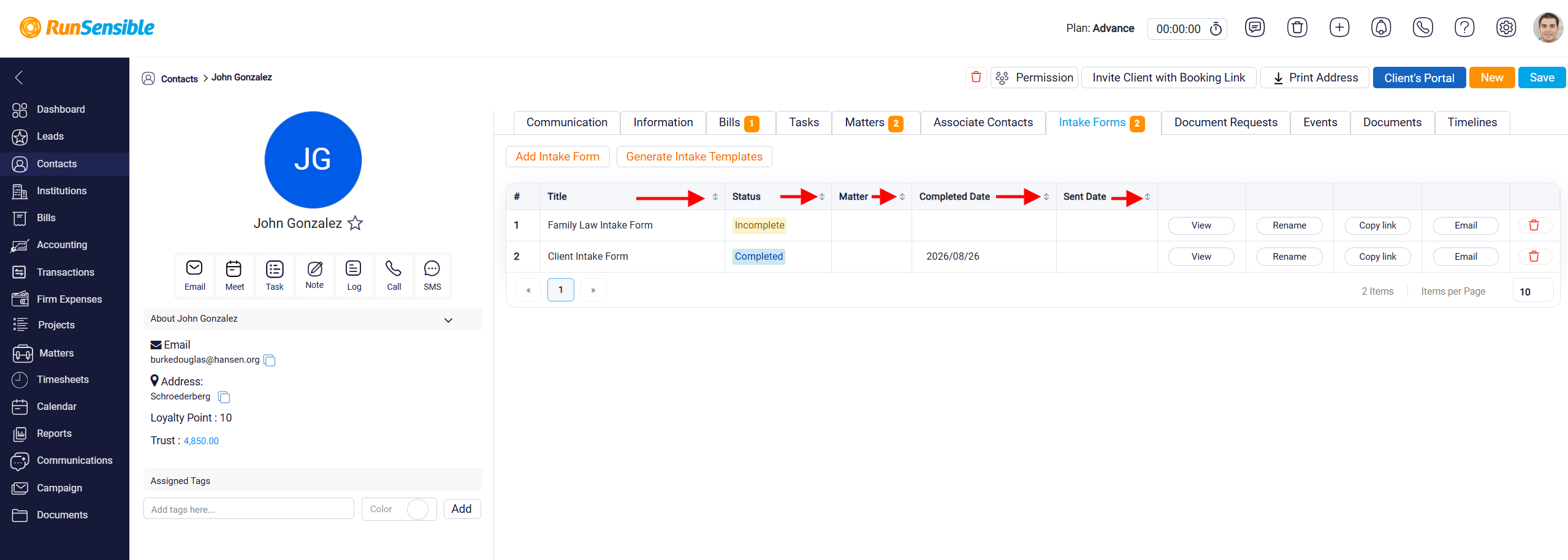
Intake Form Actions
When an intake form is added to a matter, several action buttons become available to help you manage the form. These buttons allow you to review the form, rename it, share it with the client, send it by email, or remove it when it is no longer needed.
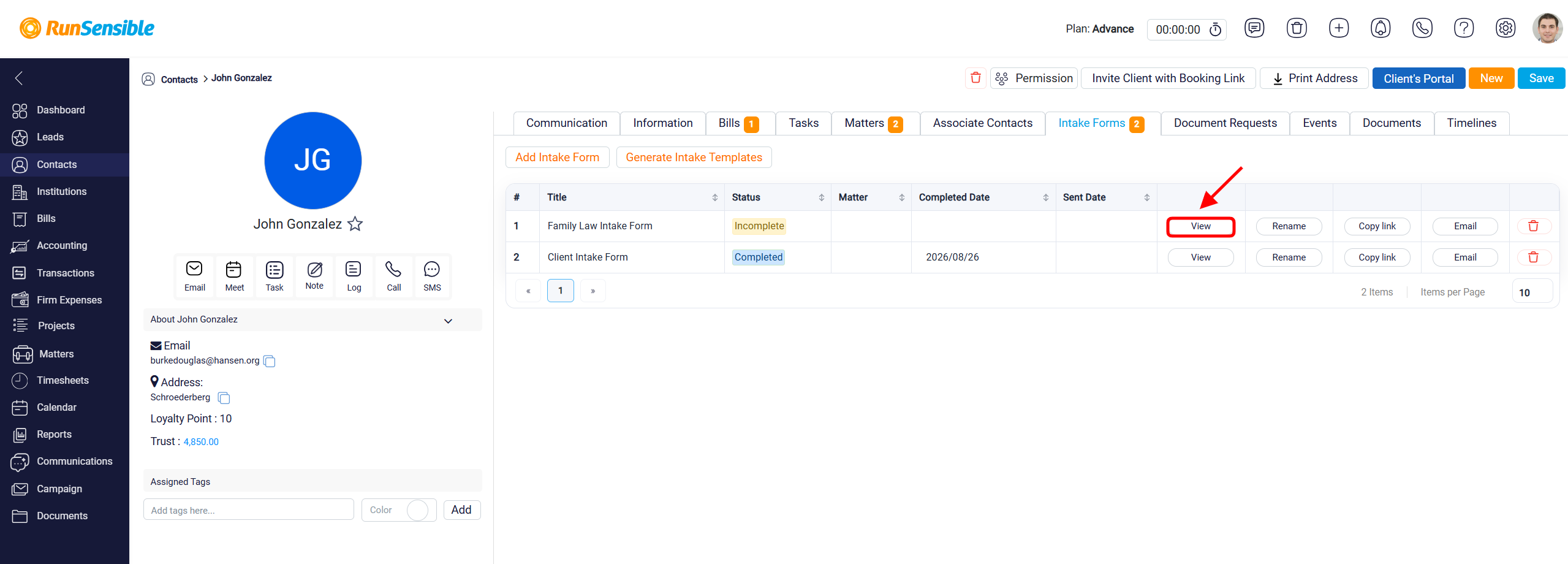
View Intake Form
The View button allows you to open and review the intake form in detail. If the client has already completed and submitted the form, the submitted answers will appear inside the form under the related sections and fields. This allows you to review the client’s responses directly from the matter’s Intake Form tab.
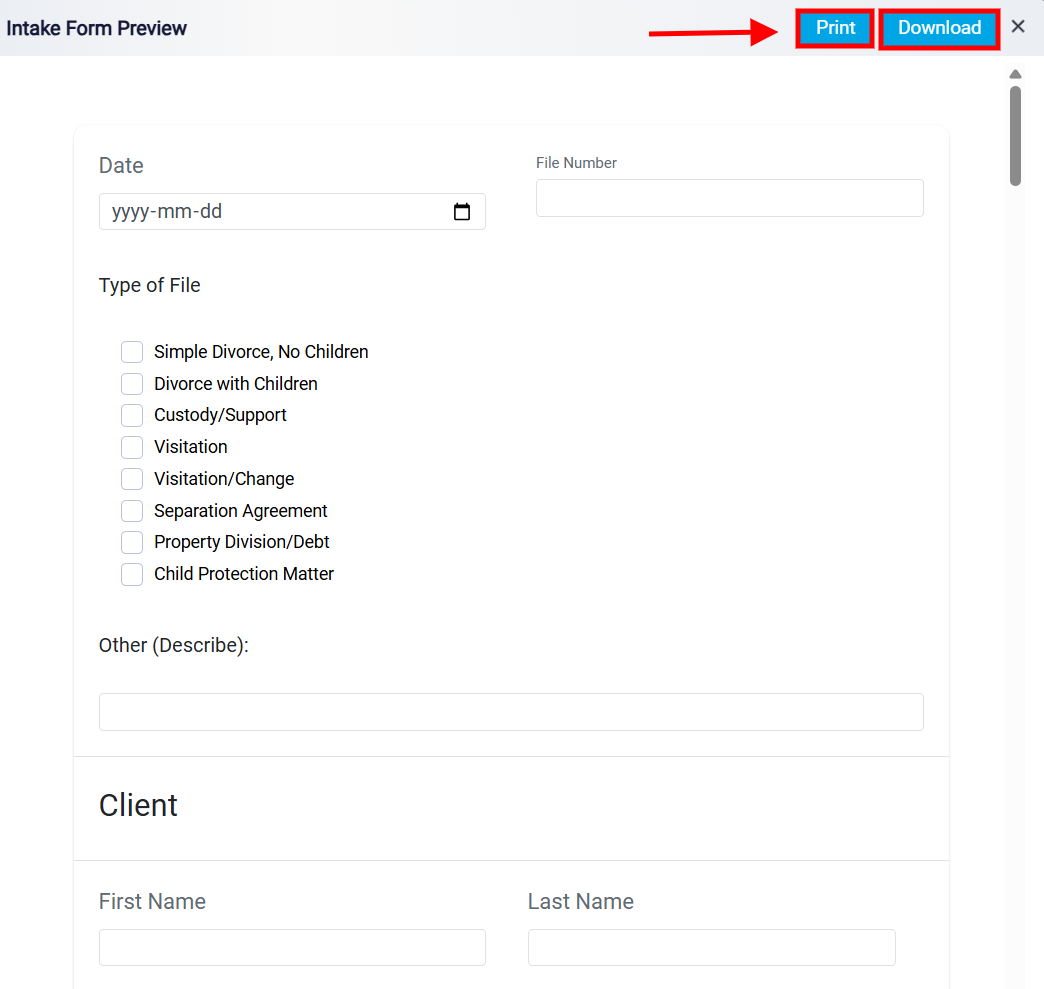
From the View area, you can also print the form or download it as a PDF. If the form has already been submitted, the printed or downloaded version will include the client’s completed responses. This gives you a complete copy of the intake form and the information provided by the client.
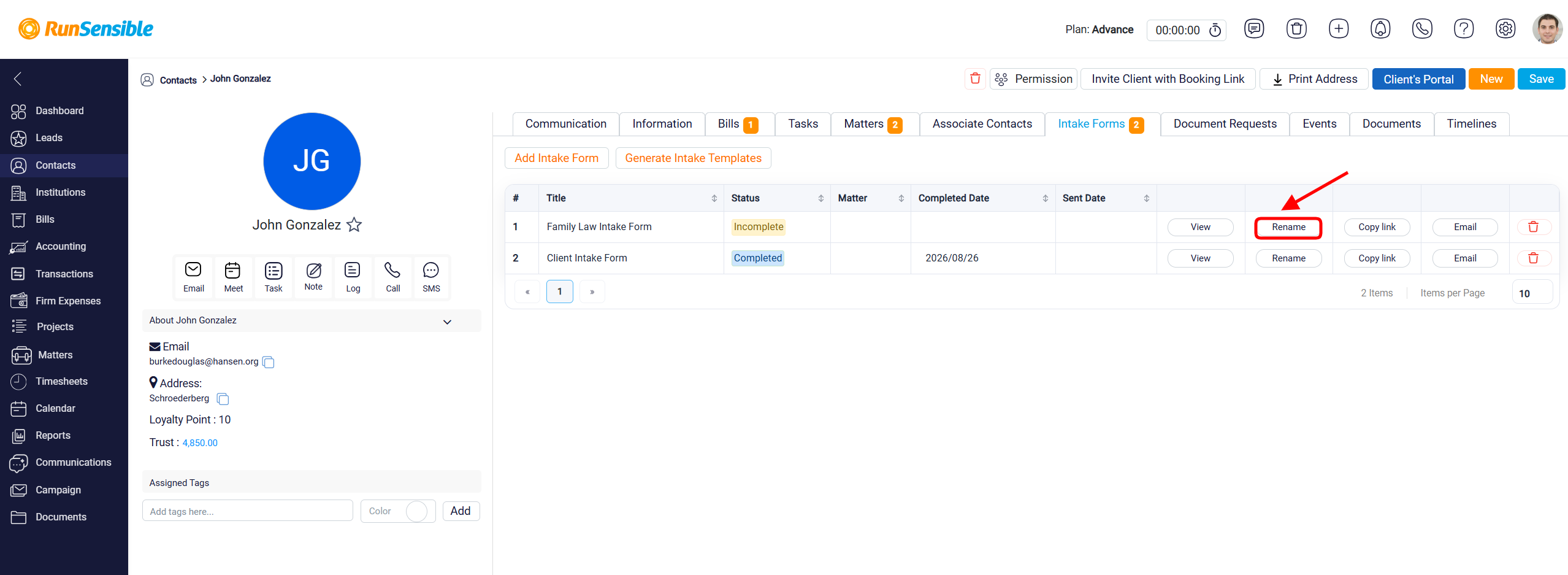
Rename Intake Form
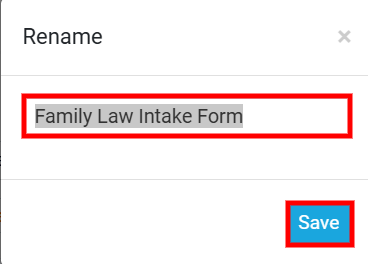
The Rename button allows you to change the name of the intake form inside the matter. This is useful when there are multiple intake forms connected to the same matter and you need to identify each one clearly. Renaming the form does not change the form’s submitted information. It only changes how the form is labeled within the matter, making it easier to organize and distinguish between different forms, versions, or purposes.
After making the necessary changes to the name, click the Save button to apply your changes.
Copy Intake Form Link
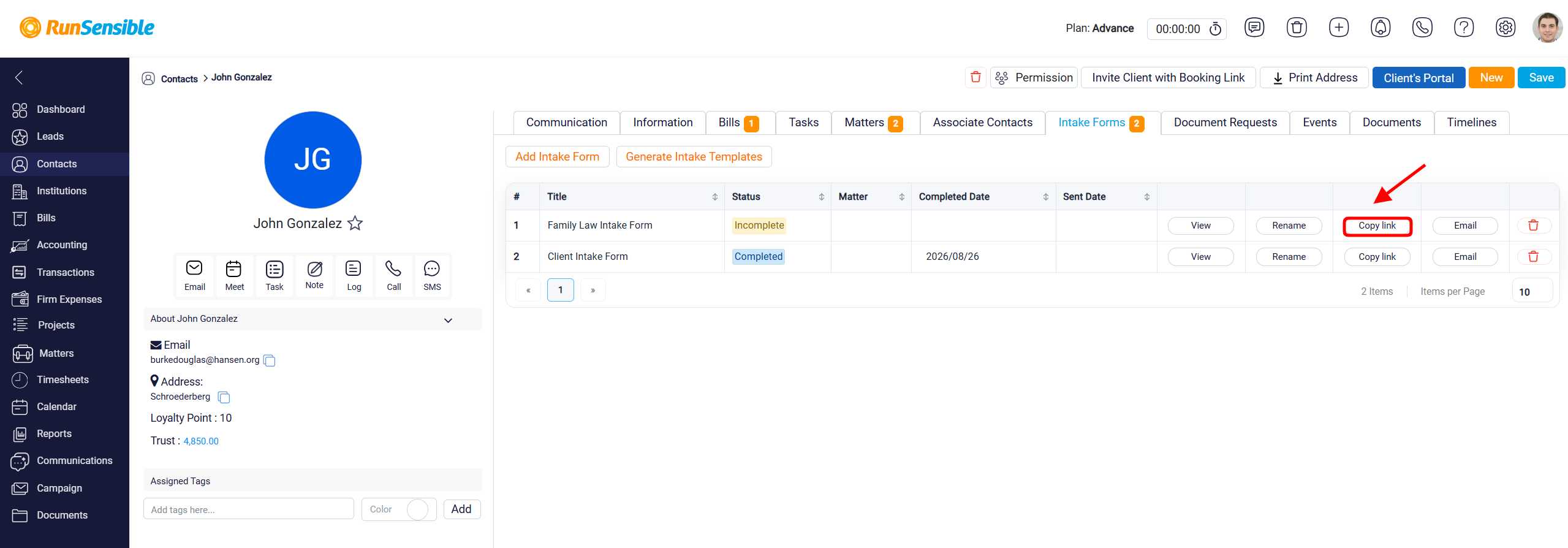
The Copy Link button creates a shareable link for the intake form. This link is specific to the matter, which means any information submitted through the link will be connected back to that matter. You can copy the link and send it to the client through email, text message, or another communication method. After the client completes and submits the form, you can return to the Intake Form tab and use the View button to review the submitted information.
Email Intake Form
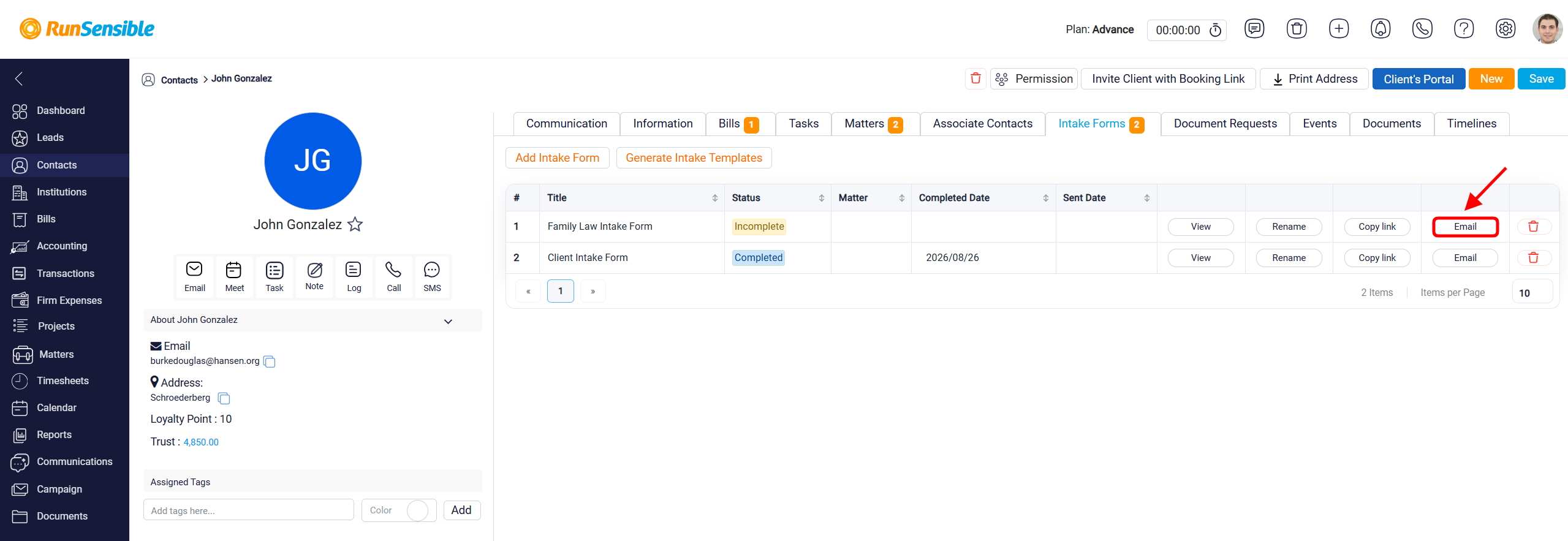
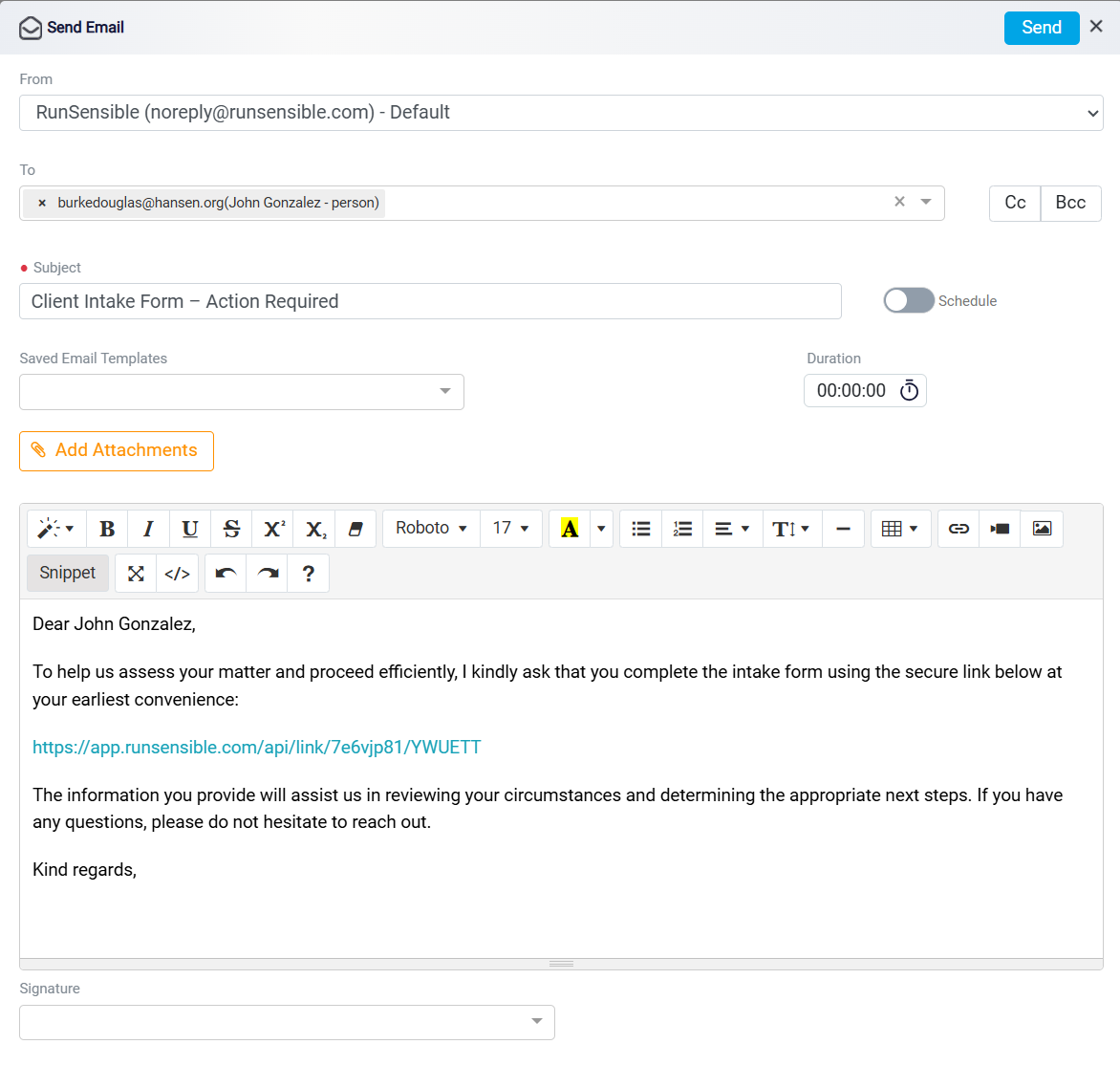
The Email button allows you to send the intake form directly to the client by email. This option is useful when you want to send the form from inside the system without copying the link manually or attaching anything yourself. When the form is sent by email, the client receives access to the intake form and can complete it through the provided link. After submission, the completed information will be stored with the intake form in the related matter.
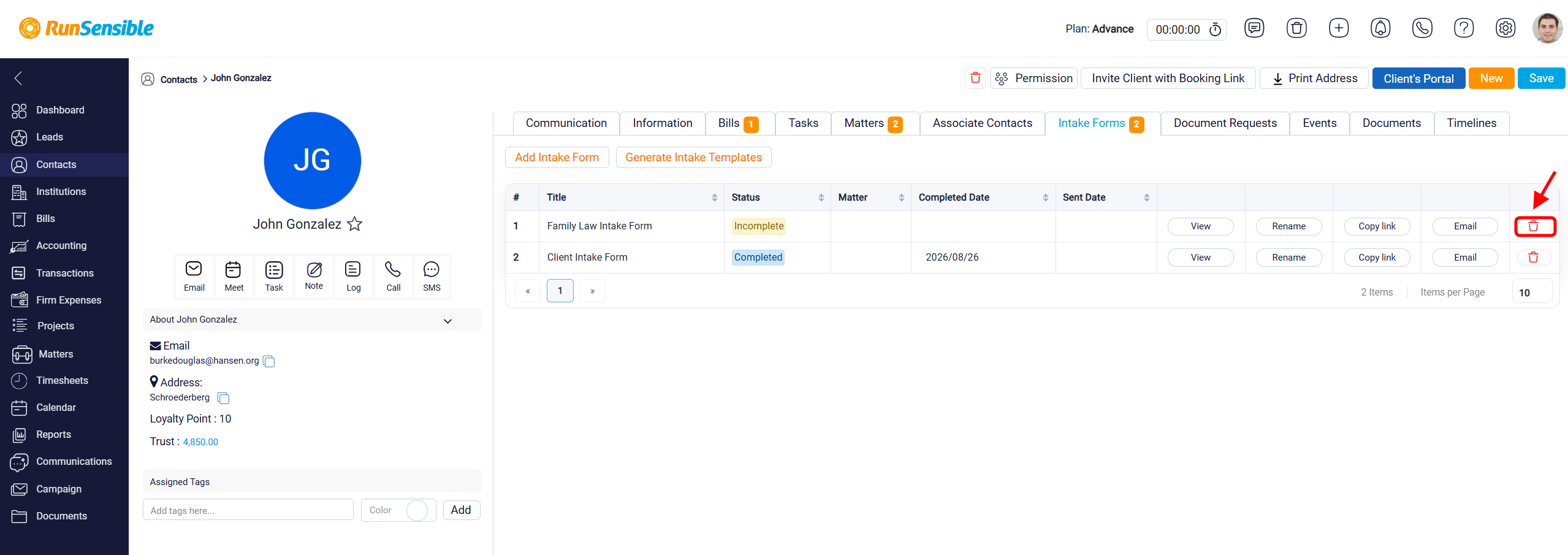
Delete Intake Form
The Trash button is used to delete the intake form from the matter when it is no longer needed. This helps keep the Intake Form tab clean and organized by removing forms that are no longer relevant.
Intake Form Status
The Status column shows whether the intake form has been completed. This allows you to quickly check if the client has submitted the form or if it is still waiting for a response. The Sent Date column shows when the intake form was sent to the client. The Completed Date column shows when the client completed and submitted the form. These columns help you track the progress of each intake form and understand where it stands in the intake process.
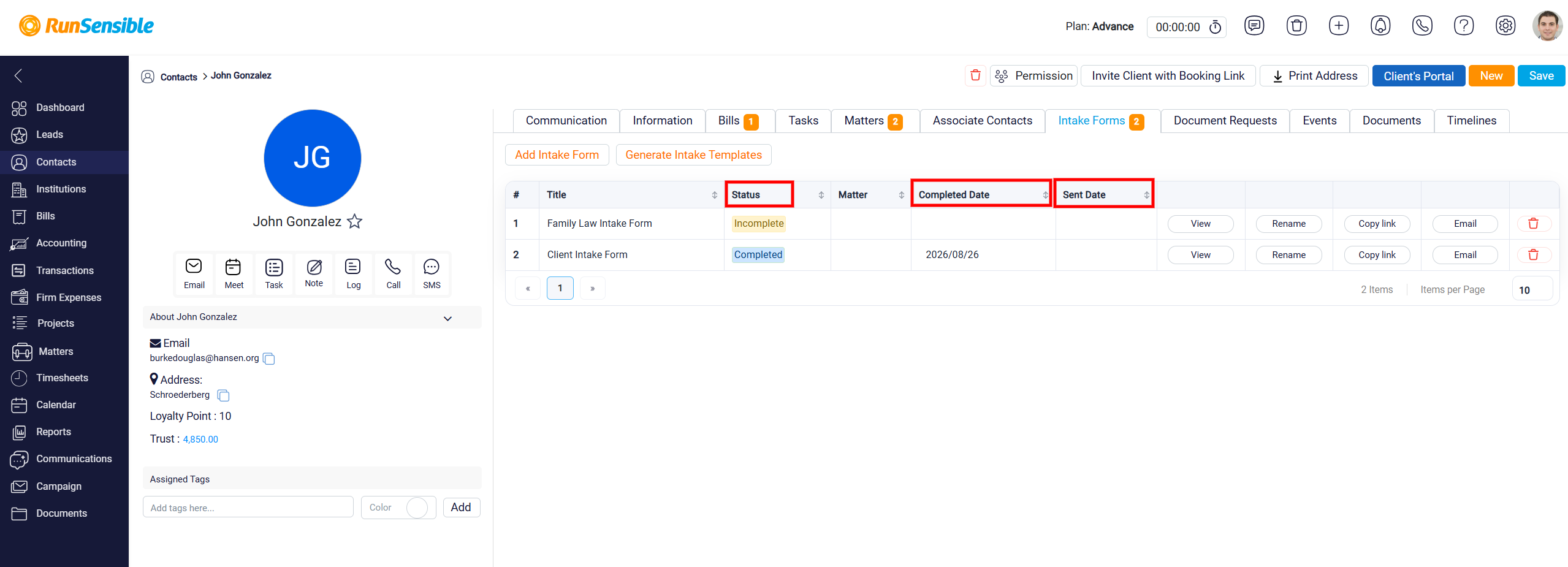
The arrows allow you to sort the Intake Forms list. Click an arrow to arrange the records in ascending or descending order based on that column, such as Title, Status, Matter, Completed Date, or Sent Date.