
Selecting a Matter Type
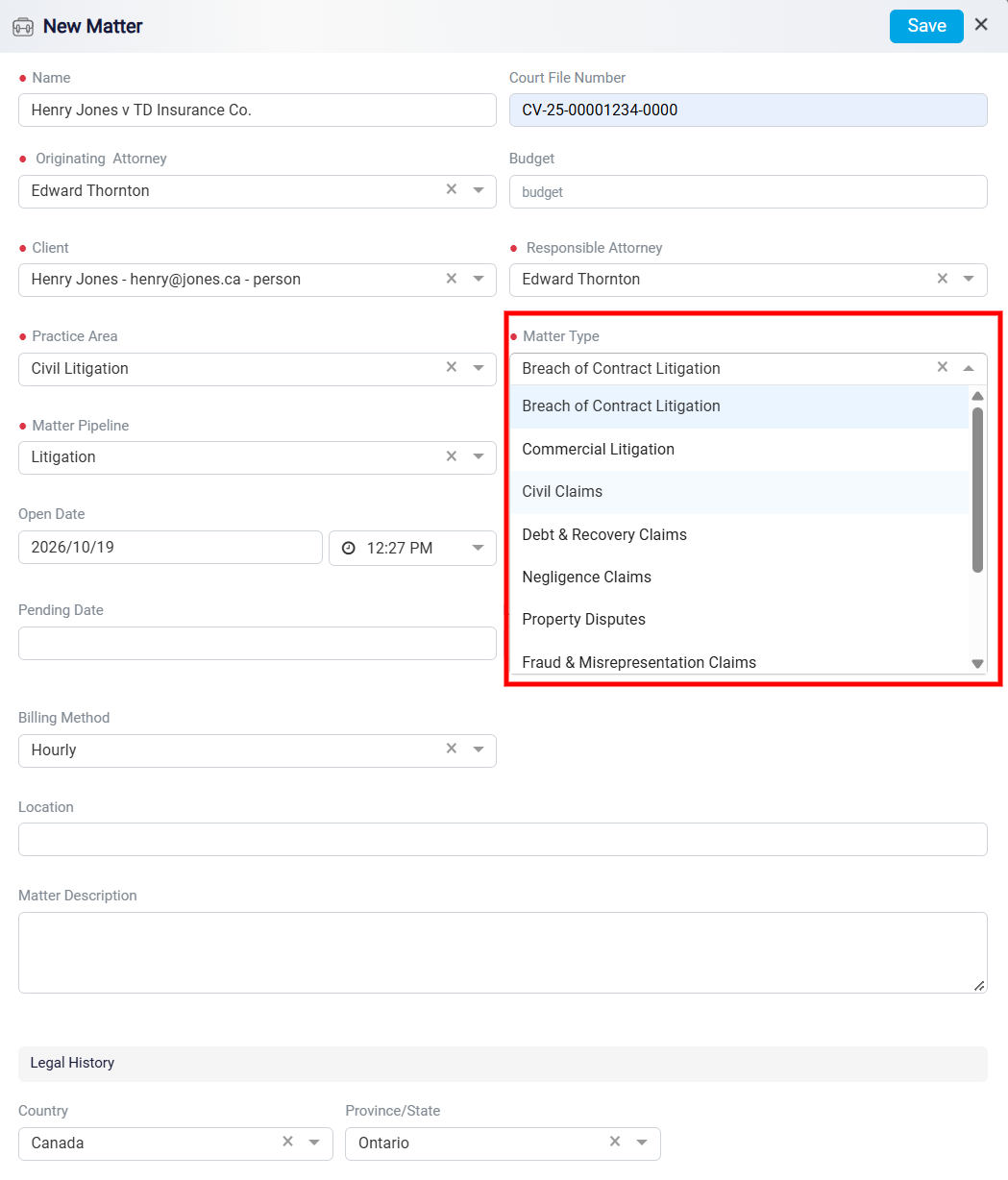
When creating a New Matter, select the appropriate Matter Type to further categorize the matter based on the type of legal work involved. The available Matter Types are based on the Practice Area selected for the matter.
Click the Matter Type dropdown to view the available options. Select the Matter Type that best describes the matter. Choosing the appropriate Matter Type helps organize and categorize matters more specifically, making it easier to manage, search, and report on different types of legal work.
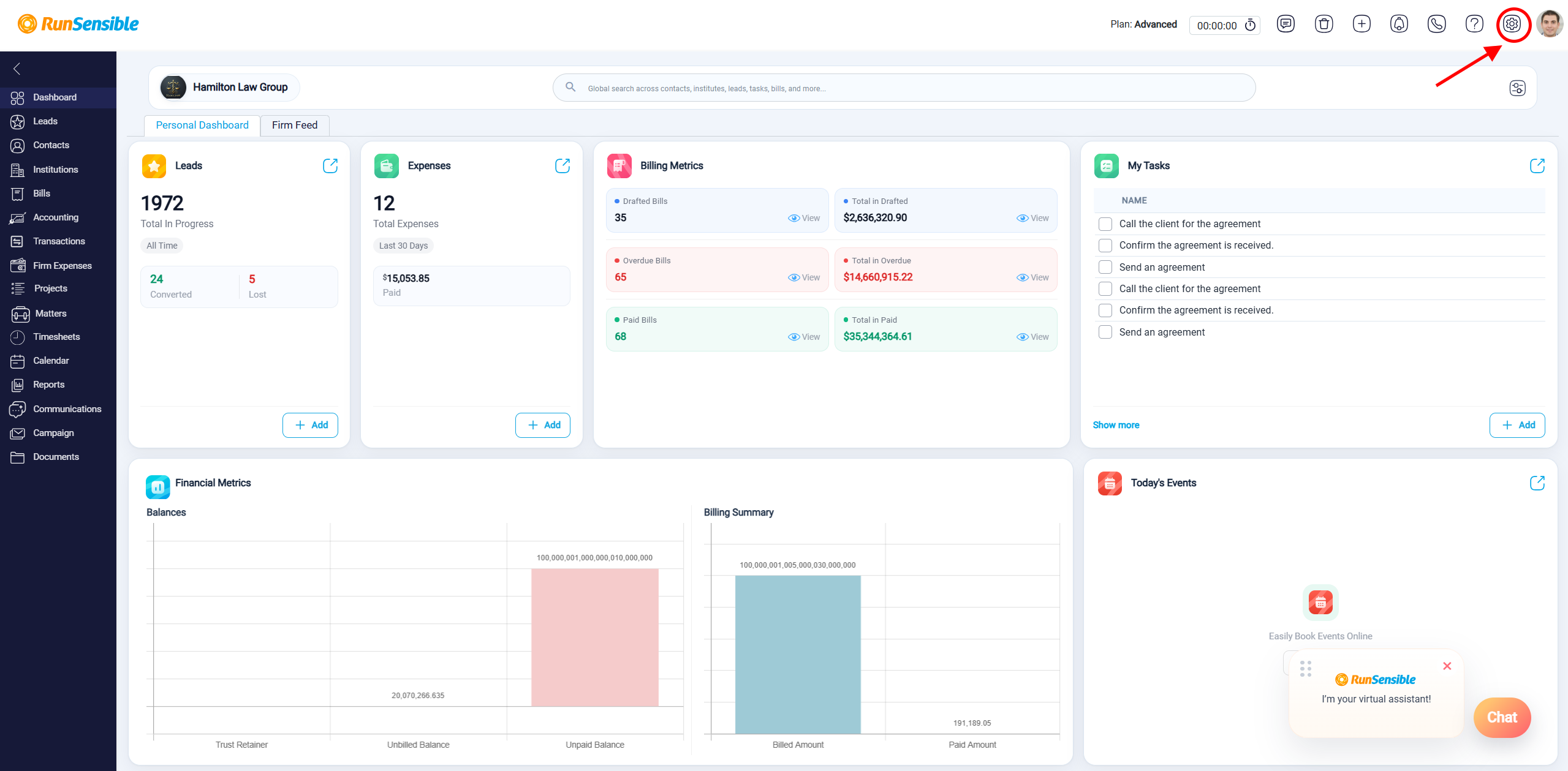
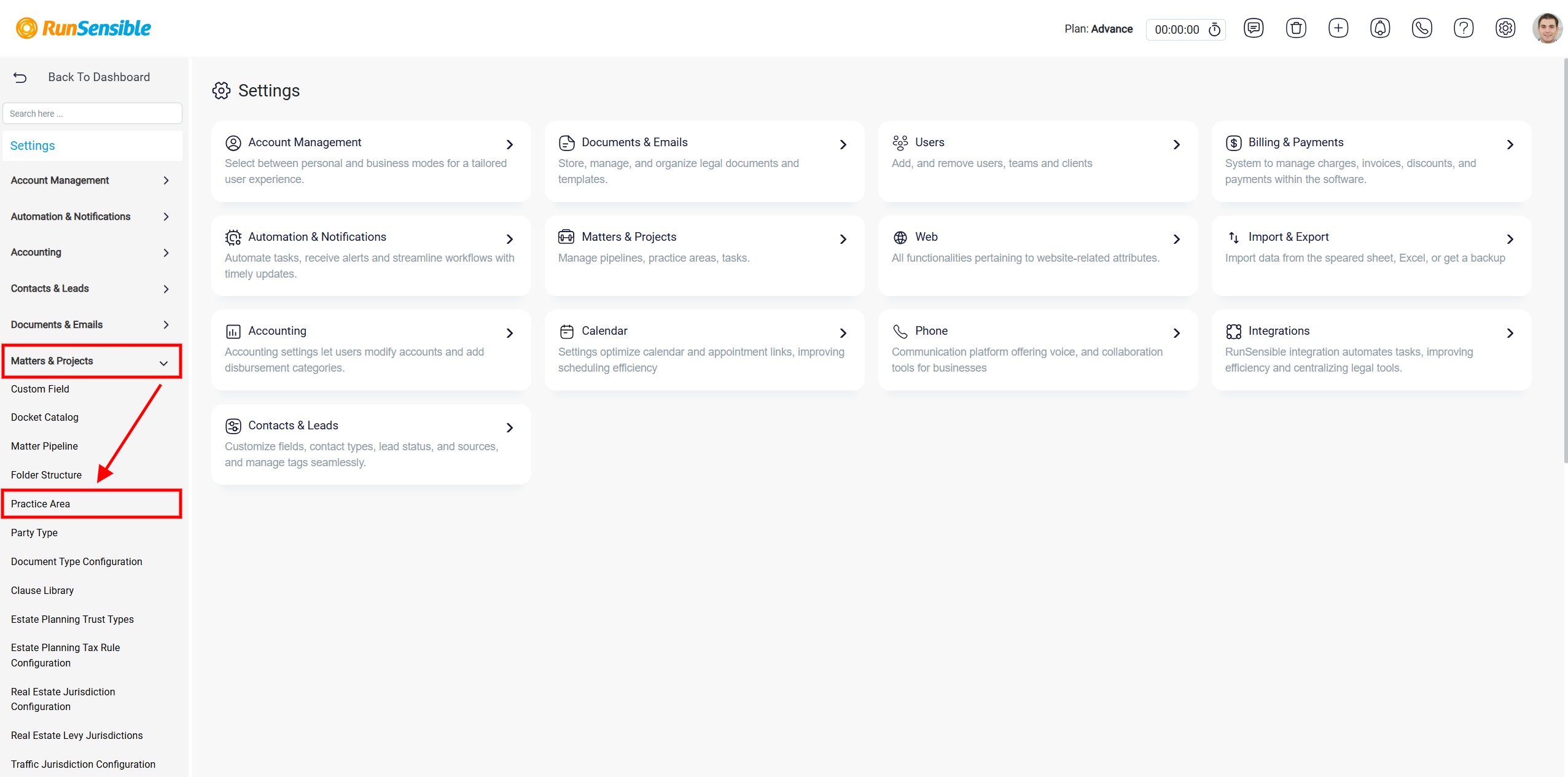
To manage matter types, navigate to Settings and expand the Matters & Projects section from the left-hand sidebar. Select Practice Area to open the Practice Areas page.
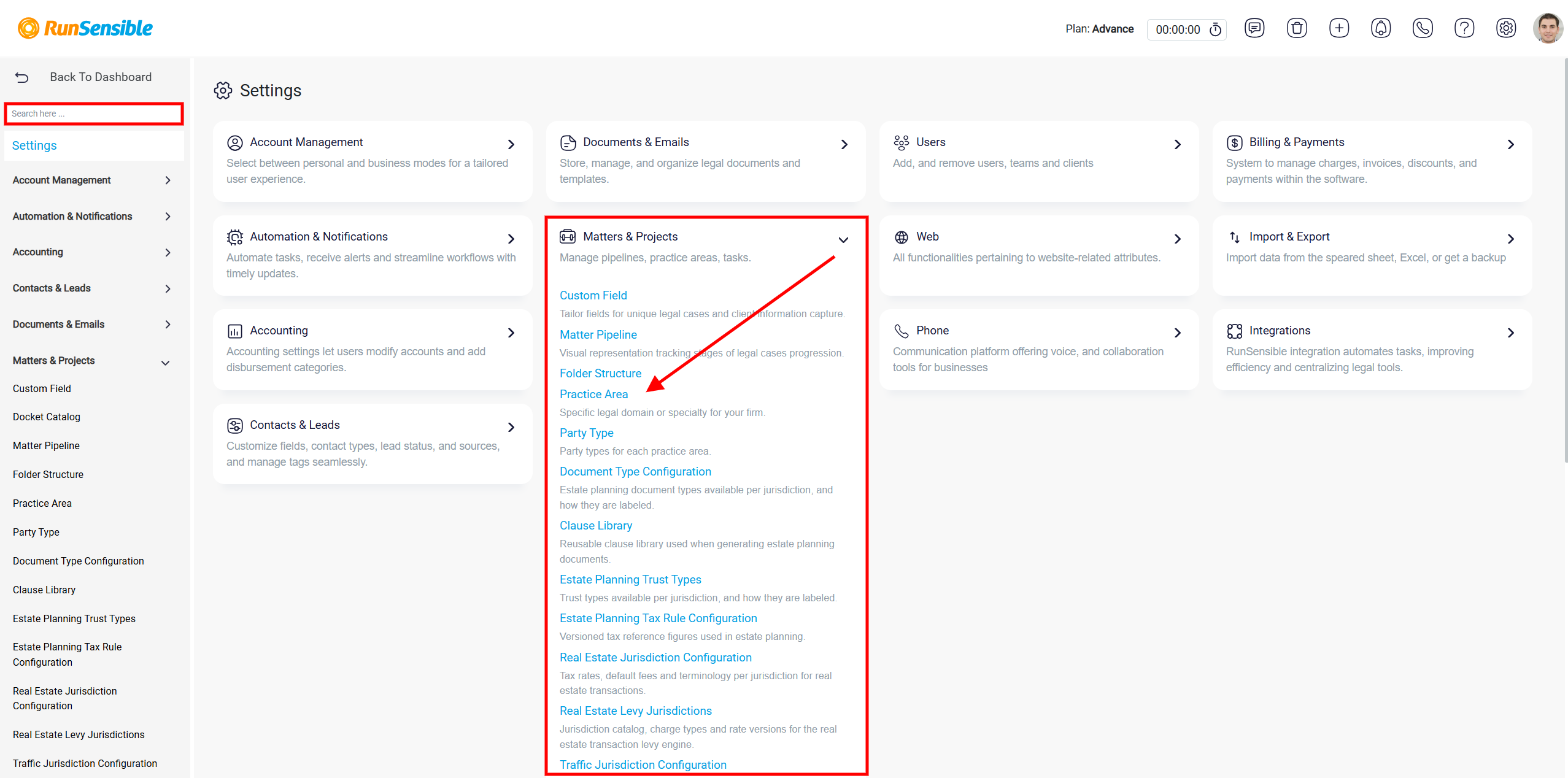
Alternatively, you can access this page directly from the main Settings page by expanding Matters & Projects and selecting Practice Area from the available options. You can also use the Search box to quickly find and access the Practice Area settings.
On the Practice Areas page, select the practice area you want to manage from the list on the left. The corresponding matter types will appear on the right, along with their assigned pipelines and availability settings.
To create a custom matter type, select the desired practice area and click the Add matter type button at the bottom of the matter types list.
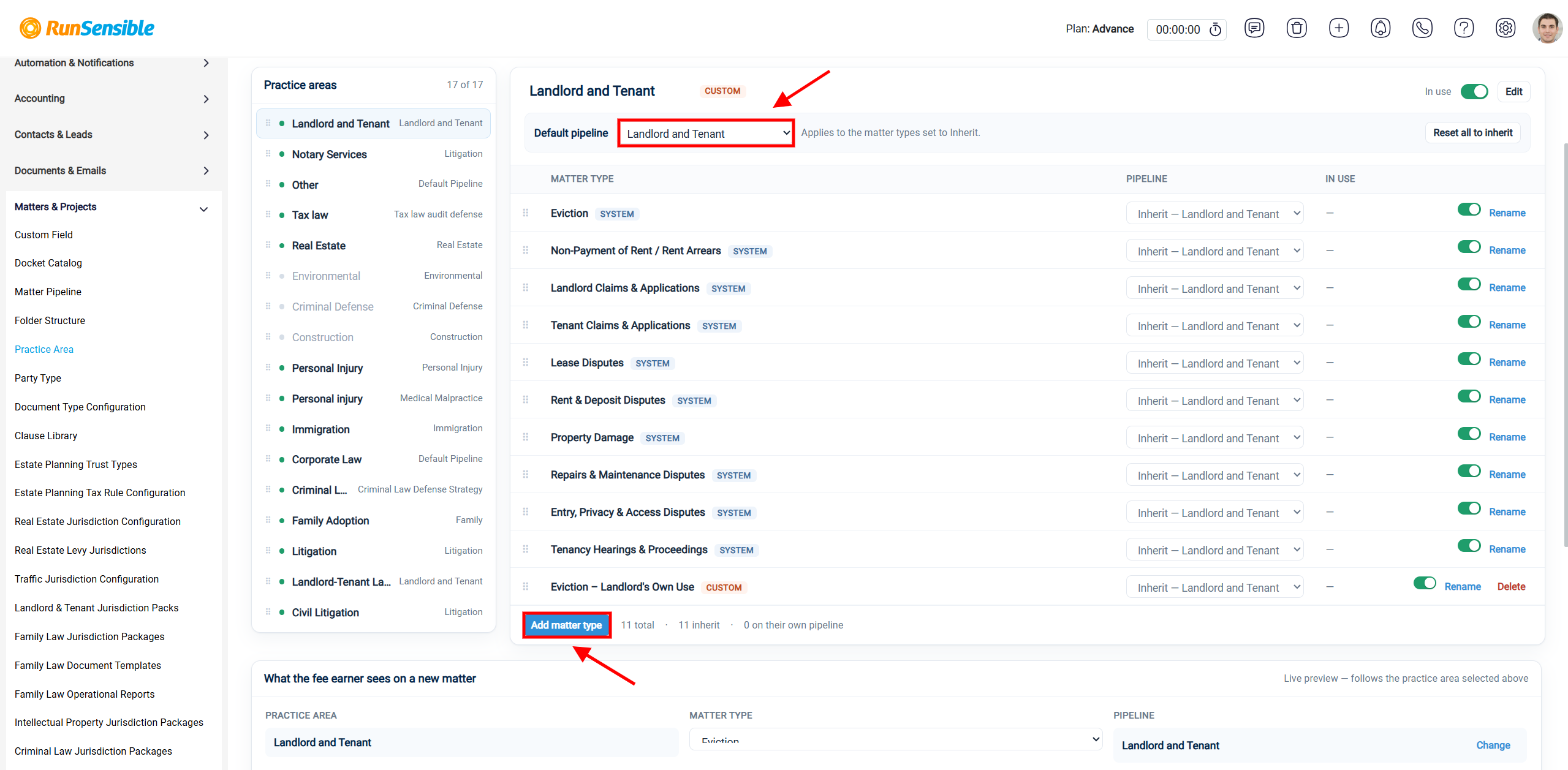
A pop-up window titled Name of the new matter type will appear. Enter a descriptive name for your new matter type, such as Eviction – Landlord’s Own Use, and click OK to save it. Alternatively, click Cancel to close the window without creating a new matter type.
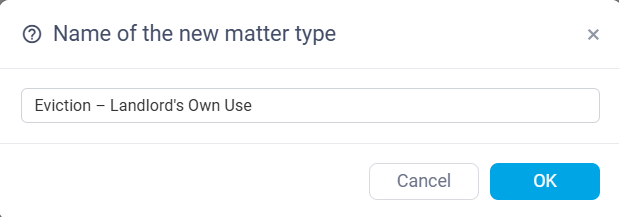
Once saved, the new matter type will appear in the selected practice area’s list with a CUSTOM label, distinguishing it from the predefined system matter types.
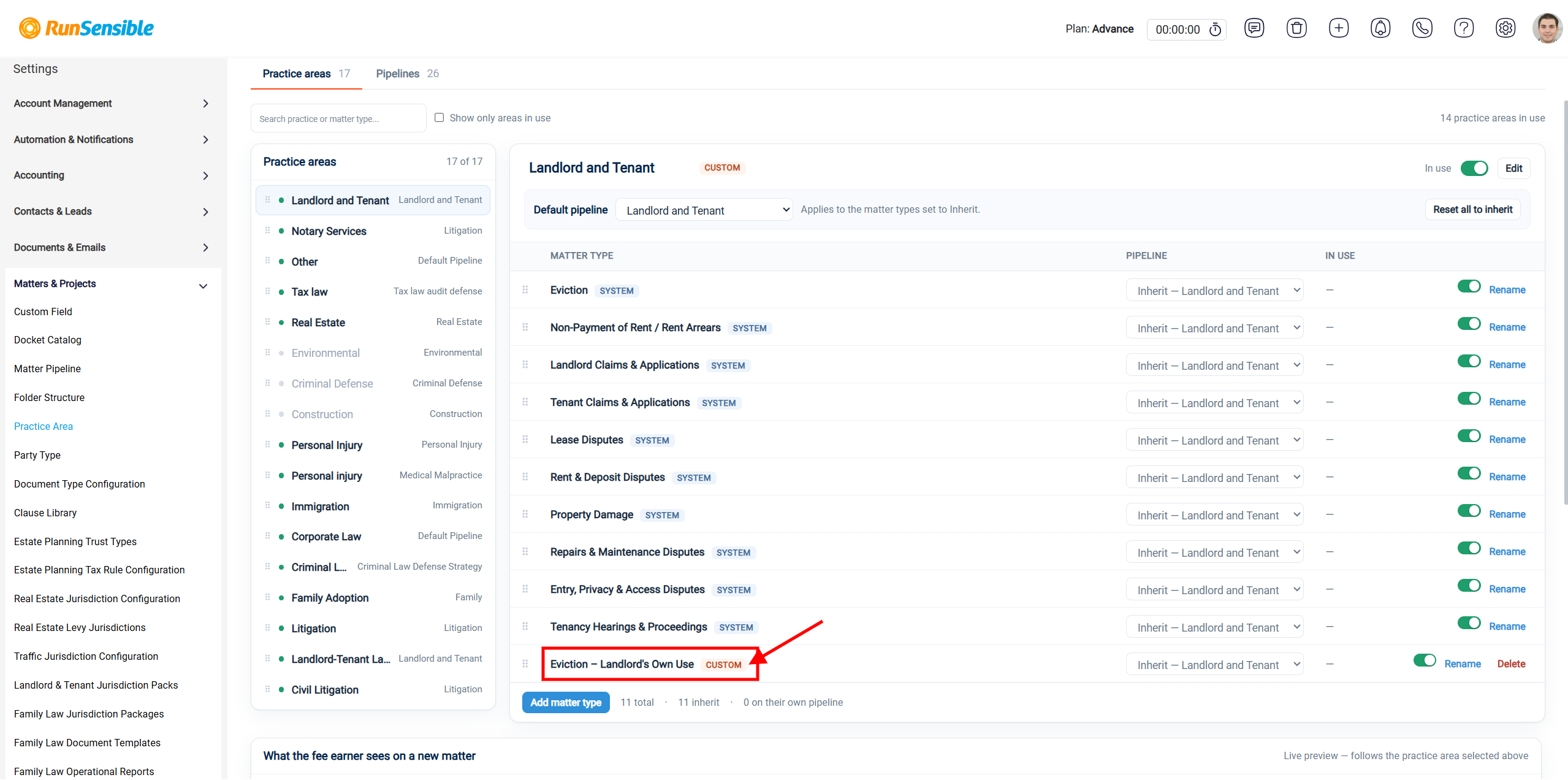
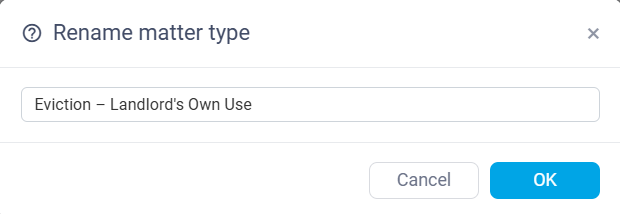
Each matter type has several management options. To change the name of an existing matter type, click Rename beside the corresponding entry. Enter the updated name in the pop-up window and click OK to save your changes.
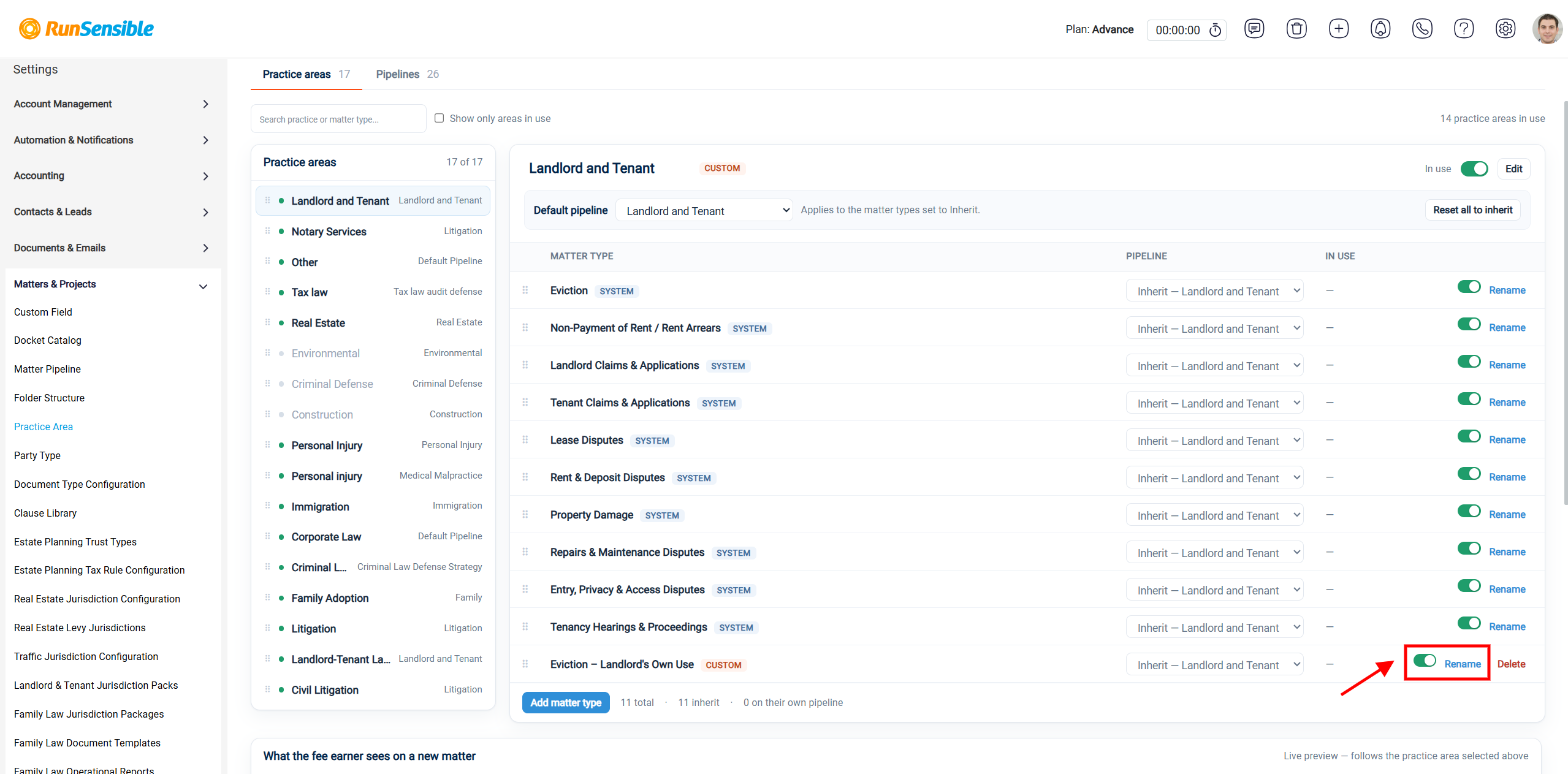
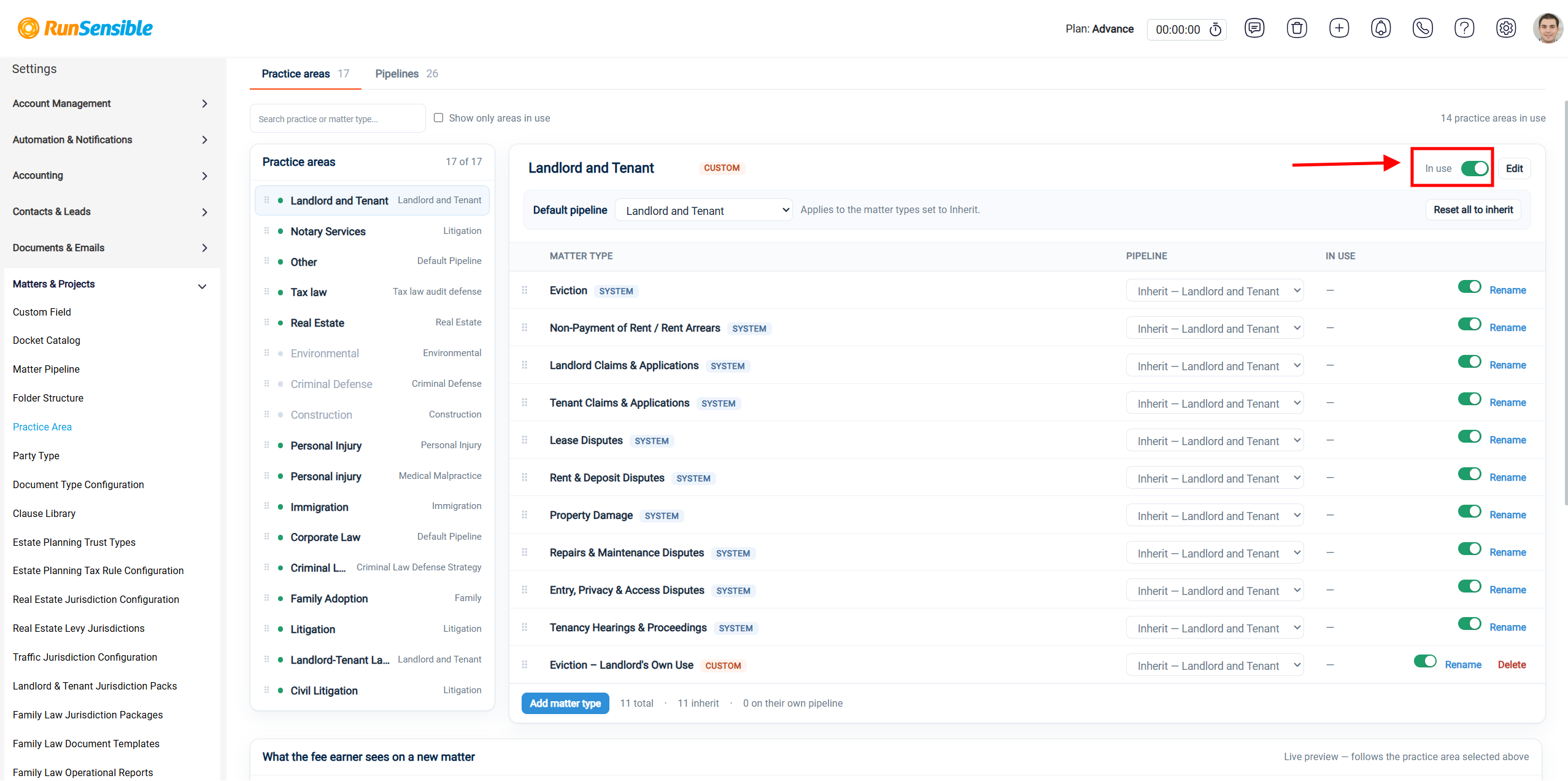
You can also control whether a matter type is available for use by adjusting its In Use toggle. When the toggle is green, the matter type is enabled and available for your firm’s matters. Turning it off disables the matter type from active use.
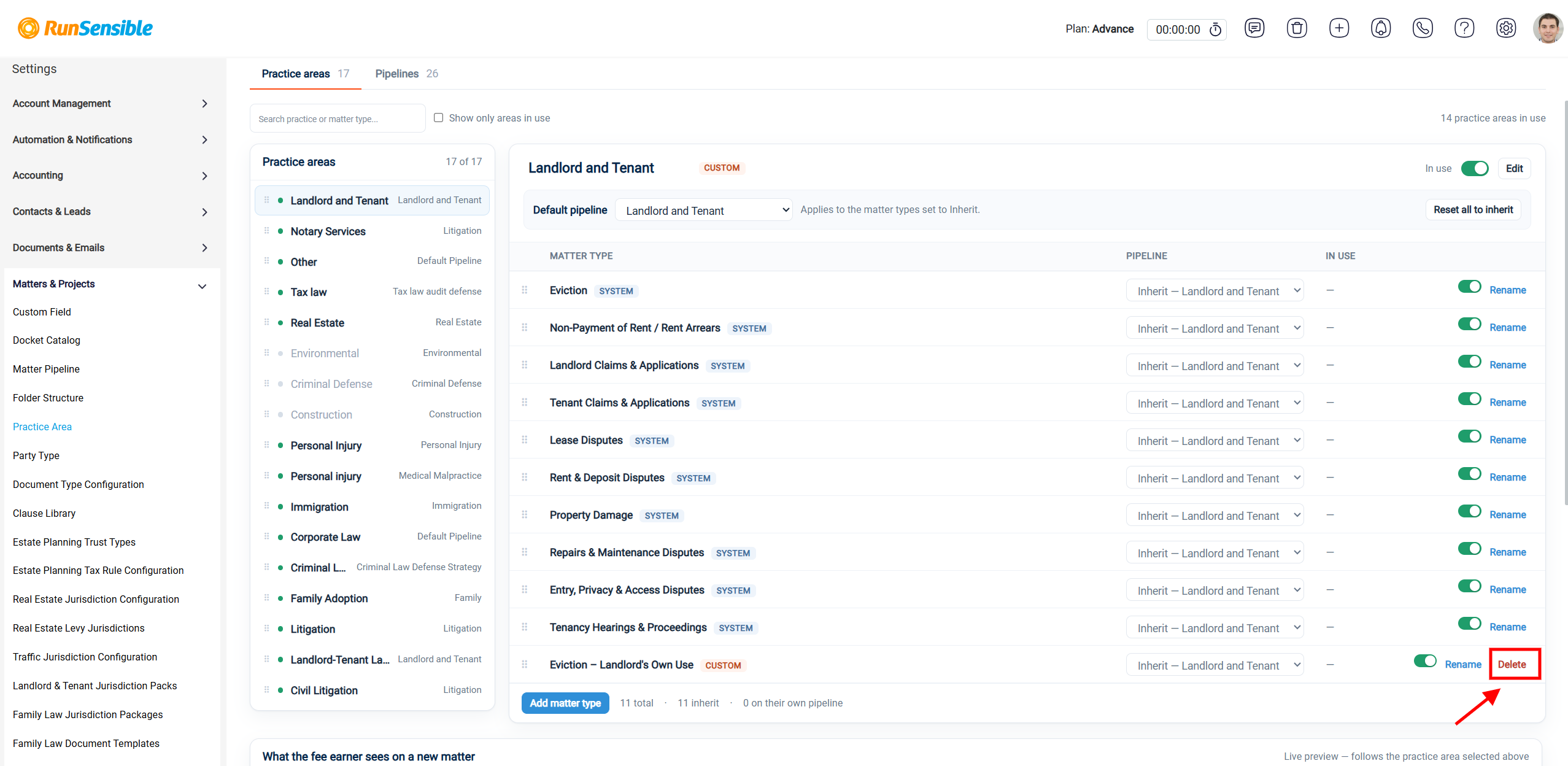
Custom matter types also include a Delete option, allowing you to remove a custom entry when it is no longer needed. This option is not displayed for predefined system matter types.
Each matter type can be associated with a specific pipeline to help your firm manage the stages of its legal matters.
By regularly reviewing and updating your matter types, you can ensure that your firm’s matters are categorized accurately and follow the appropriate workflows in RunSensible.